devops

Step-By-Step Setting Up Networking for Virtualization on OpenShift 4.19 for a Homelab

As we continue our Openshift journey to get virtualization working, we have a vanilla node already setup and now we need to get the networking configured. The examples here are from Openshift 4.19.17.

Networking in OpenShift is conceptually two parts that connect. The first part is the host level networking; this is your CoreOS OpenShift host itself. Then there is how do the pods connect into that networking. Usually, the network connects through your network interface card (NIC), to the Container Networking Interface (CNI), then to your pod. Here we will be using a meta plugin that connects between the NIC and the CNI called Multus. Redhat has a good post about it.

Host Level Networking

This part of the networking stack is straight forward if you are used to Linux system networking, and it is setup the same way. Treat the CoreOS node like any other Linux system. The big decision to make in the beginning is how many interfaces you will have.
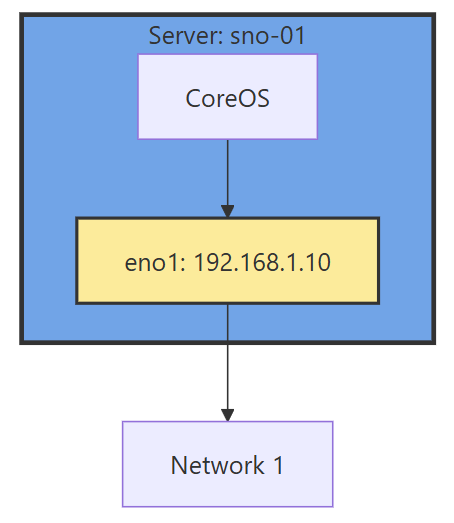
Networking diagram without sub interface

If you have 1 interface and plan on using virtualization, are you going to use VLANs? If so, then you may want to move the IP of the interface off of the primary interface and onto a VLAN sub interface. This moves the traffic from untagged to tagged traffic for your network infrastructure.

Another reason is there are bugs in the Mellanox firmware, mlx5e, where Mellanox 4 and 5 cards can think you are double VLAN encapsulating, and will start automatically stripping VLAN tags. The solution is to move all traffic to sub interfaces. You will get an error in your dmesg/journalctl of: mlx5e_fs_set_rx_mode_work:843:(pid 146): S-tagged traffic will be dropped while C-tag vlan stripping is enabled

With the interface moved, that frees us up to use it for other VLANs as well. If you deployed network settings via a MachineConfig, you would have to override them there.
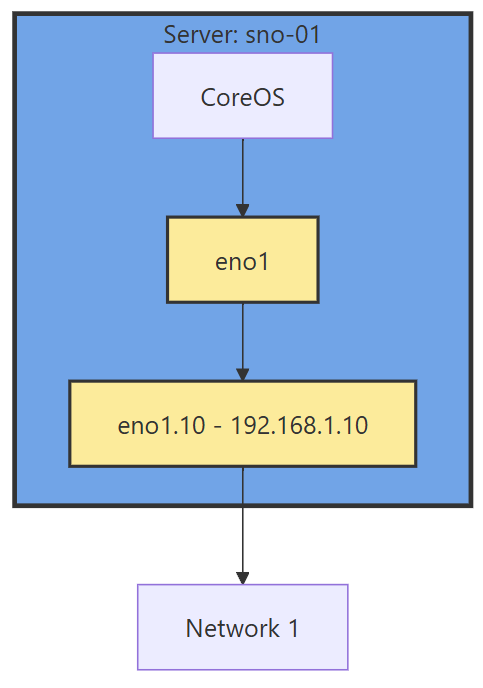
Networking diagram with sub interface

The rest of the configuration will be done via the NMState Operator and native Openshift.

NMState VLAN and Linux Bridge Setup

NMState is a Network Manager policy system. It allows you to set policies like you would in Windows Group Policy, or Puppet to tell each host how the network should be configured. You can filter down to specific hosts (I do that for testing, to only apply to 1 host) or deploy rules for your whole fleet assuming nodes are all configured the same way. It’s possible to use tags on your hosts to specify which rules go to which hosts.

NMState can also be used to configure port bonding and other network configurations you may need. After configuration, you get a screen that tells you the state of that policy on all the servers it applies to. Each policy sets one or more Network Manager configurations, if you have multiple NICs and want to configure all of them, you can do them in one policy, but it may be worth breaking the policies apart and having more granularity.

Another way to go about this section, is to SSH into each node, and use a tool such as nmtui to manually set the networking. I like NMState because I get a screen that shows all my networking is set correctly on each node, and updates to make sure it stays that way. I put an example below of setting up port bonding.

  • Go to the OpenShift web console, if you need to setup OpenShift I suggest checking out either my SNO guide or HA Guide.
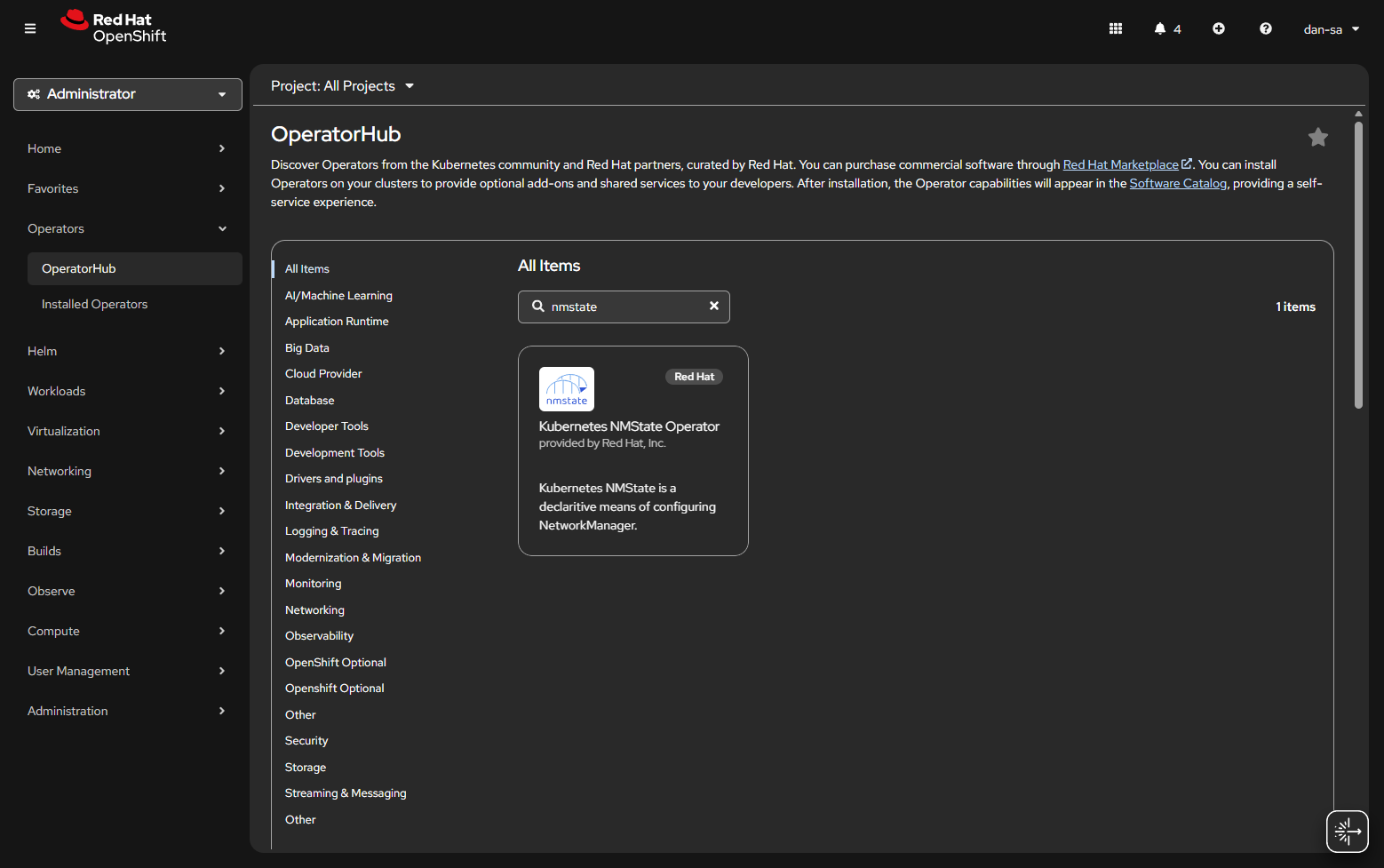
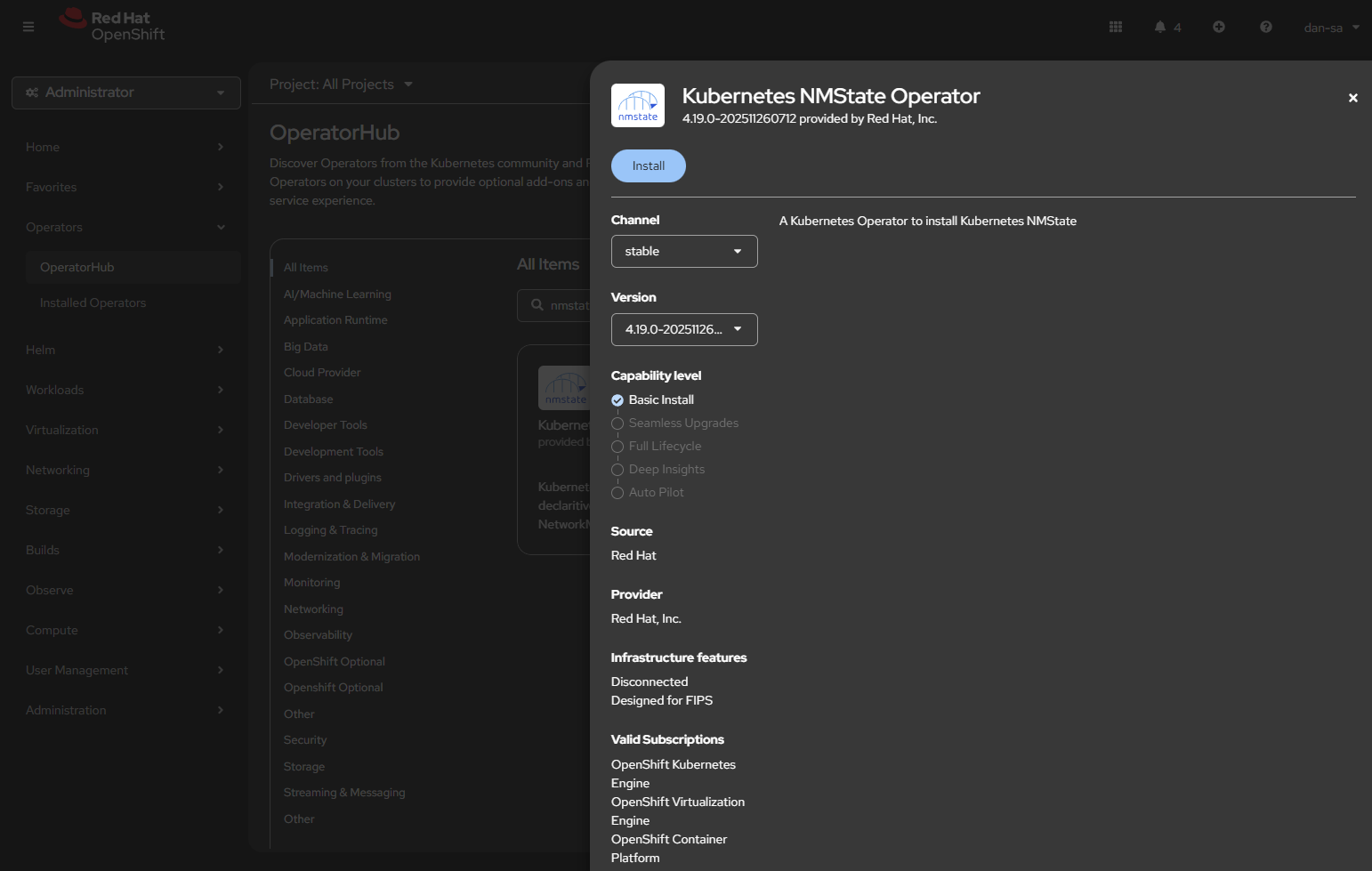
  • Click Operators -> OperatorHub.
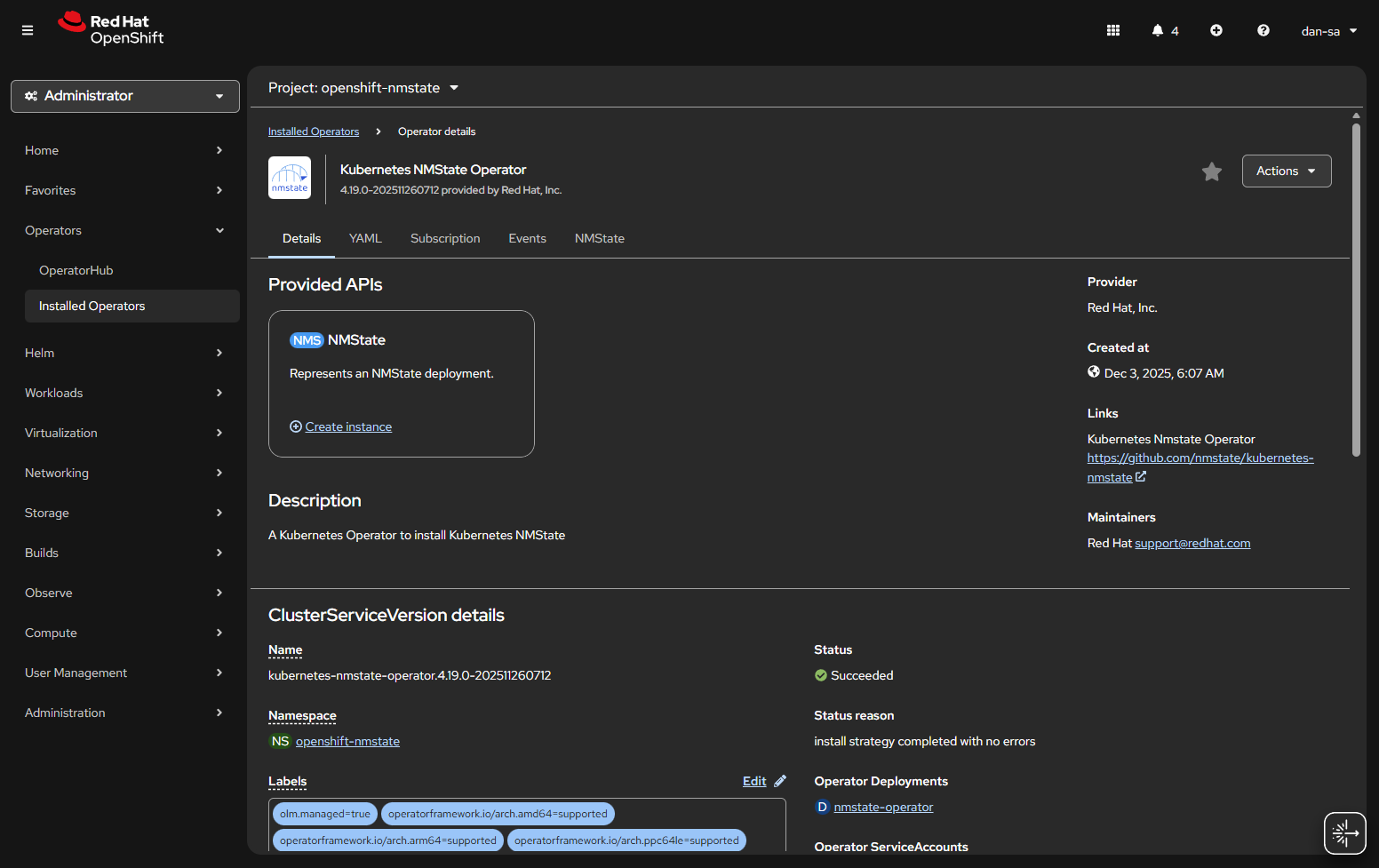
  • Once installed, you will need to create an “instance” of NMState for it to activate.
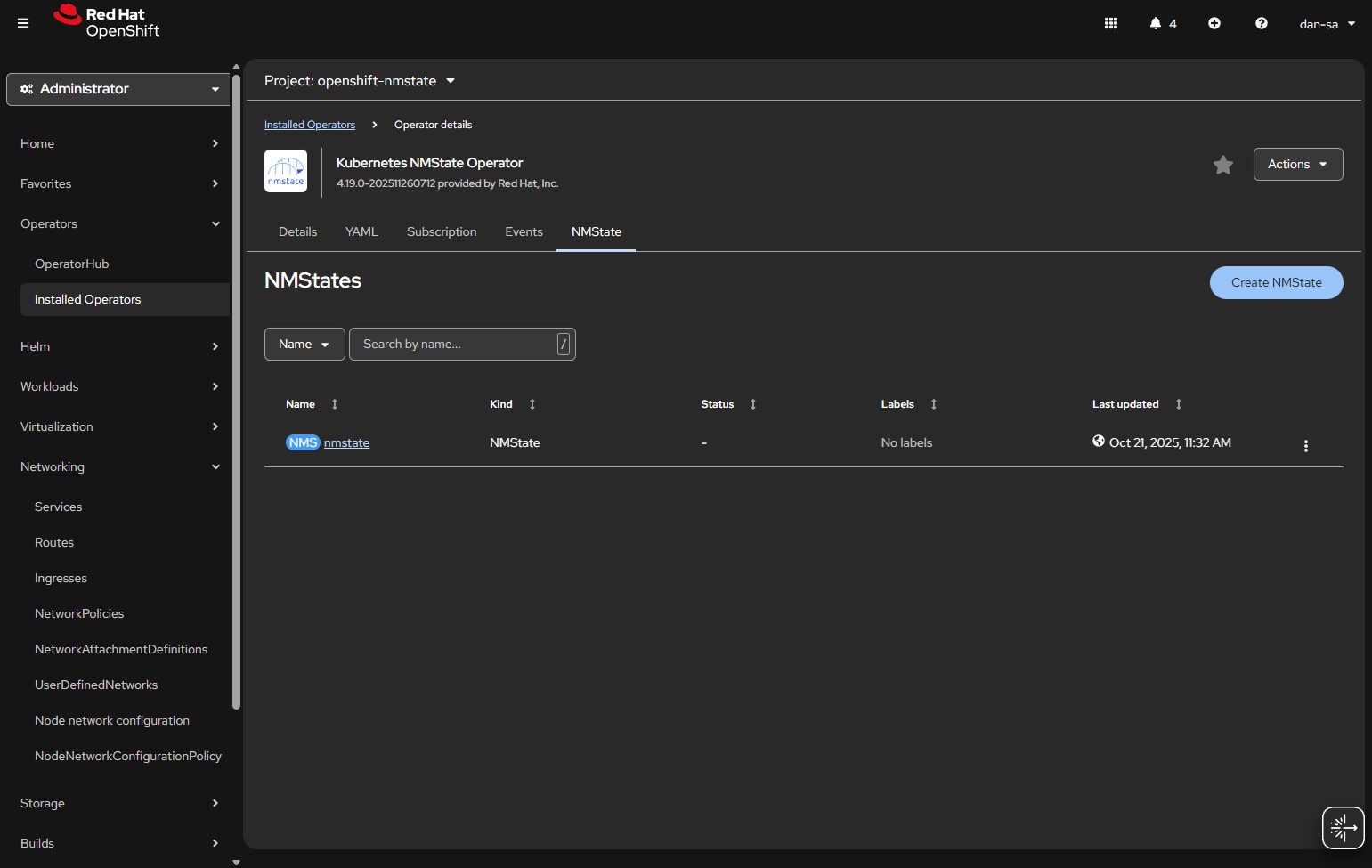
  • Then there will be new options under the Networking section on the left. We want NodeNetworkConfigurationPolicy. Here we create policies of how networking should be configured per host. This is like Group Policy or Puppet configurations.
  • At the NodeNetworkConfigurationPolicy screen, click “Create” -> “With YAML”.
  • We need to create a new sub-interface off of our eno1 main interface for our new vlan, then we need to create a Linux Bridge off that interface for our VMs to attach to.
apiVersion: nmstate.io/v1
kind: NodeNetworkConfigurationPolicy
metadata:
  name: vlan19-with-bridge           <-- Change This
spec:
  desiredState:
    interfaces:
      - name: eno1.19             <-- Change This
        type: vlan
        state: up
        ipv4:
          enabled: false
        vlan:
          base-iface: eno1
          id: 19                     <-- Change This
      - name: br19                   <-- Change This
        type: linux-bridge
        state: up
        ipv4:
          enabled: false
        bridge:
          options:
            stp:
              enabled: false
          port:
            - name: eno1.19       <-- Change This
              vlan: {}
  • Important things here:
    • Change the 19s to whichever VLAN ID you want to use.
    • “ipv4: enabled: false” says we want an interface here, but we are not giving it host level IP networking on our OpenShift node.
    • Remove the <– Change This comments
    • You MUST leave the “vlan: {}” at the end or it will not work, adding this tells it to leave vlan data how it is because we are processing via the kernel via sub interfaces.
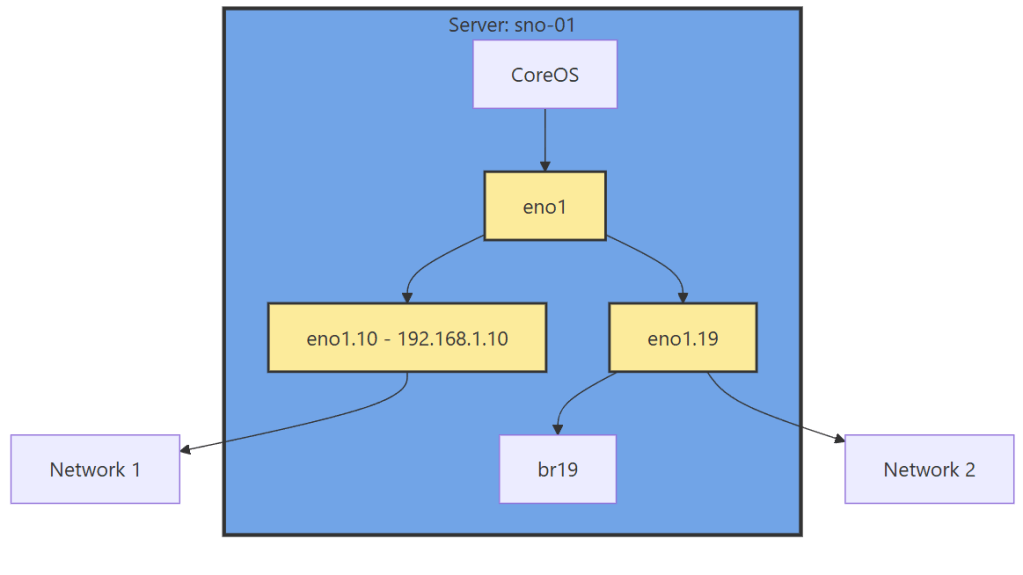
Now we have this configuration, with a secondary interface off of our NIC, and an internal Linux Bridge for the VMs.

The great thing about doing this configuration via NMState, it applies to all your nodes unless you put a filter in, and you get a centralized status about if each node could deploy the config.
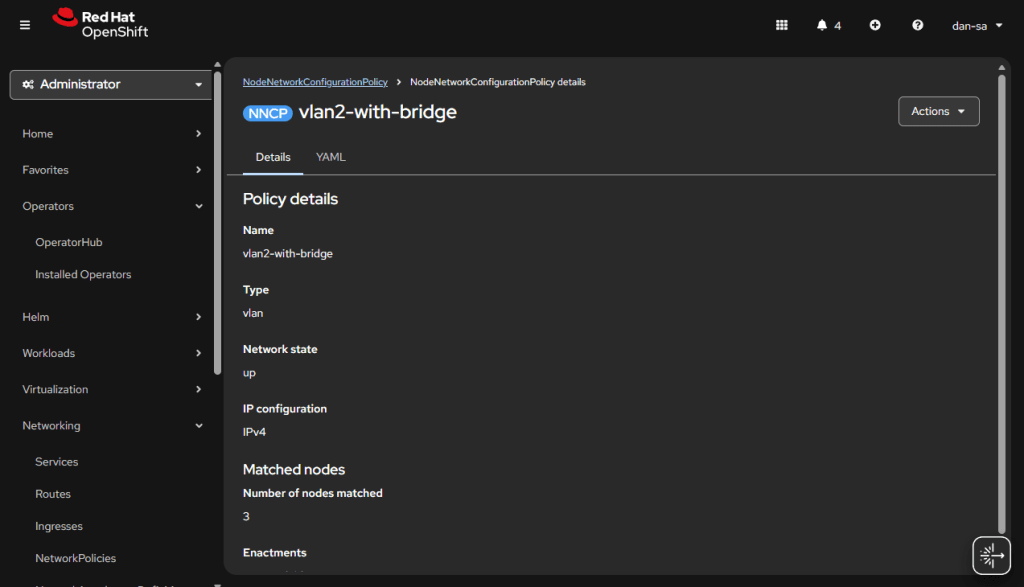
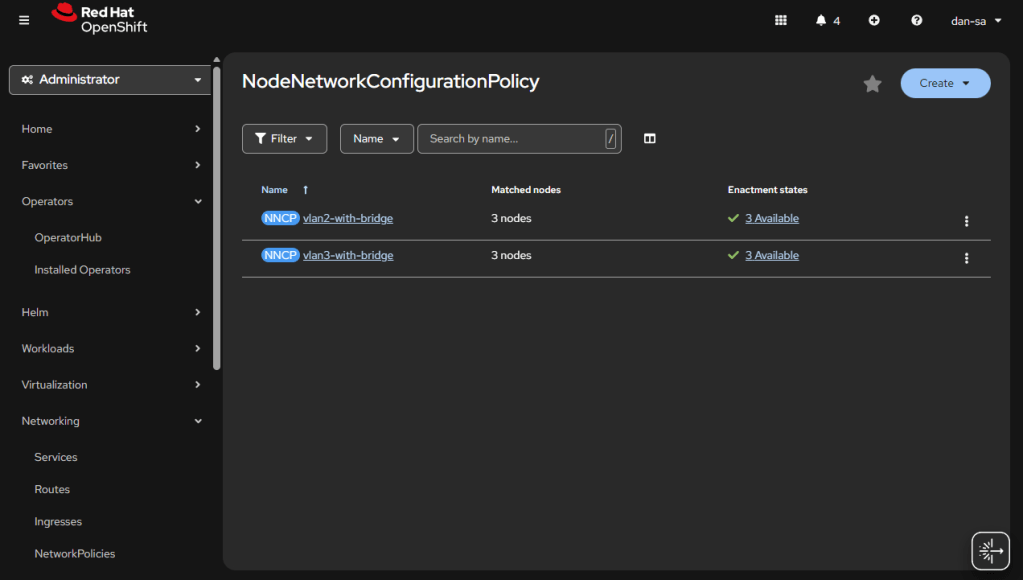
Here is an example from my Homelab, with slightly different VLAN IDs than we have been discussing. You can see all three nodes have successfully taken the configuration.

OpenShift VM Network Configuration

Kubernetes and OpenShift use Network Attachment Definitions (NADs) to configure rules of how pods can connect to host level networking or to the CNI. We have created the VLANs and Bridges we need on our host system, now we need to create Network Attachment Definitions to allow our VMs or other pods to attach to the Bridges.

  • Go to “Networking” -> “NetworkAttachmentDefinitions”.
  • Click “Create NetworkAttachmentDefinition”
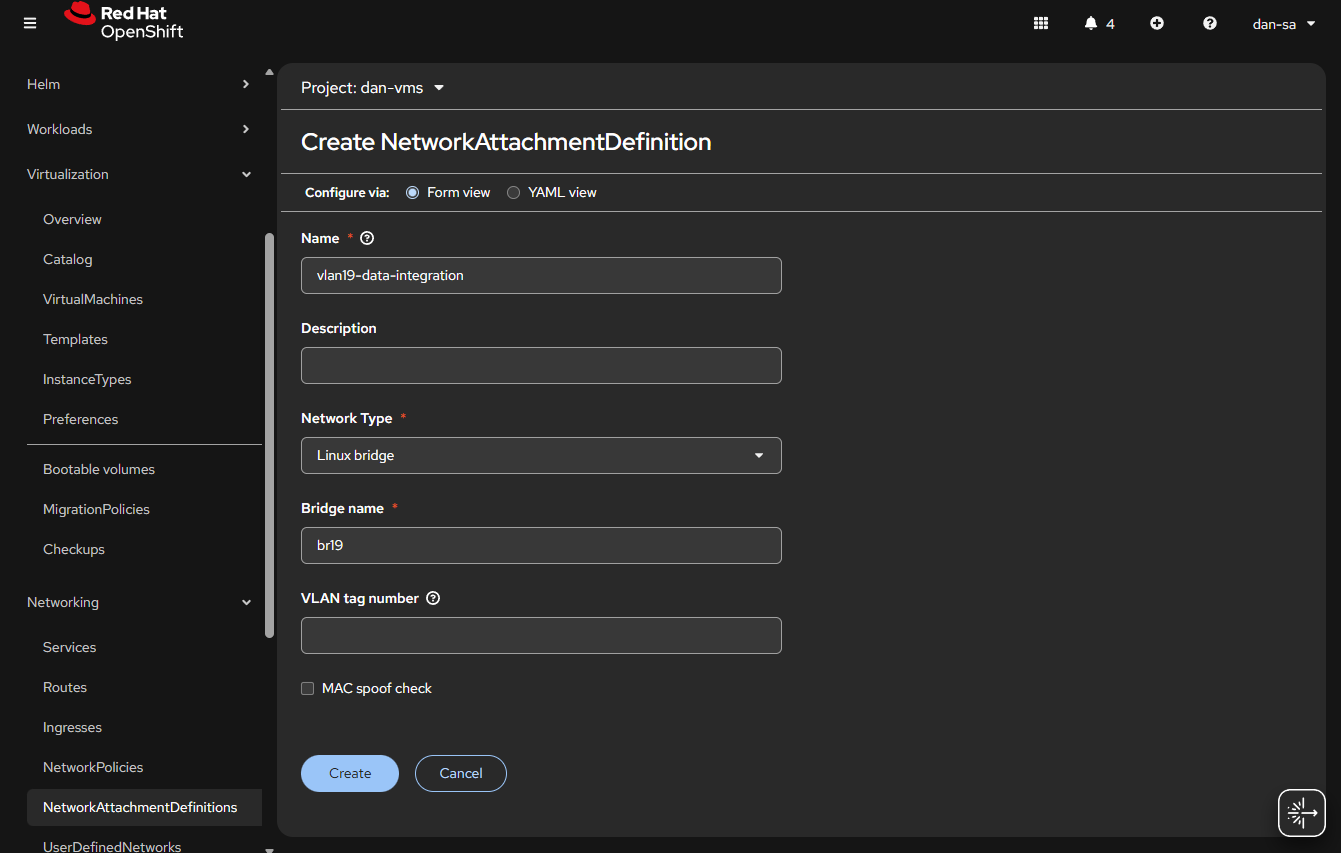
  • This is easily done, and can be done via the interface or via YAML, first we will do via the UI then YAML.
  • Before entering the name, make sure you are in the Project / Namespace you want to be in, NADs are Project / Namespace locked. This is nice because you can have different projects for different groups to have VMs and limit which networks they can go to.
  • Name: This is what the VM Operator will select, make it easy to understand, I do “vlan#-purpose“, example: “vlan2-workstations”.
  • Network Type: Linux Bridge.
  • Bridge Name: what was set above, in that example “br19“, no quotes.
  • VLAN tag number: Leave this blank, we are processing VLAN data at the kernel level not overlay.
  • MAC spoof check: Do you want the MAC addresses checked on the line. This is a feature which allows the network admin to pin certain MAC addresses and only send traffic out to those allowed. I usually turn this off.
  • Click “Create

The alternative way to do a NAD is via YAML, here is an example block:

apiVersion: k8s.cni.cncf.io/v1
kind: NetworkAttachmentDefinition
metadata:
  name: vlan19-data-integration
  namespace: default
spec:
  config: |-
    {
        "cniVersion": "0.3.1",
        "name": "vlan19-data-integration",
        "type": "bridge",
        "bridge": "br19",
        "ipam": {},
        "macspoofchk": false,
        "preserveDefaultVlan": false
    }

You can verify the NAD was created successfully by checking the NetworkAttachmentDefinitions list. Your networking is ready now. Next post, we will discuss getting storage setup.

Additional NodeNetworkConfigurationPolicy YAMLs

NIC Bonding / Teaming

Use mode 4 (802.3ad/LACP) if your switch supports link aggregation; otherwise mode 1 (active-backup) is the safest fallback.

apiVersion: nmstate.io/v1
kind: NodeNetworkConfigurationPolicy
metadata:
  name: bond0-config
spec:
  desiredState:
    interfaces:
      - name: bond0
        type: bond
        state: up
        ipv4:
          enabled: false
        link-aggregation:
          # mode=1 active-backup
          # mode=2 balance-xor
          # mode=4 802.3ad
          # mode=5 balance-tlb
          # mode=6 balance-alb
          mode: 802.3ad
          options:
            miimon: '140'
          port:
            - eno1
            - eno2

Useful Links

https://github.com/k8snetworkplumbingwg/multus-cni/blob/master/docs/how-to-use.md

https://medium.com/@tcij1013/how-to-configure-bonded-vlan-interfaces-in-openshift-4-18-0bcc22f71200

Funny icon for Openshift post

Step-By-Step Getting Started with High Availability OpenShift 4.19 for a Homelab

Last post, looked at getting started with a SNO (Single Node OpenShift) system. Next we will look at a build with multi-node, or multi-master, OpenShift. This runs the core service of etcd on more than one node, allowing for a single node failure. Some services like the virtual machine services need to run on a master as well, having more than one relieves pressure on that system. With SNO, if your master does not start, the entire cluster cannot start. In addition, SNO upgrades will always introduce downtime with the single master rebooting.

Master nodes do have more services than a simple worker, if you are running a small cluster with 3 nodes, you may want to decide if the extra overhead on the second and third nodes are worth it, or if you want to run leaner and run SNO with extra workers. In my experience of vanilla OpenShift, masters run about 20GB of ram more than worker nodes with no additional services on them.

I have a 3 node cluster that I was migrating from VMware and wanted to run HA. This allows me to do no downtime upgrades, with the three nodes sharing the control role.

My Setup

I am installing onto 3 HP Elitedesk 800 G5s, each with an Intel 9700, and 96GB of RAM (they can go to 128GB when RAM prices aren’t insane). I have a dual 10gb/s NIC in each for networking since I will be running ceph. This is the same Homelab cluster I have had for a bit. These machines aren’t too expensive, they have 8 cores each, can go to 128GB of RAM, and have several PCI slots, and NVMe slots. I have used this guide to install OpenShift 4.17-4.20.

Installation Steps for HA OpenShift

Any line starting with $ is a terminal command to use. The whole process will take about an hour; 30 minutes or so to collect binaries and prep your config files, a minute or two to create the ISO, then 30 minutes of the cluster sitting there and installing.

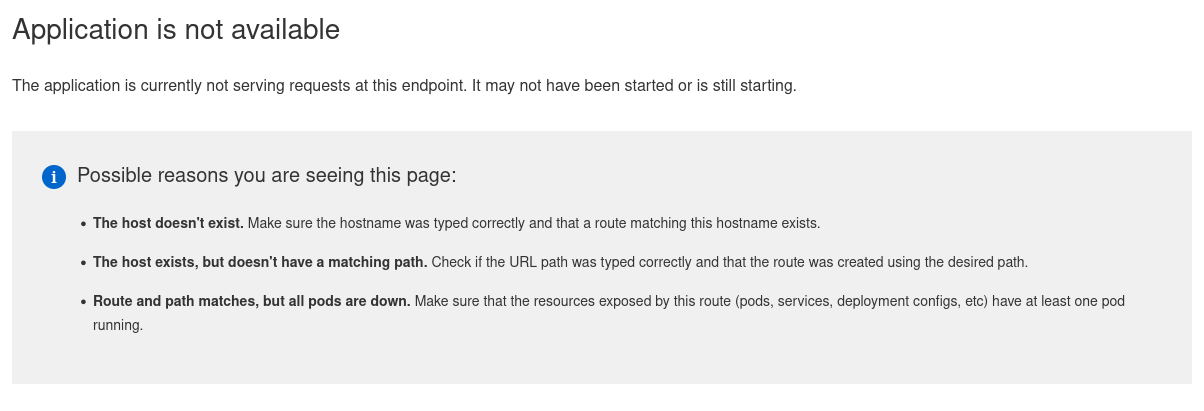
One important thing to say up front to those who have not used Openshift or Kubernetes before: there is 1 IP that all the applications use, the web server looks at the request coming in and WHICH DNS NAME YOU CONNECTED TO, and then routes your traffic that way. You can have 100% of the things setup right, and when you browser to the IP you get “Application is not available” when trying to access the console. This means the system is working! You just need to connect via the correct DNS name.

  1. Prerequisites: Start by going to the same place as the original post to get a pull secret and binaries you will need for the install. These include openshift-install, and oc.
  2. I am on Fedora 42 and needed to run sudo dnf install nmstate to install nmstate. This is required to transform the configs in the agent-config.yaml into the configs that will be injected into the installation ISO.
  3. Make a folder, called something like “ha-openshift”, and put all the binaries in there.
  4. Config Files: Before we had install-config.yaml, now we will have that AND agent-config.yaml.
  5. Below is an install-config.yaml, I will call out things you will want to change for your setup:
    • apiVersion: v1
      baseDomain: example.com
      compute:
      - architecture: amd64
      hyperthreading: Enabled
      name: worker
      platform: {}
      replicas: 0
      controlPlane:
      architecture: amd64
      hyperthreading: Enabled
      name: master
      platform: {}
      replicas: 3
      metadata:
      name: cluster1
      networking:
      clusterNetwork:
      - cidr: 10.131.0.0/16
      hostPrefix: 23
      machineNetwork:
      - cidr: 192.168.4.0/24
      networkType: OVNKubernetes
      serviceNetwork:
      - 172.30.0.0/16
      platform:
      baremetal:
      apiVIPs:
      - 192.168.4.5
      ingressVIPs:
      - 192.168.4.7
      pullSecret: '{"auths":{"cloud.openshift.com":{"auth":"b3Blbn==","email":"not-my-real-email@gmail.com"}}}'
      sshKey: ssh-rsa AAAAB
    • The “baseDomain” is the main domain to use, your hosts will be master0.<baseDomain>, the cluster name will be <metadata.name>.<baseDomain>. Make sure you put in what you want here because you can’t change it later. This is how users will reference the cluster.
    • Under workers and controlPlane, you put how many worker nodes and master nodes you want. This is a big difference between SNO and HA, we are saying 3 instead of 1 master.
    • metadata.name is the sub name of this exact cluster. You can have multiple clusters at lets say “example.com”, then setting this will make the cluster apps.cluster1.example.com. (Yes the DNS names get long with OpenShift)
    • clusterNetwork and serviceNetwork will be used internally for backend services, only change these if you are worried about the preset ones conflicting with your IP space.
    • machineNetwork.cidr is the IP space your nodes will live on, this needs to be set for your DHCP network. This is the range the network will use. Some of the IPs below will need static reservations in your DHCP network, the worker and master nodes can have general pool DHCP addresses. We are assuming DHCP here, you can statically assign IPs but its more work and not something I am going to talk about right here.
    • platform.baremetal.apiVIPs is where the API for your cluster will live, this is an additional IP the HA masters will hand back and forth to give the appearance of a single control plane.
    • platform.baremetal.ingressVIPs is another IP that will be handed back and forth but will be the HTTPs front door for applications.
  6. agent-config.yaml, I will call out things you will want to change:
    • apiVersion: v1alpha1
      kind: AgentConfig
      rendezvousIP: 192.168.4.10
      hosts:
        - hostname: hv1
          role: master
          rootDeviceHints:
            serialNumber: "AA22122369"
          interfaces:
            - name: enp1s0f0
              macAddress: 0c:c4:7b:1e:42:14
            - name: enp1s0f1
              macAddress: 0c:c4:7b:1e:42:15
          networkConfig:
            interfaces:
              - name: bond0.4
                type: vlan
                state: up
                vlan:
                  base-iface: bond0
                  id: 4
                ipv4:
                  enabled: true
                  address:
                    - ip: 192.168.4.10
                      prefix-length: 24
                  dhcp: false
              - name: bond0
                type: bond
                state: up
                mac-address: 0c:c4:7b:1e:42:14
                ipv4:
                  enabled: false
                ipv6:
                  enabled: false
                link-aggregation:
                  mode: 802.3ad
                  options:
                    miimon: "150"
                  port:
                    - enp1s0f0
                    - enp1s0f1
            dns-resolver:
              config:
                server:
                  - 192.168.3.5
            routes:
              config:
                - destination: 0.0.0.0/0
                  next-hop-address: 192.168.4.1
                  next-hop-interface: bond0.4
                  table-id: 254
        - hostname: hv2
          role: master
          rootDeviceHints:
            serialNumber: "AA22628"
          interfaces:
            - name: enp1s0f0
              macAddress: 0c:c4:7b:1f:06:e2
            - name: enp1s0f1
              macAddress: 0c:c4:7b:1f:06:e3
          networkConfig:
            interfaces:
              - name: bond0.4
                type: vlan
                state: up
                vlan:
                  base-iface: bond0
                  id: 4
                ipv4:
                  enabled: true
                  address:
                    - ip: 192.168.4.20
                      prefix-length: 24
                  dhcp: false
              - name: bond0
                type: bond
                state: up
                mac-address: 0c:c4:7b:1f:06:e2
                ipv4:
                  enabled: false
                ipv6:
                  enabled: false
                link-aggregation:
                  mode: 802.3ad
                  options:
                    miimon: "150"
                  port:
                    - enp1s0f0
                    - enp1s0f1
            dns-resolver:
              config:
                server:
                  - 192.168.3.5
            routes:
              config:
                - destination: 0.0.0.0/0
                  next-hop-address: 192.168.4.1
                  next-hop-interface: bond0.4
                  table-id: 254
        - hostname: hv3
          role: master
          rootDeviceHints:
            serialNumber: "203129F9D7"
          interfaces:
            - name: enp1s0f0
              macAddress: 0c:c4:7b:1f:03:c2
            - name: enp1s0f1
              macAddress: 0c:c4:7b:1f:03:c3
          networkConfig:
            interfaces:
              - name: bond0.4
                type: vlan
                state: up
                vlan:
                  base-iface: bond0
                  id: 4
                ipv4:
                  enabled: true
                  address:
                    - ip: 192.168.4.30
                      prefix-length: 24
                  dhcp: false
              - name: bond0
                type: bond
                state: up
                mac-address: 0c:c4:7b:1f:03:c2
                ipv4:
                  enabled: false
                ipv6:
                  enabled: false
                link-aggregation:
                  mode: 802.3ad
                  options:
                    miimon: "150"
                  port:
                    - enp1s0f0
                    - enp1s0f1
            dns-resolver:
              config:
                server:
                  - 192.168.3.5
            routes:
              config:
                - destination: 0.0.0.0/0
                  next-hop-address: 192.168.4.1
                  next-hop-interface: bond0.4
                  table-id: 254
    • rendezvousIP is an IP of a node in charge of the setup. You pick one of them to wait for all other masters/workers to be ready before starting the installation. It will wait for all nodes to be online, check they are ready, install them, then install itself.
    • The rest of this config is a three times repeated (one per host) setup of each host, things you will want to change:
  7. DNS Entries: Having created those two files, you know what you want your DNS to be. It’s time to go into your location’s DNS servers and enter addresses just like in the original post. These entries can be made at any time before you start the installation. In the end you should have 1 IP for ingress, 1 for api, then one per node.
    • api.cluster1.example.com -> apiVIPs, in my config 192.168.4.5
    • api-int.cluster1.example.com -> apiVIPs, in my config 192.168.4.5
    • *.apps.cluster1.example.com -> ingressVIPs, in my config 192.168.4.7
    • master0.cluster1.example.com -> node1 IP, in my config hv1 so I put 192.168.4.10
    • master1.cluster1.example.com -> node2 IP, in my config hv2 so I put 192.168.4.10
  8. Image Creation:
  9. $ mkdir ocp
  10. $ cp *.yaml ocp
  11. $ ./openshift-install –dir ./ocp/ agent create image 
  12. This will create a ocp/agent.x86_64.iso 
  13. Installation: Boot that iso on all servers. The image will use the hardware you specified in agent-config.yaml and DNS lookups to identify each node. Make sure the systems NTP is working, and their time looks correct, then that each node can curl:
    • registry.redhat.io 
      quay.io 
      cdn01.quay.io 
      api.openshift.com 
      access.redhat.com
  14. The stack should now install, the main server will show a screen saying the state of the other masters, and when they are all ready, it will proceed with install. This can easily take 30 minutes, and the screen on the rendezvous server can be slow to update.

With any luck you will have all the nodes reboot, and a running stack you can access at your console server location; here that would be console-openshift-console.apps.cluster1.example.com. Each node should show a normal Linux boot up sequence, then will show a login prompt, with that nodes name, and IP address(es). In this learning experience, feel free to restart the installation and the system will wipe the machines again.

In the ha-openshift folder, then the ocp subfolder there will be an auth folder. That will have the kubeadmin and kubeconfig files to authenticate to the cluster. The kubeadmin password can be used to login to oauth at console-openshift-console.apps.cluster1.example.com. The kubeconfig file can be used with the oc command downloaded from Redhat. using $ ./oc --kubeconfig ./ocp/auth/kubeconfig get nodes will show the nodes and their status from your installation machine.

Properly installed cluster example: 
~/homelab_openshift $ ./oc --kubeconfig ./ocp/auth/kubeconfig get nodes
NAME   STATUS   ROLES                         AGE   VERSION
hv1    Ready    control-plane,master,worker   44d   v1.32.9
hv2    Ready    control-plane,master,worker   44d   v1.32.9
hv3    Ready    control-plane,master,worker   44d   v1.32.9

This is an example of a successfully upgraded cluster running, and I am running the standard OpenShift oc get nodes command. Note: the version is the version of Kubernetes being run, not OpenShift.

I will continue this series with posts about Networking, Storage, and VM setup for OpenShift.

Troubleshooting

The install process for OpenShift has a big learning curve. You can make it a bit easier by using Redhats web installer, but that also puts some requirements on the system that a Homelab usually can’t hit, doing the agent based installer bypasses those checks. Once you get your configs dialed in, I have found it easy to reinstall a stack, but getting configs for a stack setup correctly the first few times is tough. The installer also does not do a ton to make it easier on you, if something goes wrong, the biggest indicators I have found are: when SSHed into the installer, the memory usage, the journalctl logs in the installer, and about 8-10 minutes into a good install, you will see the DVD image start to read a lot of data, constant activity on the indicator for a few minutes (that is the CoreOS being written to the disk).

Random things to check in a failing install:

  • SSH into a node using the SSH key in the install-config.yaml, run $ sudo journalctl and scroll to the bottom to see what’s going on, or just run $ sudo journalctl -f.
    • You may see something like:
      • “failing to pull image”: It can’t hit Redhat, or your pull secret expired
      • “ip-10-123-123-132.cluster.local node not recognized”: DNS entries need updated
  • If the system successfully reboots after an install, but you are not seeing the console start, SSH into a node using the SSH key in the install-config.yaml, run $ top. If your RAM usage is about:
    • 1GB, Kubernetes is failing to start, this could be a DNS or image download issue.
    • around 8GB, the core systems are attempting to come online, but something is stopping them such as an issue with the api or apps DNS names.
    • 12-16+GB of ram used, the system should be online.
  • Worth repeating for those who haven’t used Openshift before, internal routing is done via DNS names in your request, if you attempt to go to the ingress VIP via the IP you will get “Application is not available”. This is good! Everything is up, you just need to navigate to the correct URL.

Footnotes

Helpful examples: https://gist.github.com/thikade/9210874f322e72fb9d7096851d509e35

Three, maybe foxes? With a Kerberos, ansible, and radio active hat

Using Kerberos to Authenticate WinRM for Ansible

I have been trying to get Kerberos auth working with WinRM to be the authentication for transport mechanism within Ansible. I want to configure a Window system, from the non-domain-joined Linux host that runs my automations. Getting these two hosts to talk over WinRM introduces a bunch of options and difficulties with each one. If you look at the table on Ansible’s website for Windows auth with WinRM, you see only a few options for a domain joined machine:

https://docs.ansible.com/ansible/latest/os_guide/windows_winrm.html#credssp

I specifically needed it for an Active Directory account part of my setup was creating lab machines and building domain controllers on the fly. Basic auth is out, Certificate is out, what is left is Kerberos, NTLM, or CredSSP. Then to throw another wrench in this, the Ansible host and server are in FIPS mode. At this point FIPS disables MD5. NTLMv2 uses MD5 internally, which means it does not want to work with an FIPS enabled machine. CredSSP is backed by NTLM hashes as well making Kerberos your only option.

I did not want to have to domain join my Ansible machine to my Windows Domain; this is a test environment. Through a bunch of tinkering I have found a way to run Ansible, and have Ansible use a local krb5.conf file, instead of your system one in /etc/krb5.conf.

  1. I am on Rocky and installed the following:
    • dnf install krb5-devel krb5-libs krb5-workstation python3.12-devel
    • pip3.12 install pykerberos gssapi krb5 pypsrp[kerberos]<=1.0.0
    • (Note I am using python 3.12 for my Ansible)
  2. You do need the host you wish to connect to have its FQDN accessible from your Ansible system (we will assume Linux)
    • This can be in the hosts file or DNS
  3. Then you need to set the inventory.yml similar to:
    • my-host-post-domain:
            ansible_host: host.example.com
            ansible_user: Admin@EXAMPLE.COM
            ansible_password: WindowsPassword123
            ansible_connection: winrm
            ansible_winrm_transport: kerberos
            ansible_winrm_kinit_cmd: “./kinit.sh”
            ansible_winrm_message_encryption: never
            ansible_winrm_server_cert_validation: ignore
  4. Create a file where you launch ansible from, kinit.sh:
    • #!/bin/bash
      cd “$(dirname “$0″)”
      export KRB5_CONFIG=./krb5.conf
      kinit $1
  5. Create your krb5.conf file
    • [libdefaults]
          default_realm = EXAMPLE.COM
          dns_lookup_realm = false
          dns_lookup_kdc = false
          ticket_lifetime = 24h
          renew_lifetime = 7d
          forwardable = true
          rdns = false

      [realms]
          EXAMPLE.COM = {
              kdc = 192.168.100.2
              admin_server = 192.168.100.2
          }

      [domain_realm]
          .example.com = EXAMPLE.COM
          example.com= EXAMPLE.COM

      (I am purposefully disabling DNS lookup and using my IP addresses, that is up to you.)
  6. Then I run my Ansible with the following:
    • KRB5_CONFIG=./krb5.conf ansible-playbook -i inventory.yml site.yml

It seems if you do not have the kinit.sh file, then kinit does not see the config. And if you don’t have the environment variable before the Ansible command, when Ansible goes to use GSS to connect to the Windows system, Ansible will not see the config.

Troubleshooting

Some fun errors along the way:

  • Server not found in Kerberos database
    • This means the server you are CONNECTING TO cant be found, usually this means the ansible_host is not the FQDN. Then when kinit is done it tries to connect to AD via the IP and that fails.
  • Kerberos auth failure for principal Admin@EXAMPLE.COM with subprocess: kinit: Cannot find KDC for realm \”EXAMPLE.COM\” while getting initial credentials
    • It cant find the krb5.conf file, OR under [domain_realm], your mapping has an issue