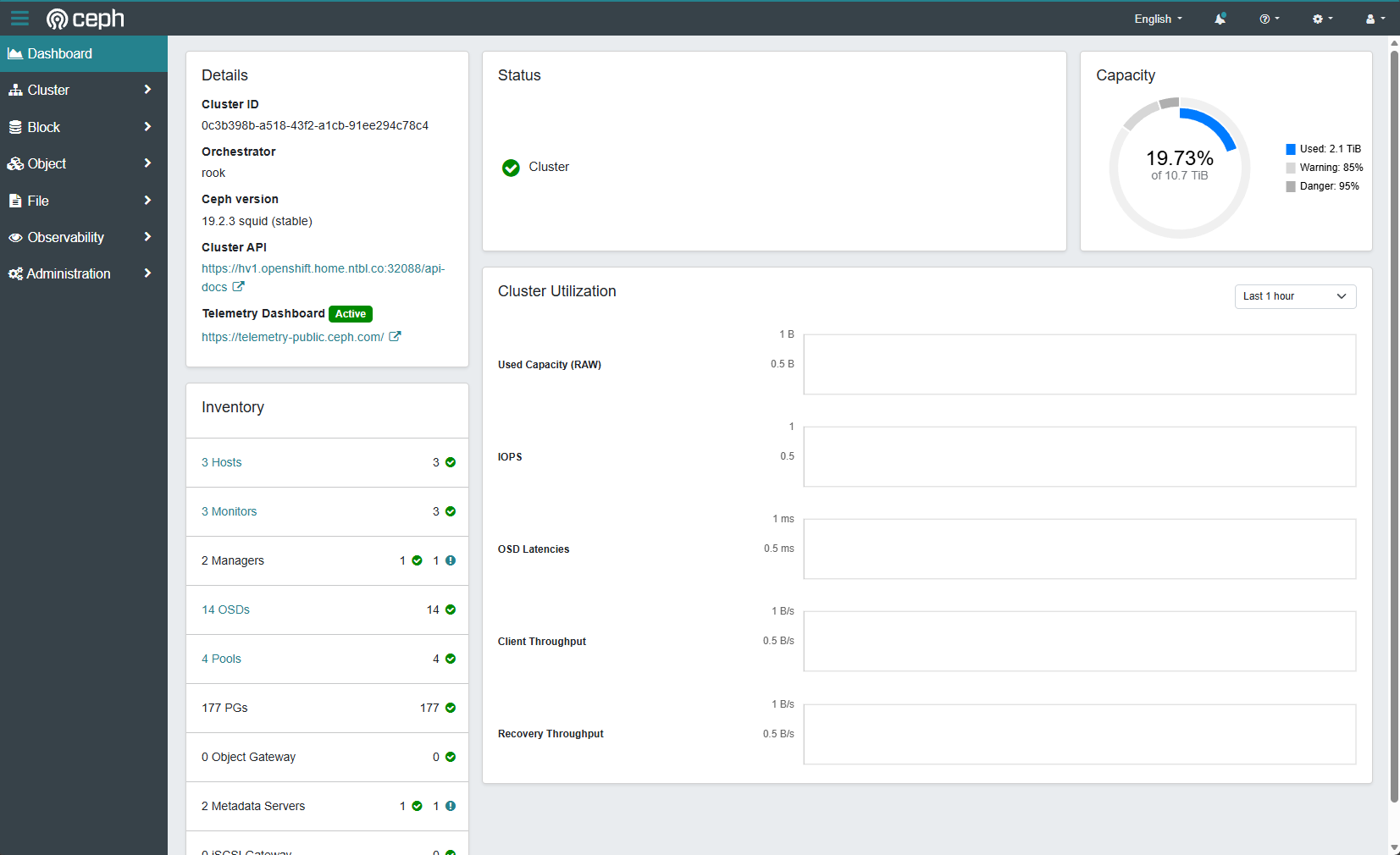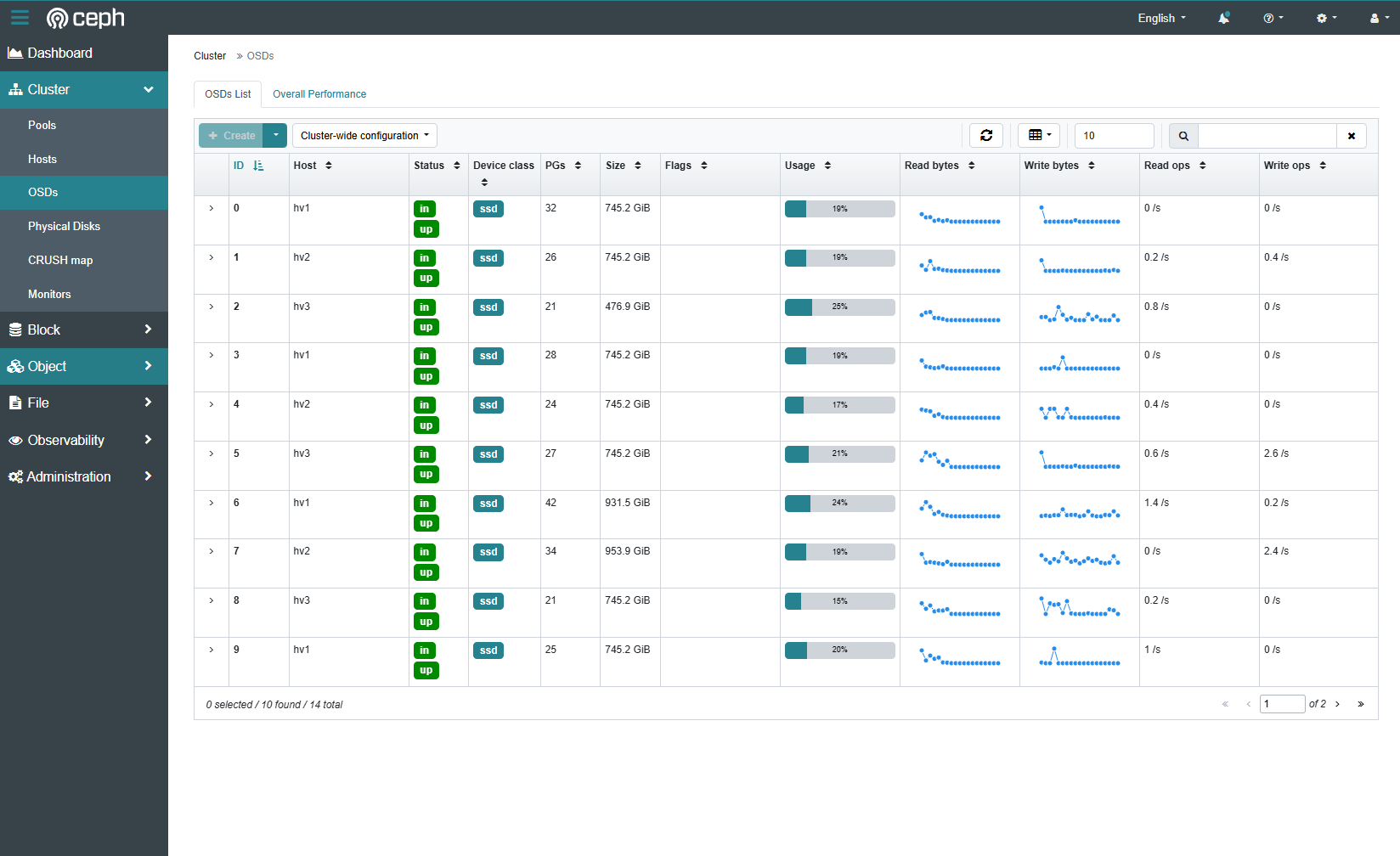
We now have our SNO node stood up, and we have our networking how we want it; it’s time to get storage configured to host VMs. OpenShift is Kubernetes with some opinions. Like picking a Linux distribution, there are many paths and OpenShift helps put you on one, making it easier to start with Kubernetes. OpenShift also comes with multiple Operators, Operators are like plugins, to help you manage different aspects of the system. Storage can be done multiple ways, and OpenShift supports multiple ways. In this post we will be discussing using the LVM Operator to have local storage.
Once you have installed a SNO node, and then deployed LVM here, congrats you will have everything you need to start deploying workloads. Before setting up storage, we have no place to persistently store files. The OpenShift node has a primary OS disk, which it uses for its own settings and storing container images, but this storage will be used for workload/pod data itself.
A few notes: If you are running HA OpenShift, you do not want this because storage cannot be shared amongst the different nodes. Also worth noting, during this process the system may try to format any drives that the OpenShift system itself is not using, make sure you are ready for these drives to be formatted.
Configuration Steps
Go to the OpenShift web console, if you need to setup OpenShift I suggest checking out either my SNO guide or HA Guide.
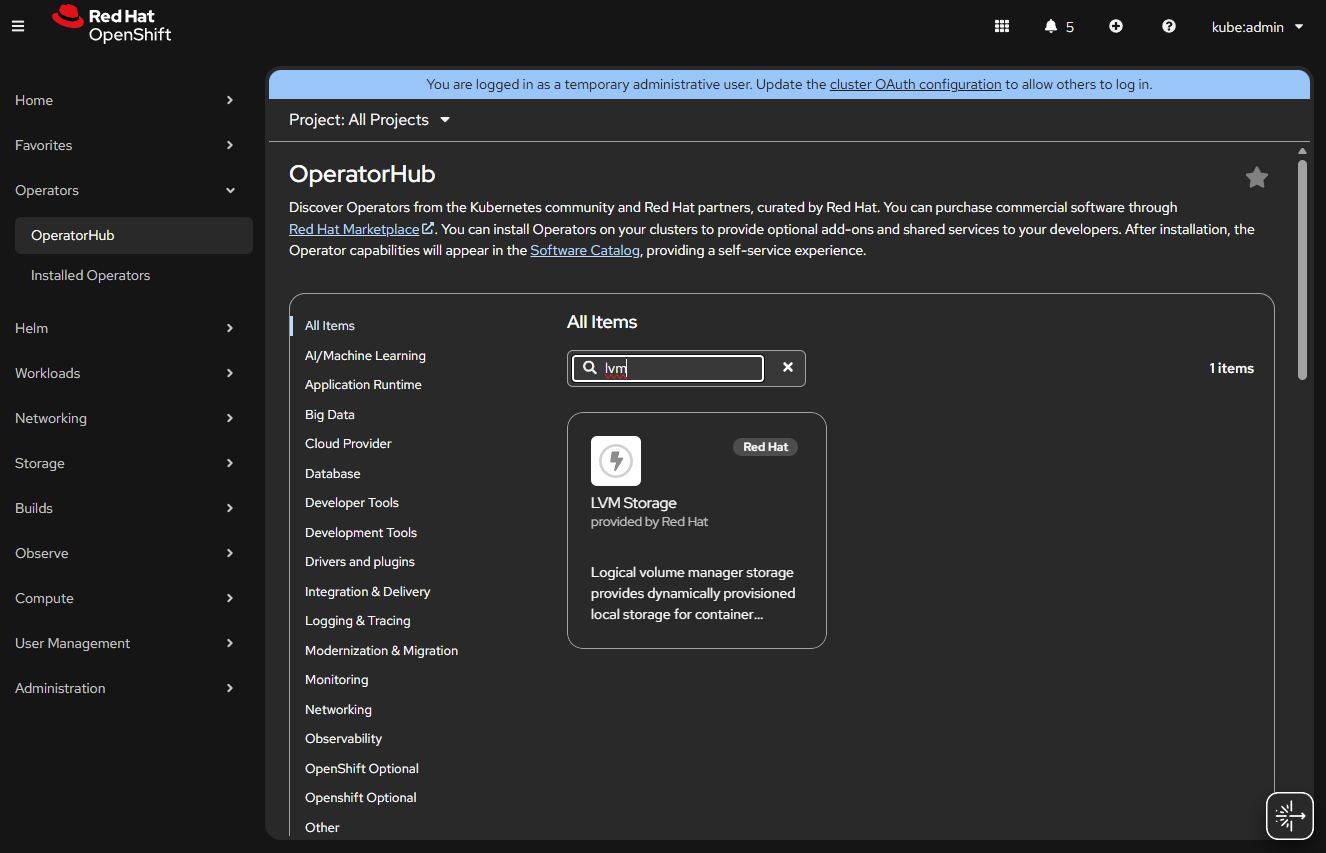
Click Operators -> OperatorHub.
Install “LVM Storage” Operator.
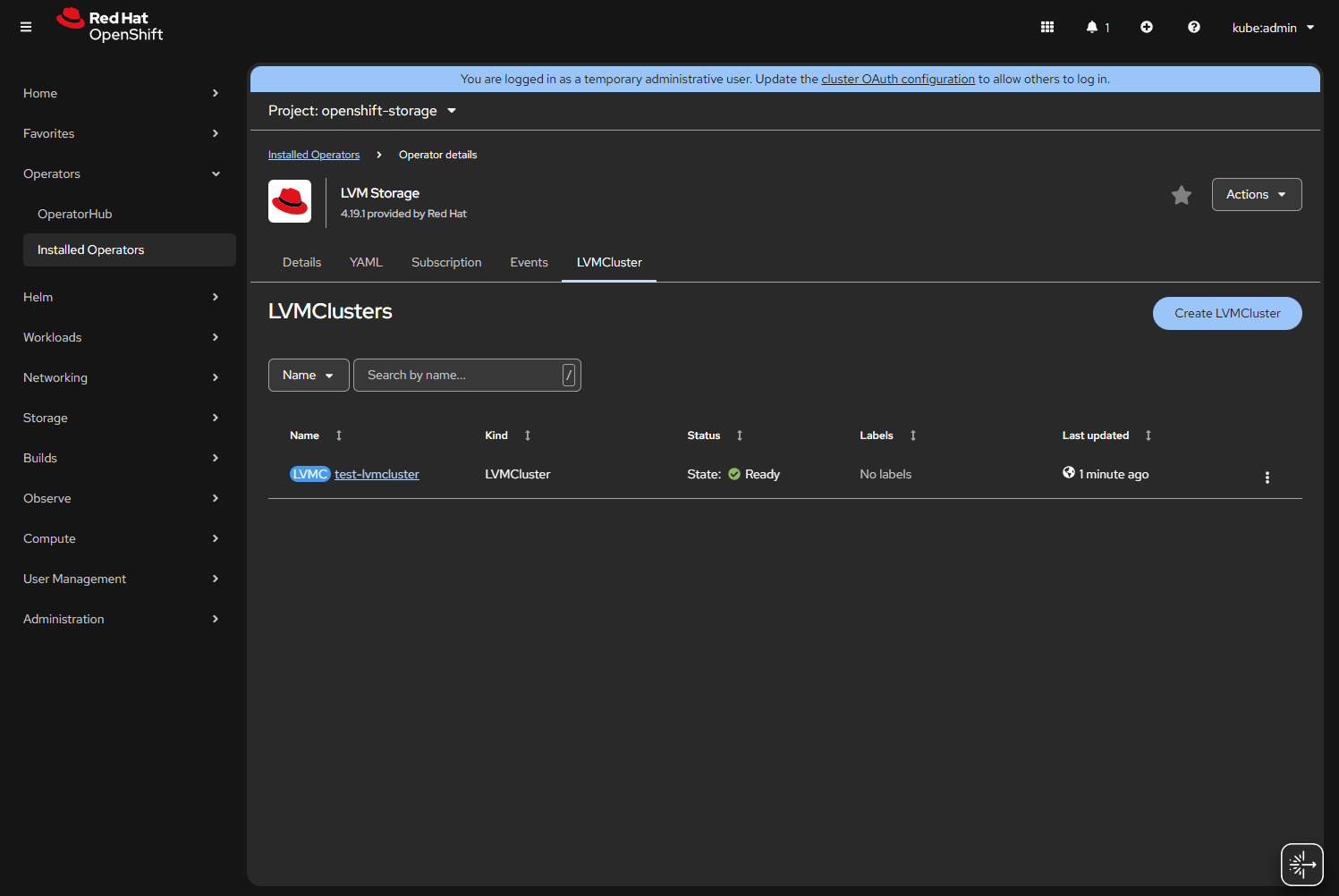
You will be prompted to create an “LVMCluster”, click the button.
Name it something like “local-lvm-storage”.
Open the “storage” menu.
Open “deviceClasses”.
Check default, if you want this to be the default storage.
It will say 90% of the space will be used for LVM, you can increase if you want more space, by default it leaves a little in case you need more for metadata storage. LVM has data and metadata storage as two different sub pools within your LVM.
Open “deviceSelector”.
forceWipeDevicesAndDestroyAllData if you dare / want it to format the drive first.
Open “paths”, here you must add the drives you want to use, this will go to each node, you can use serial numbers or for my single node I will just use “/dev/sda” since I know I have an empty SATA drive I want to use.
Note: If you used the partition script from the SNO article, then you need to put “/dev/sda5”, or “/dev/nvme0n1p5”, or whichever drive you used, if you run $ lsblk from Compute -> Nodes -> <your node> you will see the partition layout.
Click “Create”.
If the drive sets up correctly you will see Status: Ready.
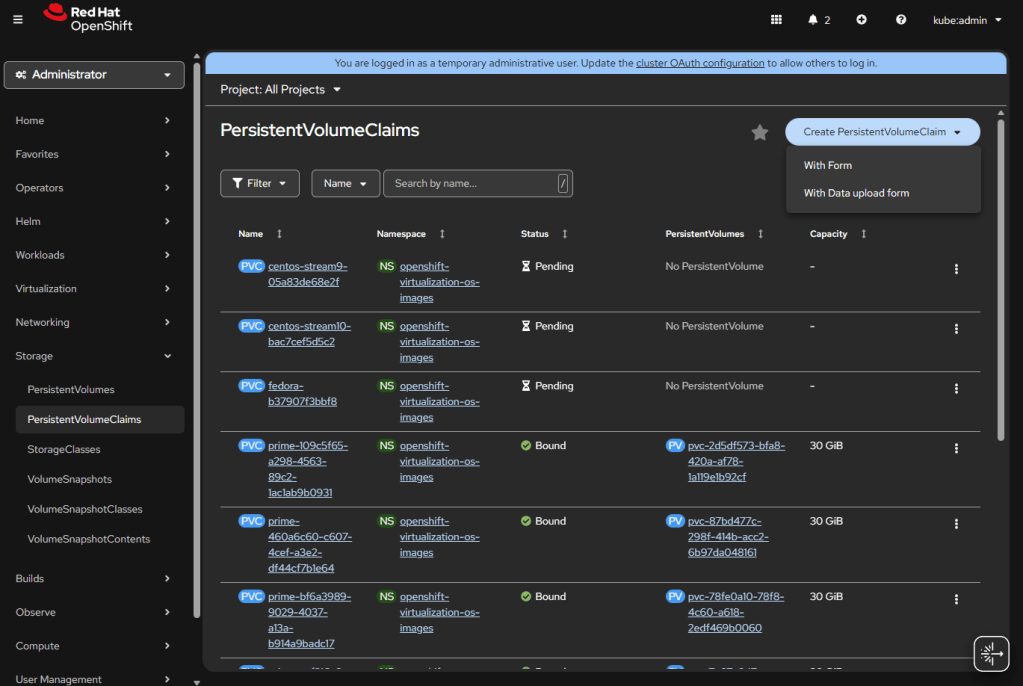
If you install OpenShift Virtualization, it will automatically populate some of the templates to the default storage, also it will allow you to “Create PersistentVolumeClaim” “With Data upload form”.
Going to Compute -> Nodes -> <your node> -> Terminal, you can run: chroot /host, lsblk and see all the goings on with lvm.
Going to the same terminal, you can enter sudo lvs -a vg1 to verify lvm is configured and space available. I have started testing on OpenShift 4.20 nodes, and have noticed the host lvm.conf filters may hide the volumes, and you can use lvs --config 'devices { filter=["a|.*|"] }' to override that filter.
Types of Storage in Kubernetes
Now that LVM is setup it is worth quickly giving an overview on more layers of Storage within OpenShift and Kubernetes as a whole. There are two types of storage for Kubernetes / OpenShift, and within those types of access for files and data.
First, there is file system storage, this type of storage is a folder or files that are needed by a pod, think of storage such as NFS. Second there is block, this is large binary blobs; this is used a lot with VMs. Block will be both your ISO images for templates, and disk images you boot off of. This storage is just “here is 30GB”, x VM can request to edit any of the bytes in that block.
For access types there is RWO and RWX, biggest difference there is how many systems can access that storage at once. All our LVM will be RWO, because it’s local to this box. When you do Ceph storage, that can be RWX. There is also Read Only (ROX) and Read write once pod (RWOP) but we will not worry about that here.
These types of storage come into play later when you will want to add ISOs or VM hard drives within KubeVirt. The next post will be about setting up Ceph for a cluster. LVM storage is great for a single node you want to develop with; it’s simple, and there is very little overhead. When we get into multinode, we enter the world of hyper-converged infrastructure with all its pluses and minuses; but we need that to migrate VMs and have redundancy. After Ceph, we will finally discuss installing and managing KubeVirt / OpenShift Virtualization.
As we continue our Openshift journey to get virtualization working, we have a vanilla node already setup and now we need to get the networking configured. The examples here are from Openshift 4.19.17.
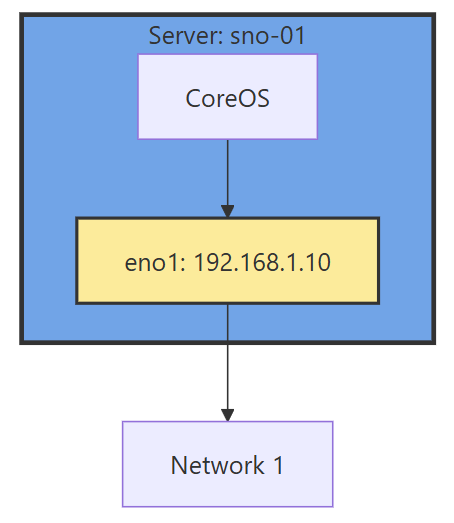
Networking in OpenShift is conceptually two parts that connect. The first part is the host level networking; this is your CoreOS OpenShift host itself. Then there is how do the pods connect into that networking. Usually, the network connects through your network interface card (NIC), to the Container Networking Interface (CNI), then to your pod. Here we will be using a meta plugin that connects between the NIC and the CNI called Multus. Redhat has a good post about it.
Host Level Networking
This part of the networking stack is straight forward if you are used to Linux system networking, and it is setup the same way. Treat the CoreOS node like any other Linux system. The big decision to make in the beginning is how many interfaces you will have.
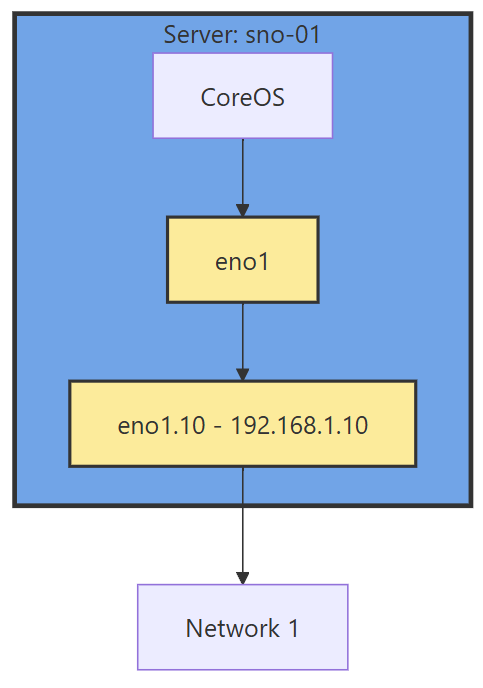
If you have 1 interface and plan on using virtualization, are you going to use VLANs? If so, then you may want to move the IP of the interface off of the primary interface and onto a VLAN sub interface. This moves the traffic from untagged to tagged traffic for your network infrastructure.
Another reason is there are bugs in the Mellanox firmware, mlx5e, where Mellanox 4 and 5 cards can think you are double VLAN encapsulating, and will start automatically stripping VLAN tags. The solution is to move all traffic to sub interfaces. You will get an error in your dmesg/journalctl of: mlx5e_fs_set_rx_mode_work:843:(pid 146): S-tagged traffic will be dropped while C-tag vlan stripping is enabled
With the interface moved, that frees us up to use it for other VLANs as well. If you deployed network settings via a MachineConfig, you would have to override them there.
The rest of the configuration will be done via the NMState Operator and native Openshift.
NMState VLAN and Linux Bridge Setup
NMState is a Network Manager policy system. It allows you to set policies like you would in Windows Group Policy, or Puppet to tell each host how the network should be configured. You can filter down to specific hosts (I do that for testing, to only apply to 1 host) or deploy rules for your whole fleet assuming nodes are all configured the same way. It’s possible to use tags on your hosts to specify which rules go to which hosts.
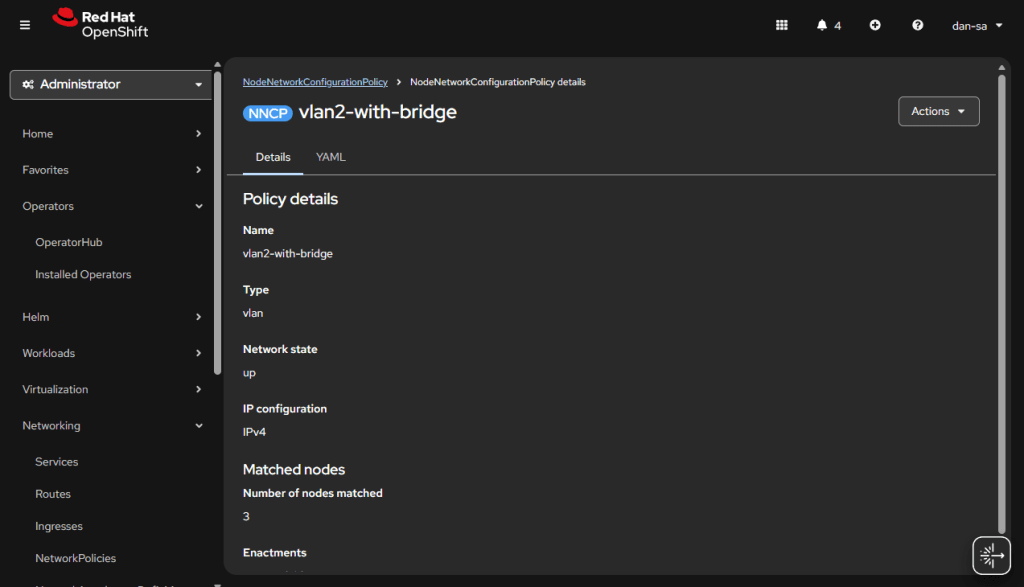
NMState can also be used to configure port bonding and other network configurations you may need. After configuration, you get a screen that tells you the state of that policy on all the servers it applies to. Each policy sets one or more Network Manager configurations, if you have multiple NICs and want to configure all of them, you can do them in one policy, but it may be worth breaking the policies apart and having more granularity.
Another way to go about this section, is to SSH into each node, and use a tool such as nmtui to manually set the networking. I like NMState because I get a screen that shows all my networking is set correctly on each node, and updates to make sure it stays that way. I put an example below of setting up port bonding.
Go to the OpenShift web console, if you need to setup OpenShift I suggest checking out either my SNO guide or HA Guide.
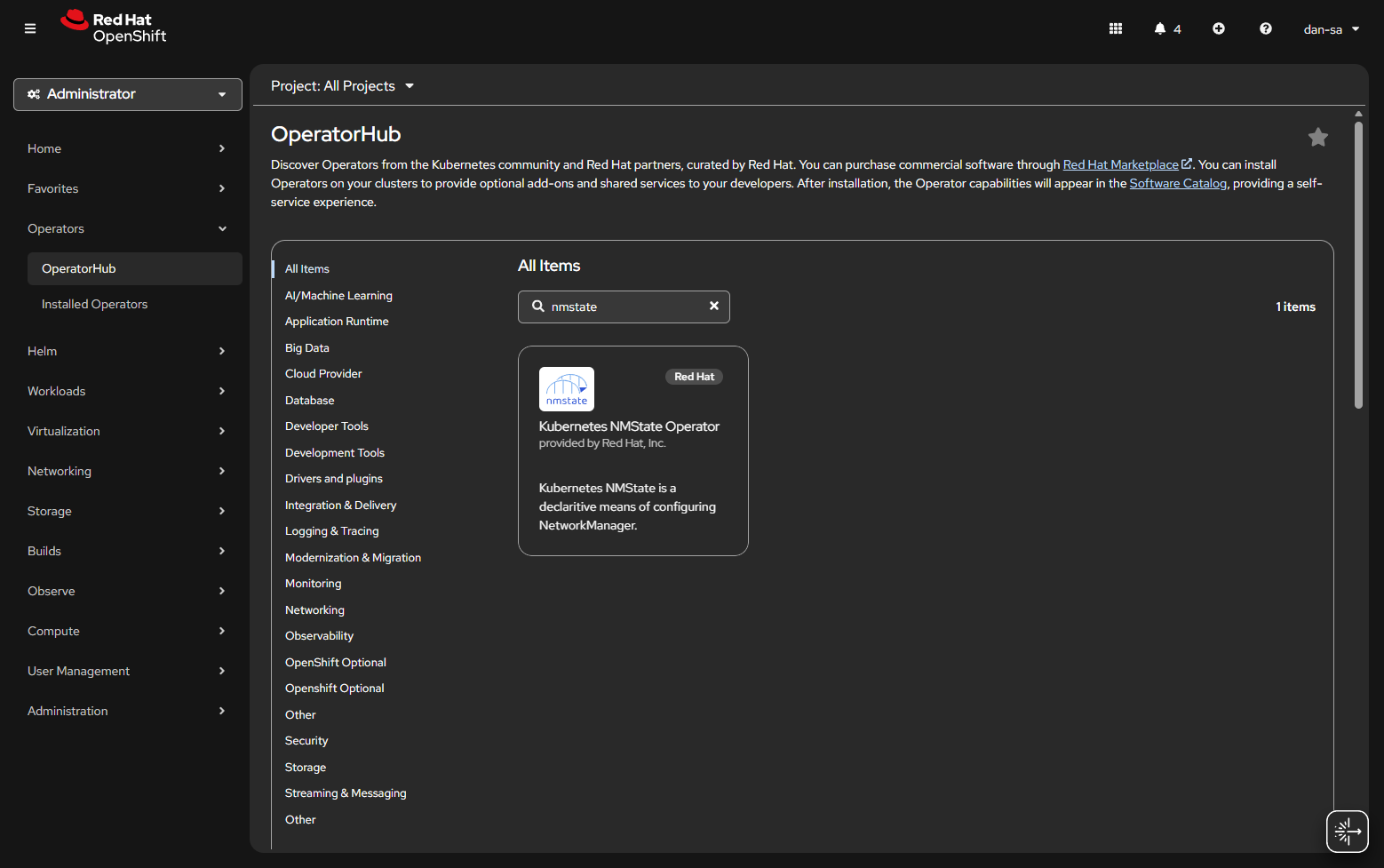
Click Operators -> OperatorHub.
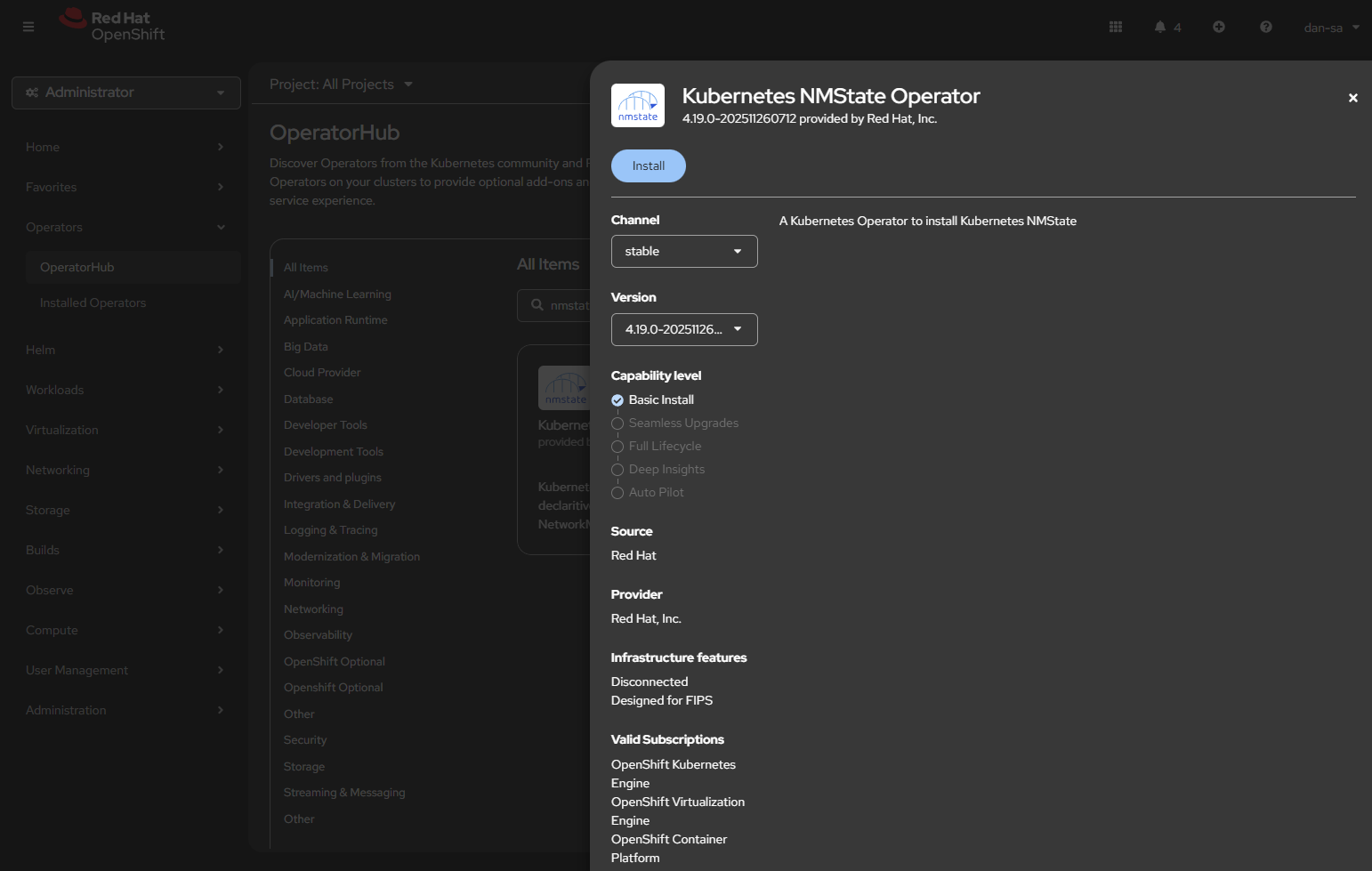
Install NMState.
Worth mentioning you can do all this with OKD, except NMState is very old, and hasn’t been updated in 5 years. Either NMState would need manually installed, or the interfaces would need manually created.
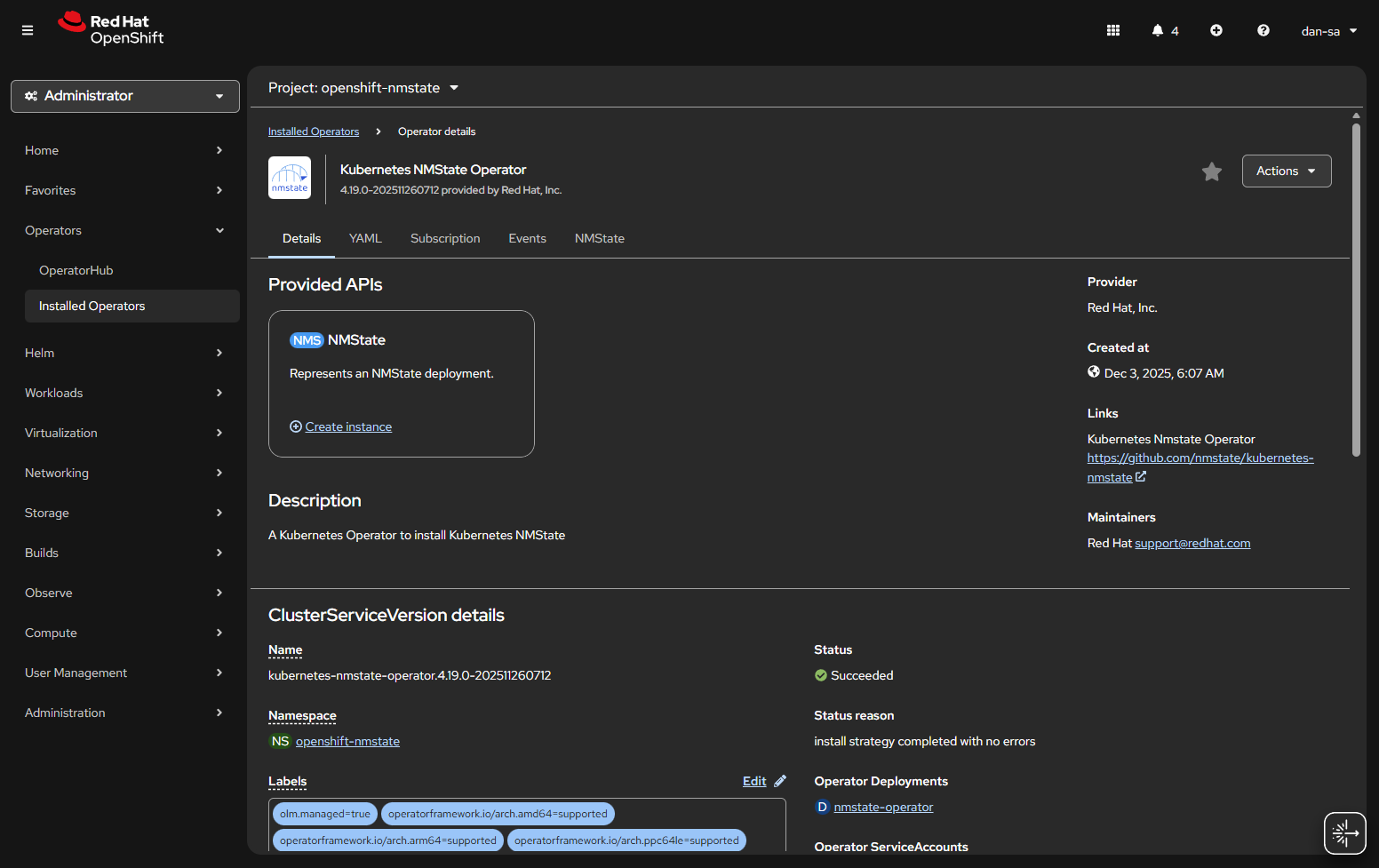
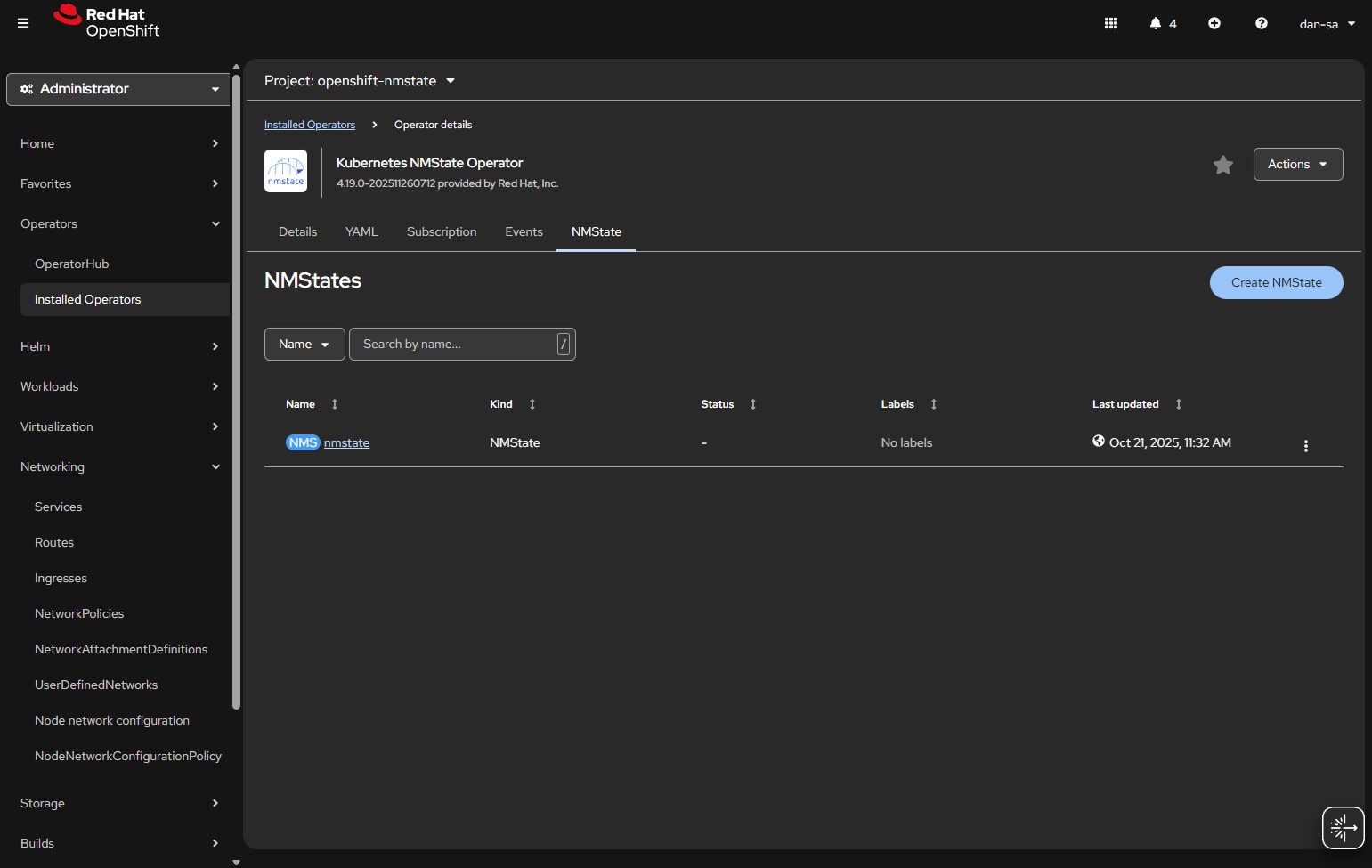
Once installed, you will need to create an “instance” of NMState for it to activate.
Then there will be new options under the Networking section on the left. We want NodeNetworkConfigurationPolicy. Here we create policies of how networking should be configured per host. This is like Group Policy or Puppet configurations.
At the NodeNetworkConfigurationPolicy screen, click “Create” -> “With YAML”.
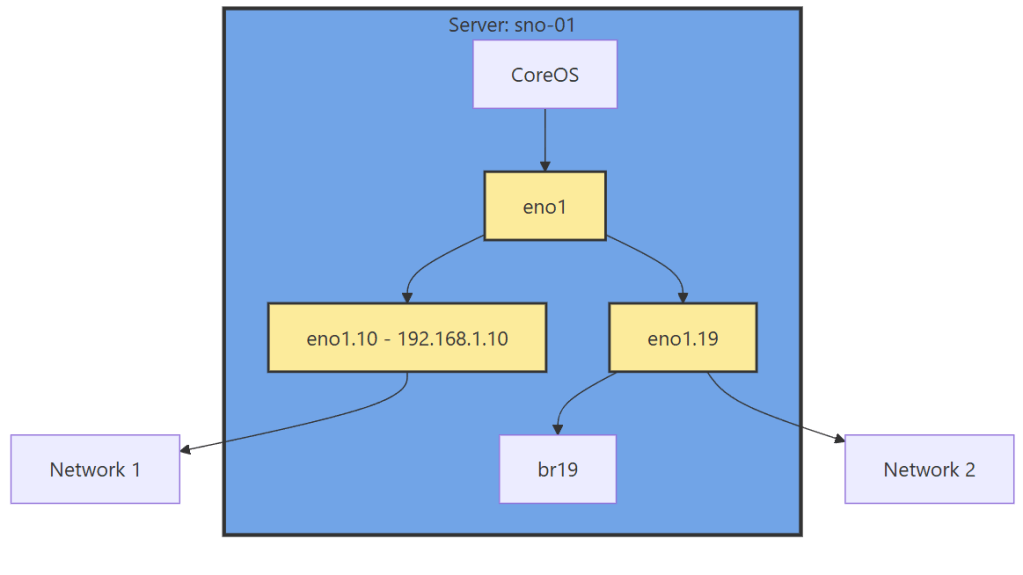
We need to create a new sub-interface off of our eno1 main interface for our new vlan, then we need to create a Linux Bridge off that interface for our VMs to attach to.
apiVersion: nmstate.io/v1
kind: NodeNetworkConfigurationPolicy
metadata:
name: vlan19-with-bridge <-- Change This
spec:
desiredState:
interfaces:
- name: eno1.19 <-- Change This
type: vlan
state: up
ipv4:
enabled: false
vlan:
base-iface: eno1
id: 19 <-- Change This
- name: br19 <-- Change This
type: linux-bridge
state: up
ipv4:
enabled: false
bridge:
options:
stp:
enabled: false
port:
- name: eno1.19 <-- Change This
vlan: {}
Important things here:
Change the 19s to whichever VLAN ID you want to use.
“ipv4: enabled: false” says we want an interface here, but we are not giving it host level IP networking on our OpenShift node.
Remove the <– Change This comments
You MUST leave the “vlan: {}” at the end or it will not work, adding this tells it to leave vlan data how it is because we are processing via the kernel via sub interfaces.
Now we have this configuration, with a secondary interface off of our NIC, and an internal Linux Bridge for the VMs.
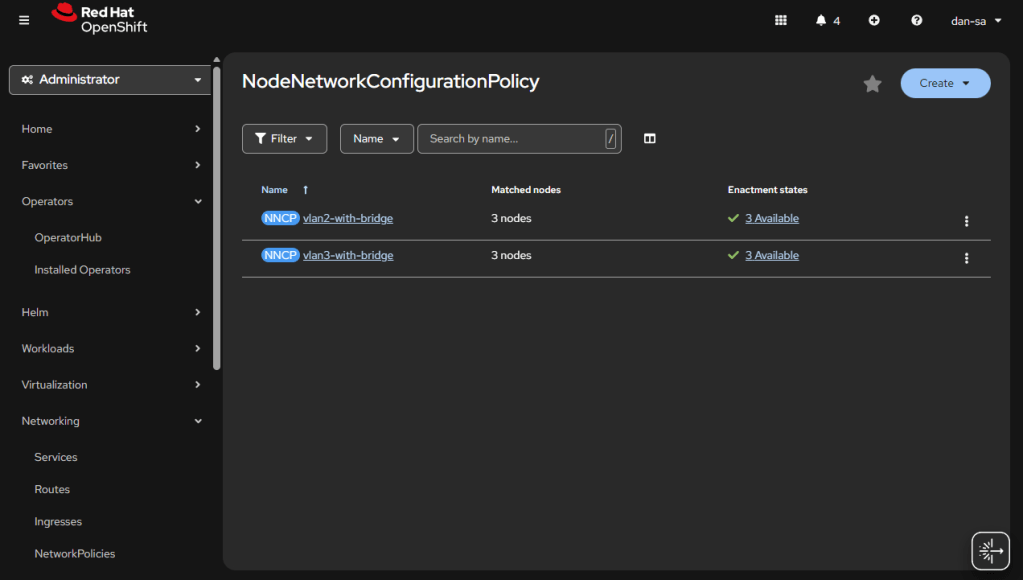
The great thing about doing this configuration via NMState, it applies to all your nodes unless you put a filter in, and you get a centralized status about if each node could deploy the config.
Here is an example from my Homelab, with slightly different VLAN IDs than we have been discussing. You can see all three nodes have successfully taken the configuration.
OpenShift VM Network Configuration
Kubernetes and OpenShift use Network Attachment Definitions (NADs) to configure rules of how pods can connect to host level networking or to the CNI. We have created the VLANs and Bridges we need on our host system, now we need to create Network Attachment Definitions to allow our VMs or other pods to attach to the Bridges.
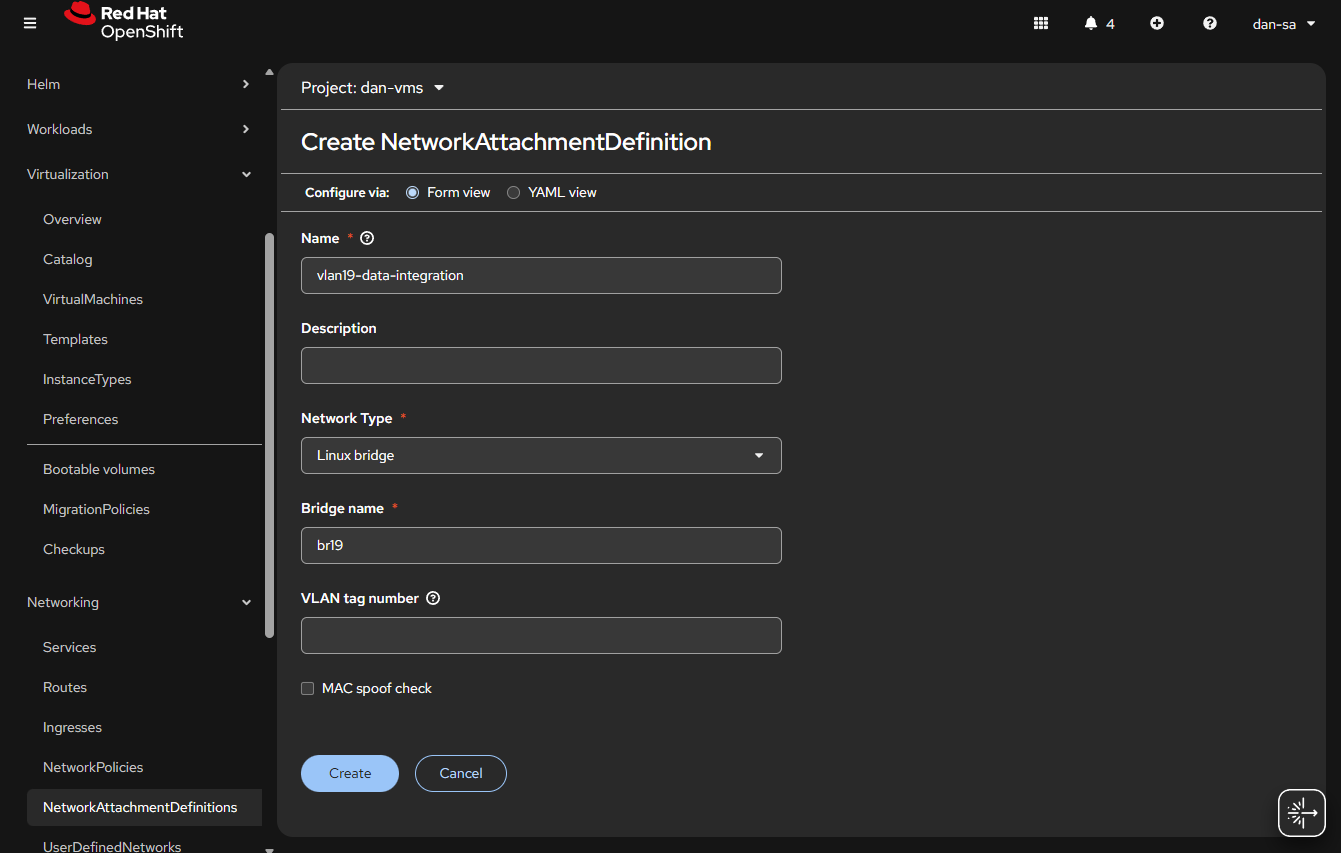
Go to “Networking” -> “NetworkAttachmentDefinitions”.
Click “Create NetworkAttachmentDefinition”
This is easily done, and can be done via the interface or via YAML, first we will do via the UI then YAML.
Before entering the name, make sure you are in the Project / Namespace you want to be in, NADs are Project / Namespace locked. This is nice because you can have different projects for different groups to have VMs and limit which networks they can go to.
Name: This is what the VM Operator will select, make it easy to understand, I do “vlan#-purpose“, example: “vlan2-workstations”.
Network Type: Linux Bridge.
Bridge Name: what was set above, in that example “br19“, no quotes.
VLAN tag number: Leave this blank, we are processing VLAN data at the kernel level not overlay.
MAC spoof check: Do you want the MAC addresses checked on the line. This is a feature which allows the network admin to pin certain MAC addresses and only send traffic out to those allowed. I usually turn this off.
Click “Create“
The alternative way to do a NAD is via YAML, here is an example block:
You can verify the NAD was created successfully by checking the NetworkAttachmentDefinitions list. Your networking is ready now. Next post, we will discuss getting storage setup.
Additional NodeNetworkConfigurationPolicy YAMLs
NIC Bonding / Teaming
Use mode 4 (802.3ad/LACP) if your switch supports link aggregation; otherwise mode 1 (active-backup) is the safest fallback.
I will explain why OpenShift, and will have that blurb after the tutorial for those interested. I have some information for those completely new to OpenShift and Kubernetes (shorthand “K8s”), feel free to jump to “Installation Steps for Single Node OpenShift” for steps. This guide walks you through doing a Single Node OpenShift installation. This should take about 1-2 hours to have a basic system up and running.
In later posts I will go over networking, storage, and the rest of the parts you need to setup. I spoke to some of their engineers, and they were confused when I said this system is not easy to install, and they need to make an easy installation disc like VMware or Microsoft have.
It is worth noting at this point that OKD exists. OKD is the upstream (well moving upstream), open-source version of OpenShift. You are more bleeding edge, but you get MOST of the stack without any licensing. Almost like CentOS was to Redhat Enterprise Linux, except more upstream than in line. There are areas where that is not true, and other hurtles to use it; but I am going to make another post about that.
Single Node OpenShift vs High Availability
There are two main ways to run OpenShift, the first is SNO; Single Node OpenShift. There is no high availability, everything runs with 1 master node, which is also your worker node. You CAN attach more worker servers to a SNO system, but if that main system goes down, then you lose control of the cluster. The other mode to run in is HA, where you have at least 3 nodes in your control plane. For production you would usually want HA, and I will have an article about that in the future, for now I will just install SNO.
Big Changes to Keep in Mind From VMware
A quick note to all the administrators coming from VMware or other solutions, OpenShift runs on top of CoreOS. An immutable OS based on Redhat and ostree. The way OpenShift finds out which config to apply to your node is via DHCP and DNS. These are HARD REQUIREMENTS to have setup for your environment. The installation will fail, and you will have endless problems if you do not have DHCP + DNS setup correctly; trust me, I have been there.
K8s Intro 101
For those who haven’t used Kubernetes before (me a few weeks ago), here are some quick things to learn. A cluster has “master” nodes and “worker” nodes, masters orchestrate, workers run pods. Master nodes can also be worker nodes.
OpenShift by default cannot run VMs. We are installing the Virtualization Operator, operators are like plugins, which will give us the bits we need to run virtualization. OpenShift has OpenShift Virtualization Operator, OKD has KubeVirt. OpenShift Virtualization Operator IS KubeVirt with a little polish on it and supported by Redhat.
Homelab SNO Installation
OpenShift is built to have a minimum of 2 disks. One will be the core OS and the containers that you want to run. The other will be storage for VMs and container data. By default the installer does not support partitioning the disk, forcing you to have 2 disks. I wrote a script that injects partitioning data into the SNO configuration. The current SNO configuration does not seem to have another easy way to add this. The script: Openshift-Scripts/add_parition_rule.sh at main · daberkow/Openshift-Scripts, needs to be run right after “openshift-install”, Step 18. It is run with “$ ./add_parition_rule.sh ./ocp/bootstrap-in-place-for-live-iso.ign ./ocp/bootstrap-in-place-for-live-iso-edited.ign”, then “./ocp/bootstrap-in-place-for-live-iso-edited.ign” is used for Step 20.
I am running on a Hp ProDesk 600 G5 Mini with an Intel 9500T, 64GB of RAM, and a 1TB NVMe drive. You need any computer you can install an OS onto with at least 100GB of storage and probably 32GB of RAM. Redhat CoreOS is a lot more accepting of random hardware than VMware ESXi is.
Installation Steps for Single Node OpenShift
OpenShift has several ways to do an installation, you can use their website and do the Assisted installer or create an ISO with all the details baked in, this time we will go over how to do it with creating a custom ISO with an embedded ignition file.
The following steps will be for a Mac or Linux computer. The main commands you will use interact with your cluster are `kubectl` and `oc`; `oc` is the openshift client, and a superset of the features in the standard `kubectl` command. Those tools work on Windows and have builds. The `openshift-installer` does not, so we can’t install with just Windows. You can try to use WSL to do the install, but it always gave me issues. The Linux system needs to be Rhel 8+/Fedora/Rocky 8+ or Ubuntu 20.10+ because of the requirement for Podman.
As mentioned, DHCP + DNS are very important for OpenShift. We need to plan what our cluster DOMAIN and CLUSTER NAME will be. For this I will use “cluster1” as the cluster, and “example.com” as the domain. Our example IP will be 192.168.2.10 for our node. When I put a $ at the start of a line, that is a terminal command.
First, we will setup DNS, that is a big requirement for OpenShift, to do that you need a static IP address. Give the system a reservation or static IP address for your environment.
Now go and make the following addresses point to that IP, because we are on a single node, these can all point to one IP. Note this is for SNO, for larger clusters you need different hosts and VIPs for these IPs.
api.cluster1.example.com -> 192.168.2.10
api-int.cluster1.example.com -> 192.168.2.10
*.apps.cluster1.example.com -> 192.168.2.10
The two api addresses are used for K8s API calls, *.apps is a wildcard where all the sub apps within the cluster will be accessed. These applications use the referrer url of the web request to figure out where the traffic should go, thus everything has to be done via DNS name and not IP.
Note: The wildcard for the last entry is needed for some services to work, you can individually add them, but it becomes a lot of work. Wildcards can not be used in hosts file, which means you do need proper DNS. There is a footnote for all the DNS entries you may if you want to run out of a hosts file.
$ alias coreos-installer=’podman run –privileged –pull always –rm -v /dev:/dev -v /run/udev:/run/udev -v $PWD:/data -w /data quay.io/coreos/coreos-installer:release’
$ coreos-installer iso ignition embed -fi ocp/bootstrap-in-place-for-live-iso.ign rhcos-live.iso
Boot rhcos-live.iso on your computer, it will take 20 or more minutes, then the system should reboot
If everything works, the system will reboot, then after 10 or so minutes of the system loading pods, https://console-openshift-console.apps.cluster1.example.com/ should load from your client computer. The login will be stored on your sno/ocp/auth folder.
Many caveats here: if your install fails to progress, you can ssh in with the SSH key you set in the install-config.yaml file. That is the only way to get in. Check journalctl to see if there are issues. It’s probably DNS. You can put the host names above into the hosts file of the installer and then after reboot the host itself to boot without needing DNS.
You CAN build an x86_64 image using an ARM Mac. You can also create an ARM OpenShift installer to run on a VM on a Mac. The steps are very similar for an ARM Mac except they have aarch64 binaries at: mirror.openshift.com/pub/openshift-v4/aarch64/clients/ocp/latest-4.18/, and you use “export ARCH=aarch64”. Be careful on an ARM Mac about using the x86_64 installer for targeting an x86_64 server, and a aarch64 installer for ARM VMs. Or you will get “ERROR: release image arch amd64 does not match host arch arm64” and have to go to ERROR: release image arch amd64 does not match host arch arm64 – Simon Krenger to find out why.
Hopefully this helps someone, I think OpenShift and OKD could be helpful for a lot of people looking for a hypervisor, but the docs and getting started materials are hard to wrap your head around. I plan to make a series of posts to help people get going. Feel free to drop a comment if this helps, or something isn’t clear.
DNS SNO Troubles
This section is optional, and for those who would like to run without external DNS for a stack. It can lead to the stack being odd, if you dont need this, you may not want to do it. All this was tested on 4.19.17.
The issue you run into here, is the fact that the way DNS works in OpenShift is pods are given CoreDNS entries, and they are given a copy of your hosts resolv.conf. In the event you want to start an OpenShift system completely air-gapped, with no external DNS, you need the entries we stated in other articles, mainly: api.<cluster>.<domain>, api-int.<cluster>.<domain>, *.apps.<cluster>.<domain>, master0.<cluster>.<domain>. Wildcard lookups cannot be in a hosts file. Luckily, because of this, OpenShift ships with dnsmasq installed on all the hosts.
Our flow for DNS will be: the host itself runs dnsmasq, and points to itself for DNS. It has to point to itself on its public IP because that resolv.conf file will be based onto pods; if you put 127.0.0.1 then pods will get that and fail to hit DNS. Then dnsmasq points to your external DNS servers. That way, all lookups hit dnsmasq first, then can be filtered to the outside.
When installing OpenShift: there is the install environment itself, then the OS after reboot, we need these entries to be in both environments.
I have created a script, it is used like the partition script I used in the SNO post. To use it, create your ignition files with openshift-install, then $ ./add_dns_settings.sh ./ocp/bootstrap-in-place-for-live-iso.ign ./ocp/bootstrap-in-place-for-live-iso-edited.ign and install with that edited ignition file.
This allows you to set all the settings you need, and a static IP setting for the host that will run single node. When installing this way, you will need to add some hosts file entries to your client because outside the cluster the DNS entries dont exist. The new SNO system is not in external DNS and that is how OpenShift routes traffic internally. Adding the below line to your clients hosts file with cluster and domain changed should be enough to connect:
After all the recent price hikes by Broadcom for VMware, my work – like many – have been looking for alternatives. Not only do high hypervisor costs make it expensive for your existing clusters, it makes it hard to grow clusters with that high cost. We already run a lot of Kubernetes and wanted a new system that we could slot in, allowing for K8s and VMs to run side by side (without paying thousands and thousands per node that Broadcom wants). I was tasked with looking at alternatives out there, we were already planning on going with OpenShift as our dev team had started using it, but it doesn’t hurt to see what else is out there. The requirements were: had to be on-prem, be able to segment data by vlan, run VMs with no outside connectivity (more on that later), and have shared storage. There were more but those were the general guidelines. For testing the first thing I installed was Single Node OpenShift (SNO), and that’s what I will start going over here. It does do the job decently well enough, but the ramp up is rough. Gone are the VMware nice installers, and welcome to writing YAML files.
The big other players were systems like Hyper-V, Nutanix, Proxmox, Xen Orchestra, KVM. We are not a big Microsoft shop and a lot of our devs had a bad experience with Hyper-V, so we scratched that one. Also, Hyper-V doesn’t seemed all that loved by Microsoft for on-prem, so that turned us away. I investigated Nutanix but they have a specific group of hardware they want to work with, and a very specific disk configuration where each server needs 3 + SSDs to run the base install. I did not want to deal with that, so we moved on before even piloting it. Proxmox is a community favorite, but we didn’t want to use that for production networks, and thought getting it passed security teams at our customers would be difficult. Xen Orchestra is getting better but in testing had some rough spots and getting the cluster manager going gave some difficulty. This left raw KVM, and that was a non-starter because we want users to easily be able to manage the cluster.
Without finding a great alternative, and the company already wanting to push forward on Redhat OpenShift, I started diving into what it would take to get VMs to where we needed them to be. What I generally found is there is a working solution here, that Redhat is quickly iterating on. It is NOT 1:1 with VMware. You are running VMs within Pods in a K8s cluster. That means you get the flexibility of K8s and the ability to set things up how you want; along with the troubles and difficulties of it. Like Linux, the great thing about K8s is there are 1000 ways to do anything, that also is its greatest weakness.