
We now have our SNO node stood up, and we have our networking how we want it; it’s time to get storage configured to host VMs. OpenShift is Kubernetes with some opinions. Like picking a Linux distribution, there are many paths and OpenShift helps put you on one, making it easier to start with Kubernetes. OpenShift also comes with multiple Operators, Operators are like plugins, to help you manage different aspects of the system. Storage can be done multiple ways, and OpenShift supports multiple ways. In this post we will be discussing using the LVM Operator to have local storage.
Once you have installed a SNO node, and then deployed LVM here, congrats you will have everything you need to start deploying workloads. Before setting up storage, we have no place to persistently store files. The OpenShift node has a primary OS disk, which it uses for its own settings and storing container images, but this storage will be used for workload/pod data itself.
A few notes: If you are running HA OpenShift, you do not want this because storage cannot be shared amongst the different nodes. Also worth noting, during this process the system may try to format any drives that the OpenShift system itself is not using, make sure you are ready for these drives to be formatted.
Configuration Steps
- Go to the OpenShift web console, if you need to setup OpenShift I suggest checking out either my SNO guide or HA Guide.
- Click Operators -> OperatorHub.
- Install “LVM Storage” Operator.
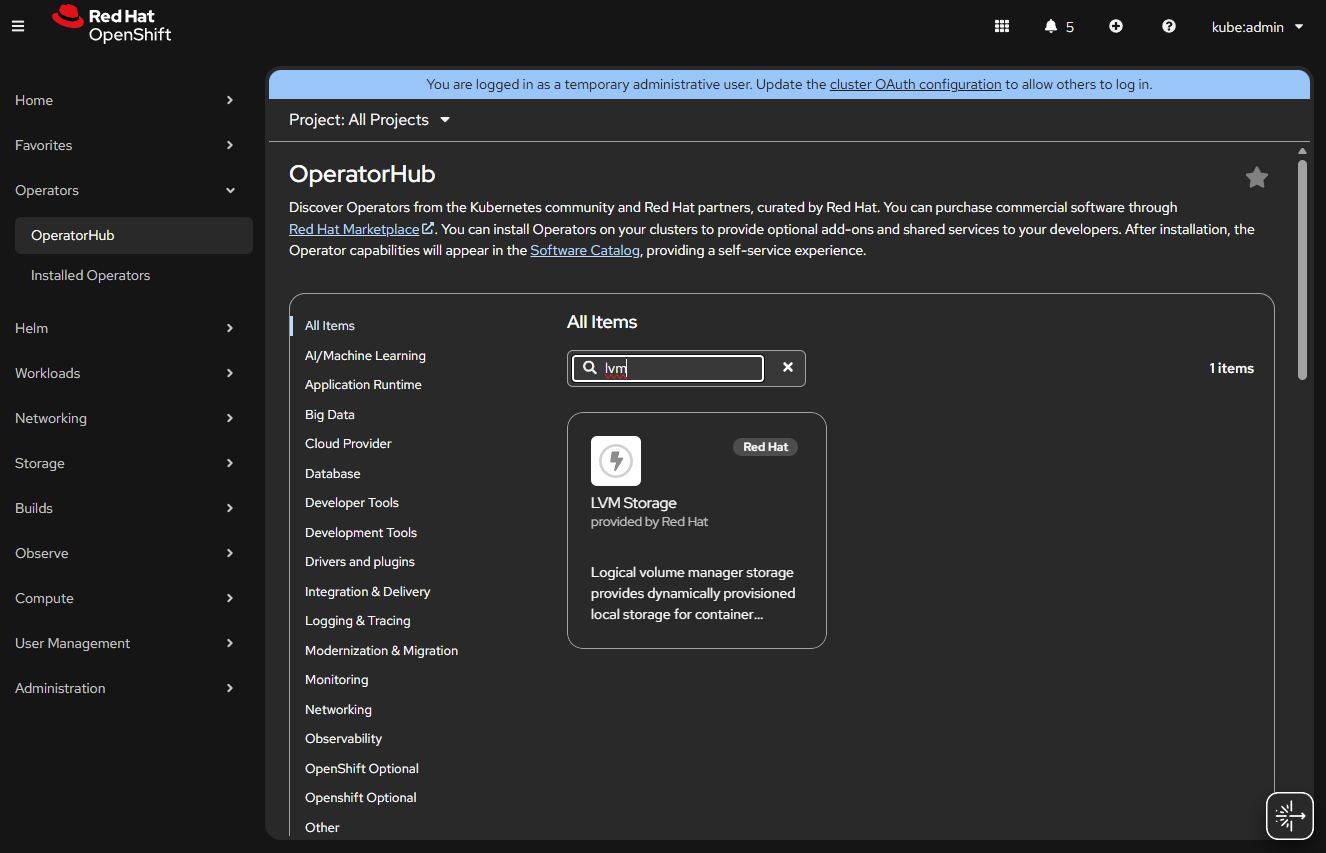
- You will be prompted to create an “LVMCluster”, click the button.
- Name it something like “local-lvm-storage”.
- Open the “storage” menu.
- Open “deviceClasses”.
- Check default, if you want this to be the default storage.
- It will say 90% of the space will be used for LVM, you can increase if you want more space, by default it leaves a little in case you need more for metadata storage. LVM has data and metadata storage as two different sub pools within your LVM.
- Open “deviceSelector”.
- forceWipeDevicesAndDestroyAllData if you dare / want it to format the drive first.
- Open “paths”, here you must add the drives you want to use, this will go to each node, you can use serial numbers or for my single node I will just use “/dev/sda” since I know I have an empty SATA drive I want to use.
- Note: If you used the partition script from the SNO article, then you need to put “/dev/sda5”, or “/dev/nvme0n1p5”, or whichever drive you used, if you run
$ lsblkfrom Compute -> Nodes -> <your node> you will see the partition layout.
- Open “deviceClasses”.
- Click “Create”.
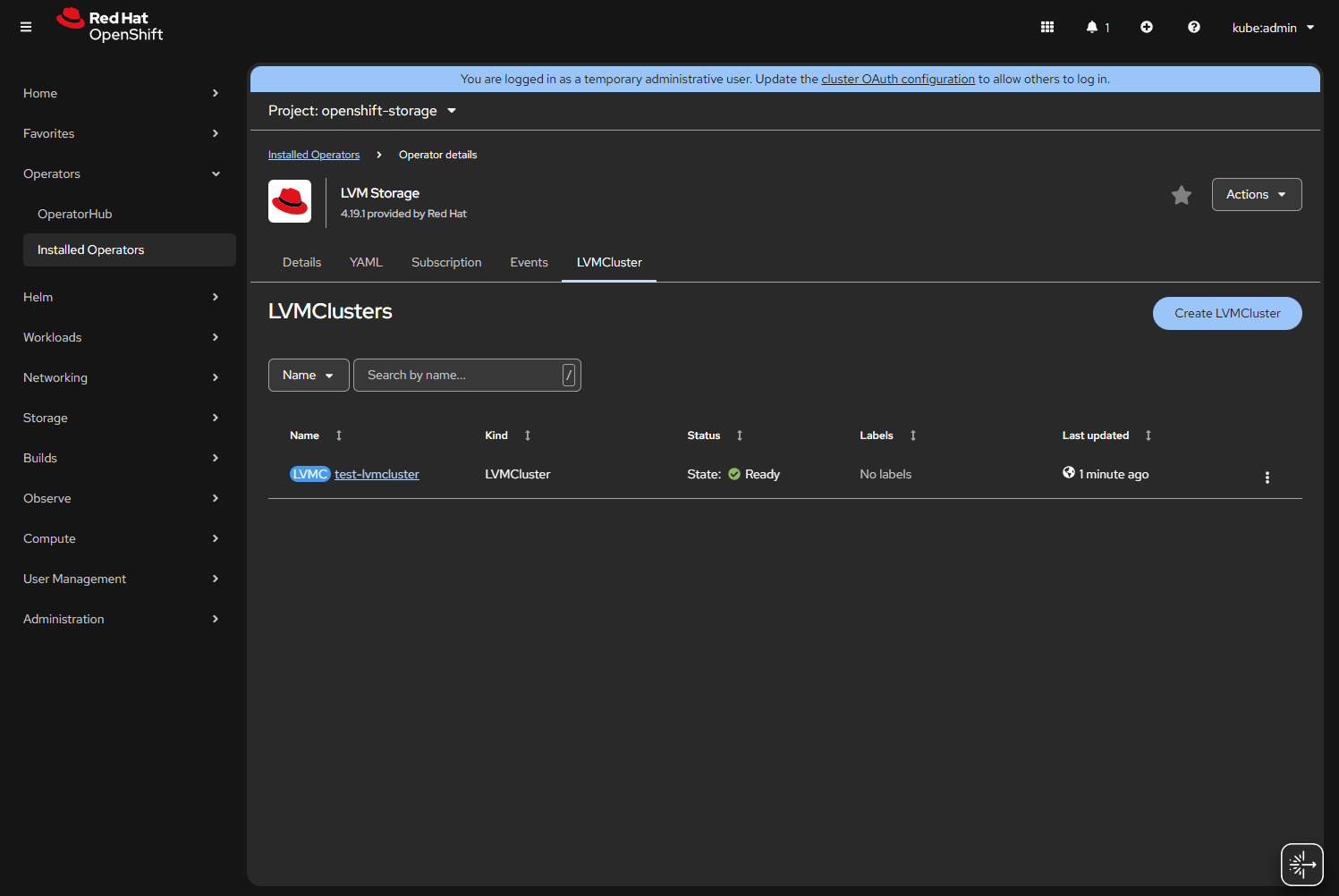
- If the drive sets up correctly you will see
Status: Ready.
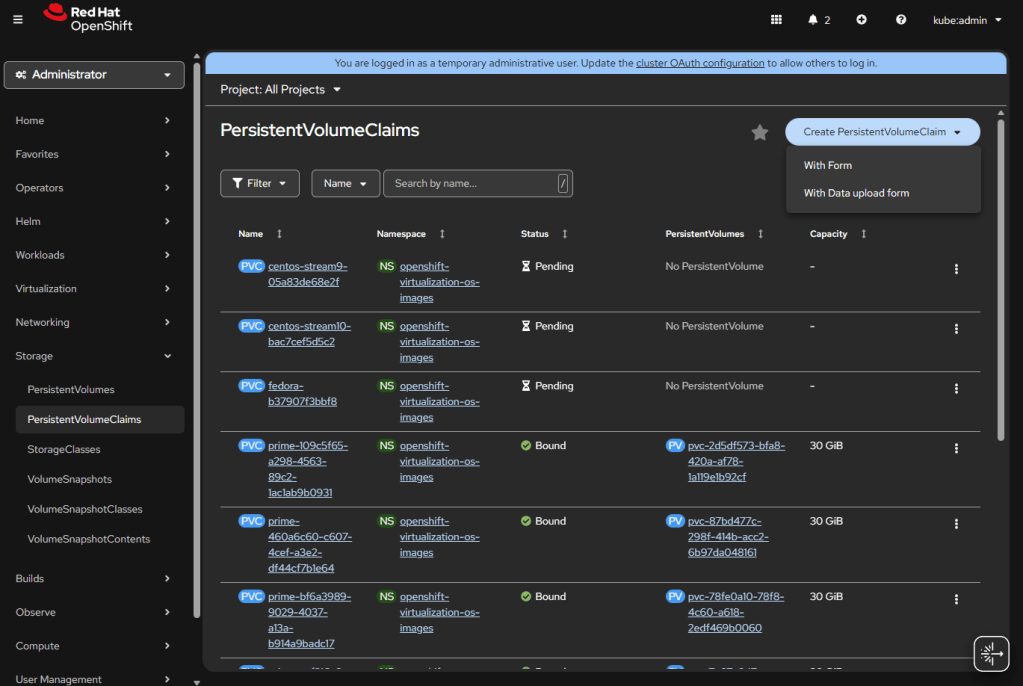
If you install OpenShift Virtualization, it will automatically populate some of the templates to the default storage, also it will allow you to “Create PersistentVolumeClaim” “With Data upload form”.
- Going to Compute -> Nodes -> <your node> -> Terminal, you can run:
chroot /host,lsblkand see all the goings on with lvm. - Going to the same terminal, you can enter
sudo lvs -a vg1to verify lvm is configured and space available. I have started testing on OpenShift 4.20 nodes, and have noticed the host lvm.conf filters may hide the volumes, and you can uselvs --config 'devices { filter=["a|.*|"] }'to override that filter.
Types of Storage in Kubernetes
Now that LVM is setup it is worth quickly giving an overview on more layers of Storage within OpenShift and Kubernetes as a whole. There are two types of storage for Kubernetes / OpenShift, and within those types of access for files and data.
First, there is file system storage, this type of storage is a folder or files that are needed by a pod, think of storage such as NFS. Second there is block, this is large binary blobs; this is used a lot with VMs. Block will be both your ISO images for templates, and disk images you boot off of. This storage is just “here is 30GB”, x VM can request to edit any of the bytes in that block.
For access types there is RWO and RWX, biggest difference there is how many systems can access that storage at once. All our LVM will be RWO, because it’s local to this box. When you do Ceph storage, that can be RWX. There is also Read Only (ROX) and Read write once pod (RWOP) but we will not worry about that here.
These types of storage come into play later when you will want to add ISOs or VM hard drives within KubeVirt. The next post will be about setting up Ceph for a cluster. LVM storage is great for a single node you want to develop with; it’s simple, and there is very little overhead. When we get into multinode, we enter the world of hyper-converged infrastructure with all its pluses and minuses; but we need that to migrate VMs and have redundancy. After Ceph, we will finally discuss installing and managing KubeVirt / OpenShift Virtualization.
 BuildingTents