networking

Step-By-Step Setting Up Networking for Virtualization on OpenShift 4.19 for a Homelab

As we continue our Openshift journey to get virtualization working, we have a vanilla node already setup and now we need to get the networking configured. The examples here are from Openshift 4.19.17.

Networking in OpenShift is conceptually two parts that connect. The first part is the host level networking; this is your CoreOS OpenShift host itself. Then there is how do the pods connect into that networking. Usually, the network connects through your network interface card (NIC), to the Container Networking Interface (CNI), then to your pod. Here we will be using a meta plugin that connects between the NIC and the CNI called Multus. Redhat has a good post about it.
Host Level Networking

This part of the networking stack is straight forward if you are used to Linux system networking, and it is setup the same way. Treat the CoreOS node like any other Linux system. The big decision to make in the beginning is how many interfaces you will have.

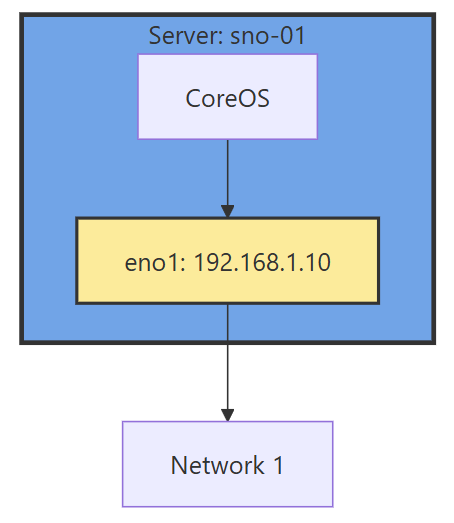
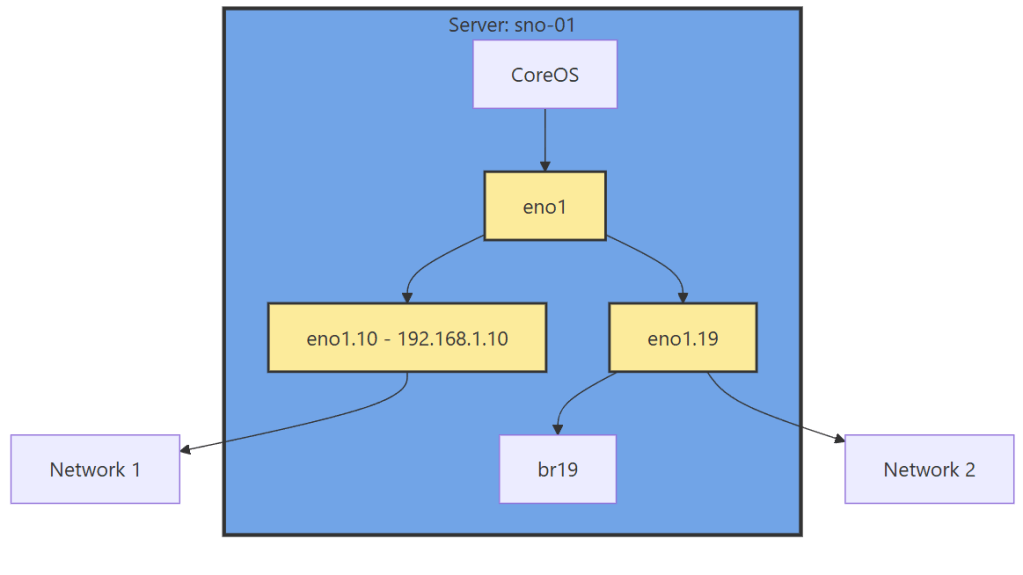
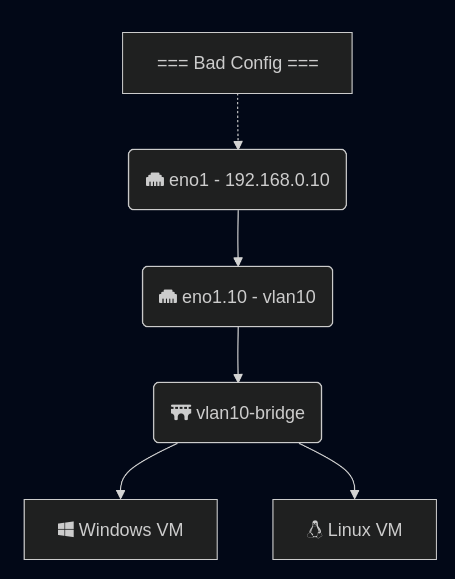
Networking diagram without sub interface

If you have 1 interface and plan on using virtualization, are you going to use VLANs? If so, then you may want to move the IP of the interface off of the primary interface and onto a VLAN sub interface. This moves the traffic from untagged to tagged traffic for your network infrastructure.

Another reason is there are bugs in the Mellanox firmware, mlx5e, where Mellanox 4 and 5 cards can think you are double VLAN encapsulating, and will start automatically stripping VLAN tags. The solution is to move all traffic to sub interfaces. You will get an error in your dmesg/journalctl of: mlx5e_fs_set_rx_mode_work:843:(pid 146): S-tagged traffic will be dropped while C-tag vlan stripping is enabled

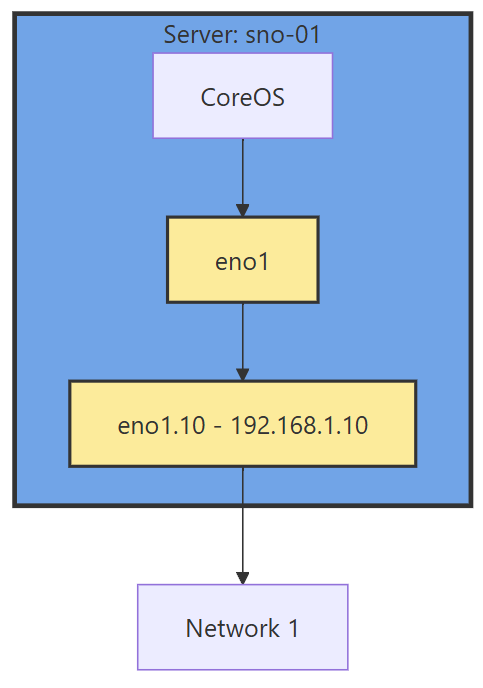
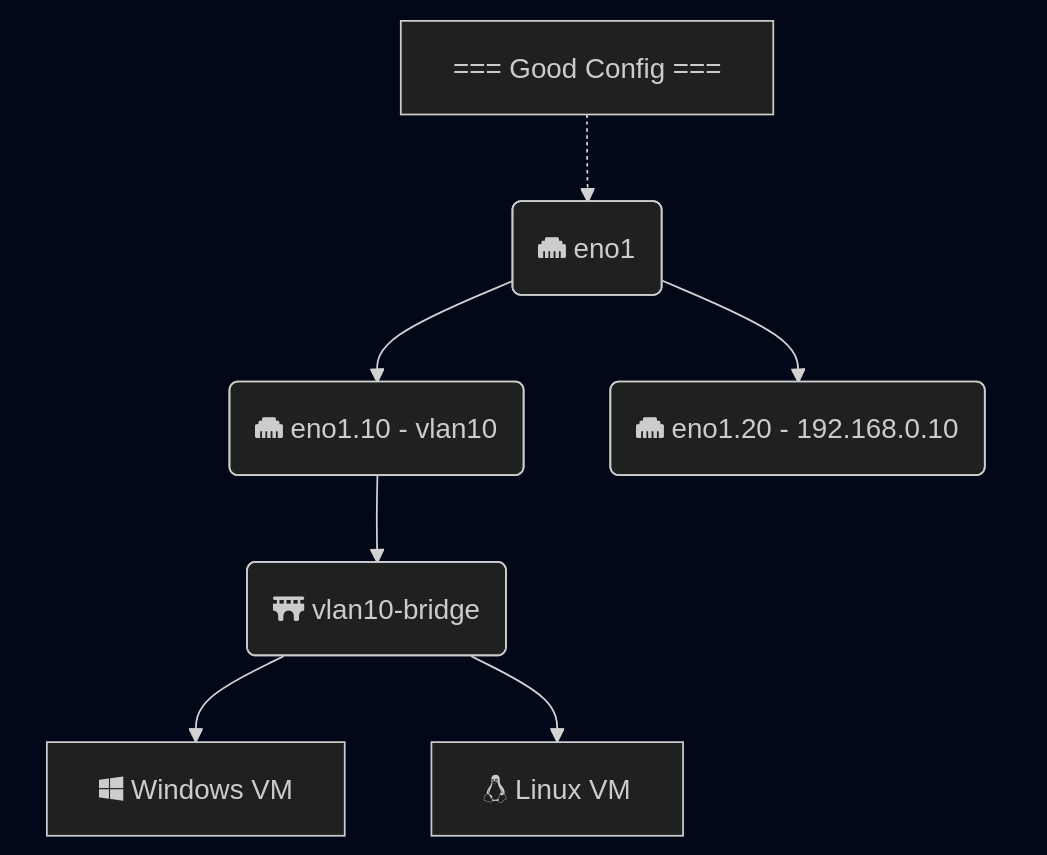
With the interface moved, that frees us up to use it for other VLANs as well. If you deployed network settings via a MachineConfig, you would have to override them there.

Networking diagram with sub interface

The rest of the configuration will be done via the NMState Operator and native Openshift.

NMState VLAN and Linux Bridge Setup

NMState is a Network Manager policy system. It allows you to set policies like you would in Windows Group Policy, or Puppet to tell each host how the network should be configured. You can filter down to specific hosts (I do that for testing, to only apply to 1 host) or deploy rules for your whole fleet assuming nodes are all configured the same way. It’s possible to use tags on your hosts to specify which rules go to which hosts.

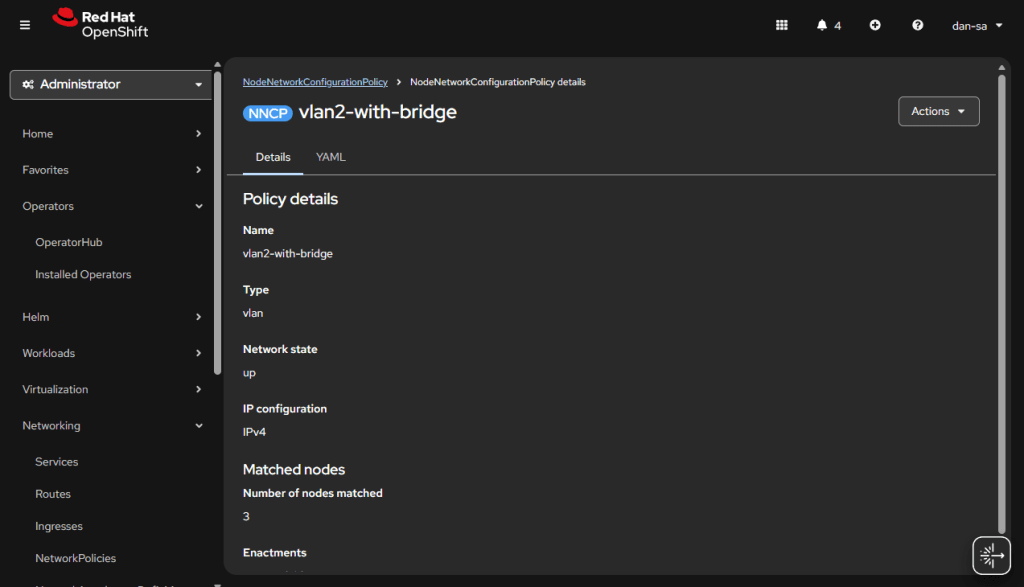
NMState can also be used to configure port bonding and other network configurations you may need. After configuration, you get a screen that tells you the state of that policy on all the servers it applies to. Each policy sets one or more Network Manager configurations, if you have multiple NICs and want to configure all of them, you can do them in one policy, but it may be worth breaking the policies apart and having more granularity.

Another way to go about this section, is to SSH into each node, and use a tool such as nmtui to manually set the networking. I like NMState because I get a screen that shows all my networking is set correctly on each node, and updates to make sure it stays that way. I put an example below of setting up port bonding.
  • Go to the OpenShift web console, if you need to setup OpenShift I suggest checking out either my SNO guide or HA Guide.
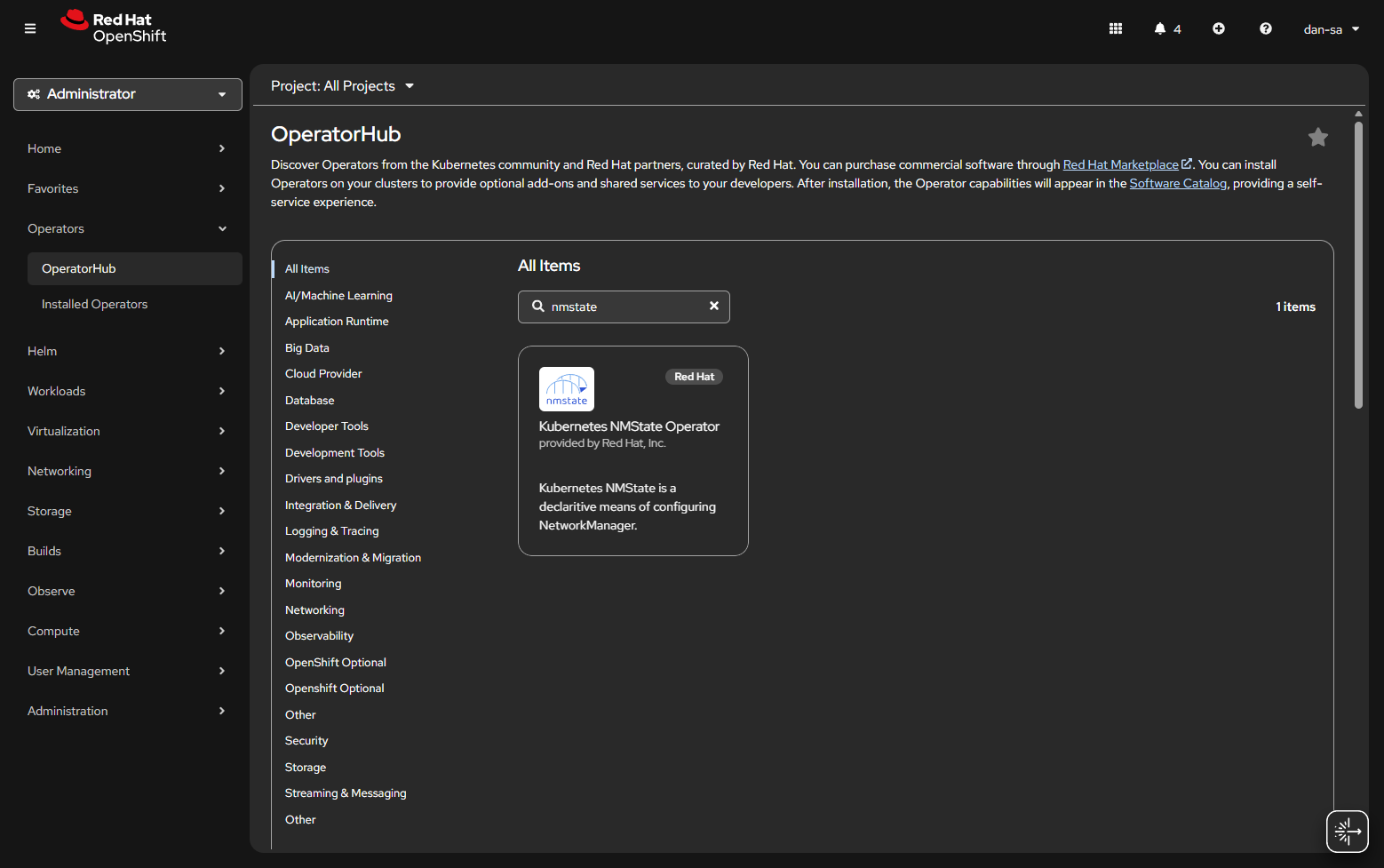
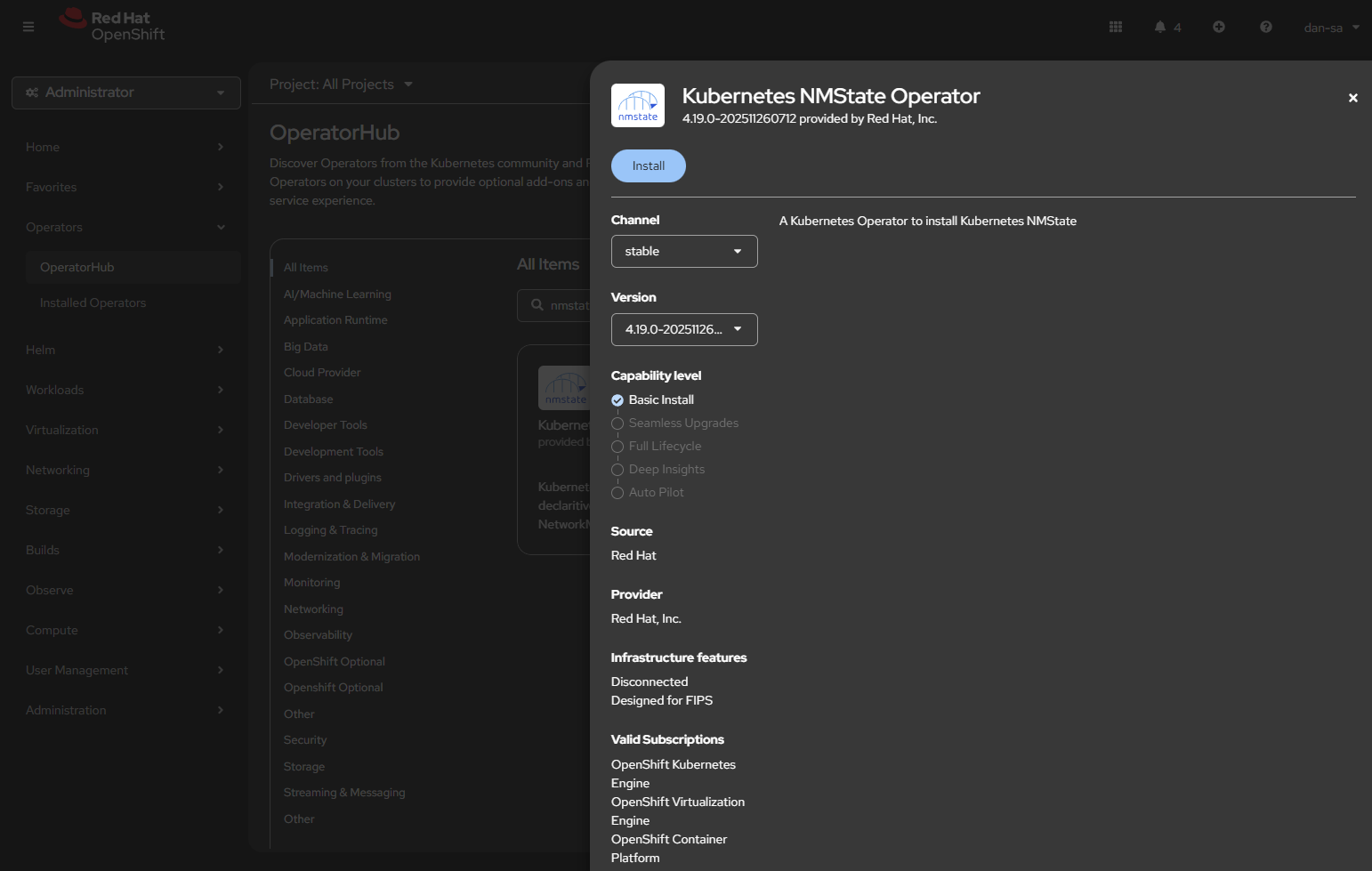
  • Click Operators -> OperatorHub.
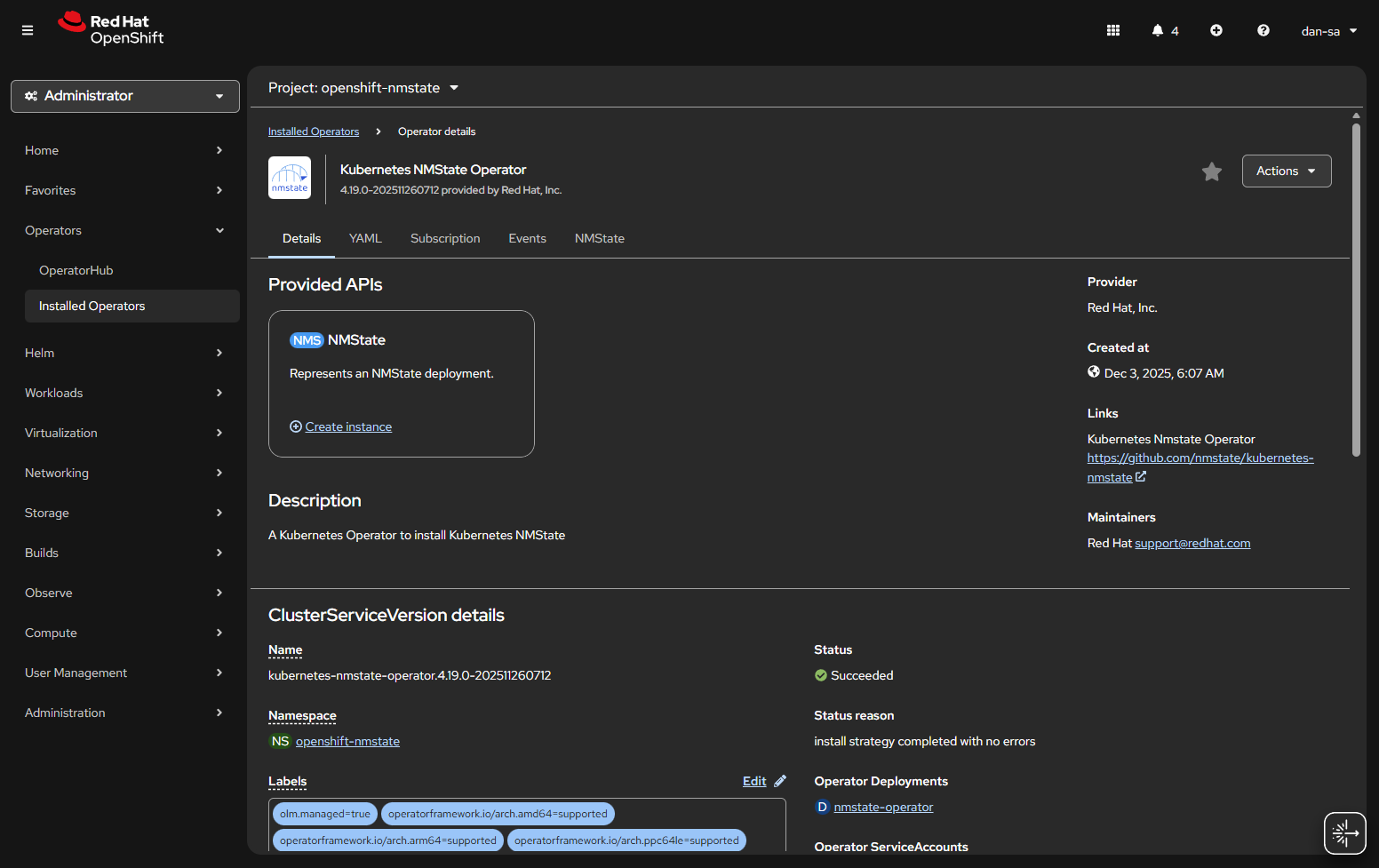
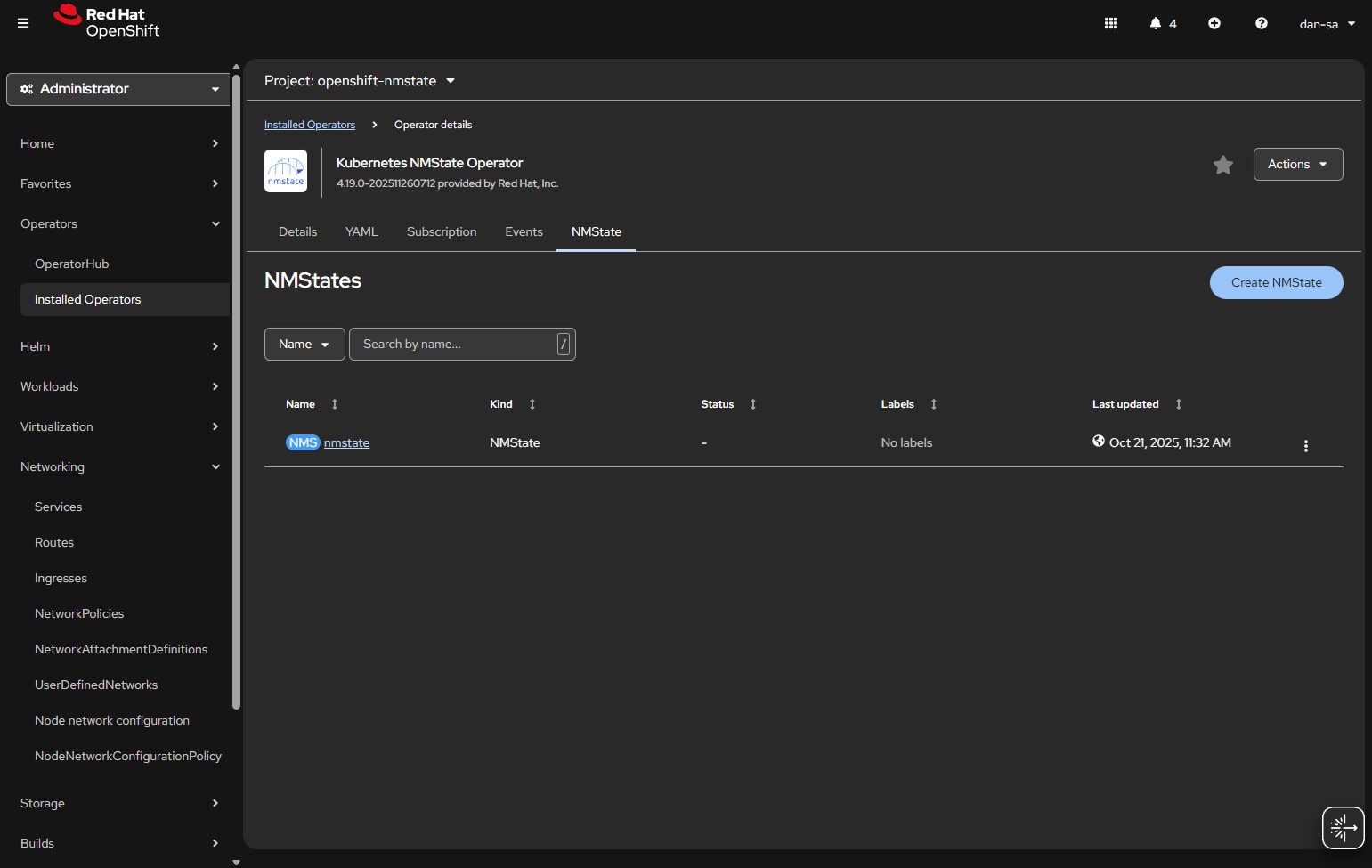
  • Once installed, you will need to create an “instance” of NMState for it to activate.
  • Then there will be new options under the Networking section on the left. We want NodeNetworkConfigurationPolicy. Here we create policies of how networking should be configured per host. This is like Group Policy or Puppet configurations.
  • At the NodeNetworkConfigurationPolicy screen, click “Create” -> “With YAML”.
  • We need to create a new sub-interface off of our eno1 main interface for our new vlan, then we need to create a Linux Bridge off that interface for our VMs to attach to.
apiVersion: nmstate.io/v1
kind: NodeNetworkConfigurationPolicy
metadata:
  name: vlan19-with-bridge           <-- Change This
spec:
  desiredState:
    interfaces:
      - name: eno1.19             <-- Change This
        type: vlan
        state: up
        ipv4:
          enabled: false
        vlan:
          base-iface: eno1
          id: 19                     <-- Change This
      - name: br19                   <-- Change This
        type: linux-bridge
        state: up
        ipv4:
          enabled: false
        bridge:
          options:
            stp:
              enabled: false
          port:
            - name: eno1.19       <-- Change This
              vlan: {}
  • Important things here:
    • Change the 19s to whichever VLAN ID you want to use.
    • “ipv4: enabled: false” says we want an interface here, but we are not giving it host level IP networking on our OpenShift node.
    • Remove the <– Change This comments
    • You MUST leave the “vlan: {}” at the end or it will not work, adding this tells it to leave vlan data how it is because we are processing via the kernel via sub interfaces.

Now we have this configuration, with a secondary interface off of our NIC, and an internal Linux Bridge for the VMs.

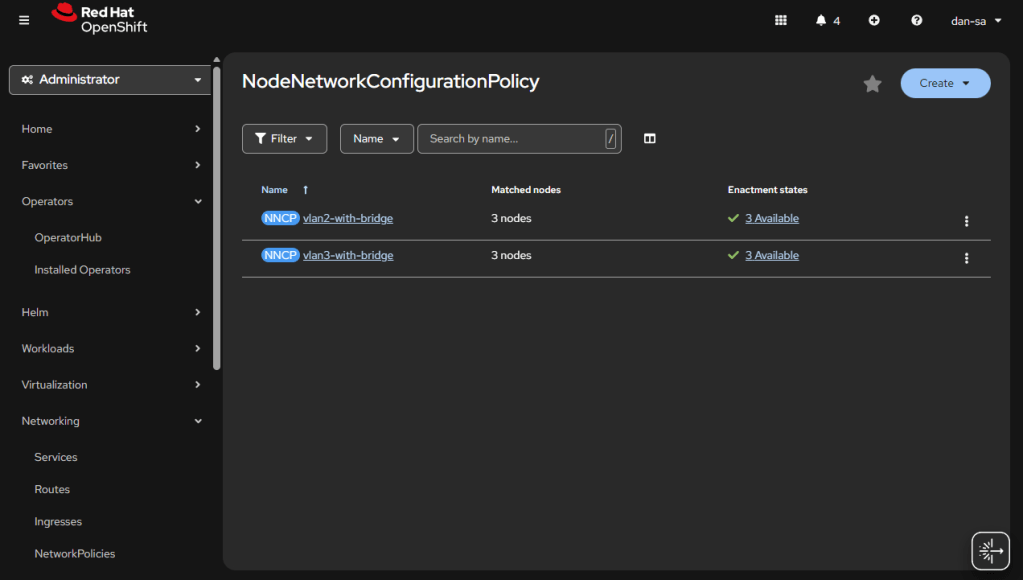
The great thing about doing this configuration via NMState, it applies to all your nodes unless you put a filter in, and you get a centralized status about if each node could deploy the config.

Here is an example from my Homelab, with slightly different VLAN IDs than we have been discussing. You can see all three nodes have successfully taken the configuration.

OpenShift VM Network Configuration

Kubernetes and OpenShift use Network Attachment Definitions (NADs) to configure rules of how pods can connect to host level networking or to the CNI. We have created the VLANs and Bridges we need on our host system, now we need to create Network Attachment Definitions to allow our VMs or other pods to attach to the Bridges.

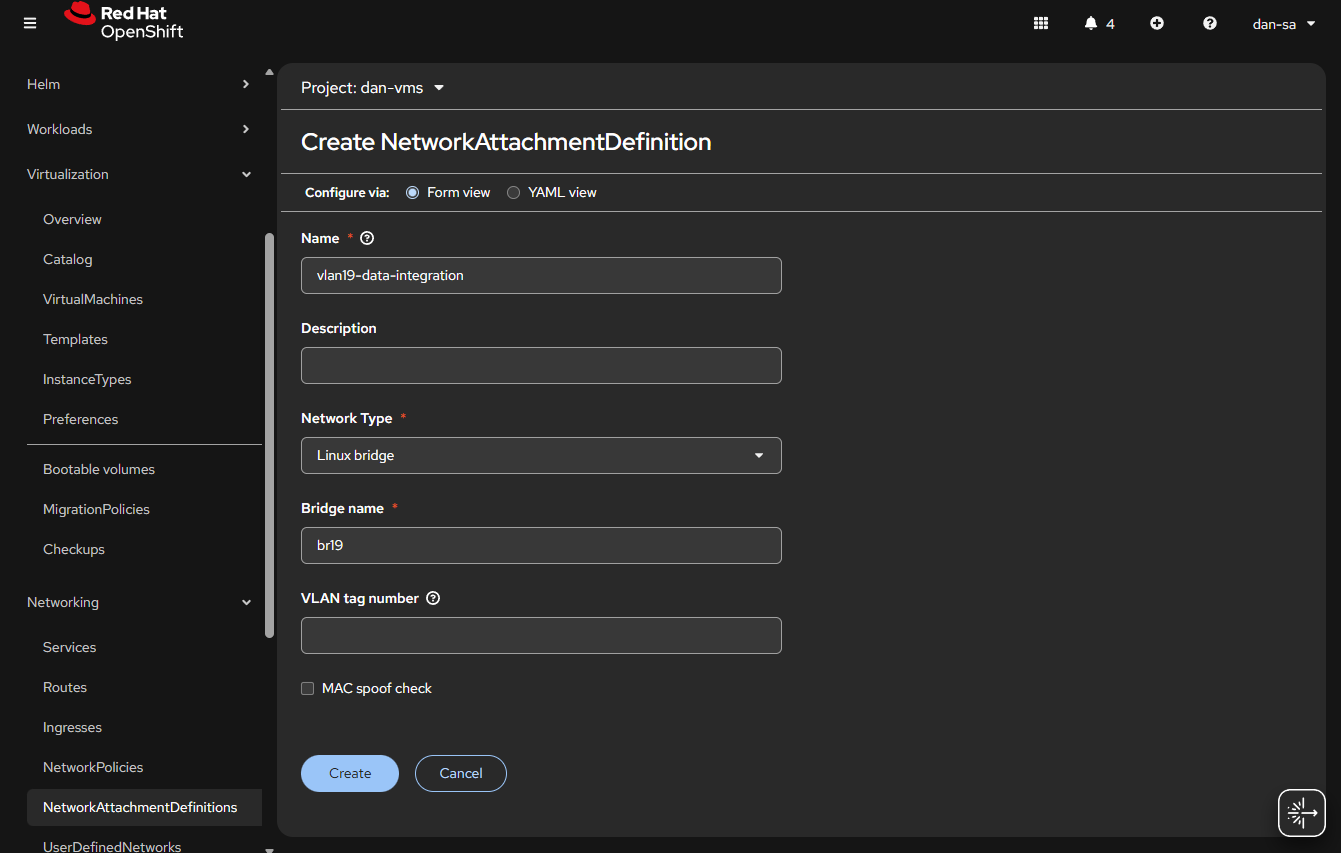
  • Go to “Networking” -> “NetworkAttachmentDefinitions”.
  • Click “Create NetworkAttachmentDefinition”
  • This is easily done, and can be done via the interface or via YAML, first we will do via the UI then YAML.
  • Before entering the name, make sure you are in the Project / Namespace you want to be in, NADs are Project / Namespace locked. This is nice because you can have different projects for different groups to have VMs and limit which networks they can go to.
  • Name: This is what the VM Operator will select, make it easy to understand, I do “vlan#-purpose“, example: “vlan2-workstations”.
  • Network Type: Linux Bridge.
  • Bridge Name: what was set above, in that example “br19“, no quotes.
  • VLAN tag number: Leave this blank, we are processing VLAN data at the kernel level not overlay.
  • MAC spoof check: Do you want the MAC addresses checked on the line. This is a feature which allows the network admin to pin certain MAC addresses and only send traffic out to those allowed. I usually turn this off.
  • Click “Create

The alternative way to do a NAD is via YAML, here is an example block:

apiVersion: k8s.cni.cncf.io/v1
kind: NetworkAttachmentDefinition
metadata:
  name: vlan19-data-integration
  namespace: default
spec:
  config: |-
    {
        "cniVersion": "0.3.1",
        "name": "vlan19-data-integration",
        "type": "bridge",
        "bridge": "br19",
        "ipam": {},
        "macspoofchk": false,
        "preserveDefaultVlan": false
    }

You can verify the NAD was created successfully by checking the NetworkAttachmentDefinitions list. Your networking is ready now. Next post, we will discuss getting storage setup.

Additional NodeNetworkConfigurationPolicy YAMLs

NIC Bonding / Teaming

Use mode 4 (802.3ad/LACP) if your switch supports link aggregation; otherwise mode 1 (active-backup) is the safest fallback.

apiVersion: nmstate.io/v1
kind: NodeNetworkConfigurationPolicy
metadata:
  name: bond0-config
spec:
  desiredState:
    interfaces:
      - name: bond0
        type: bond
        state: up
        ipv4:
          enabled: false
        link-aggregation:
          # mode=1 active-backup
          # mode=2 balance-xor
          # mode=4 802.3ad
          # mode=5 balance-tlb
          # mode=6 balance-alb
          mode: 802.3ad
          options:
            miimon: '140'
          port:
            - eno1
            - eno2

Useful Links

https://github.com/k8snetworkplumbingwg/multus-cni/blob/master/docs/how-to-use.md

https://medium.com/@tcij1013/how-to-configure-bonded-vlan-interfaces-in-openshift-4-18-0bcc22f71200

Mellanox Driver Ignoring Vlans

Recently I spend more hours than I want to talk about fixing a server that had a Mellanox ConnectX6-lx card, where I could not get Openshift to get traffic to VMs. I was creating bridges just like I normally do, and traffic was working to the main interface. After a lot of trial and error I wanted to make a quick post in case anyone runs into this.

All of this assumes a trunk port to an interface on Linux (or a bonded interface). If you have an interface in Linux on the native vlan, and that is a standard interface (example eno1). Then you add a sub interface for tagged traffic, eno1.10, the Mellanox mlx5 driver will – in hardware -ignore your vlan tag and just send traffic to the main interface.

One way to see if your card is doing this is search dmesg for “mlx5”: dmesg | grep mlx5, you may see the following:

mlx5_core 0000:0b:00.1: mlx5e_fs_set_rx_mode_work:843:(pid 156): S-tagged traffic will be dropped while C-tag vlan stripping is enabled

(https://github.com/oracle/linux-uek/issues/20)

The Mellanox card is worried about double tagged packets and will drop tags on data coming in. It does this in hardware. You can see the settings for 8021Q kernel module being loaded, and vlan filtering is disabled, but this wont matter. If you change settings like ethtool -K <interface> rx-vlan-offload off it will say the setting is off, but the underlying driver loaded this at init time, and then the settings you set will be ignored. The only way I found to fix it is to move all the IPed interfaces off the main interface.

Once you move the IPed interface under its own sub interface and reboot, data will start flowing to your VMs.

Homelab Dial-Up Networking for Retro Computing

I started mentioning about my LAN Before Time project before. The idea is to have a rack of the most diverse CPU, OS, and Networking technologies I can find. Each computer and piece of equipment bringing something new and unique to the collection. One part of this collection was the network. Coming from a networking background, I also wanted to have the most diverse set of networking technologies that I could. To do this I would need to find a core router that could talk all the different protocols I wanted. Having worked at Cisco in the past, I knew they had gear that went back in time, and could add in some additional fun like AppleTalk. That is where I started my search.

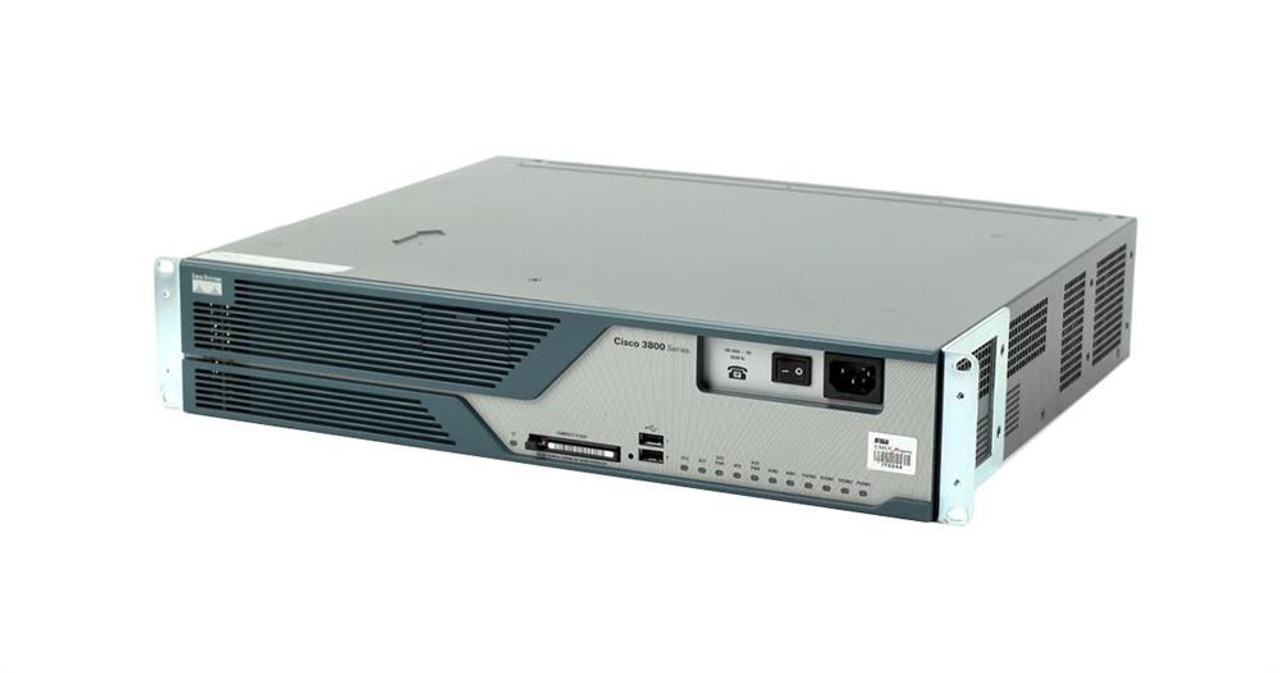
Why the Cisco 3825

I knew I needed a Router and not a switch, because we would be going between several protocols. I could time box the router a bit because I wanted to support AppleTalk and IPX. Support from these no longer exists, and thus would give a cutoff for devices I could get.

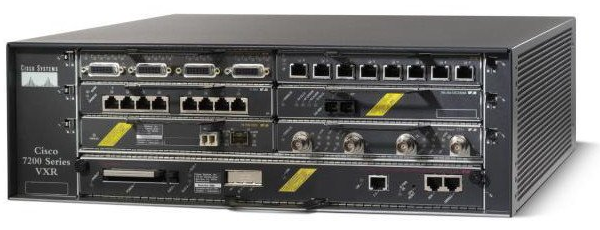
Years ago, I was the Cisco 7200 VXR guy at work. They were great routers, that could go up to gigabit and go in and out of a ton of different connections, including some voice ones. The issue was they could do lines like T1, but they couldn’t host an analog modem, and that was one thing I very much wanted.

Now we are getting down to a select group of Cisco devices. I started making a table of the pros and cons of each. I also was hoping for something slightly newer to have 1gb/s links available, and hoping that it wouldn’t use a 1000 watts at idle.

This is a table I made of all the different options for routers and the features they supported:

Model (U) Small Bays Large Bays Token Ring IPX / AppletalkDial-Up Base Speed EOL Date Flash
2513 (1) 10mb Before time Internal?
3640 (2)Y / Y100mb 2008-12-31 PCMCIA
3725 (2)Y / Y100mb 2012-03-31 CF
3745 (3)Y / Y100mb 2012-03-31 CF
3825 (2)Y / Y1000mb 2016-11-1 CF + USB 
3845 (3)Y / Y1000mb 2016-11-1 CF + USB 
3945 (3)N / N1000mb 2022-12-31  
7206XVR (3)Y / Y1000mb 2017-02-28? CF/PCMICA 

The Cisco 1800/2800/3800 line all came out around the same time, they were considered the G1 generation routers. Things before them were legacy, and the systems after them like the 3945 were the G2 devices. G2 was a step to get rid of legacy, this means dropping AppleTalk, IPX and some of the things I was interested in. By this point I had realistically narrowed down to a Cisco 3725 or 3825. The 3825 had gigabit on the main controller, allowing my to get a little closer to modern systems; that put me over the edge for it. I also was not interested in its giant cousin, the 3845; the 3825 had enough bays and should be quiet enough for me to run routinely.

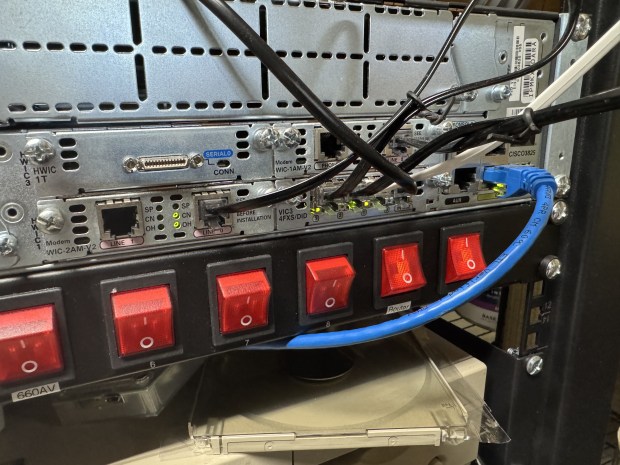
Cisco 3825 Back

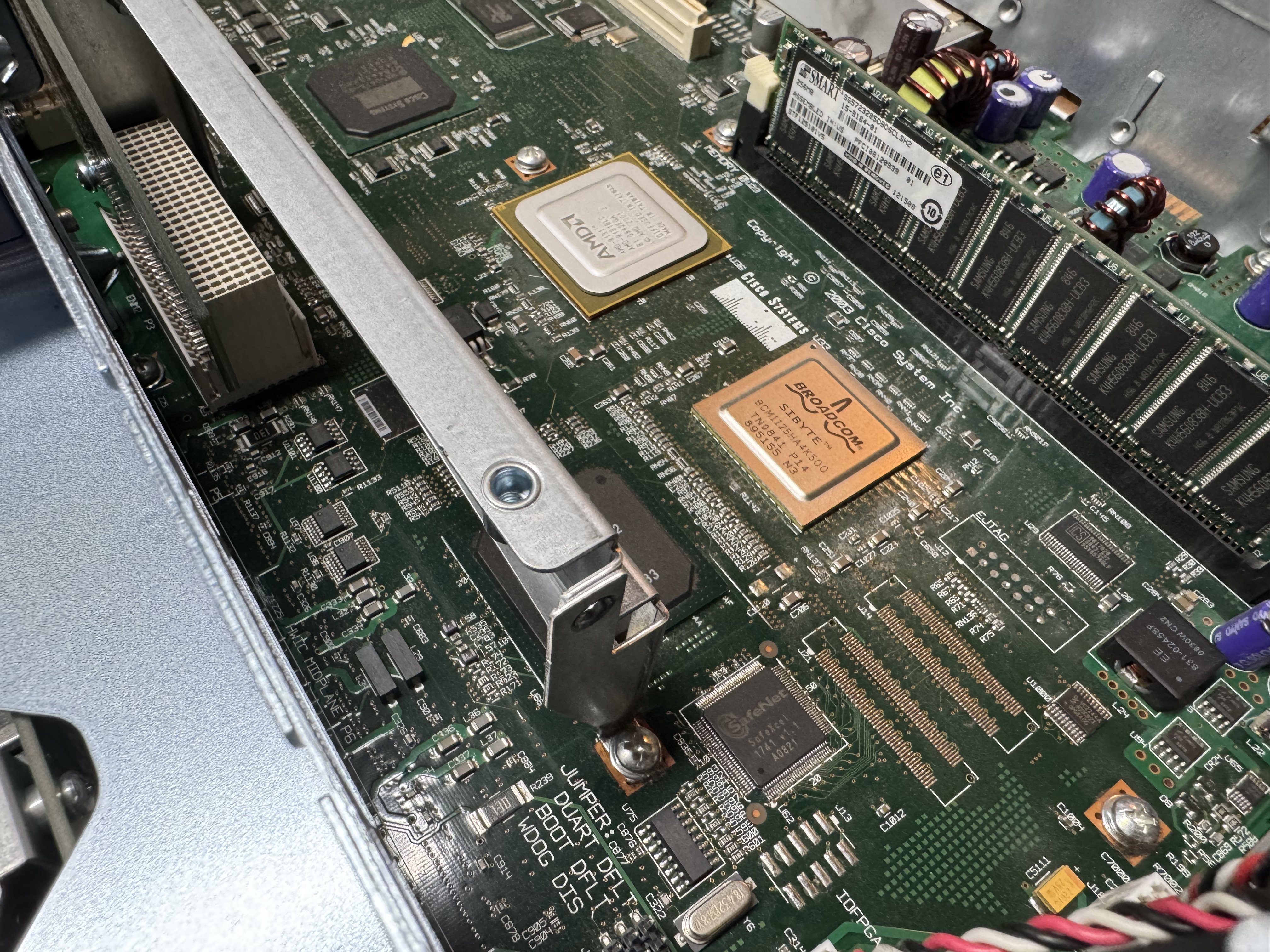
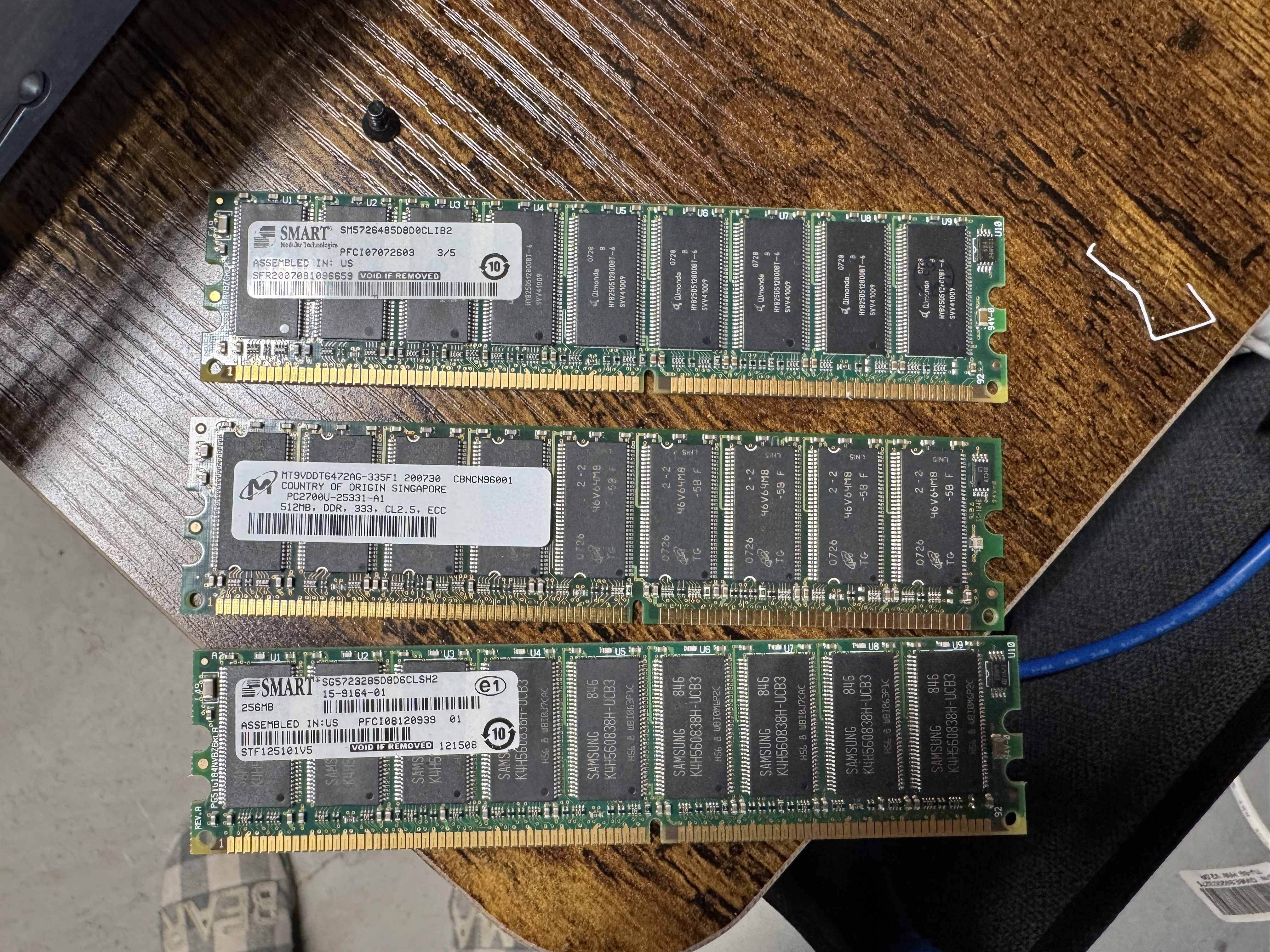
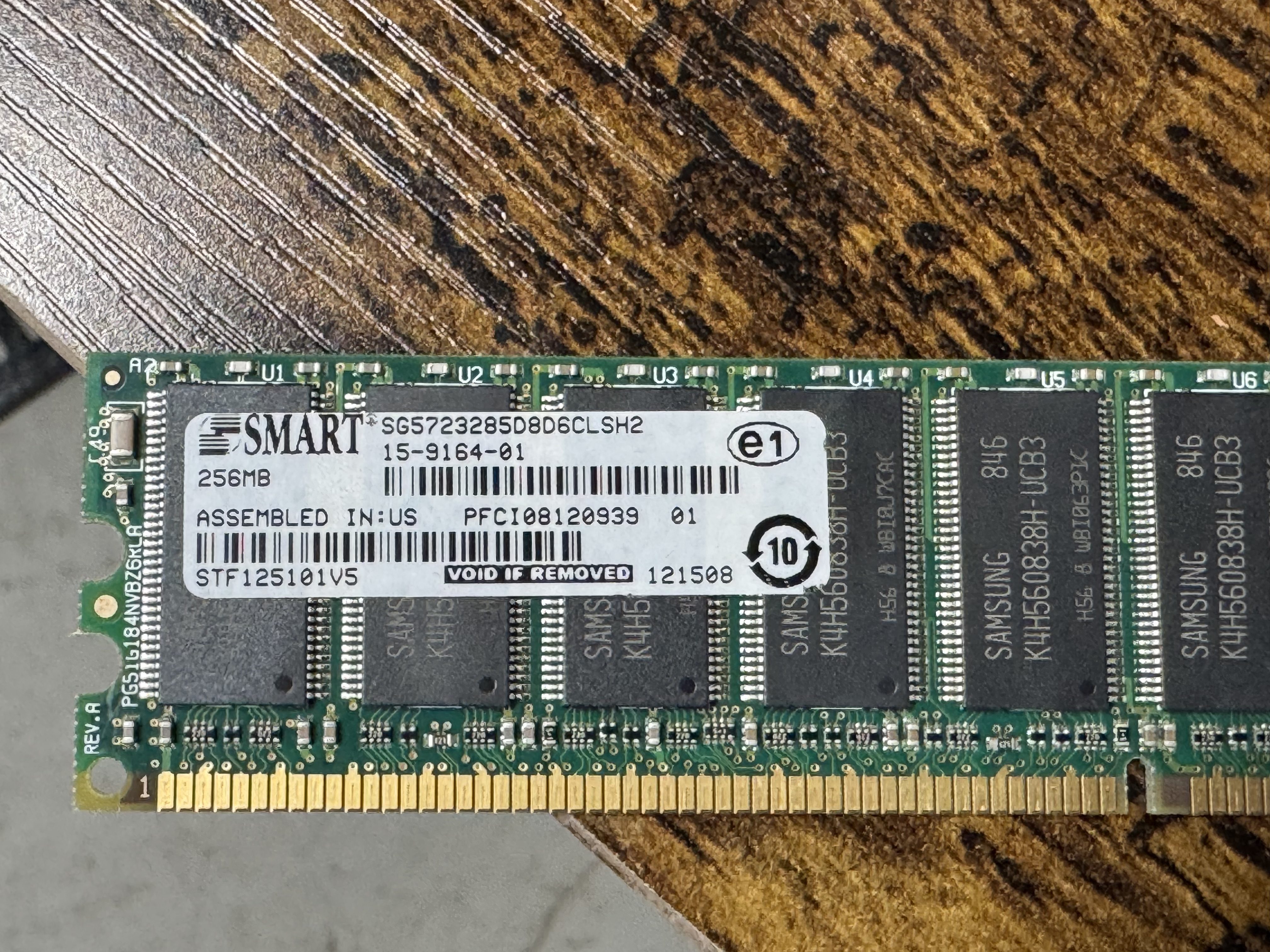
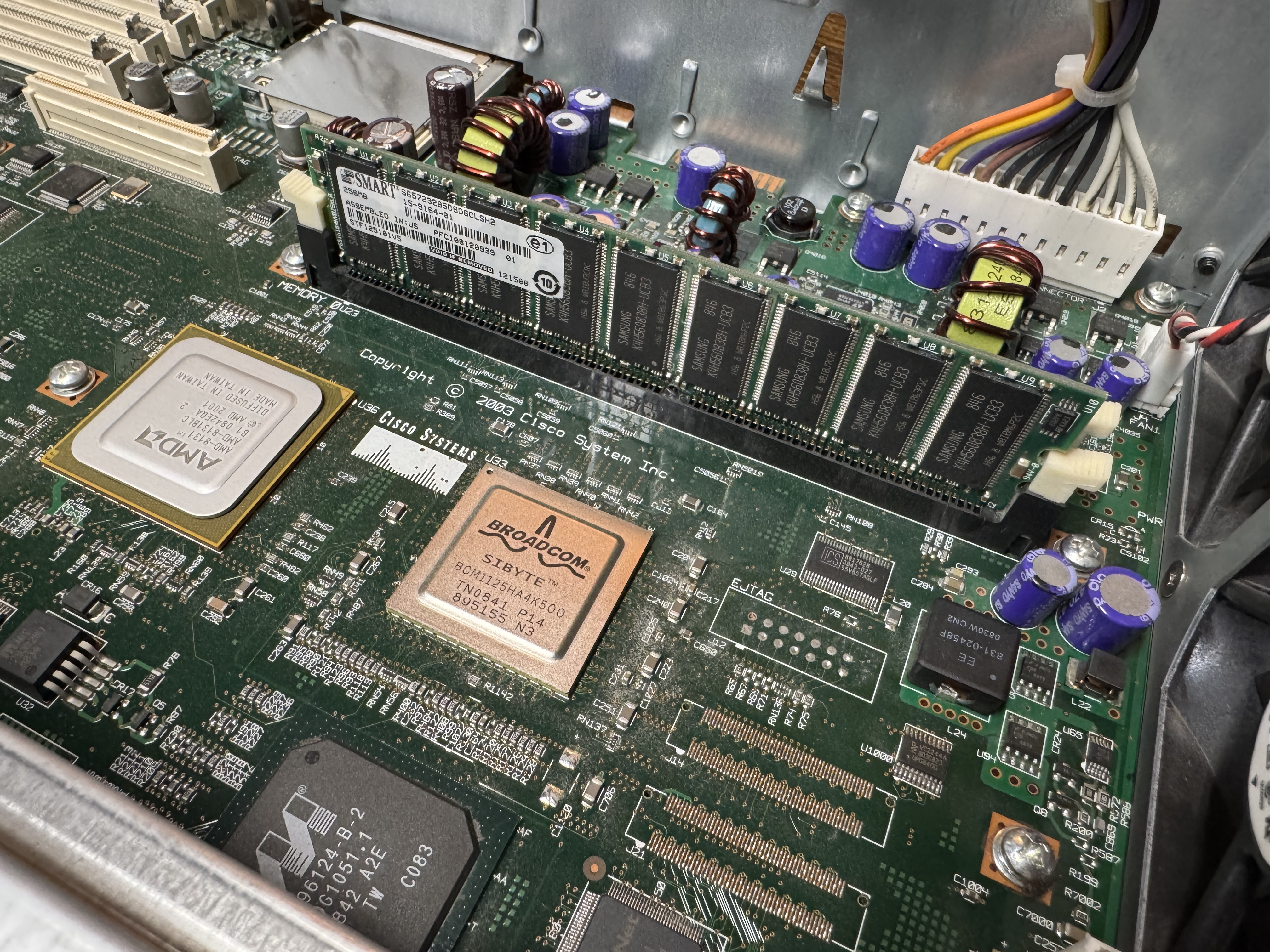
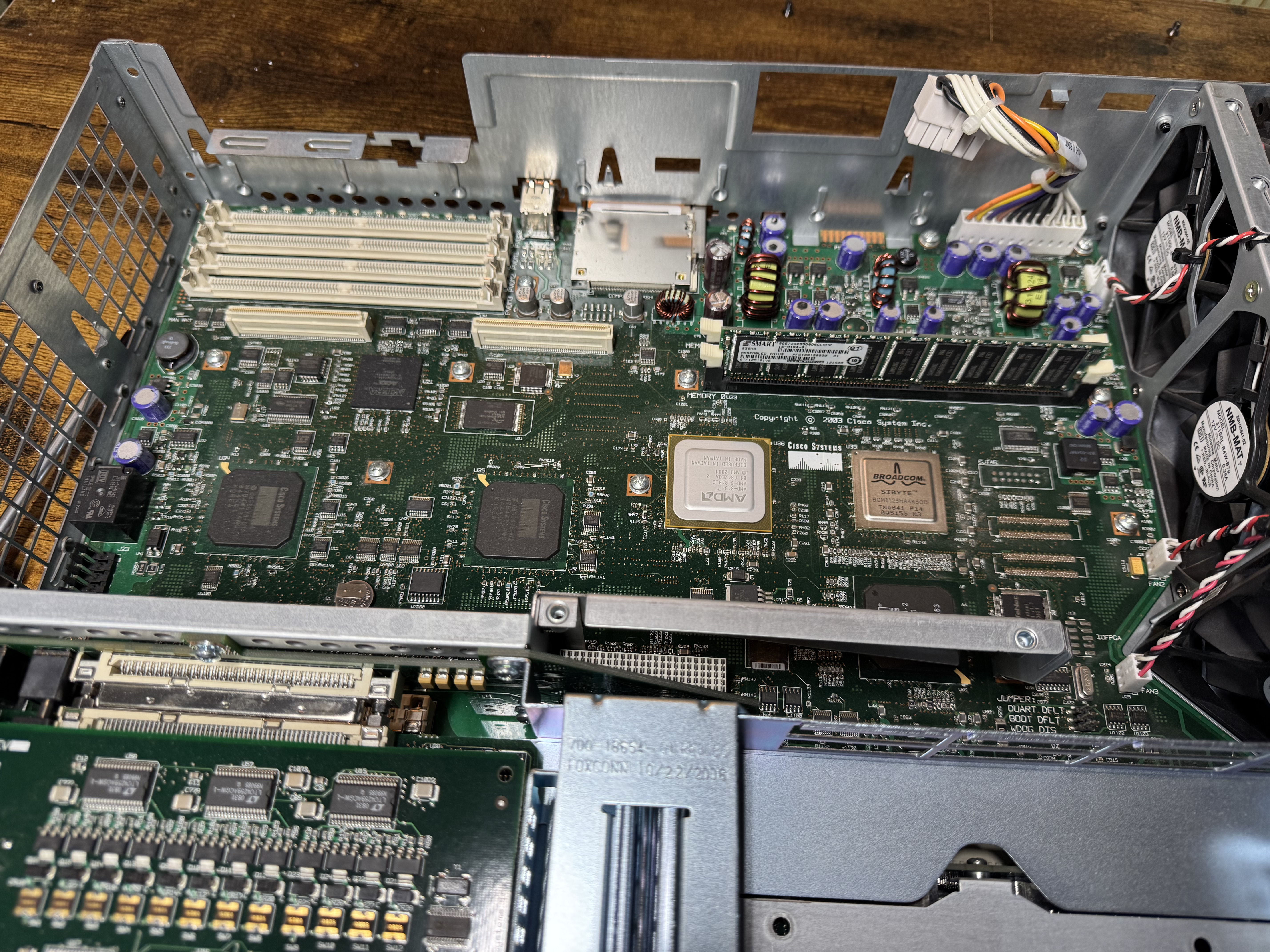
In searching for the voice features I wanted, I found I would need the Advanced Services image loaded, and that required a minimum of 512MB of memory. I ordered a system with Advanced Services and 1GB of memory, the max! When it came it had 256MB! I emailed the seller and he mailed me the proper 1GB of RAM. Once I installed it, the system would boot loop, I found one of the 2 sticks was bad. I ended up putting in one of the 512MB sticks he sent, and the 256MB one it came with for a total of 768MB of RAM.

Upgrading the Cisco 3825

Once I had the device on order, I started learning about the world of voice. I had not done much with voice before, there was a lot to learn. First, I needed to know which cards I would need. The 3825 can run older WIC cards, and the newer high speed HWIC cards. I needed analog modems, and to host those, I needed FX-S/FX-O cards. In learning about them: FX-S Foreign Exchange Station, FX-O Office. The office is for a branch office dialing OUT. You usually want FX-S because it provides a dial tone to dial into. S is to get a dial tone and you can call INTO. O is it receives a dial tone.

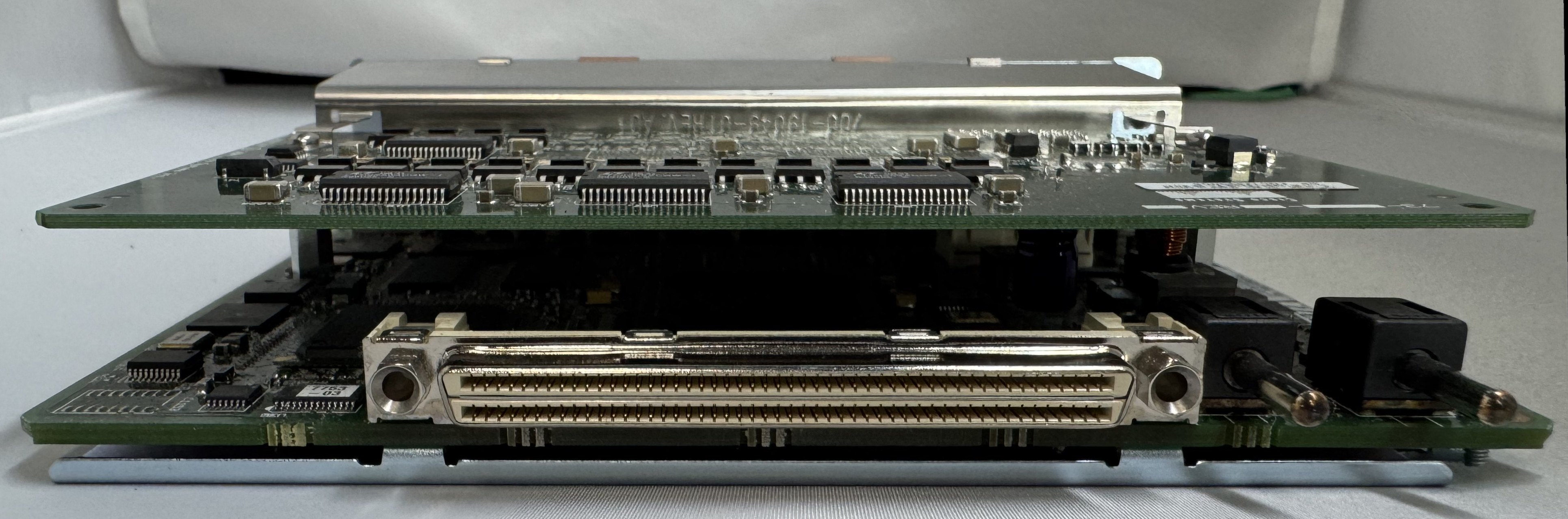
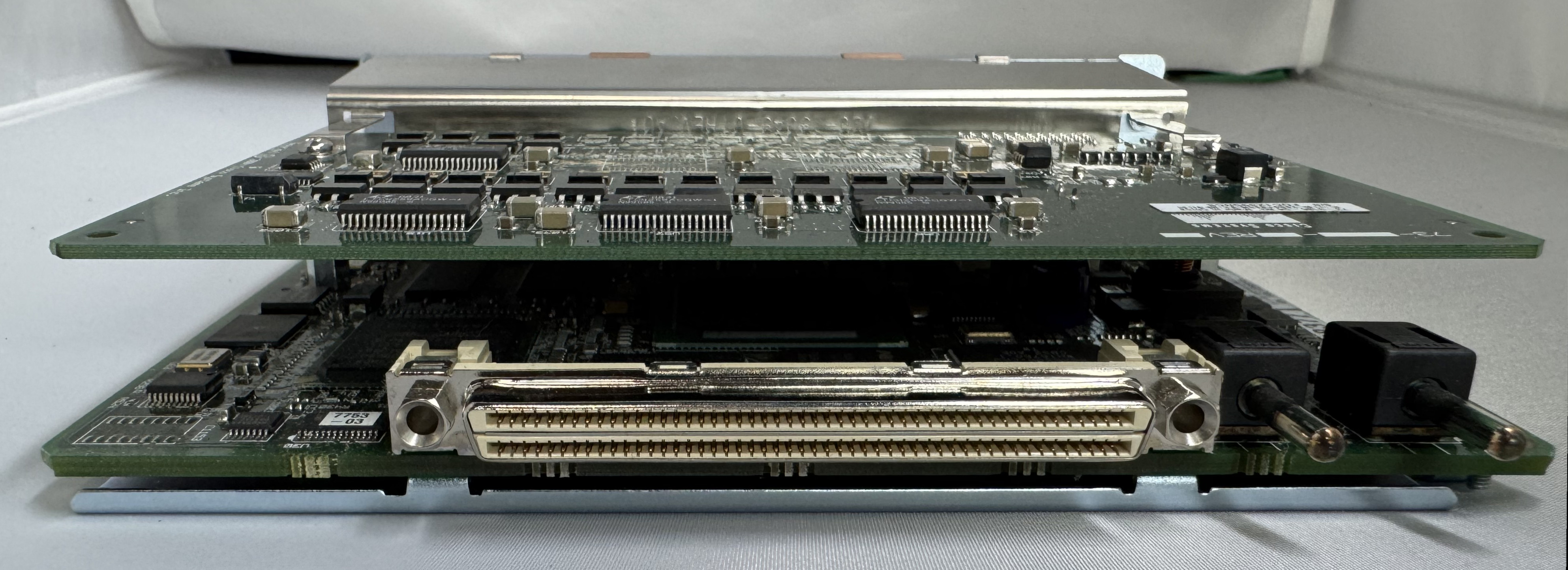
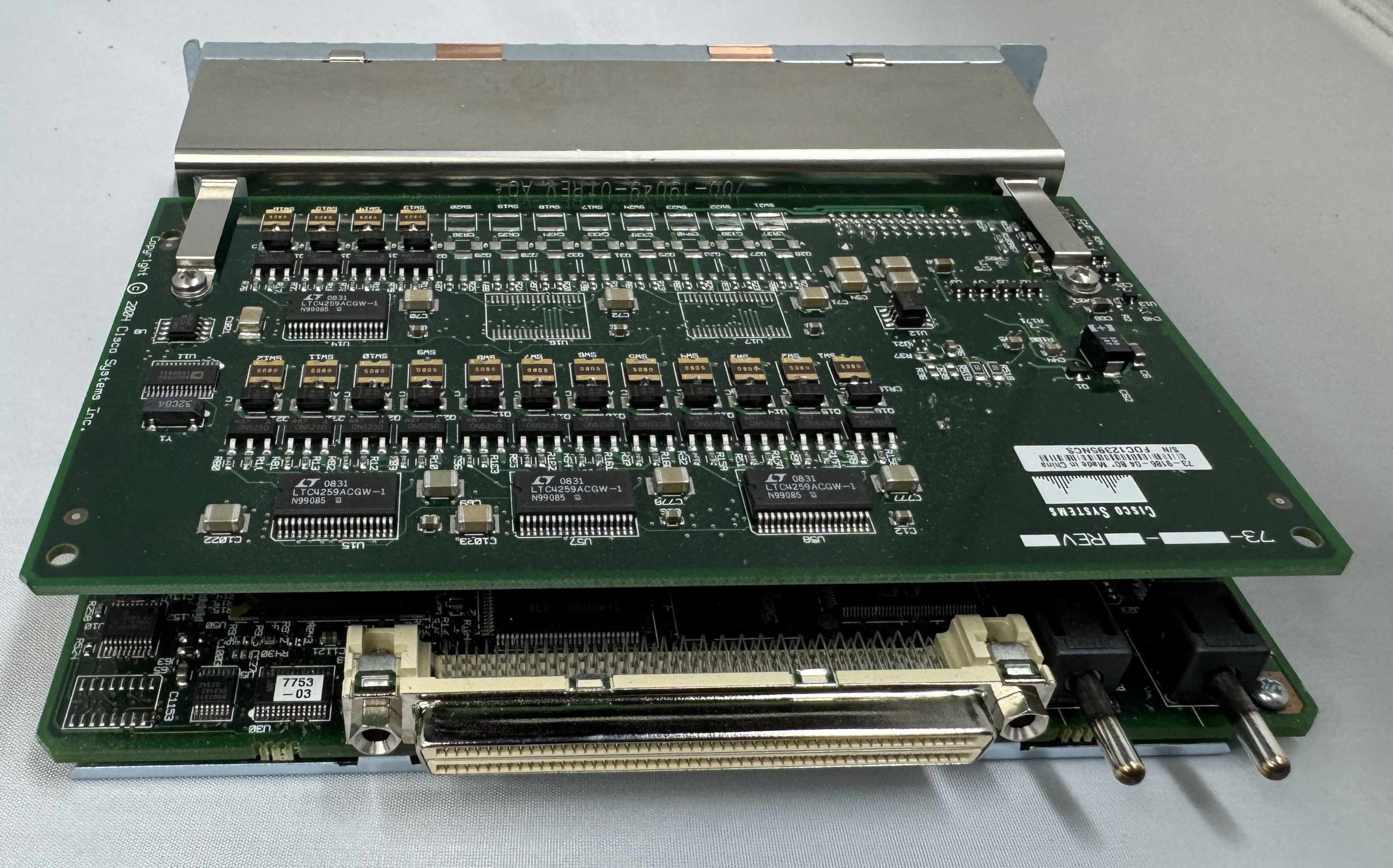
I got 4 FX-S Ports. One port is used to dial into, another to route the call out. I need more ports than you would think because of this. I got a CISCO VIC3-4FXS/DID, this gives 4 ports in/out. 2 CISCO WIC-1AM-V2, giving 2 modems I can dial into. There are cards that are 2 modems in one card, but they are rare and expensive. (I would get one later)

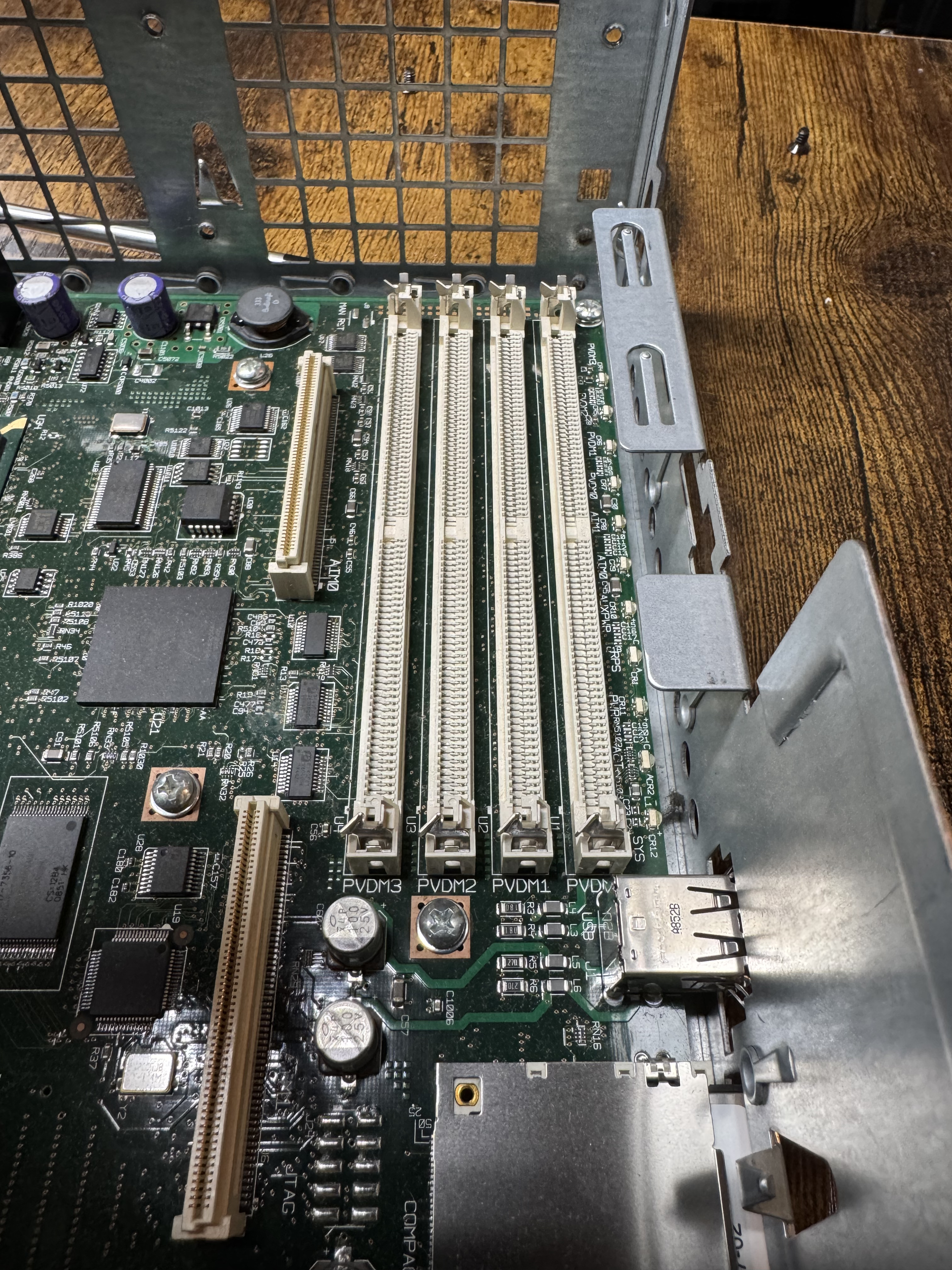
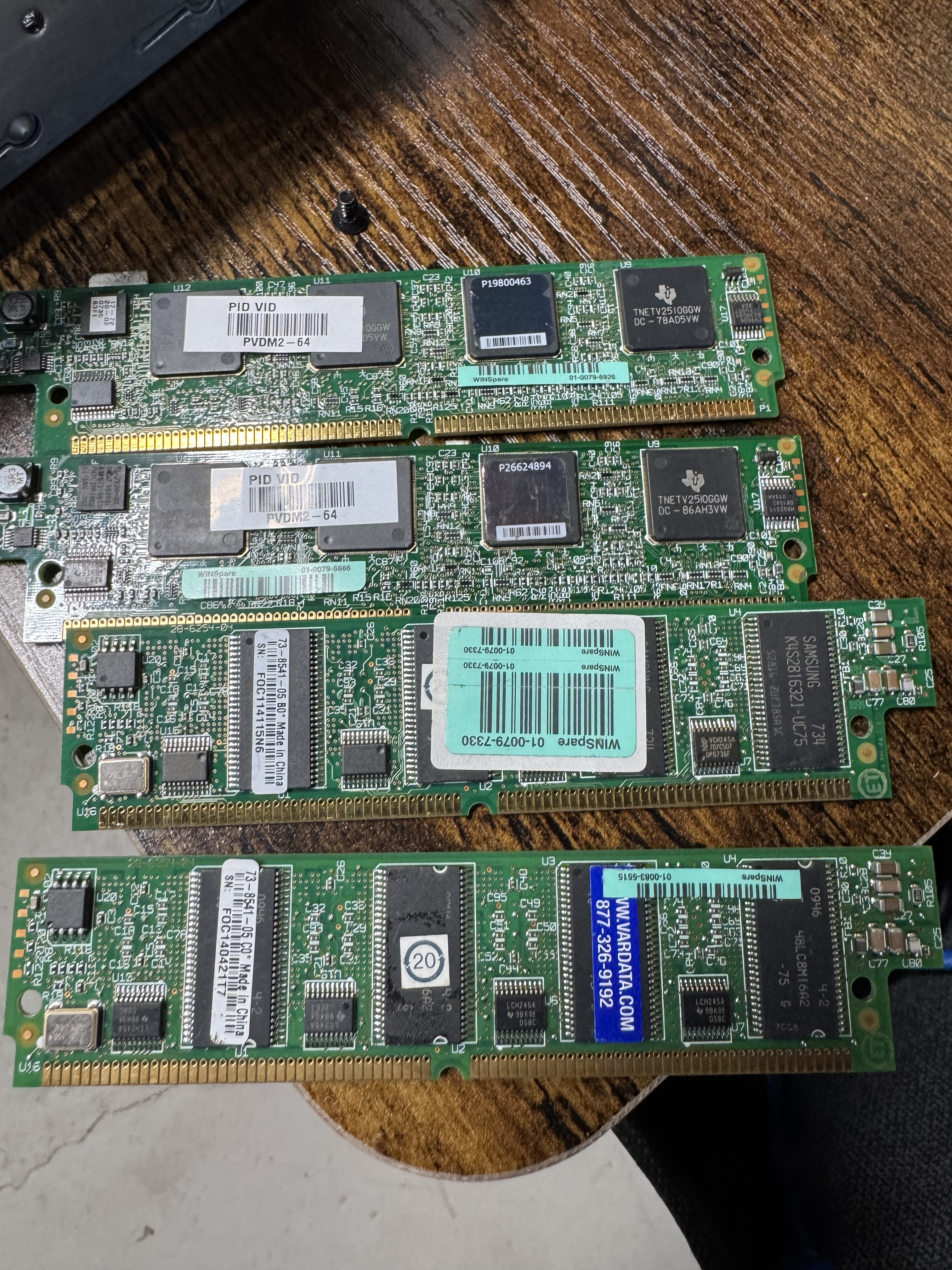
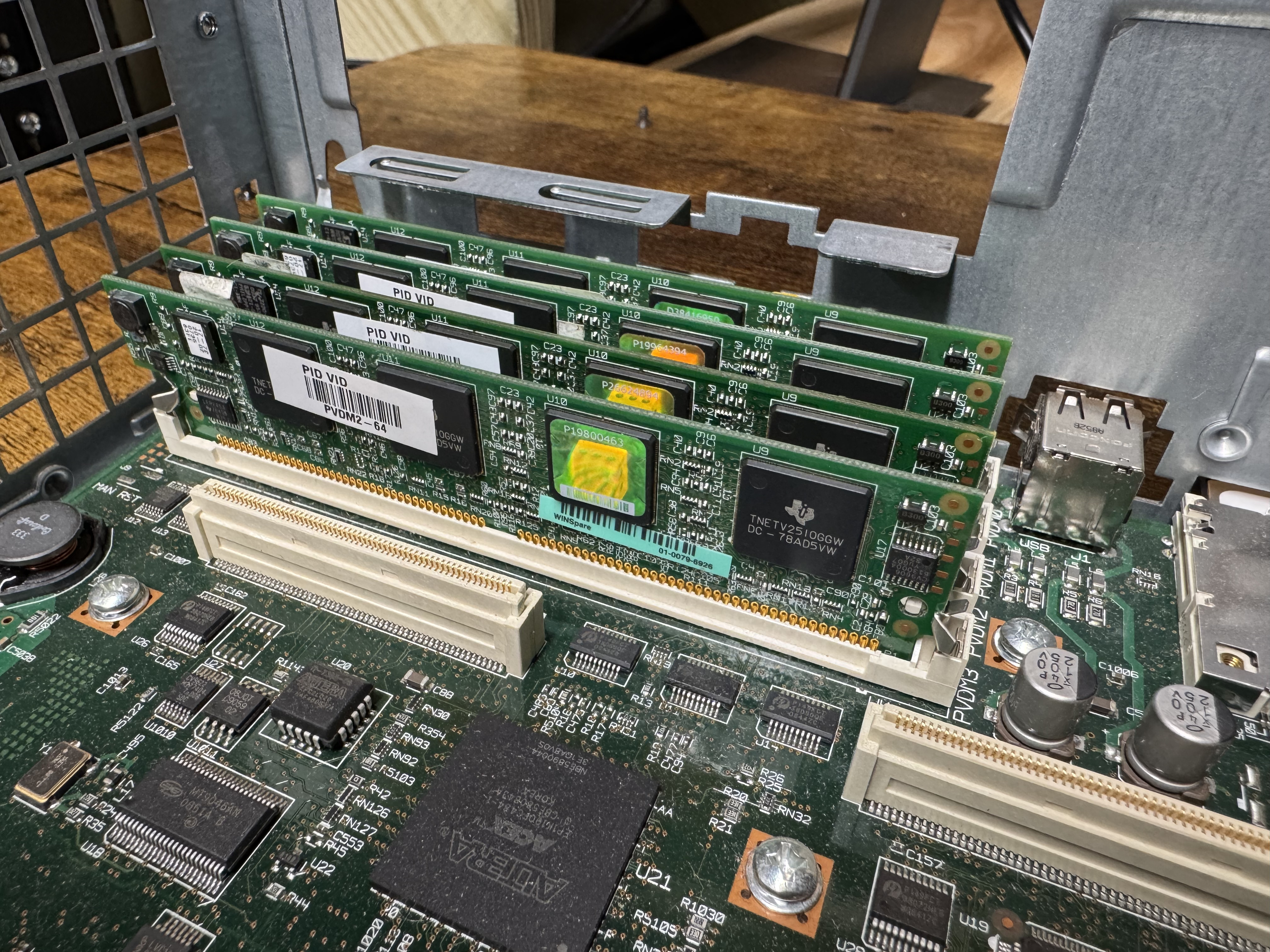
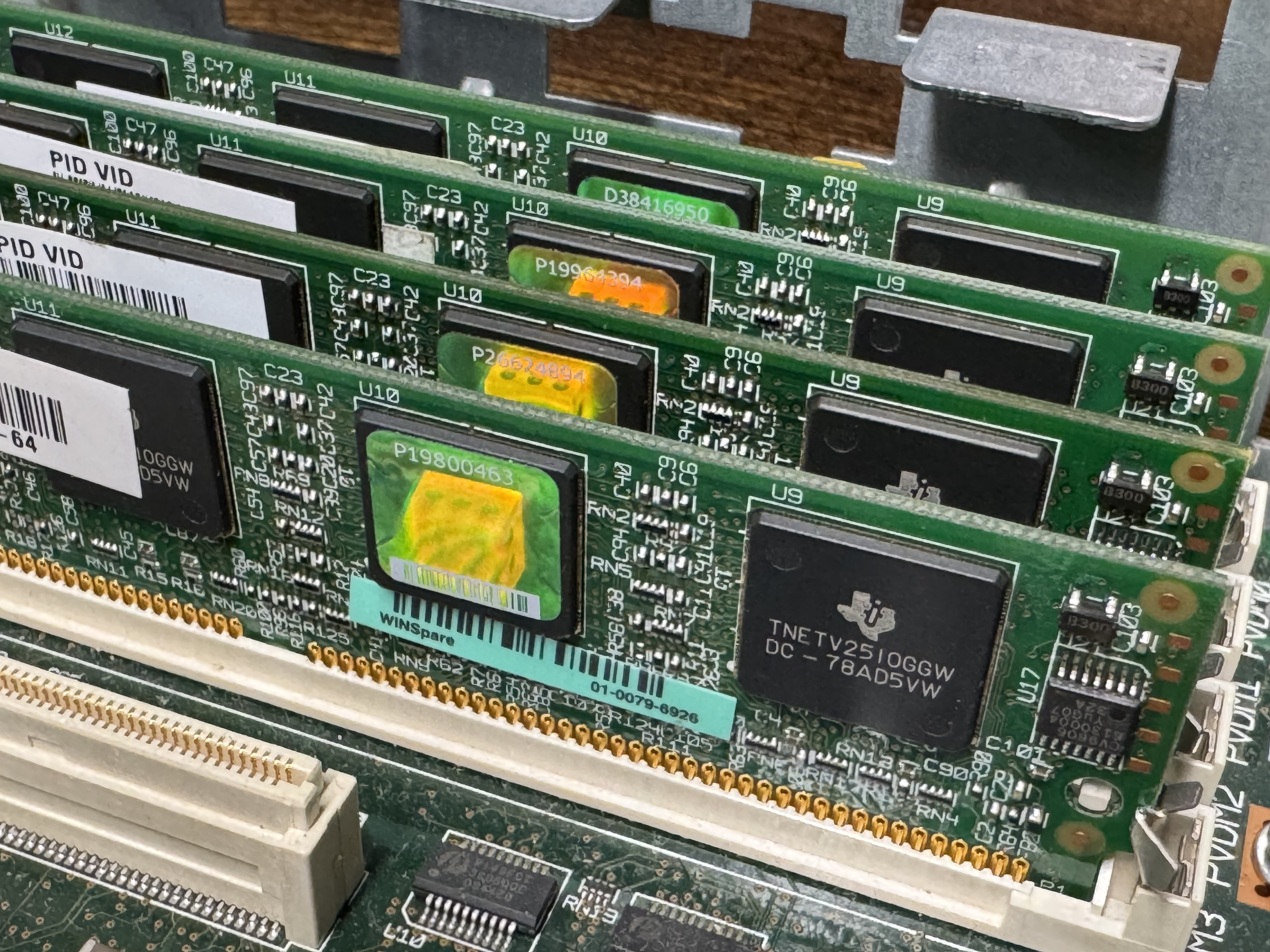
The system now has 768MB of memory, but I would also need PVDMs; Packet Voice Digital Signal Processor (DSP) Module (PVDM2). I had not worked with these before. They are ASICs that come process voice channels. They come in different numbers of channels, PVDM2-8, PVDM2-16, PVDM2-32, PVDM2-48, PVDM2-64. They were cheap, obviously I got 4 PVDM2-64 to go to 256 voice channels for $20 USD. The math is odd here, there are different complexity channels and some knock you down to 1/2 or less of the listed available channels. A “high complexity codec” can make an 8-channel card only handle 4 or less channels. Like I said, these were cheap, so I got 4 256-Channel cards. The cards go into slots that look like DIMMs.

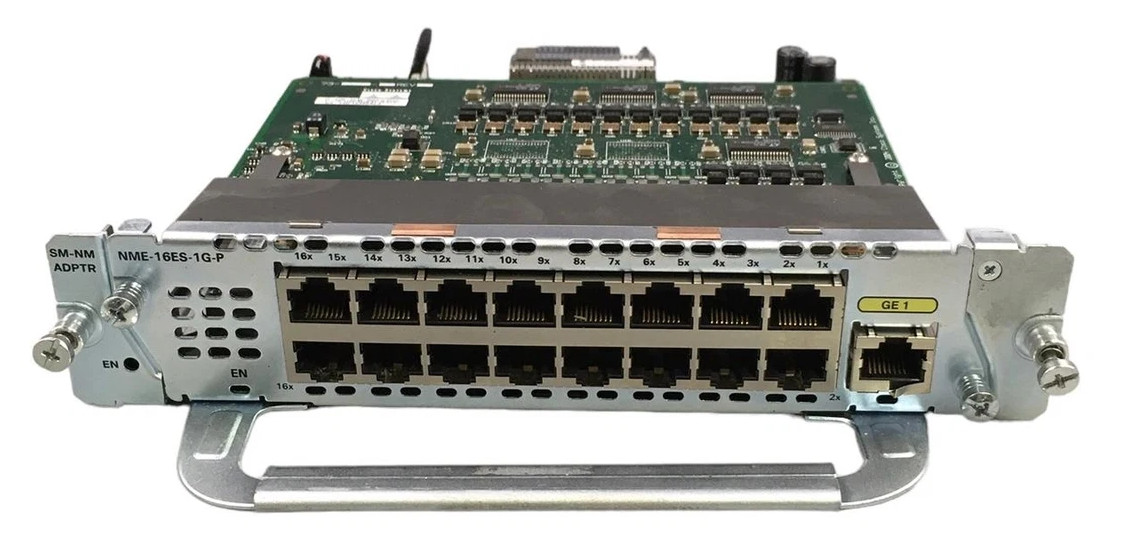
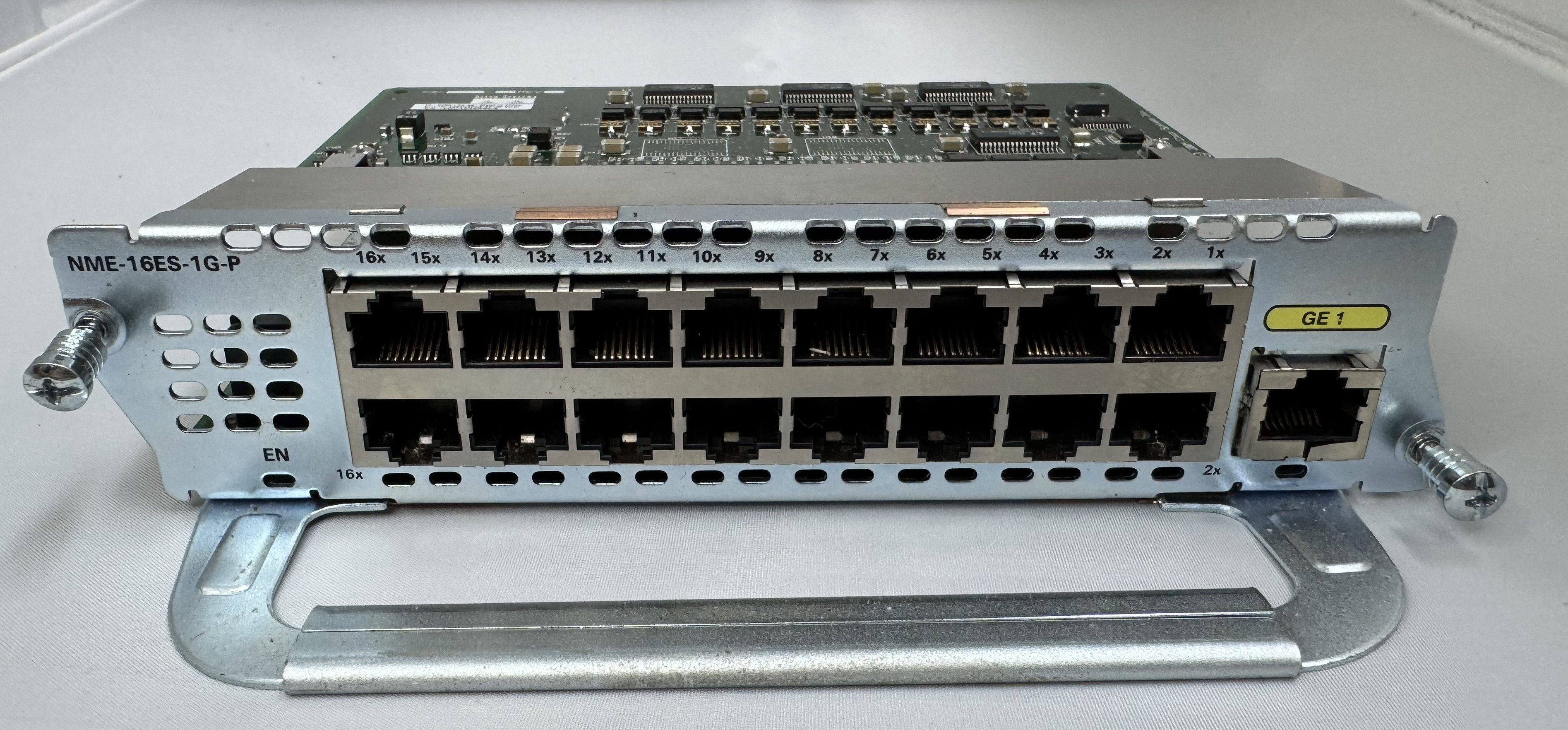
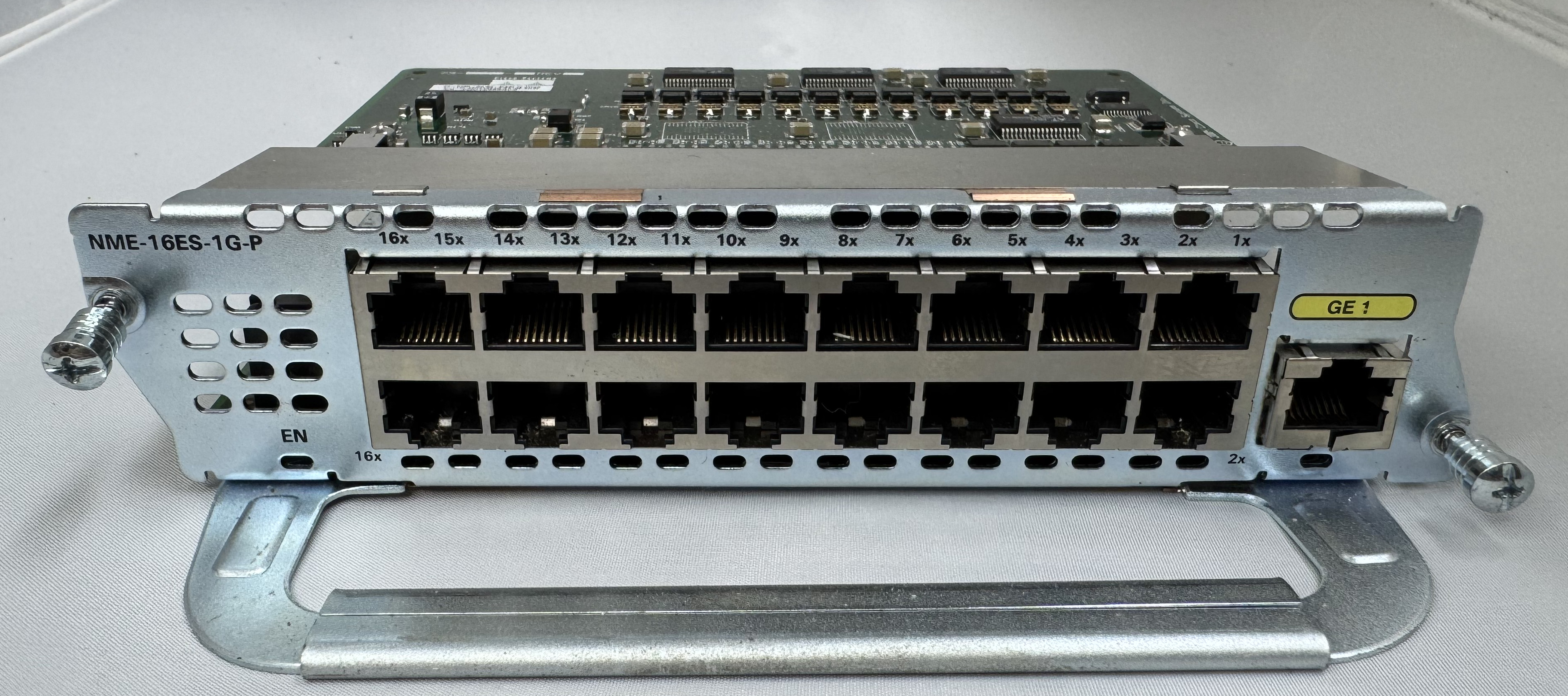
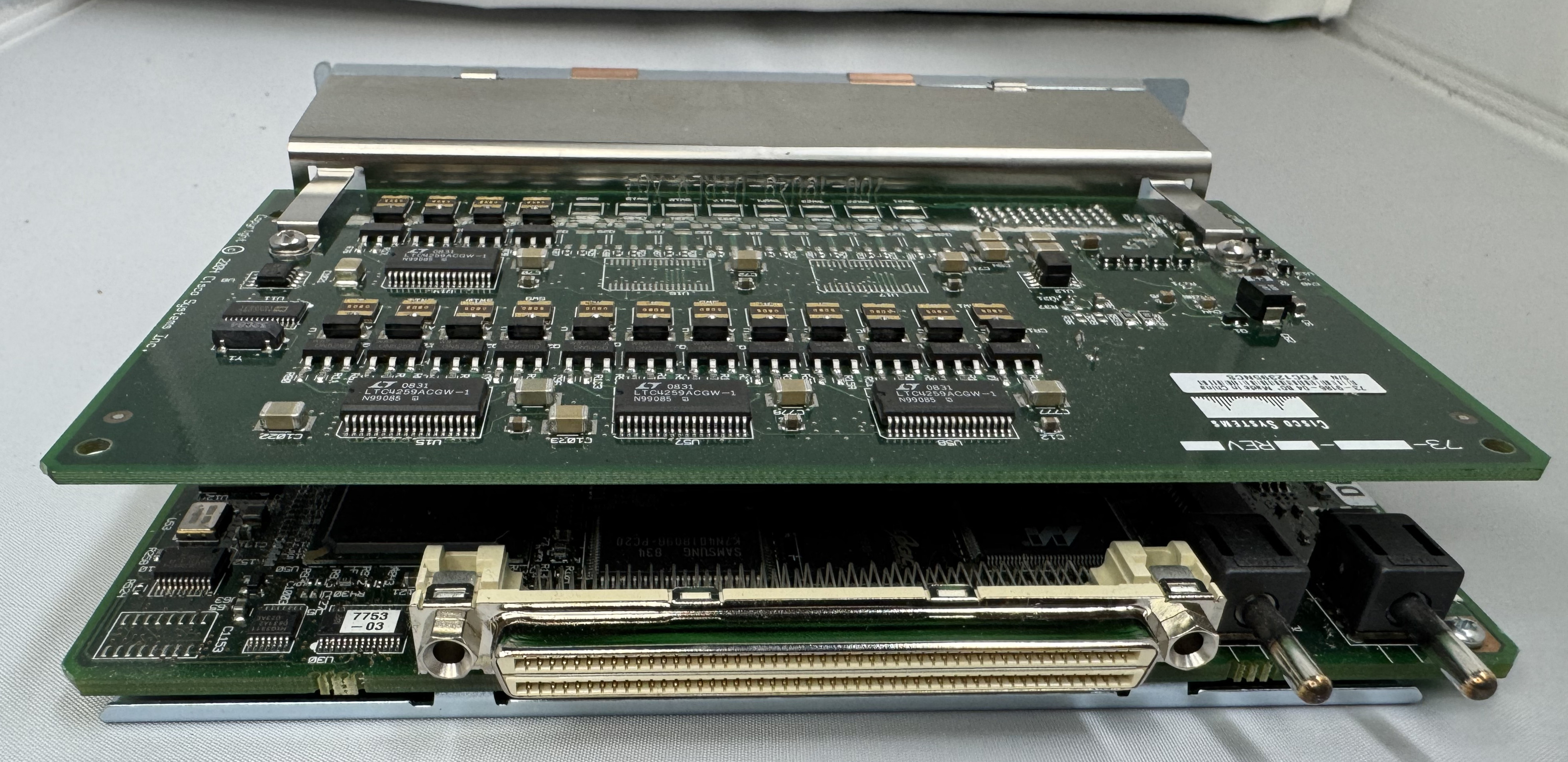
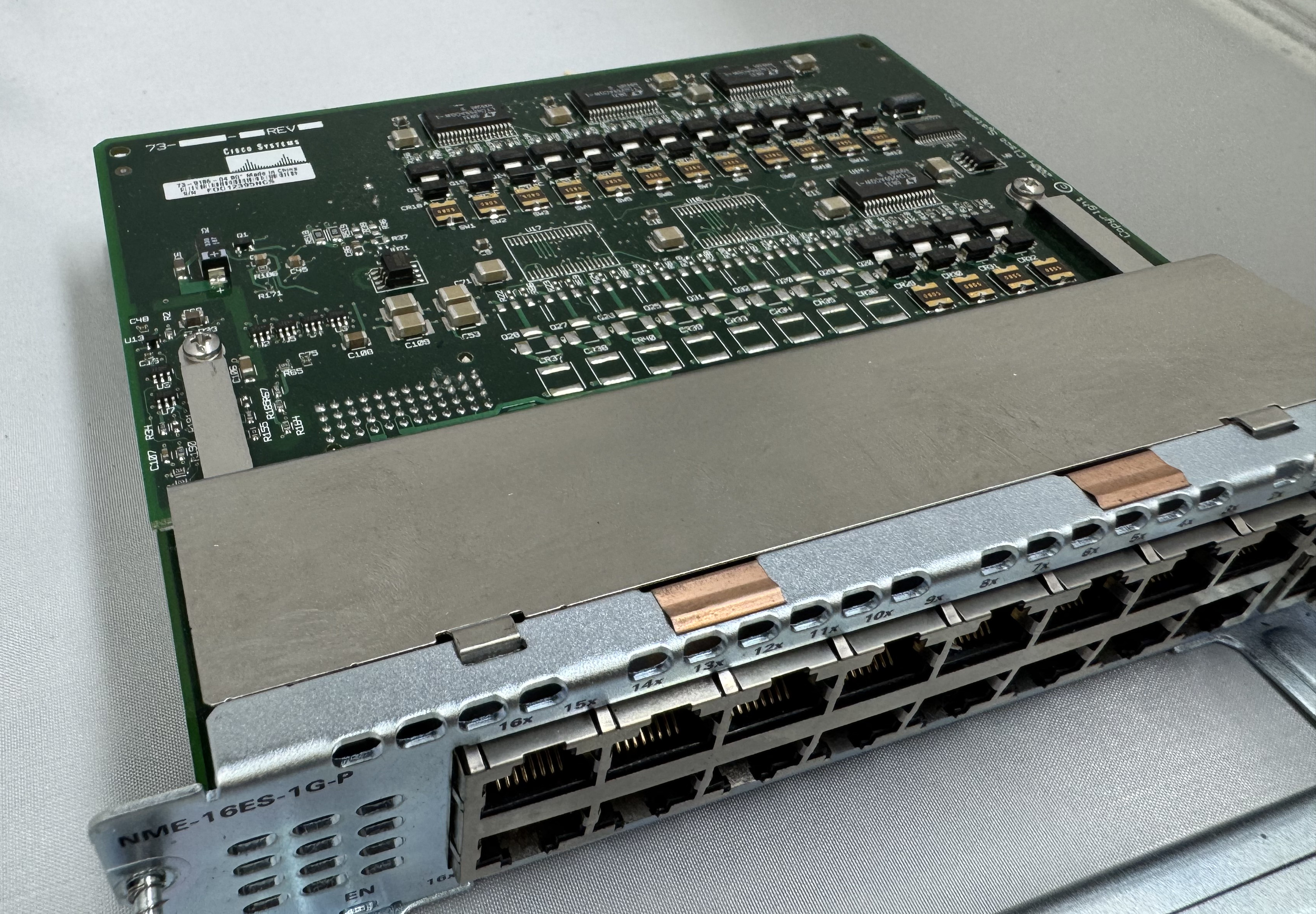
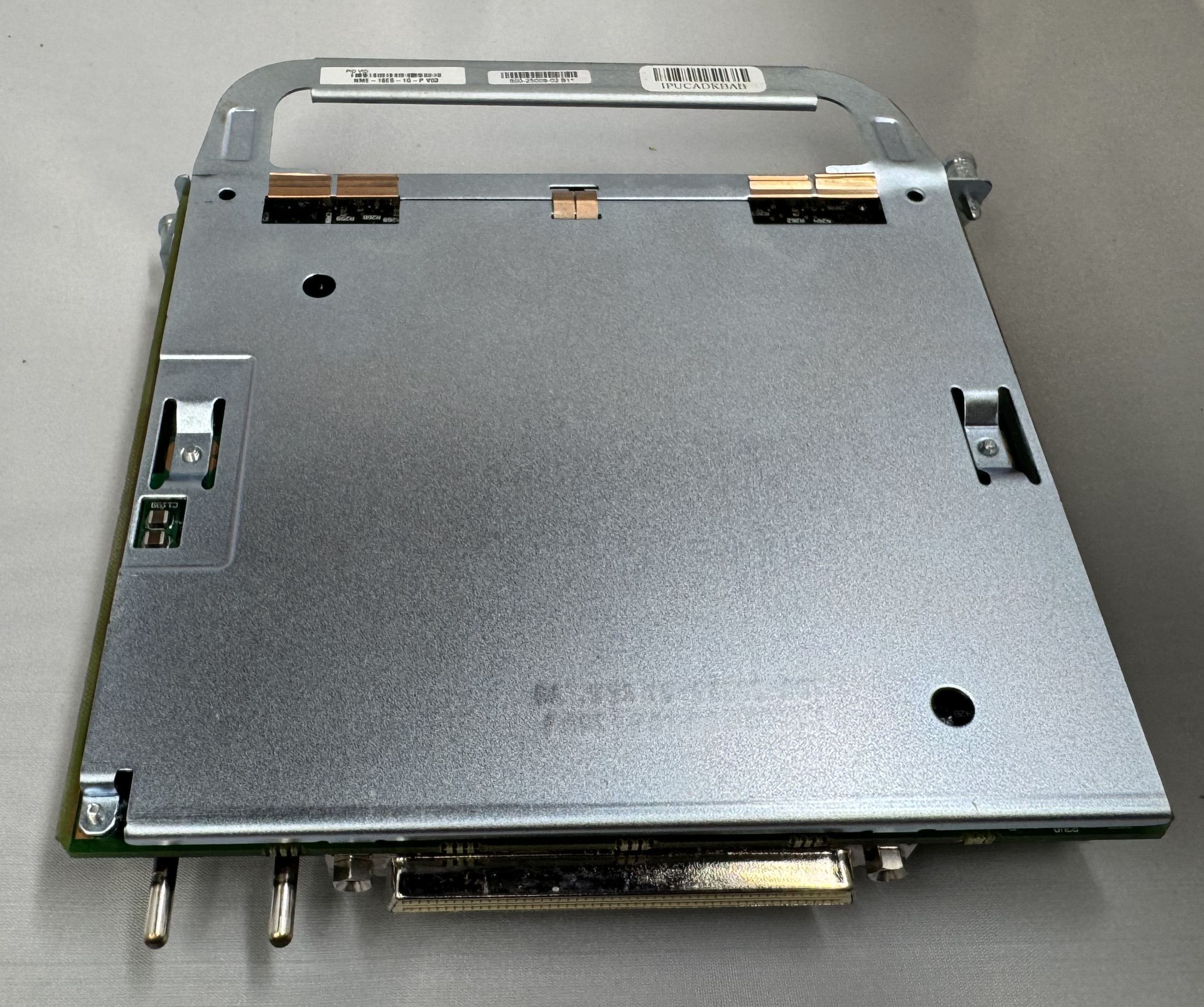
I bought a T1 card because I thought it would be fun to eventually play with. Then I bought a CISCO NME-16ES-1G-P. This is a Cisco Switch as a card module. They are odd. It runs its own OS. It has an internal port to the main system, then to configure any of the 16 x 10/100mb/s or 1 x 1gb/s ports you run ‘service-module gigabitEthernet 2/0 session’ and it opens a serial connection into the controller of this switch. It has a separate login, configuration, and IOS version. At first, I had to password bypass it because someone had left a password on it. I have used it some, but not much. It needs a firmware update. This is my main source of ethernet ports for devices.

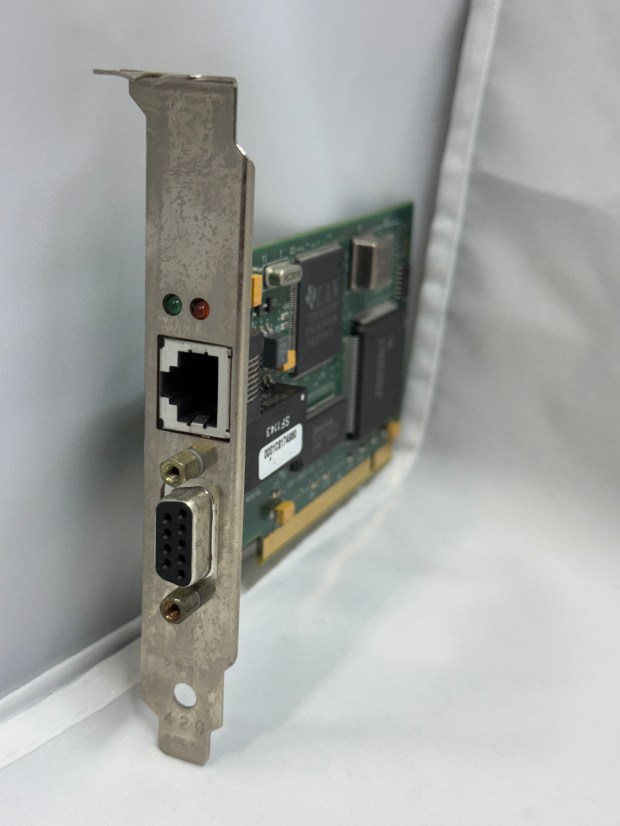
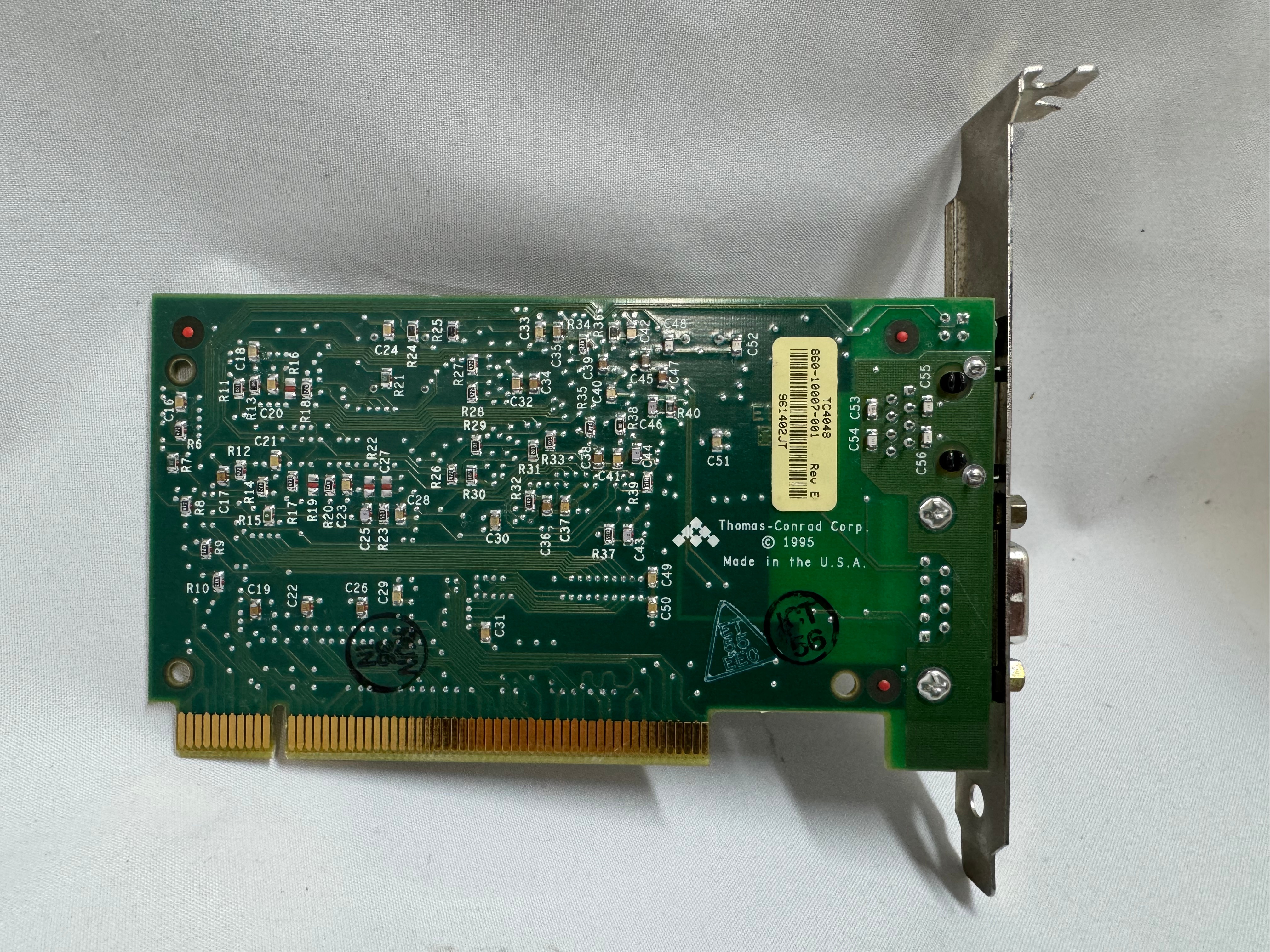
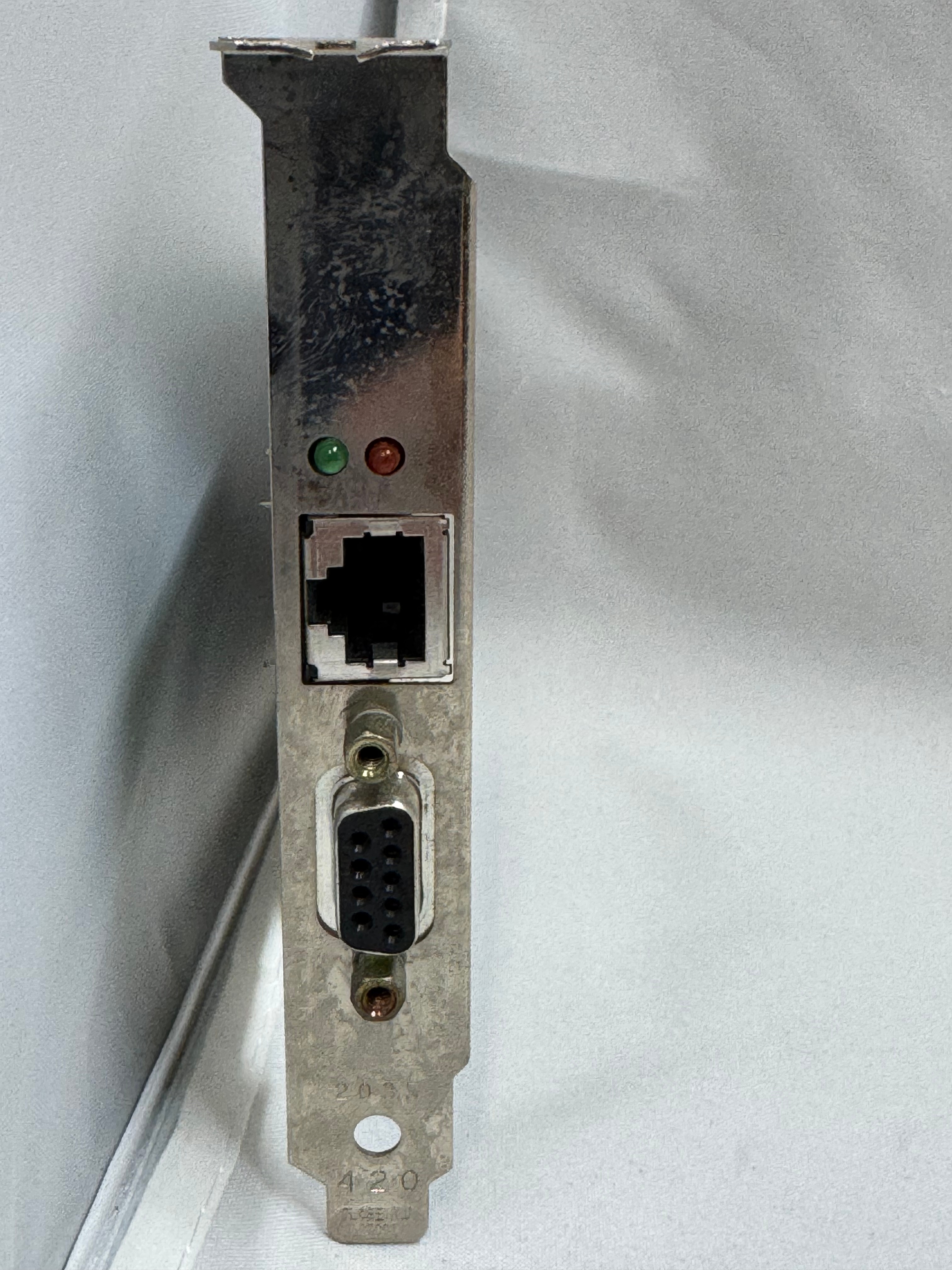
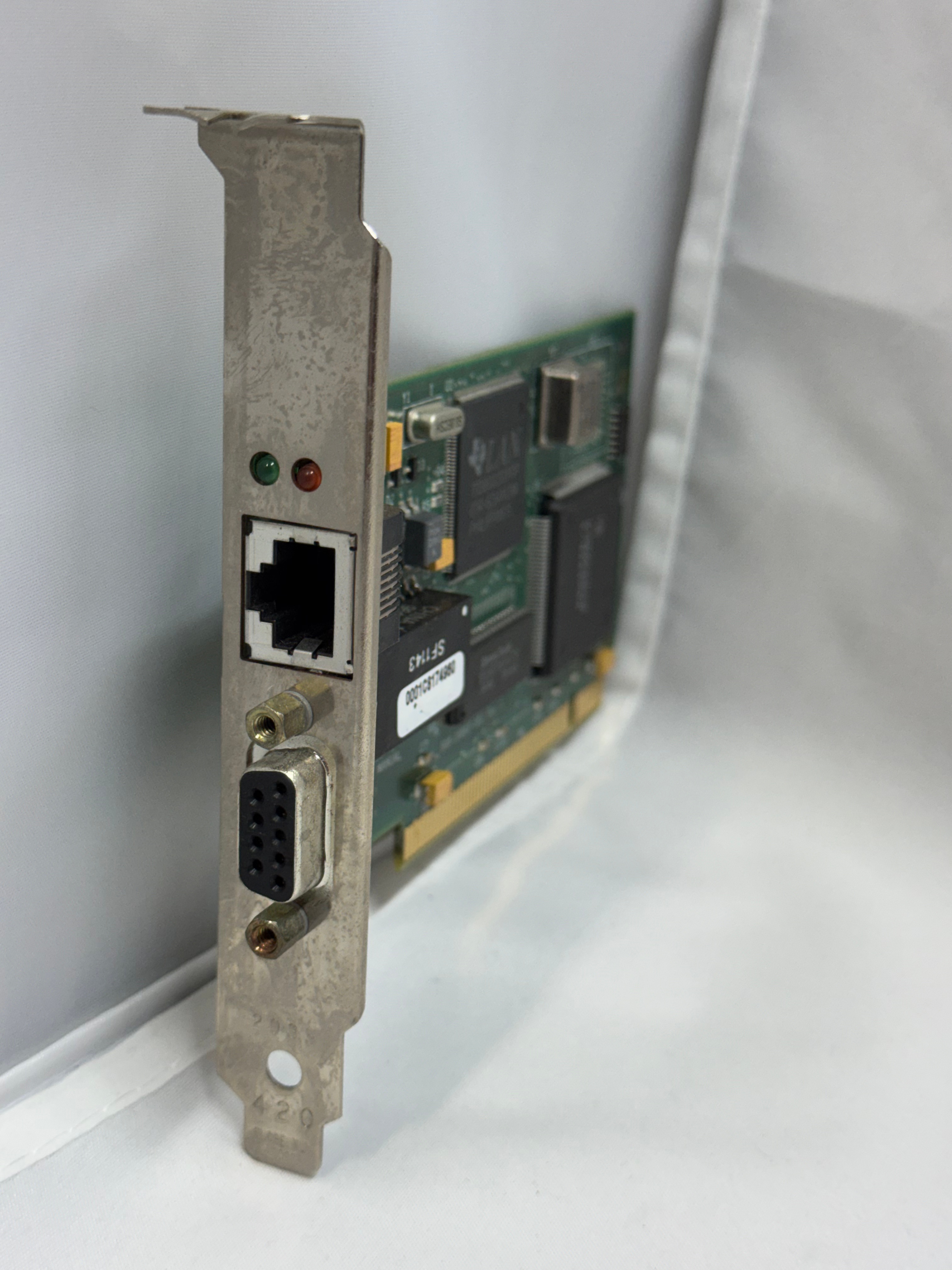
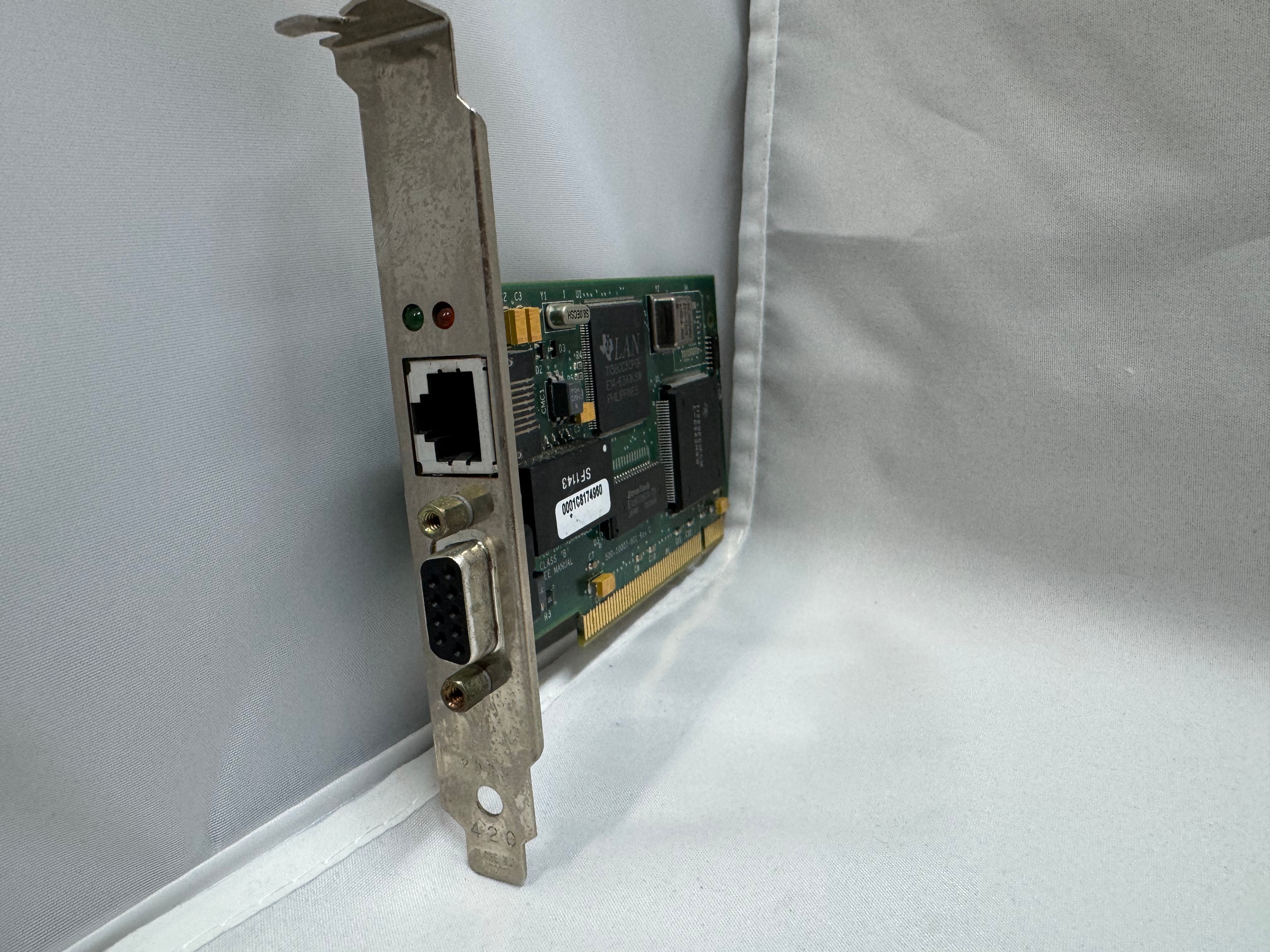
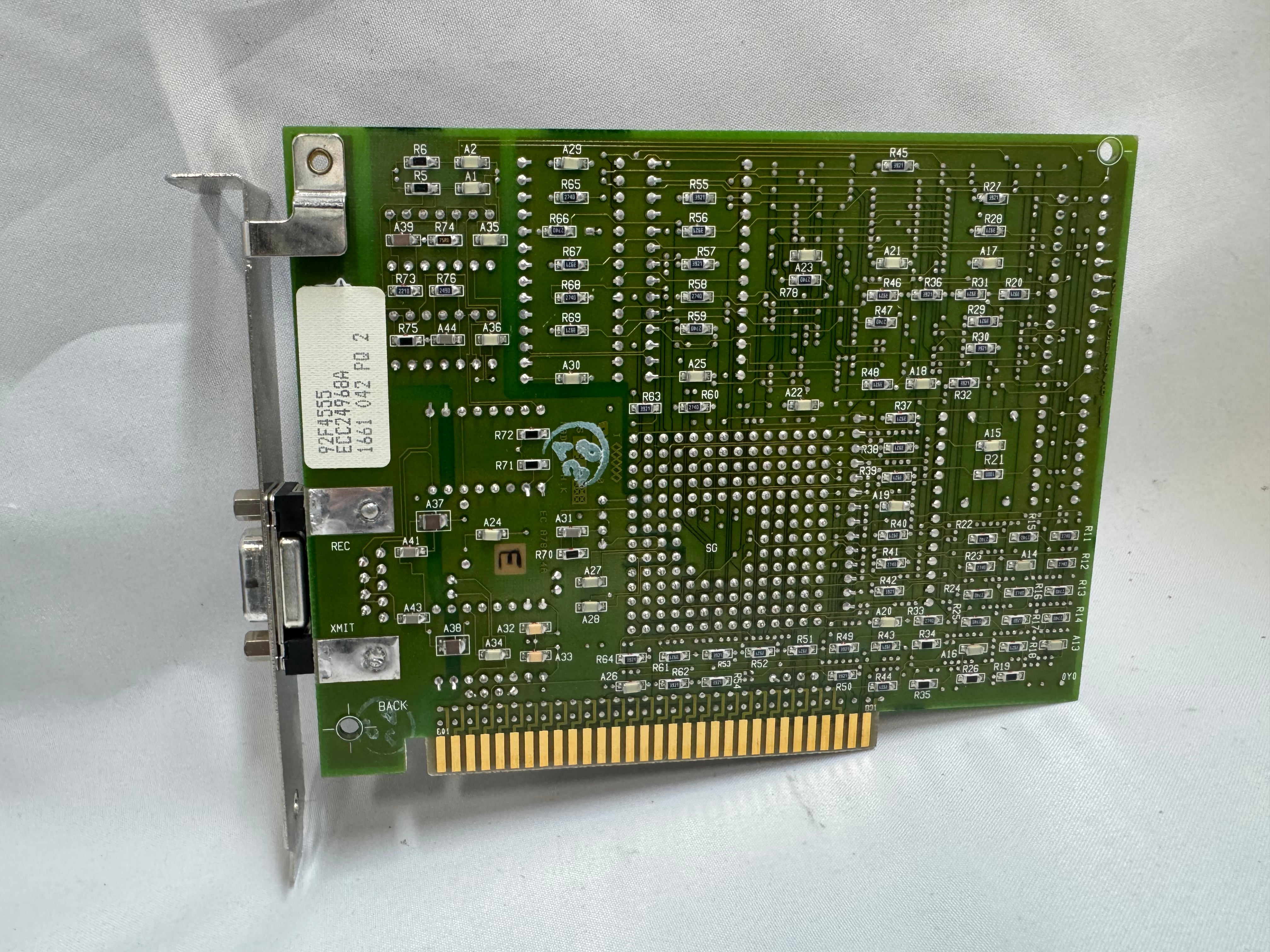
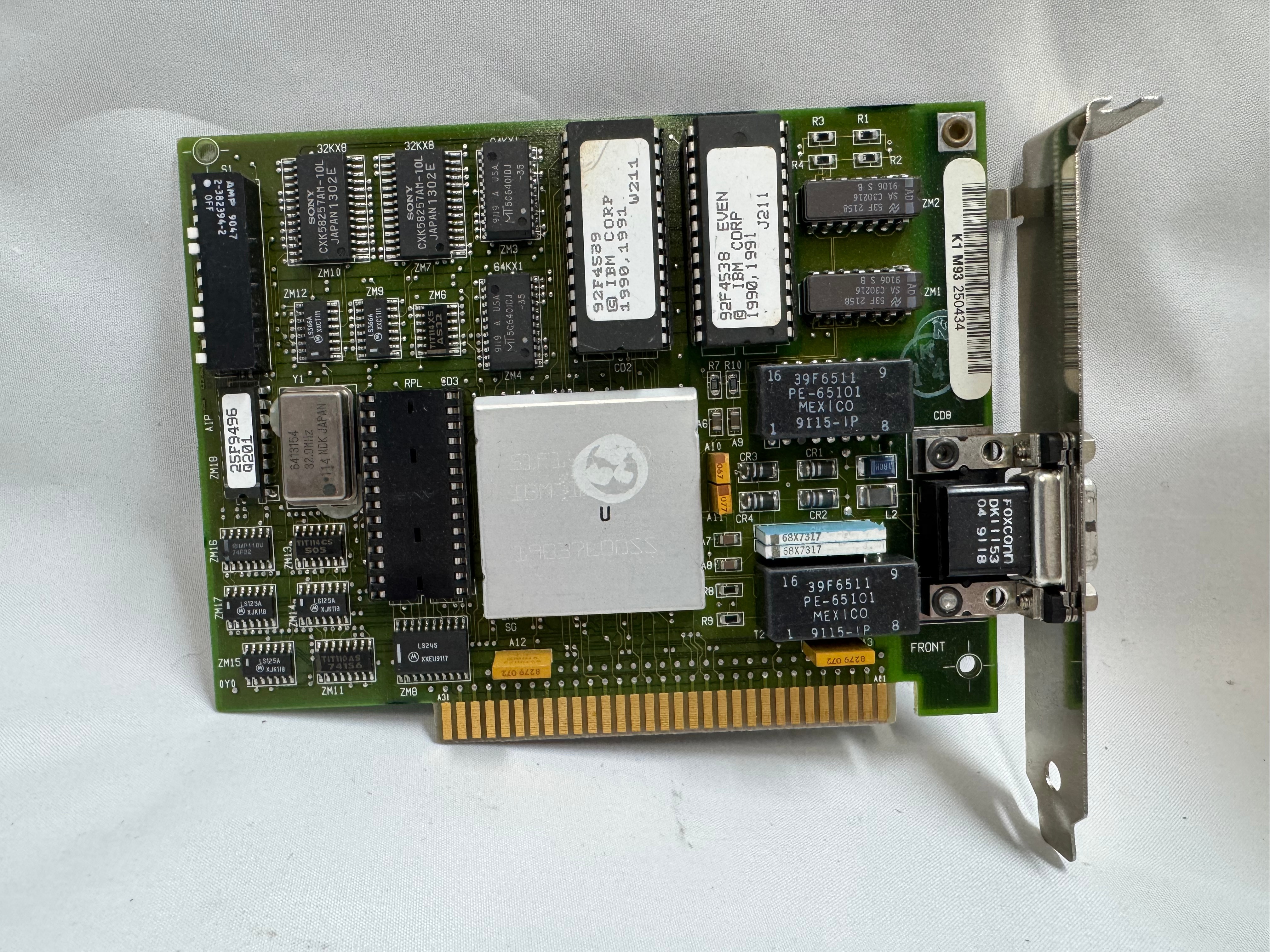
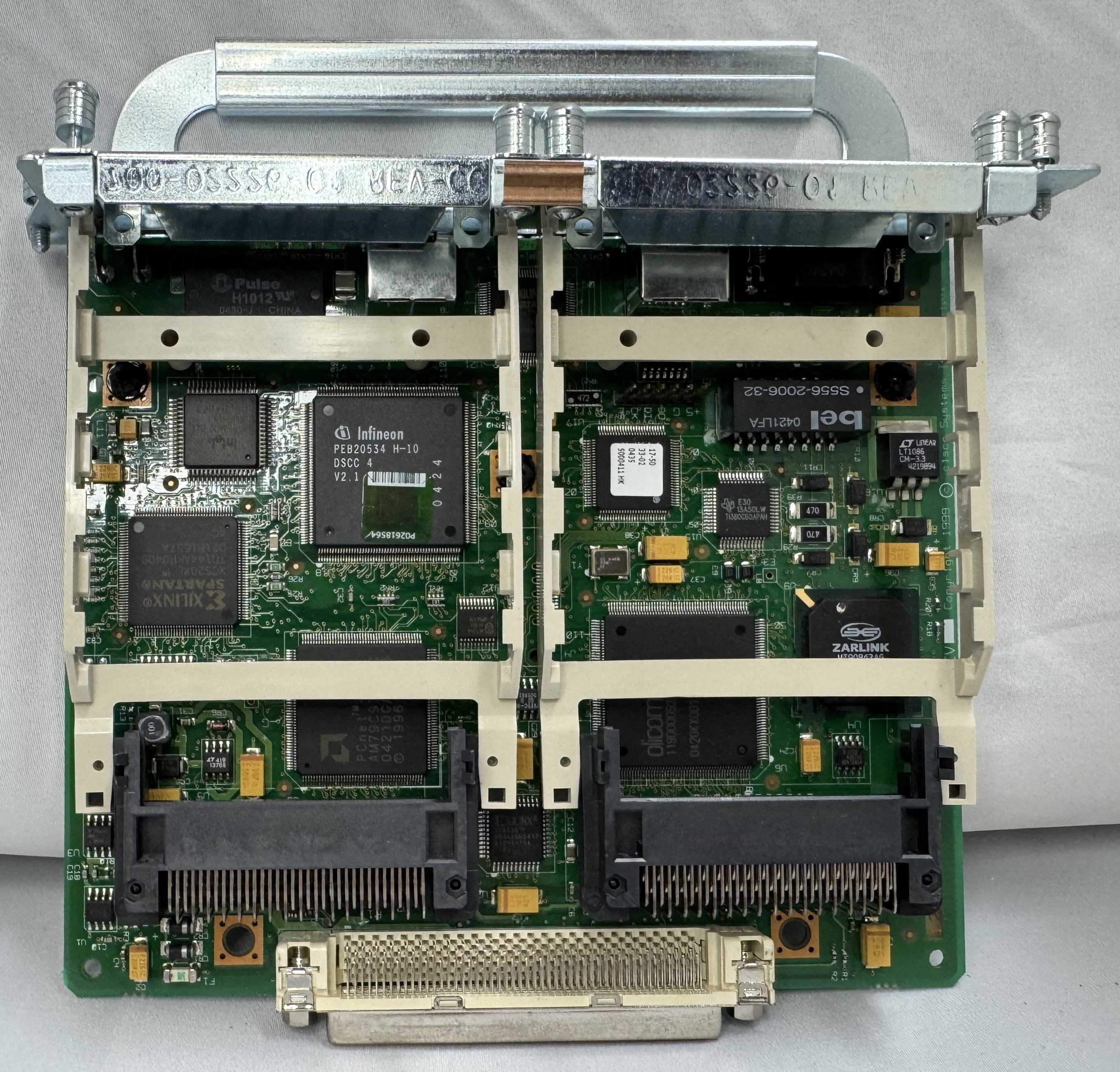
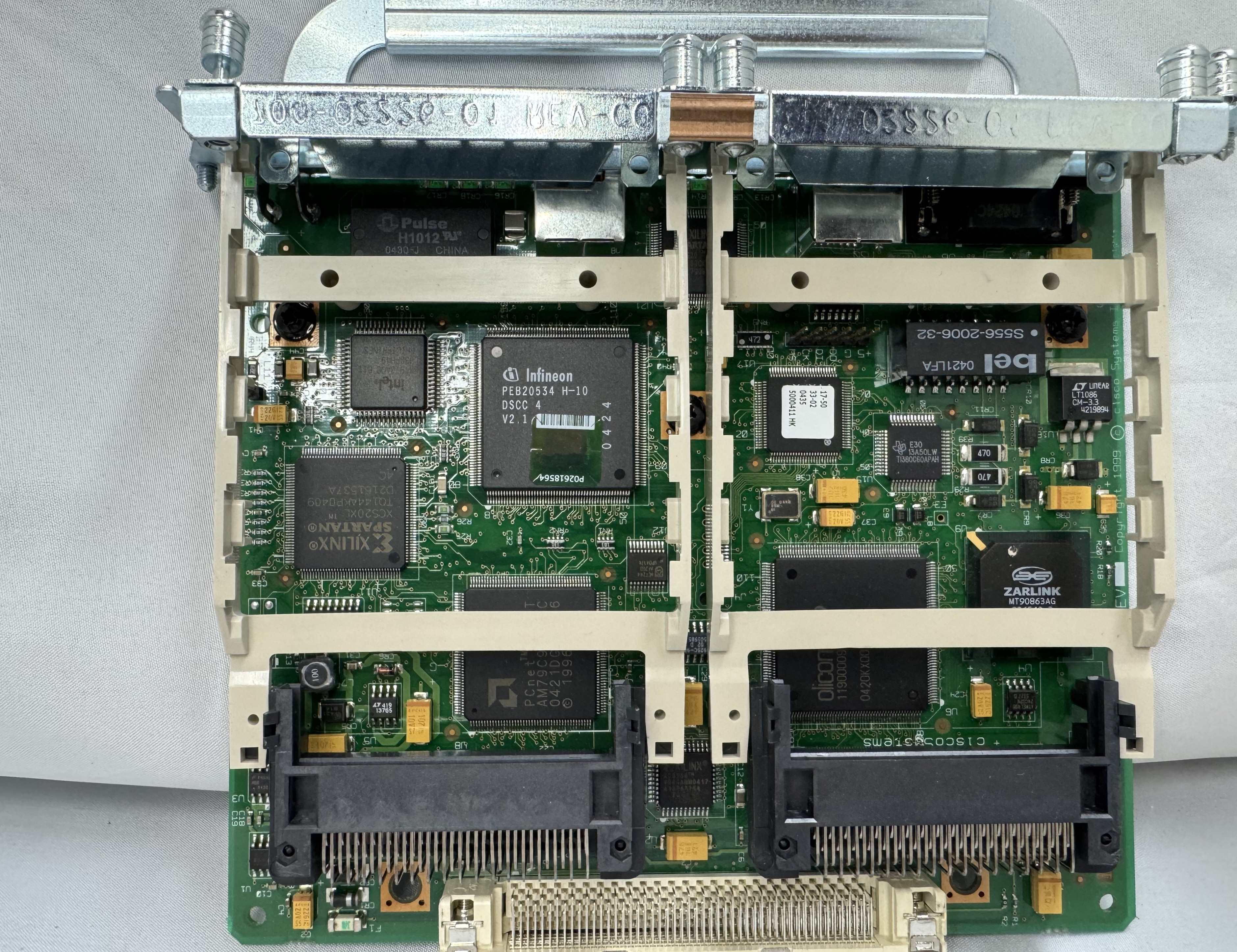
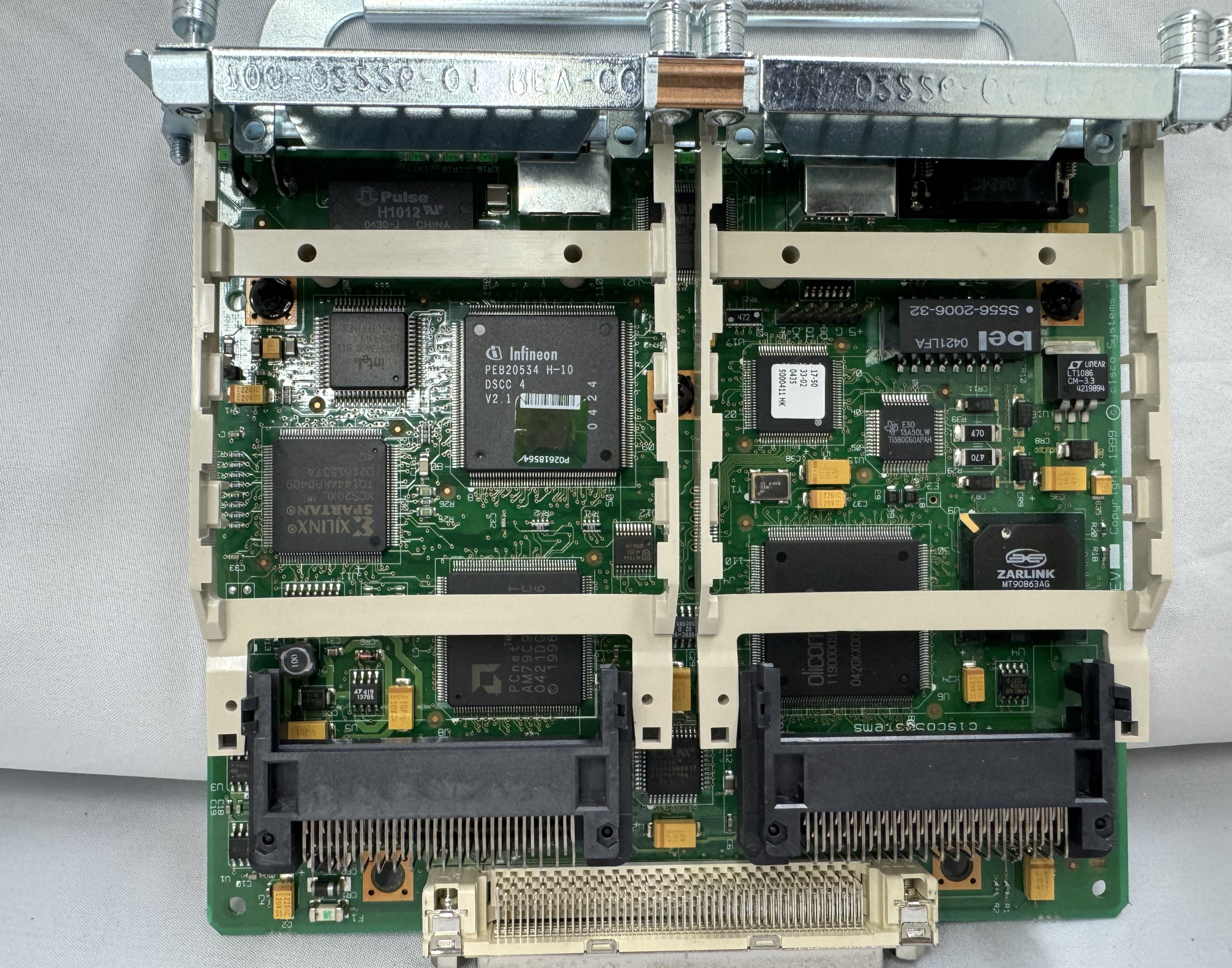
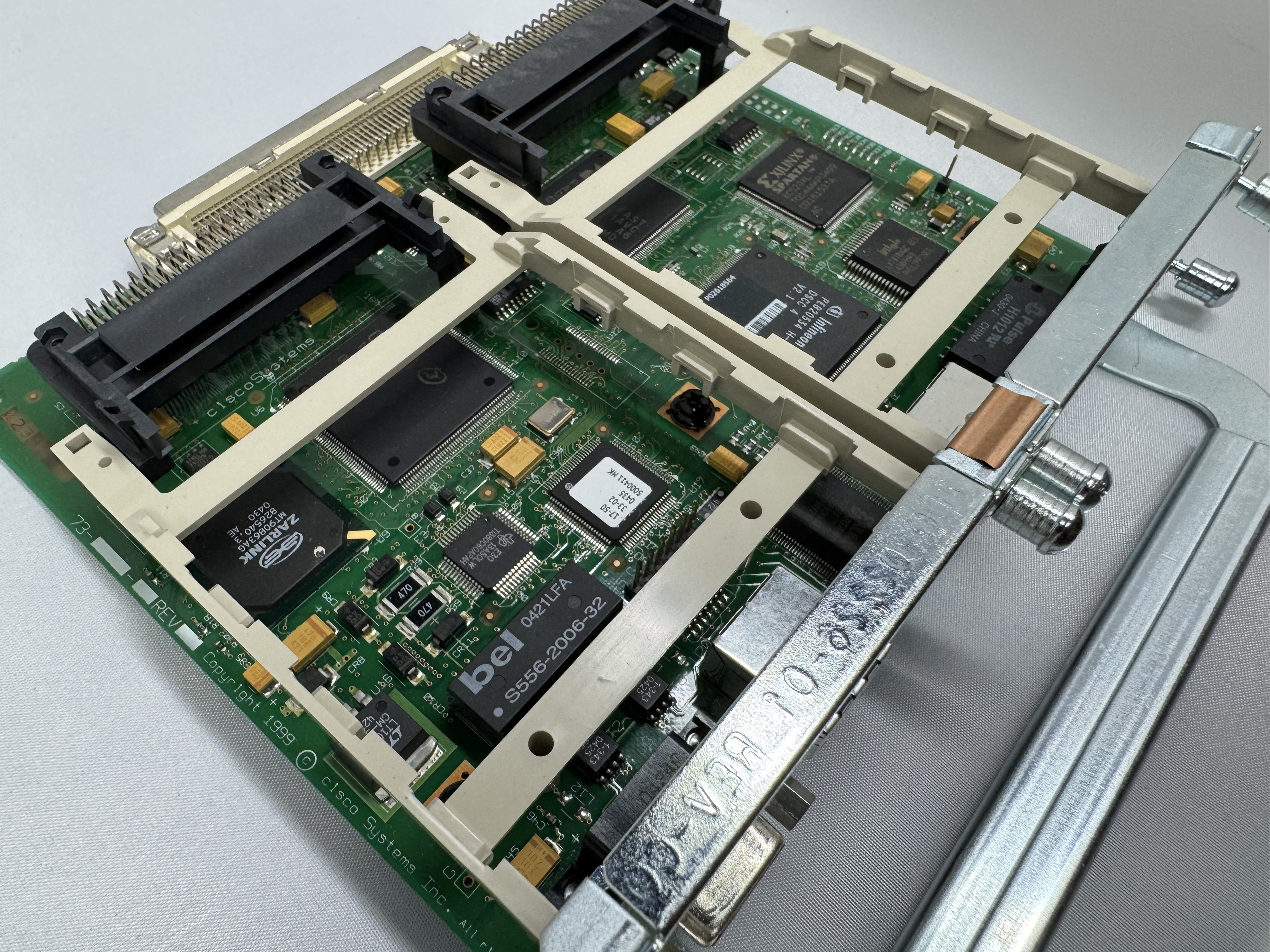
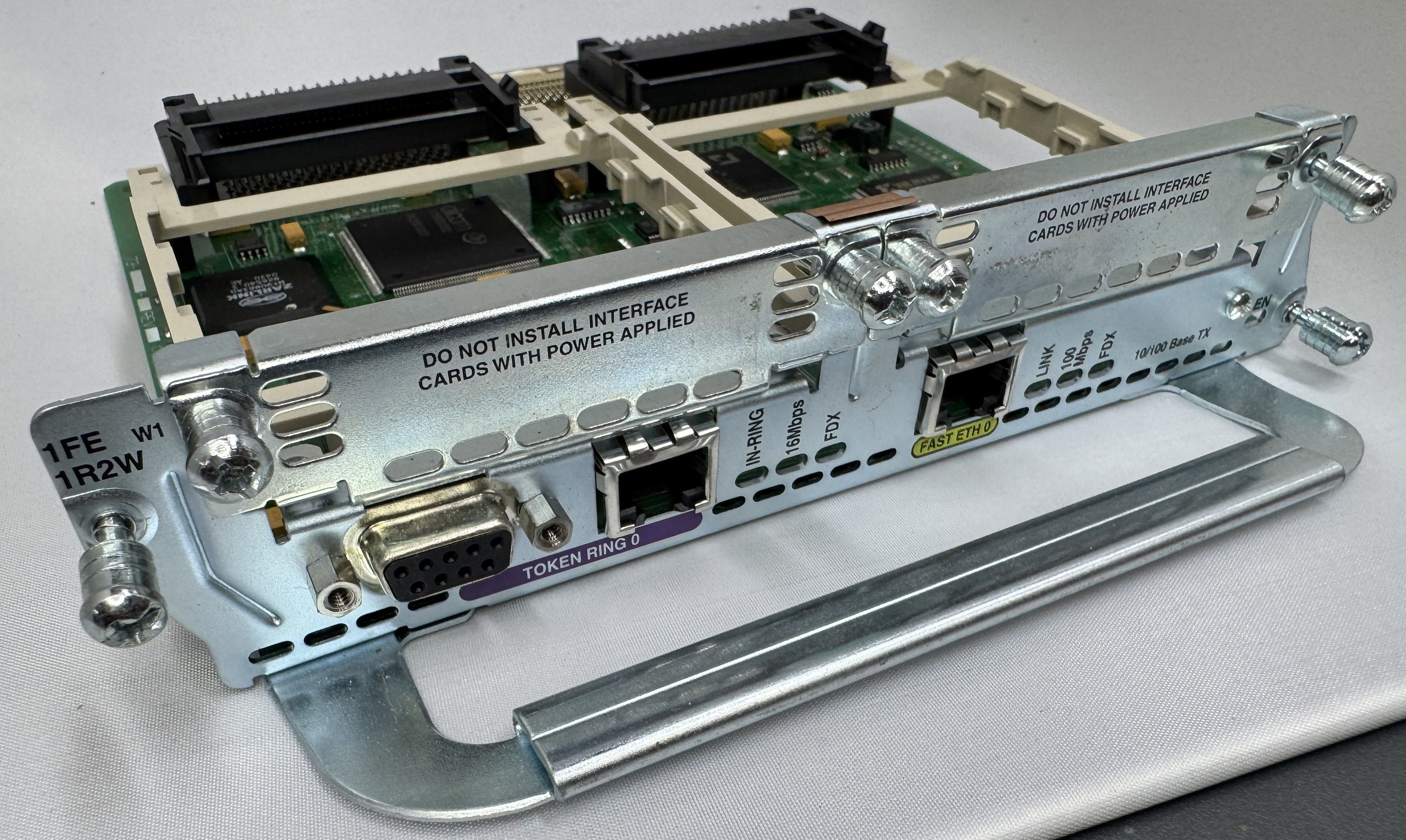
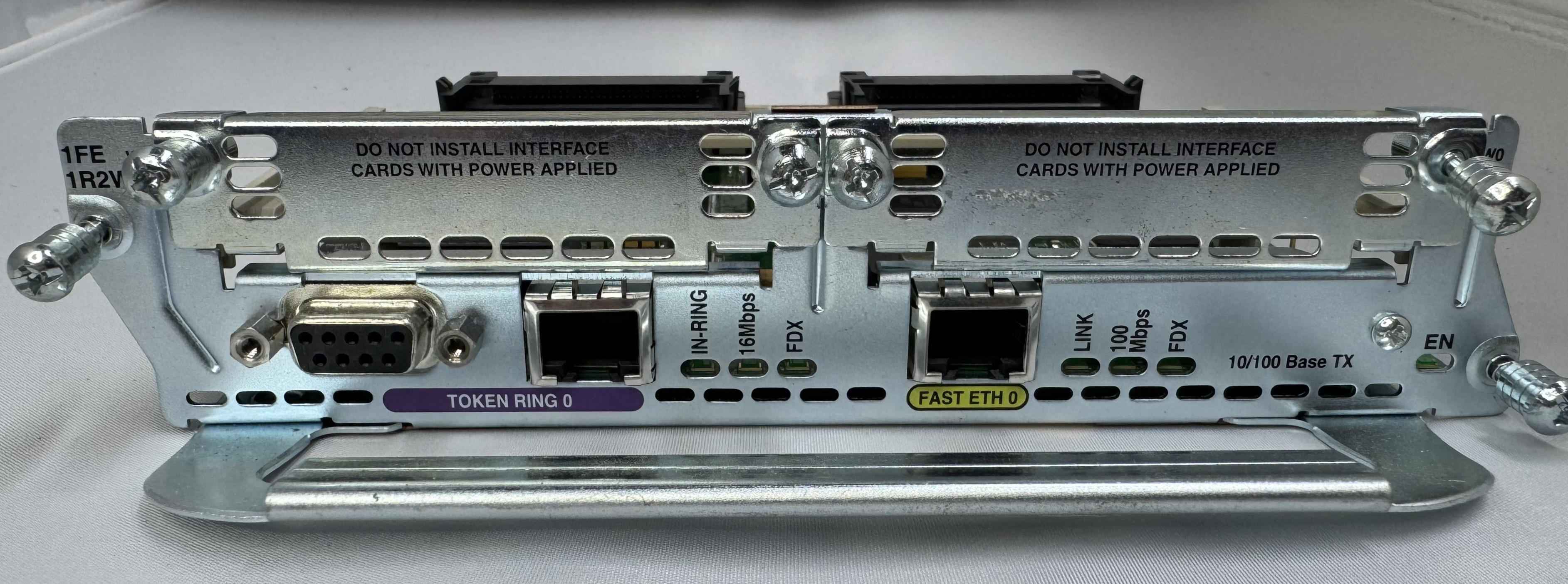
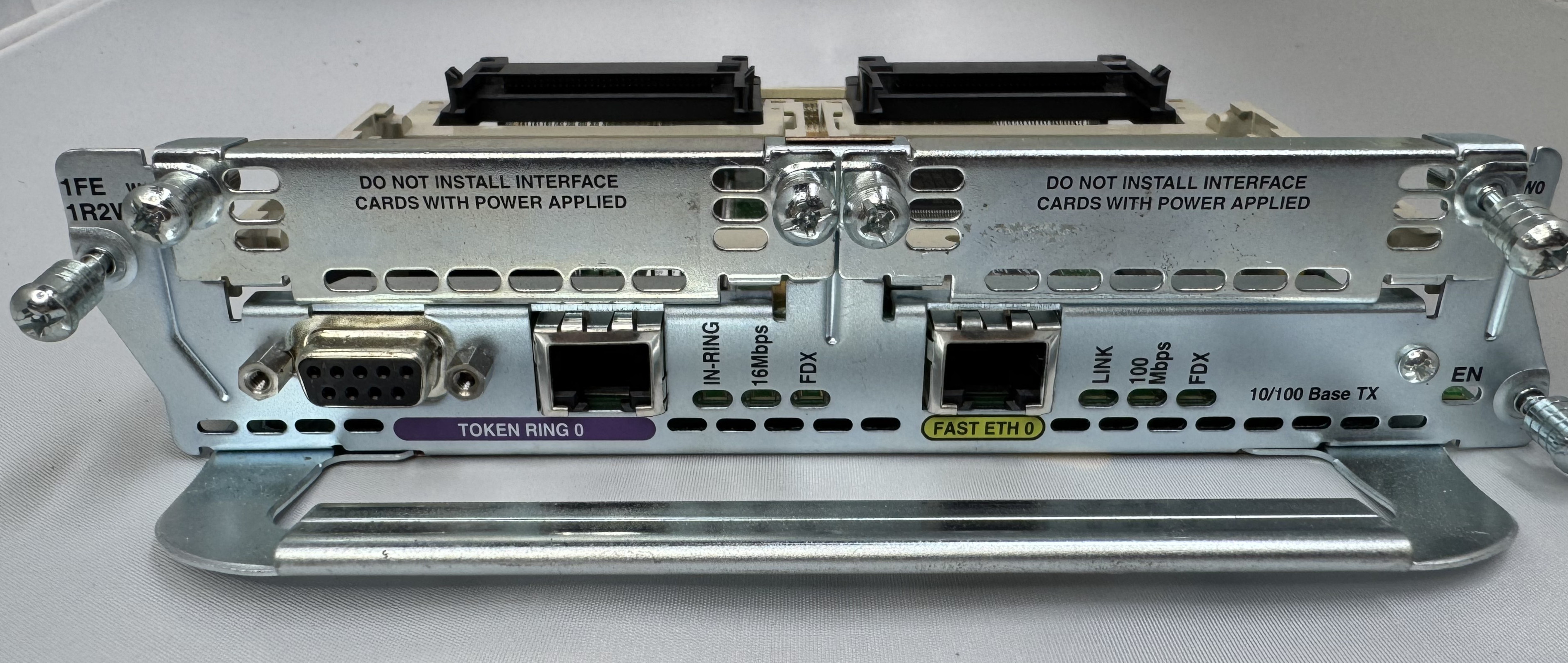
The last card I got is one of the main ones I wanted, a CISCO NM-1FE-1R-2W. This is a 1 FastEthernet (10/100), 1 Token Ring (DB9 or RJ45), and 2 WIC slots. I will do another post on Token Ring later.

Its worth mentioning, for the configuration and tests below, ports 0/0/0 – 3 are our 4FXS ports in HWIC slot 0. In HWIC1 slot (0/1/0 – 1) we have our dual modem card now, a WIC-2AM-v2.

Configuration

As mentioned, you do need a router with the Advanced Services image on it to do voice related features. Once that is loaded, and our hardware was in place, we started configuring the router to move voice data.

We need a pool of IPs that will be given out to clients as they dial in. To do this enter configuration mode and use:

ip local pool dialin-pool 192.168.9.10 192.168.9.20 recycle delay 3600 

You can tell from reading this blog that I have a way too complicated home network. I have the router itself on 192.168.7.0/24, then I made 192.168.9.0/24 for dial in addresses. To be able to send data to them and have them route on my core network, I have RIP running between my home firewall and this Cisco router. When I turn the router on, the routes pop up; when I stop using it for a while, the routes go away. You can set the start and stop of your pool to whatever you like.

dial-peer voice 3 pots 
 destination-pattern 3 
 port 0/0/3 

We need to say how the connection is handled once it comes in the modem. These connections are handled as “line” interfaces from there. We need to tell it this is a dial in line, what its max supported speed is (I just do the max, it will communicate less to the end modem), how flow control will work, and how auth will work.

The line configuration says it beeds ppp, since I do not specify the the auth system, any user is currently allowed… which is great!

line 0/1/0 
 modem Dialin 
 modem autoconfigure discovery 
 transport input all 
 autoselect ppp 
 stopbits 1 
 speed 115200 
 flowcontrol hardware 

Last, we need to configure the IP interface of this line, we do that by configuring the async line assigned to the modem port. This also is where we set which pool will be used for dial in users. I added the ppp timeout command because some of the older systems I have were taking a while to respond.

interface Async0/1/0 
 ip address 192.168.9.1 255.255.255.0 
 encapsulation ppp 
 peer default ip address pool dialin-pool
 async mode interactive 
 no keepalive 
 ppp timeout authentication 30

That is the key configuration needed to get dial up working! Below I will put my full config (minus password) in case any of it helps someone. Leave a comment if this helps you, or you need extra help!

Full Configuration

hostname router 
! 
boot-start-marker 
boot system flash:c3825-adventerprisek9-mz.151-4.M10.bin 
boot-end-marker 
! 
enable secret 0 test
! 
aaa new-model 
aaa authentication login default local line 
!
aaa session-id common 
no network-clock-participate slot 1 
dot11 syslog 
ip source-route 
ip cef 
! 
ip dhcp pool TOKEN 
 network 192.168.8.0 255.255.255.0 
 default-router 192.168.8.1 
 dns-server 192.168.7.1 
!
ip domain name lbt.home.ntbl.co 
no ipv6 cef 
!
multilink bundle-name authenticated 
voice-card 0 
crypto pki token default removal timeout 0 
username admin privilege 15 secret 0 admin
username test privilege 0 password 0 test 
!
redundancy 
!
ip ssh version 2 
!
interface GigabitEthernet0/0 
 ip address 192.168.7.10 255.255.255.0 
 duplex auto 
 speed auto 
 media-type rj45 
! 
interface GigabitEthernet0/1 
 no ip address 
 shutdown 
 duplex auto 
 speed auto 
 media-type rj45 
!
interface Serial0/3/0 
 no ip address 
 shutdown 
 clock rate 2000000 
! 
interface FastEthernet1/0 
 no ip address 
 shutdown 
 duplex auto 
 speed auto 
! 
interface TokenRing1/0 
 ip address 192.168.8.1 255.255.255.0 
 ring-speed 4 
! 
interface GigabitEthernet2/0 
 ip address 100.64.0.1 255.255.255.0 
!
interface Async0/1/0 
 ip address 192.168.9.1 255.255.255.0 
 encapsulation ppp 
 peer default ip address pool dialin-pool 
 async mode interactive 
 no keepalive 
 ppp timeout authentication 30 
!
interface Async0/1/1 
 no ip address 
 encapsulation slip 
! 
interface Async0/2/0 
 no ip address 
 encapsulation slip 
! 
interface Async1/0/0 
 no ip address 
 encapsulation slip 
! 
router rip
 network 100.0.0.0 
 network 192.168.7.0 
 network 192.168.9.0 
 neighbor 100.64.0.2 
 neighbor 192.168.7.1 
!
ip local pool dialin-pool 192.168.9.10 192.168.9.20 recycle delay 3600 
ip forward-protocol nd 
no ip http server 
no ip http secure-server 
! 
ip route 0.0.0.0 0.0.0.0 192.168.7.1 
!
control-plane
!
voice-port 0/0/0
!
voice-port 0/0/1
!
voice-port 0/0/2
! 
voice-port 0/0/3 
!
mgcp profile default 
! 
dial-peer voice 3 pots 
 destination-pattern 3 
 port 0/0/3 
!
telephony-service 
 max-conferences 12 gain -6 
 transfer-system full-consult 
!
line con 0 
line aux 0 
line 0/1/0 
 modem Dialin 
 modem autoconfigure discovery 
 transport input all 
 autoselect ppp 
 stopbits 1 
 speed 115200 
 flowcontrol hardware 
line 0/1/1 
 stopbits 1 
 speed 115200 
 flowcontrol hardware 
line 0/2/0 
 stopbits 1 
 speed 115200 
 flowcontrol hardware 
line 1/0/0 
 stopbits 1 
 speed 115200 
 flowcontrol hardware 
line 130 
 no activation-character 
 no exec 
 transport preferred none 
 transport input all 
 transport output lat pad telnet rlogin lapb-ta mop udptn v120 ssh 
line vty 0 4 
 transport input ssh 
!
scheduler allocate 20000 1000 
end 

Ruckus H550 Odd Recovery, & Wifi Upgrades

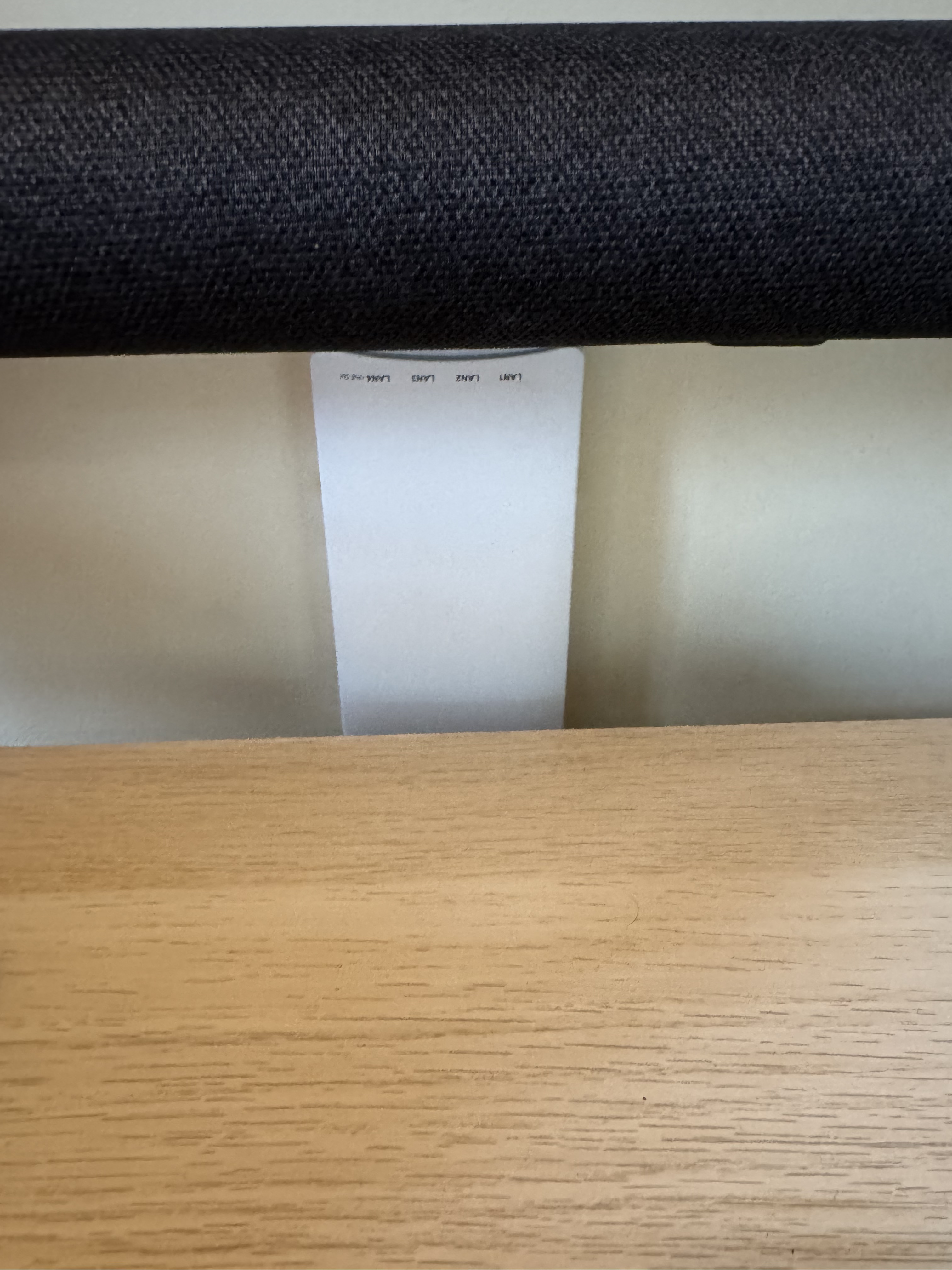
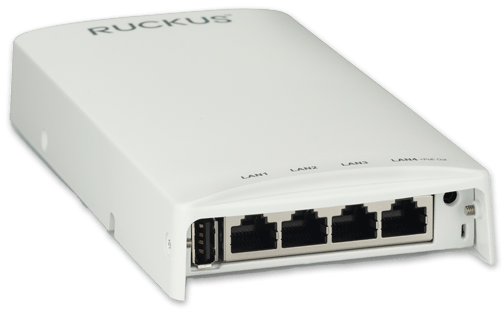
I have a bad habit of buying networking gear when my work/life gets hectic. In a recent time of chaos I decided I should update a Ruckus H510 AP I have to a H550. I saw one on eBay, gave an offer and it was accepted! When the unit came, it still had the config of a news company. I had to factory reset it like mentioned in previous articles. The odd thing is it would not come up for me to access. I could see the “Configure.Me” Wifi network, but when I went to it nothing. I tried going to the web page and got nothing, I set the default IP and couldn’t contact it via wired. I then took out Wireshark and started looking for what happened when I joined its Wifi.

It was looking for assets from 10.154.231.125? (Later I would find others mention this https://community.ruckuswireless.com/t5/Apps-and-SPoT/Wrong-IP-on-mobile-device-using-unleashed-Configure-Me-xxxxxx/m-p/25722) I set my laptops IP to 10.154.231.124/24, and I was able to connect and flash the Unleashed firmware like normal. I was getting other IP information and failing to get a web page on the wired port. I hope this helps someone out there.

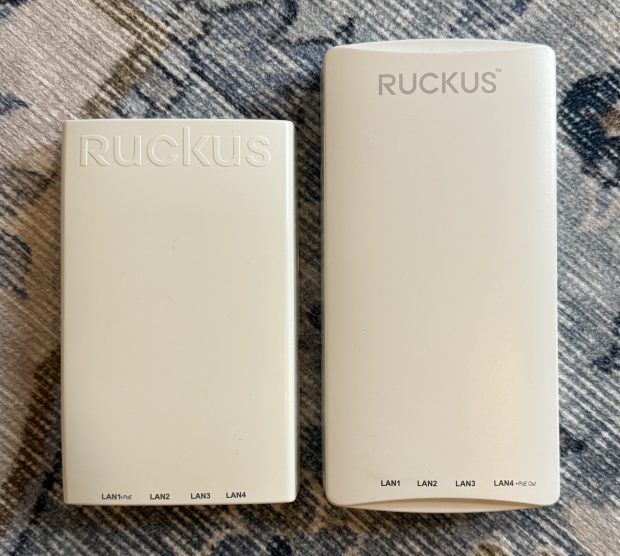
One other thing I didn’t realize… The H550 is taller than the H510… and I had a shelf right above the spot it was mounted. So I did the right thing, and mounted the new one upside down, so the taller part goes down and doesn’t hit the shelf.

While I was here getting more Wifi 6 goodness in my home (I have been running mostly Wifi 5 (802.11ac Wave 2) I thought I would look for deals. I saw someone selling a R550 for sale for parts. It said that when turned on it had a red light. I know that these access points can take a good 3-5 minutes to start, and while they do, they have a red light on… What are the chances that this access point just has a bad firmware image, or… nothing is wrong with it and this person just didn’t wait…

I offered $50 for the broken access point that usually goes for $250, and they accepted! Then I waited for the device to come, and later that week, I plugged it in, powered it up, and… it booted fine! I flashed it over to Unleashed and suddenly I had another great Wifi 6 access point.

I have mostly moved all my access points to Wifi 6 at this point which means I can go above firmware 200.15 (the last for the Wifi 5 systems), but I still haven’t since its still recommended to stay there by some places. And I am pondering setting up the old H510 as a small access point and ethernet port at my workbench.

Ruckus FastIron ICX 8.0.x SSH Issues

I have had two of these little Ruckus ICX7150 switches for years now. They are great little units with 12(ish) 1gb switch ports, and 2 SFP+ cages. My primary one hosts the Wifi APs in my house since the switch is also POE! I have bumped it to its latest recommended firmware on the Ruckus support page, and not had to do much of anything else.

Until recently when I went to SSH into the switch and Windows 11 built in SSH client no longer accepts SHA1 hashes that the switch gives. Or more specifically:

no matching key exchange method found. Their offer: diffie-hellman-group14-sha1,diffie-hellman-group1-sha1

There are two ways of going about fixing this, the first is to tell SSH it is allowed to access less secure clients, adding the following to C:\Users\your_user\.ssh\config does this:

HostKeyAlgorithms = +ssh-rsa
PubkeyAcceptedAlgorithms = +ssh-rsa
KexAlgorithms +diffie-hellman-group1-sha1
ForwardX11 no
ForwardAgent no

This isn’t the best, because we are just lowering generally accepted security practices, but it works.

The next thing I found out is that while 8.0.x is still the recommended release, FastIron 9.0 and 10.0 are out! One of the big recent features of 9.x is much newer crypto standards for SSH. 8.x simply doesn’t have them present.

I upgraded my switch from 8.0.95n to 9.0.10j_cd6; both the switch firmware, not routing. Apparently some releases have a “continual development” release which is smaller than a 0.0.1 release. I haven’t had any issues with the upgrade, it went the same as any other.

A quick note, these days if you attempt to scp it actually uses sftp as the backing protocol, to upload the firmware file to the switch use the following command:

scp -O SPS09010j_cd6ufi.bin dan@192.168.3.1:flash:secondary

Then on the switch:

conf t
boot system flash secondary 
wr mem 
reload

After the switch reloaded, which seemed to take a bit longer than normal with firmware updates, I was right back to my normal working switch and SSH worked happily.

Improve WiFi Roaming by Adjusting DTIM Settings

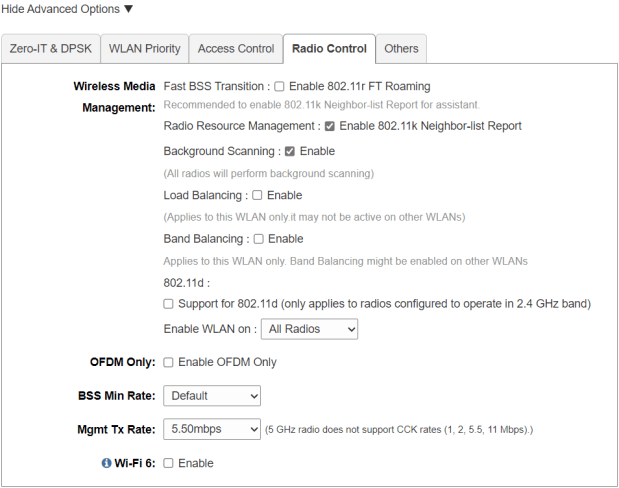
My original version of this post I put together over a year ago. I was having issues with a 4 AP Ruckus Unleashed network I have in my house. I thought the issue came from 1 of the access points (APs) being WiFi 6(AX), and the rest being WiFi 5(AC); I wrote the post about disabling WiFi 6 on the 1 AP, then wanted to see if my issue were resolved over the next week. It was not. The issue was mostly around Apple devices refusing to roam. You can walk far away from 1 AP, and towards another, and you wouldn’t roam for a LONG time without manually disabling and enabling WiFi.

After more digging, and seeing people online chat, I was pointed to an Apple post (which has since disappeared) saying to move your “WiFi DTIM to 3”. DTIM (delivery traffic indication message) handles how often an access point echos out information about itself.

Changing this setting has seemed to make roaming on Ruckus work much better. Ironically, or not, this is one of those settings network engineers argue about. Here is a different Apple support post saying it HAS to be 1. Cisco, says the value should always be a 1 or a 2. Hopefully this info helps someone else if they are having issues, give it a try.

Mellanox SX6012 Homelab Upgrade

For the last few years, I have been using a Mikrotik CRS309-1G-8S+. A small, low power, 8 port, 10gb/s switch. It worked well for me. One of the main things I liked about it was the low power usage. There are always discussions on different homelab forums about which switch to use. Some people like to use Arista or Cisco gear. I enjoy that gear and use it at work, but with my small and low power homelab an Arista switch would triple my power usage (a lot of them idle at 200-300 watts). There are nice features on those switches, but to get those nice features they have whole small computers as the management plane, and then power-hungry chips for switching.

The time came where I wanted to upgrade past this small Mikrotik switch. 8x10gb/s ports were great for a while, but 1 was uplink to the home core switch; then with running vSAN, I wanted 2 ports per host, and I have 4 hosts. While not urgent, I started to search for a bigger switch. Mikrotik has some bigger offerings, also low power, but a lot of the offerings were $400-$600+ to go to 12+ 10gb/s ports.

One place I like to browse periodically is the ServeTheHome forums. There homelab users talk about many different homelab things including networking. Many users seem to be interested in the Mellanox SX6012 or SX6036. This switch is discontinued from Mellanox (now Nvidia) making them go for fairly inexpensive on eBay.

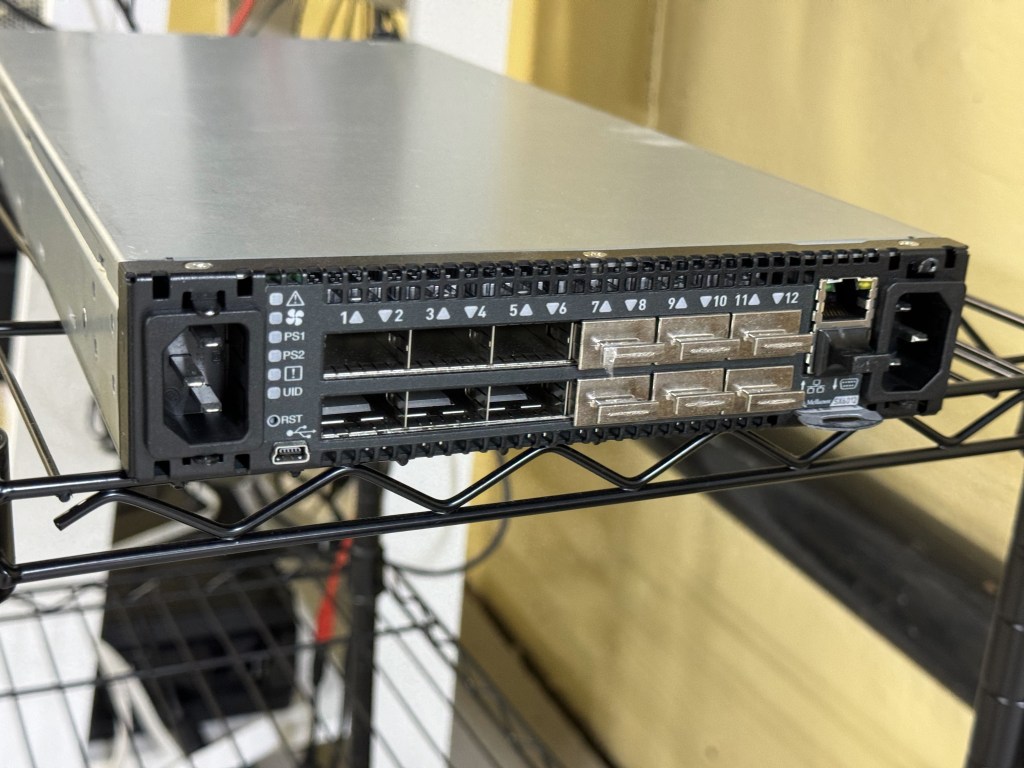
The SX6012 is a 12 port, 40gb/s switch; capable of using 40gb break out cables. That means each 40gb/s port can be 4x10gb/s ports. The switch is technically an Infiniband switch, which can get an optional Ethernet license. There are some switches sold with the license, along with guides online to enable that part of the switch. Apparently, there are also people on eBay who can “assist you” in licensing the switch for $50. Being the switch is no longer supported, I think a lot of the eBay buyers are homelab people going through the guided process of configuring the switch with a license. The switch was reported to be “not that loud”, which is true after some fan setting tweaks; and also idles at 30 watts from a low power PowerPC chip. This made it a go to for me. Plenty of ports to upgrade to over time, and a low power budget.

In looking at the switch, one thing that was heavily mentioned are the different editions of it. There are 12 and 36 port versions, along with Mellanox vs other OEM sub branded versions. For example, you can get a Dell/EMC Branded switch which will come with different features than a HPe switch, or a Mellanox themselves branded on. I wanted the 12-port version because (in theory according to online) it had slightly lower power draw. The 36-port version is supposed to be a big quieter (having more room to cool), but I also saw some firmware hacks to lower the fan noise. I saw one SX6012 unit which had the black front bezel (apparently that makes it Mellanox Brand) sitting on eBay with an expensive Buy It Now, or Make Offer. While they still go for around $250, I gave an offer for a good amount lower, and they took it! Score!

Flash forward a few days; I got the switch from the seller, powered it up, and was met with a dreaded bootloader… The OS had been wiped from the switch completely… along with everything on the flash. After a brief moment of dread, I thought about finding one of the guides online for managing these switches. Those guides are not just about enabling features like Ethernet, they are there to show you how to load different firmware revisions and where to currently find it. The Mellanox firmware itself was behind a support portal which got folded into Nvidia. Although these switches were also sold under Dell/EMC/HP brands, and some of those brands still provide the firmware packages. There are community scripts which can take in a HP firmware package and convert it to a Mellanox or other brand firmware package.

Mellanox port mgmt

After a slow TFTP image load, I got the switch online. This allowed be to get a GUI and more easily load the follow up firmware packages. After many reboots (which can be heard throughout the house with the fans ramping to 100%), and a few upgrades later I had the switch in a good place at the last available firmware for it. For the last several months the switch has quietly been working well for me. I have one QSFP to SFP+ adapter for the 10GB from my core switch coming in. Then I have 2 QSFP -> SFP+ break out cables going to the small cluster I am running. This means I am running on this one switch, without high availability right now. If I want to reboot or patch the switch, I need to shut down my VMware cluster. One benefit to an out of support switch without firmware updates… You have no firmware updates to do!

The CLI is similar to Cisco. Like many other switch vendors, they seem to follow a similarly universal CLI. The hardest part of getting the switch going for me was figuring out the command to set the QSFP port to breakout mode. Once that was done, it creates 4 virtual sub-ports which you configure with vlans and such. The UI showed the ports as single ports, even with the breakout cable until I went in the CLI and set it to breakout mode.

With this switch working well, I moved the old 8x10gb/s Mikrotik switch over to be my new 10gb core switch. The current flow is Internet in -> Sophos XG Firewall on a Dell Optiplex 5050 -> Ruckus ICX7150 POE switch for Wifi and a few wired ports -> 8 port 10gb/s Mikrotik -> Mellanox SX6012. The house can run with just the firewall and Ruckus switch (which powers all the Wifi APs). The Mikrotik is near the router, and also allows a Cat5e run (19 meters) already in the wall to go up to the attic and give 10gb/s to a NAS and AP up there. (I know 10gb RJ45 is supposed to be Cat6, this line was run before I was here and tested fine, it has been working well the whole time) Then the Mikrotik switch has a SFP that does a longer fiber run to where my little homelab rack is. The whole system is a glorified “router on a stick” with the firewall doing all the routing between vlans.

This setup has been working well, has plenty of room for expansion, and achieved my goal of being fast with relatively low power use. I have the management for the switches on a disconnected vlan that only certain authenticated machines can connect to. This makes me feel better about its not getting security updates.

Mellanox at 29w

Currently I have 4 small Dell Optiplex systems as my homelab cluster along with the Mellanox switch. All together the rack idles around 130 watts. Together the systems have about 20 physical cores (not hyper threaded cores), and 288GB of RAM. It can certainly spike up if I start a bunch of heavy workloads, but I continue to find it very impressive.

Ruckus H510 Factory Reset

I have a Ruckus Unleashed Wi-Fi setup at home. I have a main R710 (AC Wave 2, 4×4:4) in the center of the house, then a H550 where my desktop is for better wireless and added hardwired connections. One corner of the home was getting only moderate signal and already had ethernet run to it; looking online, another H550 (Wi-Fi 6, 2×2:2) on eBay would run about $150. That was a bit more than I felt like spending to fill in this pocket with lower signal. In looking around the H510 (AC Wave 2, 2×2:2) has gone end of sale, but not end of support; those are currently going for $40.

Ruckus R710
Ruckus H550

The Ruckus H510 and H550 are very similar, with the exception that the H550 is Wi-Fi 6. They are great little access points. Their range is not as good as the bigger units, and their sensitivity isn’t that high. They were designed for things like hotel rooms. But for filling in a space with Wi-fi and giving you 4 ethernet ports, each capable of having its over vlan or 802.1x.

Having already setup a H550 I figured this install with an existing cable and POE switch at the other end would be easy. The issue I ran into was I didn’t have the password and the unit refused to factory reset. The documentation said “Hold the Soft Reset Button for 8 seconds” that didn’t work. Elsewhere said “Hold both soft and hard reset buttons for 10 seconds” that didn’t work. Others said, “Hold soft reset for 30 seconds”, which also didn’t work.

In the end, in frustration, the thing that worked was hitting soft reset, which has the red status light come on, then for about 5 seconds I would keep tapping on and off the soft and hard resets. This worked like a charm. Suddenly the password was reset, and I could get in.

Generally, Ruckus Unleashed has been working well for me. There seems to be a bug where when a device restarts, SNMP does not come on even if set. I need to go into the admin panel, turn it off, then back on for SNMP to start responding. But for a home network, not a big deal. Over the holidays I had a bunch of family members over, we had 39 devices on the network at once, with over 1gb/hour being used, and everything worked well. If anyone has Ubiquiti and is tired of their controller and lack of power features, I recommend giving Ruckus Unleashed on used gear a try.

Ruckus Unleashed ICX Management Stuck at “Connecting”

I have a mostly Ruckus and Mikrotik network stack at home. For the longest time, Ruckus Unleashed has had the ability to manage ICX switches; but every time I went to add my switch to the Unleashed interface it would hang at “Connecting…”. After a bunch of troubleshooting, I figured out why it was not working.

Unleashed likes to automatically adopt blank switches, if your switch is already configured you may have the same issue. The issue is Unleashed cannot use a ICX switch with an enable password. I had to run:

SSH@switch(config)#no aaa authentication enable default radius local

Then suddenly if I ran “# show log” I could see Unleashed adding settings to the switch. Unleashed seems to use SSH as the main mechanism for setup, then adds a RO SNMP string to the switch. Hope this helps someone!

Cisco ISE 2.X Certificate Expiration

Quick post: I had a HA pair of ISE boxes in a lab the other day have the certificates that I made with a Windows Certificate Authority expire the other day and I ran into some odd behavior. To be clear, in this scenario, the certificates had a valid chain of trust, but it was past its expiration date.

I logged in after realizing this and had odd behavior, node-A could not read node-Bs certificates. Both nodes said they were no longer on domain, even though the domain disagreed and I logged in with domain credentials that were recently changed. Then when I went to make a Certificate Signing Request (CSR), I was able to make it, but when I went to download it I got a generic message of “Cannot connect to node-a”. At the same time all these issues were going on, under “Node Status” on the dashboard, both nodes were sharing health data.

In the end, ISE gets weird when the cert date has expired. I generated a new self signed cert for node-A. Then deleted the expired certs because the system didnt want me to make a CSR for the same thing it thought it had a cert for already. This allowed me to then properly make a CSR and export it. That gave me “ciscoisenodea.pem”, I brought that over to my setup Windows CA, and with a admin command prompt ran certreq -submit -attrib "CertificateTemplate:WebServer" ciscoisenodea.pem . Saved that to my local desktop, and went into ISE to Bind it to the CSR. Node-A then rebooted. All of a sudden things like the domain pairing, started showing they were working again. Then the second node, I did the same process, and all of a sudden everything was happy again. Note: make sure you have a your admin backup password, one of the nodes DID refuse to talk to AD and I had to use that, while the other one said it wasn’t on the domain, but did work…

Hope this helps someone out there!