networking

Homelab Token Ring

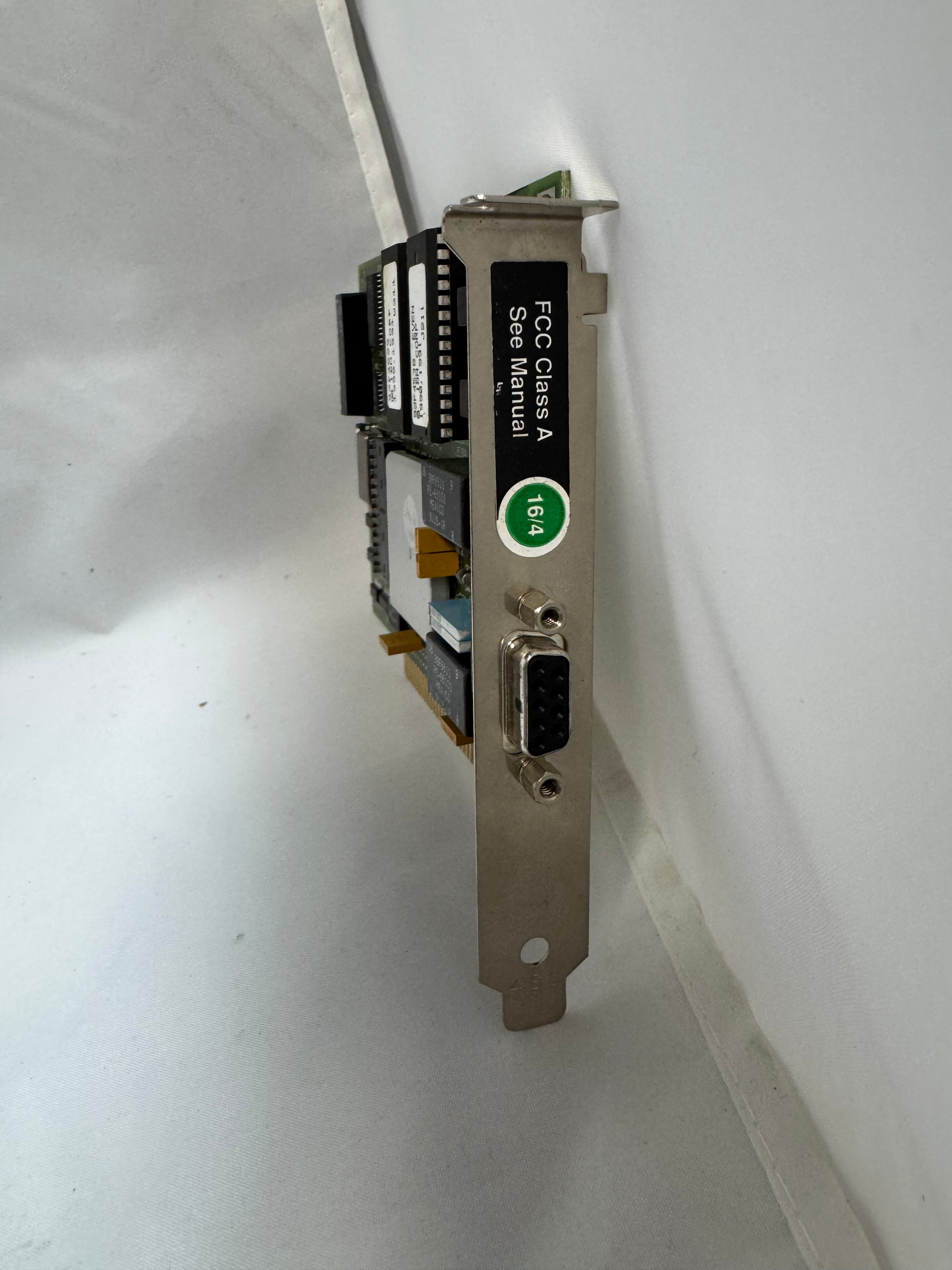
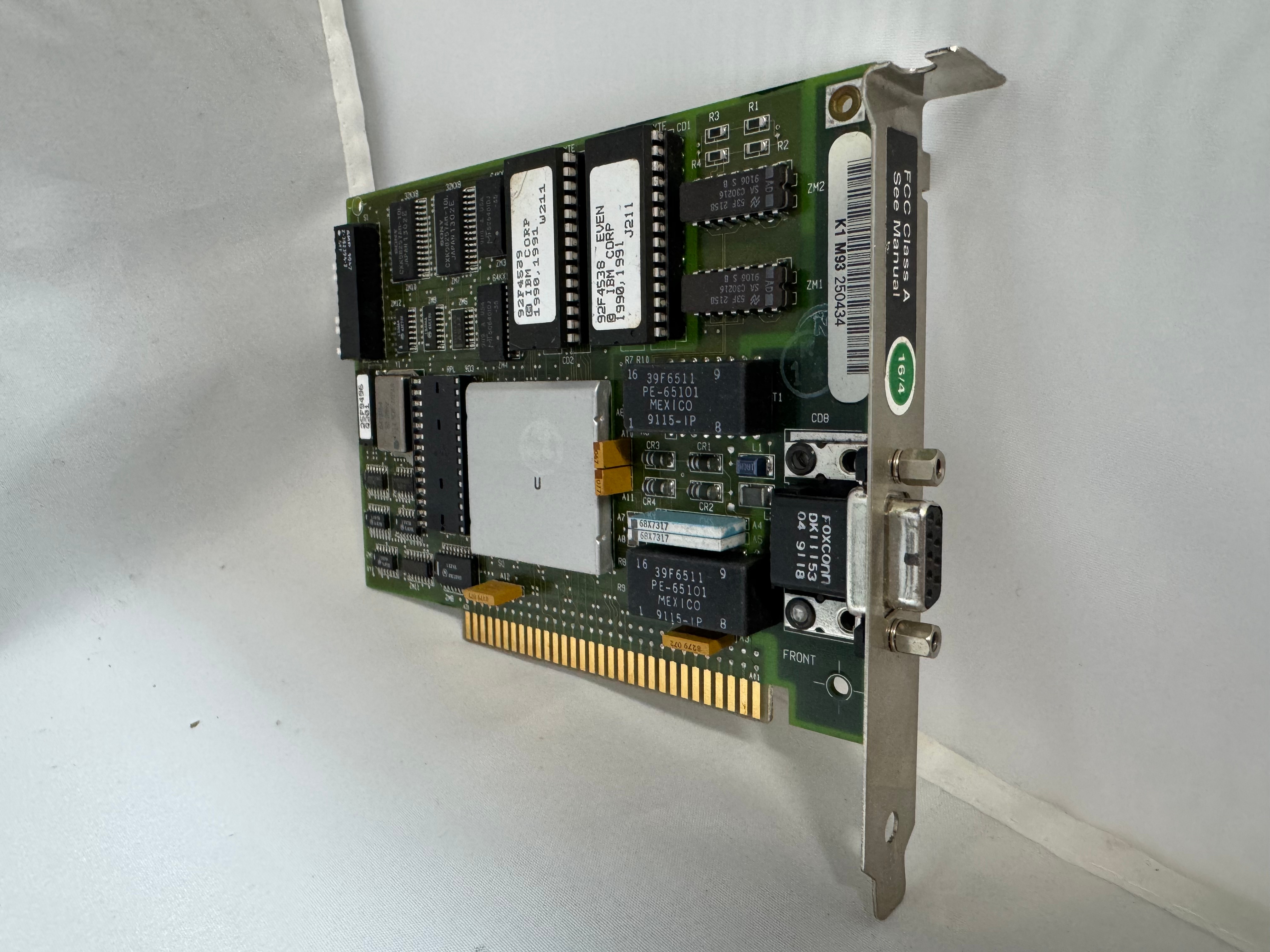
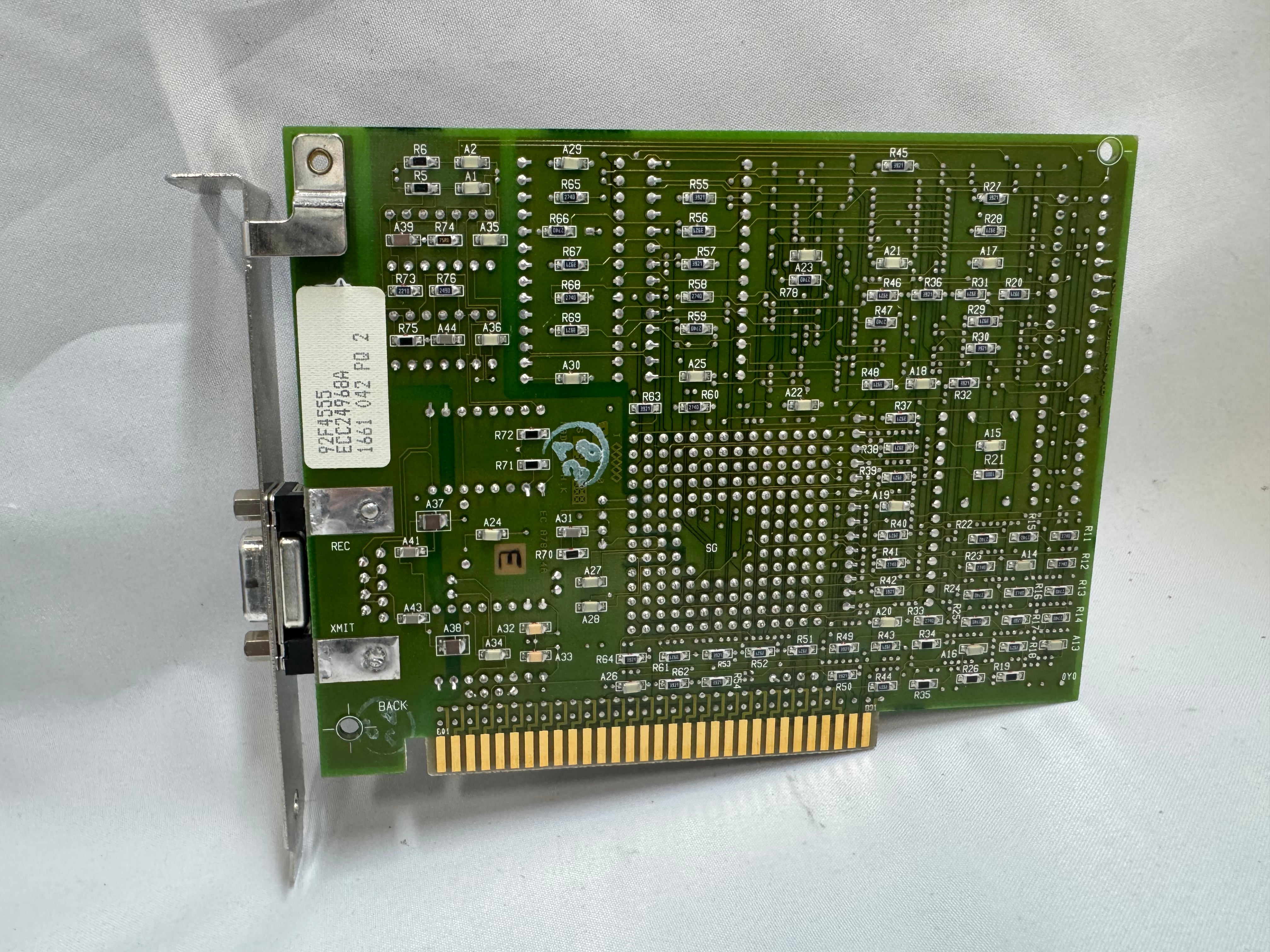
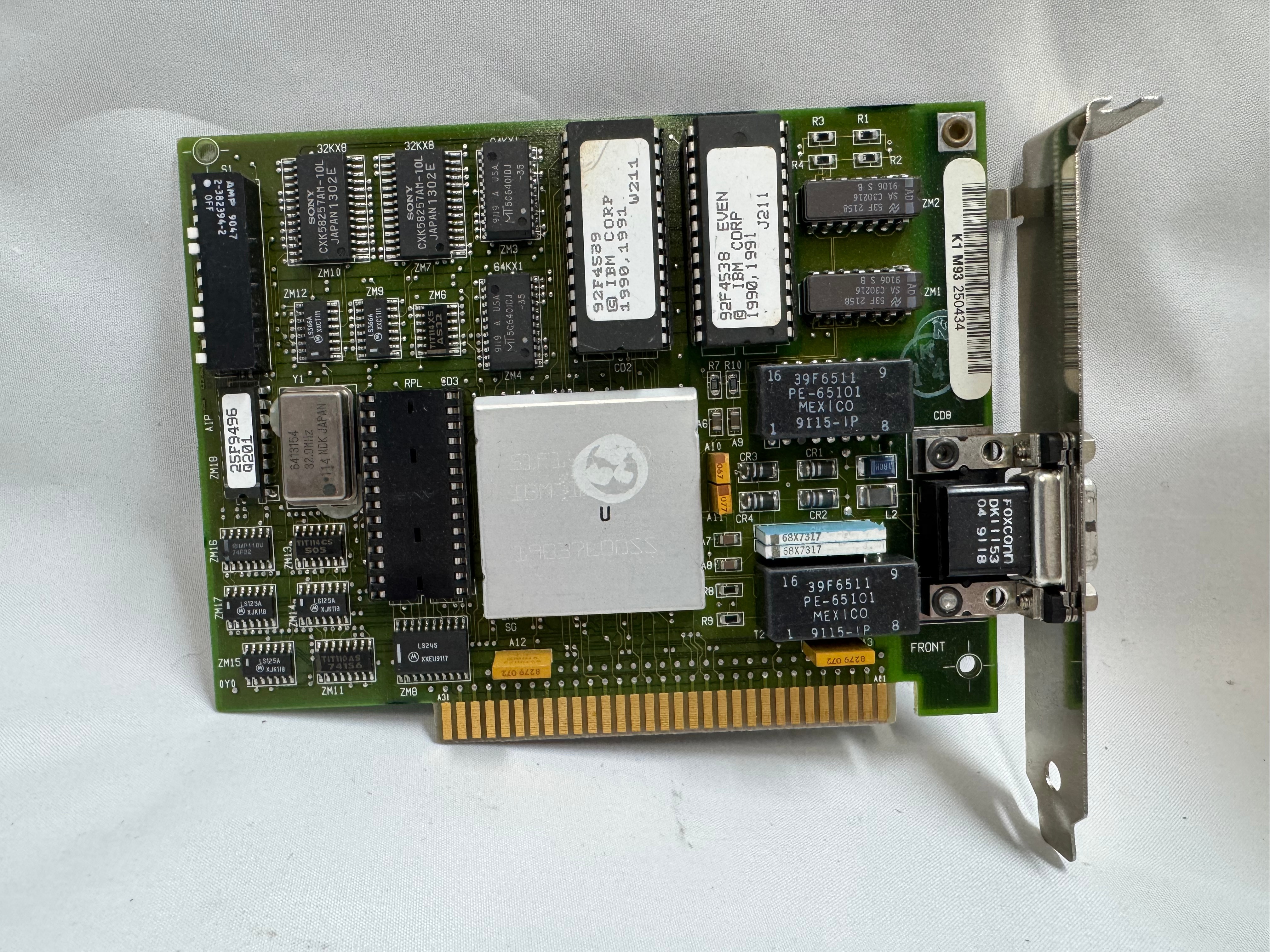
For the LAN Before Time, my retro rack, I wanted to mix the most diverse set of CPU/OS/Networking I could find. There are not a ton of networking standards out there, as Ethernet took over so quickly. One that has always interested me is Token Ring, IEEE 802.5 standard, mostly from IBM as a competitor to Ethernet. Token Ring went through many transitions in its time on the scene, from speed changes to connector changes, lasting from the mid 1980s through the 1990s.

Connectors
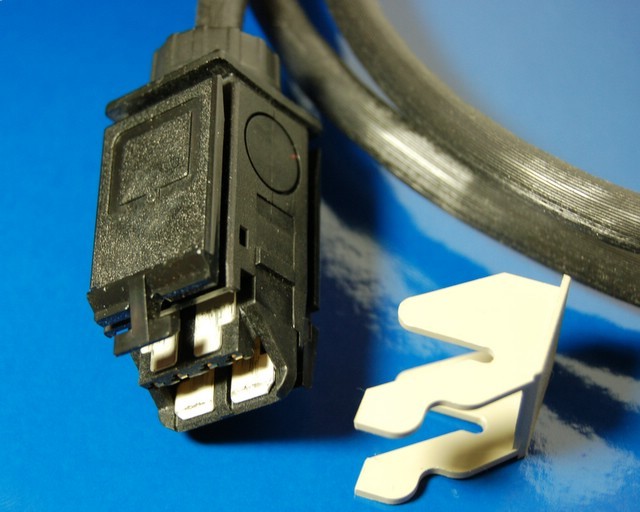
Photo creative commons from Wikipedia

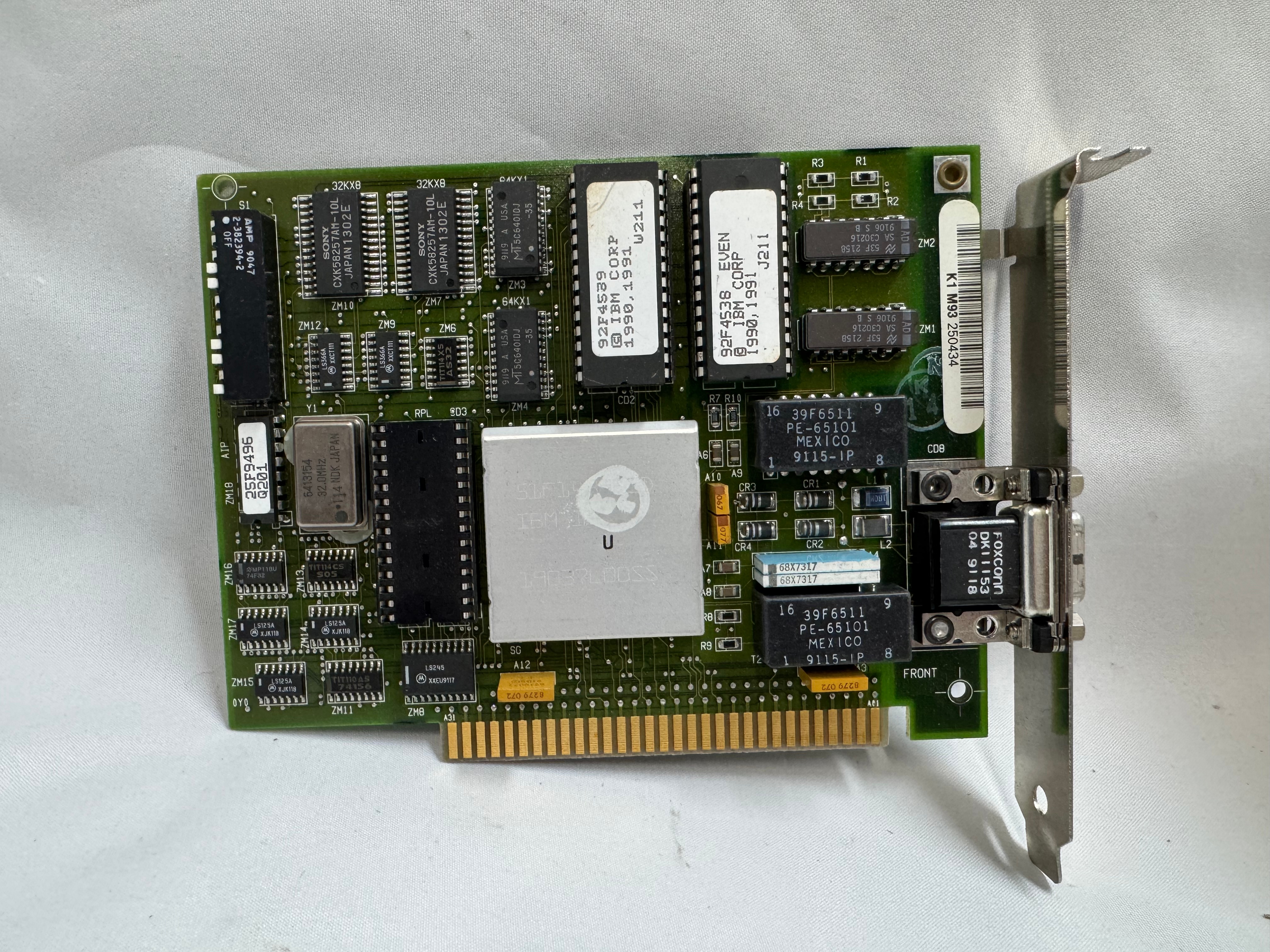
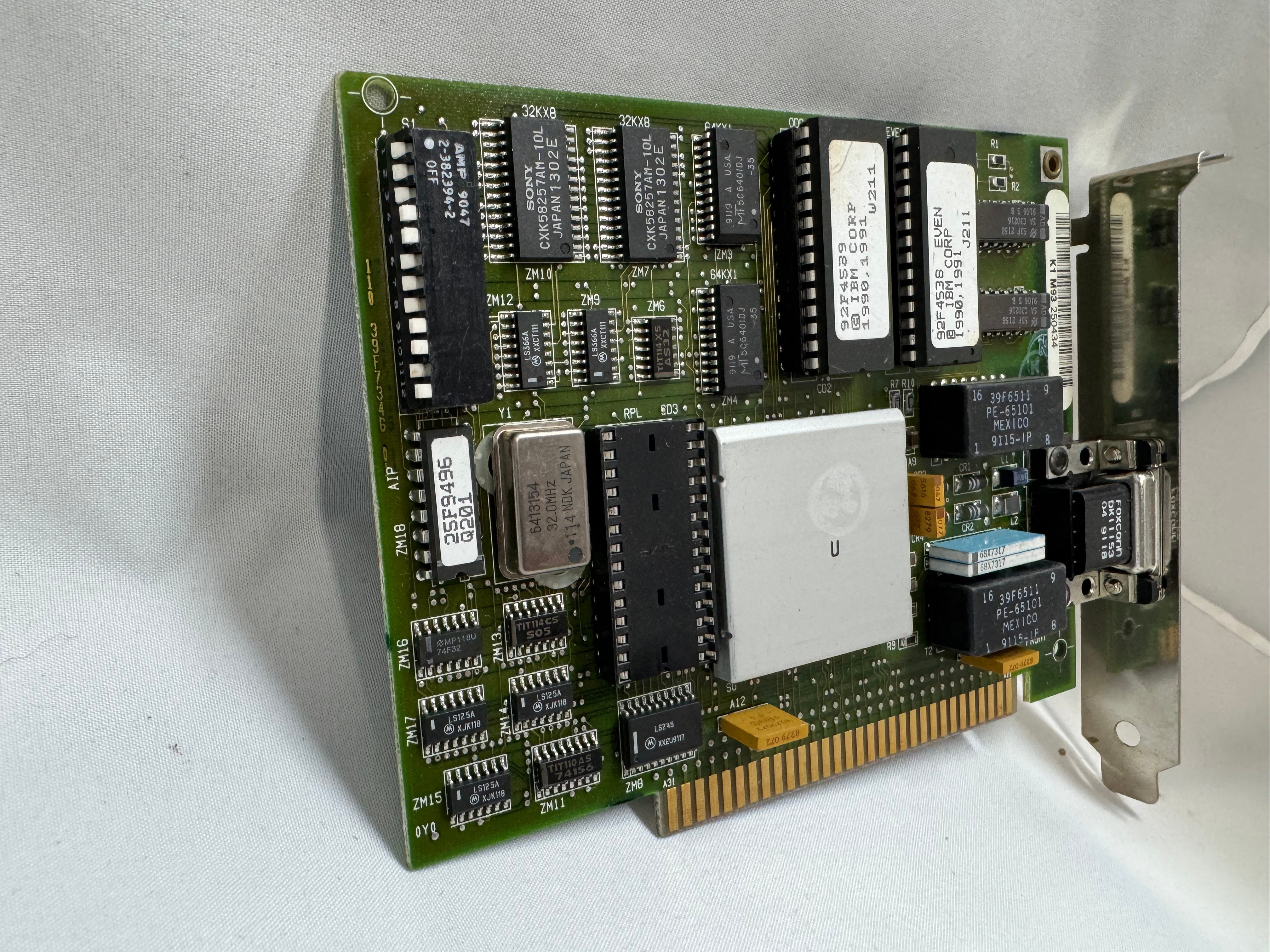
The protocol started at 4mb/s (megabits a second), with the computer having a DB9 connector going to a giant 4 pin plug.

Later 16mb/s was added. Most of the cards you will find are 4/16 cards.

The physical connector, and connection speed are independent, you can use either the DB9 or RJ45 connectors to run 4mb/s or 16mb/s.

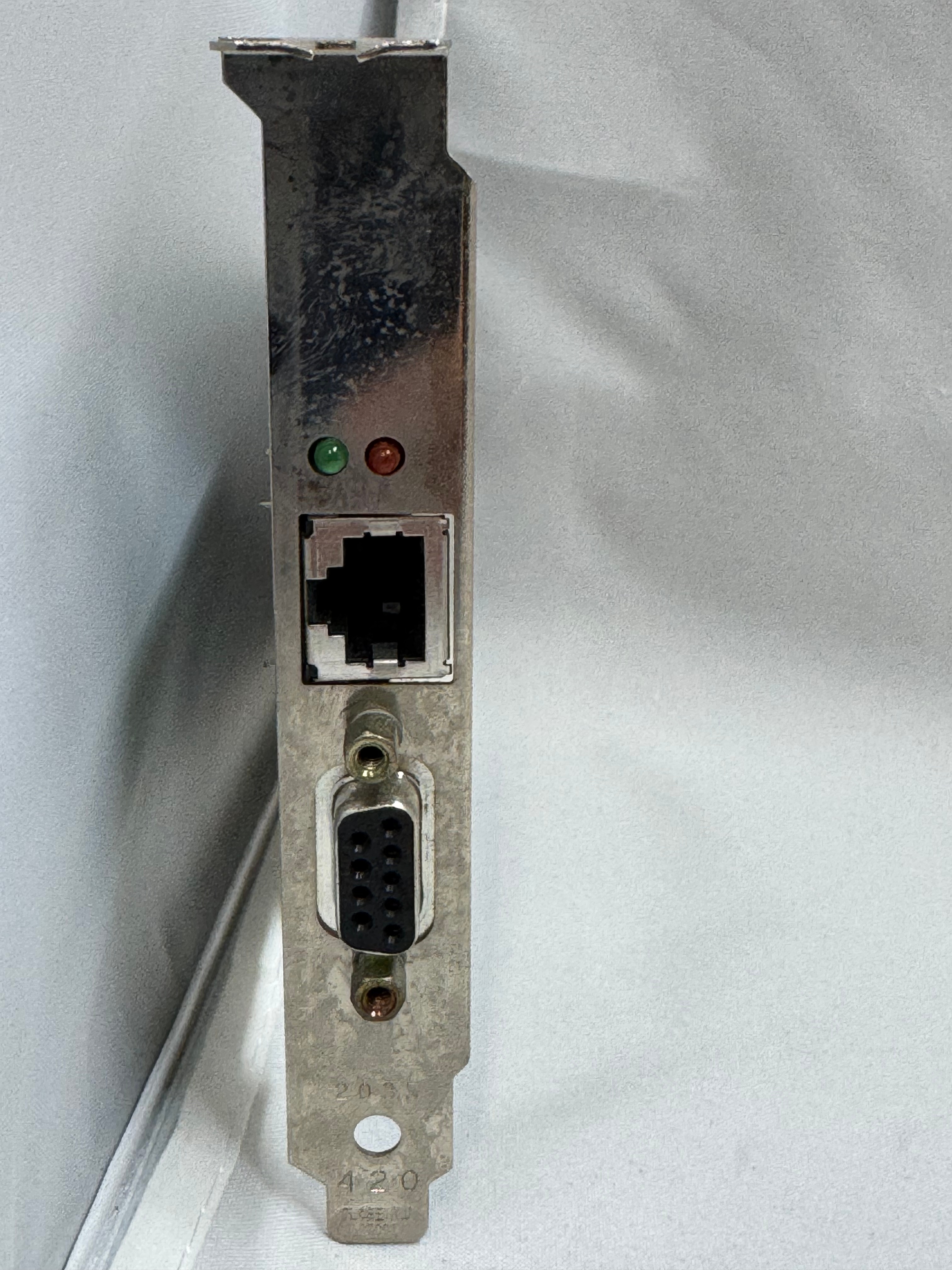
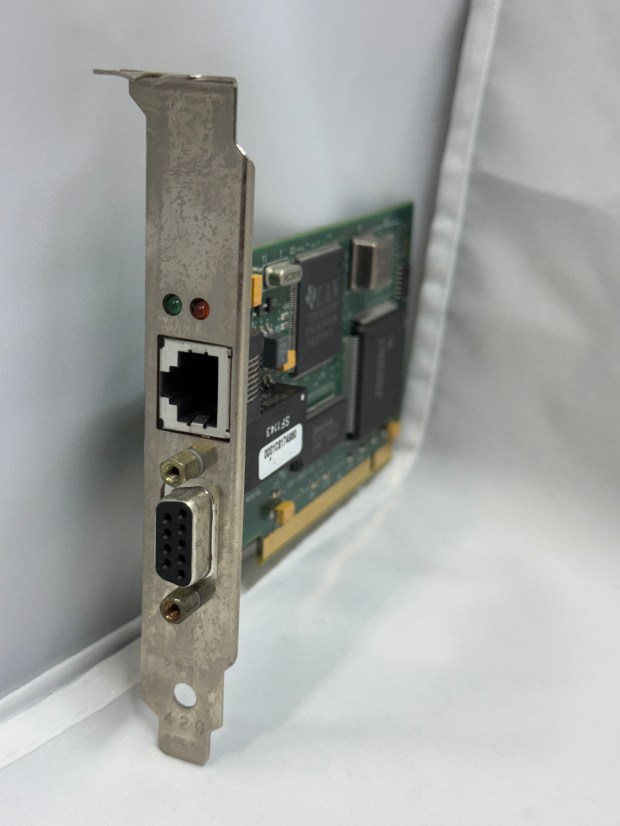
The cards started in the ISA era and later continued into the PCI era. The connector also evolved to a standard RJ45. There were adapters to go between the older connectors and newer ones. Later cards would include both DB9 and RJ45 connectors. With RJ45, only the middle 4 pins were used, but in a straight through way, allowing normal Ethernet straight through cables to be used.

In the last updates to the protocol, 100mb/s Token Ring was added, but by the time that came out Ethernet had taken much of the market share. And finally in 2001 a 1000mb/s standard was created, but Wikipedia says no devices ever came out for it.
MAUs

Unlike Ethernet, Token Ring cannot connect two computers directly. You need to go through a Media Access Unit, or MAU. These units control ports going in and out of the ring. They can be thought of like an Ethernet hub or switch. The Token Ring itself also needs a terminator on it. Later models contained internal terminators if put into a specific mode. There are MAUs with the old large IBM connector, and there are newer ones with RJ45. There were adapters between any of these connection types for networks in transition.

My MAU Journey

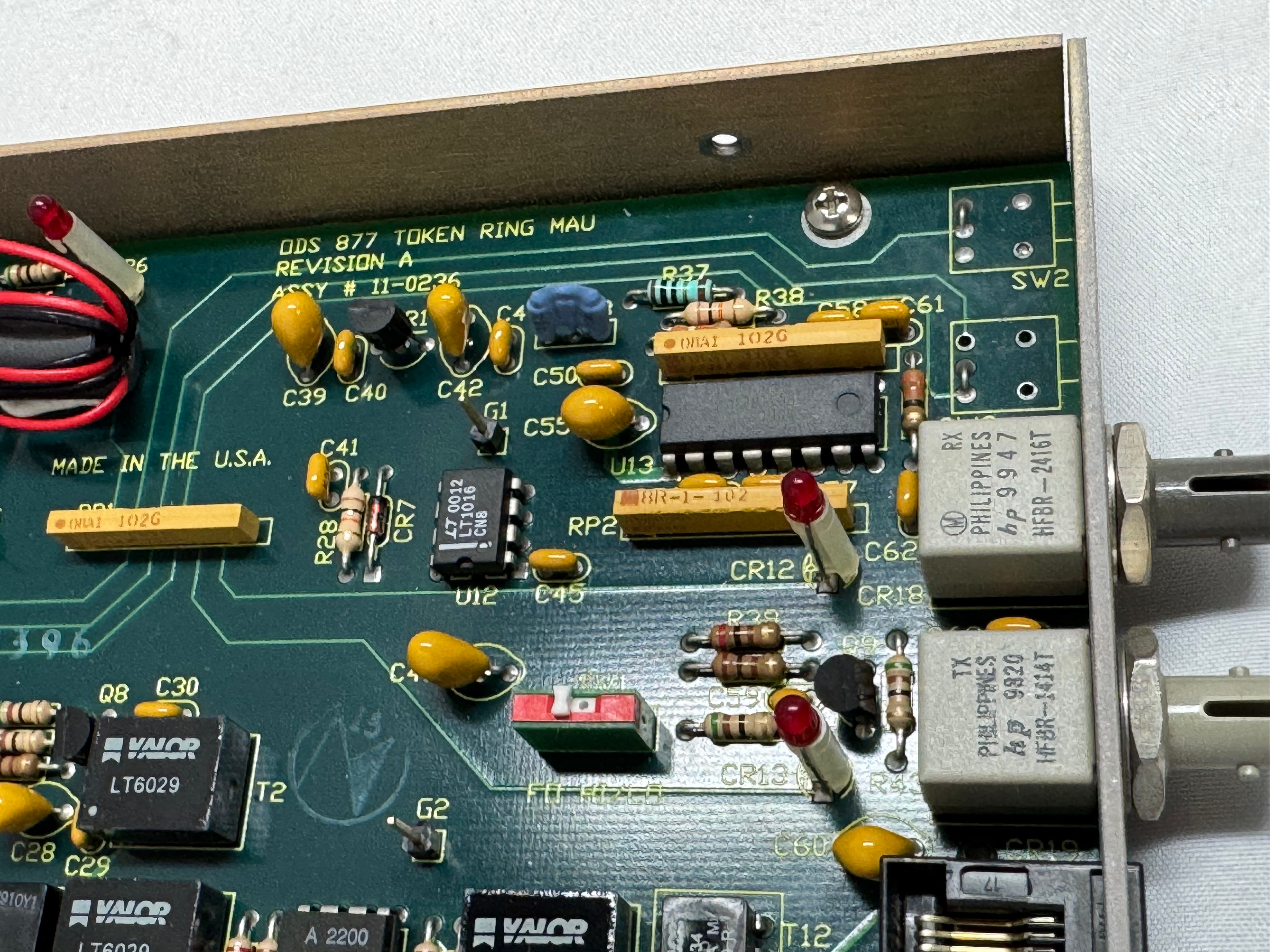
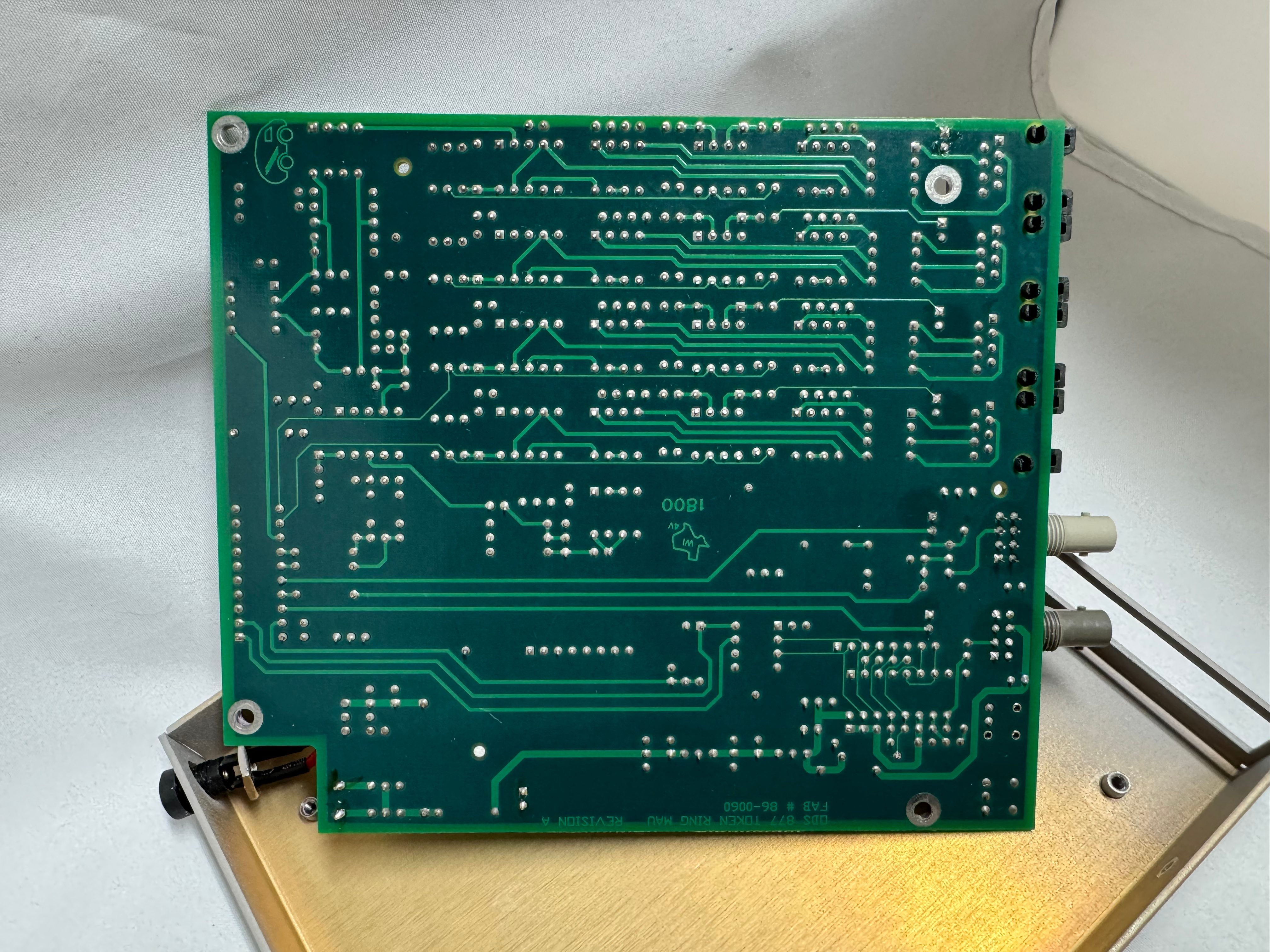
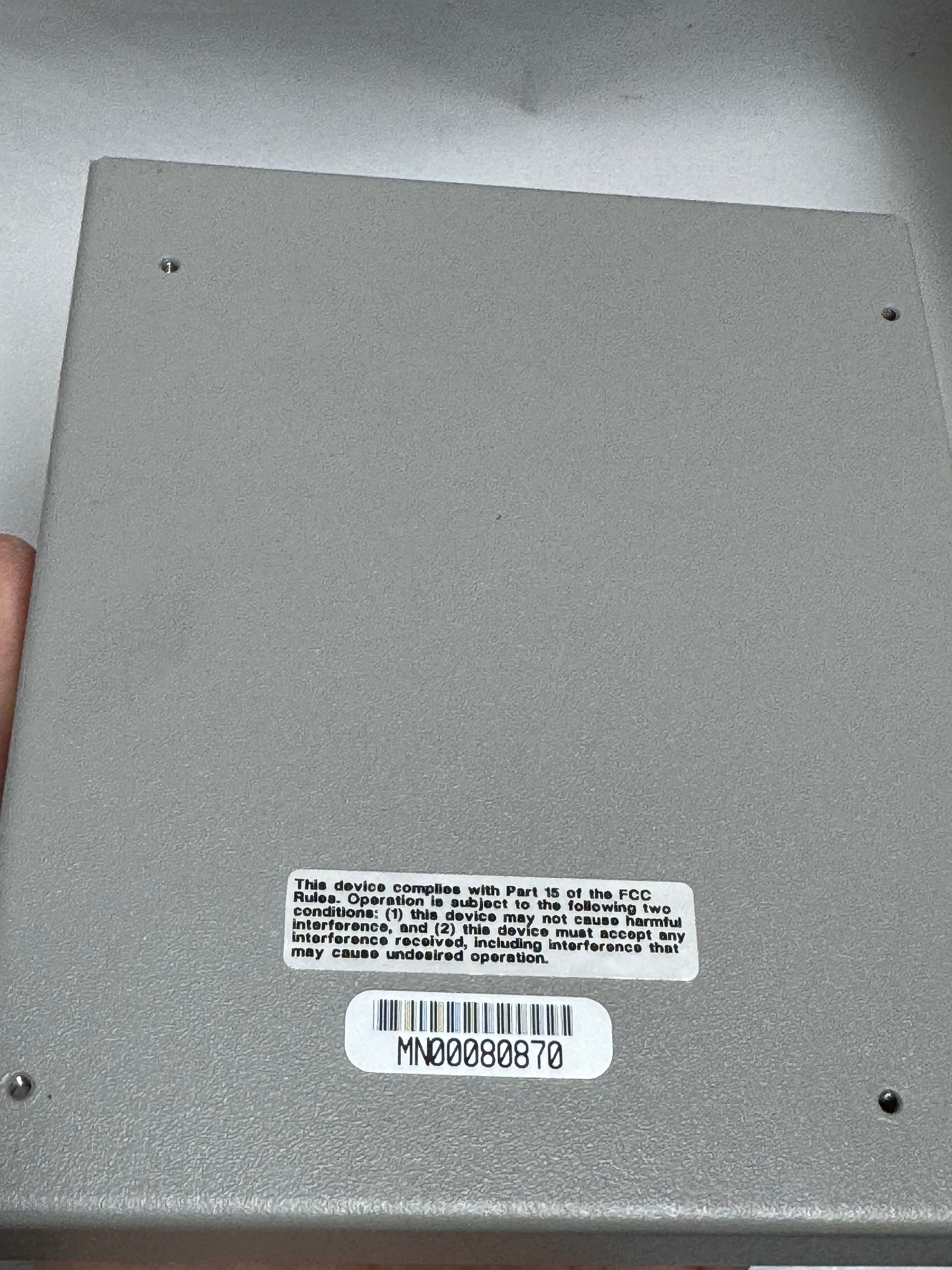
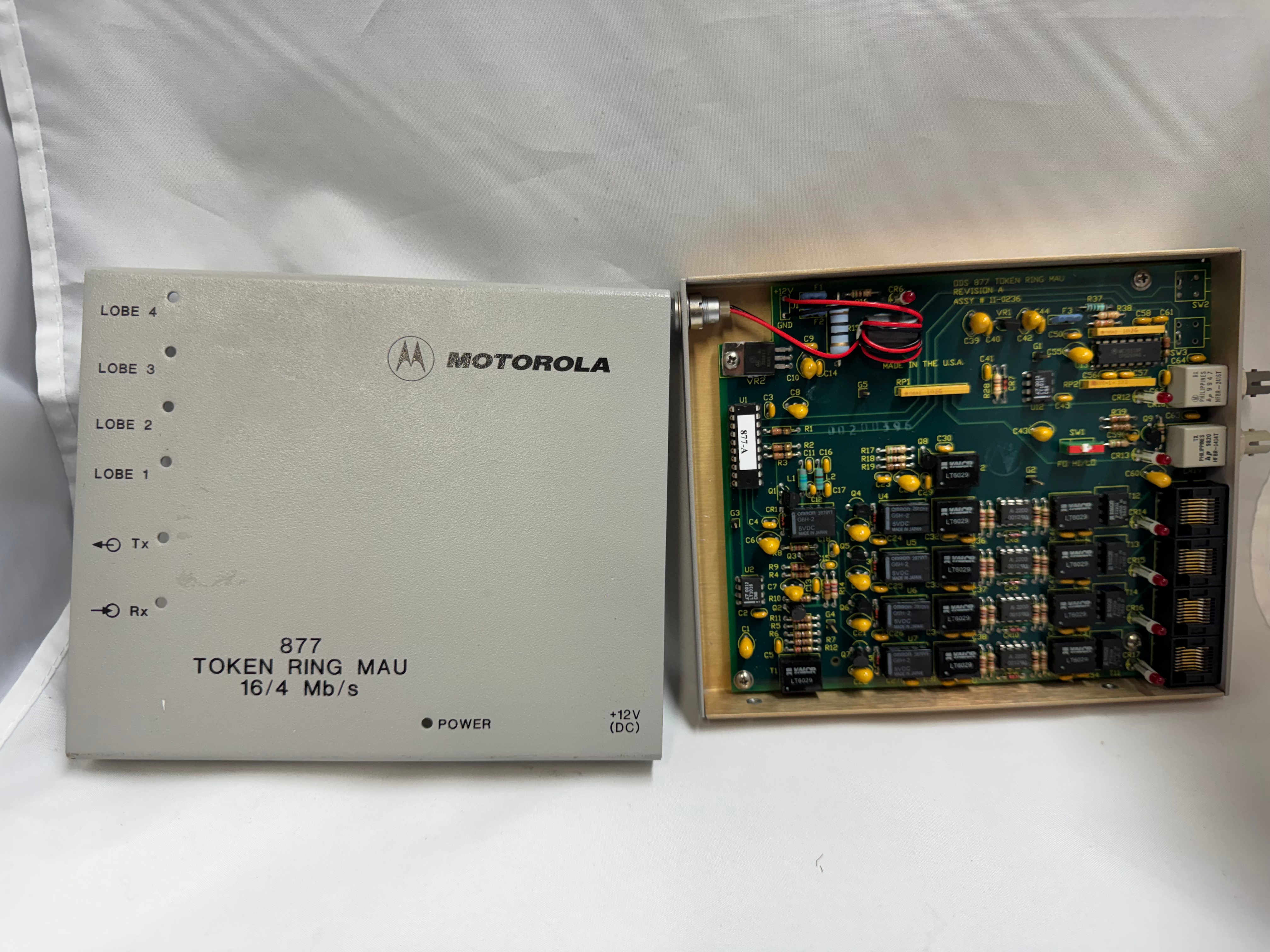
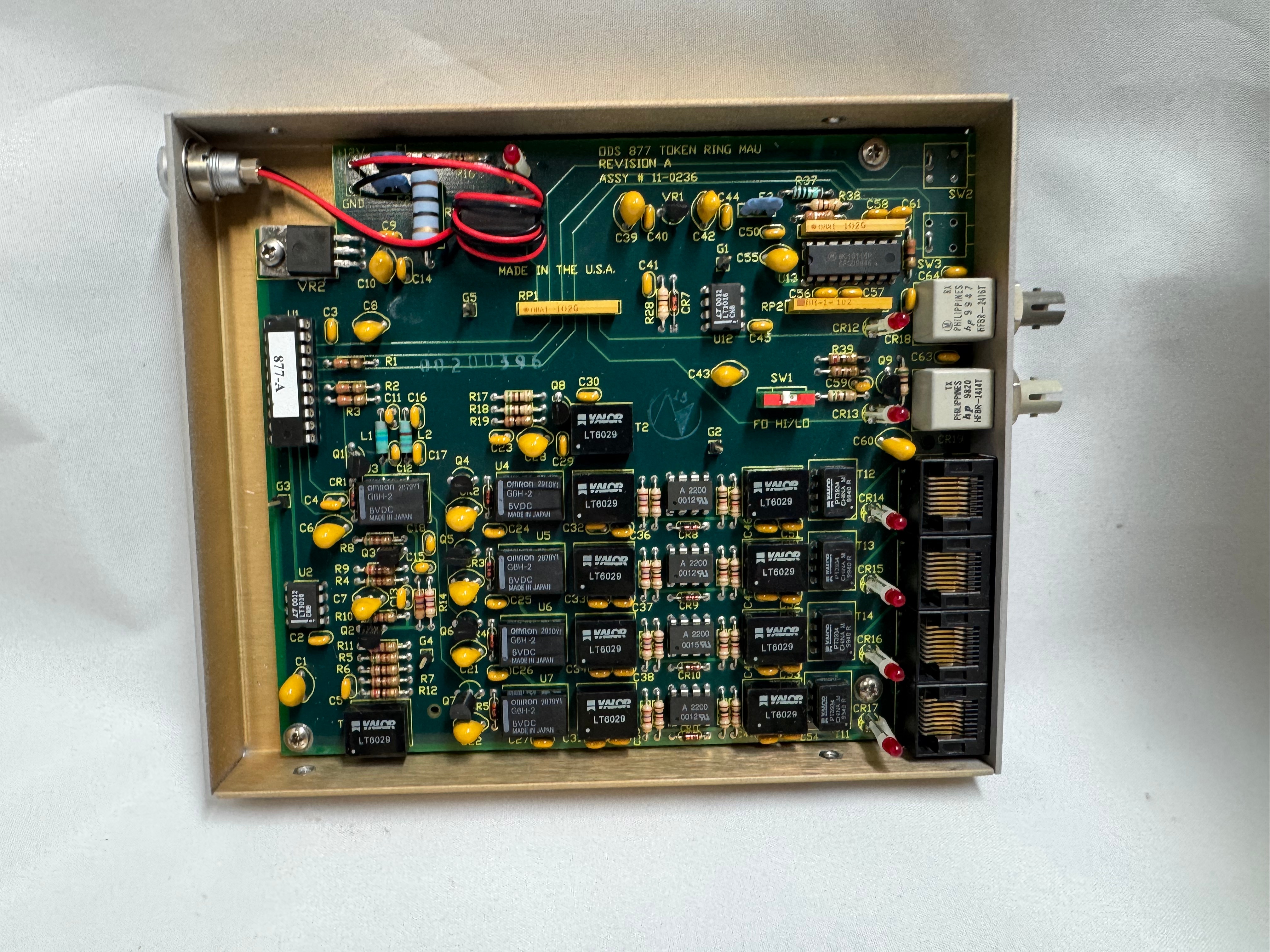
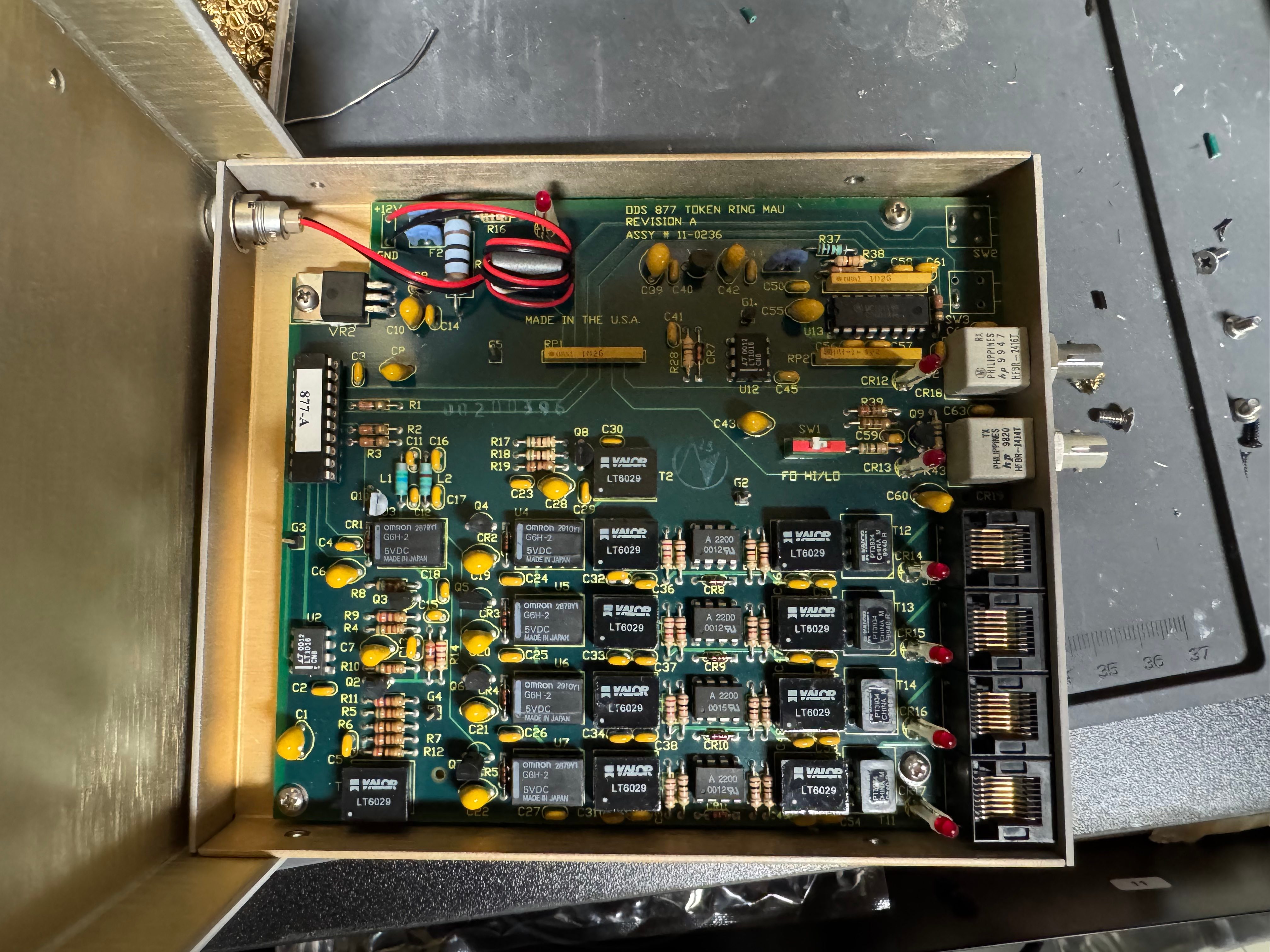
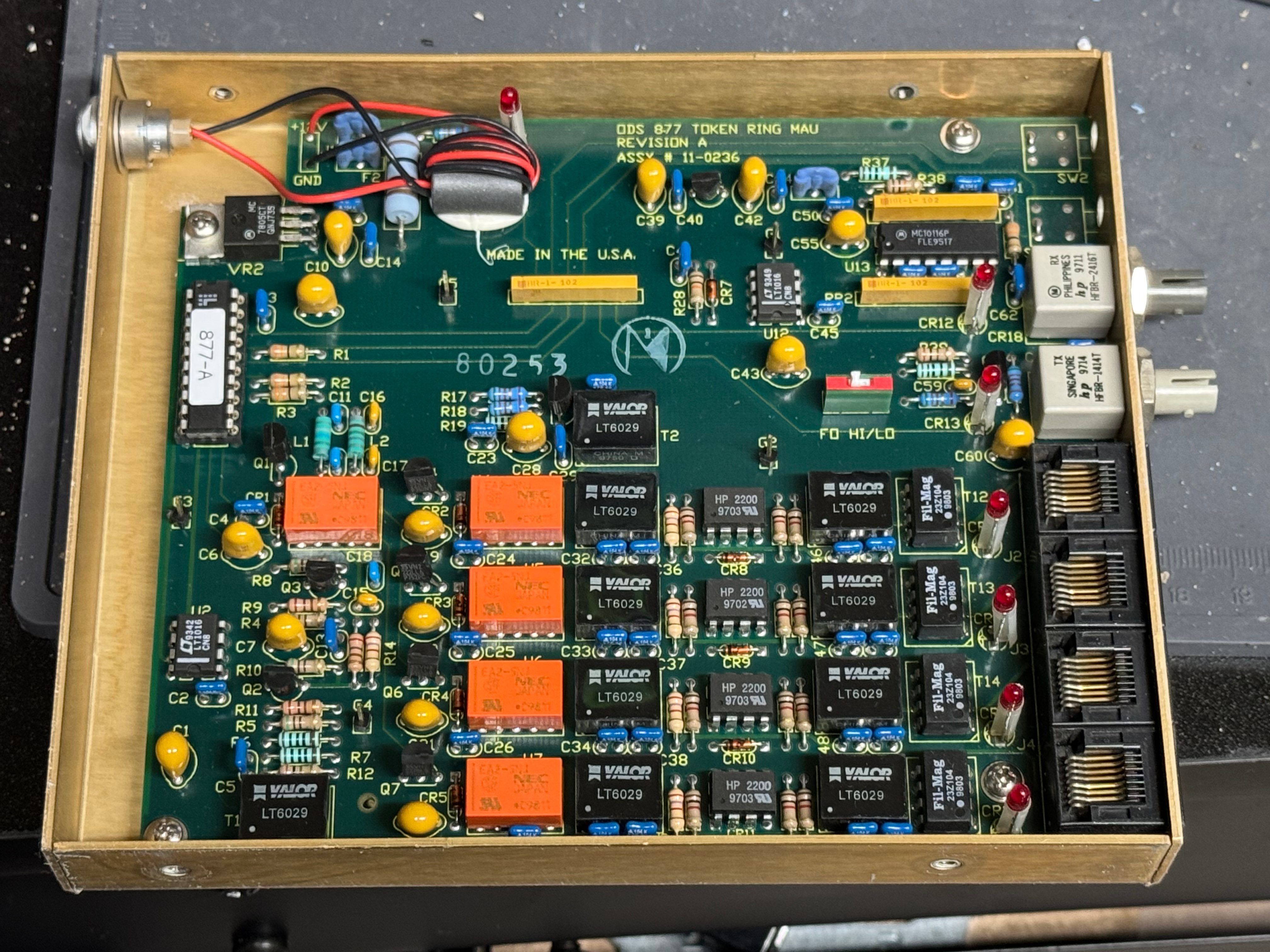
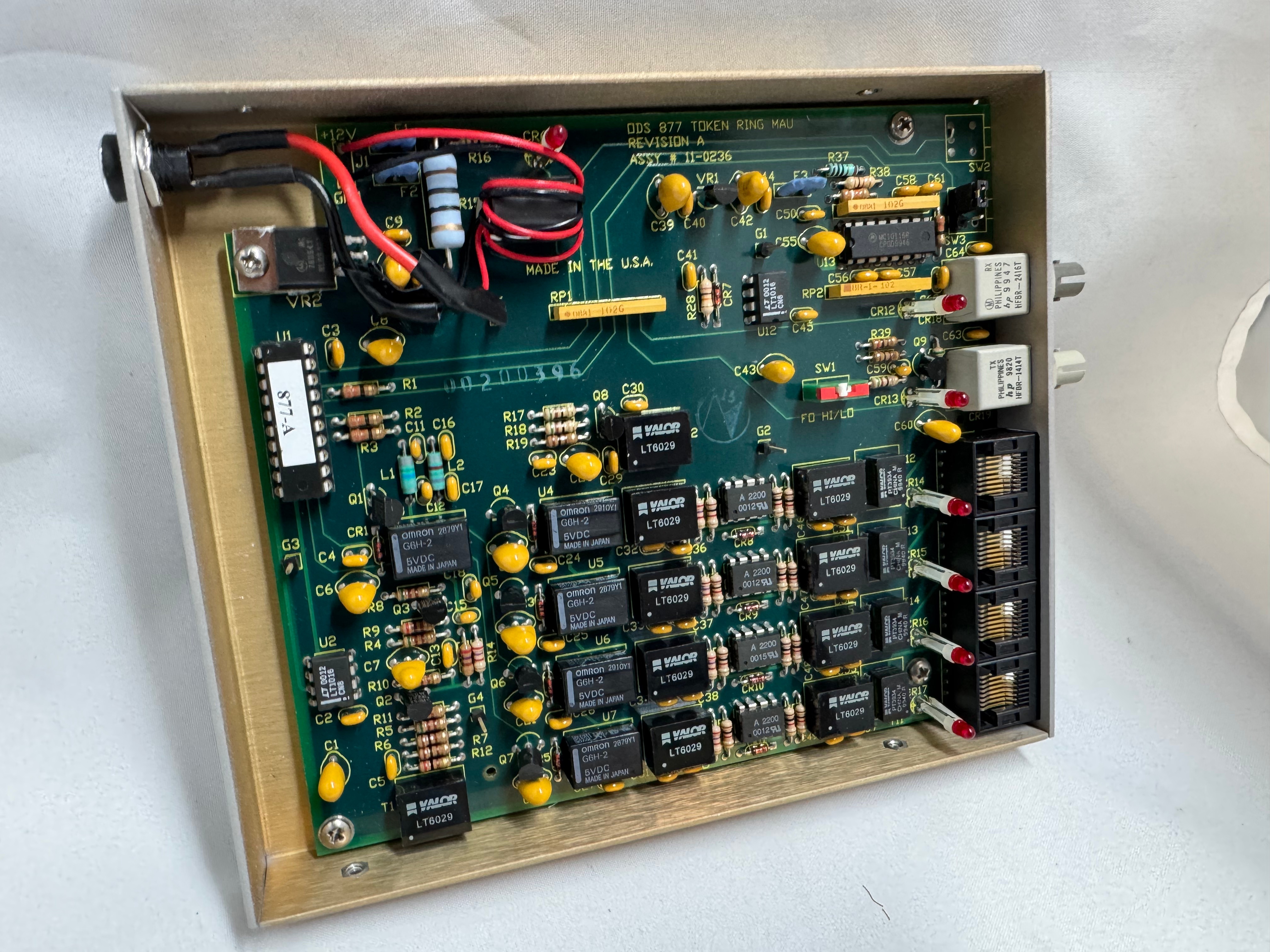
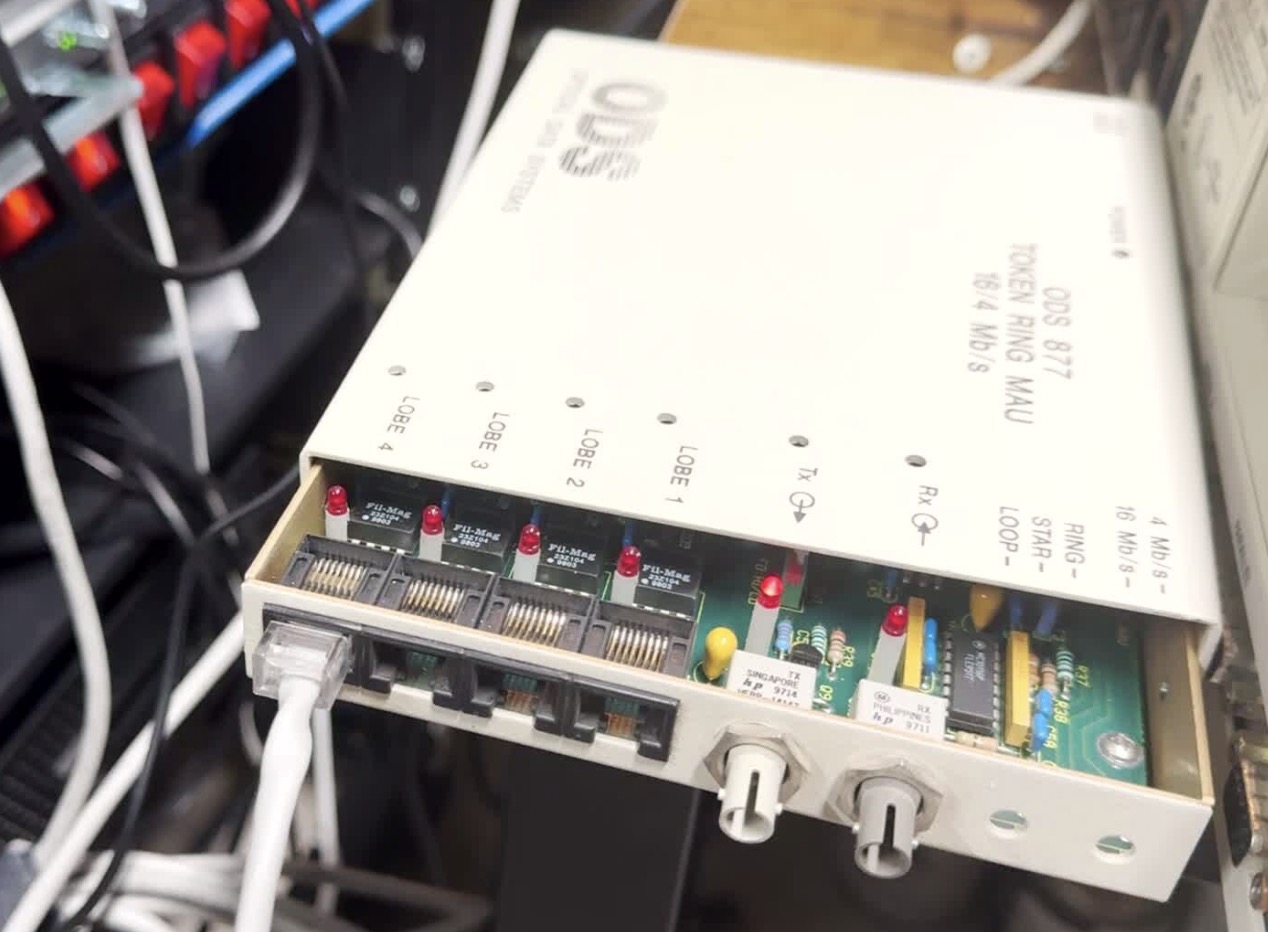
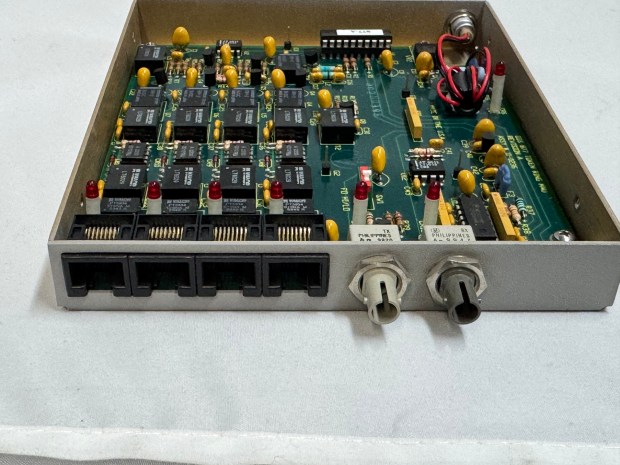
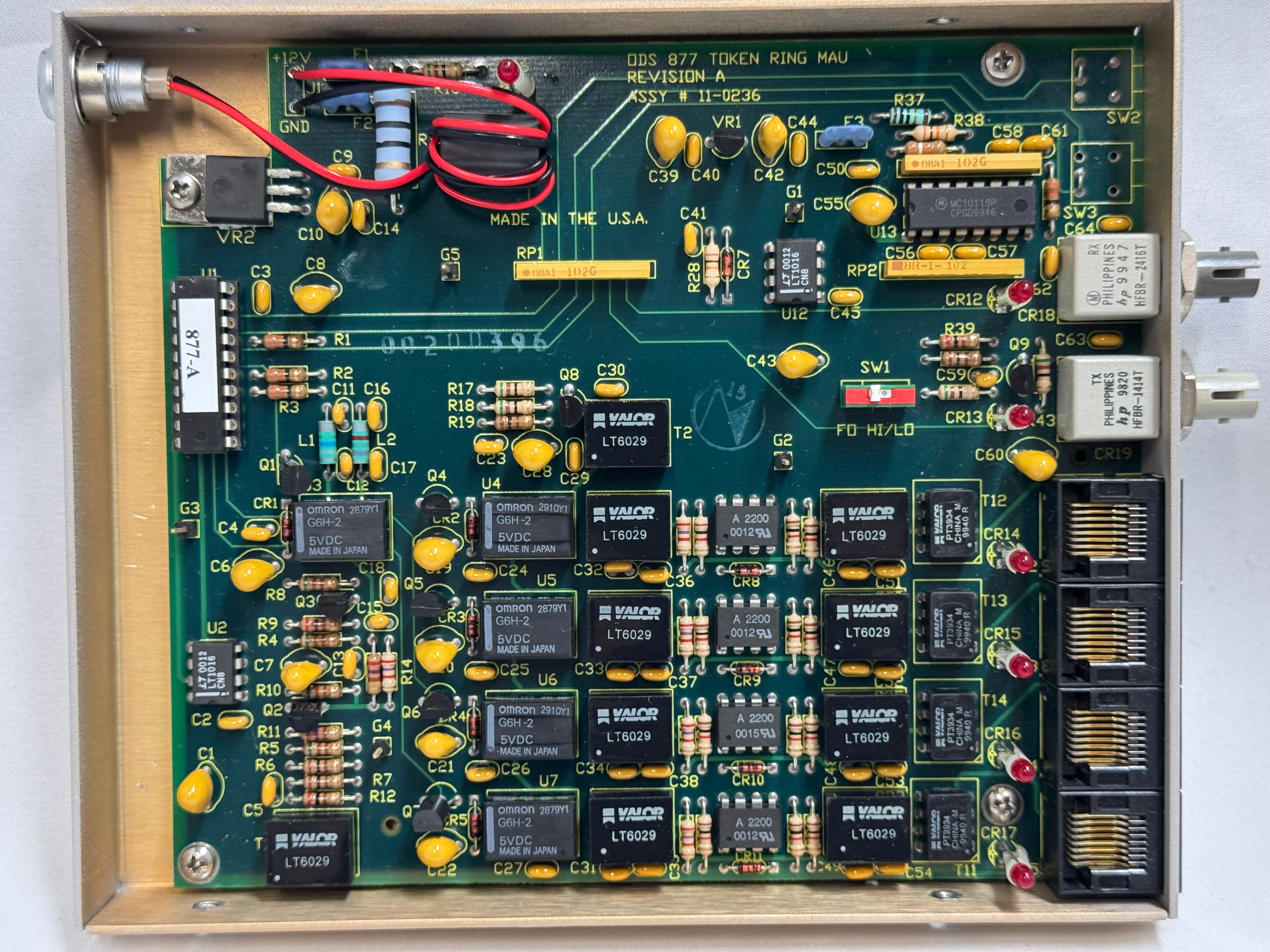
I picked up 2 of the same model MAU. ODS/Motorola 877. These are great units after some hardware tweaks and I would recommend them. While they are the same model, and same firmware revision, Motorola bought the company ODS (Optical Data Systems) which made them. The first one I got has ODS branding and a spot for two switches to control the mode and speed of the MAU. The second one is Motorola branded on the case, but not the board, and is missing the cut out in the case for switches.

From what I can learn with working on it, looking at documentation for other MAUs, and Claude; the device can work in three modes:

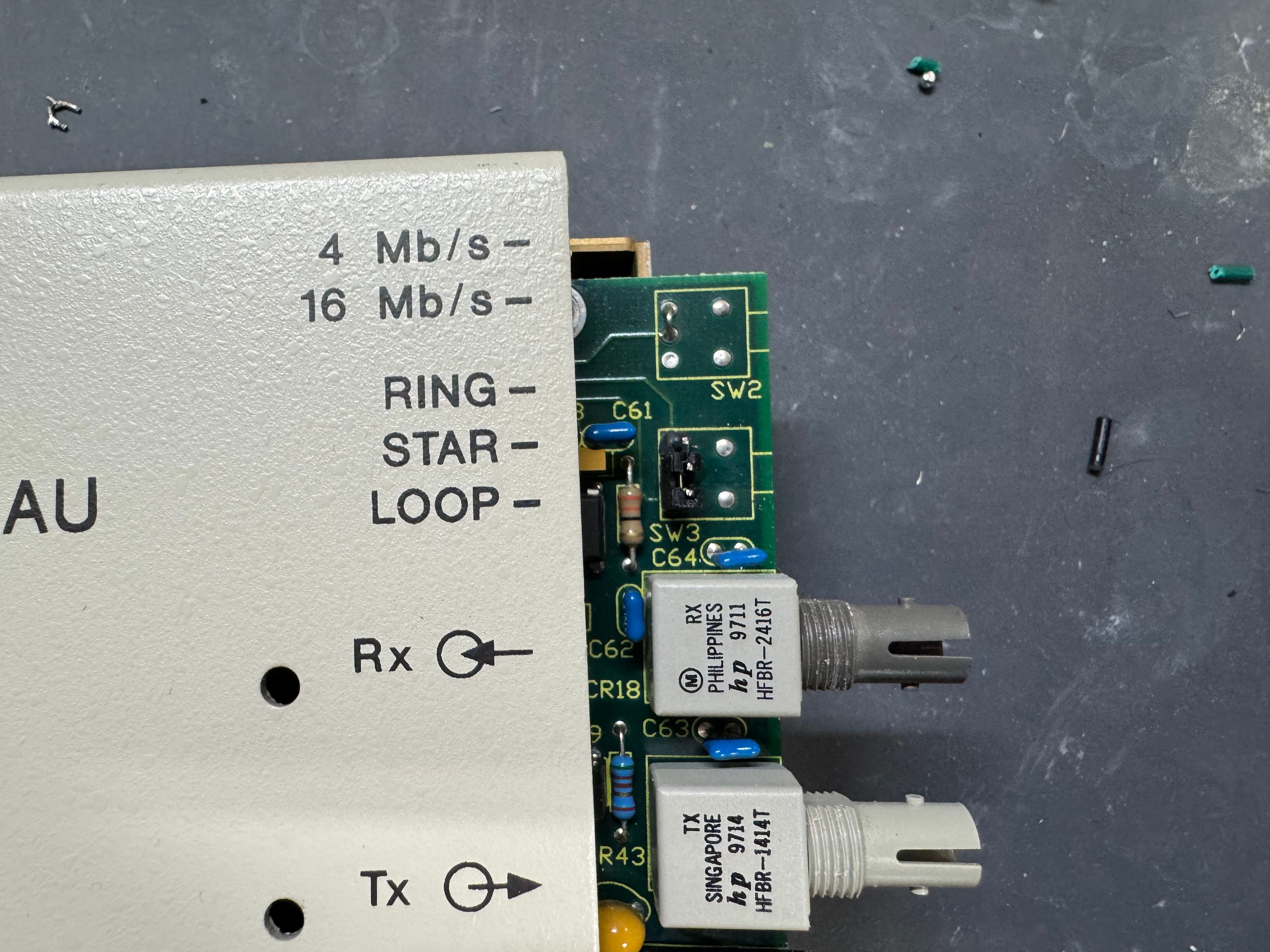
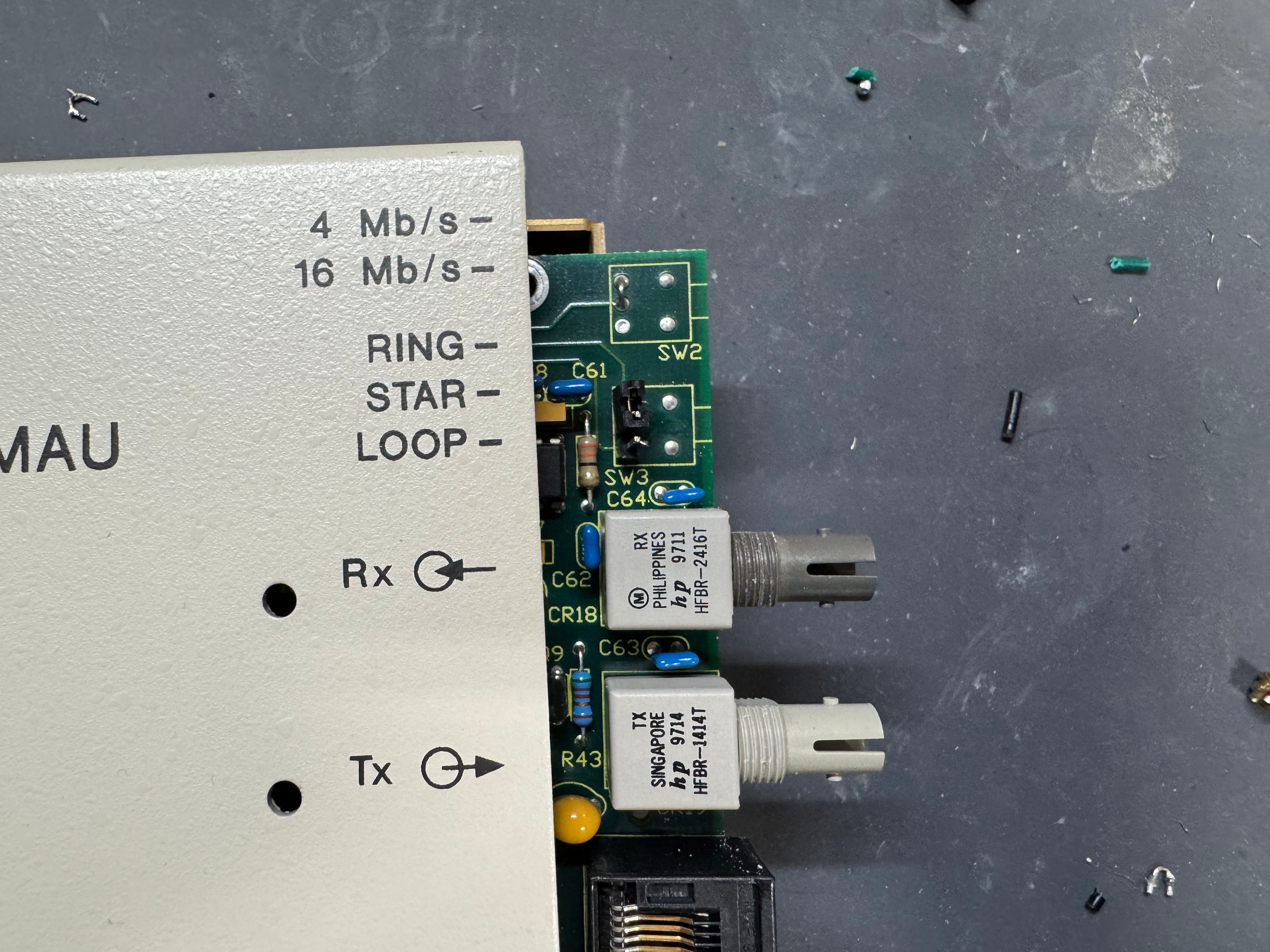
  • RING: Normal Token Ring operation, requires external RI/RO loopback cable to close the ring, use this when daisy-chaining multiple MAUs together, all active lobe ports are part of the ring.
  • STAR: Each port operates independently (not a true ring), used for certain troubleshooting or special configurations.
  • LOOP: Internally connects Ring In to Ring Out, self-terminates the ring without external cables, perfect for a single standalone MAU.

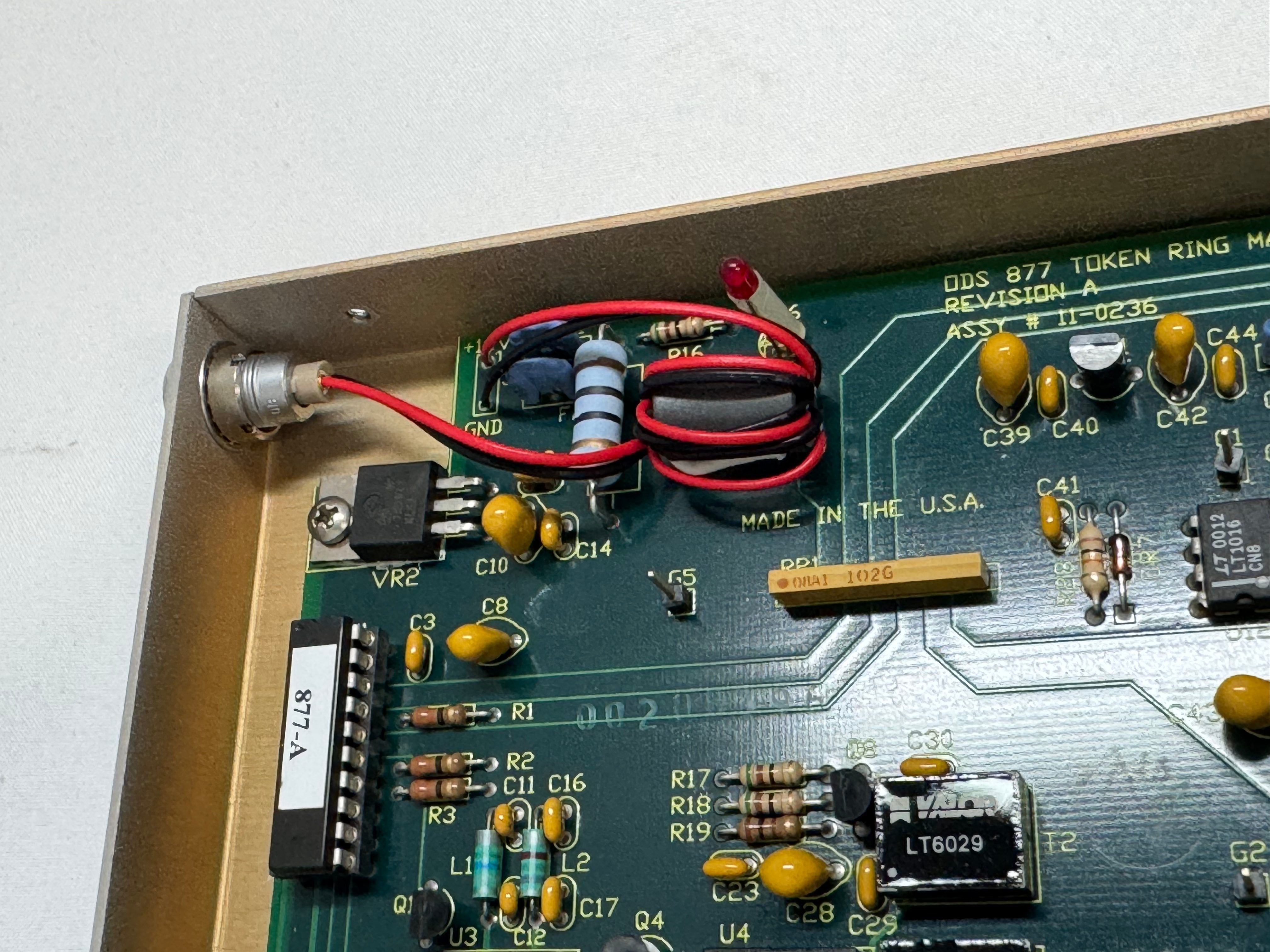
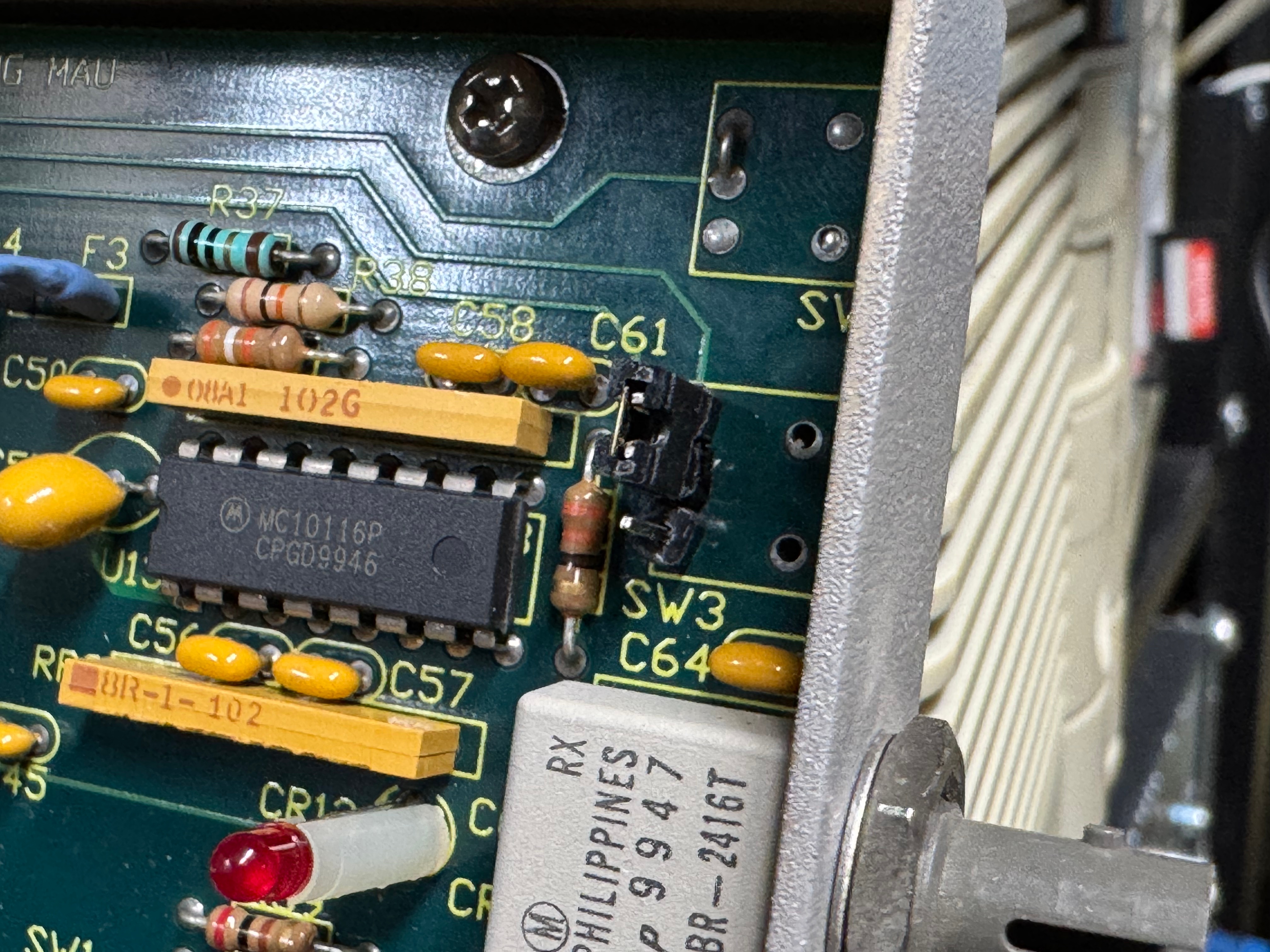
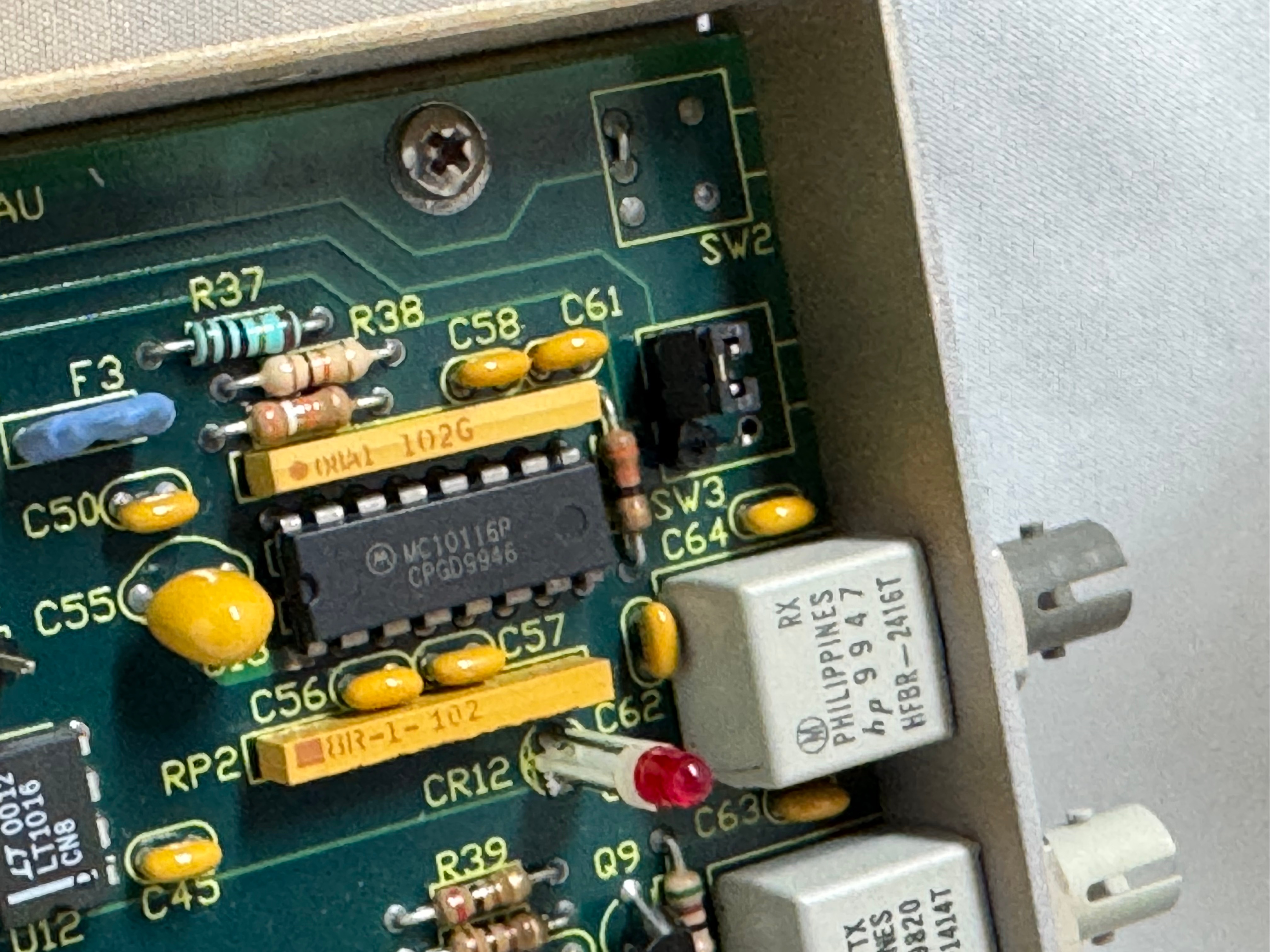
The MAUs were designed to have a switch to go between modes. Neither of mine did, both had a physical soldered in jumper setting their mode. The Motorola one didn’t have a hole in the case for a switch to exist, but the PCB is the same. I removed the soldered jumper and replaced it with a standard PC jumper pin, that way I could easily change it when I wanted to. In the end I will leave them both in LOOP mode most of the time, that has internal termination and is used for simple 4 port usage. Bridging the top and middle pin put it into LOOP mode, which is what I needed. Before that it was in RING without termination; each device would join the ring for 10 or so seconds, not hear anything else on the ring, and then disconnect. This MAU appears to be able to automatically go between 4mb/s and 16mb/s mode and I never moved the speed jumper.

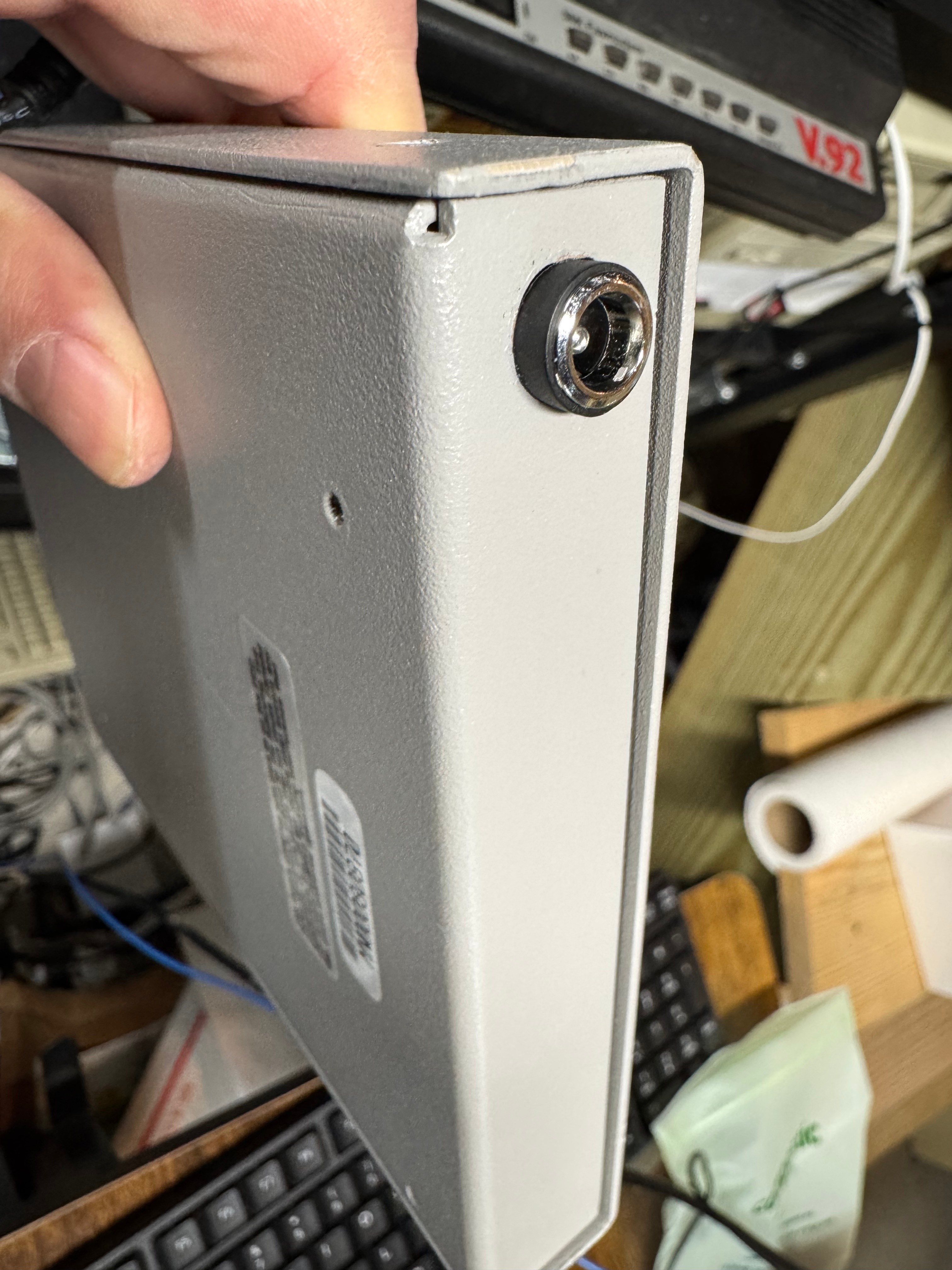
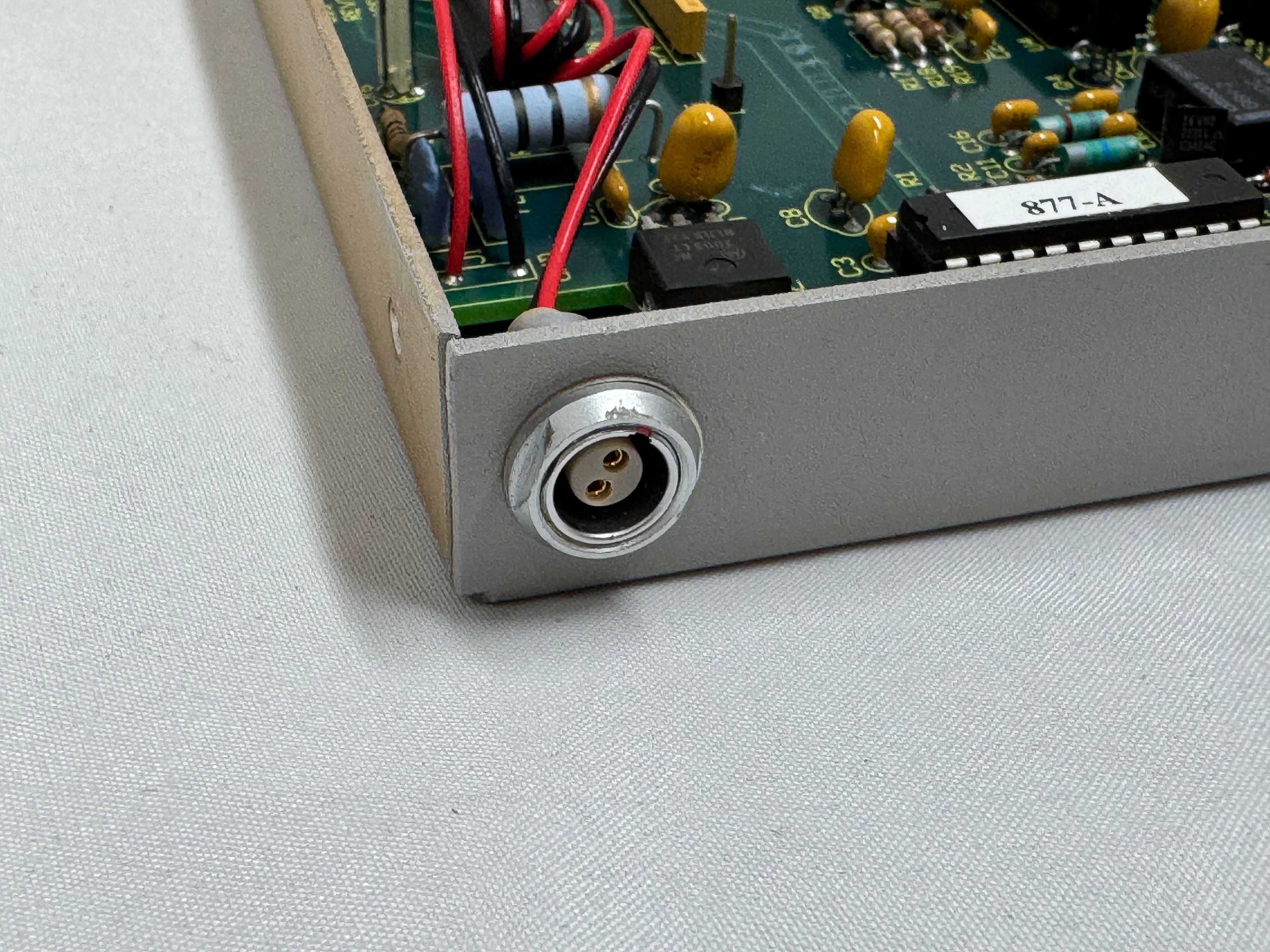
The two modifications I made to these devices were the mentioned jumper change; and they come with a FGG 2P power connector onto a RJ45 plug. It says it needs 12V on it, and I wanted to just be able to use a wall plug, I first tried to get that connector, but after finding it tiny and hard to work with, I replaced the port in the device with a standard barrel plug.
Token Ring Drivers

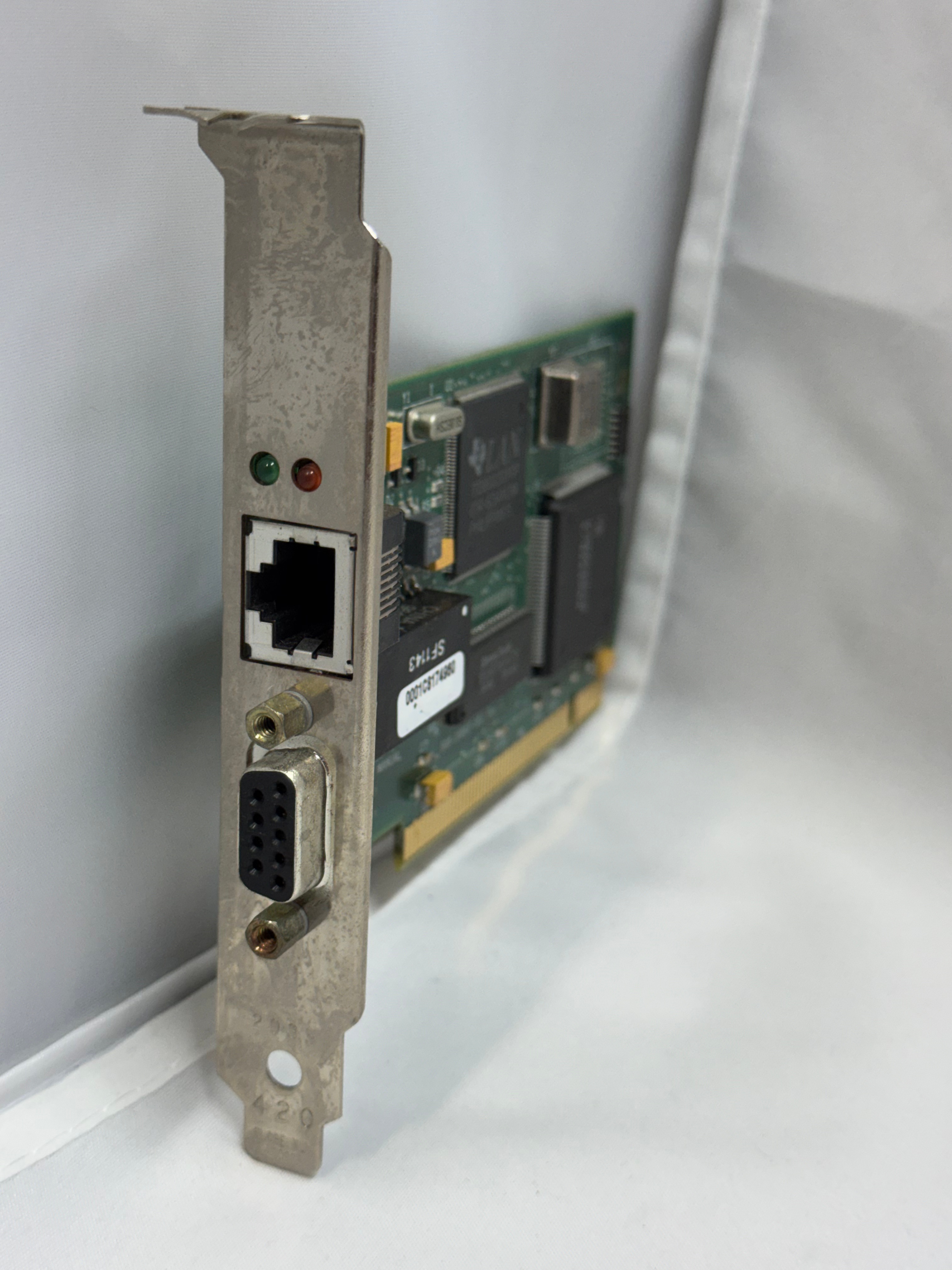
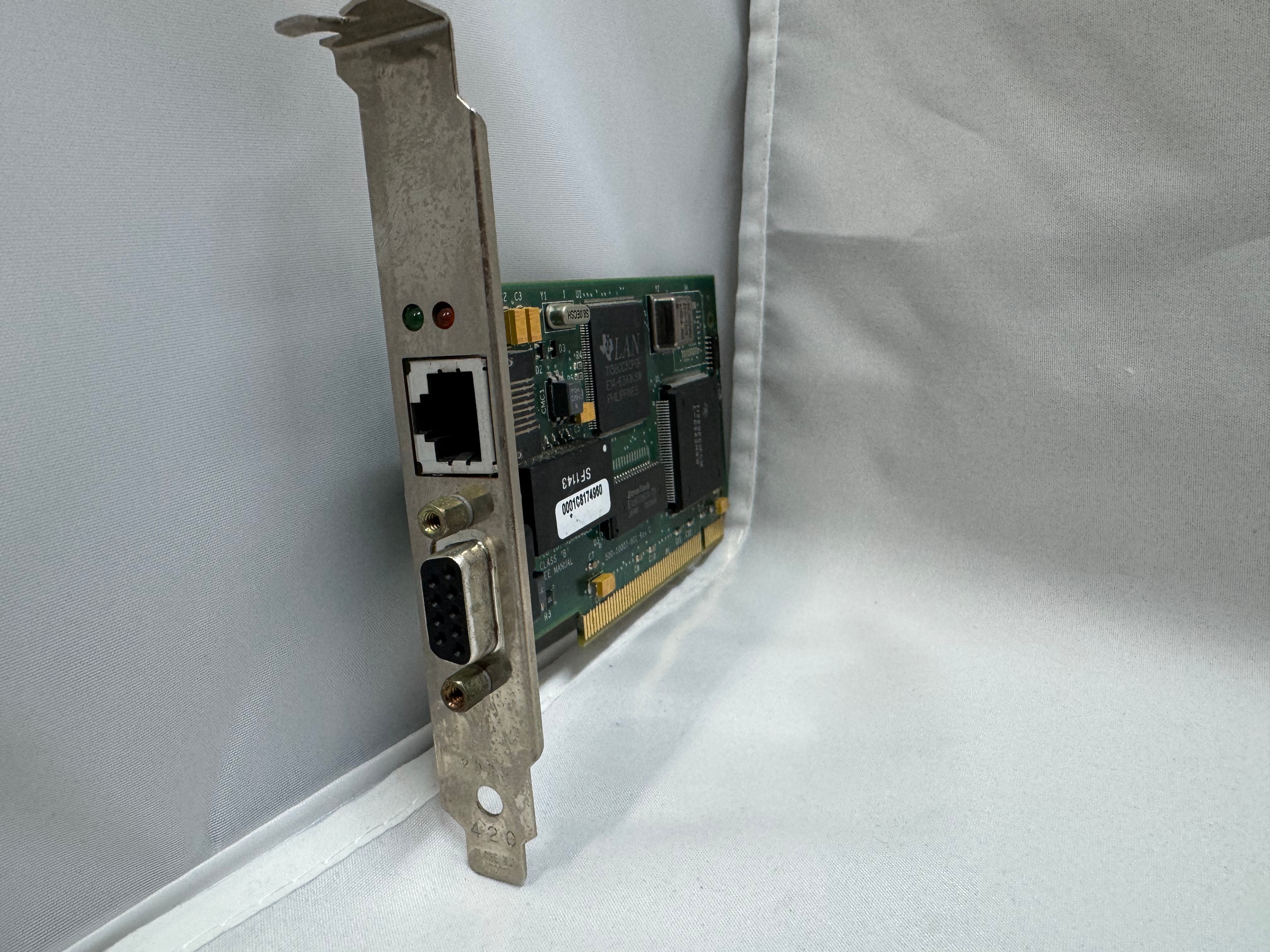
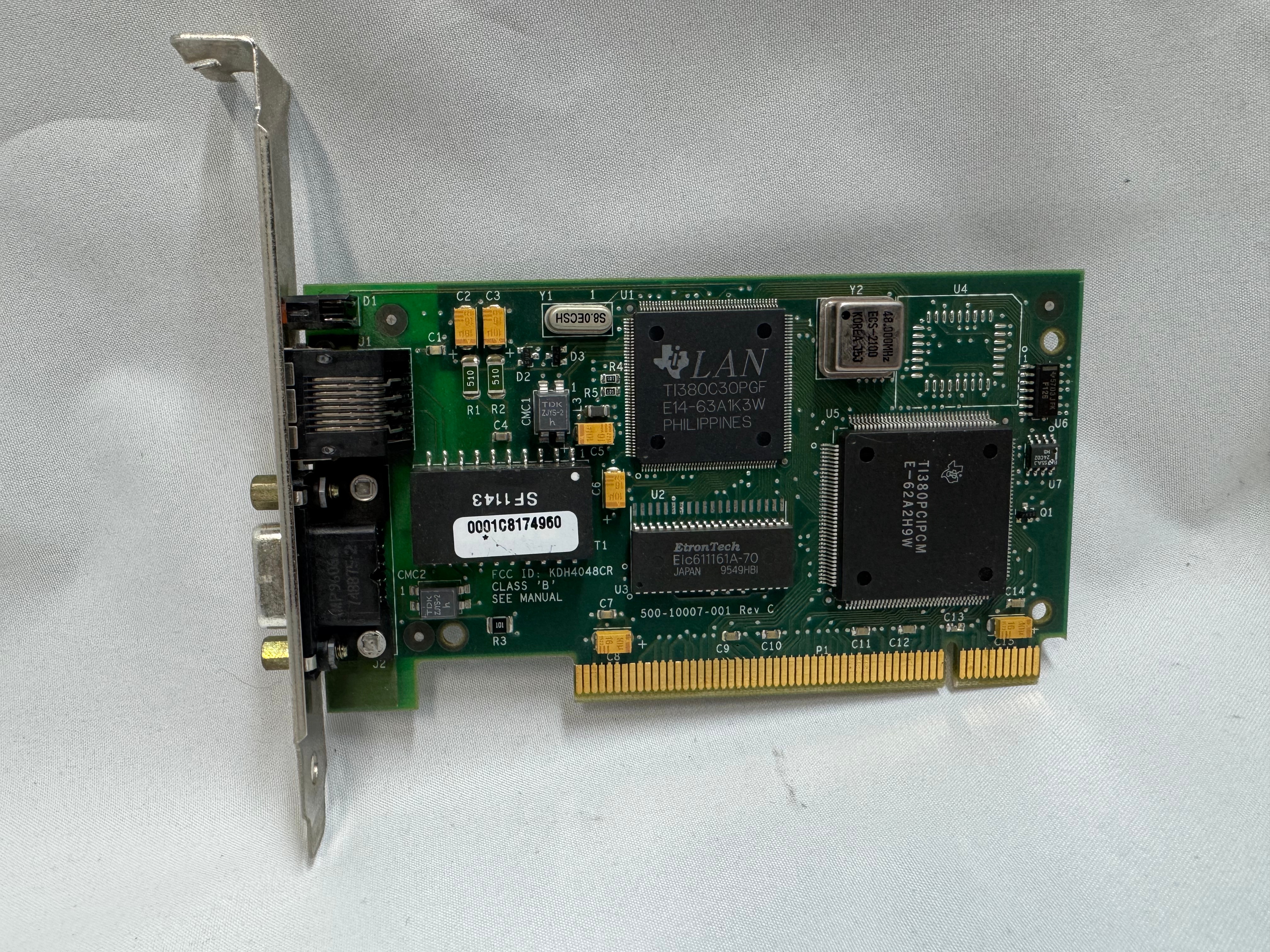
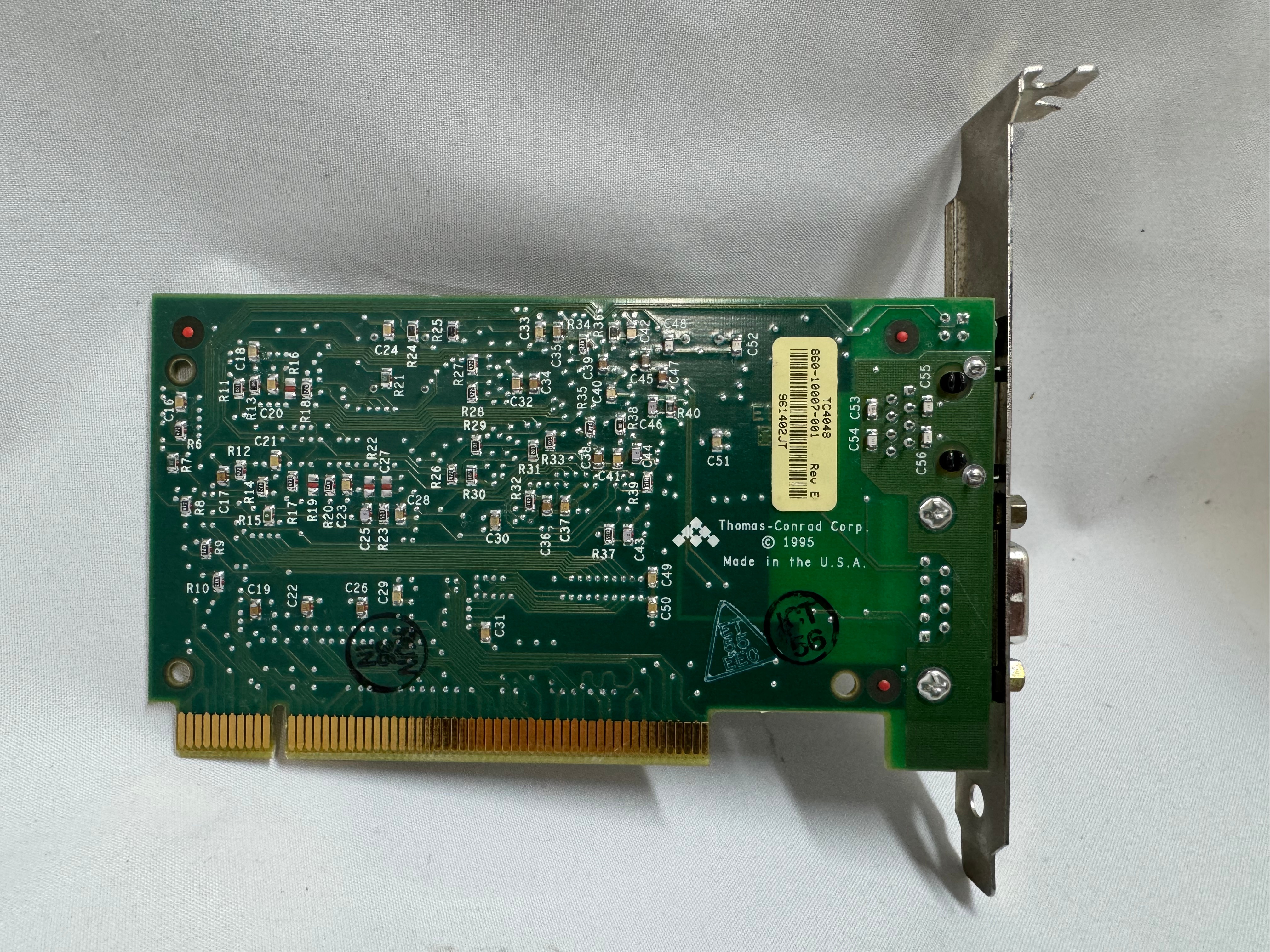
One difficult part of finding Token Ring cards on eBay, you never know if you can find all the drivers. The card I have is a later model PCI card. It’s a Thomas Conrad TC4048. Thomas Conrad seems to have been an interesting company putting out different network cards over the 80s and 90s before ethernet took off. It is easy to find their Token Ring and Arcnet cards online. Finding their drivers on the other hand, proved to be difficult.

Driver Hunting

I found https://archive.org/details/pwork-297 this archive.org ISO, it contains a TON of drivers for devices in the 90s. It lists TC4048 as one of them. I download the image, install the driver AND… Windows 98 says it has the tc4048 files it needs except a “tc4048.dos”. I then found https://www.minuszerodegrees.net/software/Compaq/allfiles.txt this site which has every HP/Compaq driver that used to be on their site. Those are much easier to search. There were several TC4048 items.

I found an archive at https://ftp.zx.net.nz/pub/archive/ftp.compaq.com/pub/softpaq/sp19501-20000/, and downloaded sp19859.exe, which expanded and had “DOSNDIS” and “OS2NDIS”. I knew Compaq rebranded this card, so I yoloed and renamed “DOSNDIS/CPQTRND.DOS” to “tc4048.dos” and put it with the drivers I got from the archive.org image. The Thomas Conrad drivers from different vendors had similar files with different names, but they were the exact same size, and appeared to be the same… I hoped it would just work if I renamed a file from a different vendor to the one I needed. I made progress with error messages now seeing “svrapi.dll” missing in C:\Windows\, and found that file in C:\Windows\System32… and just copied it up one directory…

And magically that worked! I had a 16mb/s connection working between the Cisco 3825 (core) and the Windows 98 PC (edge)! The core of my retro network is a Cisco router. I purchased this Cisco 3825 system a while back because it’s the last one that supports Token Ring, but new enough to have 1gb/s uplink port to my core network. This allows me to host some retro VLANs internally, and firewall them off for security (since none of these systems have gotten patches for decades). I can play with Novell Netware and host a file share of games for the retro systems on this network as well. Using even legacy networks to move files is still a lot easier than a ton of floppy disks. I leave this router off most of the time because it’s a bit power hungry and loud. I have written about it before, and it also hosts my dial up connections.

I now had the Cisco 3825 with a Token Ring card and Windows 98 PC joining a Ring and communicating! I have watched a bunch of clabretro’s videos on Token Ring, and I saw the same issue with the Thomas Conrad drivers that he saw with his cards, Windows joining a Token Ring network and the drivers have an odd interaction. When the computer boots, at that point it tries to join the ring, the system will stay at the Windows startup screen an extra-long amount of time as it tries to enter the ring. The system will also wait at shutdown as it attempts to leave the ring. If the Token Ring card is not plugged in, you get a message about failing to connect after a prolonged startup.
Future Token Ring Plans

I plan to play with Token Ring a bit more both as a standard networking technology alongside the Ethernet network I have. Now that I have two working MAUs I want to experiment with linking them over the ST fiber connectors they have and getting a Token Ring connection over fiber. I am pondering learning FPGAs by building a Token Ring to Ethernet bridge using an FPGA connected to an ISA Token Ring card. I just find it interesting and it would push my FPGA skills; the project would need to translate the headers of Token Ring at layer 2 to Ethernet headers.

Token Ring is the layer 1 and layer 2 technology, after that we use standard TCP/IP on top of it; this has made it easy to get started with Token Ring over another protocol like AppleTalk or IPX. Once the physical connection was up, and devices could enter the ring; I was able to use standard Cisco commands and create a routable DHCP pool for Token Ring.

Step-By-Step Setting Up Networking for Virtualization on OpenShift 4.19 for a Homelab

As we continue our Openshift journey to get virtualization working, we have a vanilla node already setup and now we need to get the networking configured. The examples here are from Openshift 4.19.17.

Networking in OpenShift is conceptually two parts that connect. The first part is the host level networking; this is your CoreOS OpenShift host itself. Then there is how do the pods connect into that networking. Usually, the network connects through your network interface card (NIC), to the Container Networking Interface (CNI), then to your pod. Here we will be using a meta plugin that connects between the NIC and the CNI called Multus. Redhat has a good post about it.
Host Level Networking

This part of the networking stack is straight forward if you are used to Linux system networking, and it is setup the same way. Treat the CoreOS node like any other Linux system. The big decision to make in the beginning is how many interfaces you will have.

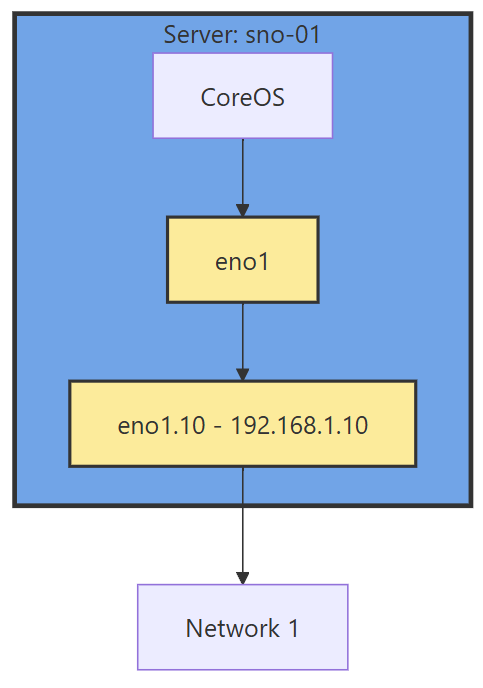
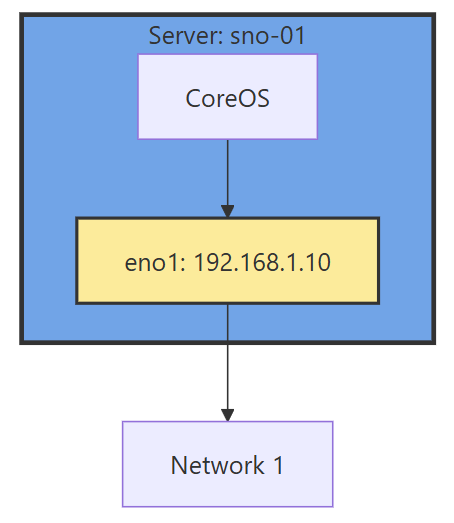
Networking diagram without sub interface

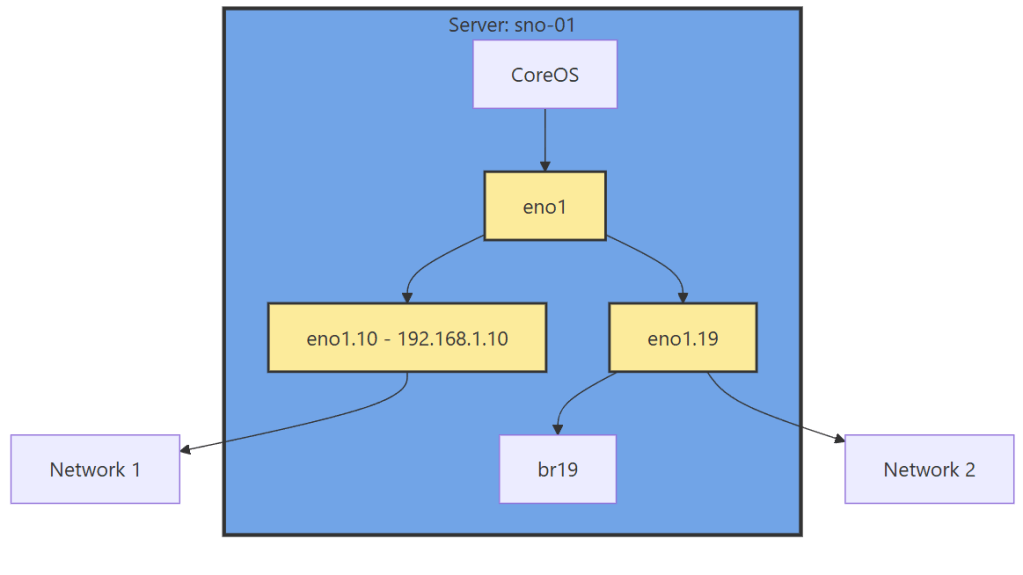
If you have 1 interface and plan on using virtualization, are you going to use VLANs? If so, then you may want to move the IP of the interface off of the primary interface and onto a VLAN sub interface. This moves the traffic from untagged to tagged traffic for your network infrastructure.

Another reason is there are bugs in the Mellanox firmware, mlx5e, where Mellanox 4 and 5 cards can think you are double VLAN encapsulating, and will start automatically stripping VLAN tags. The solution is to move all traffic to sub interfaces. You will get an error in your dmesg/journalctl of: mlx5e_fs_set_rx_mode_work:843:(pid 146): S-tagged traffic will be dropped while C-tag vlan stripping is enabled

With the interface moved, that frees us up to use it for other VLANs as well. If you deployed network settings via a MachineConfig, you would have to override them there.

Networking diagram with sub interface

The rest of the configuration will be done via the NMState Operator and native Openshift.

NMState VLAN and Linux Bridge Setup

NMState is a Network Manager policy system. It allows you to set policies like you would in Windows Group Policy, or Puppet to tell each host how the network should be configured. You can filter down to specific hosts (I do that for testing, to only apply to 1 host) or deploy rules for your whole fleet assuming nodes are all configured the same way. It’s possible to use tags on your hosts to specify which rules go to which hosts.

NMState can also be used to configure port bonding and other network configurations you may need. After configuration, you get a screen that tells you the state of that policy on all the servers it applies to. Each policy sets one or more Network Manager configurations, if you have multiple NICs and want to configure all of them, you can do them in one policy, but it may be worth breaking the policies apart and having more granularity.

Another way to go about this section, is to SSH into each node, and use a tool such as nmtui to manually set the networking. I like NMState because I get a screen that shows all my networking is set correctly on each node, and updates to make sure it stays that way. I put an example below of setting up port bonding.
  • Go to the OpenShift web console, if you need to setup OpenShift I suggest checking out either my SNO guide or HA Guide.
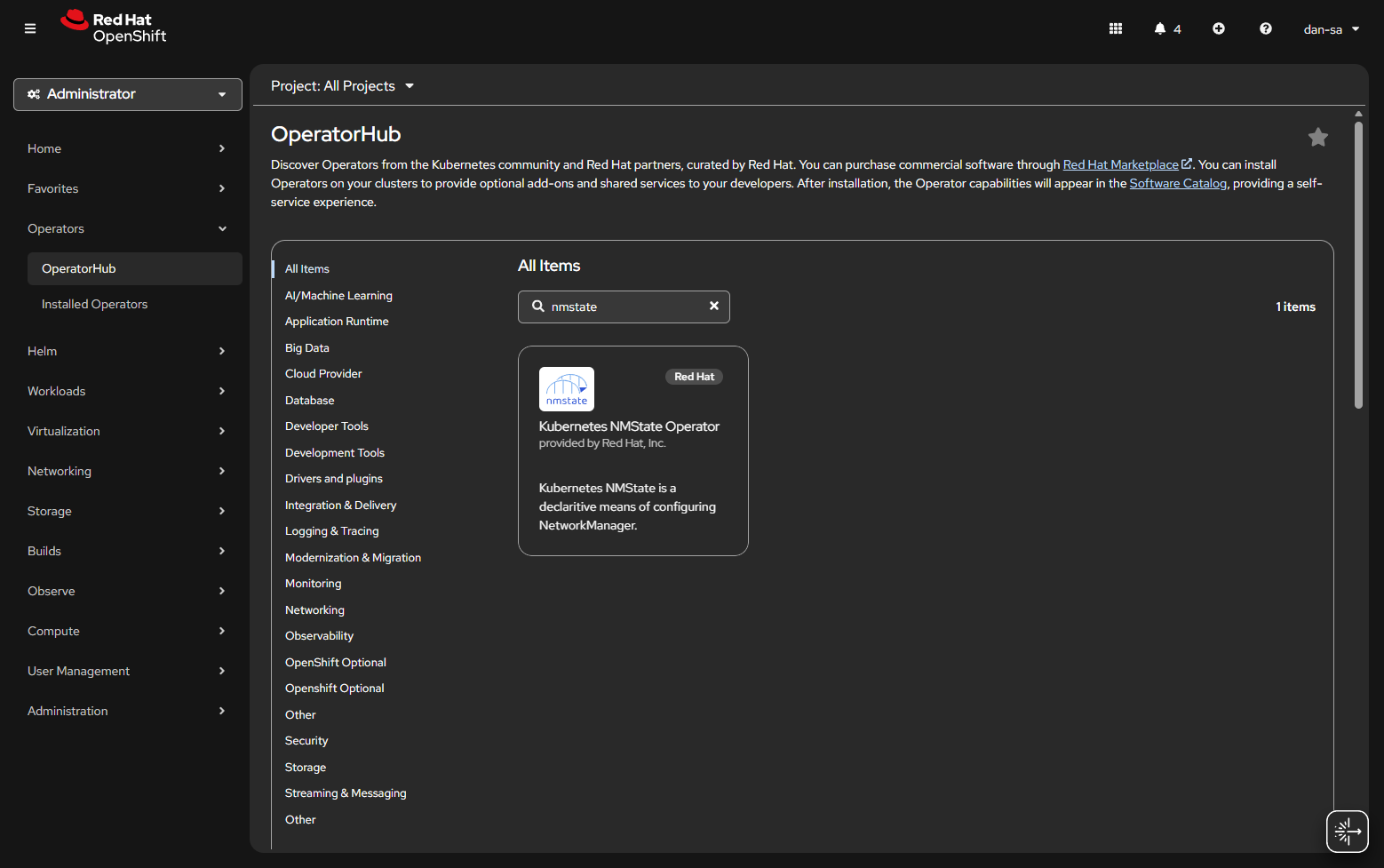
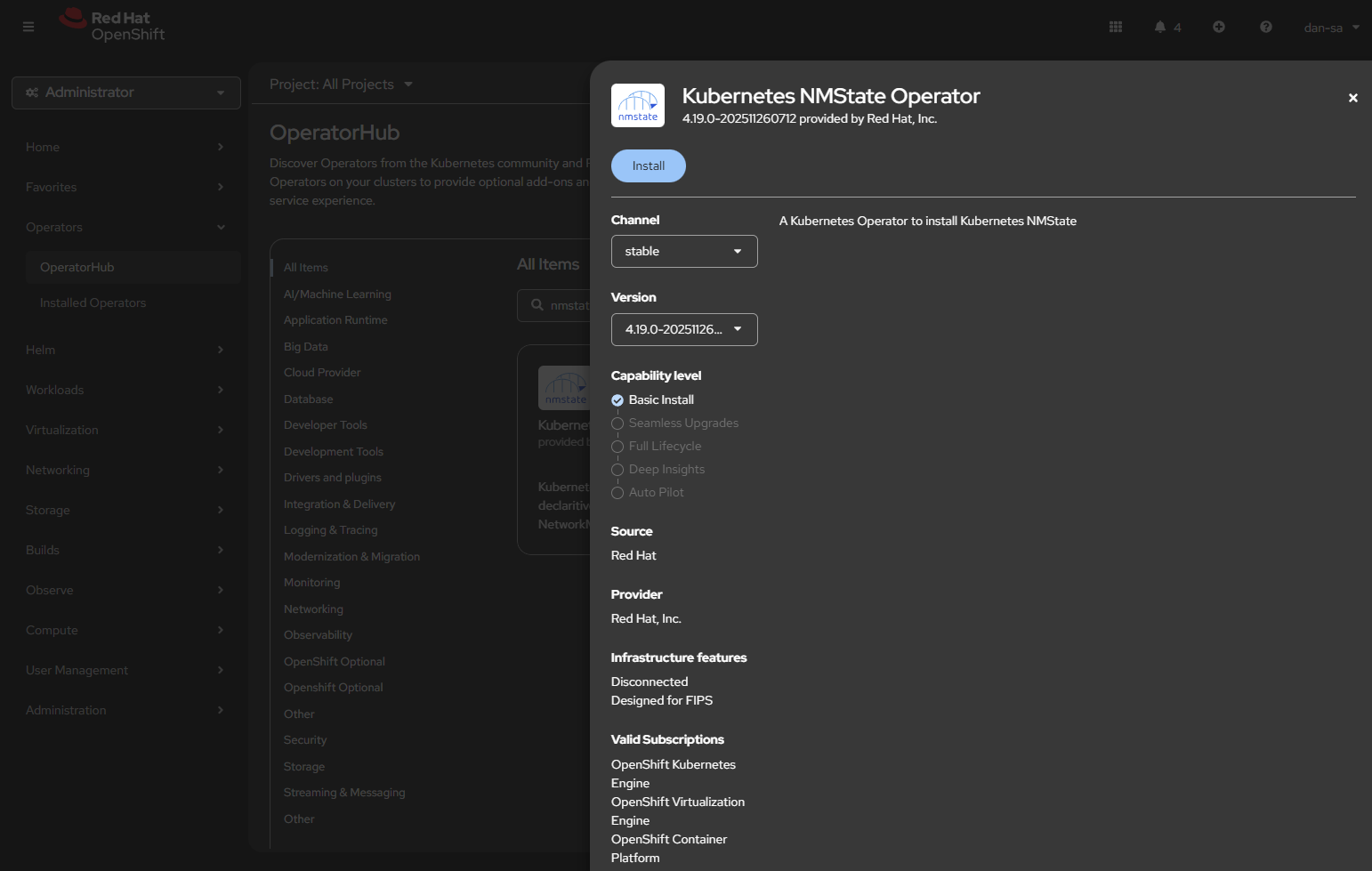
  • Click Operators -> OperatorHub.
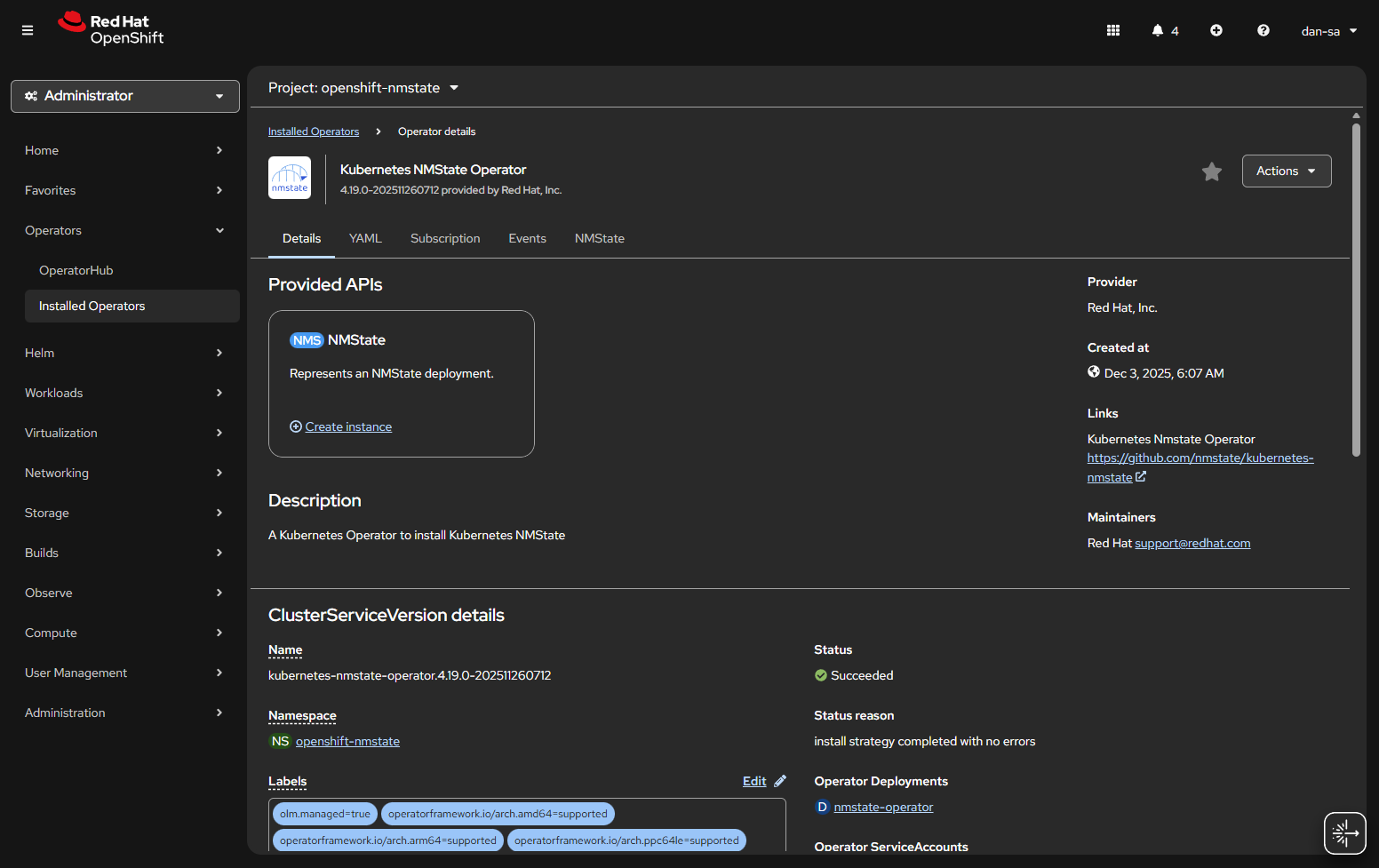
  • Once installed, you will need to create an “instance” of NMState for it to activate.
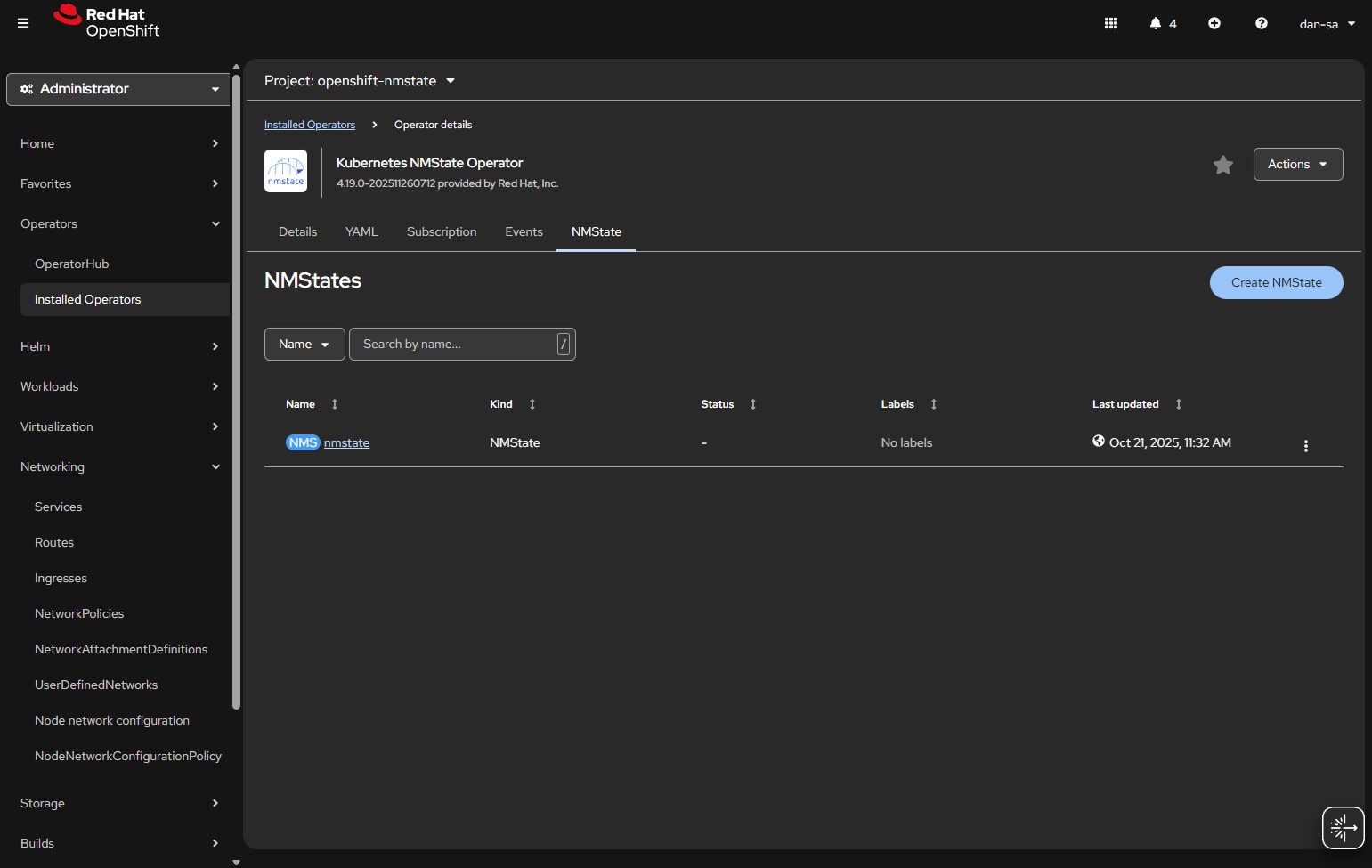
  • Then there will be new options under the Networking section on the left. We want NodeNetworkConfigurationPolicy. Here we create policies of how networking should be configured per host. This is like Group Policy or Puppet configurations.
  • At the NodeNetworkConfigurationPolicy screen, click “Create” -> “With YAML”.
  • We need to create a new sub-interface off of our eno1 main interface for our new vlan, then we need to create a Linux Bridge off that interface for our VMs to attach to.
apiVersion: nmstate.io/v1
kind: NodeNetworkConfigurationPolicy
metadata:
  name: vlan19-with-bridge           <-- Change This
spec:
  desiredState:
    interfaces:
      - name: eno1.19             <-- Change This
        type: vlan
        state: up
        ipv4:
          enabled: false
        vlan:
          base-iface: eno1
          id: 19                     <-- Change This
      - name: br19                   <-- Change This
        type: linux-bridge
        state: up
        ipv4:
          enabled: false
        bridge:
          options:
            stp:
              enabled: false
          port:
            - name: eno1.19       <-- Change This
              vlan: {}
  • Important things here:
    • Change the 19s to whichever VLAN ID you want to use.
    • “ipv4: enabled: false” says we want an interface here, but we are not giving it host level IP networking on our OpenShift node.
    • Remove the <– Change This comments
    • You MUST leave the “vlan: {}” at the end or it will not work, adding this tells it to leave vlan data how it is because we are processing via the kernel via sub interfaces.

Now we have this configuration, with a secondary interface off of our NIC, and an internal Linux Bridge for the VMs.

The great thing about doing this configuration via NMState, it applies to all your nodes unless you put a filter in, and you get a centralized status about if each node could deploy the config.

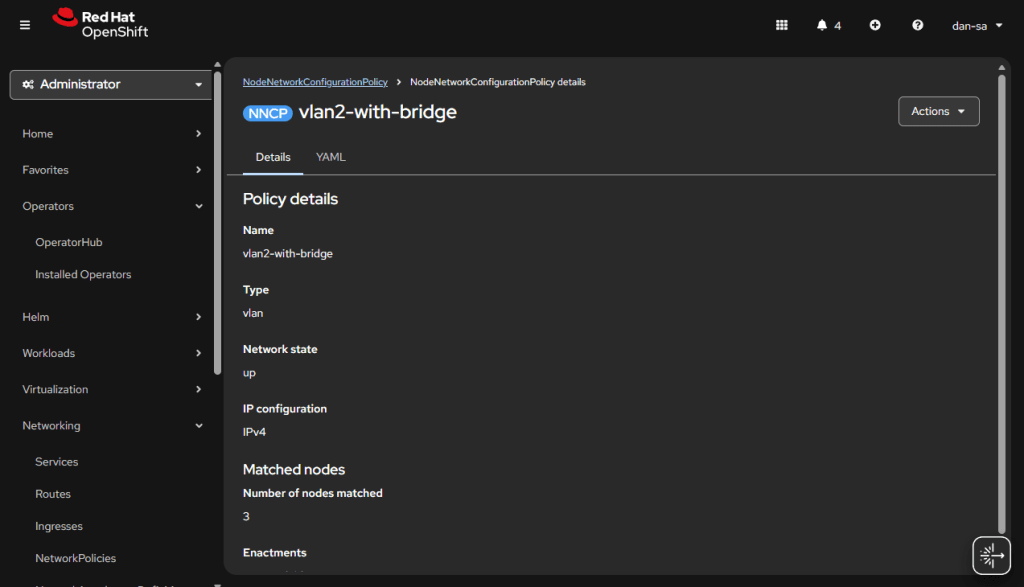
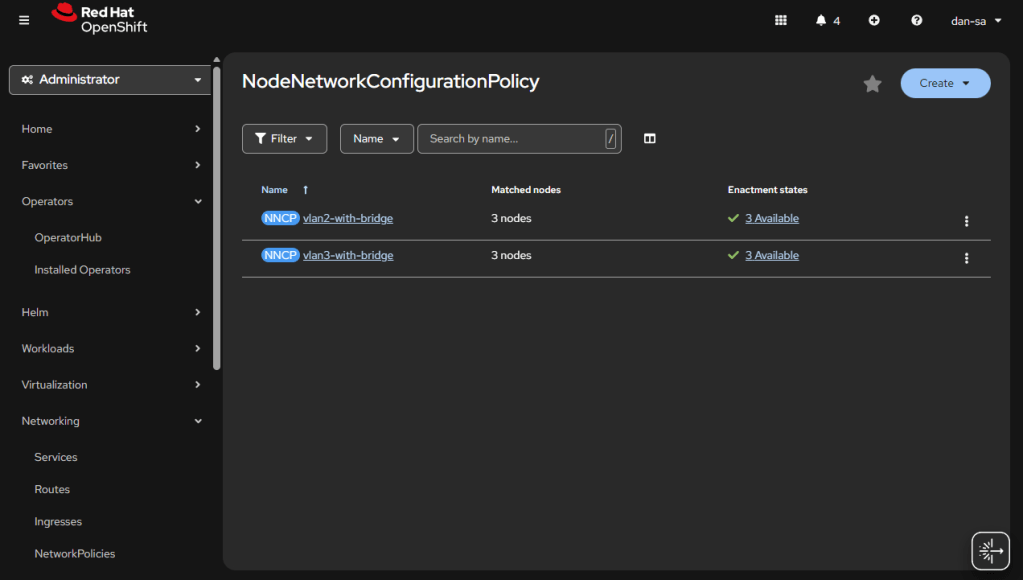
Here is an example from my Homelab, with slightly different VLAN IDs than we have been discussing. You can see all three nodes have successfully taken the configuration.

OpenShift VM Network Configuration

Kubernetes and OpenShift use Network Attachment Definitions (NADs) to configure rules of how pods can connect to host level networking or to the CNI. We have created the VLANs and Bridges we need on our host system, now we need to create Network Attachment Definitions to allow our VMs or other pods to attach to the Bridges.

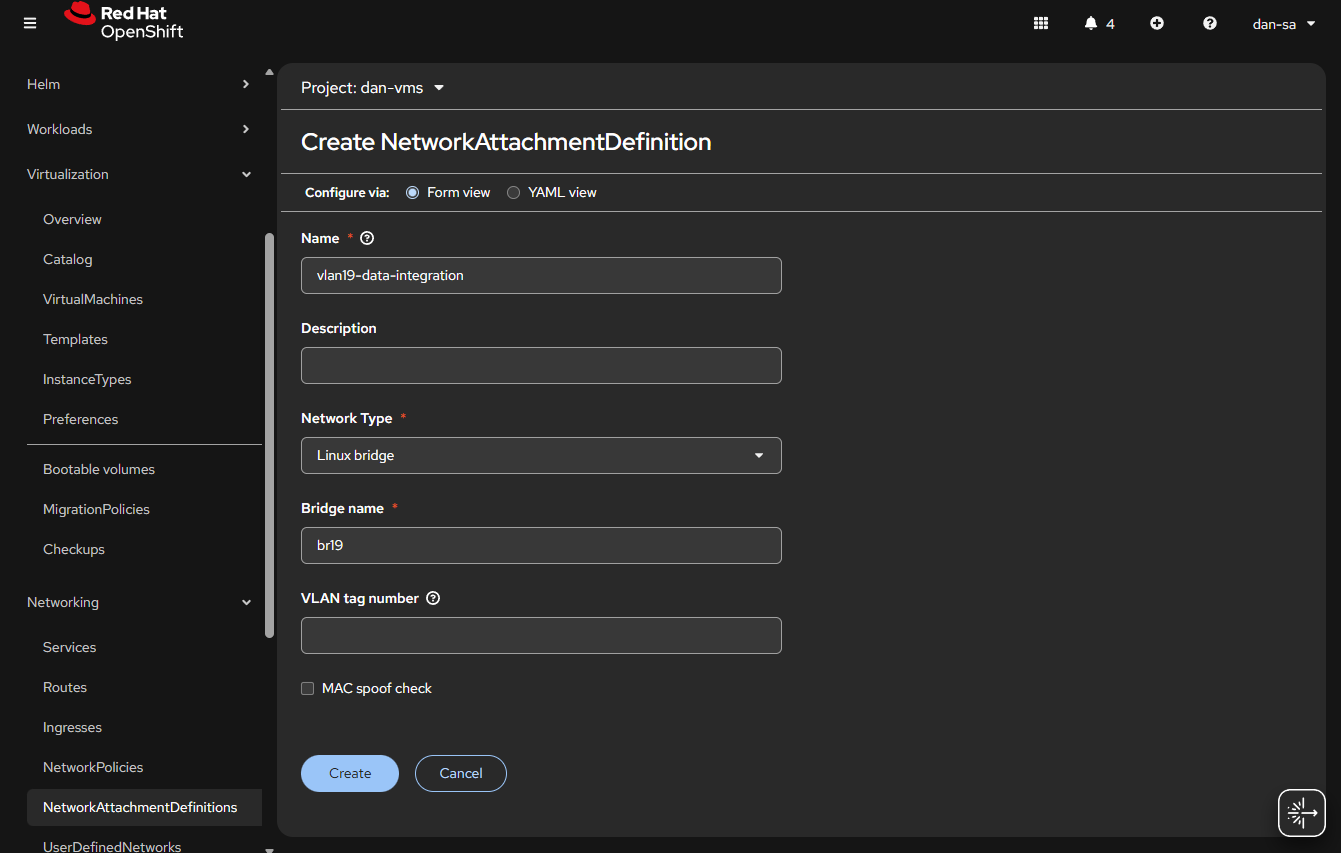
  • Go to “Networking” -> “NetworkAttachmentDefinitions”.
  • Click “Create NetworkAttachmentDefinition”
  • This is easily done, and can be done via the interface or via YAML, first we will do via the UI then YAML.
  • Before entering the name, make sure you are in the Project / Namespace you want to be in, NADs are Project / Namespace locked. This is nice because you can have different projects for different groups to have VMs and limit which networks they can go to.
  • Name: This is what the VM Operator will select, make it easy to understand, I do “vlan#-purpose“, example: “vlan2-workstations”.
  • Network Type: Linux Bridge.
  • Bridge Name: what was set above, in that example “br19“, no quotes.
  • VLAN tag number: Leave this blank, we are processing VLAN data at the kernel level not overlay.
  • MAC spoof check: Do you want the MAC addresses checked on the line. This is a feature which allows the network admin to pin certain MAC addresses and only send traffic out to those allowed. I usually turn this off.
  • Click “Create

The alternative way to do a NAD is via YAML, here is an example block:

apiVersion: k8s.cni.cncf.io/v1
kind: NetworkAttachmentDefinition
metadata:
  name: vlan19-data-integration
  namespace: default
spec:
  config: |-
    {
        "cniVersion": "0.3.1",
        "name": "vlan19-data-integration",
        "type": "bridge",
        "bridge": "br19",
        "ipam": {},
        "macspoofchk": false,
        "preserveDefaultVlan": false
    }

You can verify the NAD was created successfully by checking the NetworkAttachmentDefinitions list. Your networking is ready now. Next post, we will discuss getting storage setup.

Additional NodeNetworkConfigurationPolicy YAMLs

NIC Bonding / Teaming

Use mode 4 (802.3ad/LACP) if your switch supports link aggregation; otherwise mode 1 (active-backup) is the safest fallback.

apiVersion: nmstate.io/v1
kind: NodeNetworkConfigurationPolicy
metadata:
  name: bond0-config
spec:
  desiredState:
    interfaces:
      - name: bond0
        type: bond
        state: up
        ipv4:
          enabled: false
        link-aggregation:
          # mode=1 active-backup
          # mode=2 balance-xor
          # mode=4 802.3ad
          # mode=5 balance-tlb
          # mode=6 balance-alb
          mode: 802.3ad
          options:
            miimon: '140'
          port:
            - eno1
            - eno2

Useful Links

https://github.com/k8snetworkplumbingwg/multus-cni/blob/master/docs/how-to-use.md

https://medium.com/@tcij1013/how-to-configure-bonded-vlan-interfaces-in-openshift-4-18-0bcc22f71200

Improve WiFi Roaming by Adjusting DTIM Settings

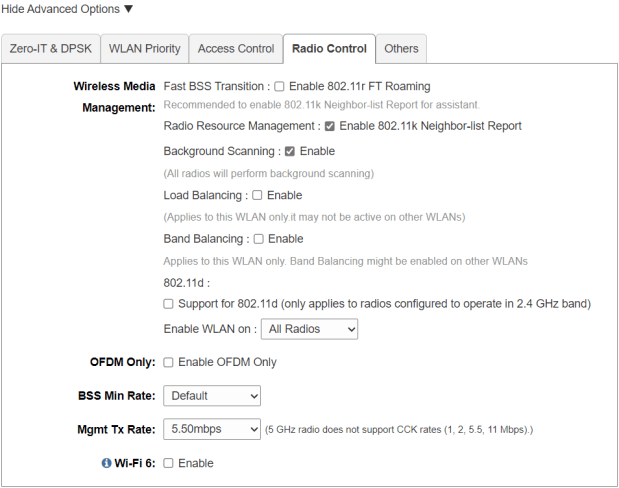
My original version of this post I put together over a year ago. I was having issues with a 4 AP Ruckus Unleashed network I have in my house. I thought the issue came from 1 of the access points (APs) being WiFi 6(AX), and the rest being WiFi 5(AC); I wrote the post about disabling WiFi 6 on the 1 AP, then wanted to see if my issue were resolved over the next week. It was not. The issue was mostly around Apple devices refusing to roam. You can walk far away from 1 AP, and towards another, and you wouldn’t roam for a LONG time without manually disabling and enabling WiFi.

After more digging, and seeing people online chat, I was pointed to an Apple post (which has since disappeared) saying to move your “WiFi DTIM to 3”. DTIM (delivery traffic indication message) handles how often an access point echos out information about itself.

Changing this setting has seemed to make roaming on Ruckus work much better. Ironically, or not, this is one of those settings network engineers argue about. Here is a different Apple support post saying it HAS to be 1. Cisco, says the value should always be a 1 or a 2. Hopefully this info helps someone else if they are having issues, give it a try.

Mellanox SX6012 Homelab Upgrade

For the last few years, I have been using a Mikrotik CRS309-1G-8S+. A small, low power, 8 port, 10gb/s switch. It worked well for me. One of the main things I liked about it was the low power usage. There are always discussions on different homelab forums about which switch to use. Some people like to use Arista or Cisco gear. I enjoy that gear and use it at work, but with my small and low power homelab an Arista switch would triple my power usage (a lot of them idle at 200-300 watts). There are nice features on those switches, but to get those nice features they have whole small computers as the management plane, and then power-hungry chips for switching.

The time came where I wanted to upgrade past this small Mikrotik switch. 8x10gb/s ports were great for a while, but 1 was uplink to the home core switch; then with running vSAN, I wanted 2 ports per host, and I have 4 hosts. While not urgent, I started to search for a bigger switch. Mikrotik has some bigger offerings, also low power, but a lot of the offerings were $400-$600+ to go to 12+ 10gb/s ports.

One place I like to browse periodically is the ServeTheHome forums. There homelab users talk about many different homelab things including networking. Many users seem to be interested in the Mellanox SX6012 or SX6036. This switch is discontinued from Mellanox (now Nvidia) making them go for fairly inexpensive on eBay.

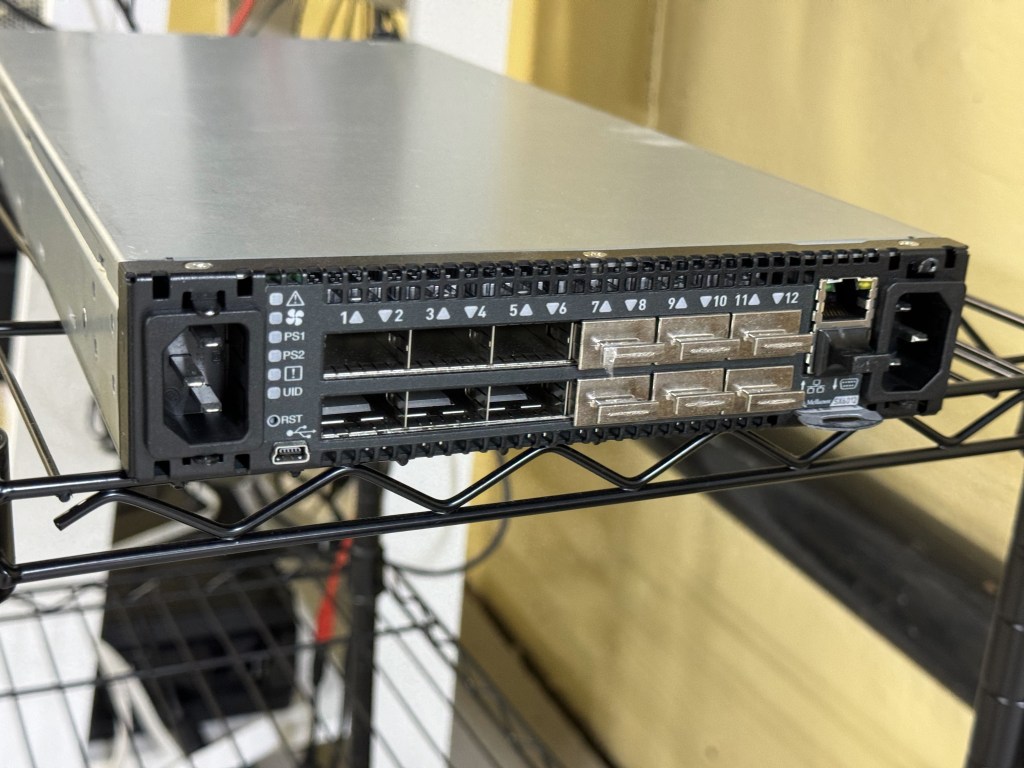
The SX6012 is a 12 port, 40gb/s switch; capable of using 40gb break out cables. That means each 40gb/s port can be 4x10gb/s ports. The switch is technically an Infiniband switch, which can get an optional Ethernet license. There are some switches sold with the license, along with guides online to enable that part of the switch. Apparently, there are also people on eBay who can “assist you” in licensing the switch for $50. Being the switch is no longer supported, I think a lot of the eBay buyers are homelab people going through the guided process of configuring the switch with a license. The switch was reported to be “not that loud”, which is true after some fan setting tweaks; and also idles at 30 watts from a low power PowerPC chip. This made it a go to for me. Plenty of ports to upgrade to over time, and a low power budget.

In looking at the switch, one thing that was heavily mentioned are the different editions of it. There are 12 and 36 port versions, along with Mellanox vs other OEM sub branded versions. For example, you can get a Dell/EMC Branded switch which will come with different features than a HPe switch, or a Mellanox themselves branded on. I wanted the 12-port version because (in theory according to online) it had slightly lower power draw. The 36-port version is supposed to be a big quieter (having more room to cool), but I also saw some firmware hacks to lower the fan noise. I saw one SX6012 unit which had the black front bezel (apparently that makes it Mellanox Brand) sitting on eBay with an expensive Buy It Now, or Make Offer. While they still go for around $250, I gave an offer for a good amount lower, and they took it! Score!

Flash forward a few days; I got the switch from the seller, powered it up, and was met with a dreaded bootloader… The OS had been wiped from the switch completely… along with everything on the flash. After a brief moment of dread, I thought about finding one of the guides online for managing these switches. Those guides are not just about enabling features like Ethernet, they are there to show you how to load different firmware revisions and where to currently find it. The Mellanox firmware itself was behind a support portal which got folded into Nvidia. Although these switches were also sold under Dell/EMC/HP brands, and some of those brands still provide the firmware packages. There are community scripts which can take in a HP firmware package and convert it to a Mellanox or other brand firmware package.

Mellanox port mgmt

After a slow TFTP image load, I got the switch online. This allowed be to get a GUI and more easily load the follow up firmware packages. After many reboots (which can be heard throughout the house with the fans ramping to 100%), and a few upgrades later I had the switch in a good place at the last available firmware for it. For the last several months the switch has quietly been working well for me. I have one QSFP to SFP+ adapter for the 10GB from my core switch coming in. Then I have 2 QSFP -> SFP+ break out cables going to the small cluster I am running. This means I am running on this one switch, without high availability right now. If I want to reboot or patch the switch, I need to shut down my VMware cluster. One benefit to an out of support switch without firmware updates… You have no firmware updates to do!

The CLI is similar to Cisco. Like many other switch vendors, they seem to follow a similarly universal CLI. The hardest part of getting the switch going for me was figuring out the command to set the QSFP port to breakout mode. Once that was done, it creates 4 virtual sub-ports which you configure with vlans and such. The UI showed the ports as single ports, even with the breakout cable until I went in the CLI and set it to breakout mode.

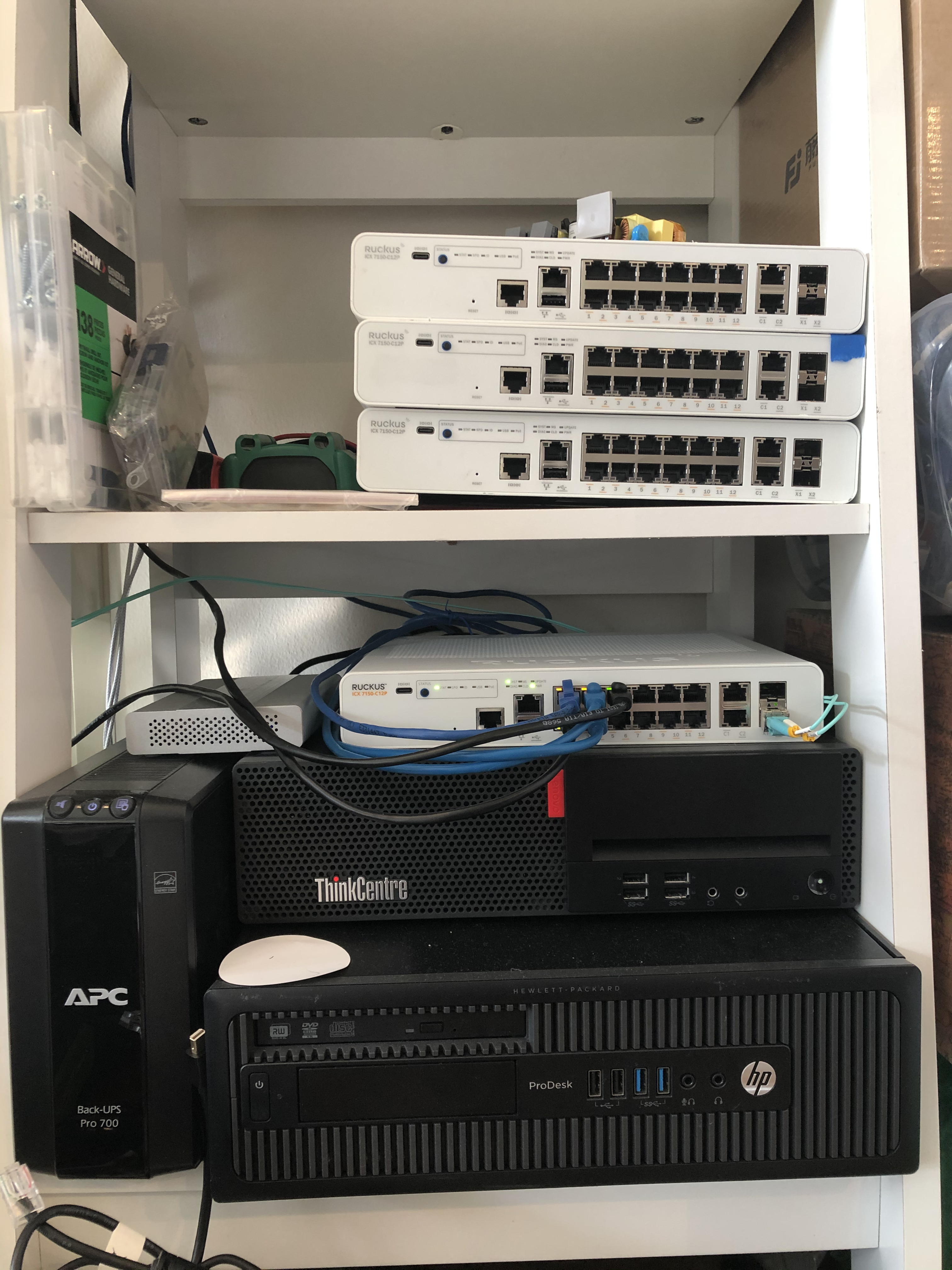
With this switch working well, I moved the old 8x10gb/s Mikrotik switch over to be my new 10gb core switch. The current flow is Internet in -> Sophos XG Firewall on a Dell Optiplex 5050 -> Ruckus ICX7150 POE switch for Wifi and a few wired ports -> 8 port 10gb/s Mikrotik -> Mellanox SX6012. The house can run with just the firewall and Ruckus switch (which powers all the Wifi APs). The Mikrotik is near the router, and also allows a Cat5e run (19 meters) already in the wall to go up to the attic and give 10gb/s to a NAS and AP up there. (I know 10gb RJ45 is supposed to be Cat6, this line was run before I was here and tested fine, it has been working well the whole time) Then the Mikrotik switch has a SFP that does a longer fiber run to where my little homelab rack is. The whole system is a glorified “router on a stick” with the firewall doing all the routing between vlans.

This setup has been working well, has plenty of room for expansion, and achieved my goal of being fast with relatively low power use. I have the management for the switches on a disconnected vlan that only certain authenticated machines can connect to. This makes me feel better about its not getting security updates.

Mellanox at 29w

Currently I have 4 small Dell Optiplex systems as my homelab cluster along with the Mellanox switch. All together the rack idles around 130 watts. Together the systems have about 20 physical cores (not hyper threaded cores), and 288GB of RAM. It can certainly spike up if I start a bunch of heavy workloads, but I continue to find it very impressive.

Ruckus ICX 7150-C12P Switch Repair

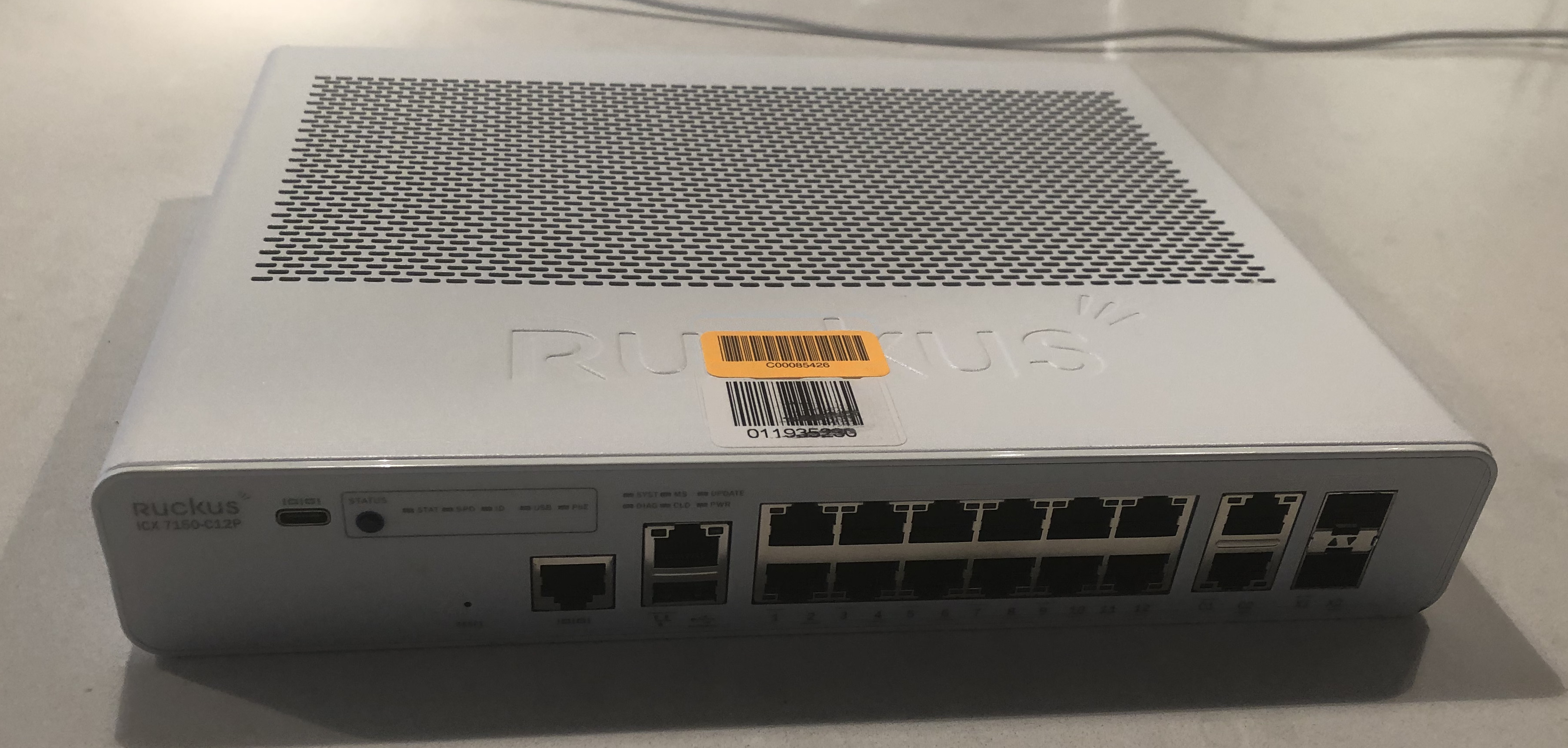
A while ago I purchased a Ruckus ICX 7150-c12p off eBay to use at home. It gives 14x1gb/s ports, and 2 SFP+ ports. The SFP+ ports are limited to 1gb/s by default, and there is a honor system license for upgrading them to 10gb/s. These switches go for $600 – $1200 depending on where you get them and which license you get with it (1gb/s vs 10gb/s). The switch is also POE, and can do 4 POE+ (30 watt) ports. I had one of these switches and it worked great. I wanted to get a second one to replace the WiFi link I was using across my apartment with a fiber link.

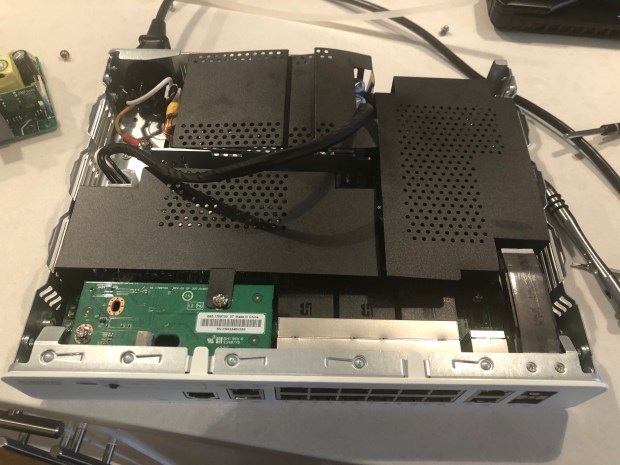
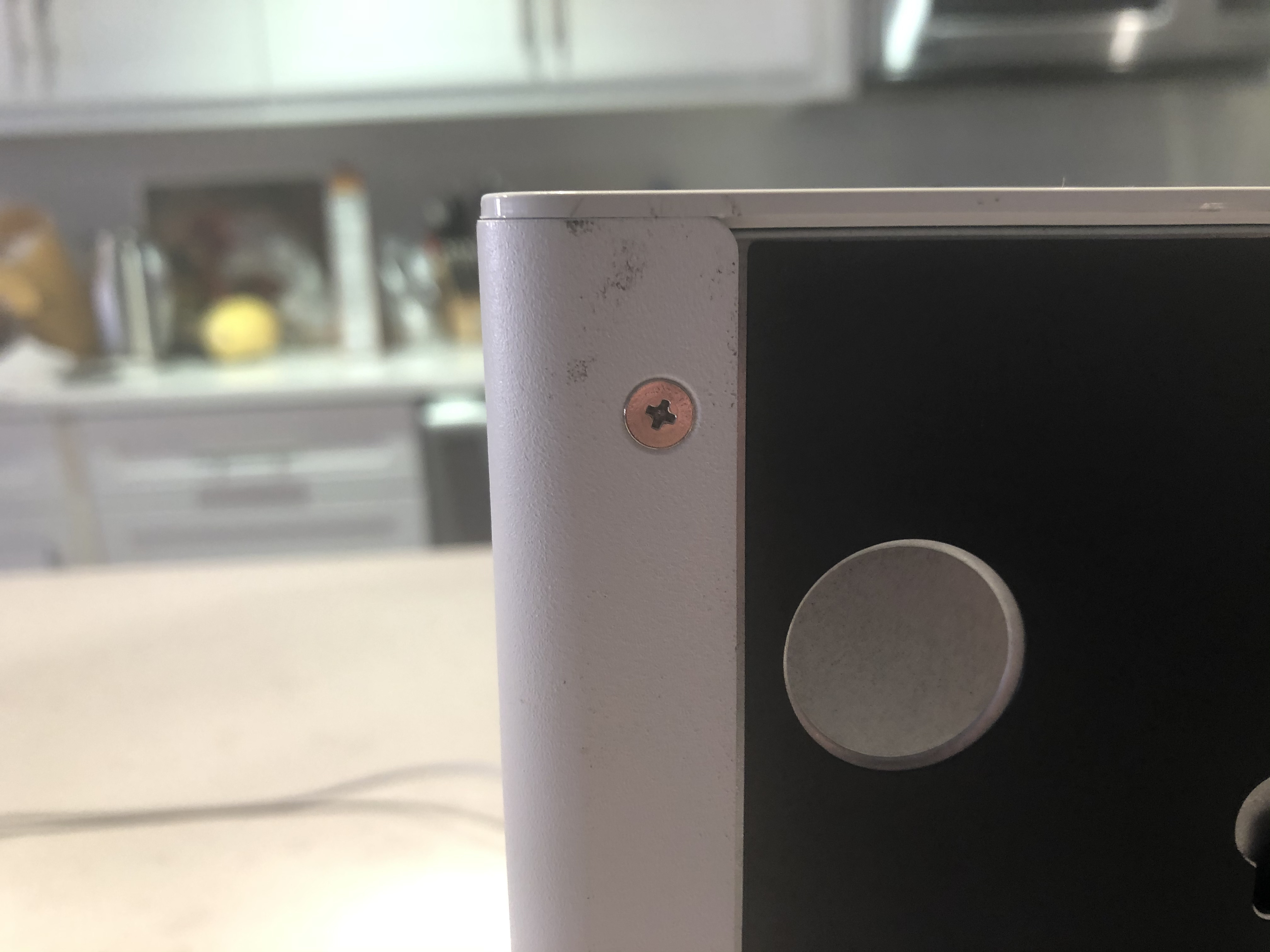
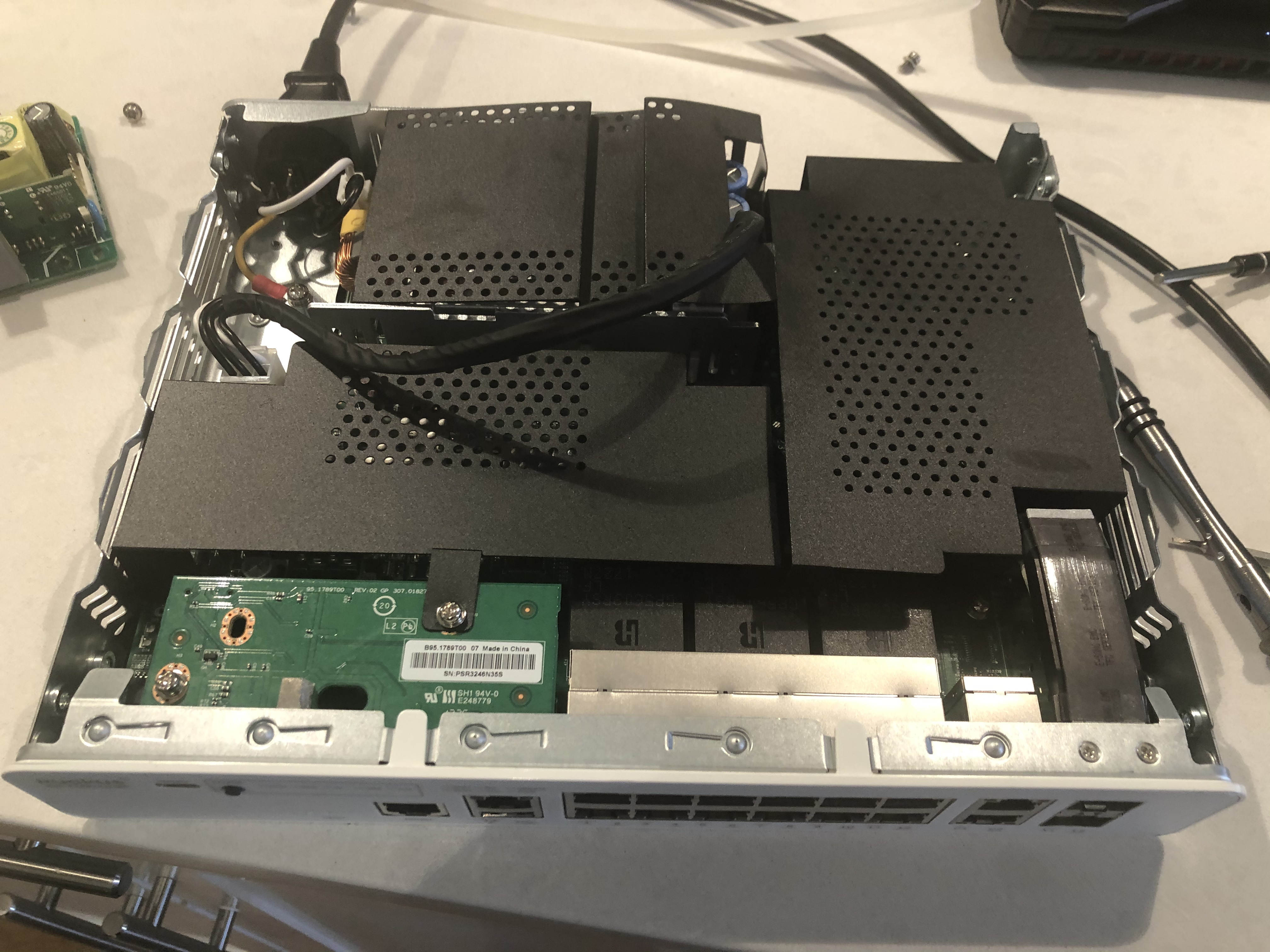
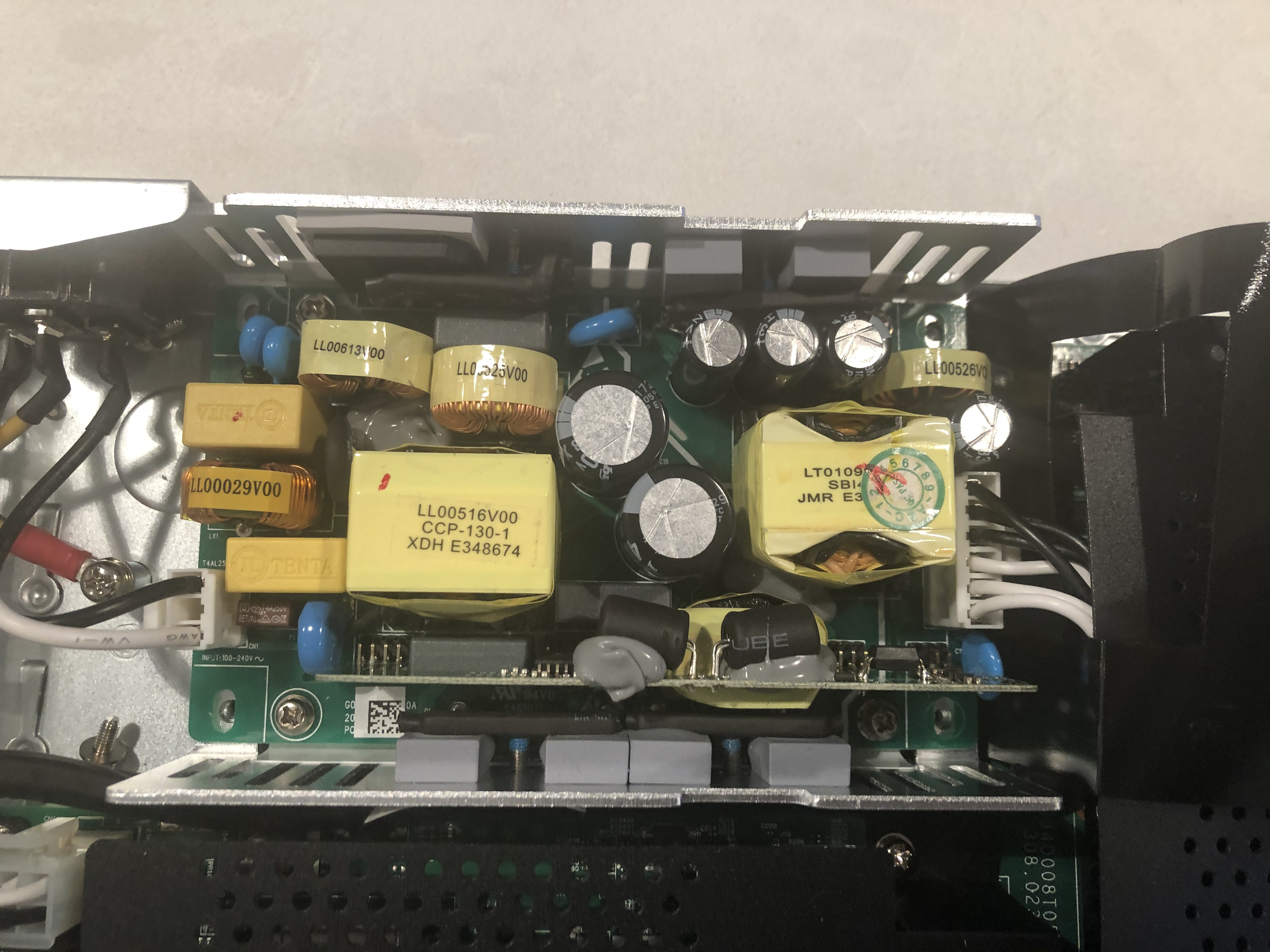
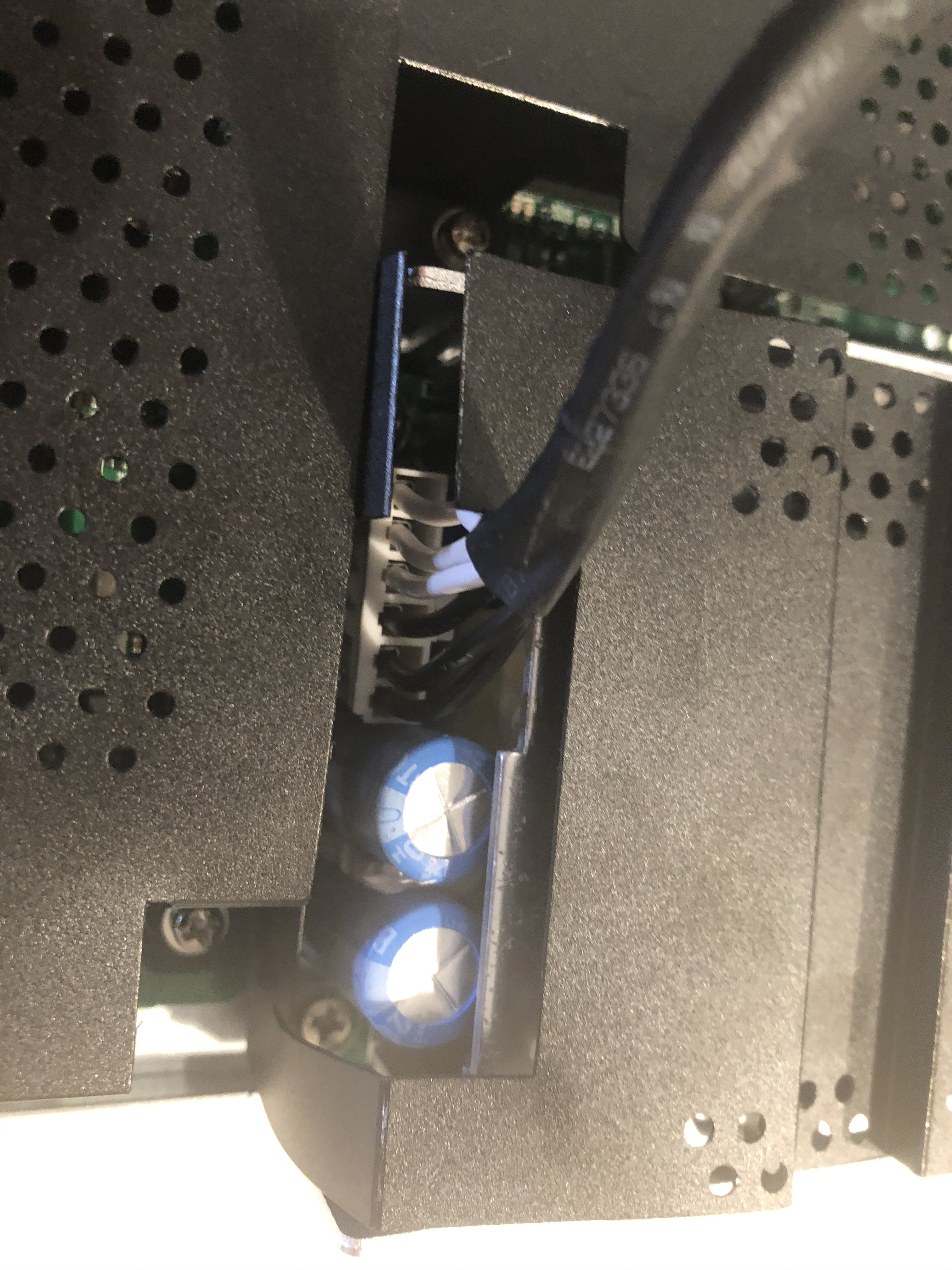
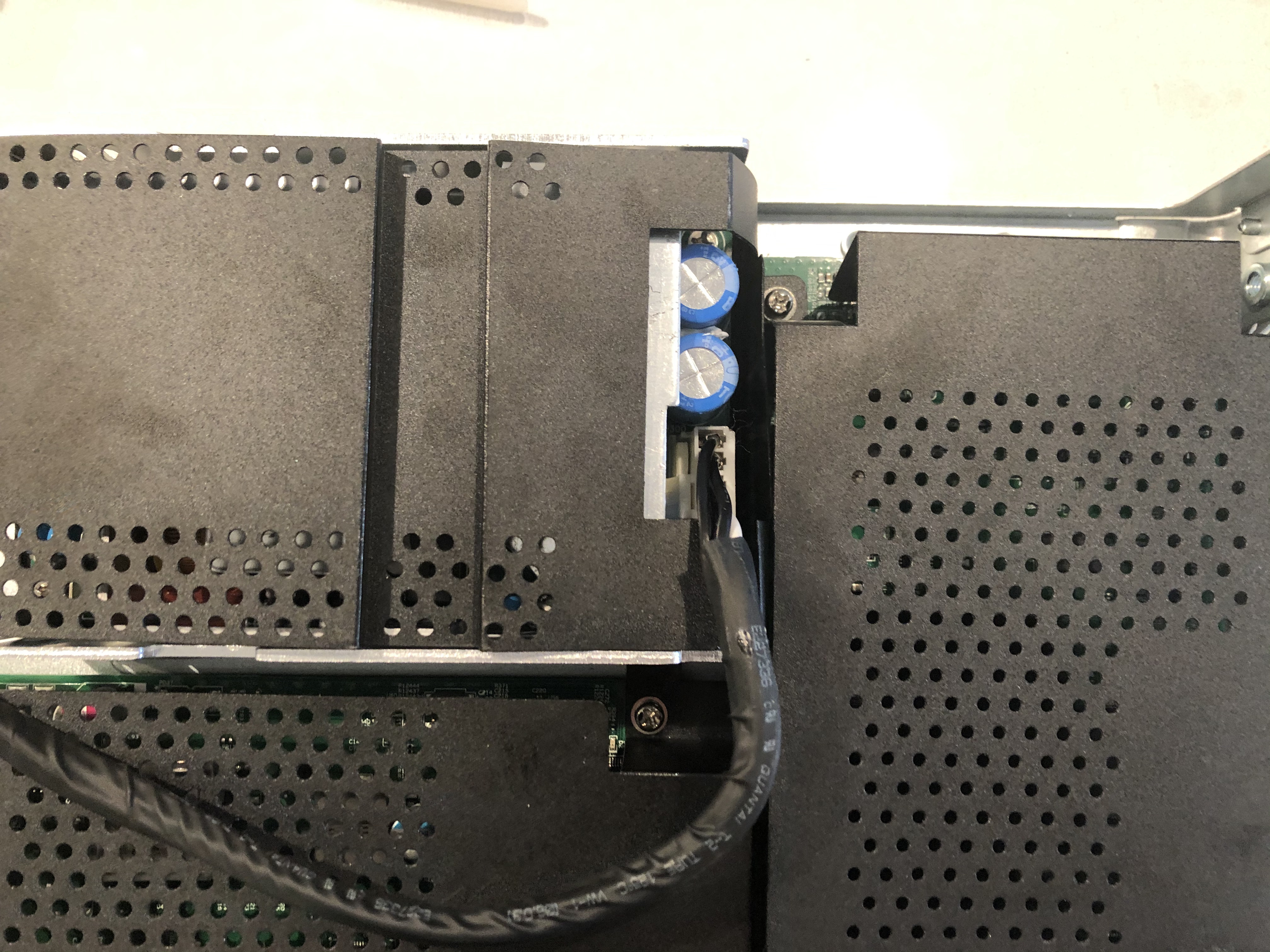
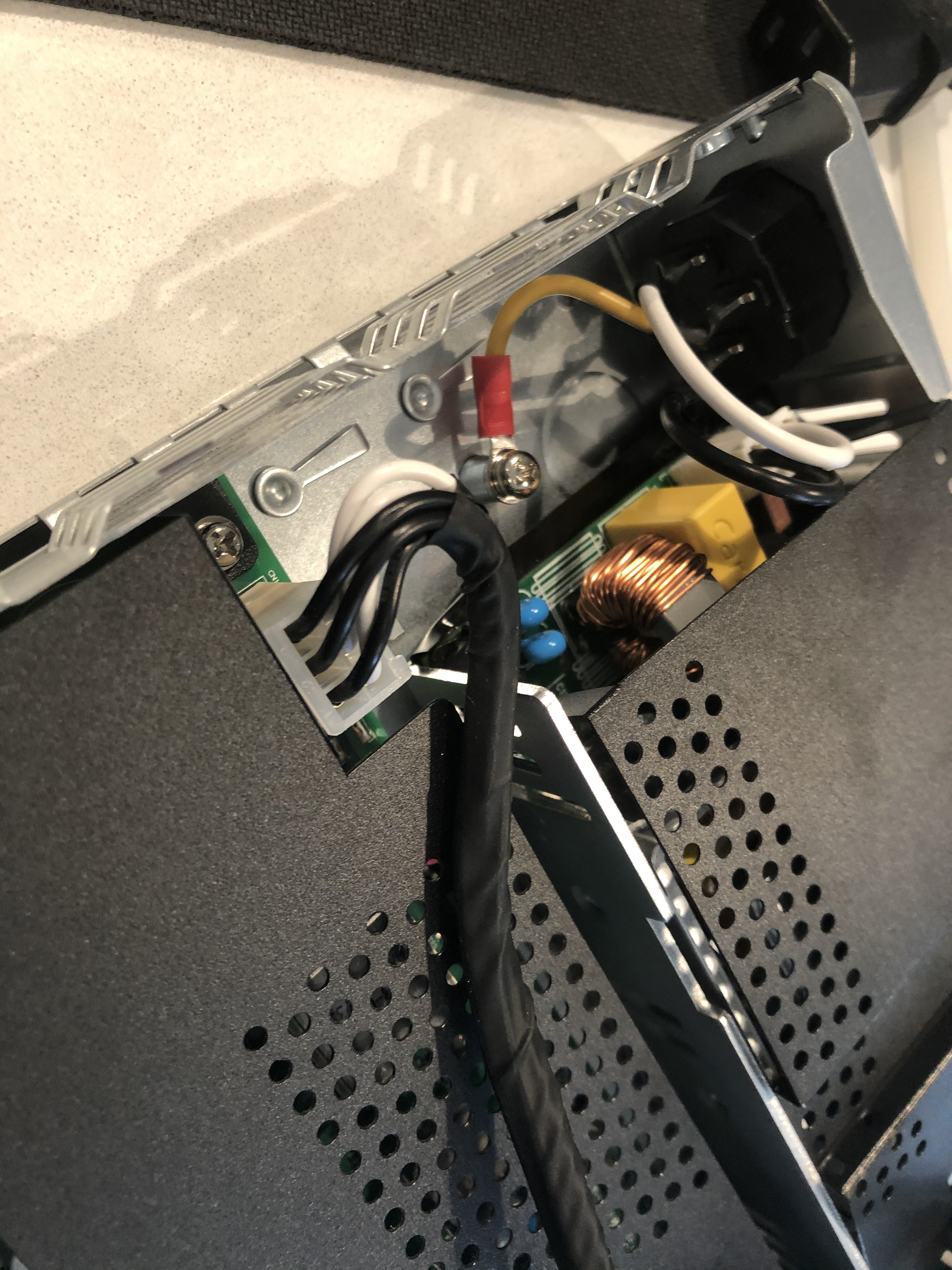
Instead of paying ~$250, which was their going rate on eBay; I saw a forum post about replacing this models power supply, and thought I would give that a shot. I got a broken switch for $45, and then a PSU for $50. The PSU I used was a SL Power LB130S56K 56V 2.32 130W. Armed with someone’s photos of doing this repair it ended up going fine. The hardest part of the whole operation is that the pins going onto the main board are reversed from what the power supply comes with, so you need to flip them. I have been running the unit for almost 2 years now without issue.

This model of switch is great because of its features and is fanless. The fanless-ness part of it is nice for homelabs near your desk, because the switches are silent. Because they are fanless, they cant have anything put on top of them, and need some room to breath. I think a lot of the ones you see online dead are because someone didn’t give it enough air, and the PSU died. Note when looking for a similar dead switch on eBay, you really want the seller saying “when plugged in nothing happens”, not “it periodically blinks” because that could be bad ram and its in a boot loop.

Having run two of these switches for over a year, I can give some feedback. I really like them. I have the two I have in a stack, I login once and manage both. When it comes time for firmware updates you SCP the file to the management IP, and it downloads the file to both, and then flashes and reloads. I came from using Cisco gear usually, or sometimes Arista; the CLI is a bit different, and Ruckus handles VLAN setup a bit weird, but once you get used to it, it makes sense. They are solid switches, with POE, that you can set and forget for a while.

Super Conduit

Due to the high latency of the lines between my works offices, file transfers can be slow. There are settings in Windows Vista+ systems that can allow the TCP window to grow, and allow much higher utilization on these lines. I call it Super Conduit. This may be possible on *nix systems, but the way this tweak works is that it tells the other side it will be doing this tweak. That means that both sides have to be at least Windows Vista Kernel, (Server 2008 works) that also means that linux file servers will not work because them seem to be linux machines with SMB. This should be done over wired connections, because the packet loss on wireless hurts these connections more than anything else.

With the “autotuninglevel” change, I have seen speed changes from a 1megabit a second line go to 150-200 megabits a second.

WARNING: Windows Vista/7 IP stack can not handle changing this setting and using normal connections, meaning once this is done usually the internet stops working until the setting is reversed. Windows 8+ seems to have no problems with this setting, and the internet; it just makes Win 8/8.1 more awesome than it already is, which is pretty awesome.

  1. Login under a administrator account to the Windows machine
  2. Open ‘cmd’ as a administrator
    1. Title bar should be “Administrator: C:\Windows\System32\cmd.exe”
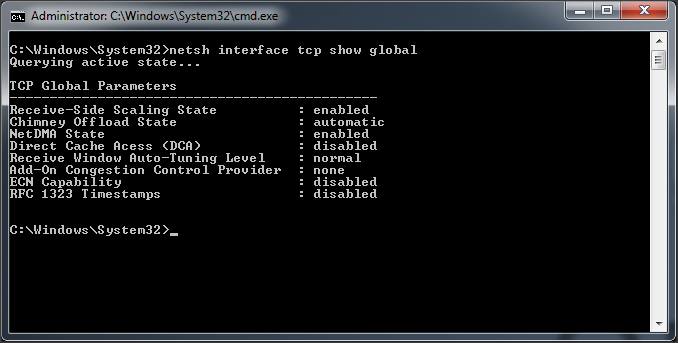
  3. “netsh interface tcp show global” will show the current settings of your machine
    1. Command Line Status
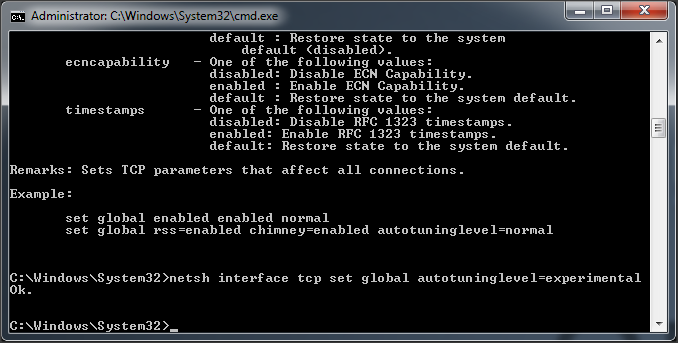
  4. “netsh interface tcp set global autotuninglevel=experimental” enables the majority of what you need for faster transfers, all you will get back in response is “Ok.”
    1. Image2
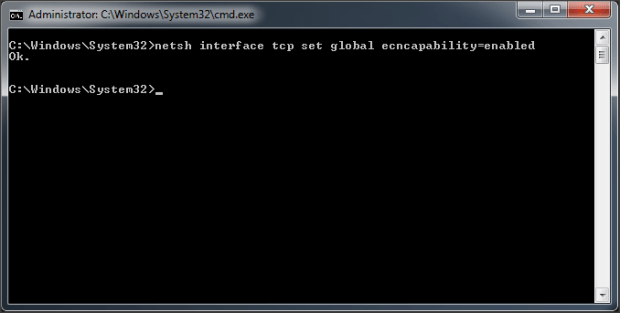
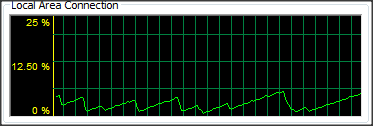
  5. Another setting I have used in the past is “netsh interface tcp set global ecncapability=enabled” this adds a flag to the packs that tells routers “I dont care if I get slowed down, please dont drop me completely”. The problem you run into with large TCP windowing is one dropped lowers the TCP window size a lot and slows the connection making it a lot more spiky. This command doesnt always help, but setting it hasnt hurt in the past.
    1. Image3
  6. The “rss” receive-side scaling state should be set to enabled, that should be the default. This allows the receiver to do these types of conenctions.
  7. When you are done your transfer just run “netsh interface tcp set global autotuninglevel=normal”


Troubleshooting Notes:

Windows 7 seems to act oddly when starting to use this setting, so I would enable it then restart the machine. I believe that cached sessions already in progress do not take the new setting.


YAY MATH:

http://bradhedlund.com/2008/12/19/how-to-calculate-tcp-throughput-for-long-distance-links/

Default window size: 65536 bytes * 8 = 524288 bits

73ms latency between cross country offices, 524288 bits / 0.073 seconds = 7,182,027 Bits throughput, theoretically. 897,753 B/s, max.

This setting increases that window size to something larger, much larger, and thus gives better speeds. The only interesting downside is that since the TCP window is big, if a packet is then lost, TCP resizes the window to a much smaller setting; forcing the window to climb again.

That is a 1GB link going across the country.

That is a 1GB link going across the country.