As I have mentioned in previous posts, I am working on a side project where I work with podcast feeds. Part of the idea is being able to act as a sort of middleware for podcasts. Give the application your podcasts, and you will be able to do things like search transcripts; and, if a podcast has a long intro on each episode, remove that. Searching for where someone mentioned a thing in an episode can be hard to research by just scrolling through an episode; if computer transcripts are 95% effective, that is better than nothing. For trimming podcasts, I find when you go through a big backlog of podcasts, hearing the same 1-minute intro every 30 minutes takes a good chunk of time.
Being that I use Java a lot for work, and am comfortable there, I wanted to make this project with Dropwizard and React. The first bit of the project has been working on the audio recognition engine, which will be a whole post in and of itself. After that I needed to start getting the supporting libraries I wanted. I tend to try to make as much of my code native to the language I am using as possible. That means we want to do as much in Java itself as possible. There are a ton of libraries that call out to FFMPEG or a command line app to handle the feeds; I don’t want to do that. If a side effect of this project is helping the community and writing some additional libraries, that is a win in my book.
PodcastFeedHandler
The first library I needed was a library to read AND write podcast feeds. With this app being middleware, we need to be able to do both. I found MarkusLewis‘s Podcast-Feed-Library, this works great for reading feeds in, but does not support writing. I took a look at his library and architecture a library similarly, except added the ability to get your feed object and then write it out again. In the end I made https://github.com/daberkow/PodcastFeedHandler. This library is written entirely in Java with no dependencies. Using Java 11, I can have all the native XML parsing I need. The rest of my project is in Java 17, but I thought others may find 11 useful. I am not sure there are any fragments in the library that wouldn’t allow me to go lower, except its 2023, and 11 is an older LTS at this point. An exciting part of that sub-project was getting Maven publishing working. Now I can publish for my domain of ntbl.co.
This project also got me used to using Github Actions. I have used CircleCI before but thought I would try Github Actions as they give you unlimited runtime for public repositories. Thanks Microsoft! I have the library build, get signed, and upload via Actions. I wanted to make sure the library preformed as I wanted and reached out to JetBrains to get an Open-Source maintainer license for Intellij. They kindly approved me!
Java-LAME
The next part of the project was parsing and fingerprinting the audio to search for duplicate segments. I will get more into that at a later time. To be able to fingerprint I needed the WAV/PCM format of the audio. Podcasts tend to be MP3 or AAC files. There are a ton of libraries to convert media in Java, except most of them had a FFMPEG external dependency. That is something I wanted to avoid. By having 100 percent native code, I can more easily create the workers that will handle these duties. Anywhere Java can run, they can run on or be compiled to; instead of having external dependencies.
I found nwaldispuehl‘s java-lame, this is a copy of the fantastic native Java port of LAME; described as “This java port of LAME 3.98.4 was created by Ken Händel for his ‘jump3r – Java Unofficial MP3 EncodeR’ project: http://sourceforge.net/projects/jsidplay2/“. The library hasn’t been updated in a while but does everything I need. It can convert MP3s but needs a file location to be passed in before converting to a byte array. I do not want to have to write to disk. The workflow would be, download podcast, store on disk, read from disk, convert. We should be able to do all this in memory. Doing all these operations in memory also means the workers do not need a bunch of scratch disk space, which is a plus. It’s more memory intensive but cuts down on disk usage. In 2023, I would rather have a slightly more memory intensive application than be doing a ton of extra read/writes to SSDs.
Throughout this project I have been thinking of: if I use it a lot or have friends using the web app, and it is constantly reading and writing audio files, how can I minimize bottlenecks. I forked the Github repo for java-lame, then added in paths to allow in-memory MP3 feeding and processing. This allows me to add a S3 client to the workers, and natively work on those files without ever writing to disk.
This library has a bunch of more functionality than I am using. It was a full LAME port, including the command line system and processing. I am planning to remove that as I go to shrink the library. I also want to replace some of the core conversion to WAV/PCM into having it in-memory compression, and functions to handle chunking the files and processing them piece by piece.
I took a This American Life episode, 1 hour in length, 67MB as MP3. Converting it to WAV/PCM I needed created a 678MB file. About a 10x size difference. Compressing that data lossless-ly with standard ZIP compression got the file down to 437MB, about 65% the size the original WAV/PCM. I can retrieve the ZIP data as a stream, and being audio, I am not jumping around; thus, that works well for me. 678MB for a file doesn’t sound so bad, a worker then just needs 1GB of RAM or so to process it, right? My worry is other podcasts. Shows like Dan Carlin’s Hardcore History can easily be 5 hours per episode, that is a 200+MB MP3, and then would be 2-3 GB of RAM to process one episode. If I can take 35% off for relatively small compute overhead, I want to.
I will post more as I go through the project. If these libraries or the blog have helped anyone, feel free to drop a comment! I always appreciate it when people do.
(The photo is something I through together on Bing image creator, its Java with audio 😊 )
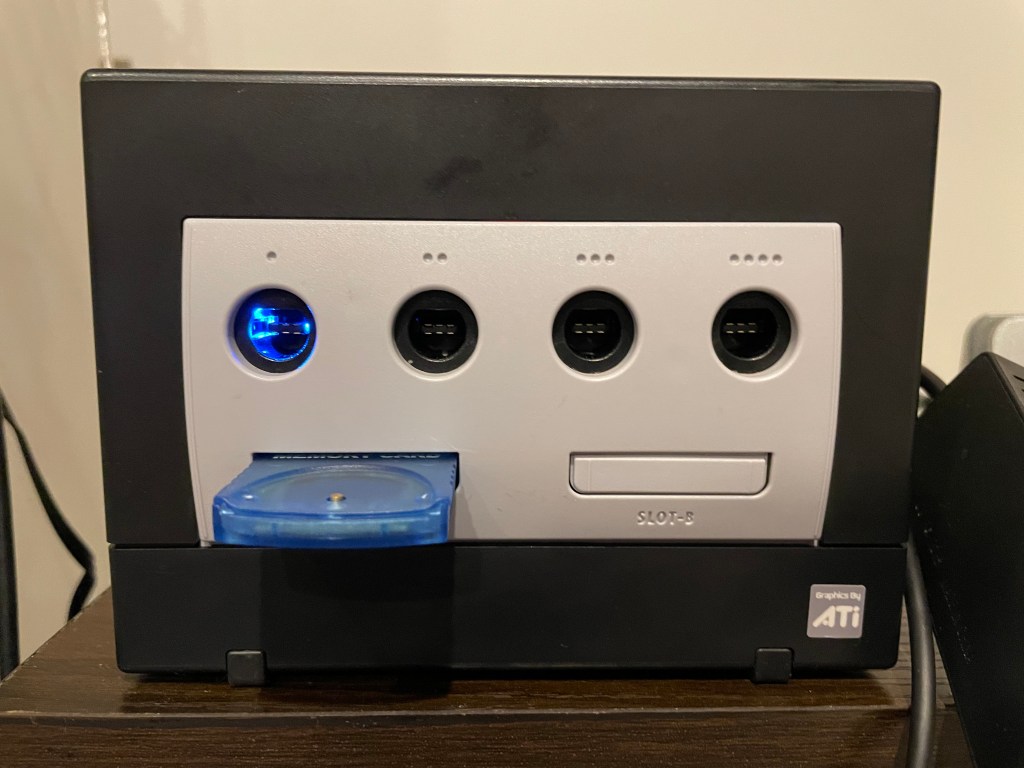
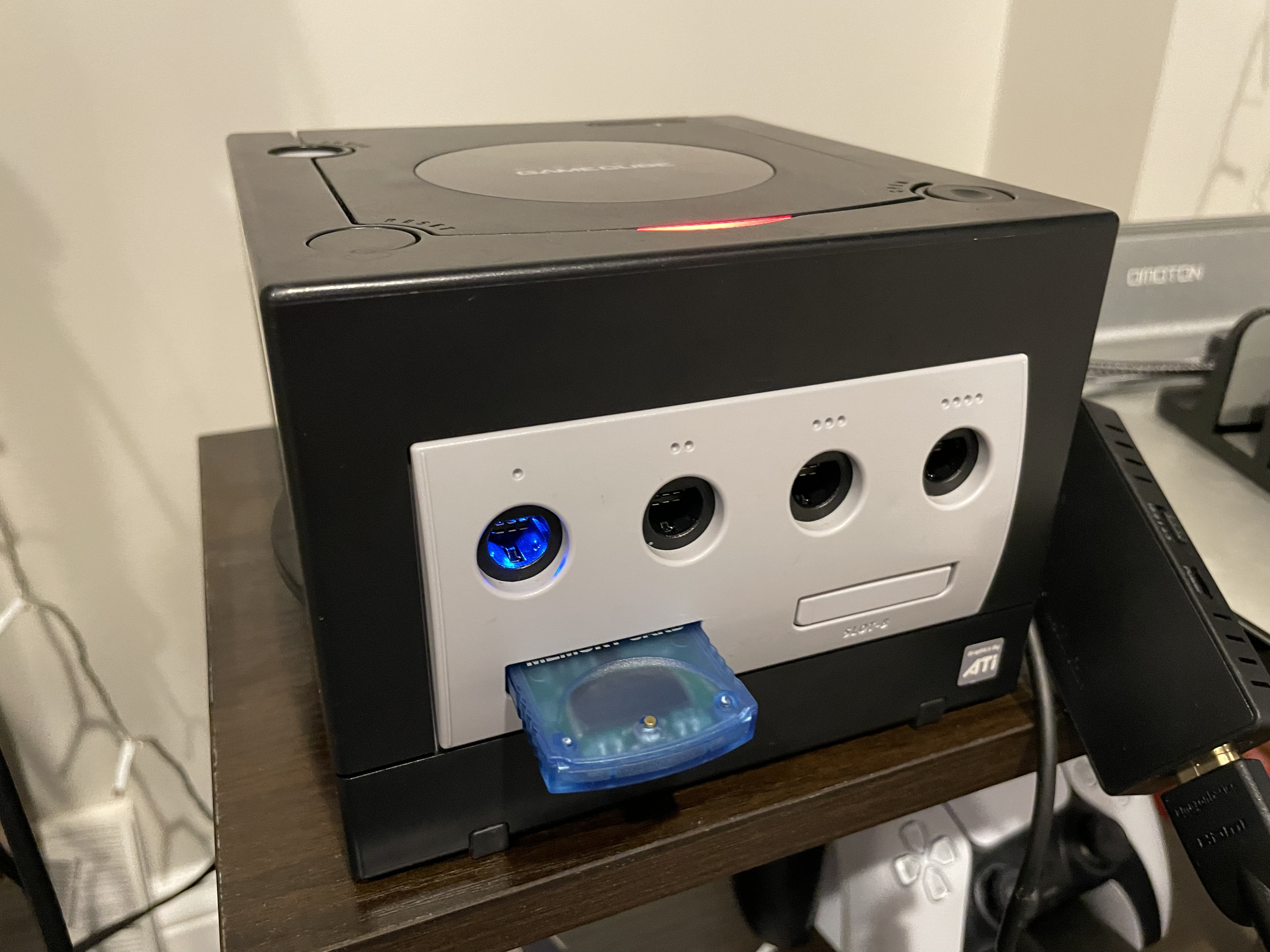
I have… many… older video game consoles. One thing I like to do to them after they have ended support and enter old age is add available mods to them. This offers updates after official support and features; such as downloading discs I own to a memory card or hard drive. Many times, older console CD/DVD drives will start to die, and with the way some systems (Xbox specially) cryptographically pair the motherboard and CD/DVD drive you can never replace the drive. Having a GameCube and recently seeing the amazing work of Maciej Kobus on PicoBoot, I had to give it a go. PicoBoot uses a Raspberry Pi Pico (an Arduino competitor) to jump into the boot process of the GameCube and load Swiss, the GameCube software manager.
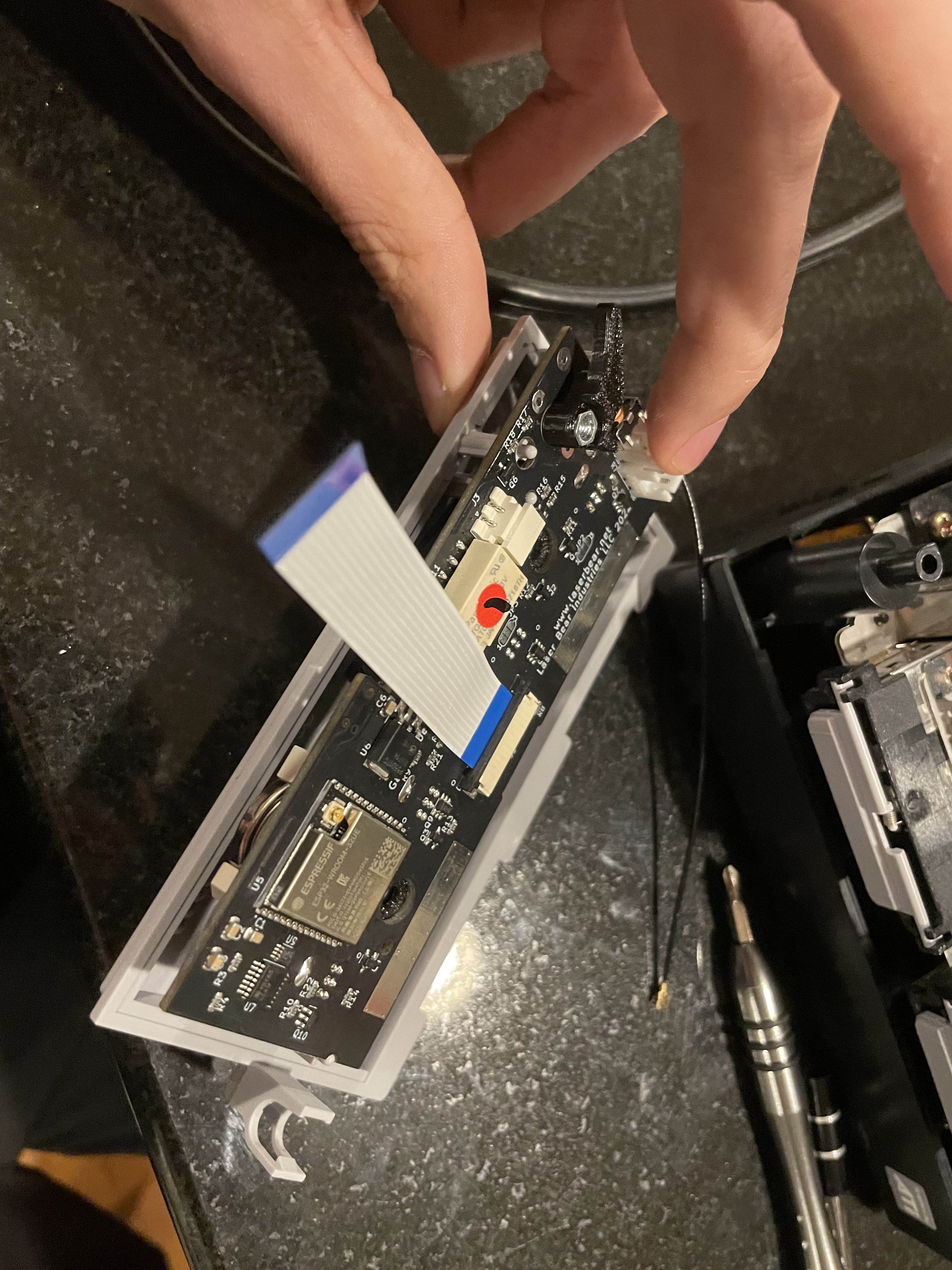
The other piece of hardware that started me down this whole path was the LaserBear BlueRetro replacement controller board. This board replaces the board controllers plug into and allows you use to modern bluetooth controllers instead! You can pair any Xbox/PS3-5/Nintendo controller with bluetooth to the console, and when you do the controller port lights up blue!
This introduced me to the BlueRetro project, and awesome project which aims to allow you to use those modern controllers on classic consoles! There are many sellers using this open-source code to make products, many of them on Aliexpress and other stores. The most impressive thing is the adapters tend to be a reasonable price on Aliexpress from many vendors with good reviews!
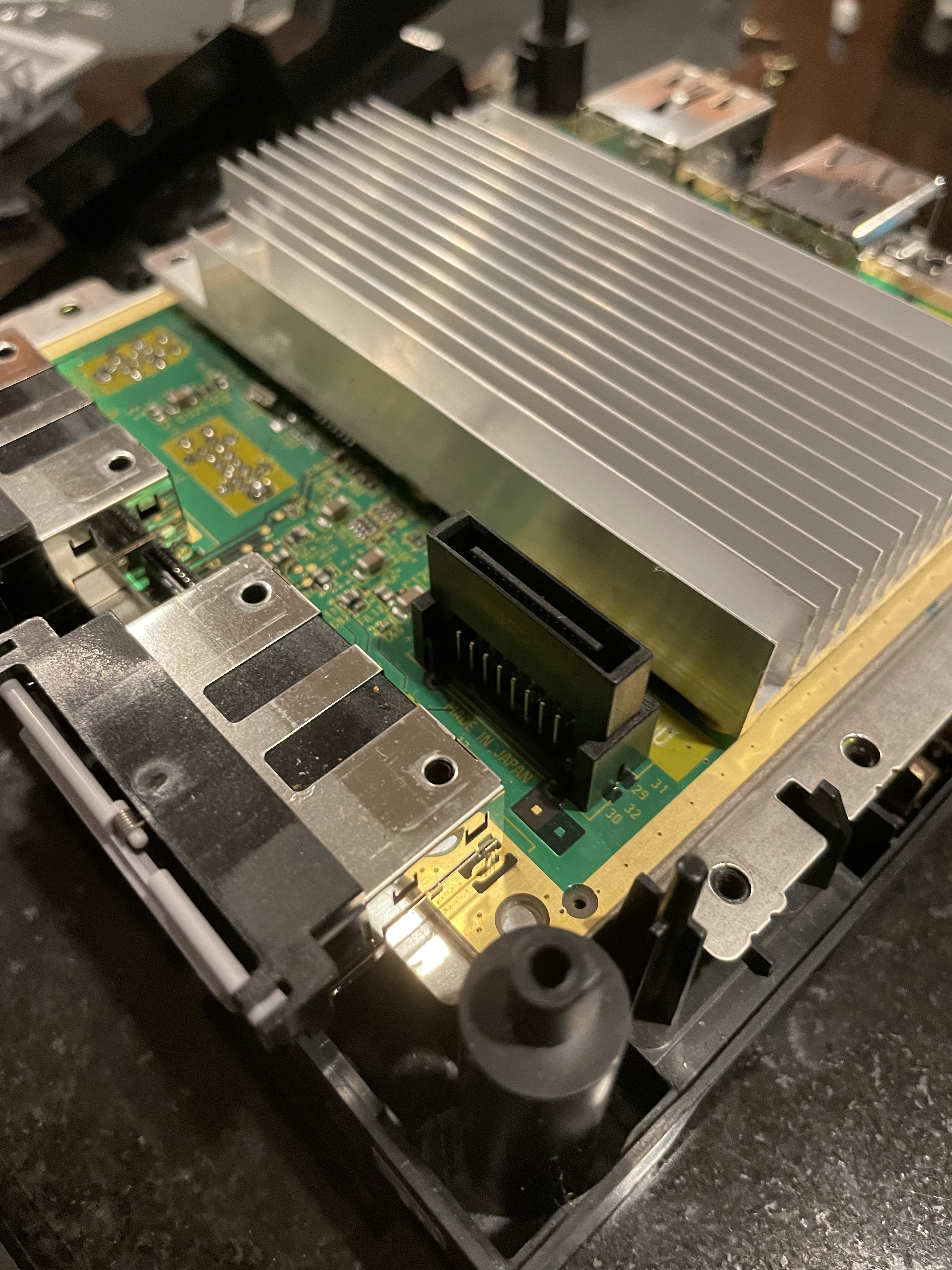
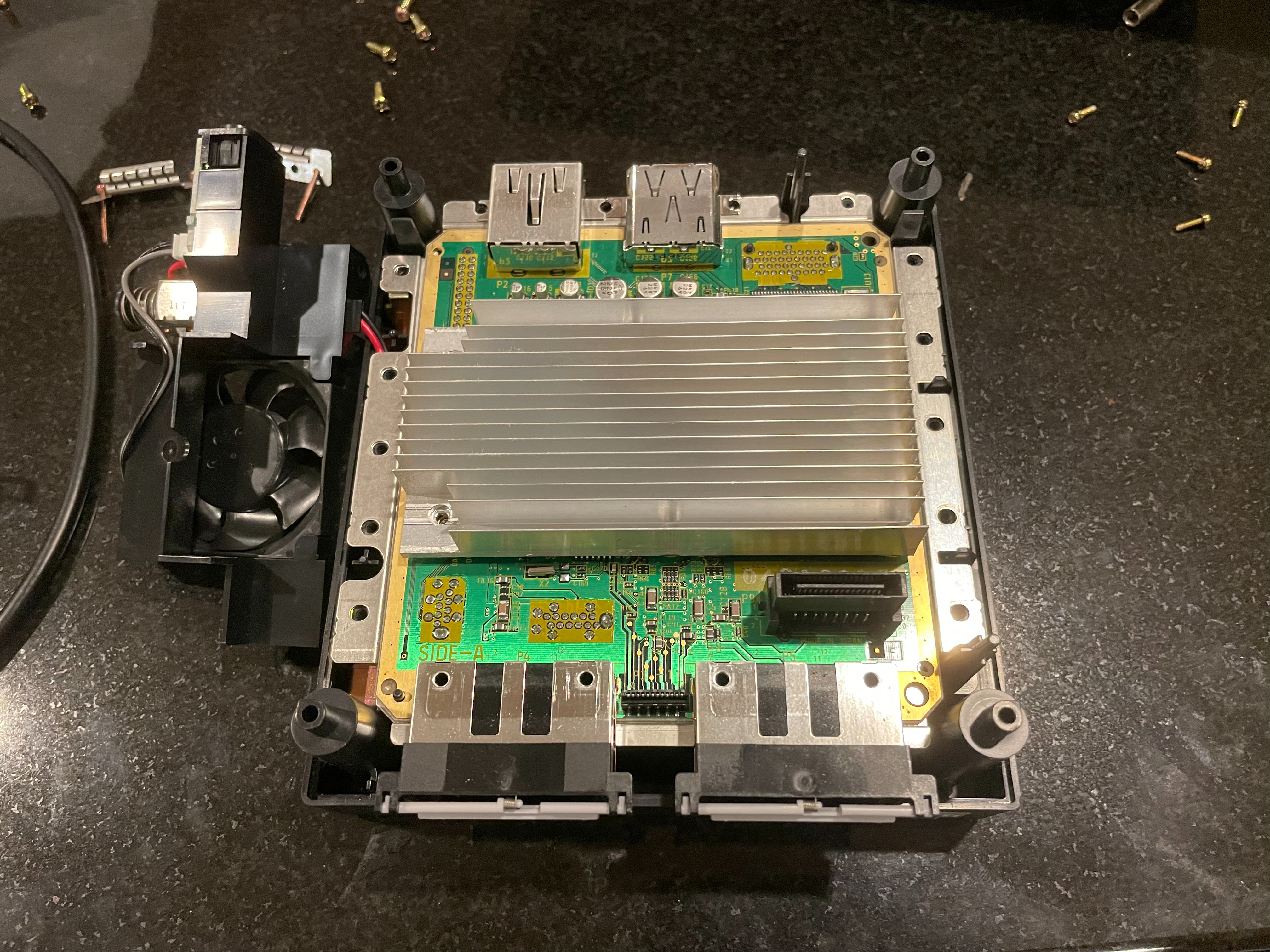
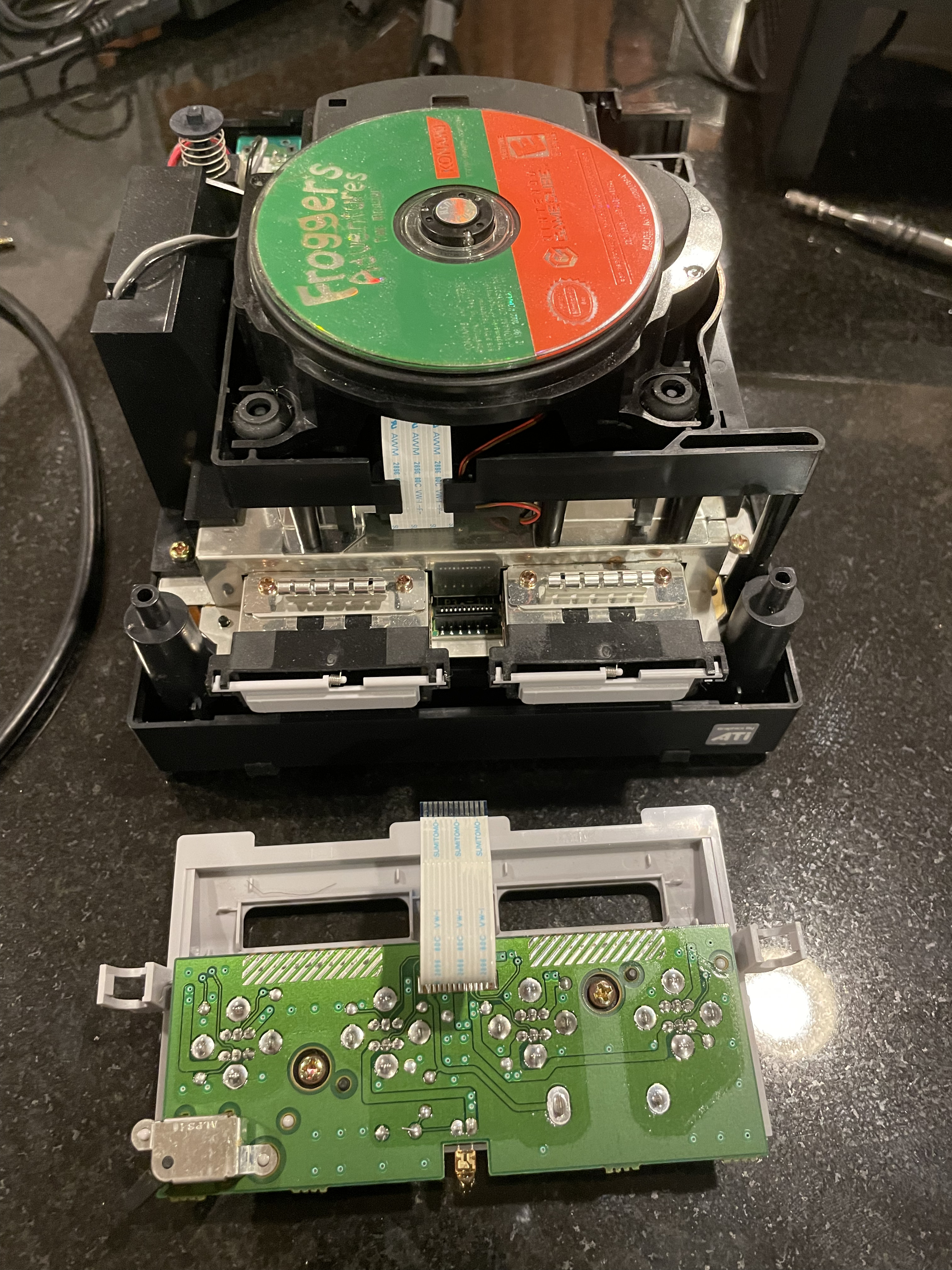
The Laserbear mod is straight forward, and they include a great guide. It involves removing the old controller board, placing the new one’s ribbon into the slot, and then moving 2 power wires. Very straight forward, no soldering.
On the flip side is the PicoBoot install. I have not used a Raspberry Pi Pico before; I am more familiar with Arduinos and older microcontrollers. The code uploading method is very neat, you hold a button, then the device mounts as a drive on your computer. you copy the binary file onto the drive, and when you eject the device it writes the payload. The next part of the install involves soldering, and this soldering is a bit tiny. The install is only 5 wires, but you are working on a small board, with wiring that cannot be that long because of how the mod works with the boot process.
Luckily there are many guides on YouTube on how to do this. And on the first try I had it working, and in the end stuck it behind where the BlueRetro lives. For PicoBoot to load, you also need a SD card adapter for the GameCube. Those are available on eBay/Amazon/your local mod shop for cheap.
The PicoBoot in the end was a little too close to the controller board for my liking, I added electrical tape to the top of the Pico to make sure no contact was made between these lovers. This was a fun afternoon, and now I can get a longer life out of this little guy. I also got a HDMI cable for the GameCube, the model of GameCube I have allows for digital out, but those cables are expensive so I am using the analog out right now.
I recently started a new, grander, project for my spare time. The project involves working with Podcast feeds, and I was going to use this as an opportunity to use a framework I haven’t before, Dropwizard. I found a Java library that did what I needed in MarkusLewis – Podcast Feed Library; except this library only read feeds, I want to be able to read AND write. I decided to make my own, and I wanted to host the library, allowing anyone else to use it if they want. I created the repo and got a basic version working. This is the repo which can be referenced as an example.
I am using GitHub Actions as my CI/CD pipeline. I thought I should easily be able to host the final Jar files there for Gradle. Turns out, this is sort of true… If you host your library on GitHub itself, as this doc goes over, you can easily upload and host the packages; except there is no un-authenticated access to it. No matter what, an end user has to auth with Gradle/Maven before downloading the assets. Instead of dealing with that (specially for a public repo), I thought I would give a try to getting my package into Maven Central. Once I figured out the process, and found out how to publish with up to date Gradle, it as straight forward. I thought I would document it for the greater internet, and my future self (I have already used it). I know others have done this as well, except I wanted to do it with Gradle instead of Maven, with GitHub Actions doing all the work.
Throughout this guide there are items you need to record to bring to the next step, I have underlined the important ones.
Steps:
Setup Repo
Register For Maven/Sonatype
Setup GPG for Repo
Configure GitHub
Publishing
Setup Repo
Setup a normal GitHub repo, and setup a blank Gradle project. More on the repo/Gradle config later.
Register for Maven/Sonatype
Sonatype is the company who runs Maven Central. They allow free hosting and registration for Java Libraries; the main requirement is for it to be under 1GB in size per file. This adventure starts over at their Jira to register for an account, this Jira account will be your credentials for all future interactions with Maven Central, so make them secure, and have a long password! Once you have an account, use the above like to go to their Jira again to create an issue. This ticket grants you permissions to publish to https://s01.oss.sonatype.org/. You can also login there with the credentials created for Jira. You will have to verify either your GitHub account, or your domain before publishing. A bot handles all this and I had it done in 20 minutes or so. I have a domain I wanted to use, and there is a guide on how to go through this process.
Once you register a group ID you can use this account to publish anything under that ID; for example, I registered my domain of ntbl.co (making the group ID in Java terms “co.ntbl”. First, I published the library above, then I added a fork of a Java-Lame library; I tried to submit a ticket for the second library to be sure, and the bot tells you that you are already good to go.
Setup GPG for the Repo
One requirement for posting assets to Maven Central is to GPG sign the packages. This means we need to generate a key, and then upload the private portion of the key to GitHub secrets, and the public to a public key repository. Below are the commands to do this, the key ID is an example one I have, you will need to replace it with yours:
Line 1 creates the keys, for name you enter the full project name, for example: co.ntbl.podcastfeedhandler . Group ID + the project root name. The email can be any email you have. Then the passphrase which will be used and uploaded to Github secrets. I suggest using a password generator and making it long, you should never have to actually type this in. Next, the exports are for you to back up the key incase the system you are creating it on dies and the data is lost in the GPG instance. You shouldn’t generally need it after this is setup, but it felt like best practice.
Record the output of the 7th line (export-secret-keys), that will need to be added to the Github secrets in the next step.
Configuring GitHub
The last command publishes the public keys to a global repo which is checked against. If this publish is not done, then the verification of the package will fail.
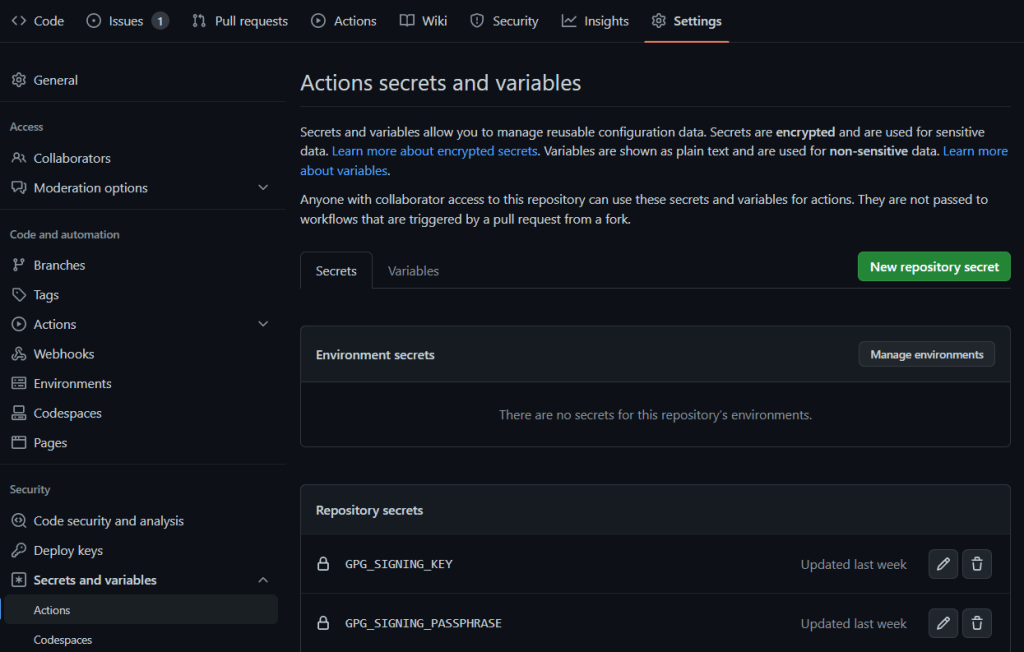
The two items we need to upload to GitHub for GPG are the password added when the key was generated, and the private key we got from the 7th command.
Go to your GitHub repo, then go to the Settings tab. Using the left-hand navigation, go to “Secrets and variables”, and the “Actions” submenu.
We need to create 4 secrets; these need to be kept secret:
GPG_SIGNING_KEY – The private key, copy the text from the “–export-secret-keys” command, this formats it correctly. The string should start with “—–BEGIN PGP PRIVATE KEY BLOCK—–“
GPG_SIGNING_PASSPHRASE – The password added when generating the key
OSSRH_TOKEN – This is the password you set for Sonatypes Jira
OSSRH_USERNAME – The Sonatype Jira username
Below is a minimal example build.gradle for your project. I removed a lot of normal extra things you would add to a buidl.gradle, to see a full example, visit this GitHub repo.
A few things to point out. Under publishing you need to enter all the information for this repository/project. If you have another publishing section in your Gradle file you will need to condense them together. Having multiple leads to Gradle getting confused and usually using the first one it sees. You will also see some variables such as “MAVEN_USERNAME”, these get the values of our secrets during the GitHub actions publish process, which we will go over next. I am getting the version, and using the end of it containing “SNAPSHOT” to say if we should publish to a snapshot repo or prod.
I also am using the build.gradle version as the canonical version. This variable could be in a Gradle settings file, or properties, but for ease I have it in the build file. I want 1 version file location; having multiple leads to more confusion during releases. The createProperties task creates a properties file that is added to the build to give the code itself a way to see which version it is. There are more elaborate ways to do this, but it works for me. This function does need the resources folder to be in the “src/main” folder; if your project is not using this the easiest way to add an “empty folder” is add the “resources” folder and then add the following .gitignore to it. This will make sure the contents of this folder are never saved.
# Ignore everything in this directory
*
# Except this file
!.gitignore
Requirements for posting to Maven central are: including source, checksums, Javadocs, and signing your packages. I am using useInMemoryPgpKeys to sign in GitHub Actions. This is part of the signing plugin. I have seen others use sign configuration.packages instead of sign publishing.publications, I found that not to work in many trials.
GitHub Actions
In your repository, create a .github folder, then a workflows folder. Below is my publish.yml, or it is available here. This file is currently set to publish when a new release is tagged, you can also change this to commits or some other trigger.
Here we convert GitHub secrets to local environment variables. Note the change in name from OSSRH_USERNAME to MAVEN_USERNAME and OSSRH_TOKEN to MAVEN_PASSWORD. This is simply to make the variables more clear, and they can be whatever you wish. We also validate Gradle for this final build. Another note, in my setup we are not passing assets from earlier builds into this publish stage, we are rebuilding the jar completely, depending on the size of your job, this may or may not make sense. If you have all this setup correctly, you should be able to commit the code, tag a release with “0.0.1-SNAPSHOT” or any version ending in SNAPSHOT and it should publish to the snapshot repo.
Publishing
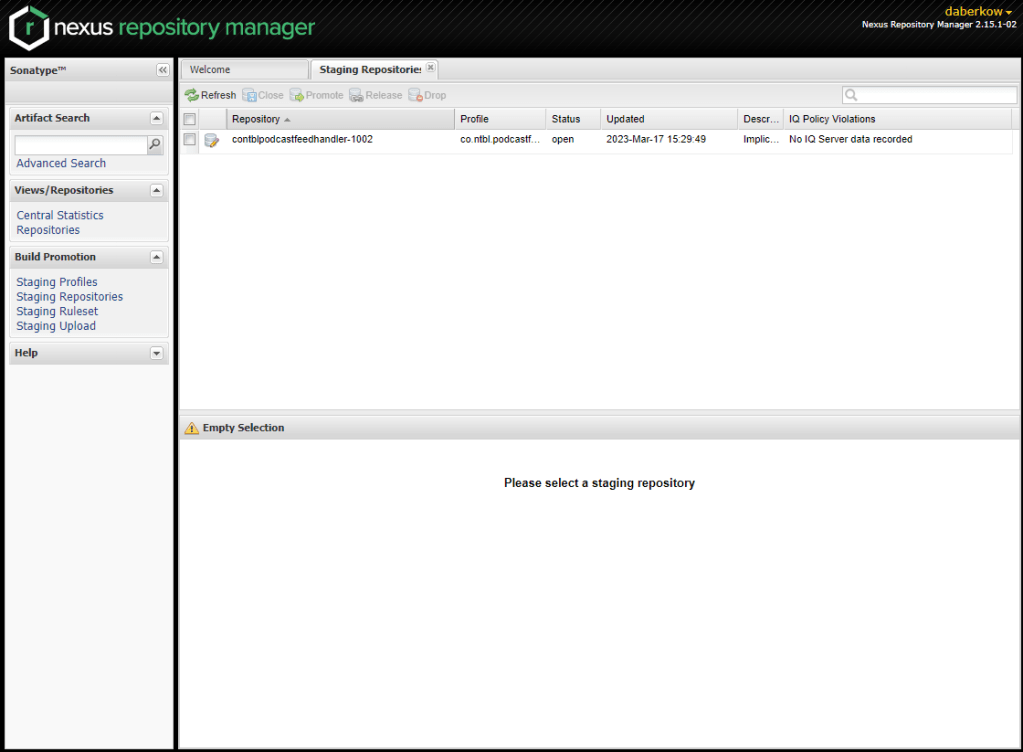
Now that we have working snapshot releases, we need to do a full release. This involves you using the credentials created with the Sonatype Jira account earlier and logging into the Nexus panel. When you are ready, go to GitHub, and mark a new release with the version not ending with SNAPSHOT. The GitHub action should finish successfully, yet your asset is not up at https://repo1.maven.org/maven2/ yet. Head over to https://s01.oss.sonatype.org/ and click “Log In” in the top right.
Select “Staged Repositories” on the left. Note: this server seems to be very busy during the day, doubly so if it is a weekday. You will frequently see “There was an error communicating with the server: request timed out”. Come back later or keep hitting refresh.
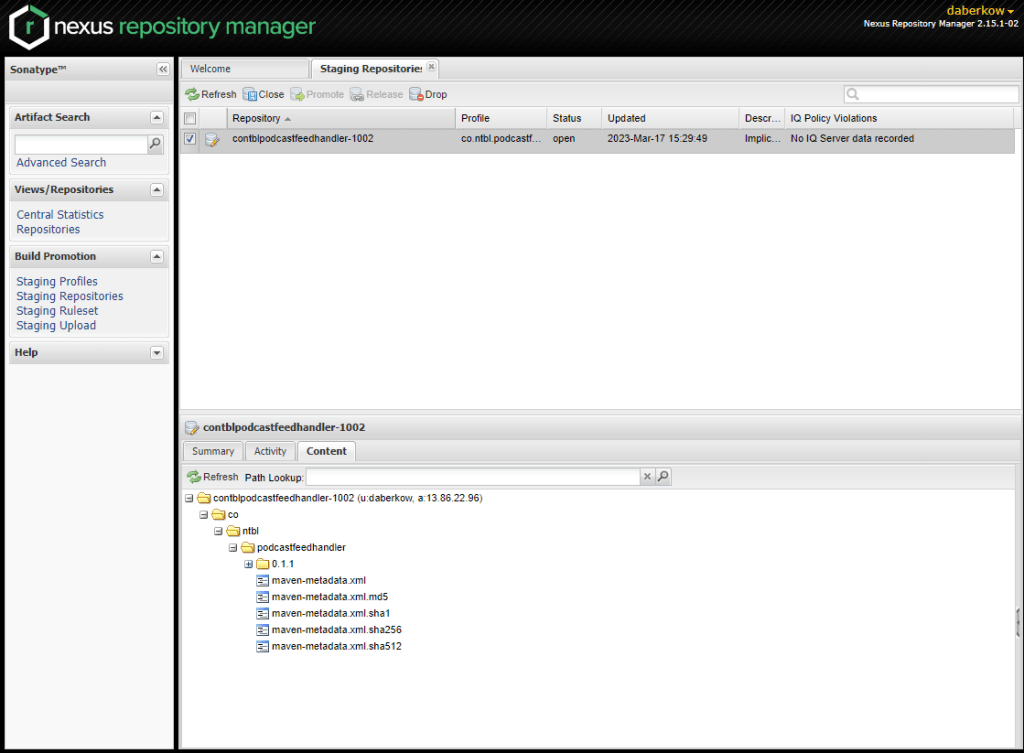
Clicking a repository will allow you to browse the contents, and make sure it looks how you want it to. When you are ready you click “Close” at the top of the pane to finalize this version. Closing the repository starts all the checks on the repository, this includes making sure GPG signatures are there, the sources, Javadoc, and checksums are there. If they are not, you will get an error and be forced to Drop the release and try again. You also will get a vulnerability scan, including dependencies, to your email on file.
After the repo successfully closed, you can click Release! This is another stage where you can get many timeouts and be forced to wait till the server is less busy. After it successfully releases, it takes about 30 minutes for it to show up in the global Maven repo.
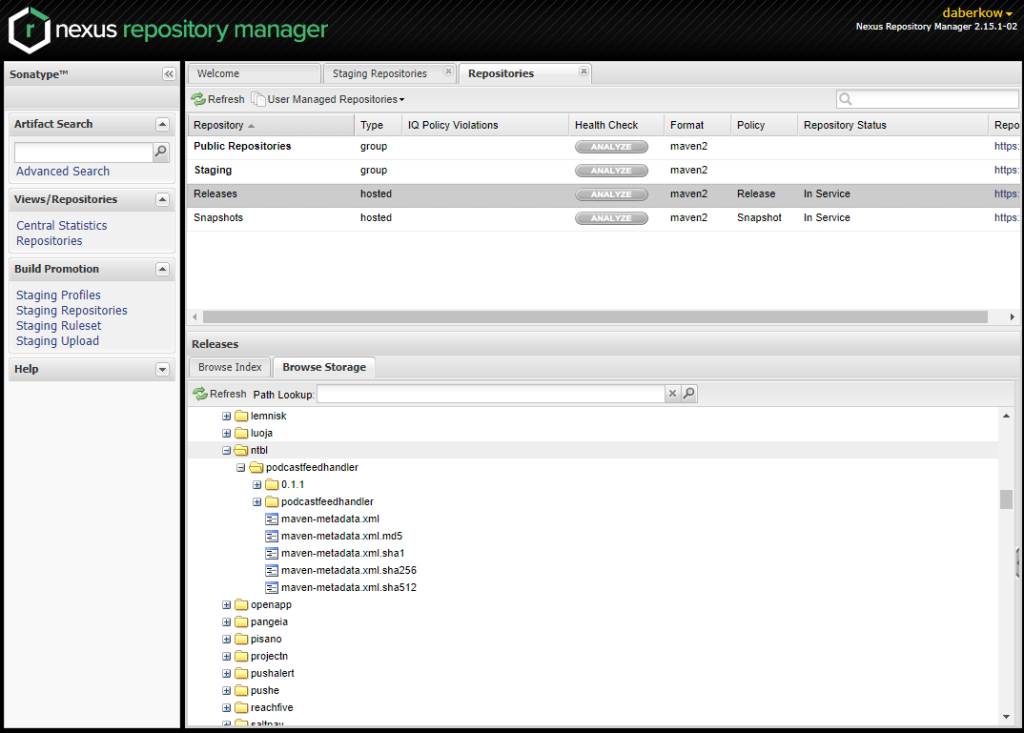
Selecting “Repositories” at the left allows you to browser the global Snapshots and Releases repositories; I have found this screen updates quicker than other locations to see if your assets are starting to propagate, including faster than the main Maven repo.
After about 30 minutes, your release should start to show up at Maven Search, although it can take longer. Another popular place to check packages is mvnrepository, I have found this site seems to take about a day to find new packages.
I hope this guide can help someone (and probably my future self), feel free to drop a comment if it helps or if something is unclear!
Continuing the series of hardening embedded Tomcat in Java to meet Nessus security scans, I am back with an example of adding a Content Security Policy to your app. There are some ways in a more standard Tomcat server to provide CSP policies, but with an embedded server that can be more difficult.
I have used an embedded Tomcat server for years to build applications. The following example is using Tomcat 10, but the principle is the same or Tomcat 9. The main difference as a Tomcat 9 to 10 transition is moving from the javax namespace to jakarta. With more and more libraries, such as Jooq, moving to more modern Java versions; as well as, some of the new Java versions offering good performance improvements out of the box, it may be time for everyone to move to the Jakarta namespace. (Even if that means leaving some libraries such as Google OAuth behind)
In my recent example project going over how to use Pac4J for Oauth with Tomcat 10, I have added an example here of what the FilterBase class would look like. You then need to initialize the filter where you are starting the Tomcat thread. That will add the needed header to all the web requests your application processes.
At work I maintain random stacks of software, and sometimes help people with other stacks that they maintain. Recently I was asked to help bring a Atlassian Bitbucket stack up to date. In the past Atlassian always included a built-in ElasticSearch (ES) server. This was used to index code in Bitbucket and allow searching. It’s not a hard requirement for the server to function, but important for user experience.
When an environment moves from Bitbucket Server to Bitbucket enterprise you are supposed to go to a standalone ES over the embedded one for performance. I don’t know if people elsewhere commonly do this, but the stacks I have seen have just continued to use the embedded version. Admittedly, these are smaller instances; at scale I would understand that. That was until recently, when due to a licensing change Atlassian could no longer embed a up to date ElasticSearch. For a while they decided the best way to move forward was to keep bundling the one from before the licensing change (I think 7.10).
This works until you have an infosec team use Nessus and find you have an out-of-date ES sitting around when 7.16, or the 8.0 branch are out. From all that, this one stack had moved to a standalone ES cluster. We also now had to install the Atlassian security plugin into ES; this was not a simple task, and this plugin only supports a few versions of ES, none of which were current. At least then we are at a BETTER spot with security.
Now fast forward a few months of this mess going on, and Atlassian moved Bitbucket from ElasticSearch to OpenSearch. OpenSearch is a fork of ElasticSearch at version 7.10.2 from Amazon to get around these new licensing terms. Normally if you were still using the embedded version of ES, when you did your next upgrade of Bitbucket it would move you to OpenSearch. Because this stack had already moved to standalone instance it did not migrate over. We are now in the worst of both worlds, off the supported path, and can’t get back on it. If you search the Atlassian documentation there are guides on how to move to a standalone version, but not back. A big catch I found was they use default passwords in the embedded version, that are not easy to find, which lead you making it hard to migrate back.
Migrating Back
Below are some notes I have on migrating back. Hopefully they help someone.
There are two main folders we will work in, one is your Atlassian Bitbucket installation folder for this version, I will call it %atlassian-install%, then there is your Bitbucket data folder that moves between your versions, with your upgrades, we will call that %bitbucket-home%. (Note: I did all this on Linux, but I am calling the variables that because it is easy)
Default %atlassian-install% is /opt/atlassian/bitbucket/7.21.7, or your current version. Default %bitbucket-home% is /var/atlassian/application-data/bitbucket, but I tend to move that to /opt.
Under %atlassian-install%/opensearch/plugins/opensearch-security/securityconfig/internal_user.yml is the details Bitbucket needs to connect to this OpenSearch instance. The default password is “bitbucket-changeit”. To create a new hash of a password, the following file needs to be given execute privileges and does not come with that on Linux; %atlassian-install%/opensearch/plugins/opensearch-security/tools/hash.sh .
Go into %bitbucket-home%/shared/bitbucket.properties if you have one, this file is created as you migrate between versions or databases; and remove any legacy elasticsearch username/password/url settings. For example: plugin.search.elasticsearch.baseurl or plugin.search.config.baseurlas shown in the documentation. The properties file overrides settings you have in the instance/database. You may have a SystemD service file to automatically start Bitbucket, this file has the start-bitbucket.sh file starting with -ns or --no-search to run a standalone instance, remove the no search option.
Now start Bitbucket and go to Administration -> Troubleshooting and support tools -> System Information, you will see Search failed to connect. Go to Administration -> Server settings, then enter your new search information there. If you just removed ElasticSearch, and started OpenSearch with the server, all you have to do is make sure the port is right, by default 7992 I believe, then make sure the username is “bitbucket” and the password is “bitbucket-changeit”. If you get a connection error it may be that you have to setup a TLS trust between Bitbucket and Opensearch, but that is outside the scope of this guide.
Below is the default %bitbucket-home%/shared/search/config/opensearch.yml
cluster.name: bitbucket_search
node:
name: bitbucket_bundled
network.host: _local_
discovery.type: single-node
path:
logs: ${BITBUCKET_HOME}/log/search
data: ${BITBUCKET_HOME}/shared/search/data
action.auto_create_index: false
http.port: 7992
transport.tcp.port: 7993
# The OpenSearch security plugin stores its configuration in an index in the cluster itself. On startup if the
# security index doesn't exist yet, sitting this to true will cause the security plugin to read the yml files and
# configure the index using the contents of the files.
plugins.security.allow_default_init_securityindex: true
# Using the yml files with default initialisation, we create a bitbucket user and give it the all_access in-built role.
# However, access to the REST API is disabled by default even for the all_access role so we need to explicitly give
# it permission here so that the bitbucket user can access the OpenSearch REST API.
plugins.security.restapi.roles_enabled: ["all_access"]
# Mandatory TLS setup for transport layer
plugins.security.authcz.admin_dn:
- CN=BITBUCKET
plugins.security.ssl.transport.enforce_hostname_verification: false
plugins.security.ssl.transport.pemcert_filepath: bitbucket.pem
plugins.security.ssl.transport.pemkey_filepath: bitbucket-key.pem
plugins.security.ssl.transport.pemtrustedcas_filepath: root-ca.pem
# Logs audit events to bitbucket_search_server.json
plugins.security.audit.type: log4j
plugins.security.audit.config.log4j.logger_name: audit
plugins.security.audit.config.log4j.level: INFO
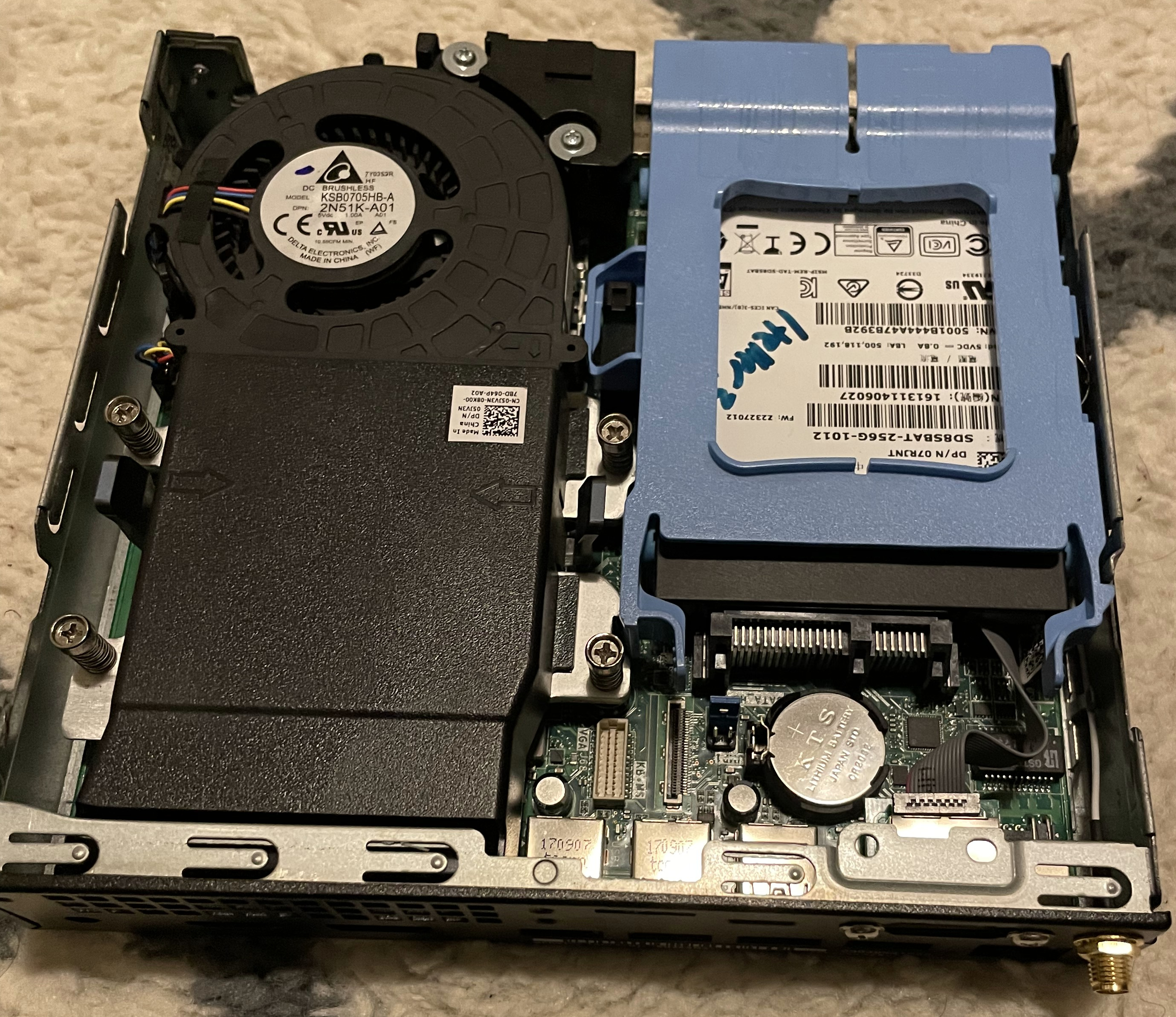
Recently I was able to pick up some Dell Optiplex 5050 Micros for $60 on eBay. These are tiny machines, with an Intel i5-7500T (4 core/4 Thread) CPU, 8GB of ram, and a 256GB SSD. For $60 they needed a power supply, but those are easy to come by. My plan was to replace my aging Intel NUC that is the core domain services for the house (AD, Radius, CA) and perhaps the aging firewall, if I can figure out how to get a second NIC into the system, more on that later.
My philosophy when running a standalone network (even with internet access) is to have at least 1 of your Domain Controllers (DCs) be a physical box at all times. An alternative is a dedicated hypervisor with local disks, but anyone who has tried to start a VM manually on VMWare knows how painful it can be without any interface to the system other than the command line. In addition, these days it’s easy to make all the DCs virtual, but if you ever have to cold boot your environment; then you run into not having DNS. Following not having DNS, things like vCenter and vSAN can’t come up cleanly, and there are more and more chain on effects. Having a physical machine allows you to bring DNS and core services up first, then start all other services that rely on your domain.
The first task I had was to get one of the Optiplex 5050s ready for Windows Server. I started with upgrading the ram to 16GB, because I had it laying around. After that, since this is an eBay purchase, I updated the firmware/BIOS and ran diagnostics before it touched the home network. The seller was nice enough to install Windows 10 Pro on the machine, which has a license in the BIOS; but I formatted the drive before starting that instance. People are generally nice, but who knows what was in that image. After getting Windows Server 2022 installed I hit my first issue. Server 2022 does not have a driver for the Intel i219-V that is in this chassis.
I tried getting the drivers from the Dell site, but Windows refused to use them because they were for Windows 10, and not Server edition. My current fix for this was going to select the driver, telling it to “Browse my computer for drivers”, letting me pick, then manually selecting the “Intel” “Intel(R) Ethernet Connection (2) I219-V” driver. I had a USB ethernet dongle that worked for me to get online and at least be able to see that driver. Now the box is happily online. The main issue with this technique is that I keep getting an “Optional” Windows Update for an updated driver that seems to never install. I think that is because I installed the Dell driver, but it never runs correctly.
Another thing I try to do with most systems, especially the systems in charge of security is get Virtualization Based Security running. This is a newer Windows feature, where core elements that need to maintain secrets are run in tiny Hyper-V containers. The user never sees it, but this gives added protection to the system. If you run “msinfo32”, you can get an output of its status. Most of the time, you need to enable chipset virtualization support; then add the system feature of “Host Guardian Hyper-V Support”. On older systems (Windows Server 2019) and desktops, I think it’s just called “Hyper-V”, then you get these features enabled.
On paper this machine is 78% faster than the Intel i5-3427U, and that makes a world of difference. The old system took a while to boot, and a while to backup, which is what spurred me to upgrade. This system feels amazingly fast for a $60 system. Keep in mind that it cost less than the Raspberry Pi 4, has Intel, and didn’t have to wait the years Raspberry Pis take right now!
I have the main DC run domain services, DNS, Network Policy Service (RADIUS), and certificate services. For the first two, I just had to install Domain Services and DNS and the system started acting in that role. For NPS I exported the config from the old DC, and then installed the service and imported onto the new one. As a reminder, Domain Services has to be installed first, or if you have NPS/Certificate Services installed, then try to do Domain Services, it will tell you it can’t install. Certificate Services, I added a new CA, stopped the old one’s service, and removed it as an enrollment agent in ADSI. My 802.1x and other certs given out by GPO are short lived, around 90 days; I will wait for the old ones to expire and systems to naturally get newer certs.
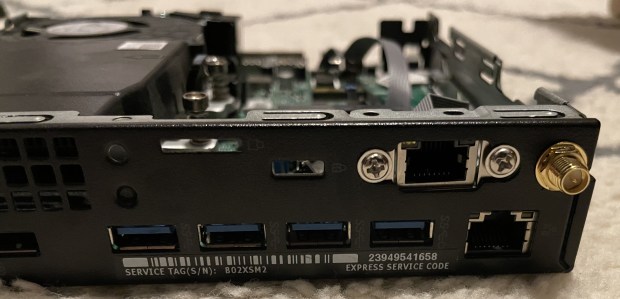
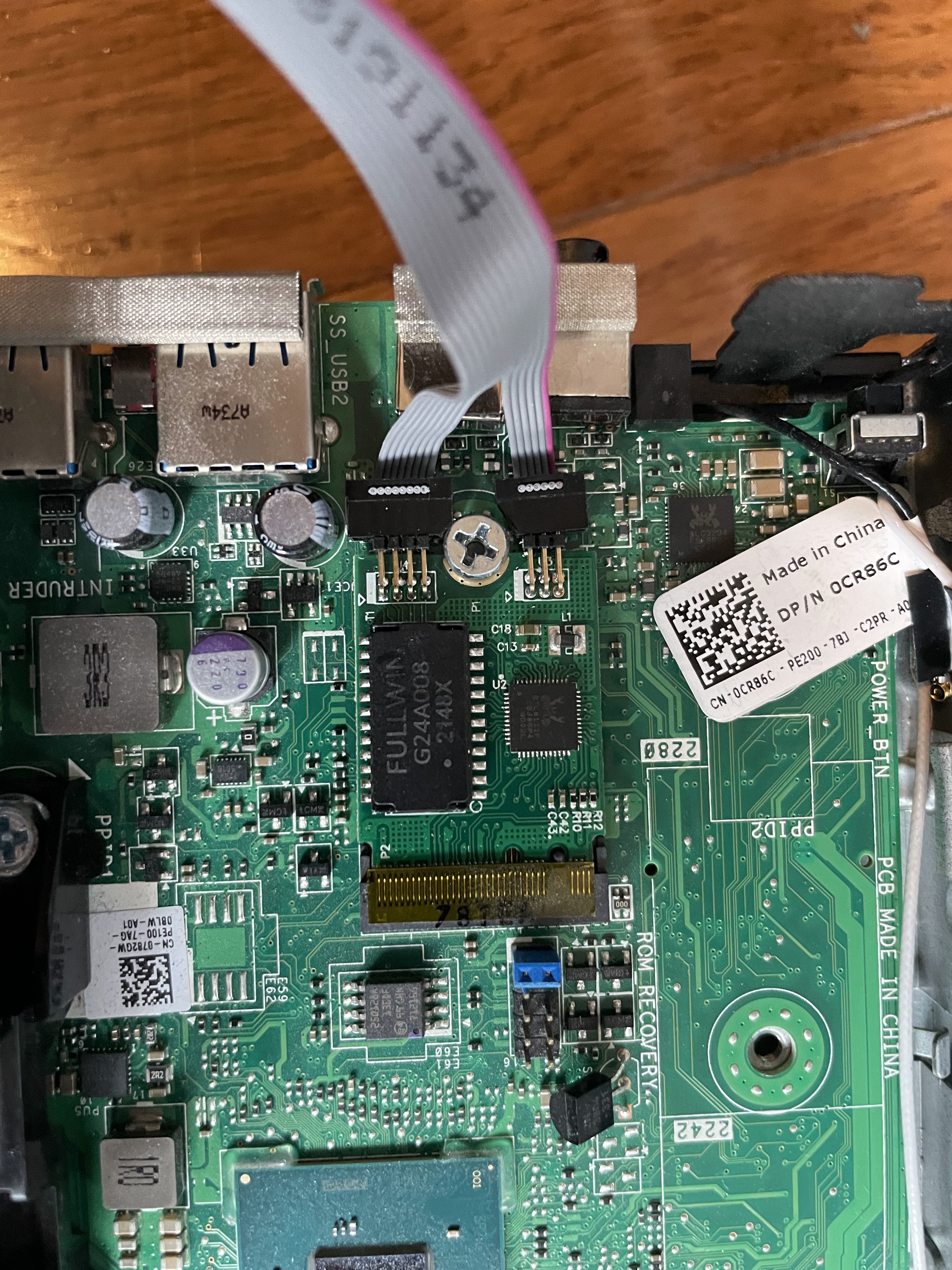
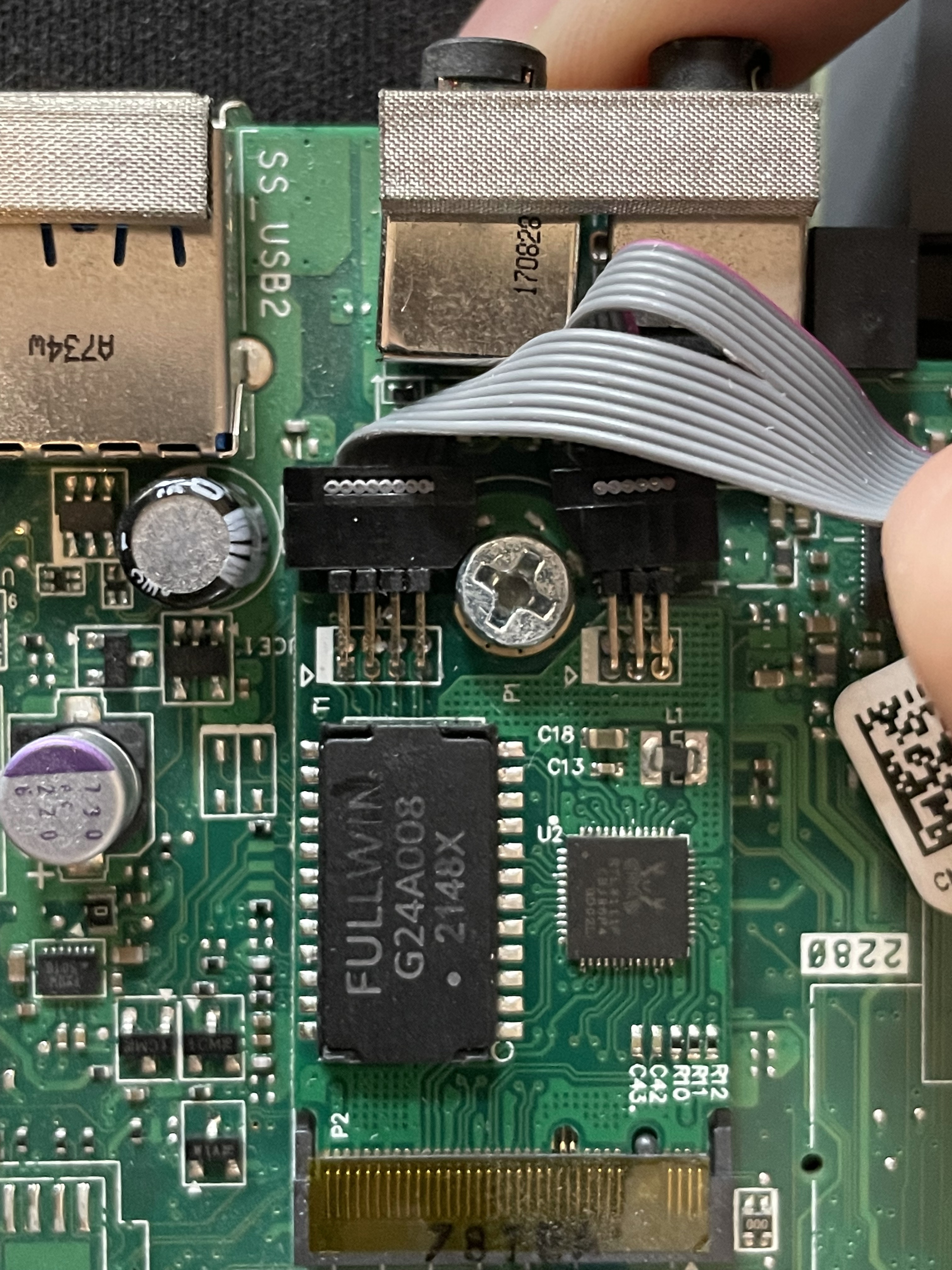
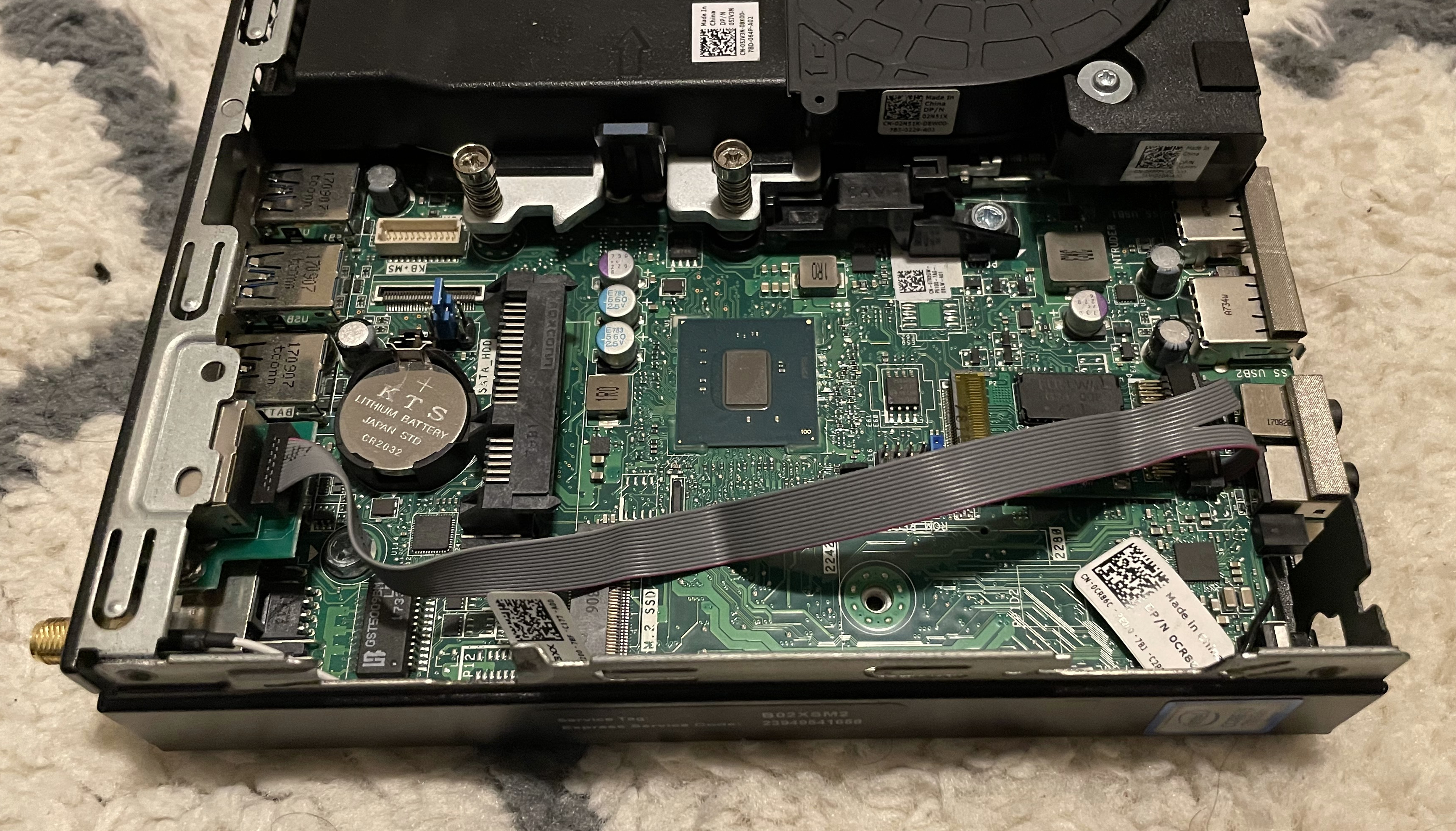
The second system I got; I thought I would try to do some hardware hacking. My hope was to repurpose it as a firewall for my aging Dell Optiplex 990 from 2011. To do this I would want to add at least 1 more NIC to the system. I ordered a 1gb ethernet NIC that goes where the WLAN chip goes. At first it did not show up in Linux and I was worried. Turns out the system bios had “wlan” disabled, and by enabling that, it turned on that PCIe channel. Then the card would show up. Having mounted the ethernet port in the extra serial blank this system has did make it look very clean and easy. I had to tuck the wire away as it came from the front of the unit to the back and had the sata drive siting on it. After playing with it a good amount, removing the card, reseating, putting electrical tape under it, I was able to get the line up, but not reliably at 1gb/s, it tended to go down to 100mb/s a lot in coming up. While things like loosening the screw holding it down, and putting electrical tape under it helped, the system was not reliable enough for me to feel comfortable using it for homelab-production. I shaved down the connectors at the end of the card, with them being that large, the screw couldn’t easily get between them. That did not help that much.
In the end I am enjoying the one system as a new DC. And eventually will figure out what I want to do with the other one. With having a NVMe slot, and SATA internally, in addition to being able to go up to 32GB of ram on a low power budget they are very capable little machines.
There can be an alert misfire for Tenable Nessus plugins 137561, 138032, 142002 based on your YUM repo configuration. This leads to 3 medium alerts that should not be there.
If you have a stack that is using podman with RHEL 7 and does not have the default redhat.repo file, then packages are installed that have newer versions in the OpenShift repos. Normally this would be fine, but the Nessus scanner is supposed to check if you have OpenShift repos enabled, and if not then stop and say the latest versions from RHEL 7 OS is good; but the check fails if you are missing the RHEL 7 OS repos. The OS repo HAS to be enabled also, or the check will show as failing. This situation can easily happen if you have an air gapped system or a system on Satellite where you are not using the default repo in redhat.repo. Luckily the baseurl does not matter, as long as you set the name to “rhel-7-server-rpms”, and I put the name= line in there for good measure, then the check will come back clean.
/etc/yum.repos.d/redhat.repo
[rhel-7-server-rpms]
name = Red Hat Enterprise Linux 7 Server (RPMs)
baseurl=file:///opt/rhel_7_x86_64_os/
enabled = 1
gpgcheck = 0
gpgkey = file:///etc/pki/rpm-gpg/RPM-GPG-KEY-redhat-release
Before (or after) setting that, you will need to disable the YUM Redhat Subscription Manager plugin, or the next time you run “yum” it will wipe your redhat.repo and reload it from subscription manager. To do this, go to /etc/yum/pluginconf.d/subscription-manager.conf and set “enabled=0”. Also # subscription-manager config --rhsm.manage_repos=0
Below are examples of the errors you can see from Nessus.
Remote package installed : containernetworking-plugins-0.8.3-3.el7_8
Should be : containernetworking-plugins-0.8.6-1.rhaos4.2.el7
OR
Remote package installed : runc-1.0.0-69.rc10.el7_9
Should be : runc-1.0.0-81.rhaos4.6.git5b757d4.el7
The default thinking may be, it says I need to update to the OpenShift packages; then it makes sense to install the OpenShift repos. And if you go get a Redhat developer account to debug this, you have the OpenShift repos there. That is because the developer account gives you a lot of entitlements including OpenShift, and if you add the OpenShift repos to a bunch of systems, you may be liable to get OpenShift licenses, or get errors because those systems do not have the entitlements. The key is the packages say “.el7_8″/”.el7_9″ instead of “.rhaos4.2”. This is a plugin misclassification, not a need for updates.
Note: The image is a random AI generated one: Stable Diffusion Image, “computer with redhat logo on screen, in a field with mountains and a dinosaur in the background”. I think they are fun.
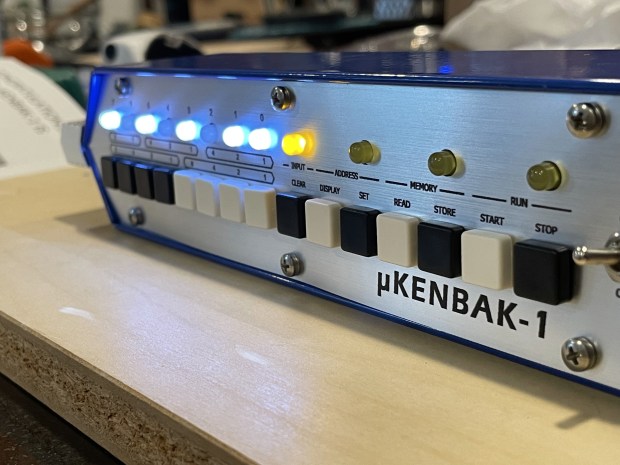
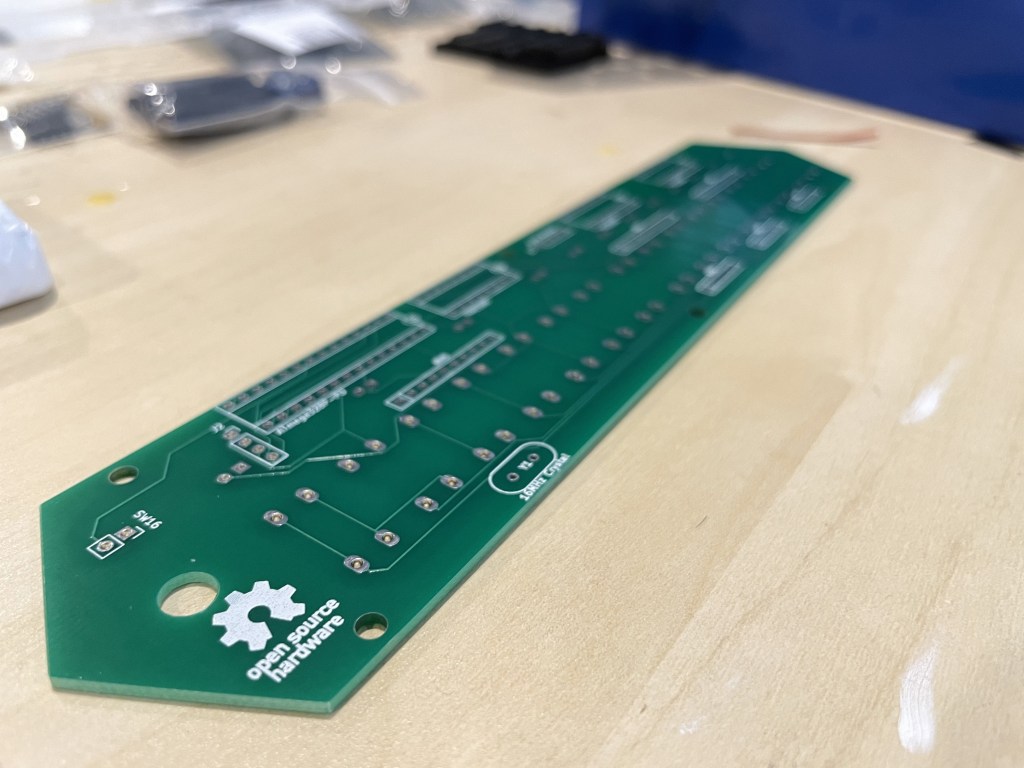
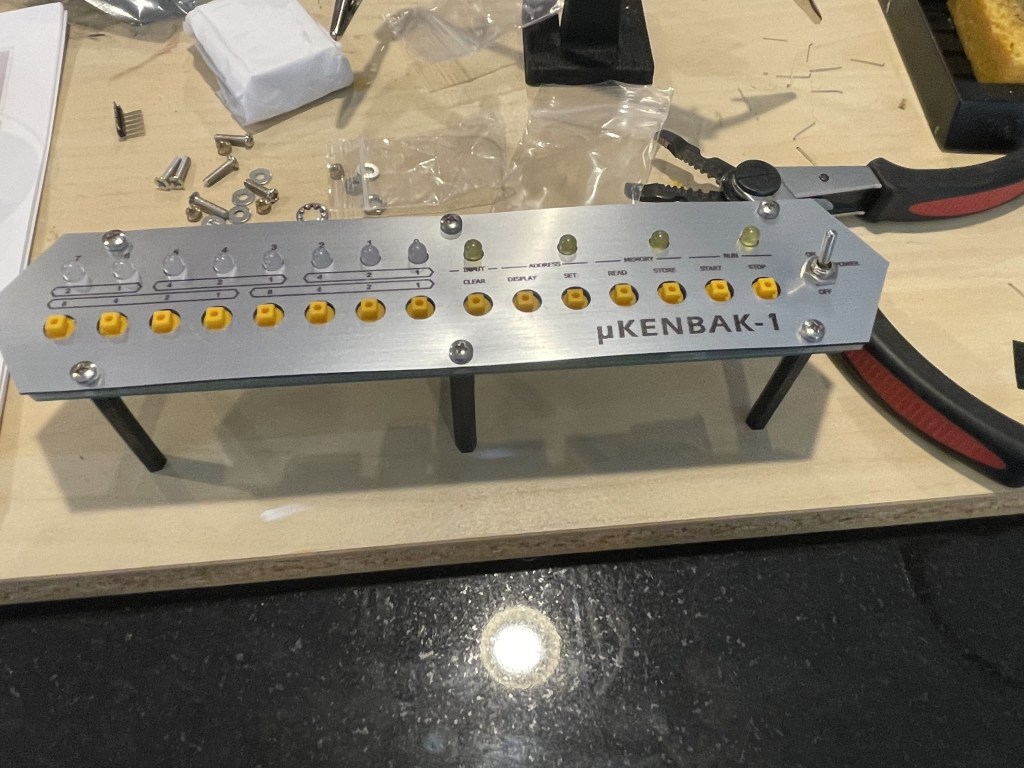
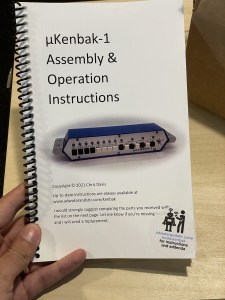
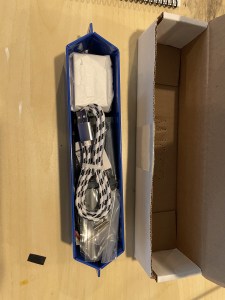
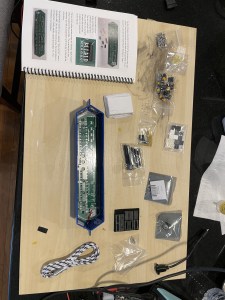
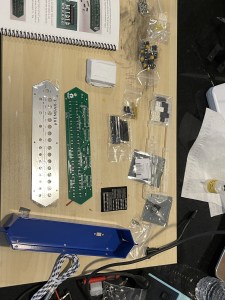
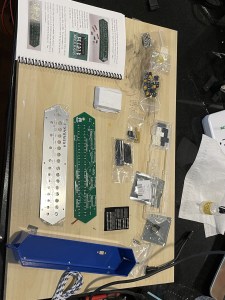
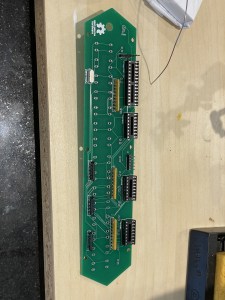
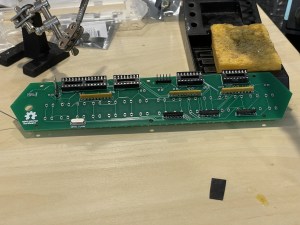
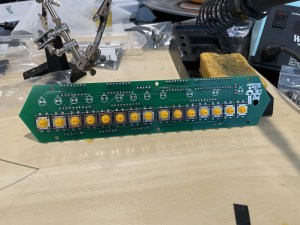
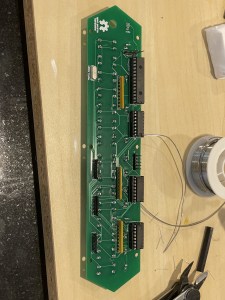
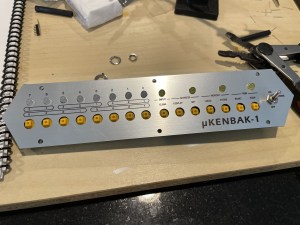
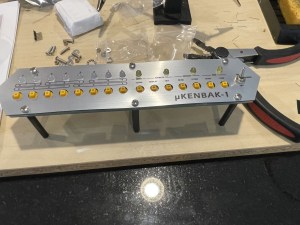
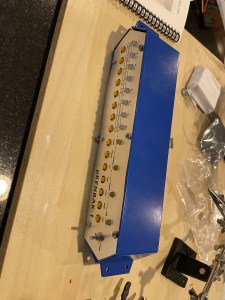
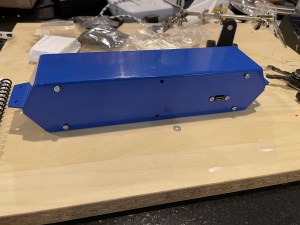
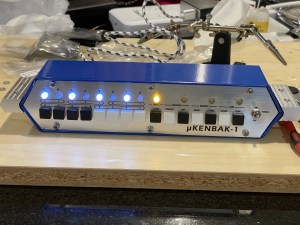
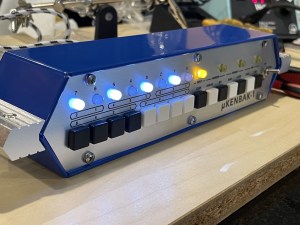
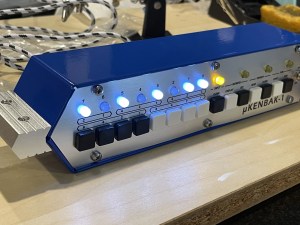
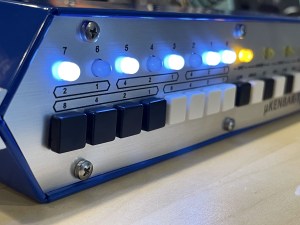
Back again with another retro computer kit from the same creator as THE ALTAIR-DUINO, a small quick kit in the µKENBAK-1. The µKENBAK-1 with the µ in front denotes one of the earlier versions of the kit. This is smaller than the original computer kit, compared to the full-sized replica or nanoKENBAK-1 now offered by the creator. This is a small, and simple kit. Running off an Atmel processor (same as Arduino), this little recreation offers a fun, simple front panel, and relatively quick assembly.
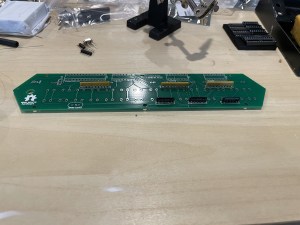
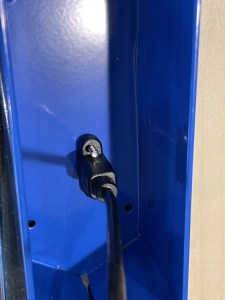
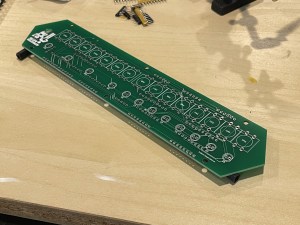
Compared to some of the other kits that have been posted here, this one is straight forward to put together. While you have the classic soldering, the kit is all through hole components and is a pleasant hour or so to put together. The most time for me in putting the kit together actually came down to getting the PCB with the stand-offs in the case and lined up with the back holes. This proved to be a difficult, and time-consuming process. You need to pre tighten them on the front panel, which then slides into the case, and line them up with the back holes. Between the standoffs being plastic and wanting to strip, and them wanting to wiggle all over, most of my time went into this instead of soldering. In the end, I got 5/6 in place and called it a day.
Evil Stand-Offs
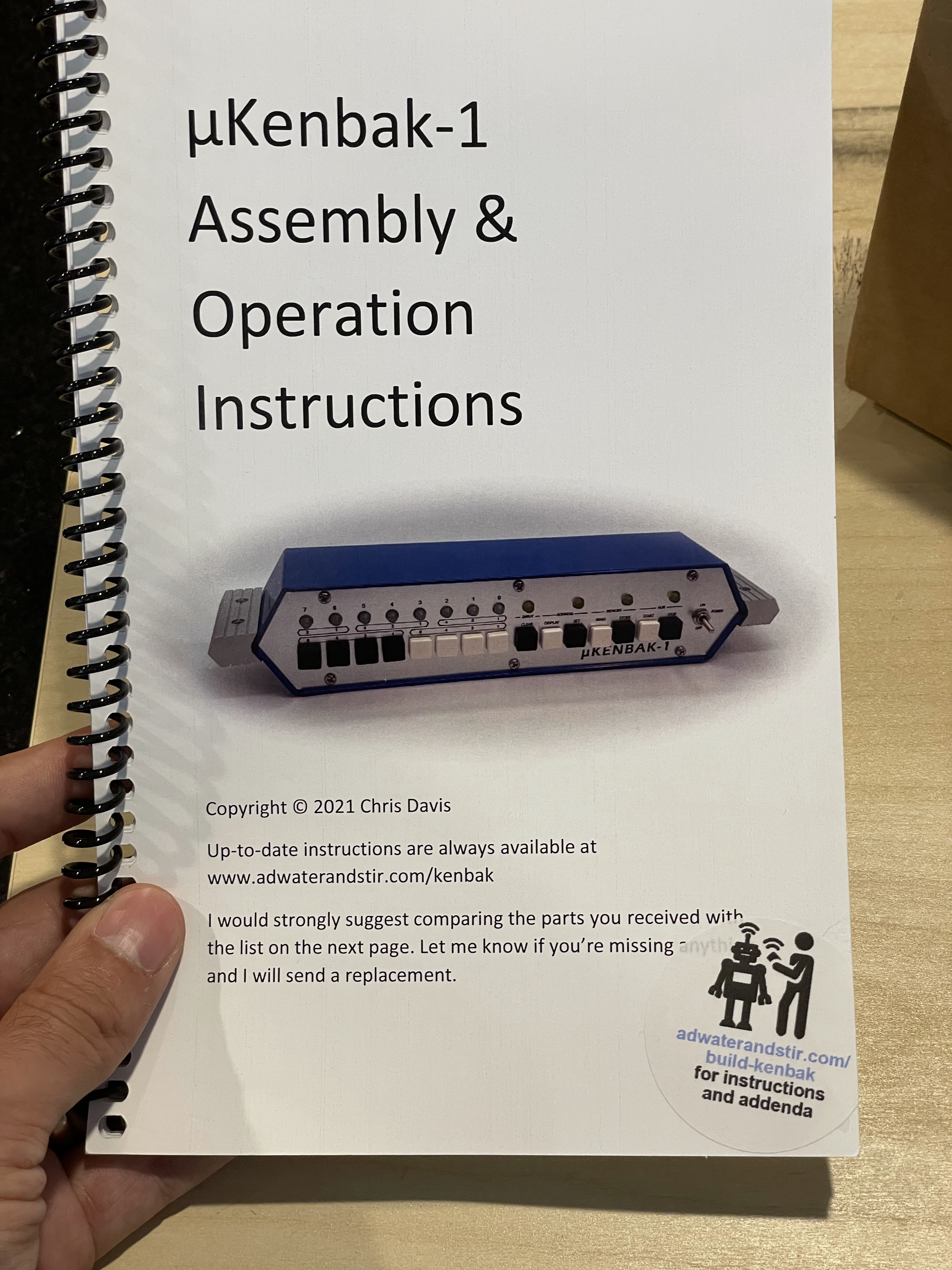
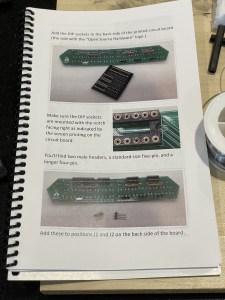
The creator of this kit shows his experience in creating these kits, in little details, which make the kit a nice experience; one example is the usb extension cable which gives you an easy connection out the back is the perfect length to do the job but not be in your way. Another is the instruction booklet coming with a bunch of examples on how to use the computer, right after the assembly instructions. These instructions come in a nice spiral book included in the box.
The creators website, https://adwaterandstir.com/kenbak/ also goes into detail about the creator of this machine, (the original one in the 1970’s), and its history.
This is one of the easier kits I have done, but enjoyable in its ease to put together. I would recommend this kit to someone who is looking to get started with these kits.
I realized recently that I haven’t gotten any alerts from LibreNMS recently, including when I rebooted devices for patching. After going to the “Alert Transport”, and attempting to send a message I got “SNMP Error: Could not authenticate.” Others seem to recently get this as well. (Link)
Turns out after May 31st (although for me it seems more like June 6th, 2022) Google disabled simple password logins for Gmail accounts. You need to enable two factor auth, then enable an app specific password for LibreNMS. This was a good quick guide on how to do that. With LibreNMS sending alerts when something is wrong, but not having a alert that it is working, it may be worth going and checking if you use LibreNMS and Gmail.
I am going to start a series of posts of random ideas I have had but not had time to fully implement. The first in this series is a idea I have worked on about ~3 years ago (November 2019) for being able to audit a datacenter as well as map systems physicals location to their logical one in a network.
The core of the idea is to use cameras in a datacenter to see servers in the rack, these could be security cameras, then use that data to map out the datacenter and save the administrators time from having to manually preform these actions. The process begins by training a machine vision learning model on what a server looks like. Most of the time at work I am working with Dell servers so I thought that was a good starting point. To make the model generic enough I was just attempting to train it on what a 1U server looks like vs what a 2U server looks like.
At this point I needed A LOT of photos of servers with different lighting and angles. I took a bunch myself as a seed set of different racks I had, then I turned to the web. Where could I get a large assortment of photos of Dell servers in different configurations and lightings? The homelab section on reddit! People all the time post their setups at home and what they have. I went through and downloaded several hundreds photos of different peoples setups. Another place to get photos was from eBay where a lot of sellers put up photos of servers in different settings; the downside is that a lot of people reuse the same photos again and again. I don’t know if the internet has yet to figure out what the copyright rules of using photos from online to train a model.
Now that I had the photos, I downloaded GitHub – tzutalin/labelImg: 🖍️ LabelImg is a graphical image annotation tool and label object bounding boxes in images. This is a tool where you go to each photo, select the item you are trying to learn, and label it. This took a while, its fully manual work. A lot of the photos from the web had multiple servers in the photo, and each one would need to be selected. This proved to be one of the more time consuming parts of the project. I had to manipulate the photos to allow the rectangular bounding boxes to be able to fit the servers, even when the photos are at weird angles.
I had to pick some of the photos to be the training set, than other photos to be the testing set. With that metadata ready and everything marked, I converted the final metadata from XML to CSV, using xml_to_csv.py provided at the above example repos. That was then fed into Tensorflow. The system I had to start with for this other than a laptop was a CentOS 7 server, this proved to be very annoying because some dependencies such as protobuf were not available at new enough versions and had to be custom compiled.
It was time to let the model run for a while and see what it could learn. Several important things were learnt in this process. First, if you have GPUs makes sure you have a Tensorflow that is compiled and ready to use them. The speed you speed you get with and without them is kind of crazy. Also, more RAM and GPU helps a lot speed up the process. At first I was playing with this on just a laptop, and that one didn’t have the GPU drivers for CUDA. This was taking DAYS to work on the model. Later I switched to using GPUs I had in a server, and this greatly increased the iteration cycle speed.
Off the bat it was able to get a decent percentage recognition of the servers in the photos I had presented it! I do think a lot of the photos I then tested it on were fairly ideal conditions, with good lighting and camera angle. This may give a better than real world experience with it working. To improve the model I can always find more photos and train it with more images. I was able to get the model to recognize about 80% of the servers in racks I showed it at this time. Another factor that could help in the future is the evolution of cameras. A lot of places are replacing 720p/1080P cameras with 4k cameras, the more resolution the system has to work with the better.
The next step I wanted to do was start matching physical location to logical. The idea behind this is, I can find regions in a photo or video where servers are, and each server through its iDrac/IPMI allows me to blink front chassis lights. So one host at a time I will have automation send the command to blink the front chassis lights, and perhaps some lights on the HDDs, then scan for which region in the photo has started to blink!
This is the idea I have slowly worked on for the last little while, I have prototypes of most of it working, but have not had a lot of time to put into it. The hope would be we could use existing cameras to get the footage we need to map existing datacenters we have. Then perhaps in the future port this system to something like Hololens, or Apple/Meta AR system. Once we have that mapping, now we can start to draw out the physical servers and their location in the world/racks on a webpage, and make it easier for people working in a datacenter to find boxes they need. Hopefully one day allowing for people to click a server on a webpage, and then connect into its controller without a human painstakingly going to each box and doing this mapping. Of course all of this is fixed by a team labeling each server, but where is the fun in that.