Homelab

Homelab Updates

I recently got some more space to do my homelab endeavors. I am enjoying setting up a proper work bench for soldering, and I got a few racks to put different projects in! I am trying to stay focused on projects and get them done, but there are so many to do!
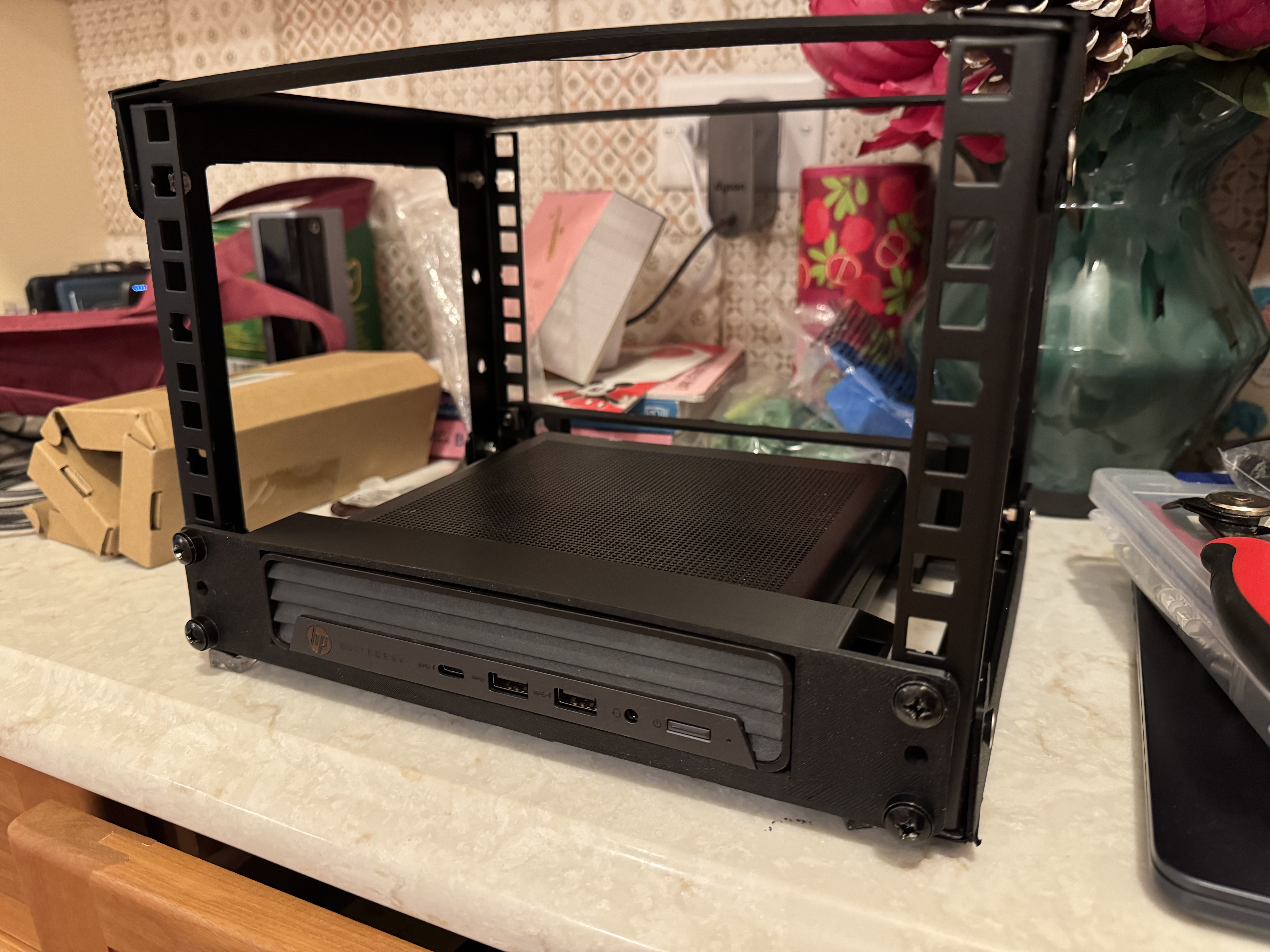
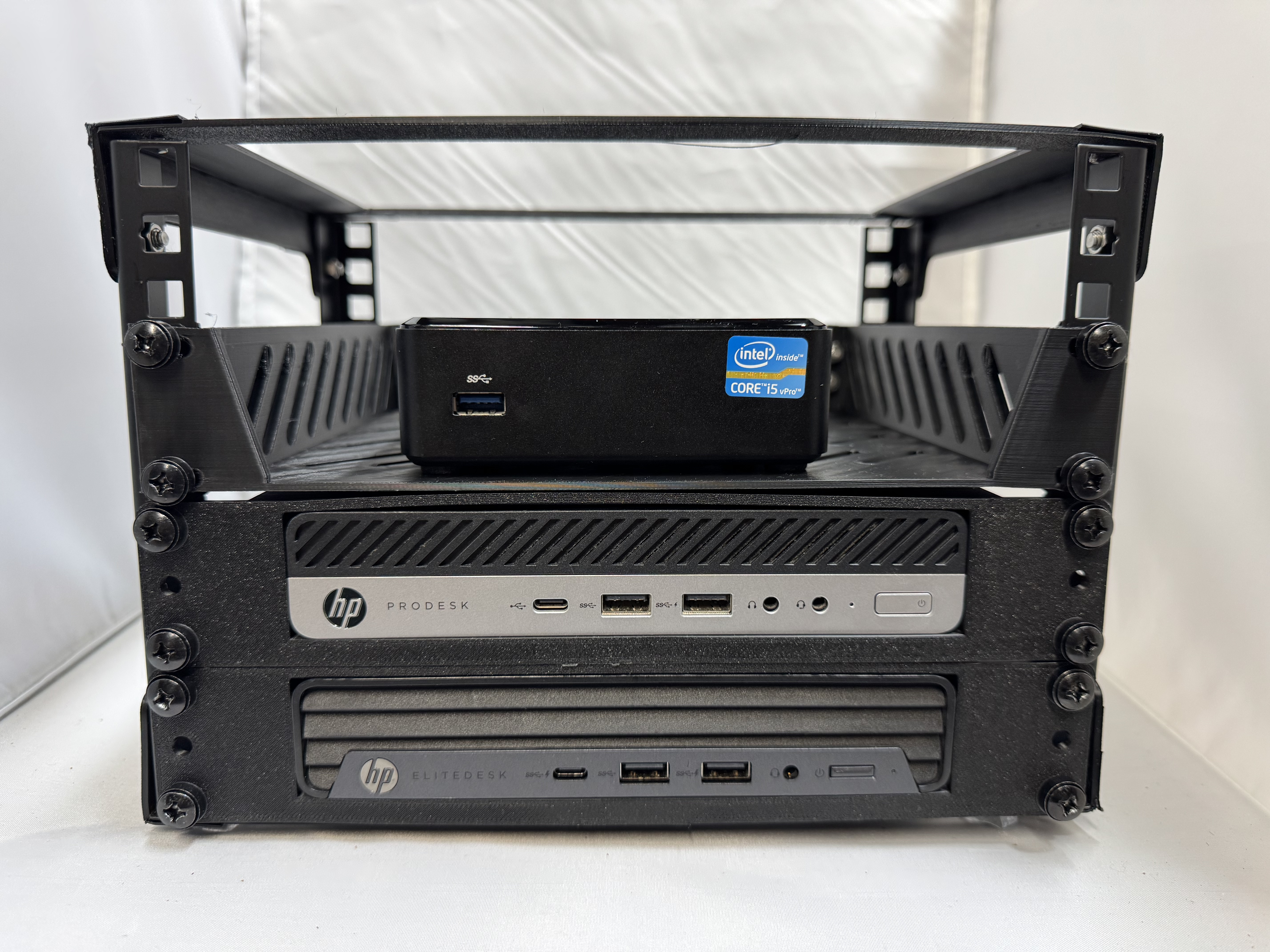
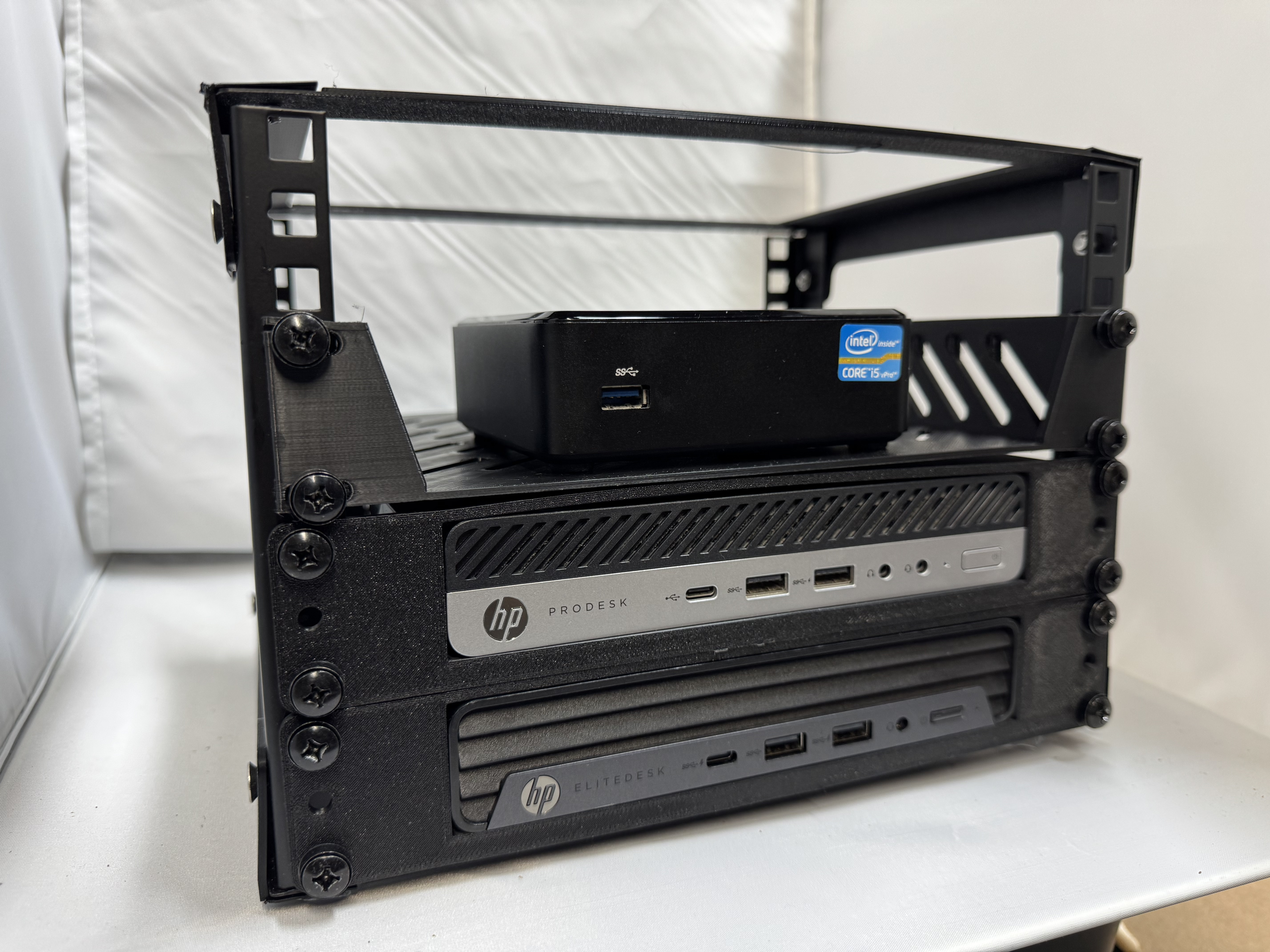
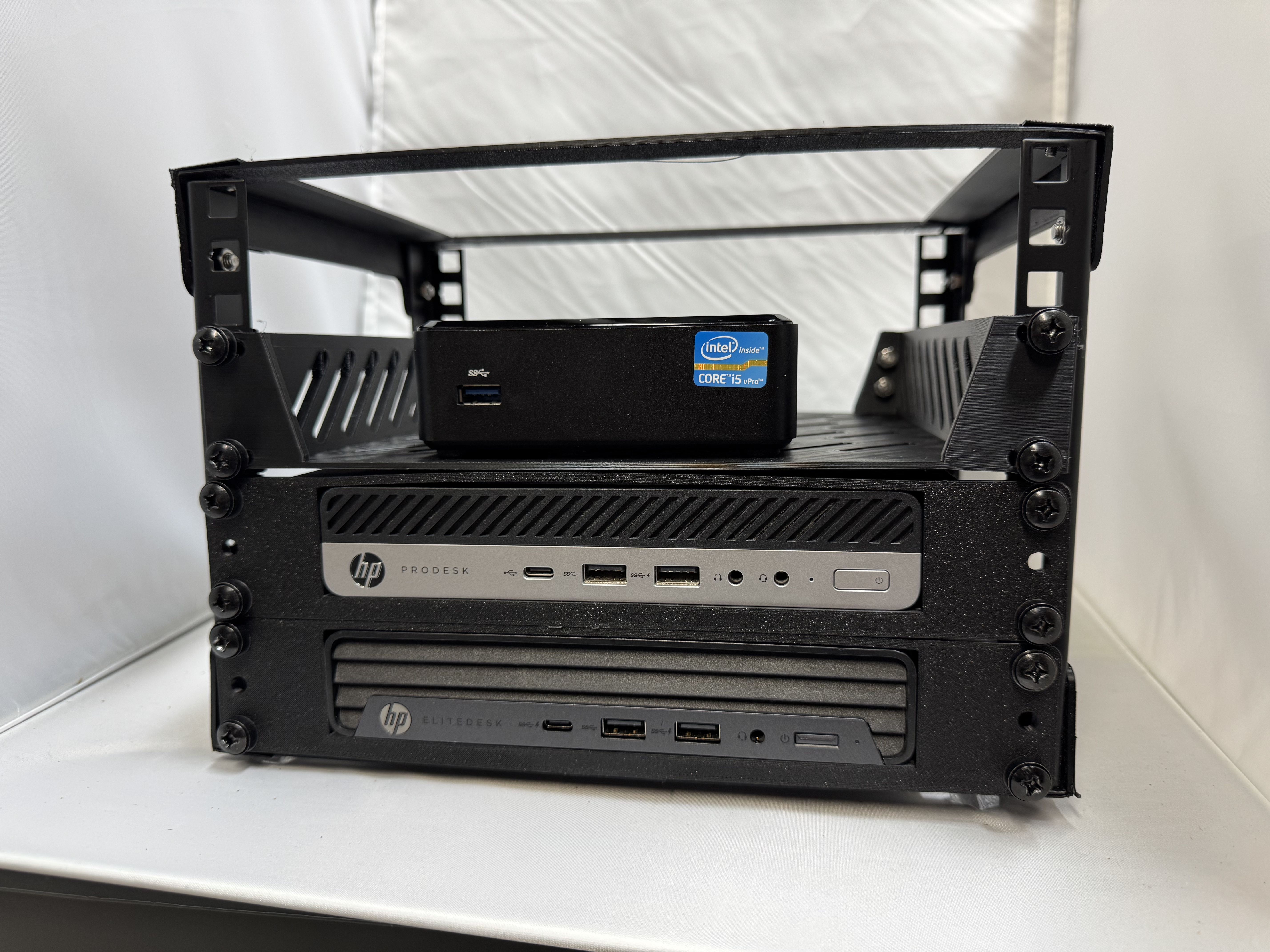
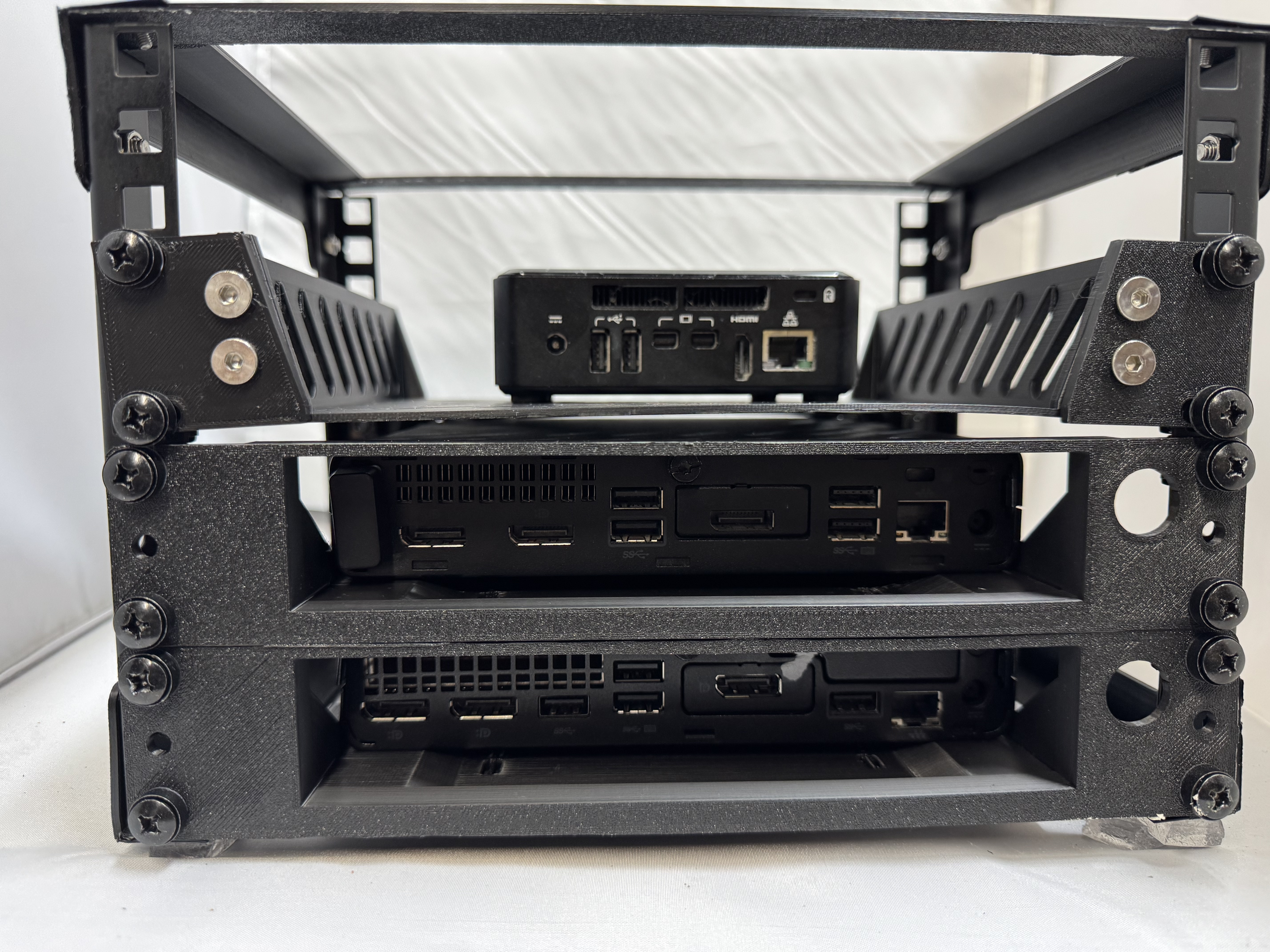
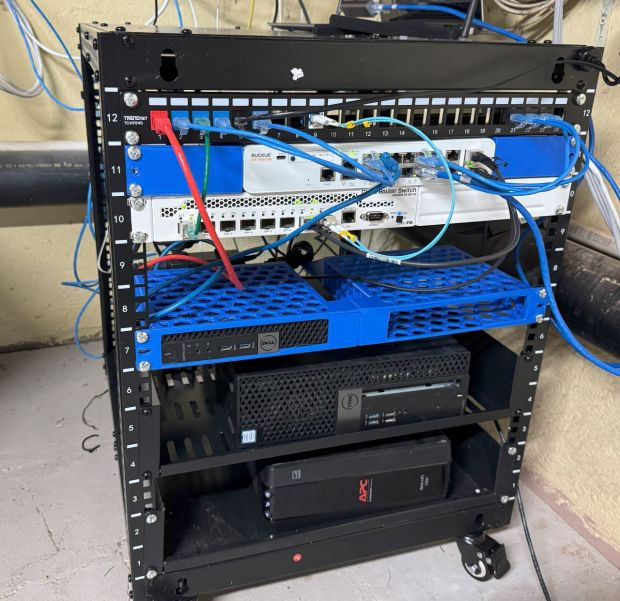
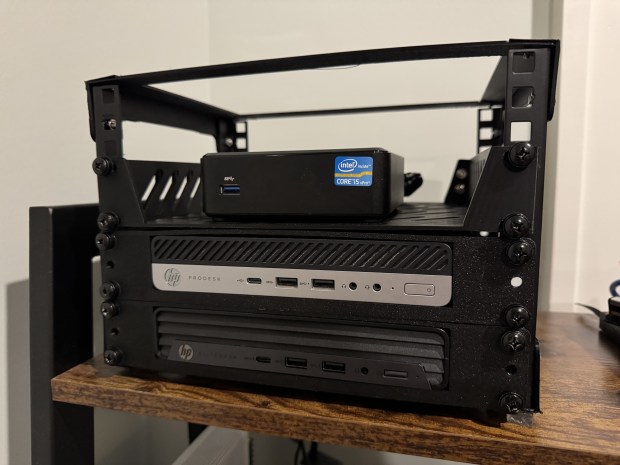
I had our home internet coming in on a little cart and decided it was time to get a small 12U rack, and properly set everything up. The issue is over the years, I acquired switches and gear and not rack ears for them since I wouldn’t need them at the time. I spent the last few weeks working on a few different rack ears for different pieces of gear I have. I also printed this (Dell Micro 1U Rack Mount Remixed by noam_f – MakerWorld) model which allows you to mount Dell Micro computers in 1U. This is nice since my primary domain controller is running on one of those. Someone else made a model of a shelf to hold the power supply (Power Adapter Mount for Dell Micro 1U Rack Mount by Jfrorie | Download free STL model | Printables.com)!

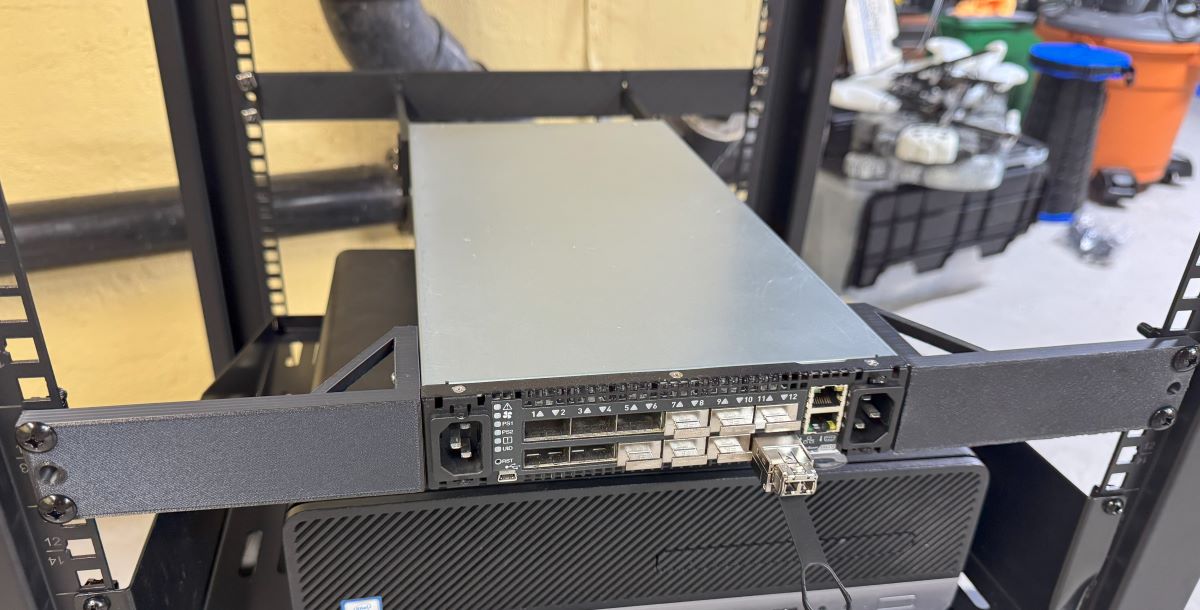
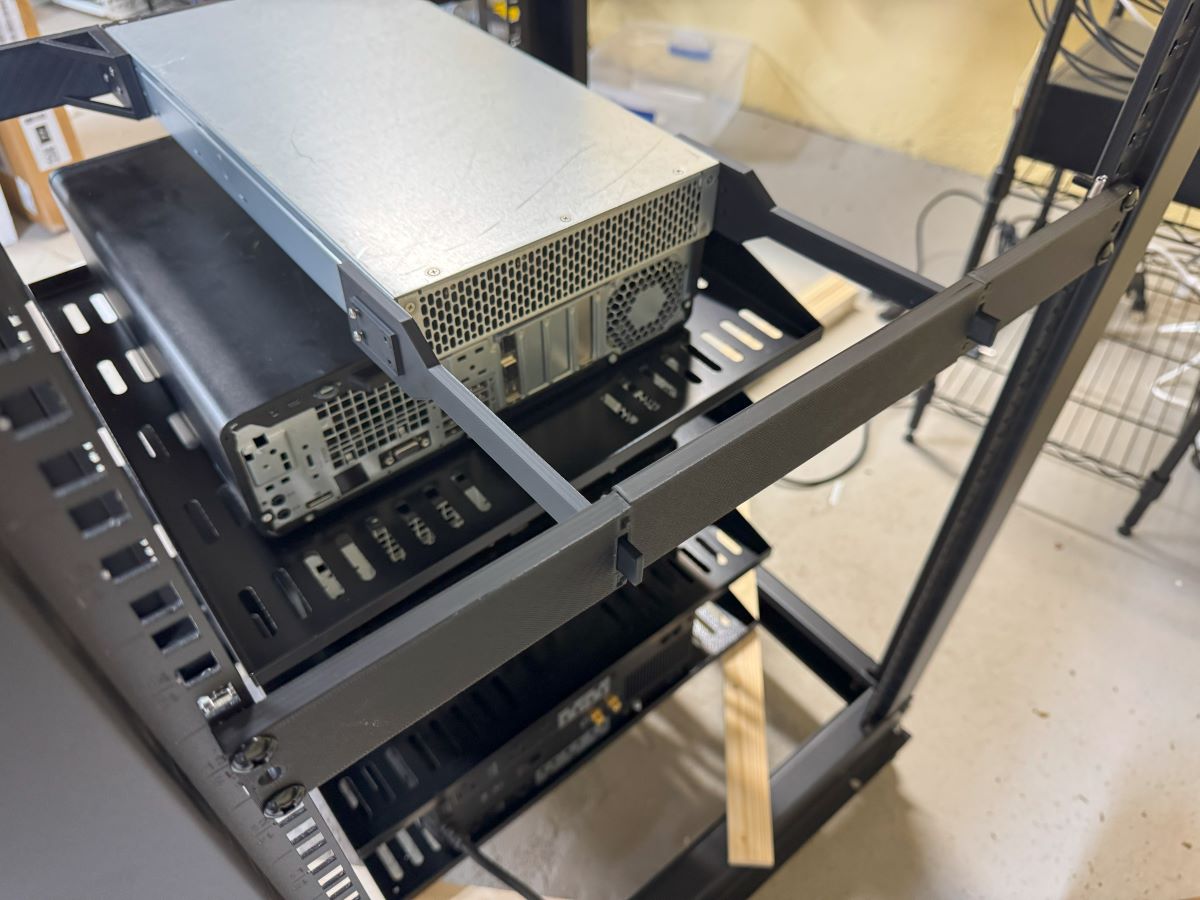
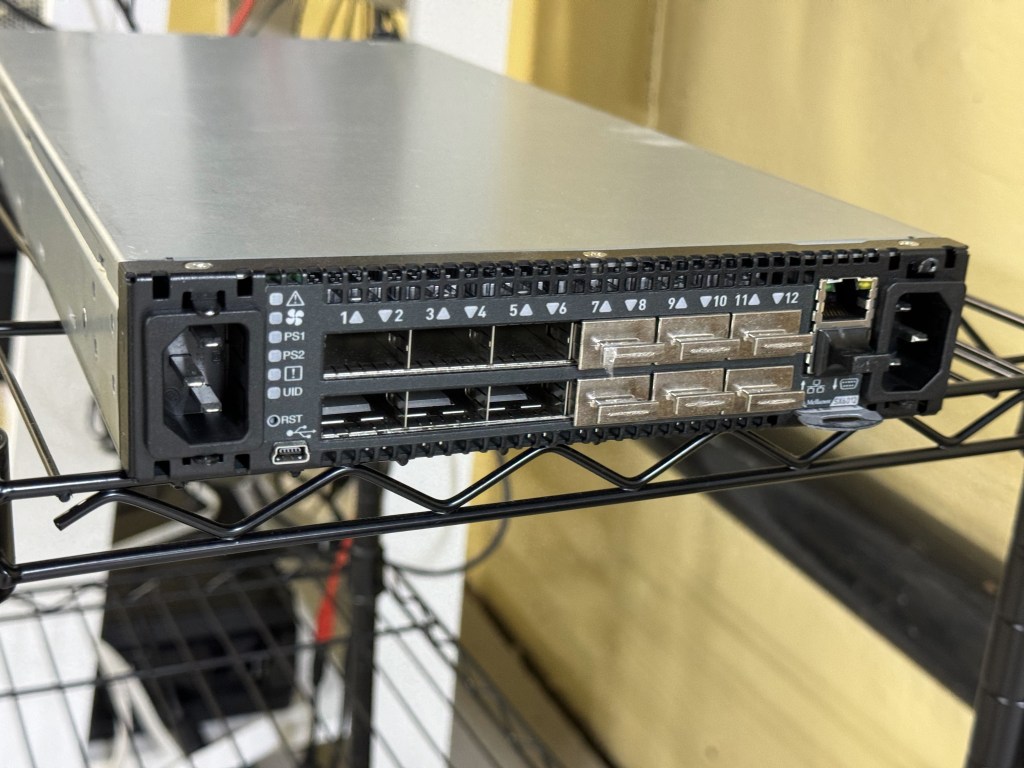
Then it came to my old classics. I needed ears for the Mellanox SX6012 (https://thangs.com/designer/danberk/3d-model/Mellanox%20SX6012%20Ears%20and%20Back%20Support-1308405), and the Ruckus ICX7150-c12p (Ruckus ICX7150-c12p Rack Ears – 3D model by danberk on Thangs). With a little iteration and buying all the sizes of screws the internet has to offer, I got them nicely mounted.

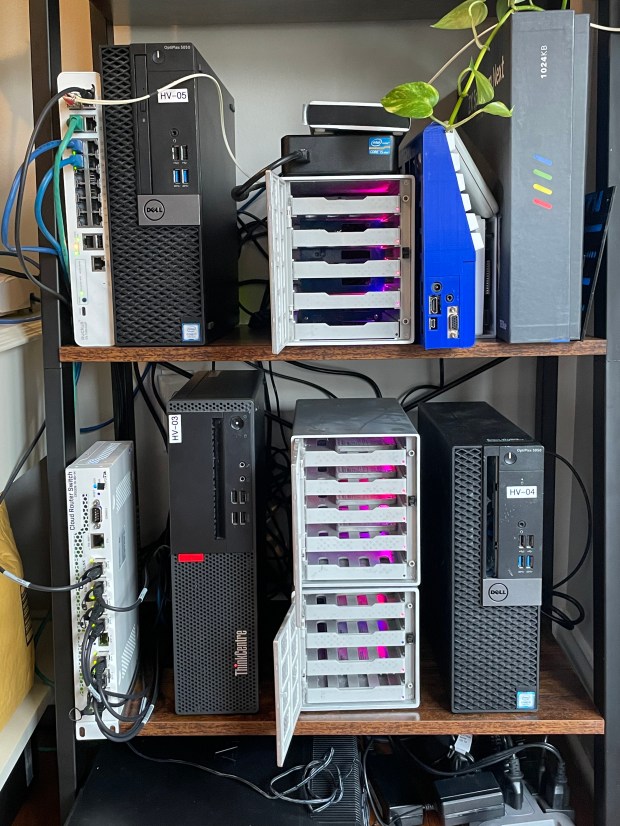
I used metal 2U shelves for the systems I currently have running ESXi. That may be going away soon with all the changes to VMUG licenses. Ill post later more about the state of the racks and network as it progresses.

Mellanox SX6012 Homelab Upgrade

For the last few years, I have been using a Mikrotik CRS309-1G-8S+. A small, low power, 8 port, 10gb/s switch. It worked well for me. One of the main things I liked about it was the low power usage. There are always discussions on different homelab forums about which switch to use. Some people like to use Arista or Cisco gear. I enjoy that gear and use it at work, but with my small and low power homelab an Arista switch would triple my power usage (a lot of them idle at 200-300 watts). There are nice features on those switches, but to get those nice features they have whole small computers as the management plane, and then power-hungry chips for switching.

The time came where I wanted to upgrade past this small Mikrotik switch. 8x10gb/s ports were great for a while, but 1 was uplink to the home core switch; then with running vSAN, I wanted 2 ports per host, and I have 4 hosts. While not urgent, I started to search for a bigger switch. Mikrotik has some bigger offerings, also low power, but a lot of the offerings were $400-$600+ to go to 12+ 10gb/s ports.

One place I like to browse periodically is the ServeTheHome forums. There homelab users talk about many different homelab things including networking. Many users seem to be interested in the Mellanox SX6012 or SX6036. This switch is discontinued from Mellanox (now Nvidia) making them go for fairly inexpensive on eBay.

The SX6012 is a 12 port, 40gb/s switch; capable of using 40gb break out cables. That means each 40gb/s port can be 4x10gb/s ports. The switch is technically an Infiniband switch, which can get an optional Ethernet license. There are some switches sold with the license, along with guides online to enable that part of the switch. Apparently, there are also people on eBay who can “assist you” in licensing the switch for $50. Being the switch is no longer supported, I think a lot of the eBay buyers are homelab people going through the guided process of configuring the switch with a license. The switch was reported to be “not that loud”, which is true after some fan setting tweaks; and also idles at 30 watts from a low power PowerPC chip. This made it a go to for me. Plenty of ports to upgrade to over time, and a low power budget.

In looking at the switch, one thing that was heavily mentioned are the different editions of it. There are 12 and 36 port versions, along with Mellanox vs other OEM sub branded versions. For example, you can get a Dell/EMC Branded switch which will come with different features than a HPe switch, or a Mellanox themselves branded on. I wanted the 12-port version because (in theory according to online) it had slightly lower power draw. The 36-port version is supposed to be a big quieter (having more room to cool), but I also saw some firmware hacks to lower the fan noise. I saw one SX6012 unit which had the black front bezel (apparently that makes it Mellanox Brand) sitting on eBay with an expensive Buy It Now, or Make Offer. While they still go for around $250, I gave an offer for a good amount lower, and they took it! Score!

Flash forward a few days; I got the switch from the seller, powered it up, and was met with a dreaded bootloader… The OS had been wiped from the switch completely… along with everything on the flash. After a brief moment of dread, I thought about finding one of the guides online for managing these switches. Those guides are not just about enabling features like Ethernet, they are there to show you how to load different firmware revisions and where to currently find it. The Mellanox firmware itself was behind a support portal which got folded into Nvidia. Although these switches were also sold under Dell/EMC/HP brands, and some of those brands still provide the firmware packages. There are community scripts which can take in a HP firmware package and convert it to a Mellanox or other brand firmware package.

Mellanox port mgmt

After a slow TFTP image load, I got the switch online. This allowed be to get a GUI and more easily load the follow up firmware packages. After many reboots (which can be heard throughout the house with the fans ramping to 100%), and a few upgrades later I had the switch in a good place at the last available firmware for it. For the last several months the switch has quietly been working well for me. I have one QSFP to SFP+ adapter for the 10GB from my core switch coming in. Then I have 2 QSFP -> SFP+ break out cables going to the small cluster I am running. This means I am running on this one switch, without high availability right now. If I want to reboot or patch the switch, I need to shut down my VMware cluster. One benefit to an out of support switch without firmware updates… You have no firmware updates to do!

The CLI is similar to Cisco. Like many other switch vendors, they seem to follow a similarly universal CLI. The hardest part of getting the switch going for me was figuring out the command to set the QSFP port to breakout mode. Once that was done, it creates 4 virtual sub-ports which you configure with vlans and such. The UI showed the ports as single ports, even with the breakout cable until I went in the CLI and set it to breakout mode.

With this switch working well, I moved the old 8x10gb/s Mikrotik switch over to be my new 10gb core switch. The current flow is Internet in -> Sophos XG Firewall on a Dell Optiplex 5050 -> Ruckus ICX7150 POE switch for Wifi and a few wired ports -> 8 port 10gb/s Mikrotik -> Mellanox SX6012. The house can run with just the firewall and Ruckus switch (which powers all the Wifi APs). The Mikrotik is near the router, and also allows a Cat5e run (19 meters) already in the wall to go up to the attic and give 10gb/s to a NAS and AP up there. (I know 10gb RJ45 is supposed to be Cat6, this line was run before I was here and tested fine, it has been working well the whole time) Then the Mikrotik switch has a SFP that does a longer fiber run to where my little homelab rack is. The whole system is a glorified “router on a stick” with the firewall doing all the routing between vlans.

This setup has been working well, has plenty of room for expansion, and achieved my goal of being fast with relatively low power use. I have the management for the switches on a disconnected vlan that only certain authenticated machines can connect to. This makes me feel better about its not getting security updates.

Mellanox at 29w

Currently I have 4 small Dell Optiplex systems as my homelab cluster along with the Mellanox switch. All together the rack idles around 130 watts. Together the systems have about 20 physical cores (not hyper threaded cores), and 288GB of RAM. It can certainly spike up if I start a bunch of heavy workloads, but I continue to find it very impressive.

Homelab HCI Storage Adventures

I have written before about storage for my homelab. I have a NAS; and then for the VMware cluster, I had USB 3.0 attached 3.5″ hard drive bays. The hard drive bays shared a single USB 3.0 5 gbps connection. And being that storage has come down in price, these were SATA SSDs. Having (at the time) 4 SATA SSDs sharing a single USB 3.0 connection was not ideal; not only because of the single pipe, but because of the overhead of USB. When the vSAN these disks hit any more than idling IOPS number, latency would go through the roof. That was the main item I was attempting to correct.

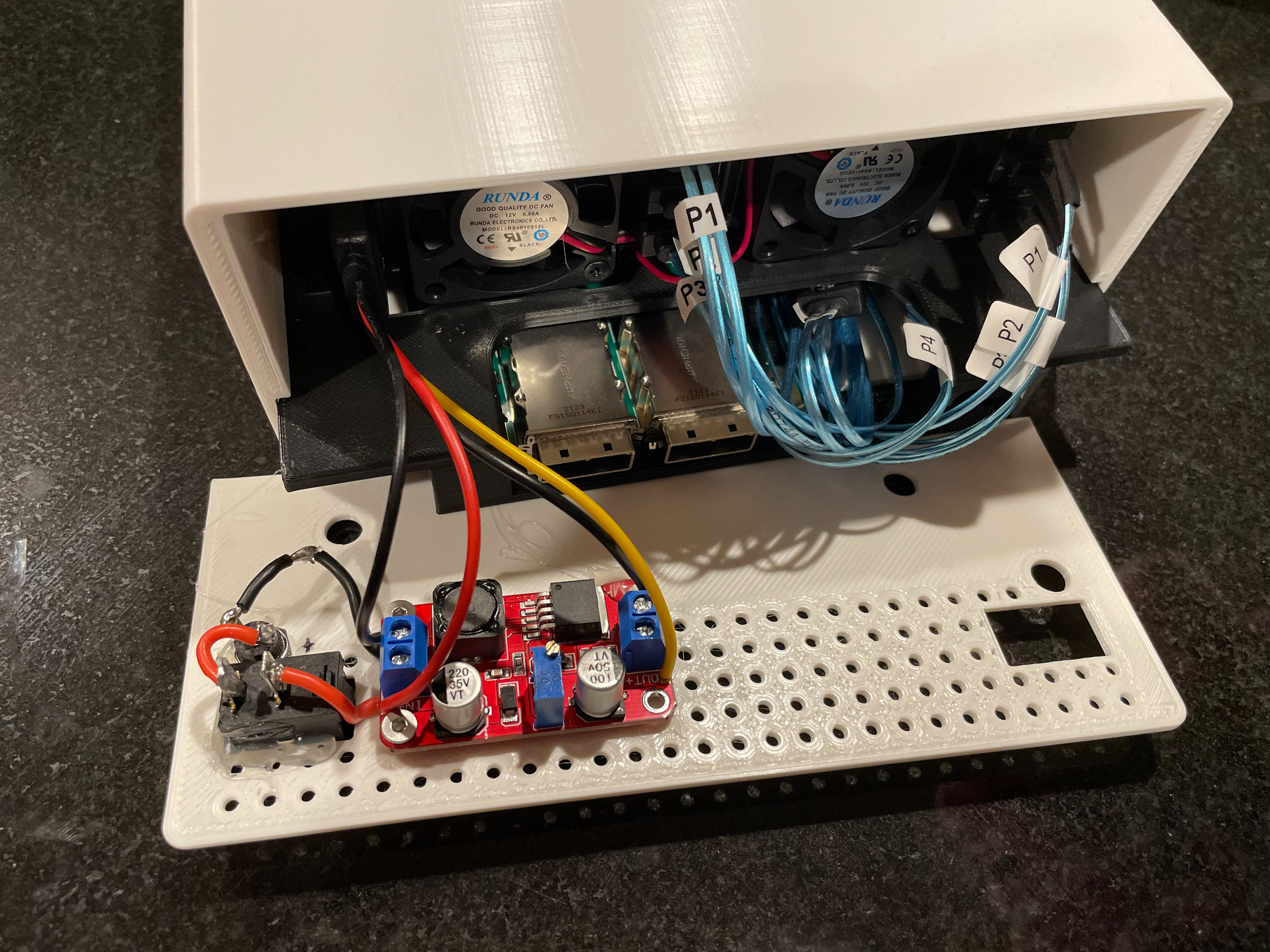
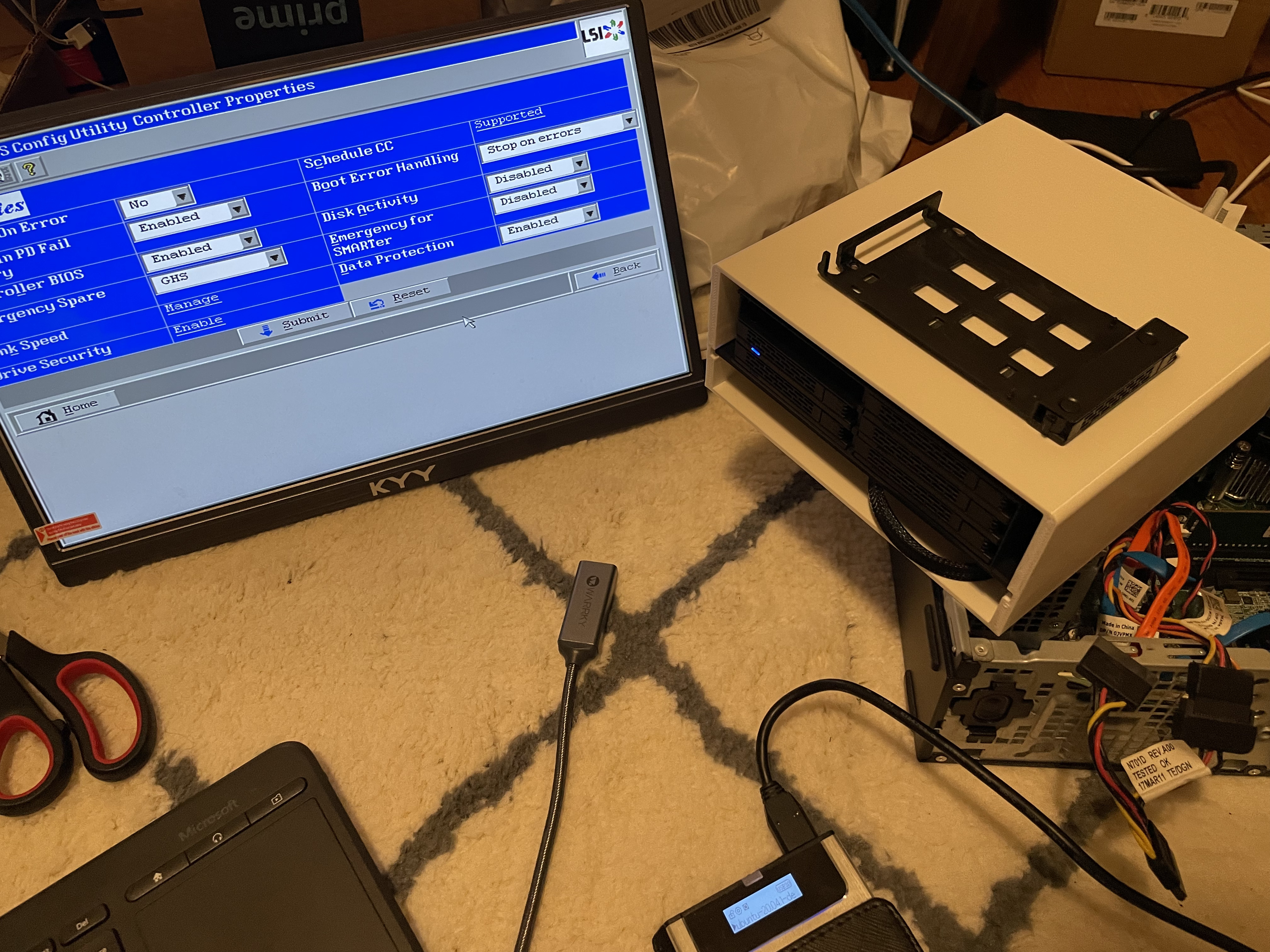
Having used “disk shelves” before at work, I thought I would try to make a compact version for my homelab. I figured, all I need is an away to connect the SSDs over external SAS, an eSAS HBA, and some power. This project ended up going on for far too long and ending with a much simpler solution.

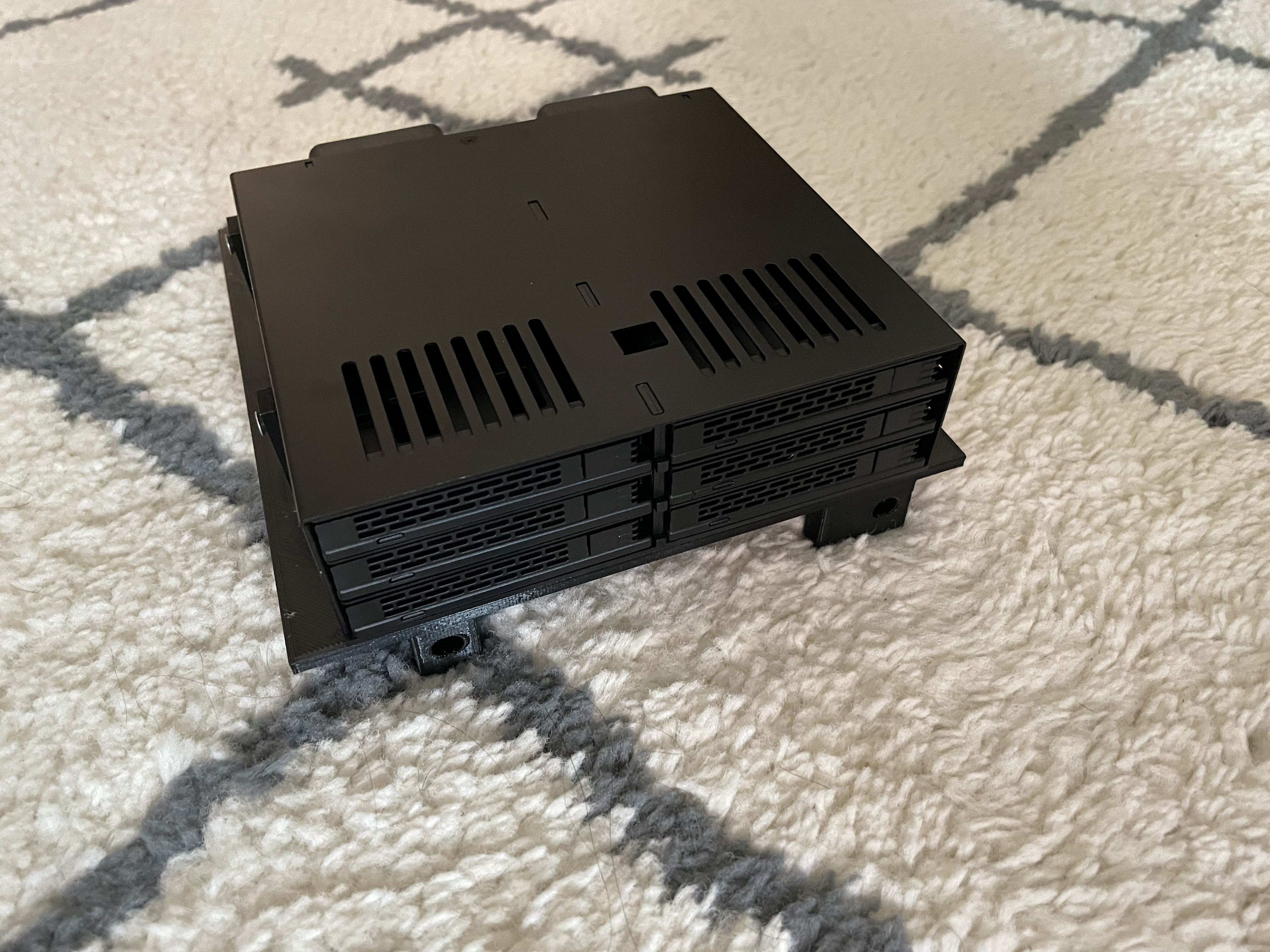
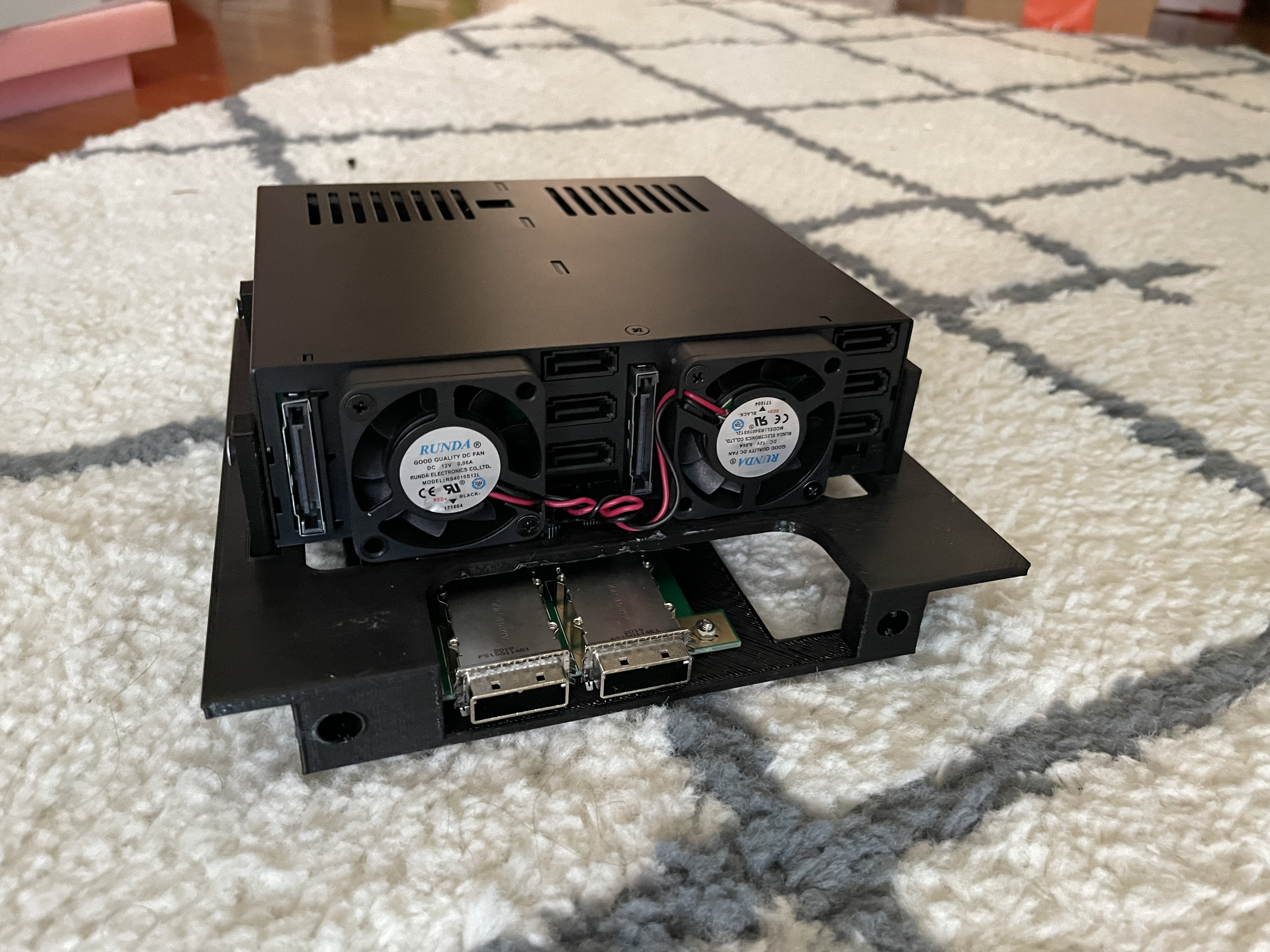
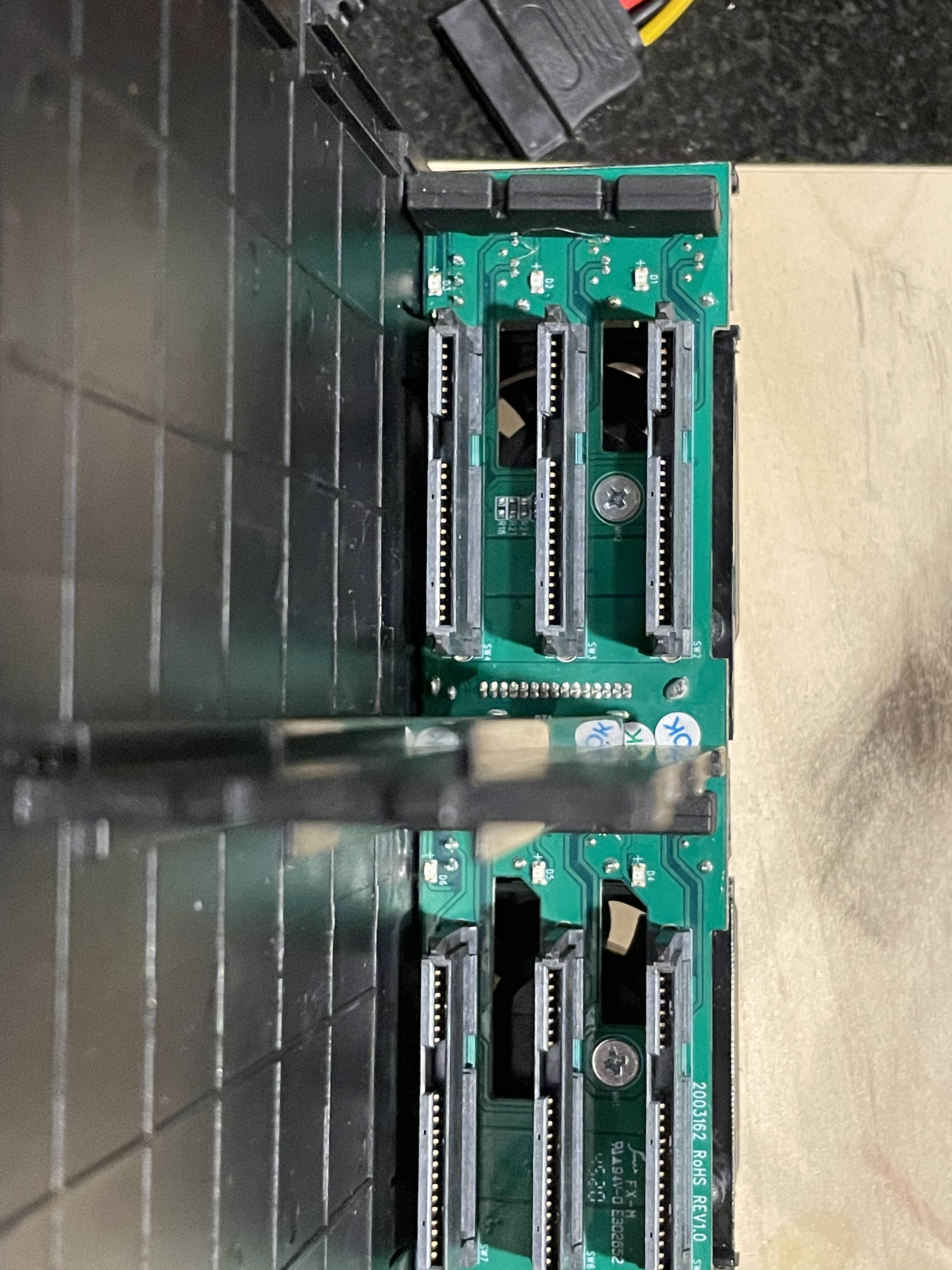
I started where any good project does, finding the general parts I will use for the project. I came across this adapter. It allows you to put 6, 2.5″ drives into a single 5.25″ DVD bay. Each drive gets its own SATA connection, and it even has fans on the back to cool them. I started designing the case around that. Then I found this little adapter to go from 2 internal SAS cables to external SAS. My thought was externally I would have eSAS into my “server”, and then convert that SAS to 4 SATA connections each.

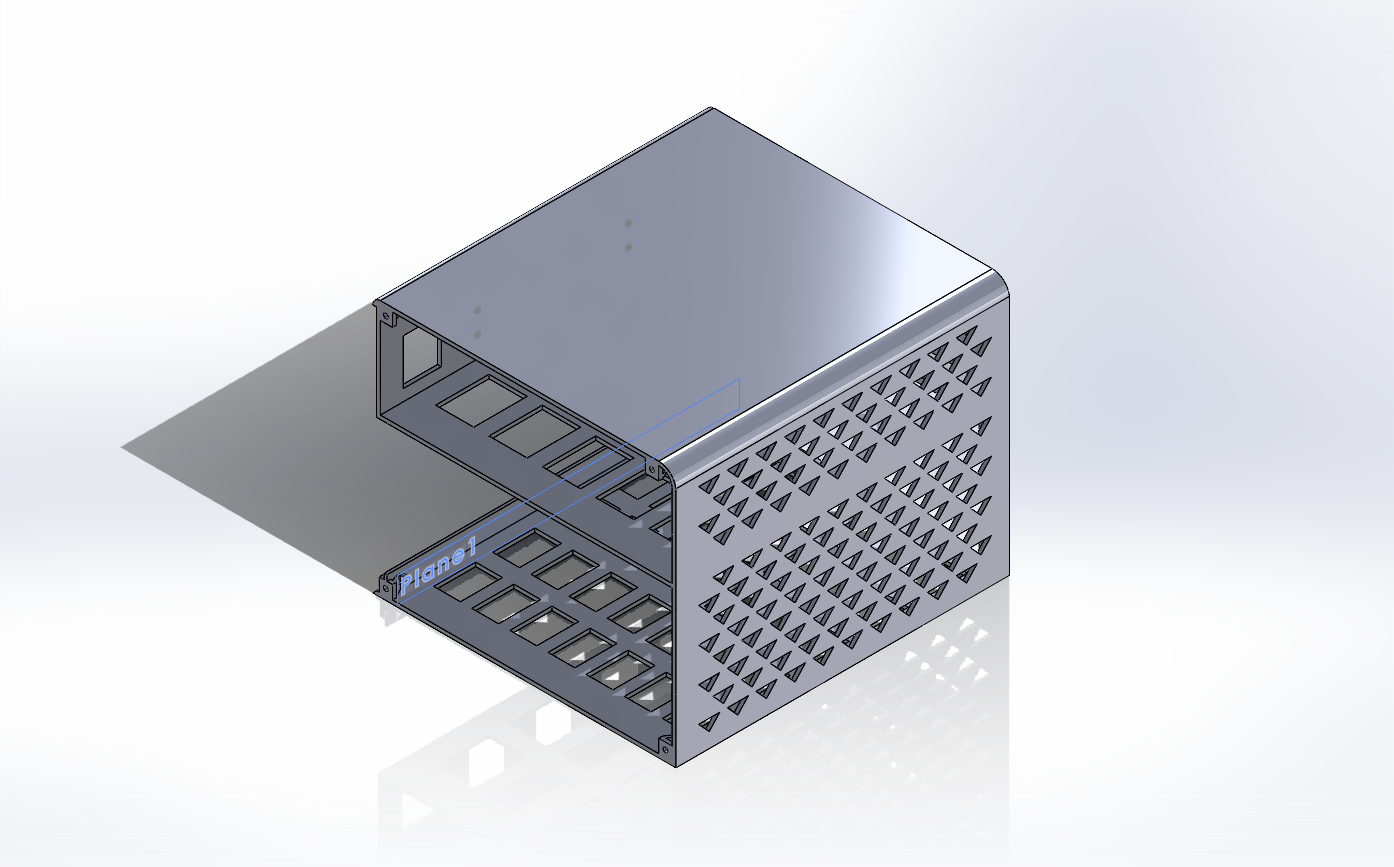
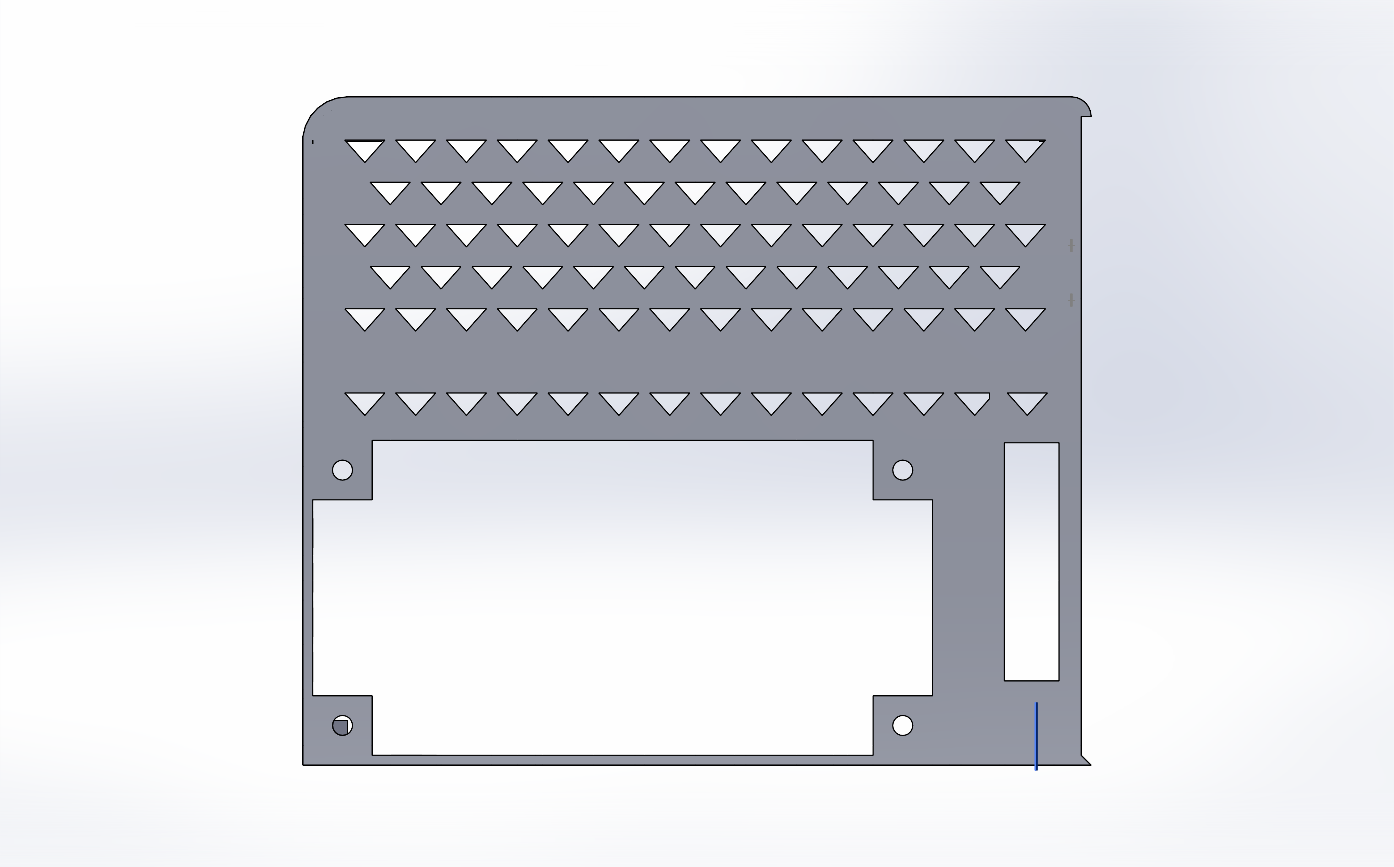
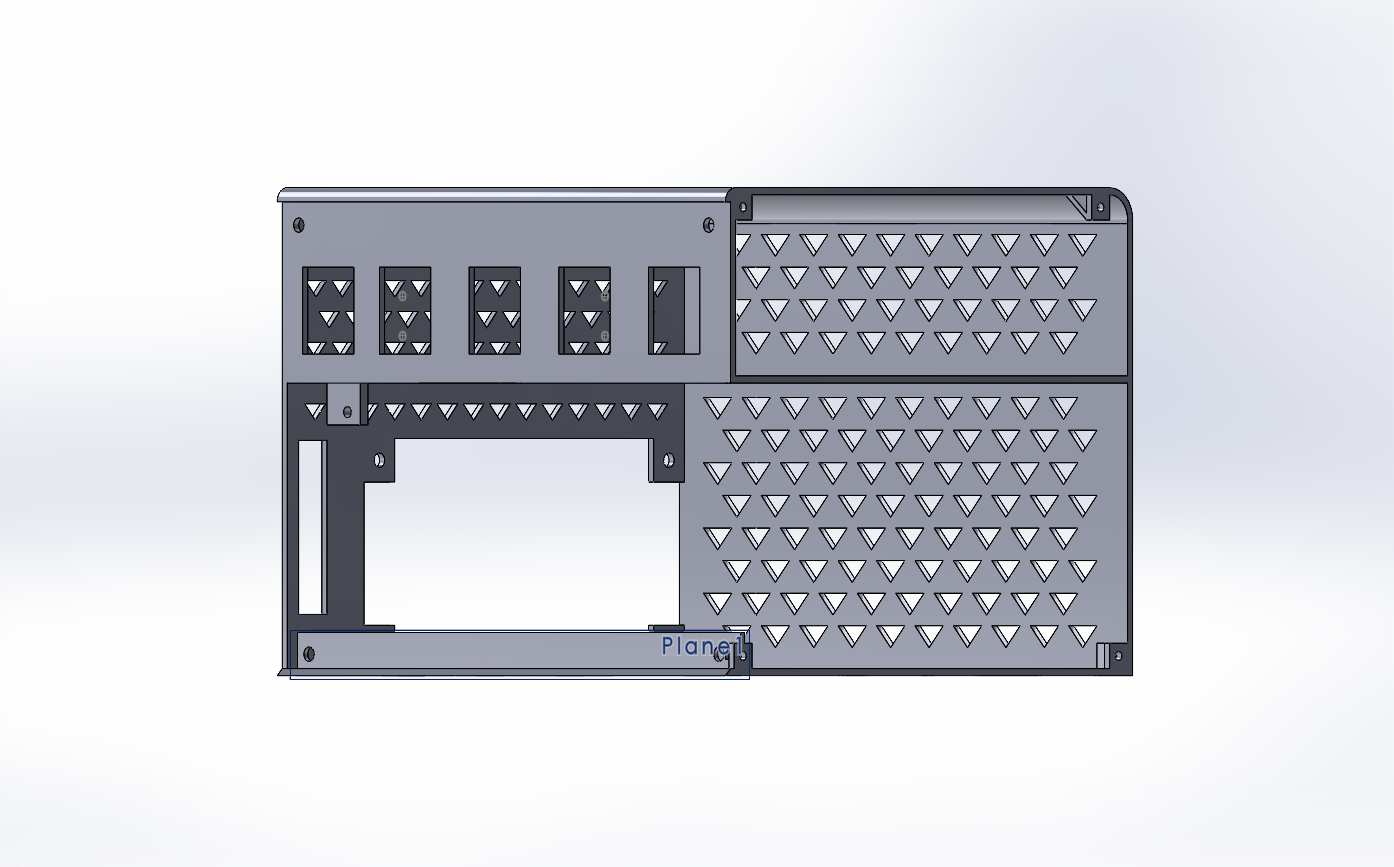
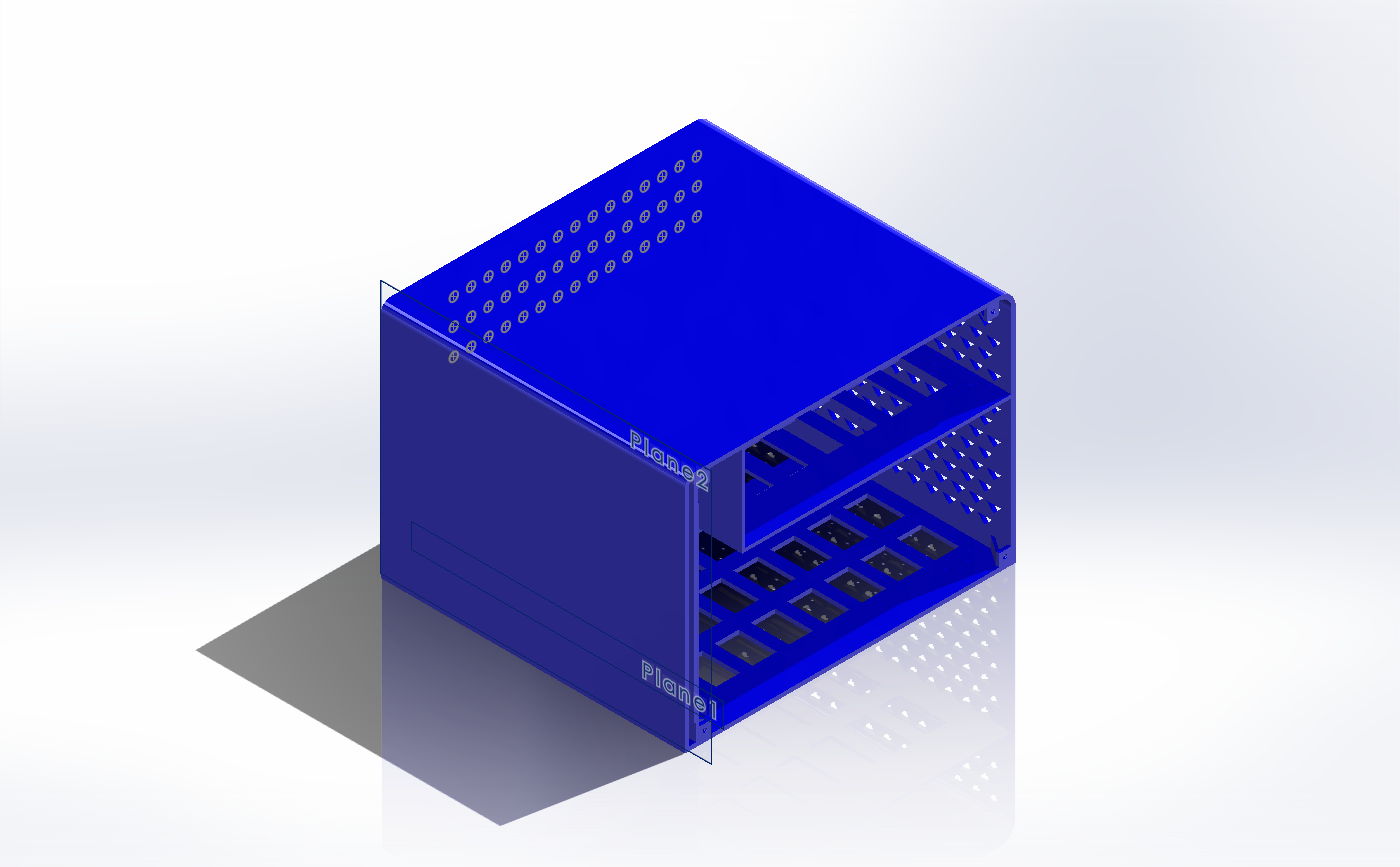
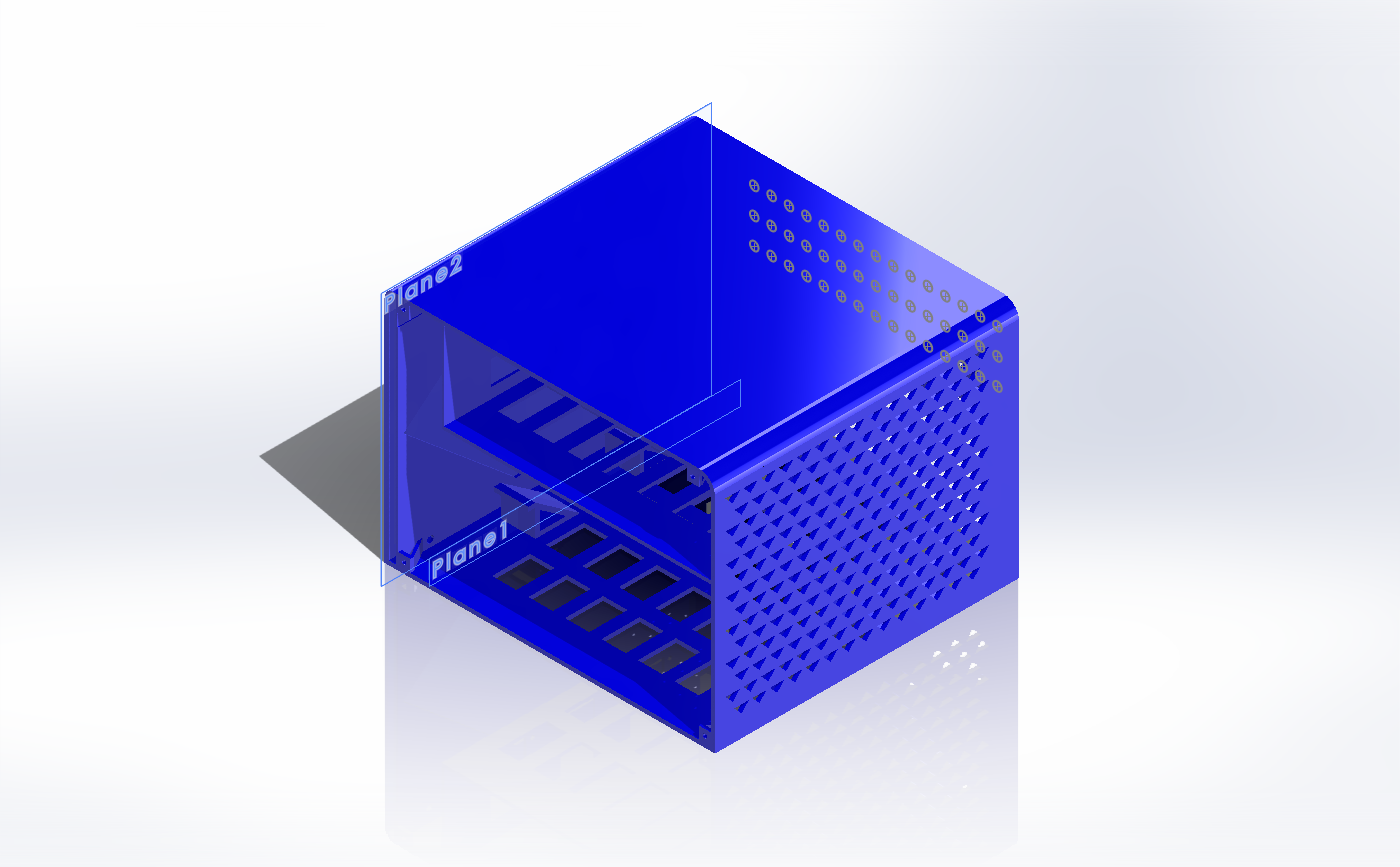
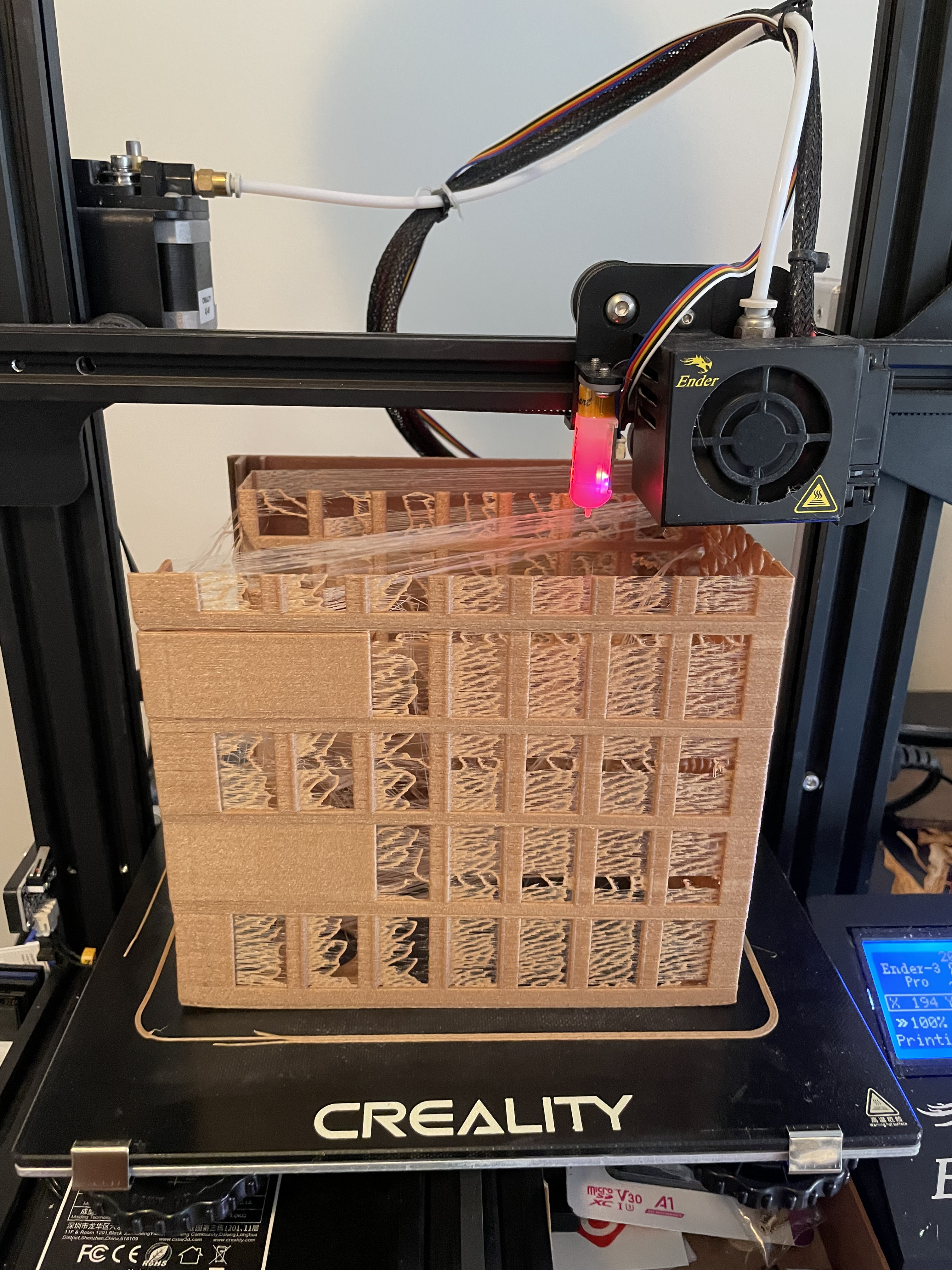
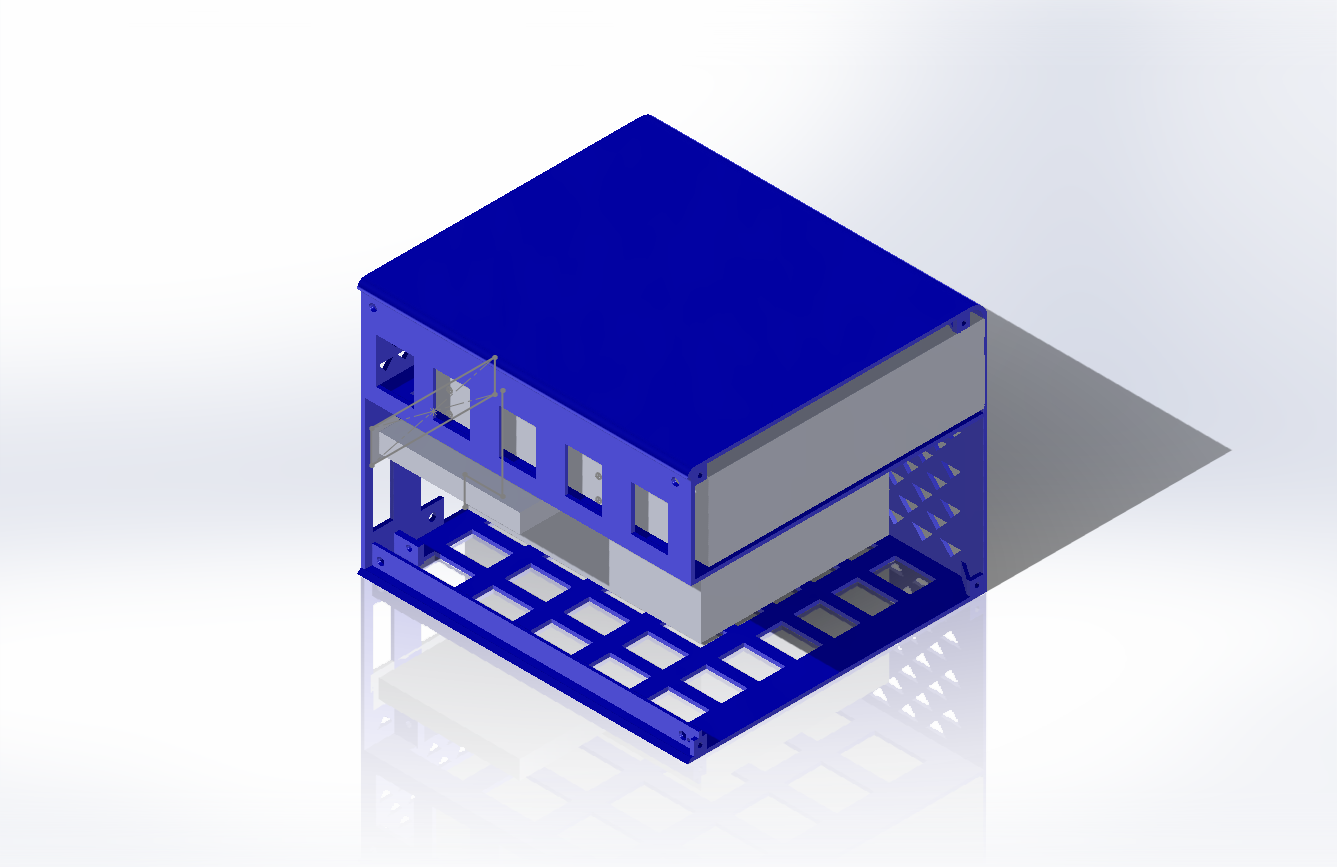
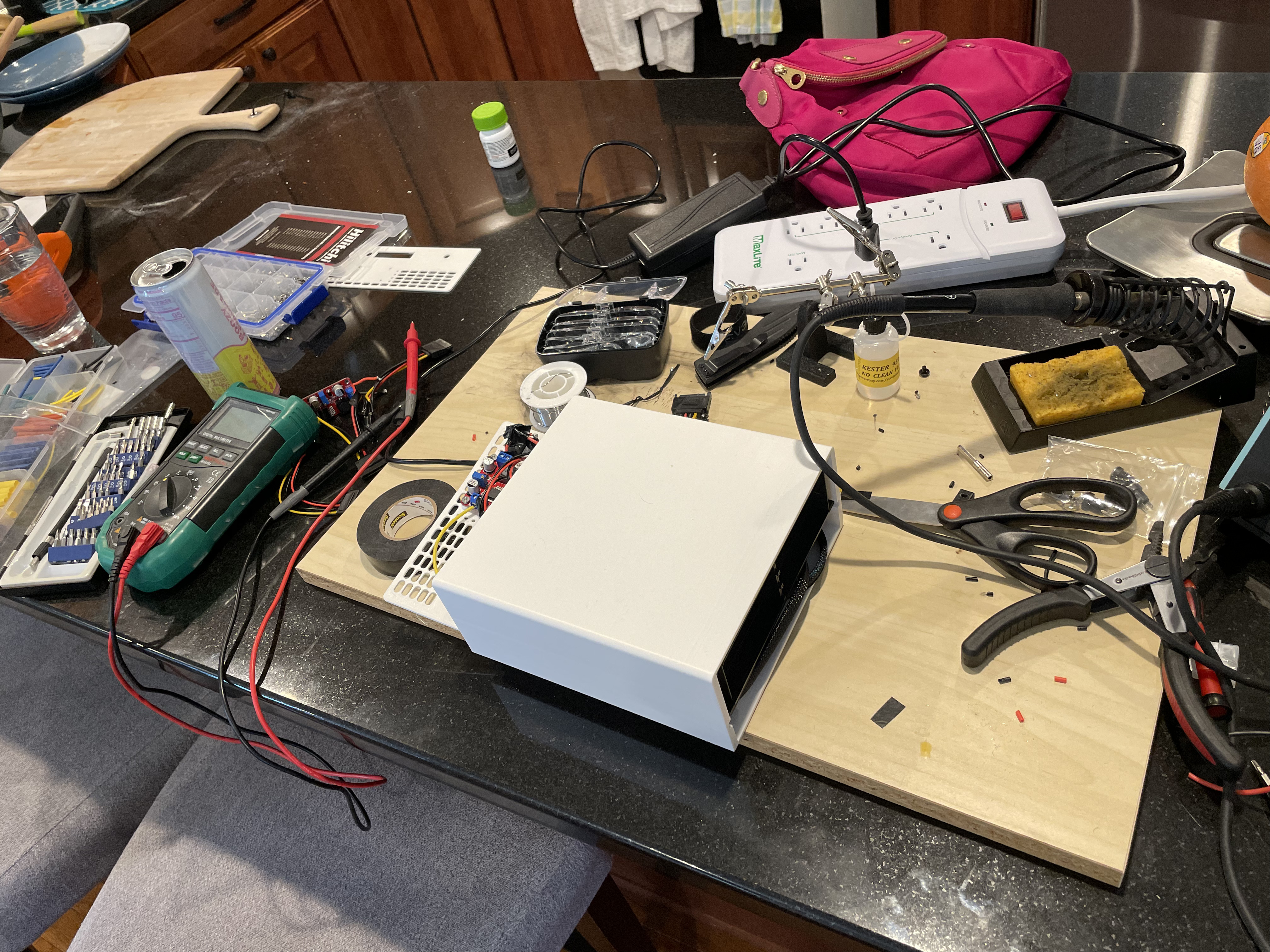
Now I needed to start creating a case to 3D print. Every other eSAS enclosure I found online was HUGE, I wanted something small that could fit the power supply, and the connections I needed. This went through many… many… iterations.

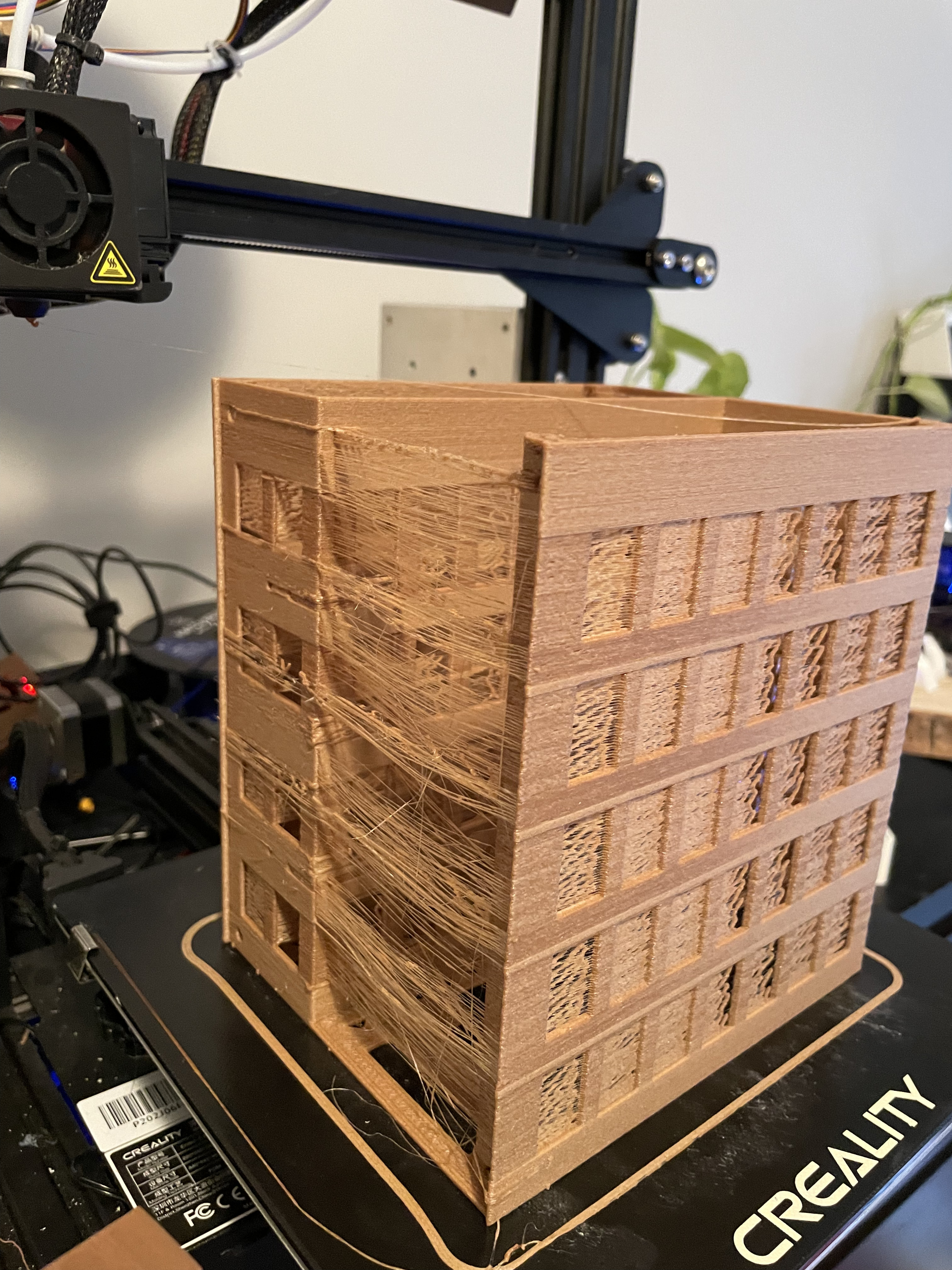
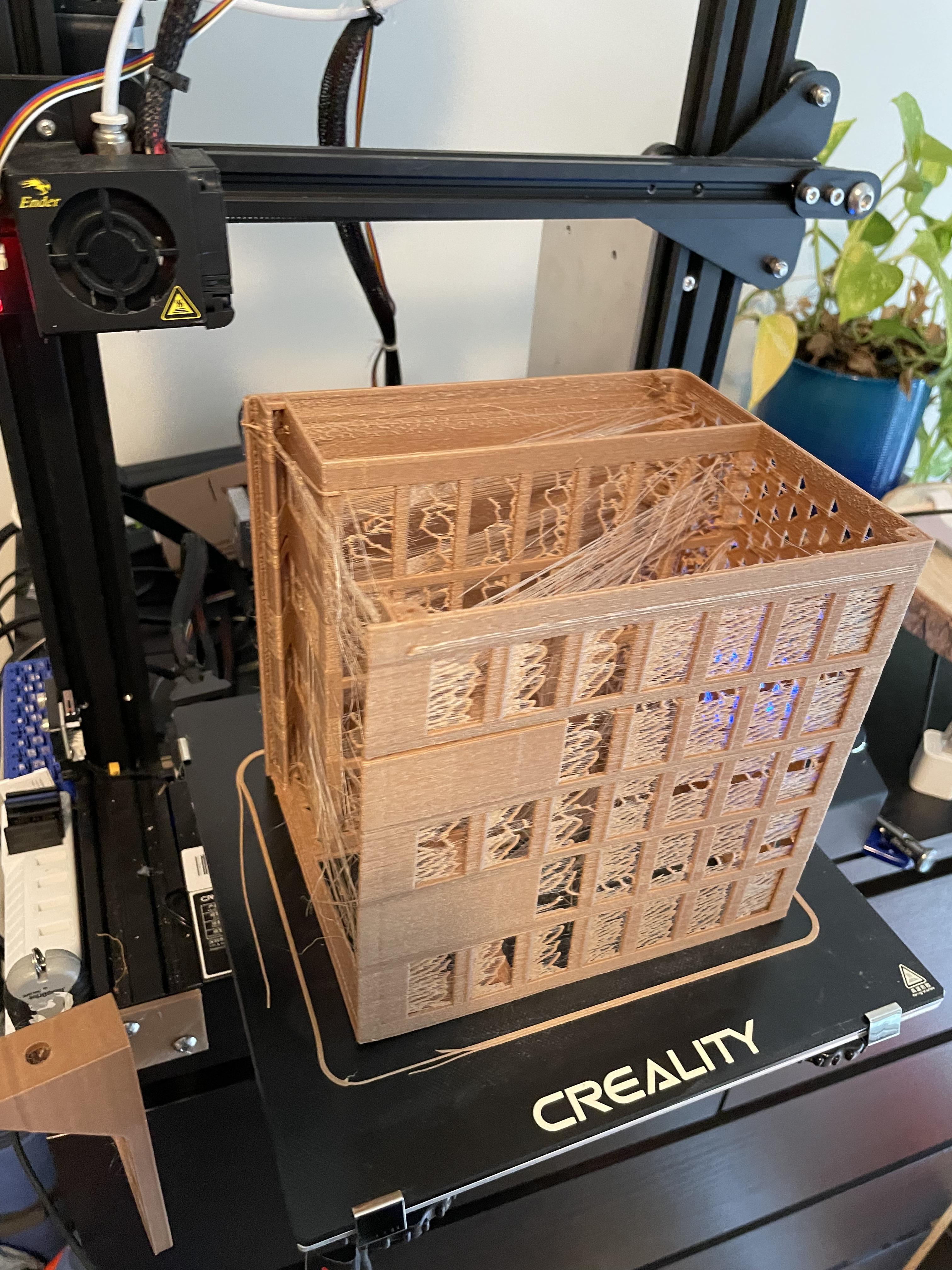
Some of the prints didn’t come out great; I spent some time getting the printer dialed in.

This was a bad path I went down; I was hoping to cut down the plastic and thought I could have levels and it stand on columns, this turned into much more of a mess (and hard to get to stay in the right position) than waiting for the bit prints to just finish.

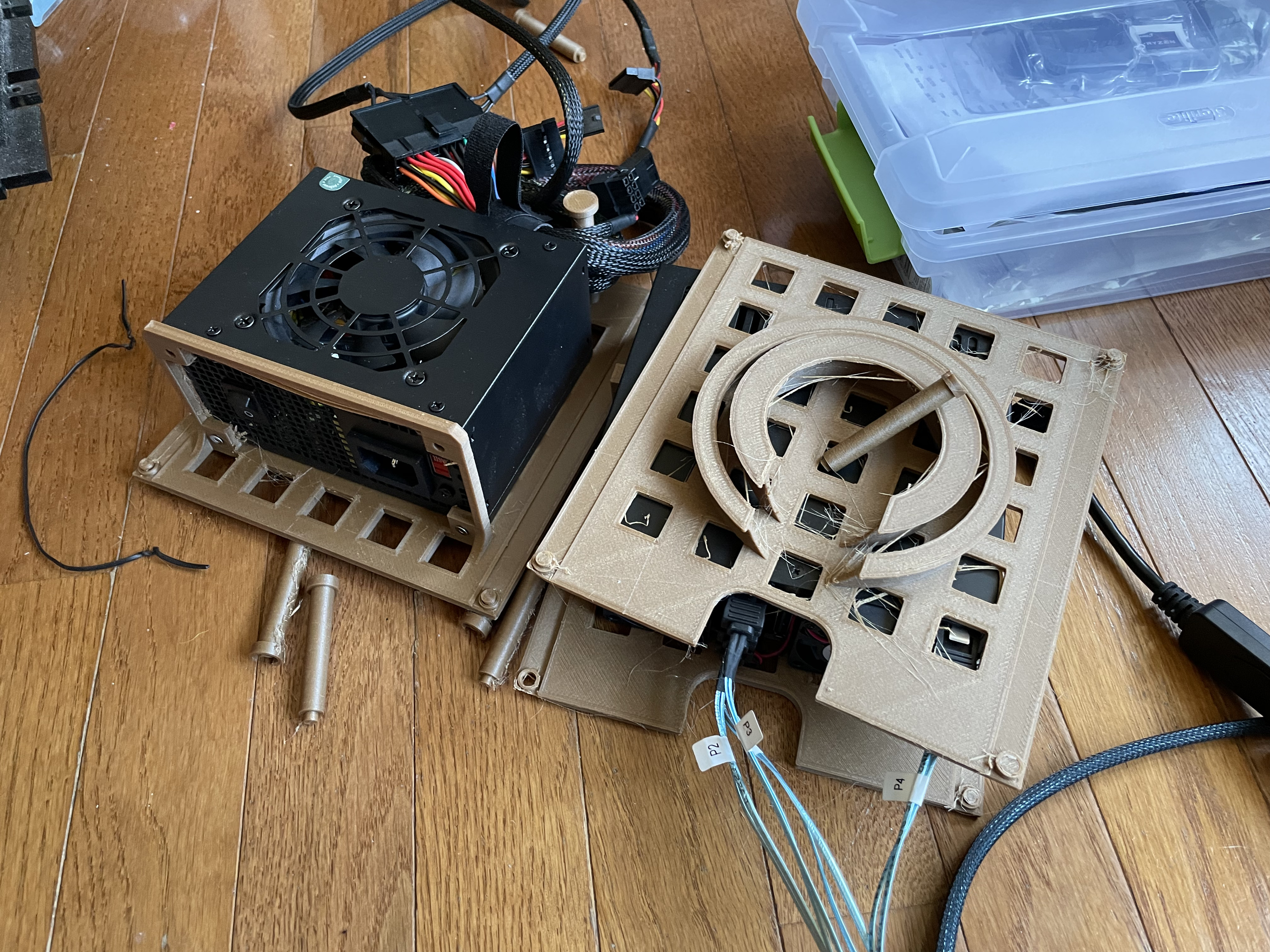
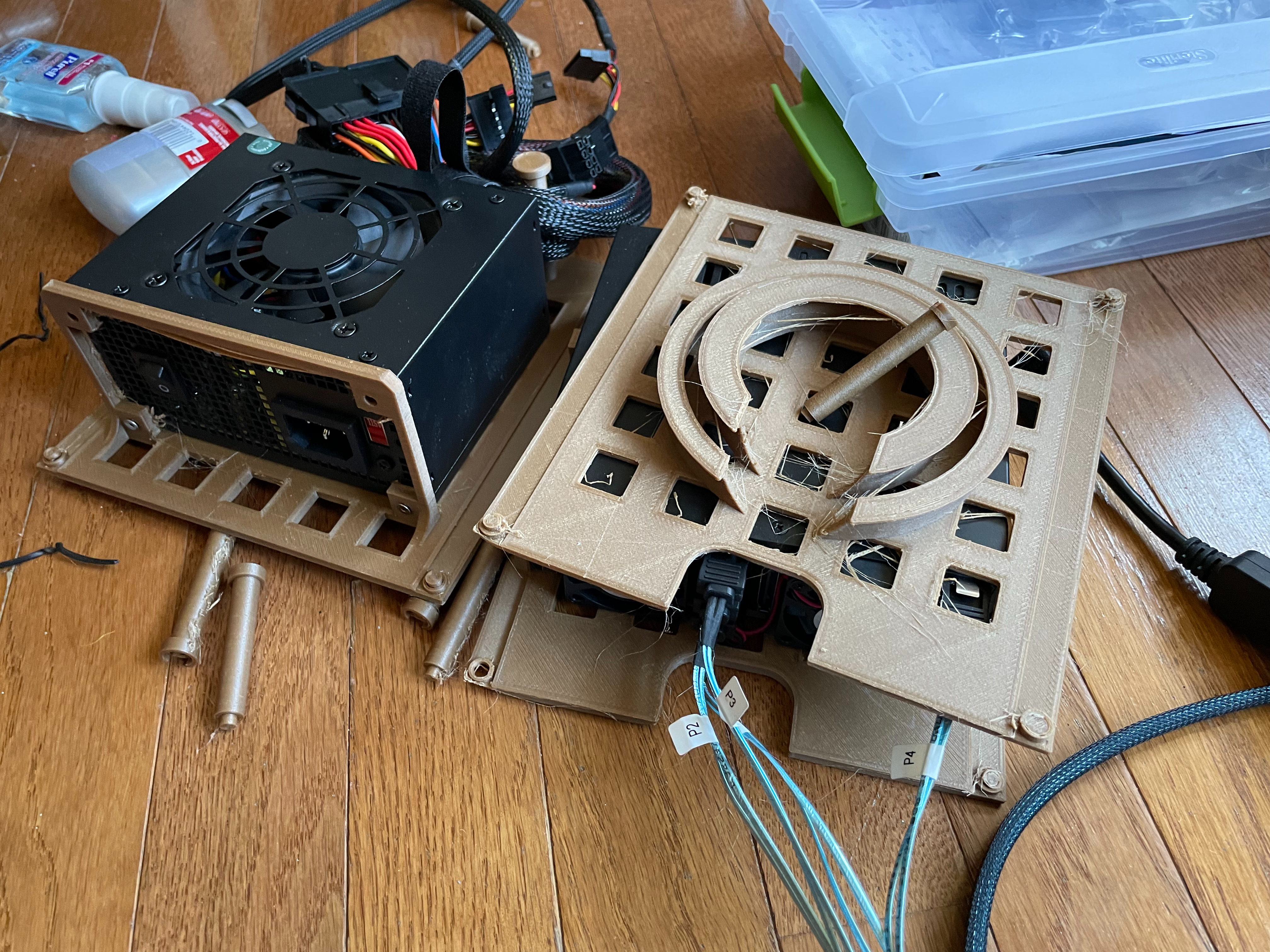
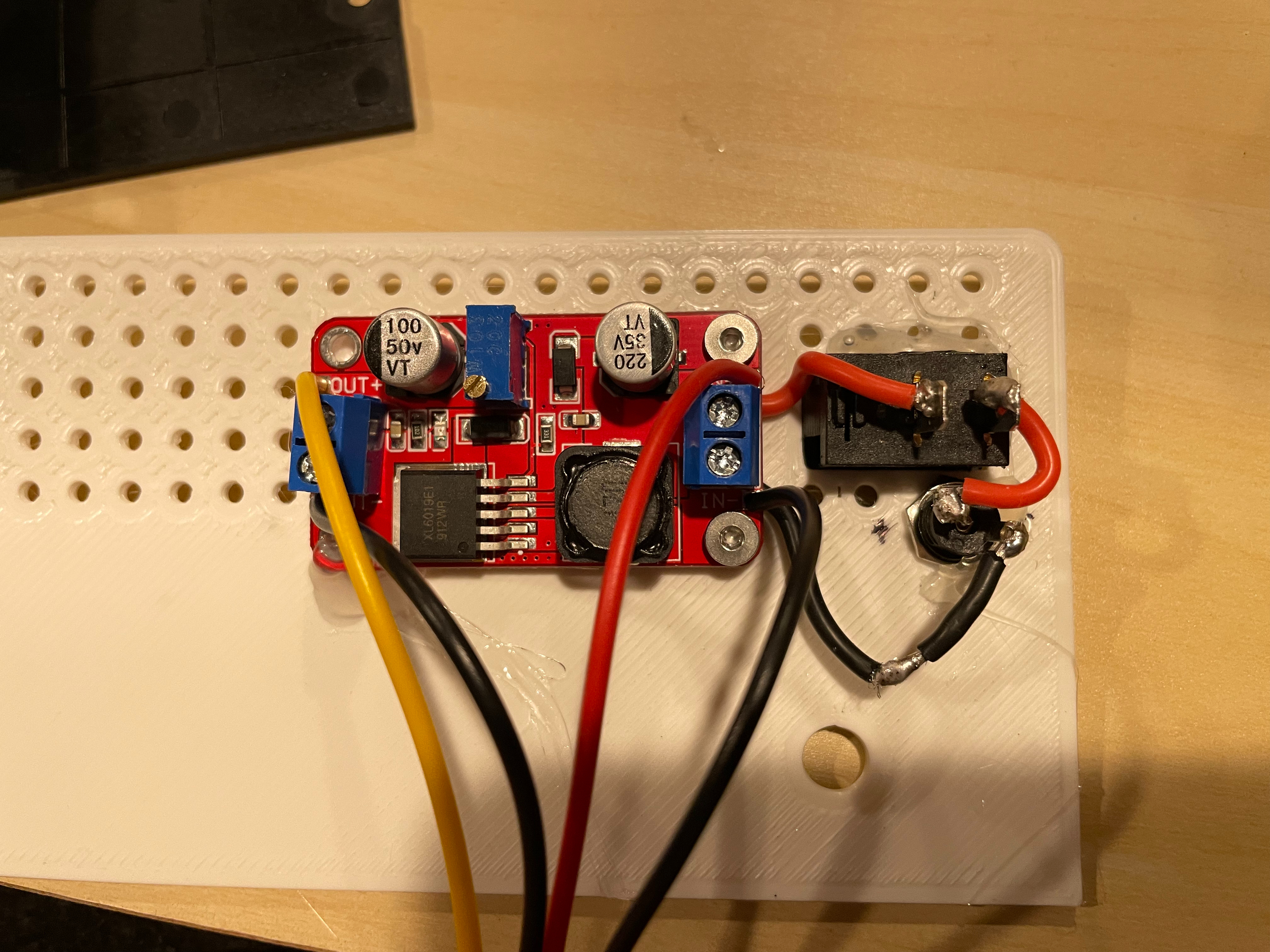
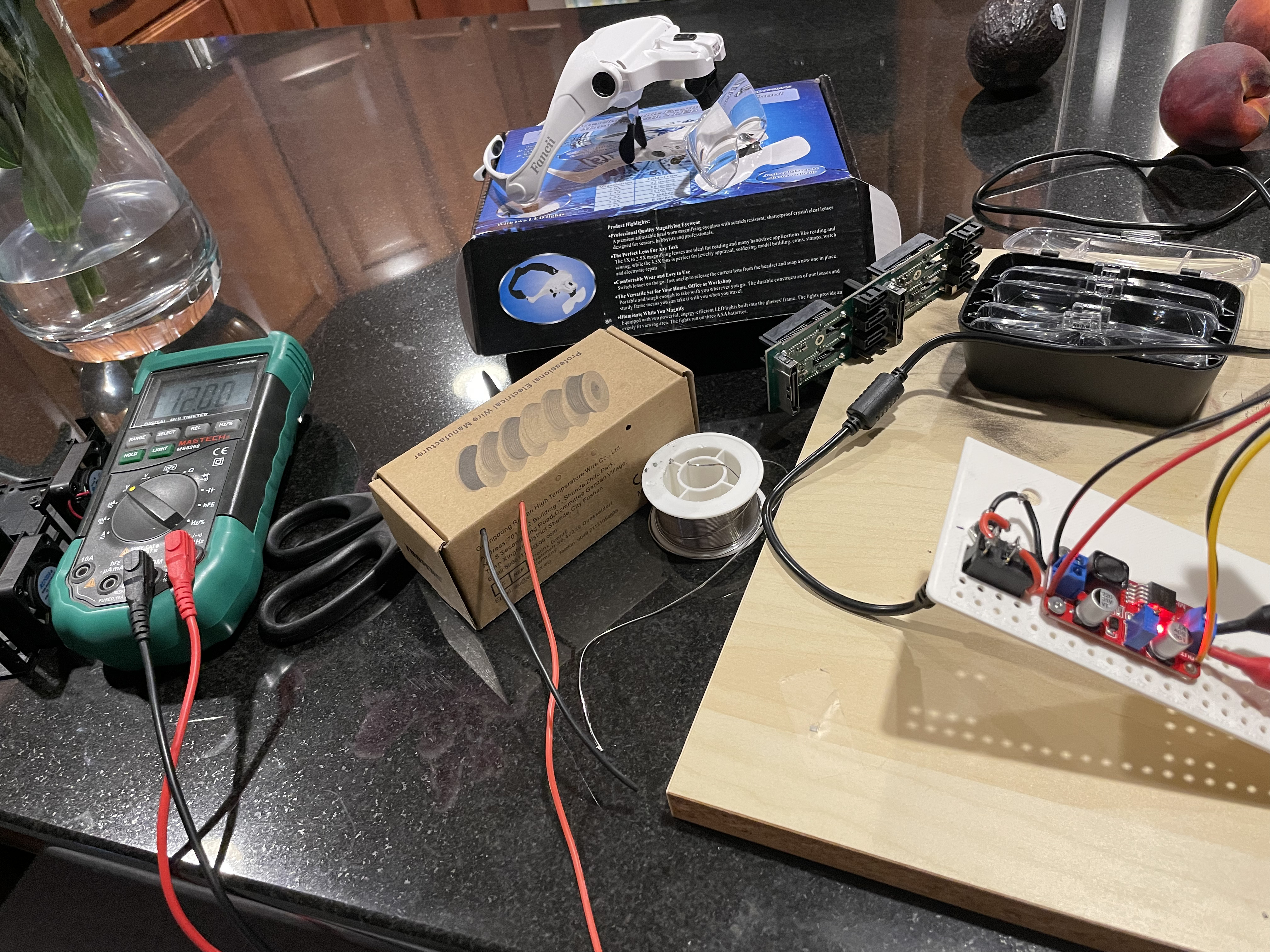
Next I had to figure out power. Each drive I had can pull up to 1.5 amps at 5 volts. This means I need 9 amps on 5 volts. That is a good amount of power on one rail. I thought I could use a standard PC power supply, with a cable to turn it on with a switch. These PSUs were big and made the design a bit bulkier. The next idea was to just use a wall power supply, a 5 volt one with enough amps. Also, I planned to only use the 4 drives per unit I had, so at least at first, I could cut the amp requirement down.

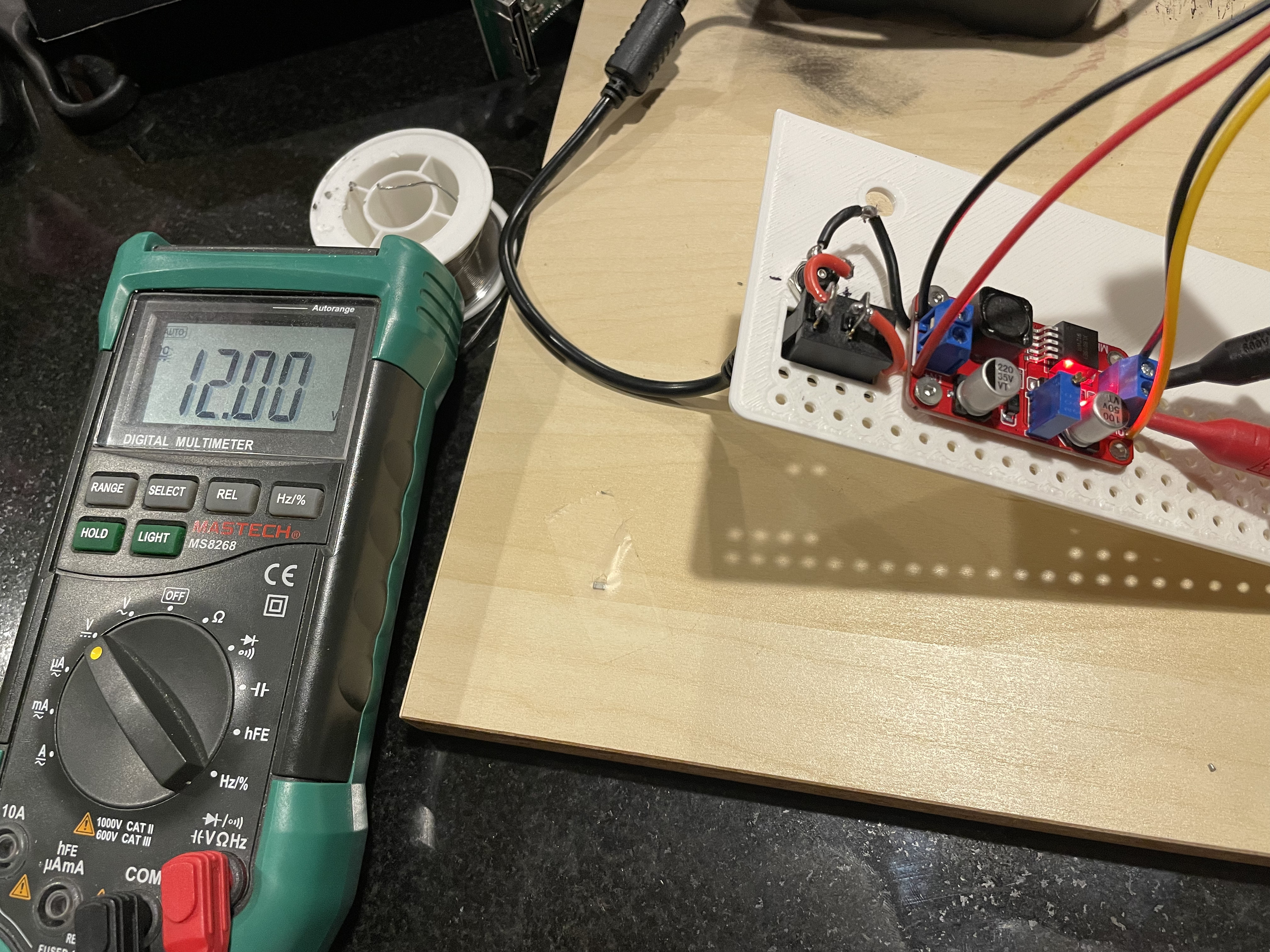
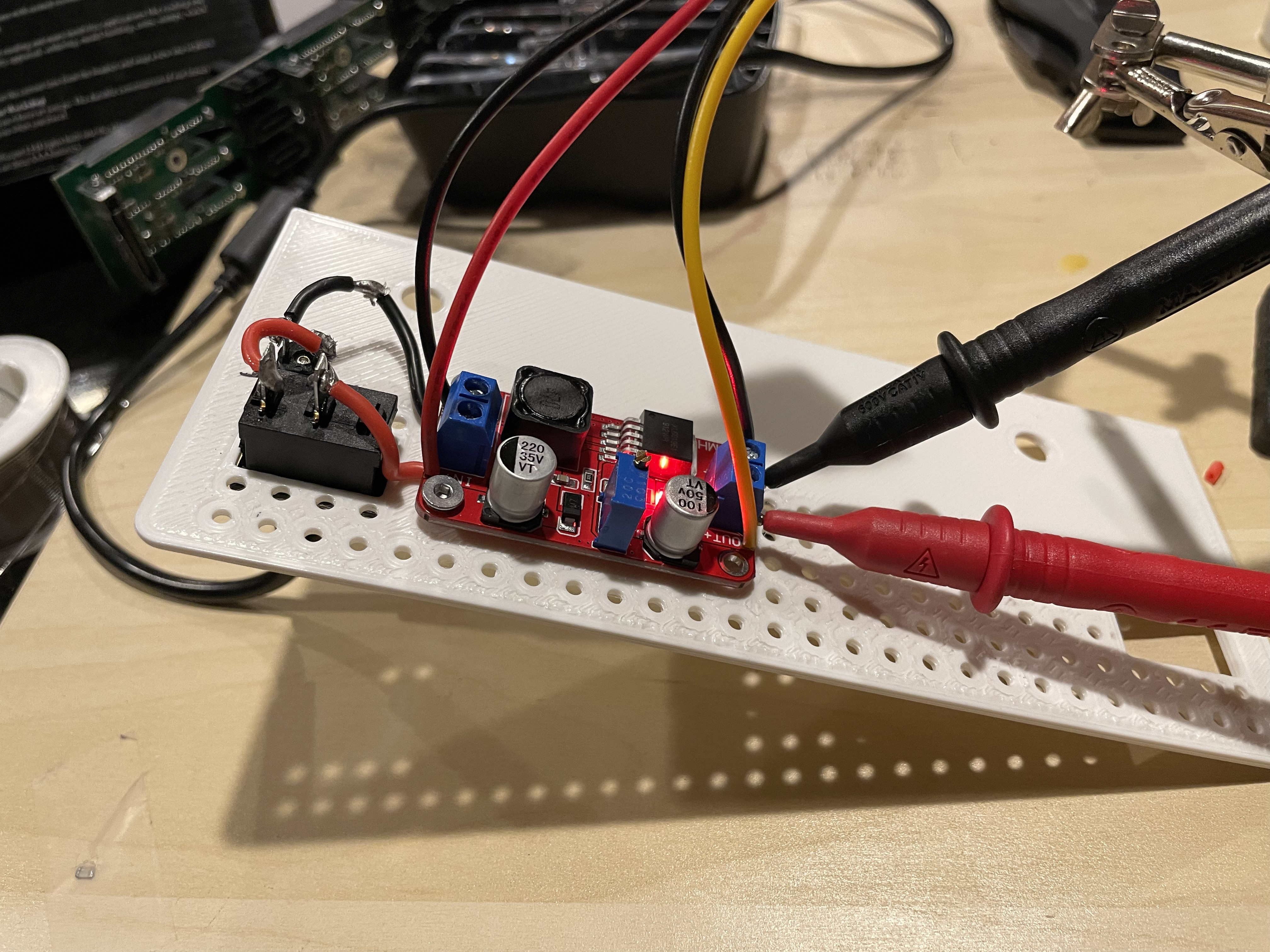
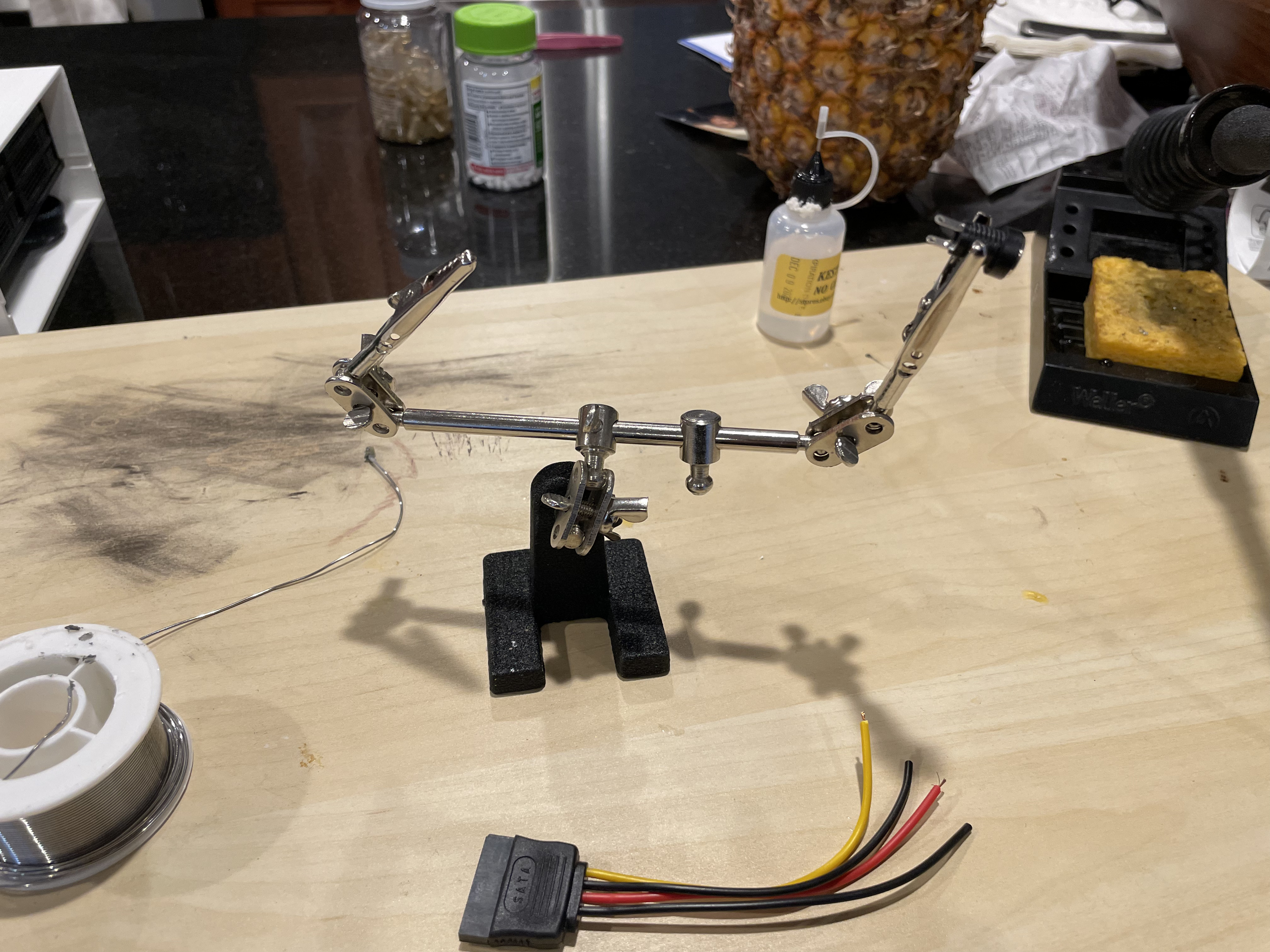
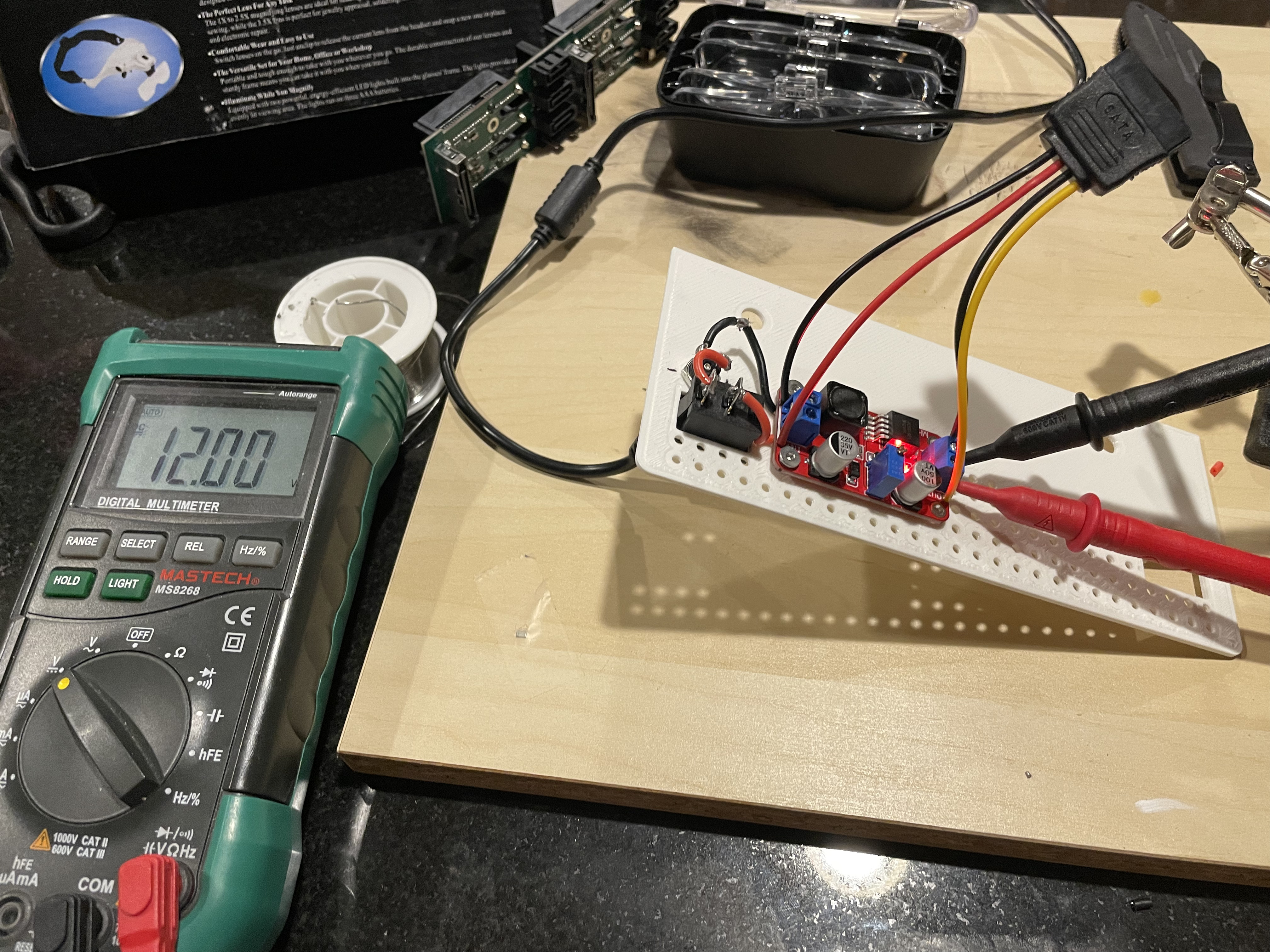
Now I ran into a new problem. The fans for the drive holder ran on the 12 volt line of the SATA cable. The SATA cable only needed 5 volts for the drives but needed 12 volts for the fans. I got a voltage converted and wired it in. I added a switch so the whole unit could be turned off and on.

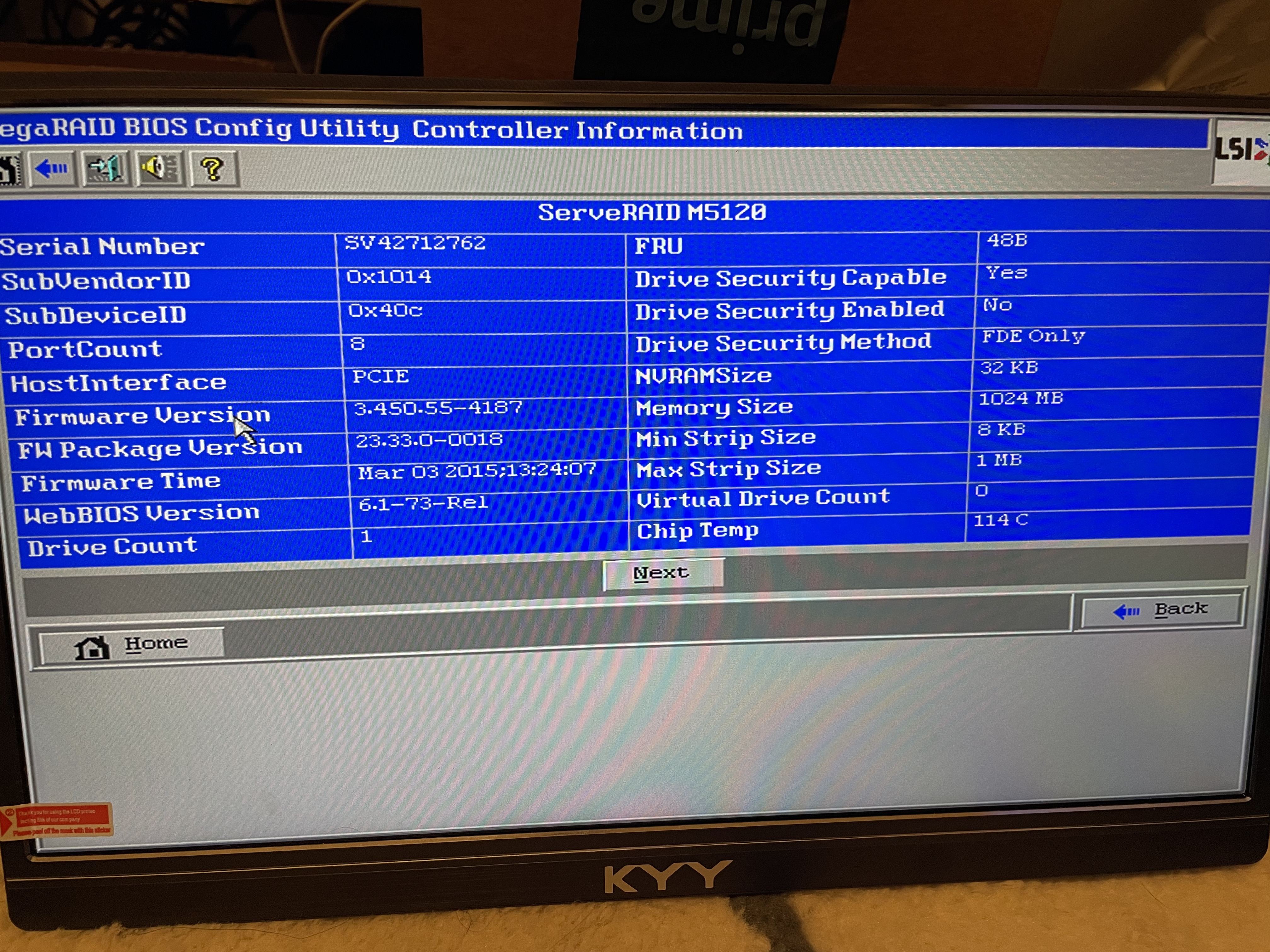
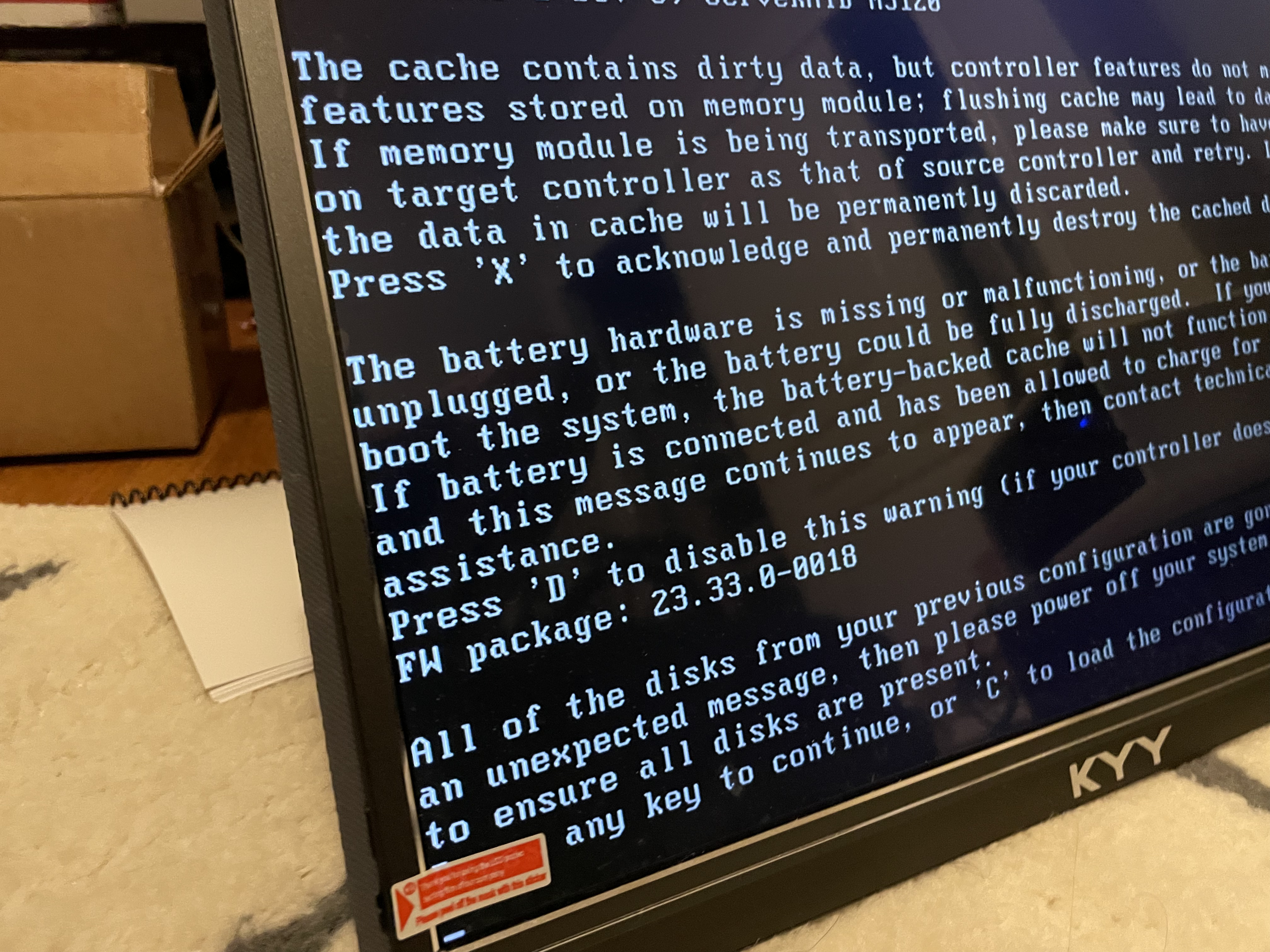
Finally, it is time to add the HBA (not raid controller) to the Dell Optiplex and bring the drives up. This is where everything fell apart. The Optiplexs REALLY didn’t want to start with the HBA controllers. I ordered MANY off ebay to try. Older gen, newer gen, different chipsets… Sometimes they would see SOME of the drives on start-up, sometimes if I bounced the container, then it would see the drives, but there was no consistency. One of the HBAs wouldn’t allow the desktop to boot at all when the card was in. Someone online mentioned, if you put tape over one of the pins on the front of the PCI express connector, the PC won’t be able to read the bus ID it doesn’t understand, and this will allow it to boot. I couldn’t believe when that worked! It still had issues seeing the drives, but interesting none the less.

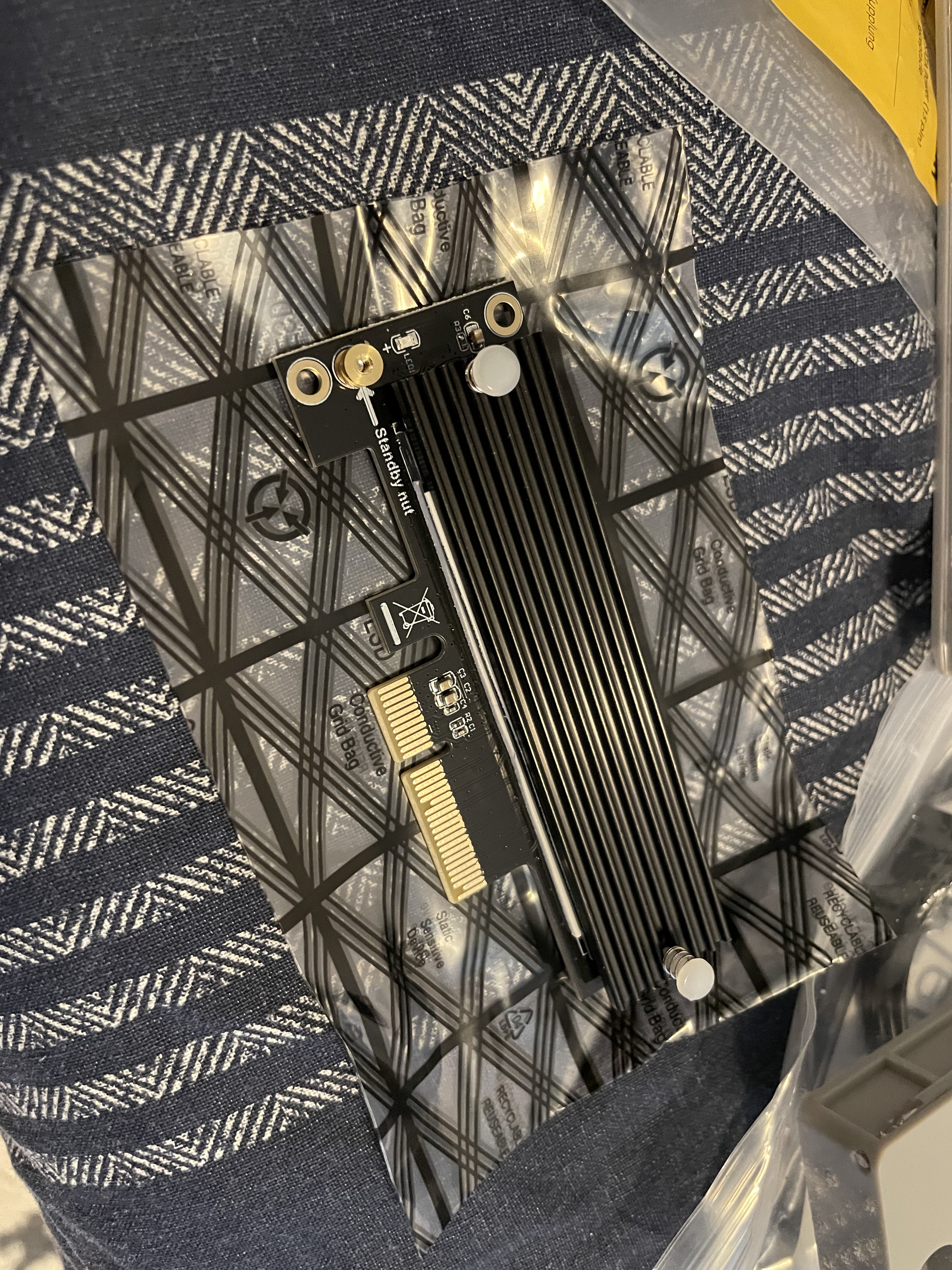
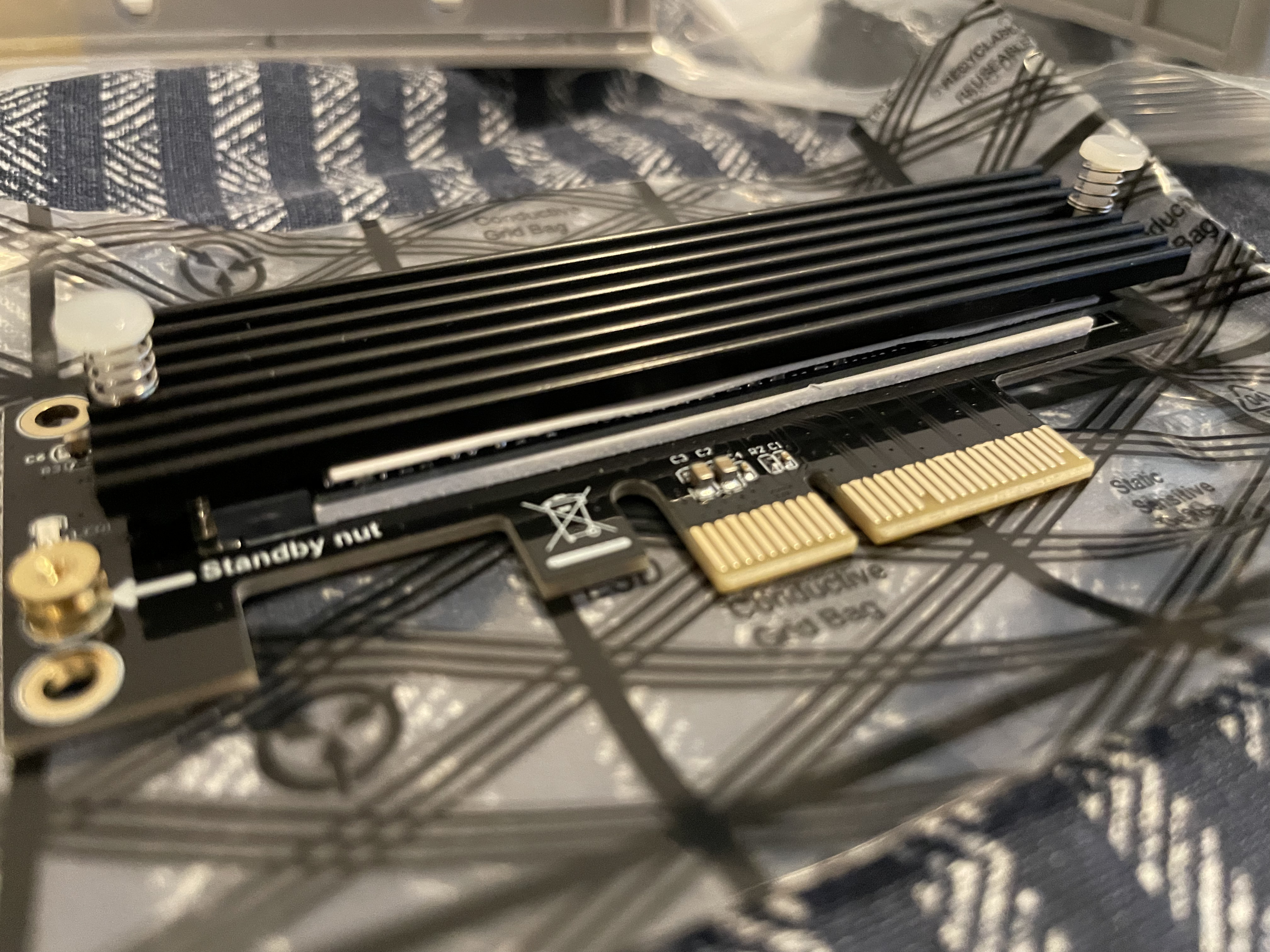
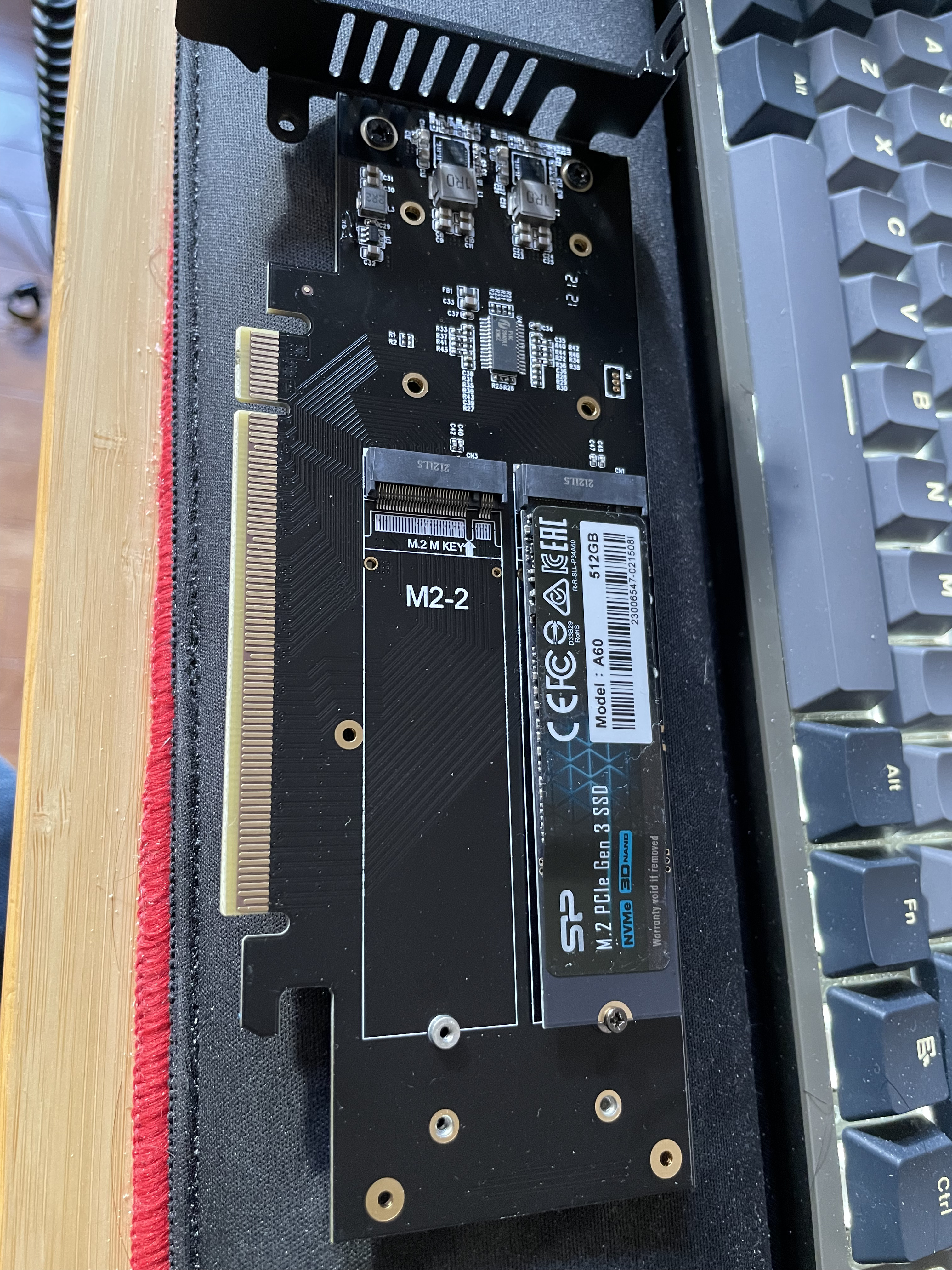
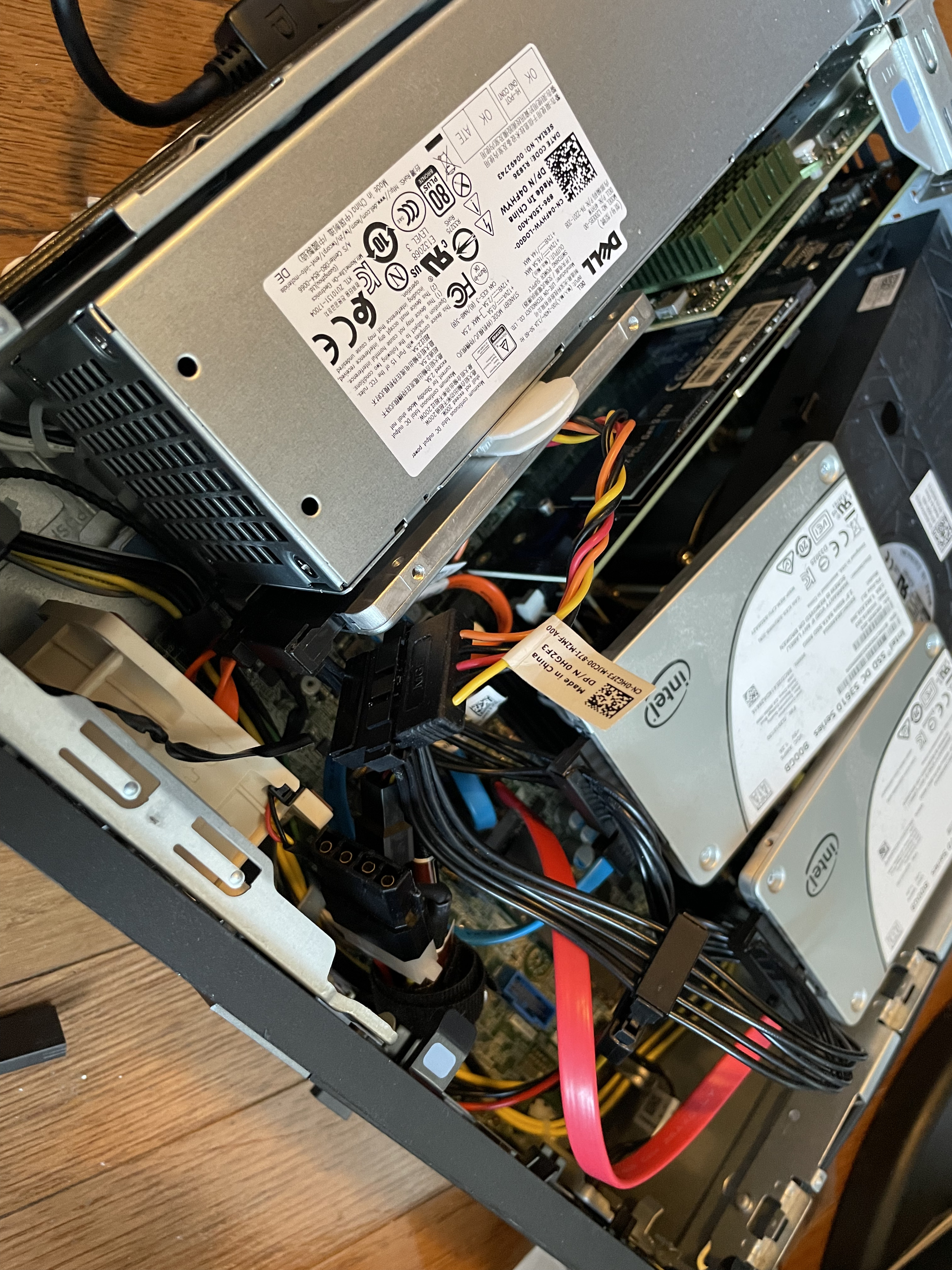
After all of this, I decided it was too much hassle and I wanted something more reliable for the system. I did what I should have done from the start… Used the ports the system already had in the systems… I went from 4 SATA SSDs to 3 SATA SSDS, and 2 NVMe drives. One in the onboard NVMe slot, and another in the PCIe x4 slot that I had. I tried a PCIe card that allows 4 NVMe drives by PCI bifurcation. This is a newer feature which only a few systems support, and these Optiplexs don’t. In either PCIe port. I also want to flag, even though the chipset in these says it supports 128GB of ram, and I can put in 32GB DIMMs and they work fine. The max on the Optiplex 5050 and 5060 is 64GB. I also added a small Noctua fan to the front of the case for additional airflow.

In the end, each of the VMWare nodes has 3 roughly 1TB SSDs, then 2 NVMe drives, one for vSAN cache, one for normal storage. I am booting the nodes off a USB drive in the back, not the most supported config, but has been working well for me. The machines have a dual 10gb nic in the x16 slot, then the secondary NVMe in the x4 slot.

Homelab: Hypervisors – Part 2 – VMware

What I want to say is, after deciding it was time to move to VMware and attempt to use vSAN instead of Storage Spaces Direct (S2D) I wanted to research the hardware I had and see if it would work on ESXi 7.0. But of course I did not thoroughly read all of the changes vSphere 7.0 has brought. The holiday was approaching and I was going to use this time to do my migration. I had read up on vSAN and knew I needed cache drives. I bought a few small (250GB) NVME drives to put into each system. Getting those drives installed took a day because I needed to create a custom 3D printed mount. That would give me a good speed boost for my storage no matter what. Having recently upgraded to 10GB networking, I already had HP and SolarFlare 10gb networking cards. The time came and I copied all of the VMs I had in Microsoft VHDX format to my NAS (which wasn’t getting changed), then unplugged the first Hypervisor, and attempted a ESXi 7.0 Install.

One hardware change I should note, I am using USB 3.0 128GB thumb drives for the ESXi OS. This also allowed me to leave the original Windows drive untouched, allowing for easy rollback if this was a nightmare. I put the ESXi 7.0 disk into the first system AND! Error, no networking card found… I started searching online and quickly found a lot of people pointing to this article. ESXi 7.0 had cut a ton of network driver support, everything from the Realtek motherboard NIC to the 10GB SolarFlare card would not be supported, with no way around it (I tried). It comes down to 6.x had a compatibility layer in it where Linux drivers could be used if there were not native drivers, 7.0 removes this. I then got a ESXi 6.7 installer (VMware doesn’t allow you to just download older versions on a random account, but Dell still hosts their version) and installed that. Everything came online and started working. Now that I knew the one thing blocking me was that, I installed all my systems with 6.7 while I waited for the 3 new Supermicro AOC-STGN-i2S Rev 2.0 Intel 82599 2-Port 10GbE SFP+ cards I ordered. Using the Intel 82599 chipset, they have wide support. 2 Ports is nice; and, the 2.0 revision of the card is compact allowing them to fit into my cases. So far I recommend them, they also are around $50 on eBay, which is not bad.

I played with a few of the systems, but decided to wait till the new network cards were in a few days later to initialize vSAN and copy all of the data back over. I used this guide, from the same author of the other post about ESXi 7.0 changes to configure the disks in the system how I wanted them. At one point I thought I was stuck, but I just had to have VMware rescan the drives. I setup a vSphere appliance on one of the hosts. This gives me all the cluster functionality, and single webpage to manage all the hosts. Here I an also create a “Distributed Switch” which is a virtual switch template which can be applied to each of the hosts. I can set the vlans I have, and how I want them to work in one place, then deploy it to all the systems easily. This works as long as all your hosts have identical network configurations. After watching a YouTube video or two on vSAN setup I went ahead setting that up. The setup was straight forward, the drives reported healthy, and now I was ready to put some data on it.

A small flag about vSAN, it uses a lot of RAM to manage itself and track which system has what. I was seeing about 10-12 gb of ram used on each of my hosts, that has 32gb to begin with. There are guides online for this, and I believe it can be tweaked. It has to do with how large a cache drive you have, and your total storage. Not a big deal, but if you are running a full cluster, something to be aware of.

Migrating the old VMs from their Hyper-V disk images to VMware was not too difficult. I used qemu-img to convert from VHDX to VMDK. The VMDK images that qemu creates are the desktop version of the VMDK format. VMwares desktop products create slightly different disk images than the server versions. I then unloaded these VMDKs onto the vSAN and used the internal vmkfstools on ESXi Shell to convert those images to the server versions. The Windows systems realized the changes, and did a hardware reset, they worked right away. The Linux systems (mostly CentOS 8) would not boot under any of the SCSI controllers VMware had. After reading online, and a bit of guessing, I booted them with the IDE controller which appeared to be the only one dracut had modules for. Once the systems were online I could do updates, and with the new kernel version they had available they made new initrd images. These images being created on the platform with the new virtual hardware, installed the SCSI controller modules and could then be changed from IDE to SCSI mode.

So far other than the hardware changes that needed to happen, moving to VMware has worked out well. I am using a VMware Users Group license, https://www.vmug.com/, which is perfect for homelabs, and doesn’t break the bank. I am starting to experiment with some of the newer or just more advanced VMware features that I have not used before. We spoke of vSAN, I also have setup DRS (Distributed Resource Scheduler, allowing for VMs to move between hosts as resources are needed), and want to setup a key manager server to play with VM encryption and virtual TPMs.

Now that I am off of that… unsupported… Storage Spaces Direct configuration updates are much easier. I can put a host into maintenance mode, which moves any running VMs, then reboot it and once its back online, things re shuffle. This does mean I need enough space on the cluster for 1/3 of it to be off at a time, but that is ok. I am running 32gb of ram, with 2 empty DIMMS in each system, when the time comes I can inexpensively add more RAM.

If you/your work has a NetApp subscription, there is a NetApp Simulator which is a cool OVA you can deploy on VMware to learn NetApp related things. I was using that at work to learn how to do day to day management of NetApps. Another neat VM image that comes in the form of OVA I found recently is Nextcloud’s appliance. They have a single OVA that has a great flow for taking you through configuring their product.

Overall the VMware setup as been as easy as I thought it could be. Coming from a workplace who runs their management systems without a lot of access, it has been nice having vSphere 7.0. It automatically checks in online, and lets me know when there are updates for different parts of the system.