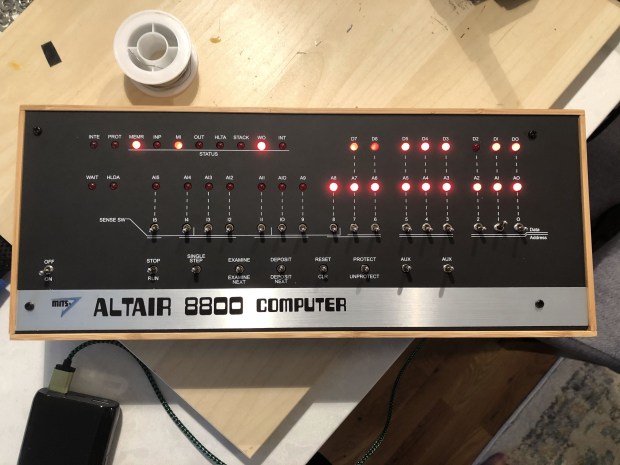
This post will be a bit more brief than some of the others, I was relaxing around Thanksgiving and put this together. Only afterwards did I realized that I was having such a good time, that hadn’t taken too many photos.
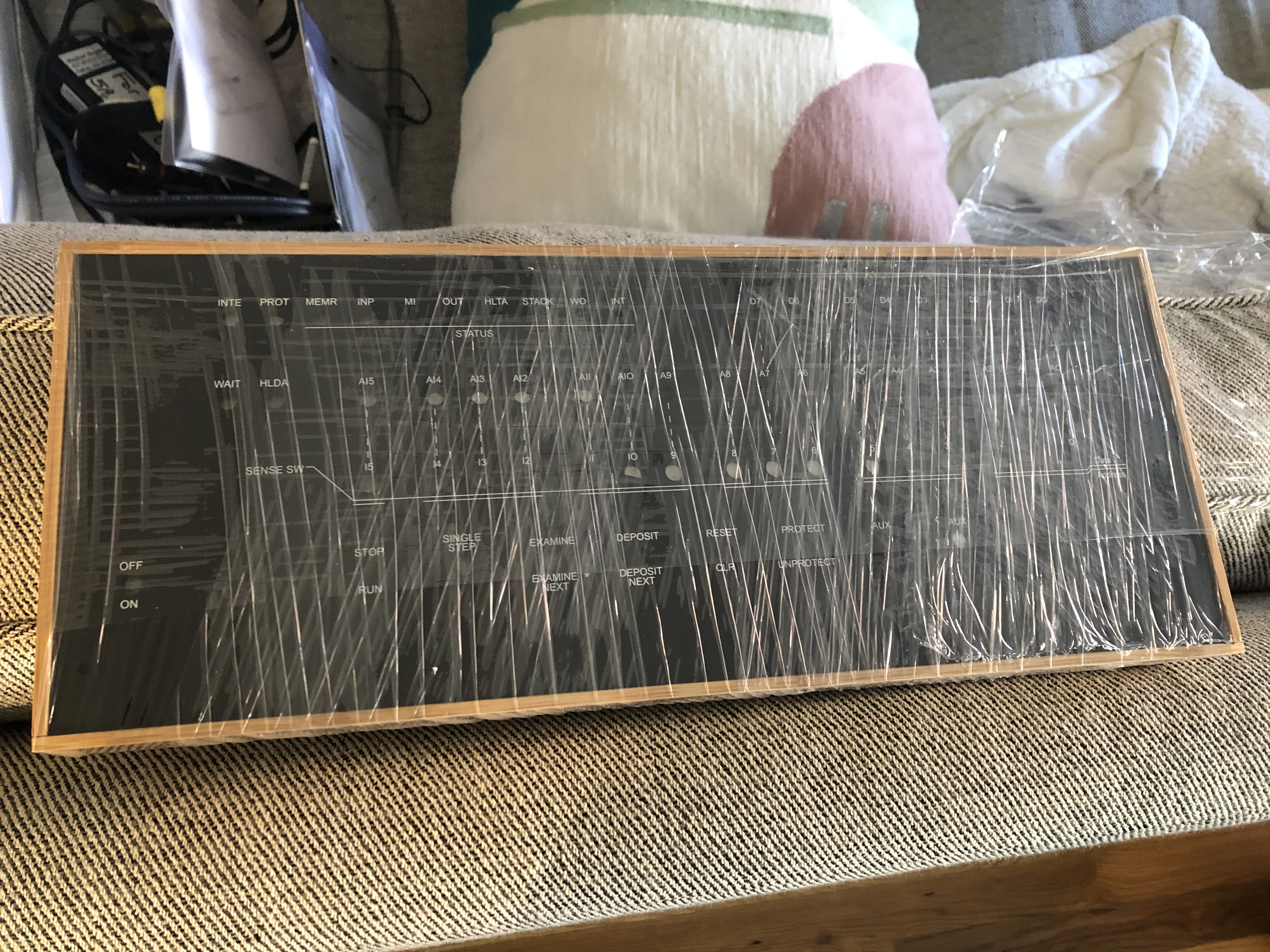
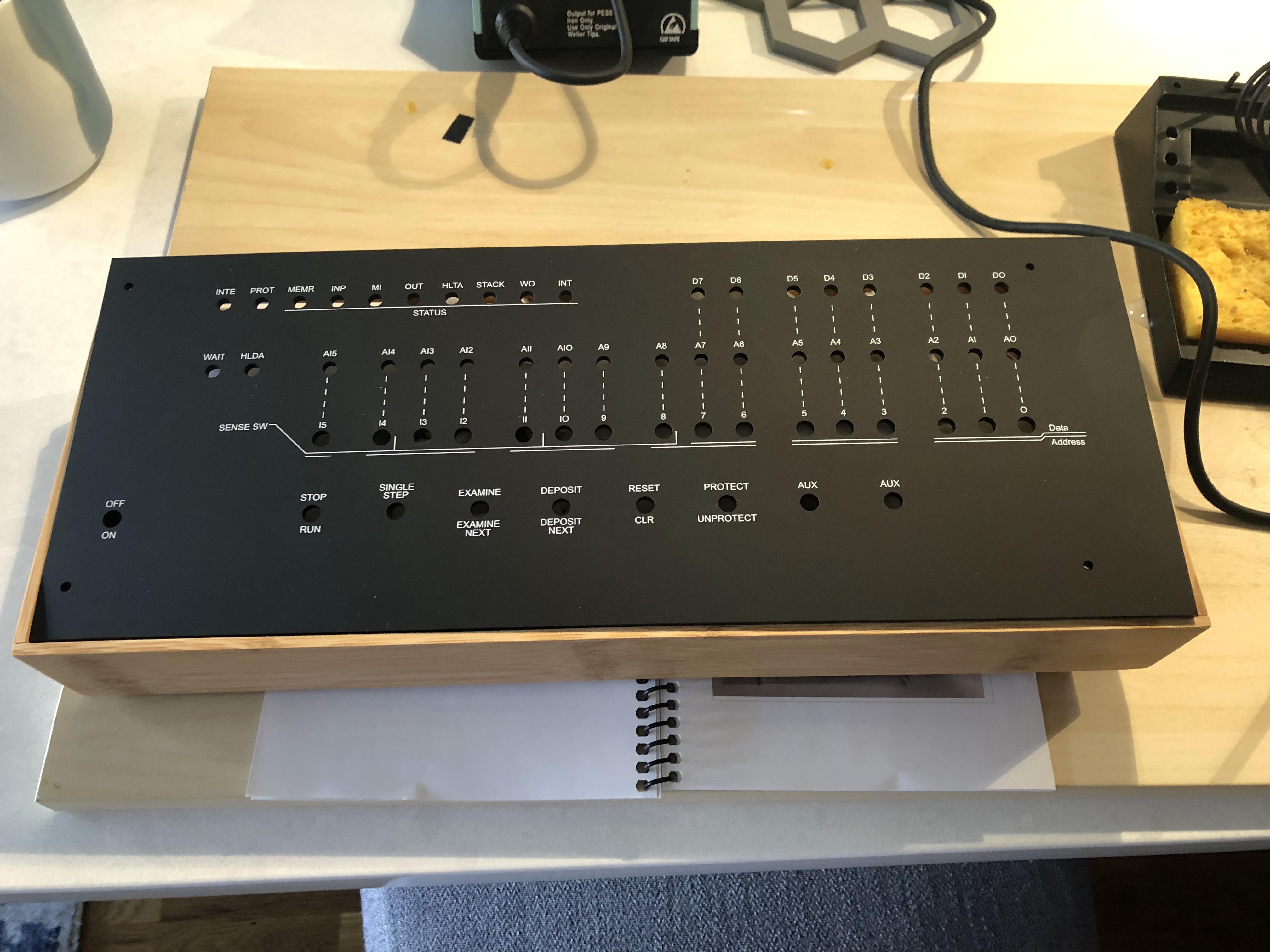
The kit comes from Chris over at https://www.adwaterandstir.com/altair/. The version I have is The Altair-Duino v1.4, which came in a bamboo box. There are now other versions, some with acrylic cases! This post will be about version 1.4.
The Kit
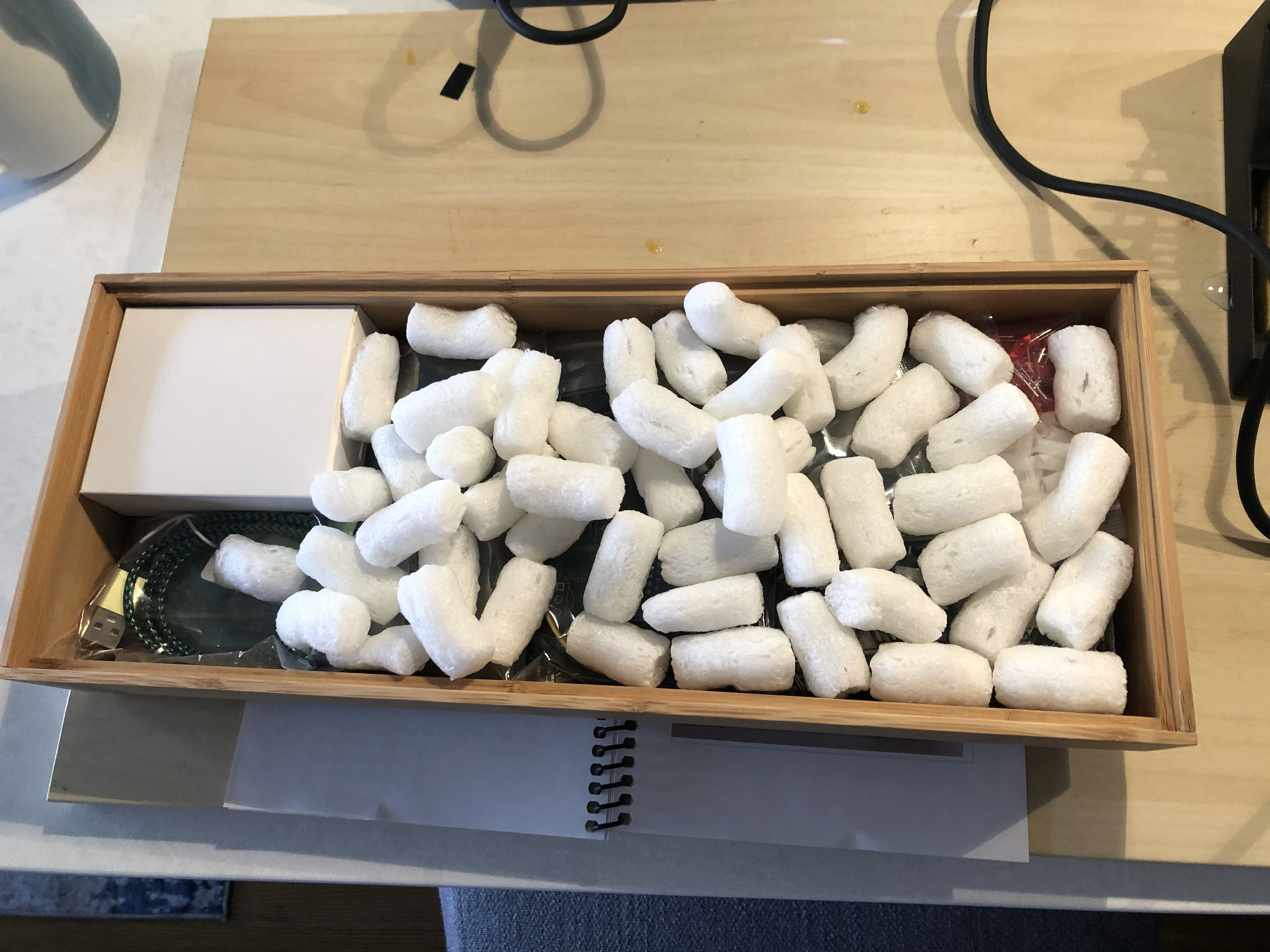
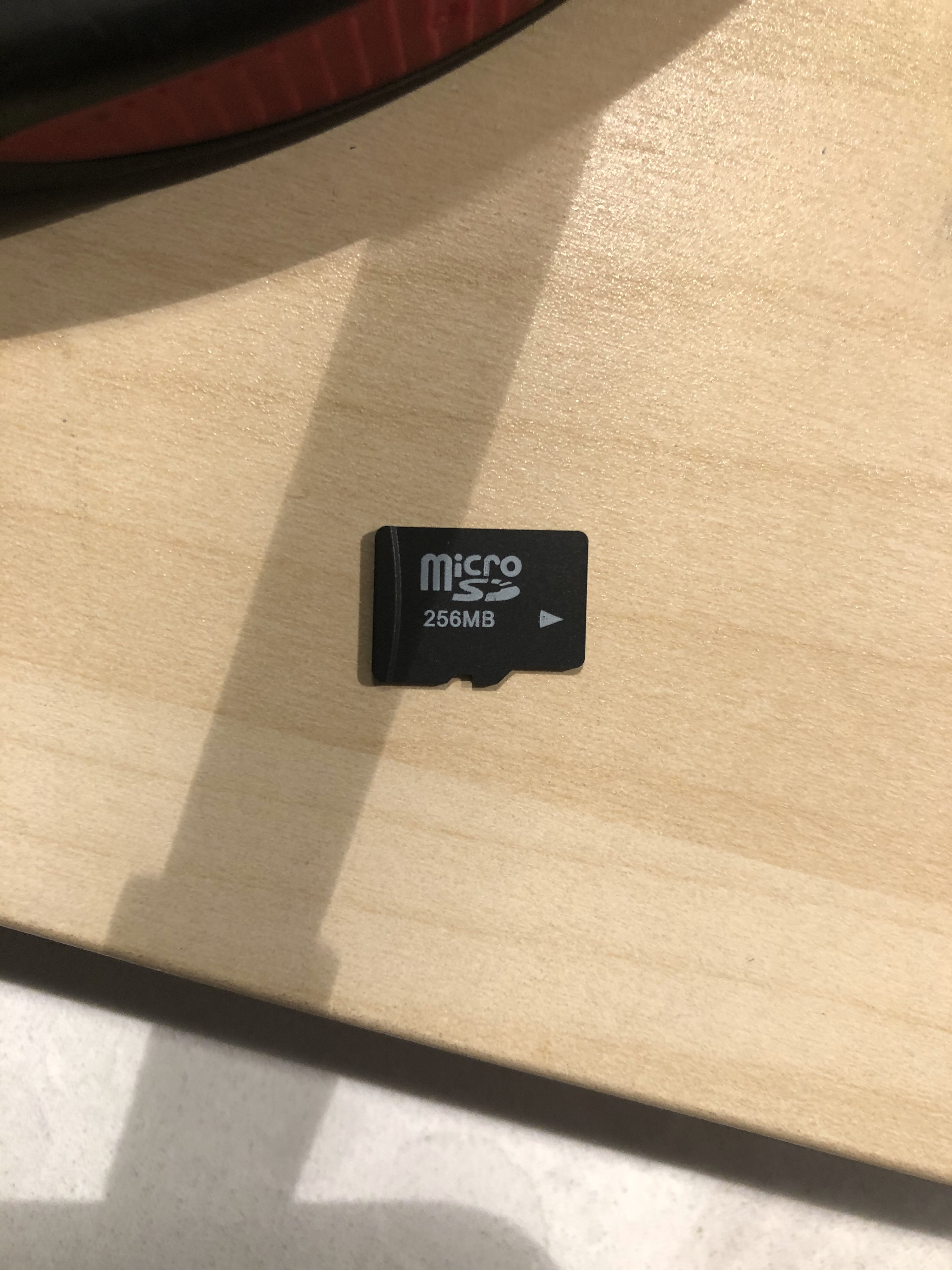
The kit comes with all the parts you need inside the box. The main controller is an Arduino, hence the name The Altair-Duino. There is an SD card that you bend the prongs on (more on that later) which holds the disk images. This is a fun straight forward kit, that comes with everything you need minus solder. The Arduino came with the firmware it needed, and the SD card came with disk images preloaded onto it.
Assembly
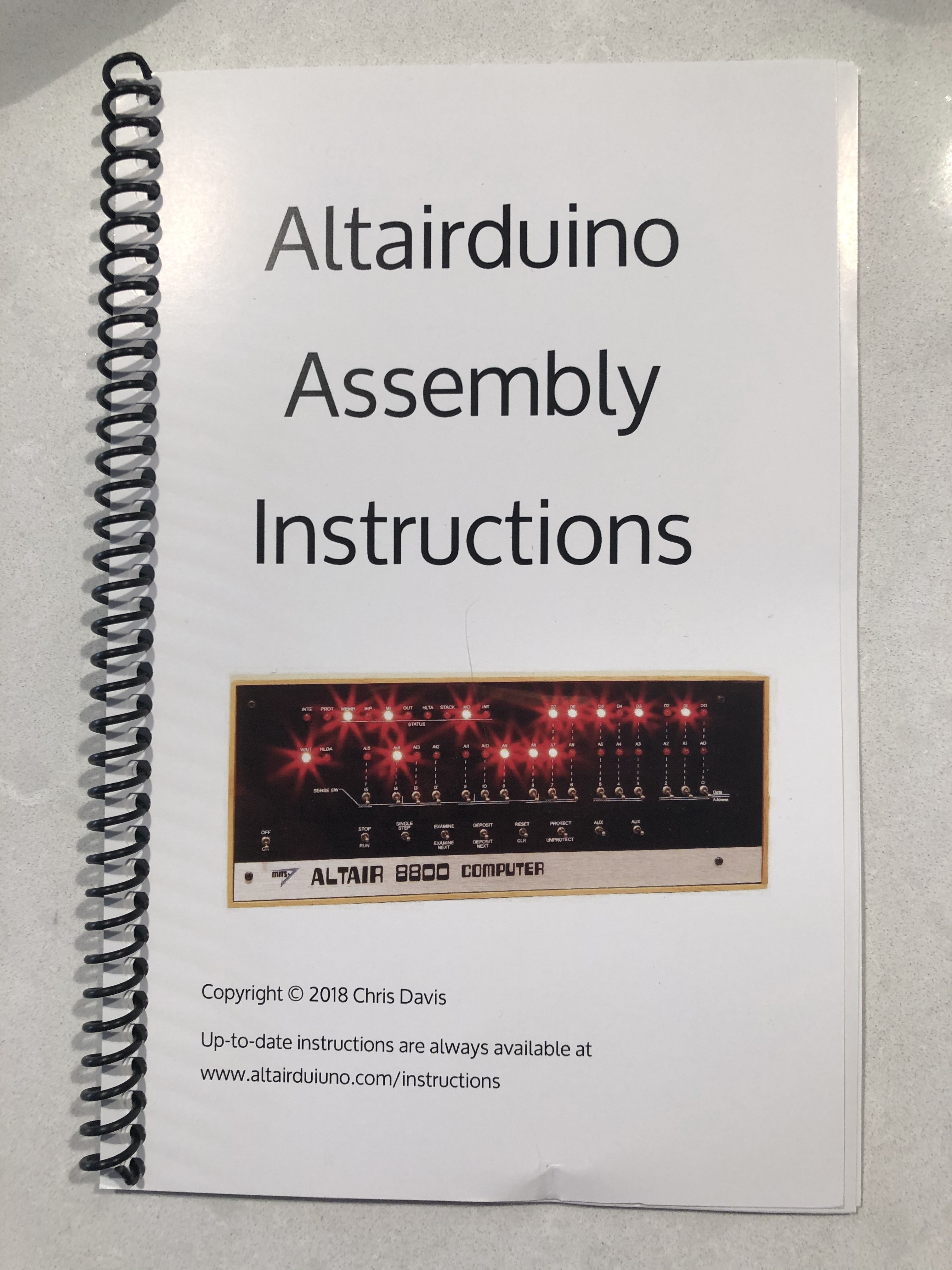
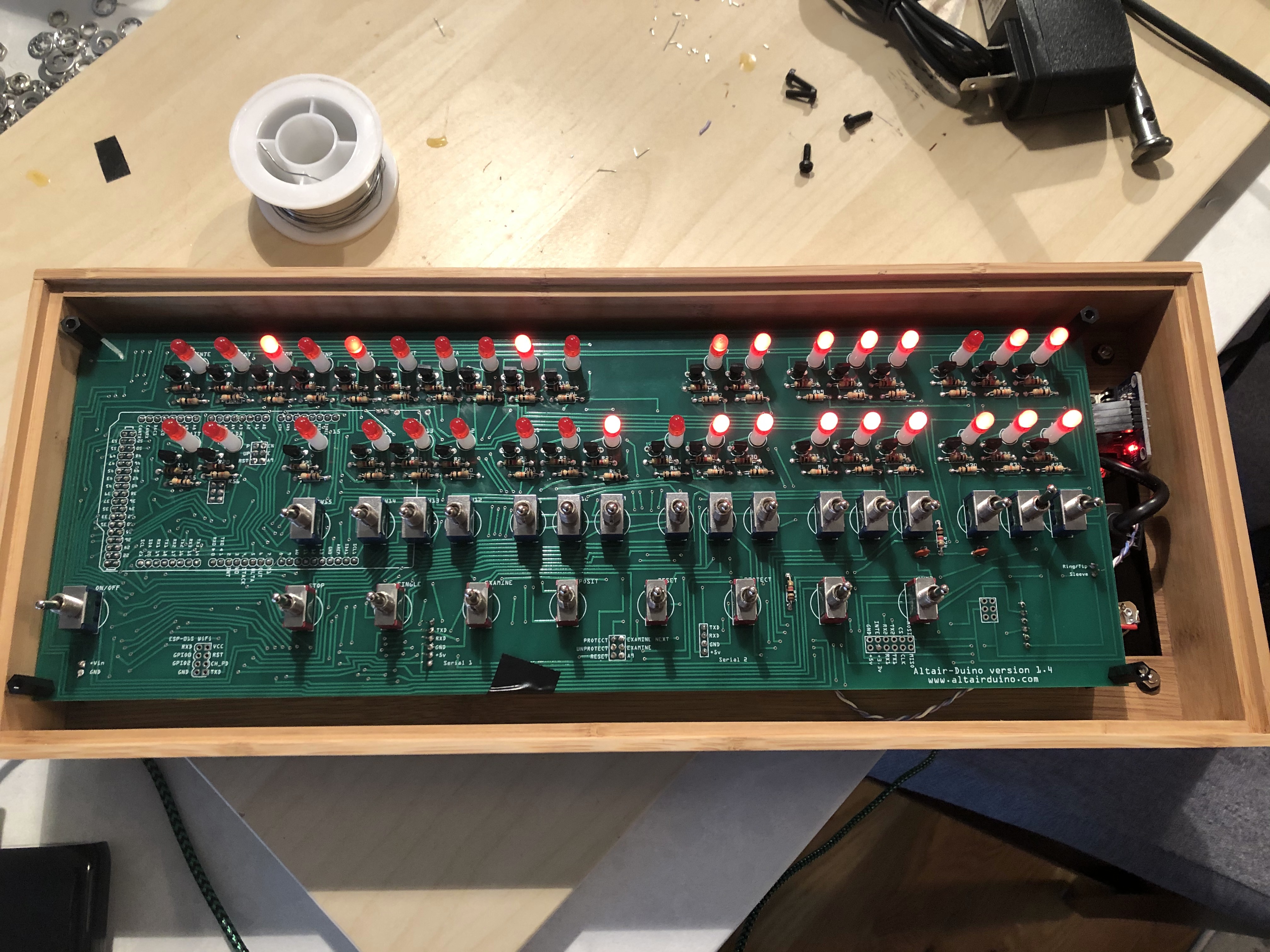
The kit comes with a spiral notebook of instructions on how to put it together. These are great, color photos of step by step what to do. You can see them here, https://www.adwaterandstir.com/instructions-14/ , keep in mind this is for my specific version. Like many of the other kits, the longest part of this kit is soldering all the LEDs and resistors onto the board. There are a few ribbon cables that go into place, and you are set. Be slightly careful when putting the switches in, they can be a tighter fit into the holes which is great for stability, but they are at the center of the board and it can flex. Once you get it all in the case and screwed down, clearance is a bit low, so make sure the board is ready to go in, when you put it in.
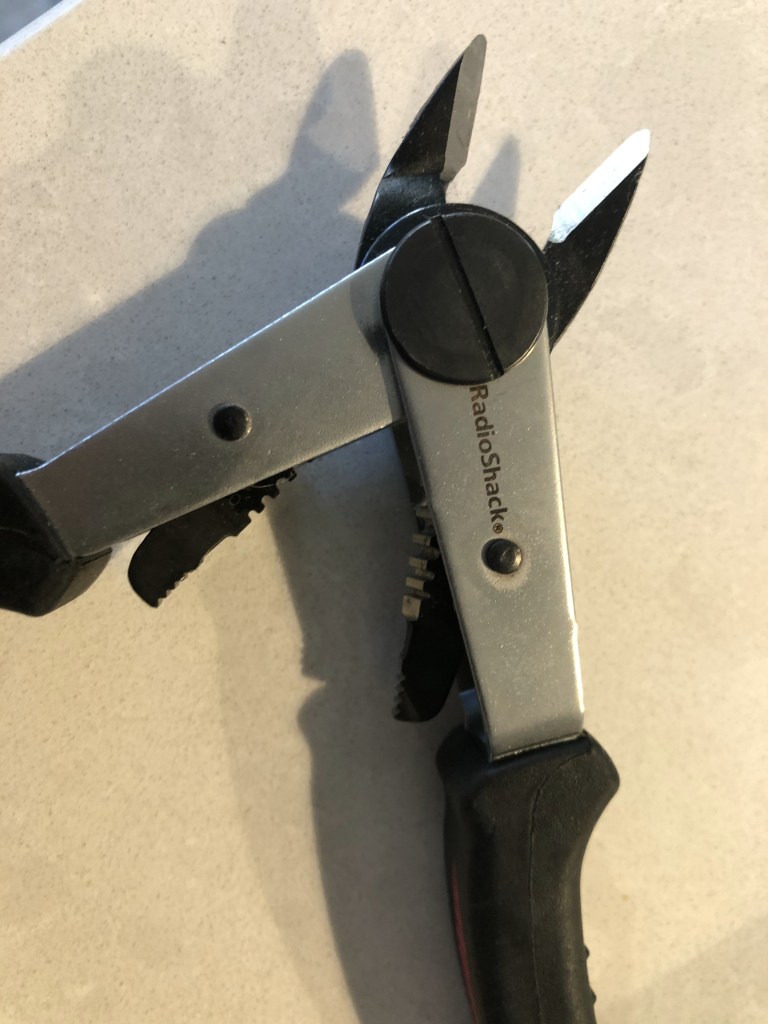
The one part of the setup that is a bit scary, the system comes with a SD card reader that sits flush with the board; if you want it to be accessible from the back of the case you need to bend the 4 legs on it. I used my trusty Radioshack wire stripper/pliers for that!
Software
I connected over USB, the kit also supports Bluetooth on Windows, to get the serial line out and console in. The system supports loading a bunch of programs that are included. The creators website, https://www.adwaterandstir.com/operation/ includes a bunch of guides on things to do. I loaded up CP/M and for fun, of course Zork!
A easy kit to put together, and a fun little project. I now am amassing a wall of these projects, and will have to get a new shelf for this one. Then I will just wonder where Chris found 256mb micro SD cards!
TL;DR; Check that your Domain Controllers are in the correct OU and that Microsoft Key Distribution Service is running
I ran into an issue recently when DNSSEC signing a dns zone where Windows Server 2019 gave a very vague error, and would only display that error after 10 minutes of timeout. This made iterating on it very slow since every change I made was a 10 minute wait. Every guide to setup DNSSEC mentioned right clicking the zone, then clicking sign and as long as you select the default it should just work. On another domain, that happened for me and it just worked; except the one original one that kept timing out.
In setting a custom DNSSEC signing policy I noticed that there were different keystores each of which gave a different error. This made me think it was something to do with the specific one I was using. It was time to troubleshoot the service itself not DNSSEC.
I got a list of the services from a known good, and signing, domain controller; then compared that to the bad one to see what was different. Part way down the list I noticed that Microsoft Key Distribution Service was failing to start, and if I tried to start it, there was an error.
Group Key Distribution Service cannot connect to the domain controller on local host Status 0x80070020.
Checking the Event Log showed an issue in finding the Domain Controllers on the network (error above), which was weird because it is a Domain Controller… In looking at where this system was placed in the domain tree, I saw it had been moved from the original OU for domain controllers to another place. I dragged it back, after applying all the GPOs that were on that other folder to the original Domain Controller folder. Then held my breath, hit start on the Key Distribution Service and it started right away.
After that DNSSEC signed with no issues. Long story short, dont move your DCs it’ll only end in pain. And to the one other person on the internet who has seen this problem and never solved it, 5+ years ago https://www.reddit.com/r/sysadmin/comments/3dedwm/dnssec_will_not_sign/ there is your answer!
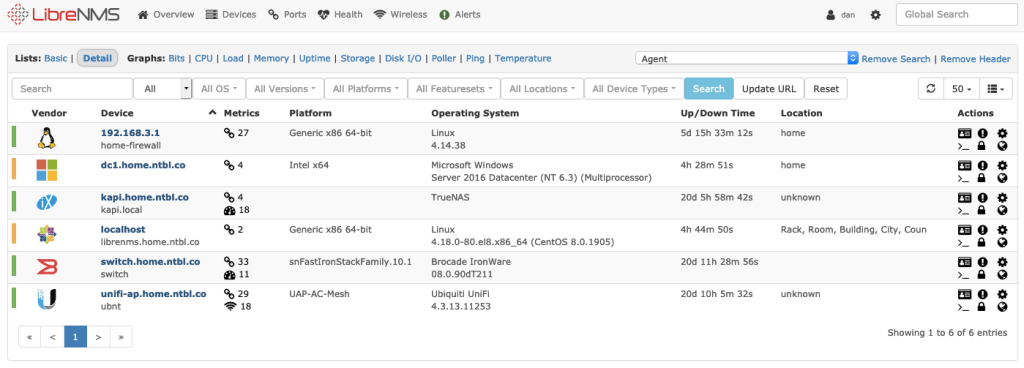
I started to deploy LibreNMS at home as a way to see all the systems on the network and any outstanding issues they may have. This is outside of log aggregation that I plan to do with ELK. Its been fairly smooth, running through the installation guide, https://docs.librenms.org/Installation/Install-LibreNMS/ for CentOS 8 (my standard Linux flavor at home for servers) was a breeze, then we just needed to add SNMP devices. I’ll post more when the whole system is together and I have a chance to put dashboard together, but for now I thought I would post some snags I hit.
Devices Screen in LibreNMS
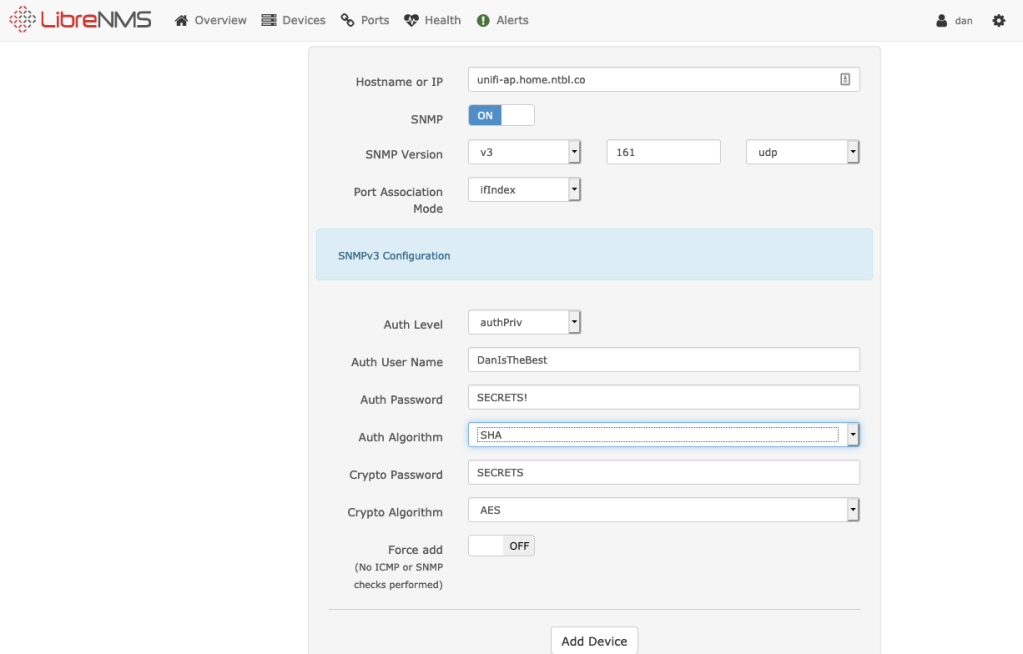
SNMP v3 is considered a lot more secure than older versions, so I am sticking with that wherever possible. There are a few commands you need for SNMP v3 in its strongest mode that makes sure no one can read the data, authpriv. Username, password, crypto password; password and crypto password also have different modes available. AES or DES for crypt, and MD5, or SHA for password hashing. Some devices now offer SHA-256, or SHA-512; LibreNMS does not, so lookout for that, a few of mine had to drop down to MD5 to find a matching mechanism. Every device defaults to port 161 with UDP for SNMP. You can also run SNMP over TCP.
Before I dive into different devices and how to configure them to work with LibreNMS/SNMP, I suggest getting familiar with snmpwalk as a command. It lets you quickly test and figure out if your setup is working, since if the settings are wrong in LibreNMS device setup, it erases them for you to start again. Some devices have you white list or select which IPs will be reading SNMP, testing from your LibreNMS host can save you some pain as well.
Windows
Windows Servers easily support it, and have a guide on the site. This page walks you through it, https://docs.librenms.org/Support/SNMP-Configuration-Examples/ and a lot of other devices. This is one where the easy solution is SNMP v2, Windows does allow easy white listing for SNMP servers, that made me feel good enough about the security over not having SNMP v3.
Linux
snmpd via the link above. Your stock LibreNMS host gets a premade config, that can be easily copied.
Ruckus/Brocade Switch on FastIron Switching Firmware 8.0.90d
The below commands add SNMP v3 to the switch. You need to make a group that you specify which privileges it has, then add a user to that group with the required password and crypt password that SNMP v3 in authpriv mode needs. Here 192.168.3.10 is my LibreNMS host, librenmsuser is my user, xxxxxxxxxxxx is my password and yyyyyyyyyyyy is my crypto password.
snmp-server host 192.168.3.10 version v3 priv librenmsuser
snmp-server group librenms v3 priv read all write all notify all
snmp-server user librenmsuser librenms v3 encrypted auth md5 xxxxxxxxxxxx priv encrypted aes yyyyyyyyyyyy
Unifi
The Unifi devices gave me the most difficulty. Ubiquti has a few different product lines that are fairly different, thus searching wasnt always the easiest. I saw a few people say they dont really support SNMP or they only supported v1. Unifi device do support full SNMP v3 😀 They even have a cute icon in LibreNMS!
LibreNMS Device Setup
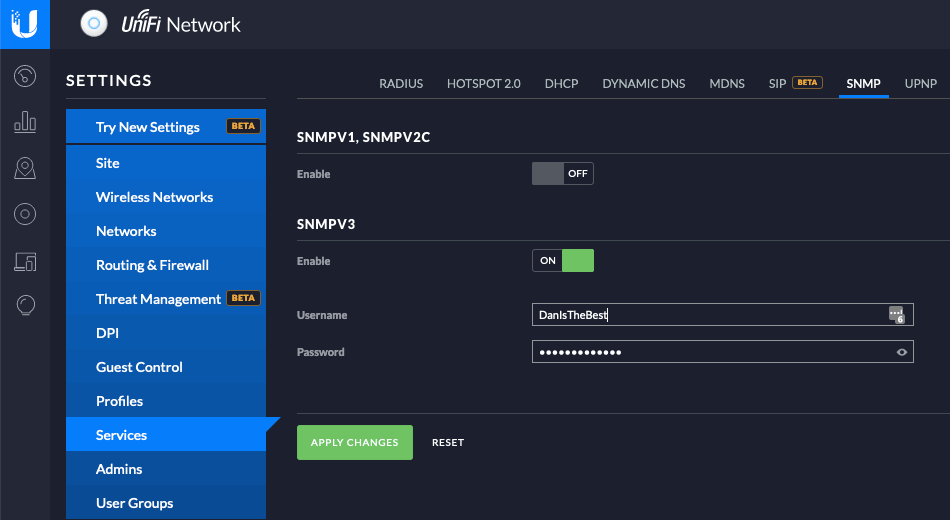
First I was in the Unifi controller attempting to set v3 info. As noted above there are several pieces of info you need to be able to enter into LibreNMS to get a SNMP v3 client to work. The Unifi interface was confusing because it just mentioned Username and Password?
Unifi SNMP Screen
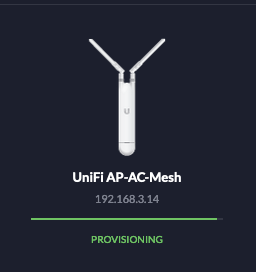
I thought this may enable SNMP on the Controller itself to read data for devices, but checking netstat showed no new ports or anything changing. So what was happening when I change this setting? That’s when I noticed my AP was back in Provisioning Mode because a setting just changed. ITS CHANGING THE AP ITSELF! AH!
AP IN Provisioning Mode
The latest Unifi Access Points are just little Linux computers, if you ssh onto them and type “help” you get only a few commands, but a quick double tap of tab shows you have all the normal Linux commands.
Going back one level I was able to quickly find snmp.conf, which had all the settings I need, and here they are for anyone who needs them.
Unifi APs Use the following for SNMP v3:
Port 161 in UDP and TCP
Username is the username you made on the Settings screen
Password is your password you set with SHA as the hashing method
Crypto is the same as your password, in AES mode
SNMP v3 auth mode is authpriv
Sophos XG
This one is also fairly straight forward, you need to go to Administration -> Device Access and set which vlans you want to have access to SNMP. Then go to SNMP at the top and setup your general info and then SNMP v3. This is one OS where for passwords they support MD5, SHA-256, and SHA-512; I had to use MD5 since I couldn’t get SHA mode on LibreNMS to connect to either of those newer SHA standards. I will also mention, when you commit your settings in Sophos XG it takes a few minutes for them to take effect. Set everything, then wait at least 2-3 minutes for it to start working, I was jumping around and couldn’t get my settings to take, then waiting a few minutes allowed it all to start working.
Setting up AD auth in the product is straight forward, set your domain search as wide as you are comfortable with, because next you import groups that are under that search. Next, make sure to hit the little icon that imports all the AD groups you want, it is easy to overlook.
Import groups button
Now go to the Services tab, and include your new AD servers in your group for Admin Authentication methods. The guides say to make AD first, and in testing I just put one of the servers above local; but this shouldn’t matter too much, local auth still works.
Admin Authentication Methods
Now here is the trick that got me. TO HAVE THE USER SHOW UP IN THE USER AREA OF AUTHENTICATION, YOU MUST HAVE THEM LOGIN TO THE USER PORTAL FIRST. Thus the User Portal needs to also be setup to allow AD auth. After that, the user will appear like below, and you can click in to edit them.
User admin panel
Clicking into the user you can make them an Admin, and set their group. You have to provide a email at this point for the user. BEWARE, MAKING THE USER AN ADMIN IS NOT REVERSIBLE! IF YOU WANT TO MAKE THEM A NORMAL ACCOUNT AGAIN YOU NEED TO DELETE THE USER, AND IF THIS USER IS USED IN ANY FIREWALL RULE OR SETTINGS THIS WILL BE BLOCKED UNTIL THEY ARE REMOVED FROM ALL OF THEM. One fix for this is to make them part of a Admin group that has no rights to anything, but that doesn’t feel like the proper way.
User panel making a user an adminError if you try to delete a user tied to policies
Then you should be good to go!
Troubleshooting
Some troubleshooting techniques I used while fixing this: if you don’t have the user imported into Sophos XG, and attempt to login to the Admin panel, you will get “Wrong username/password” and looking at the logs in Sophos you will see “Wrong credentials entered for x@domain”. This is not exactly true and can throw you off. If you login to AD and look at your servers Security logs, it says “User login successful”. That is a good indicator that at least your login is working correctly, don’t get fooled by AD saying success, while Sophos says wrong; the user just needs to login to the User panel first to link the accounts.
Recently at work we have been rolling out Credential Guard on our Windows clients. I didn’t know that much about it, so I did some research: https://www.youtube.com/watch?v=urqXgBbVyWY this is a decent video that goes over what Credential Guard does. The high level bits are; it uses Hyper-V to create a secure container that holds your credentials. Then if your main Windows environment is compromised, in theory, the badie cant see your network hash and use it to gain access to stuff. This is just a quick post in case you haven’t heard or dug into a cool new security feature.
There are a few requirements to run Credential Guard, the first is you need Intel or AMD hardware support for virtualization which basically any system in the last 5+ years should easily have. You also have to be running with UEFI and Secure Boot enabled. Both are a good idea anyway, its 2020. This Microsoft page has a PowerShell script you can use to test if your machine is ready and enable bits you need on Windows, https://docs.microsoft.com/en-us/windows/security/identity-protection/credential-guard/credential-guard-manage .
The easiest way to check if its working, or even configured is to type “msinfo32” in the start menu. Then you can see which security tools are running and which are just configured. This is a nice panel because you can easily see if SecureBoot and Credential Guard are working. There are lots of guides on how to get this working, I want to go over some of the caveats to running this.
Caveat 2: Be careful with your motherboard. I have an AMD system I deployed this on, to get SecureBoot working I had to disable CSM (Compatibility Support Module), and after rebooting not only did my keyboard not want to work, but I had to enter my Bitlocker recovery key. That I should have remembered since I made a UEFI change. The keyboard issue seems to be the B350 motherboard in Fast Boot mode has issues with some USB keyboards. After disabling FastBoot that I got it working happily. With an NVME drive, letting the machine fully load each time and not using fast booting only delays the system a couple of seconds, but lets all the devices initialize.
In my apartment I needed to get wired networking with VLANs across the apartment. I didn’t want to run a wire since I thought my roommate would not appreciate that. I wanted to have a switch near my desk, that allowed different devices I have like file server, desktop, and a few other things to have a wired link; then, connect to the modem/firewall and rest of the networking gear across the apartment.
Long story short, I ended up using a trick I didn’t know would work till I tried it. I have 2 x UAP-AC-M, they work decently well, topping out at 867Mbps and 2×2 MIMO; as well as being able to get them on sale in a 2 pack for a decent price made them a great deal. I have run 1 of them for 4 years as my main access point. Then when I wanted to get this wire connection in a new room configuration I tried to do a wireless uplink to the second one. This makes it mesh with the first access point. Now the important item I don’t seem written anywhere but works well (caveats below):
Ubiquiti access points in wireless uplink/mesh will bridge that network to the wired port on the device
This means if you have a trunk port going into your original/base mesh AP, you will have the same trunk port coming out the other end. This also means anyone who is running mesh points, and hasn’t secured the wired port may want to think about doing so. I am will skip over HOW to set this up, Ubiquiti has a good guide https://help.ui.com/hc/en-us/articles/115002262328 to walk you through it, and most APs can do wireless uplink at this point; this is more about saying it can be done, and works well from my experience to anyone thinking about implementing this or wants a solution for their home/apartment that is not powerline networking. The APs I have are 2×2 802.11AC, I’m sure with a 4×4 AP like the AC-Pro as your base you may see better performance on higher trafficked lines.
This setup has worked well for me for over 6 months now, I can easily hit the 300Mbps I get from my internet connection on a desktop plugged into this meshed AP’s port; I also get 6ms pings to servers while playing games. You get the benefit of real commercial grade antennas and radios in the APs you are using instead of a tiny wifi chip in a laptop, desktop, or device. This also lowers the number of wireless devices (since all the wired devices would have been wireless instead). I also disabled the secondary AP from hosting any of the SSIDs I have in the apartment, so it just works as a wireless uplink. My apartment is not big enough for 2 AP’s for devices.
Caveats
I am looking to move away from this setup for a few reasons. It has worked well and if you are in a pinch I would recommend this setup much more than powerline networking which I have also tried and used several times. I am hoping to move to 10gb/s networking at home with my growing homelab setup; thus, no more wireless link. The other limitation that 99% of people probably would not care about is that you can not do jumbo packets over wireless, so that means it can not be done from all I have read over a wireless link of this type.
Network Topology
The first caveat is that this configuration slightly confuses the access point when it first starts up. The first 60 seconds or so when the access point is online it will think the wired connection is its uplink and attempt to ping out over it. After that it realizes it cant hit anything and will go to wireless uplinking. Sometimes everything just works then, sometimes I have had my switch be confused about where traffic should go and had to power cycle it; in this case it was just a Netgear Prosafe switch with VLANs, not especially smart, but not the dumbest switch. This is similar to a enterprise networks re-converge time when a link is downed. Overall it is rarely a problem and these APs are solid and can go months between restarts, but this is something to lookout for.
Remember that if a Ubiquiti AP cant get an IP, then it doesn’t broadcast SSIDs; this is important since if the base AP boots (like after a power outage) and doesn’t get a DHCP address quick enough, it wont broadcast, then the mesh side will never find an uplink to connect to.
Management
With the earlier mentioned topology issues you can run into, that can make management difficult. You need to make sure the base side of the network is stable. You can get into a position where you did a bad config push or a setting is wrong on the secondary/mesh side and the only way to fix the config is bringing that AP back to the original wired network and pushing a config to it, before the secondary AP can go back into wireless uplink mode.
One of the projects I currently work on at work, and have for the last few years is how to go from a blank stack of servers to a fully configured cluster with my companies software running on it. While some projects were starting and getting going in the open source field when I started this project 5+ years ago, a lot of them kept rewriting their API every minor version rev. That started my down a path that has now become a decently large internal network booting infrastructure, and managing interconnects to our inventory system as well as other systems such as Tenable Nessus. I recently was awarded my first patent! This one is specifically about how my system interacts with the inventory to dynamically assign systems as they come online to clusters.
My part of the code was all written in Java and continues to evolve as a platform, I hope to open source a good amount of it down the road. I started the project by reading the RFCs for DHCP/PXE and then writing code. I have grown to enjoy writing libraries and some project this way of adhering to the standard (more on that some other time). The general platform can handle ProxyDHCP PXE booting, and then uses iPXE to create menus and boot systems. I spent many hours debugging different vendors PXE code and BIOS vs UEFI to get all the systems to work. The platform now supports plugins for many different aspects of server configuration.
I could write page about small details I have learned a long the way; one issue that has been driving me crazy recently, if you want to ProxyDHCP instead of using your main DHCP stacks these days is Secure Boot. iPXE does not have a Secure Boot signed image, I have tried to get Microsoft to sign it but they will not unless you are selling a product using that the sign iPXE. I am not I just wanted it for internal use. That means you may want to use grub2 as your loader, but there is a bug that has been outstanding for over 6 years and makes ProxyDHCP with grub basically impossible, https://savannah.gnu.org/bugs/?55636 which is sad.
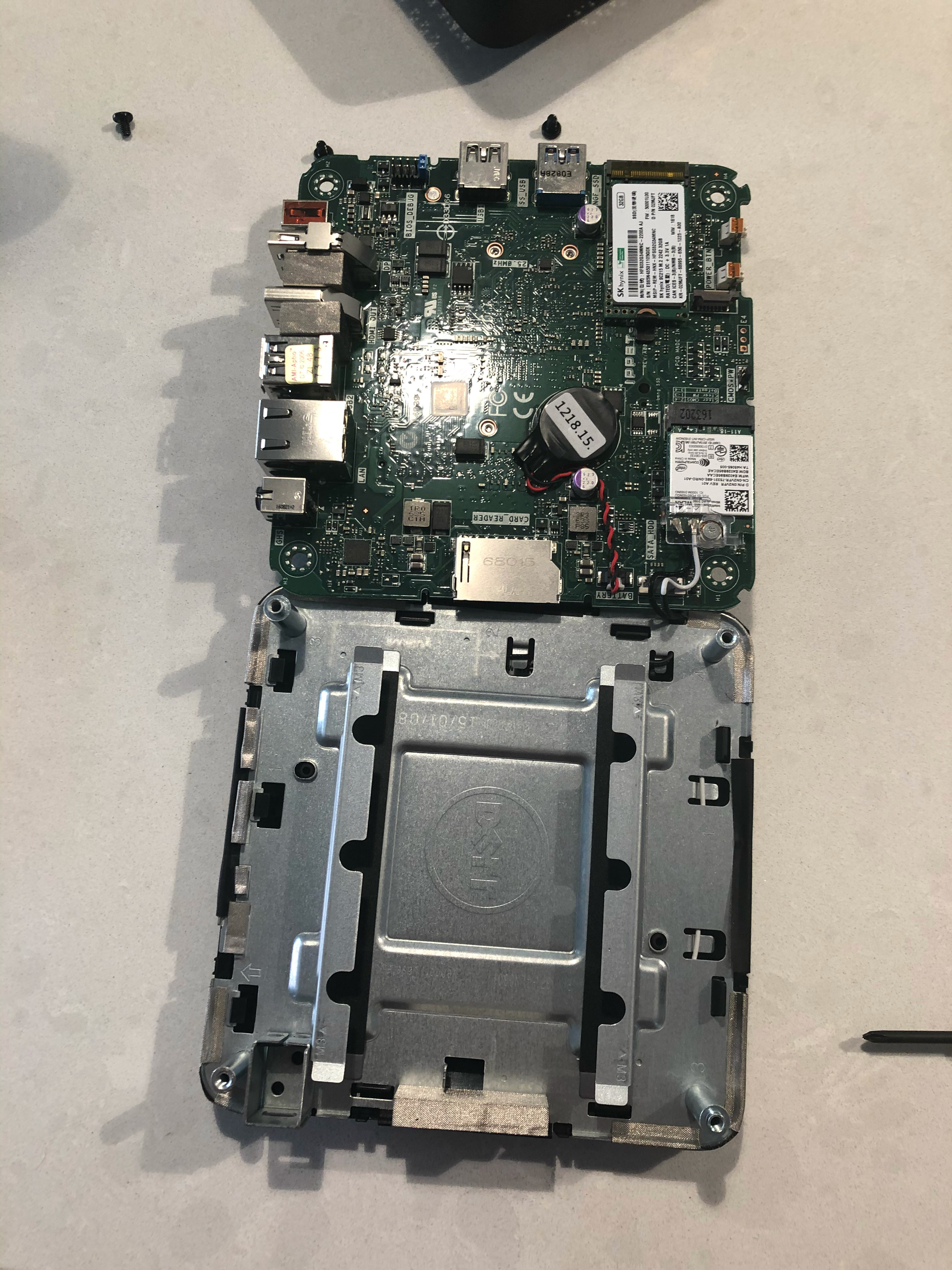
This is a short post about a Dell Inspiron 3050 I upgraded a little bit ago. This is a tiny pc, similar to an Intel NUC. Its a Intel Celeron, and came with a 32GB SSD. I got it for around $150, with an Office 365 subscription; thus it was worth it to me. It came with 2GB of ram, and a 32GB SSD, these days those are not expensive to swap; I wanted to swap the components for 8GB of ram and a 512GB SSD. Below is a short guide with some photos of opening this thing up.
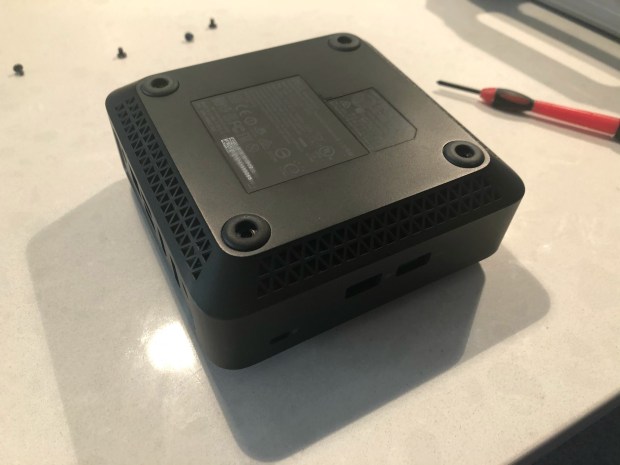
First we needed to remove the case, this involves flipping it over, and taking the 4 screws out that are in the little feet.
Inspiron Bottom
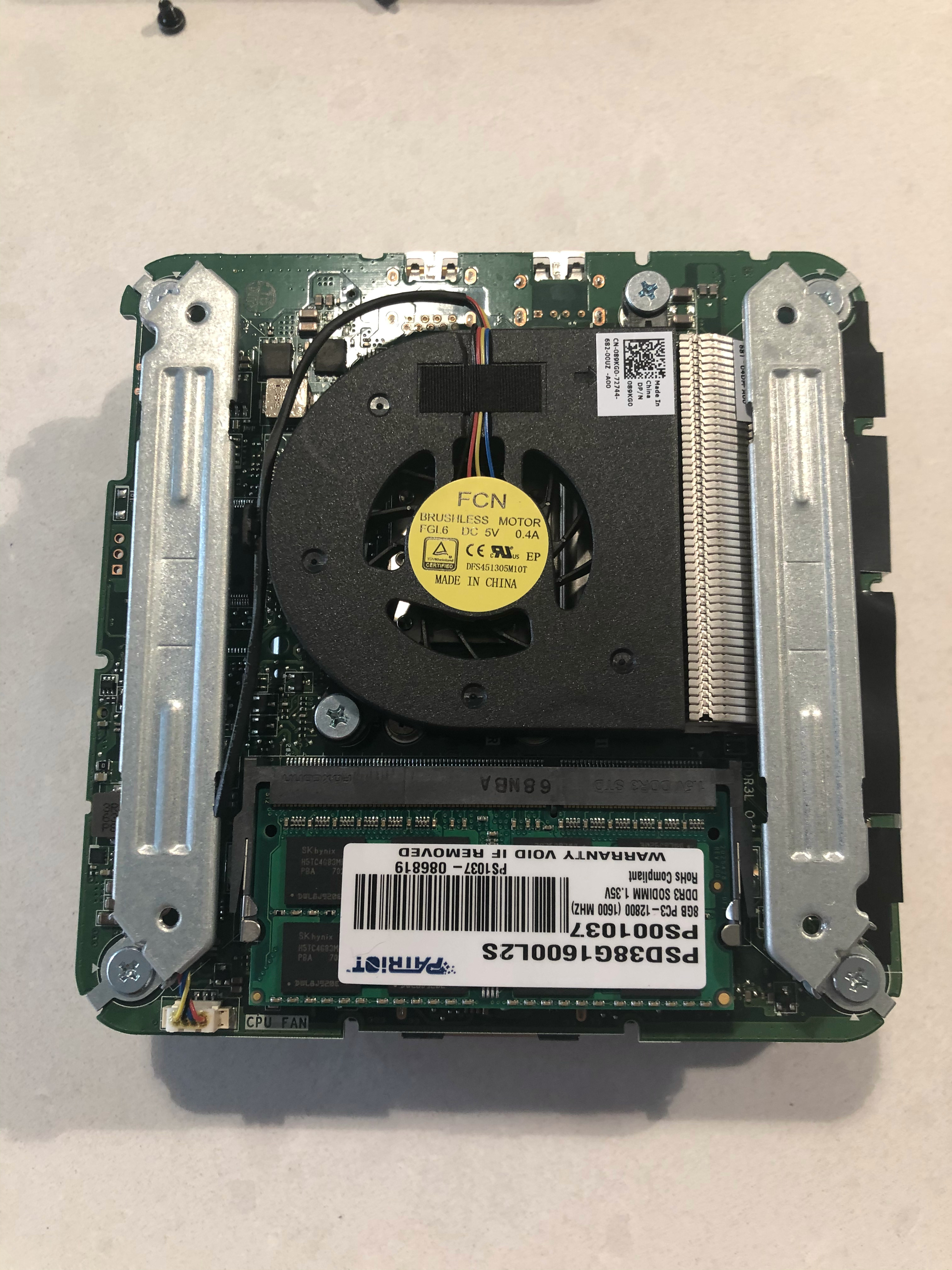
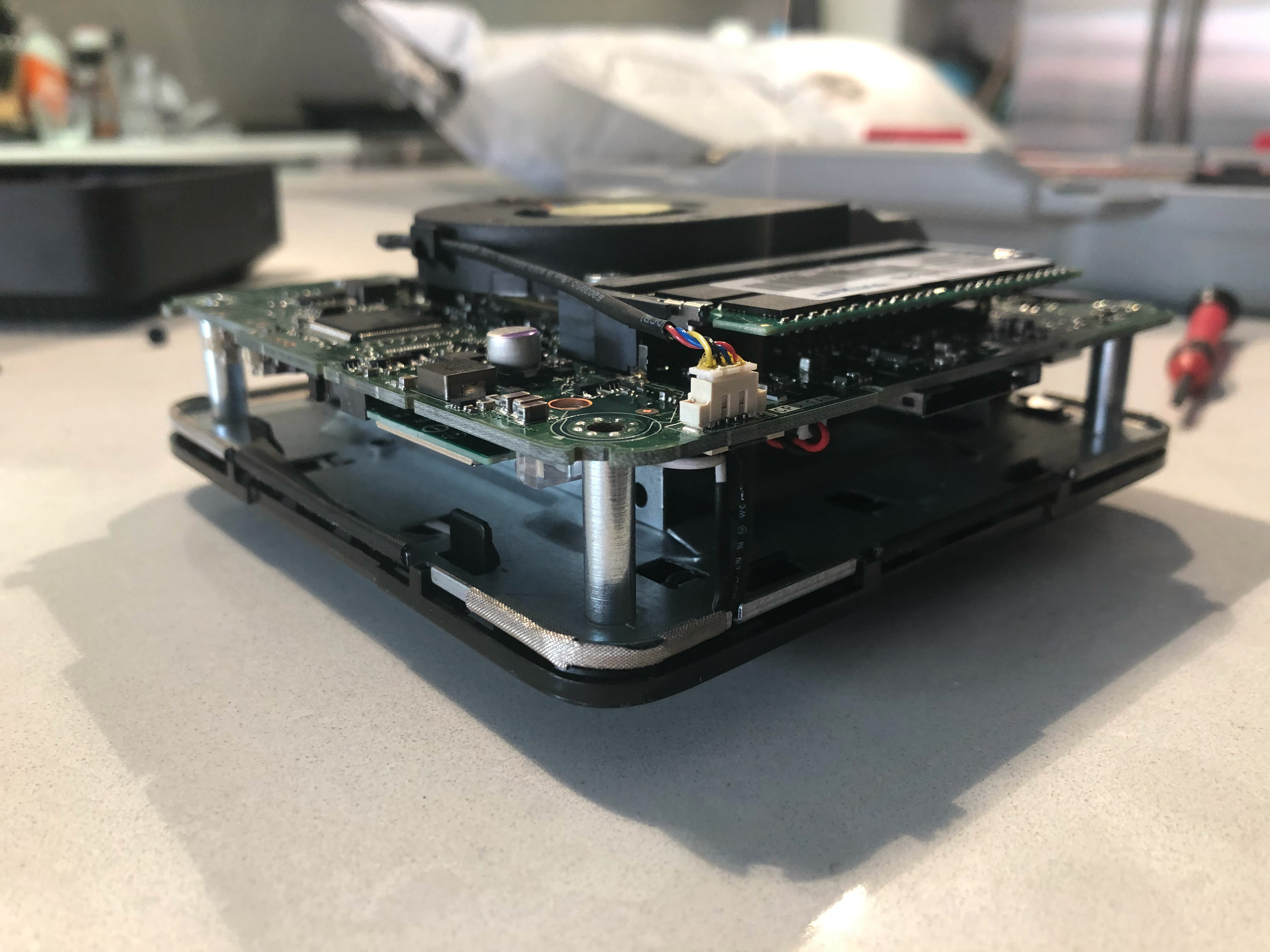
That gives you access to the RAM DIMM. Easy to swap if you want to do just that. Now there are 4 screws at the outer corners, those come out then the board can fold out keeping the antenna and other cables connected. Flipping that over and putting on the table shows the CMOS battery, as well as the SSD.
Underside of board
After replacing the SSD its just a matter of flipping the board back onto the posts, and screwing it all back together. Fairly easy to do, but I couldn’t find a ton of photos online so I thought I would put some up. I ended up installed Hyper-V 2019 on it, the box is fairly slow with its Celeron dual core J1800 processor; but can run a Linux VM or two. Plus its a cute little computer that uses very little power.
One last note about putting it back together, there are little metal spokes that stick out from the top metal mount, those need to line up with the motherboard the system wont go back together correctly.
A few weeks ago I got the Sonnet Labs, Sonnet One long after we thought the Kickstarter was just dead. A pleasant surprise, until it was missing any instructions, and the setup link didn’t go anywhere. I ended up writing up what I could piece together on the web into an Unofficial manual of sorts, but then decided I wanted to know a bit more about the firmware currently on it.
Now I was interested! You can get SSH and control the whole device? How does one get that. First I looked at the code of the web app that was running, and just wanted to see if there were any admin pages I could click and just not see. Nothing big stood out, except the code on the device, and the code on the GitHub looked a bit different than each other, and there is not even a README about how to get the repo up and working.
Running nmap against the device just displayed the few ports we knew it had to have open: web server, DNS, DHCP.
That’s when I saw a reference for http://repo-test.sonnetlabs.com(backed up on archive.org), a place where all the different firmware versions has been stored. Some are marked “stable” some are “beta” or “alpha”. With a bit of searching around I found a site that walked through easily extracting OpenWRT firmware. After a quick Brew install on mac, I was able to binwalk the file and open the firmware that I seemed to have on my device, vs one of the beta ones. Looking around, its a fairly standard OpenWRT firmware with some tweaks done for the long range radios. It also has services like dropbear for SSH. In the beta/alpha releases they are missing one line that the stable ones has: “option enable ‘0’” in the /etc/config/dropbear file disabling SSH.
Looking more, there are some init scripts the system starts, one for the app, and another for the radios. The code is actually decently documented,
If we (the internet) had a build of the firmware with SSH enabled, it would make checking and seeing information about the mesh much easier (since the UI seems to have no indication of what is going on with that), there appears to be a backend app for managing the mesh. This is used in the startup of the radios:
    ${MESH_CONTROLLER_CMD} reset
    echo "mesh: using channel ${channel}"
    ${MESH_CONTROLLER_CMD} set NCP:Channel ${channel}
    ${MESH_CONTROLLER_CMD} set Network:Name Sonnet
    ${MESH_CONTROLLER_CMD} set Network:PANID 0x4700
Most of the operations for the app seem to handled by /usr/bin/sonnet_server. And the web part of the app is in /usr/share/sonnet_app where it has all of its node modules setup, and cordova.js for some offline stuff. This code is much different than the one on the Github. Which makes the timeline/code confusing. If they shipped around October, they had to have the firmware more or less finalized a while before that. How do we have this one code base with some stuff from August 30th, then this firmware from 18-Jun-2019.
Anyway that was a bit of playing around with it. What I would like is Sonnet Labs to put a firmware out for us with SSH on, and everything else stock. Then go and add documentation to the repo, perhaps a easy way to iterate on the code and put it on the device. After that, if the community wants to help make the app better and perhaps put a UI on the actual mesh part. Or Sonnet Labs can update their product. The fact that http://repo.sonnetlabs.com has a bunch of 0 byte files last updated May 2018 does not fill me with hope…
Today a device I forgot I ordered arrived, the Sonnet Labs One, a mesh point that reports to connect two places over lower frequency radio to allow large mesh networks. It works by getting one of the units and connecting it to your local wifi. Then the other one, according to the box can be up to 1ish miles in a city, and up to 10 miles out in the middle of no where. When I got it I unpacked it, and all that was in the box was the device, a micro USB cable, and a charger. Where are the instructions? I check the other (you need at least 2, or hope your town has some other people who got them years ago on Kickstarter or Indiegogo (yes they did both) ) and that also didn’t have instructions.
Box
Ah the top of the box says sonnetlabs.com/start, perfect! 404 page not found, with a few other links, which also 404. Looking on the Indiegogo and Kickstart pages most people are still waiting for theirs, so I guess I am too early for the website? The sonnetlabs website also shows an early mockup of the device and nothing what it looks like now. I started digging through comments, and looking at their GitHub. I have pieced together some aspects of the device and figured I would start a manual since so far non exists. And at this point, the project seems to have maybe 1 or 2 people working to try to fulfill it. I would be happy to chat with the devs.
Turning on the device:
The first flag contains a port for an antenna, the second has the micro USB charging port, and a micro SD card slot, the last has a USB host port to charge your devices.
Plug in the included charger into the middle micro USB port
Hold the Orange button for about 3 seconds and a green light should appear on the top of the unit
Connecting to the device, and to the internet:
When the unit is on, you should see a new Wifi network near by, Sonnet-XXXX connect to this with the password of “sonneteer”
Note: I had issues with my Mac doing this and had to manually enter the credentials
The web server that hosts the app takes a minute to start, if you try to go to it too fast it will fail to load
In a browser go to https://app.sonnetlabs.com, the IP is usually 192.168.47.1; but if you go to the IP the settings menu seemed total for me, it looks like they hard coded that URL in some locations
There will be an error about the certificate, this is because the device made it, accept to continue, you may have to hit “Details” or “Advanced”
You should see the login screen, click “Register New User”
This makes a user to send messages, and use the basic aspects of the device, fun fact all this data is stored locally in your browser, so the users generally don’t matter. This does secure your chat message data, because you need to use that exact browser and that exact device to ever see these messages again. If you change the address you are going to, or the browser, or anything you need to go re-register a user.
The Administrative password, set later, does actually store on the device and persist
Put in a name, username, and password
Once you see “Registration Successful” go back to the login screen and login
Note: Hitting the “Enter” key on the password field doesn’t trigger a login, you need to click “login” (at least in Firefox)
Now you are at the default page, “Contacts”, go to the “Settings Page”
At the bottom of the “Settings” page it will say “Set New Password” and “New password”, you have to put something in here to get Admin access to the device, that isn’t clear, but it is needed. This is saved to the device.
Note: This password is entered later in the UI and is just displayed on your screen, don’t make it something you don’t want people to see
Once you set a password there, you will get a real “Admin” page
Here you can click “Wifi” and start the process to connect to your own wifi network
This took a minute, then mine displayed a green check mark and I could connect to the internet, through my internet, even though I was bouncing through the device
Note at this time, I have gotten the two devices to use the “Chat” function, but not the mesh internet functions
Using Chat:
I was able to get chat to work between two of the devices, setting up one, then turning the other one seems to auto pair them. At this time I can not find any user interface on how to confirm/configure/see anything about the mesh. But Chat worked… so that’s something.
Login to the web interface
Go to “Contacts” on BOTH devices
Click the + in the top right
Select “From Network”
If both sessions are online, you should see the other user
Then if you can, you can click there name and this will send a request to add
On the second device, there should be a red dot on the + in the top right of “Contacts” screen, go to the +
Select “Requests” and approve the request
Then you can chat, I haven’t done much testing on how much caching of messages the devices do, but in my first test one device missed a message because the window timed out and was “offline” again
Note: If you see “Offline” as a bar at the top of the Window, your browser has disconnected from the device itself, clicking “Offline” should reconnect
I have not gotten QR codes to work, even with a very clear photo.
I took some screen shots of other screens. If you want more info, or have more info please leave a comment!
Additional Info:
I found a bunch of info poking around online, here are some notes:
From what I can tell at the address above, a user states he was working with the devs and got SSH access to the device. I believe the image he had was a dev build with SSH installed, and the normal image we all have on the production units have this disabled.
And the last laugh, there is a subdomain under sonnetlabs.com that the Digital Ocean server now belongs to someone else, so hilariously redirects. I give you lithium.sonnetlabs.com