Installing HipChat 4 on Fedora/Rhel/CentOS/el 7

HipChat 4 has recently come out, and then shortly after it was released to my companies internal HipChat server. Being a Linux user I hoped that the aged HipChat 2 client was finally updated for Fedora or Red Hat or CentOS 7 so I could just use yum to install it. When I went to the download page the old yum instructions were replaced by only Ubuntu/Debian instructions! After playing around with the Debian package and getting it to load, I thought I would look at the repo a little more. Low and behold, Atlassian is making a yum repo! Just not publishing instructions on how to use it! The downside is they seem to not be signing the repo, but the code below works with yum to download the latest version.


sudo bash -c ‘cat > /etc/yum.repos.d/hipchat.repo << EOF_hipchat
[atlassian-hipchat]
name=Atlassian Hipchat
baseurl=https://atlassian.artifactoryonline.com/atlassian/hipchat-yum-client/
enabled=1
gpgcheck=0
EOF_hipchat’

sudo yum update

sudo yum install hipchat4

Building a Tiny Classic Mac Part 2 – Hardware and Wiring

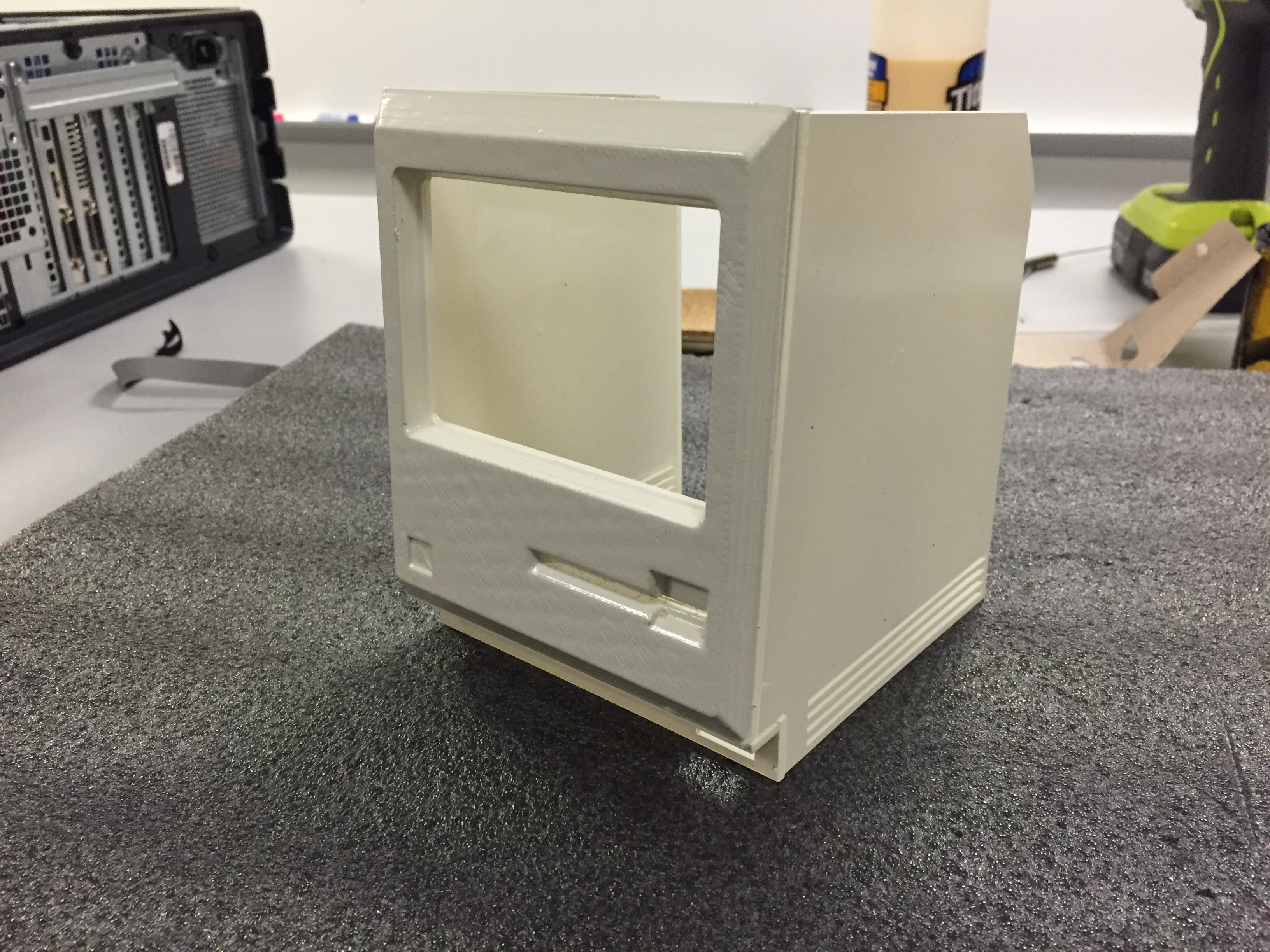
The units themselves are laser cut acrylic. The front face that was put on the painted units was 3D printed. The designs for those pieces are on my GitHub page, https://github.com/daberkow/minimacparts . The original design was a tad bit smaller than the final unit. I ended up making it exactly about 1/3 scale, then realizing that there was not a screen on the market to do what I wanted to do. When I moved up to the 4″ screen, the resolution went up to a incredible 480×320. There were a bunch of issues around that resolution that I will get into in a later article.

For the Raspberry Pi I used a Raspberry Pi 2. The first version I made had a Pi 1 in it, and I ended up upgrading to the 2 just for the speed and added cores. With the system running a emulator, core 1 can get used up by that; having more available made sure things like SSH didnt lock up.

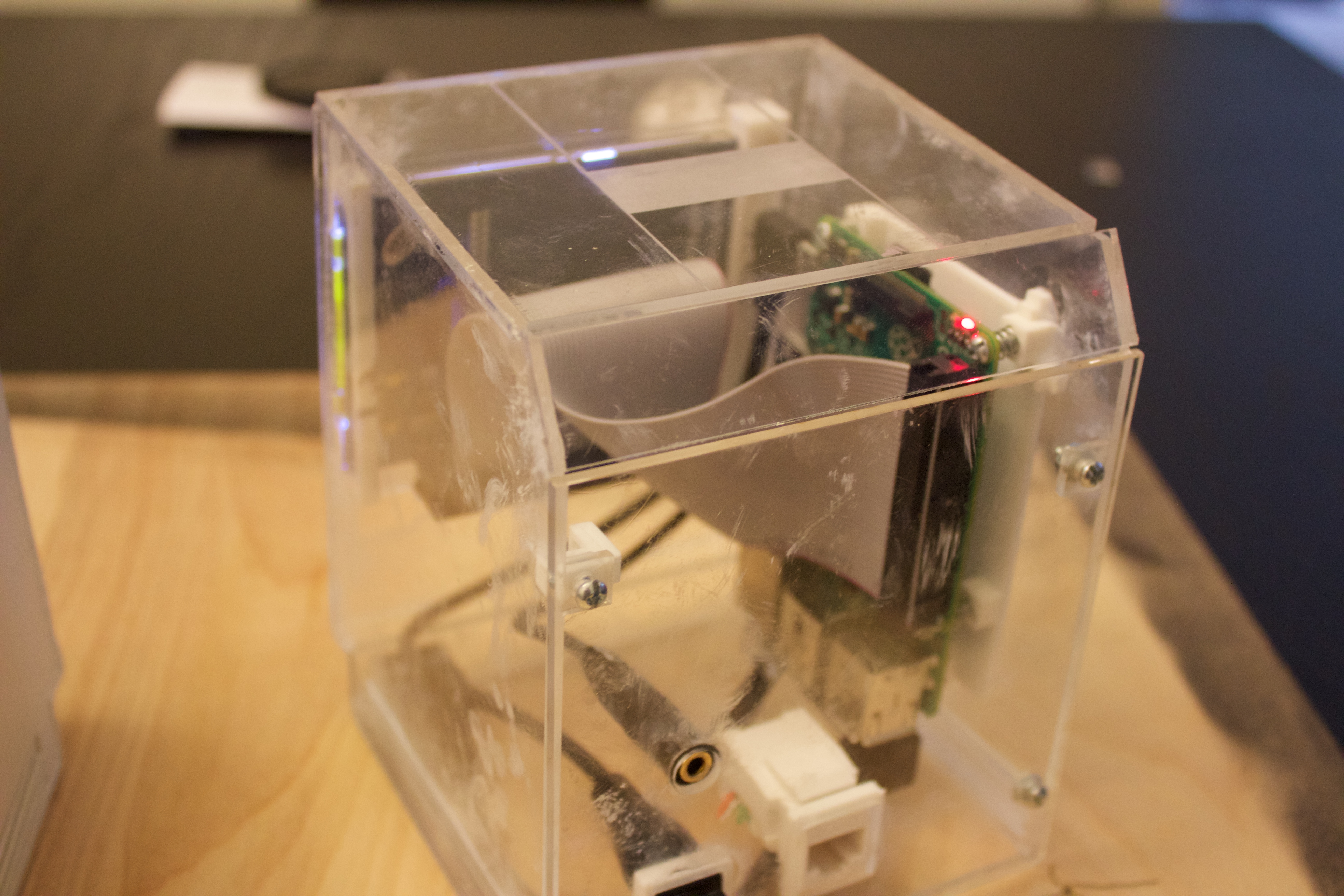
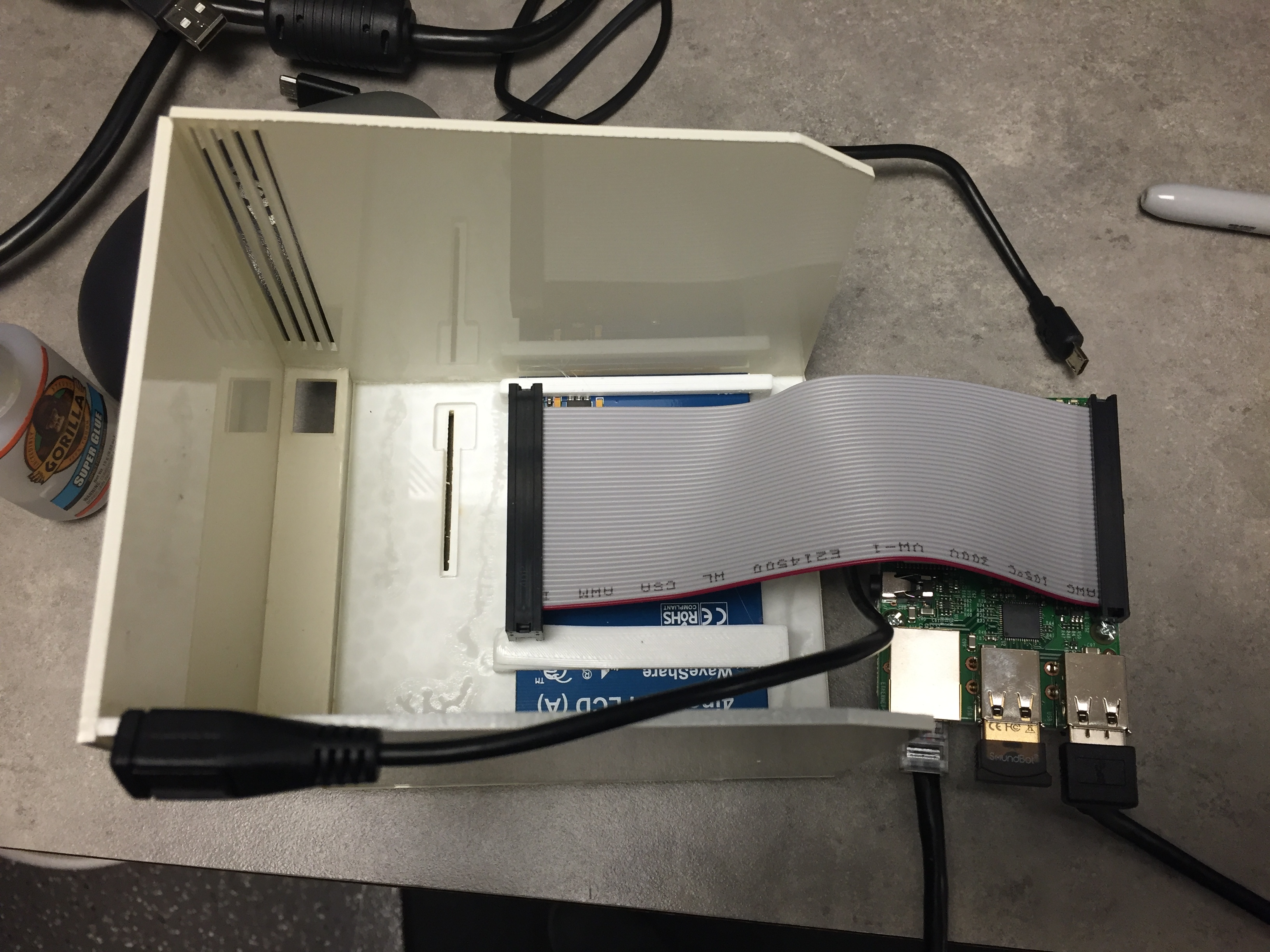
I designed two brackets, one set that holds the screen in place, and another that mounts the Pi to the inside of the case. The screen mounts are just two bars that are the exact with of the screen and help mount it inside, while leaving the port available for the IDE cable. The mount for the Raspberry Pi made it easier to take the Pi in and out of the case when building the unit. And a nice list so the Pi doesn’t get glued or screwed right into the side of the case.

IMG_2385

For the front USB port, I got a USB 3.0, 6 inch cable. The most important part of this cable is finding one with a 90 turn at the end that does not stick out a lot. The Raspberry Pi is mounted in the end to the side wall of the case, and there is not much clearance. A USB cable that comes out from the top of the Pi is better as well. I ordered the wrong one for this last build, and then had to bend it a bit so it wouldn’t push against the side of the case.

IMG_6358

A simple micro-usb extension cable was used for powering the Pi. The female jack goes to the back of the case, so that the unit can be powered. Again, the 90 degree male plug was important because that side sits right next to the screen. Audio was a random 90 degree 3.5mm extension cable off amazon. The first unit, the clear one, had a different make than ones i got later. Some of the later units had a splitter instead of a single extension. The original idea was to have a speaker inside for the start up sound. That quickly added to the complexity and was cut from the final project.

The networking port was important so that I could easily add new programs to it. The systems also had a tiny wifi receiver, but I figured hard wiring was also easy. That was a custom keystone jack to a RJ45 port.

I mentioned in Part 1 that the screen was connected to the Pi via a IDE extension cable. After looking around for other solutions that worked cleanly, this was the best one. The cable can handle the frequencies, and was easy to find. It also doesn’t do any flipping of pins or roll-over shenanigans.

To bring it all together, super glue was used, not the most glamorous, but strong and holds. I made a few little tools to help me try to put better right angles together when gluing the cases. Those didnt always work out great.

IMG_6349

To wrap up, I will go over my build order, just in case anyone decides to try to make one of their own. I would first get the front piece, and glue that to the side walls. Let that dry for a few hours at least, superglue likes to dry fairly fast, but I wanted it to be solid through and through. Then I would add the bottom front panel area, and the sliver that goes between the front bottom, and that bottom panel. After I put the bottom of the unit on, I would stop working on the main body. Now its time to get the screen, with it powered on and working with the Pi, line it up to where it looks good in the cut out.

After I have found the spot the screen should go, put the brackets on it, and glue it into place. This has to be a little carefully done, any spare glue that drips into the screen can make it look bad. Once the screen has dried, getting the mounting arms for the Pi bracket, and gluing them in place was done. There is not a real science to where it went, I would put the whole Pi sled in, then see where it seemed to work well with all the cables attached. Then sharpie those spots and glue the arms down, watching them long enough to make sure they didnt fall over. Once that was done, and I felt good about where the Pi was, I would glue two tiny blocks I 3D printed to hold the Pi sled in place.

Gluing the front USB isnt too bad, its putting it in position then gluing the edge of the extender into the place it should sit. The hardest part is not getting glue in the connector, and doing multiple layers so that it doesnt move with normal user use.

Getting the back to stay in place was my least favorite part. There are little L brackets I 3D printed that the back could screw into. They work well but lining them up and gluing them into place, and not the back itself was tiring. I would tighten the brackets a fair amount to the back plate, then get the plate into position and glue the bottom two brackets into place. Then I would do the top two. At this point gluing the different connectors into the back ports isn’t too bad. I also made brackets for them, the brackets are bigger than the whole so that it covers the whole port when the piece is in it. These brackets weren’t held with little arms like the Pi, just glued into place.

Finally the top was glued in, and then the last little top slant area. The screen I mentioned getting before may not be available from Amazon, but there are a ton of others that are all seem to be made by the same place, then had another brand stamped on them. For the last build I did, I grabbed another brand (link) and it worked with the same drivers out of the box.

Building a Tiny Classic Mac Part 1

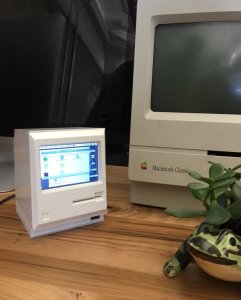
I saw online someone who made a tiny Mac (The Verge) and thought it looked like a neat project to attempt. I started by selecting the original Macintosh as the template I wanted to emulate. Macintosh-HelloSeveral people had made 3D models of the original Macintosh over on thingiverse.com, I used a combination of those and other sources online including photos to make a cleaned up model for myself in Sketchup. After having that model I went about breaking down how I would make it.

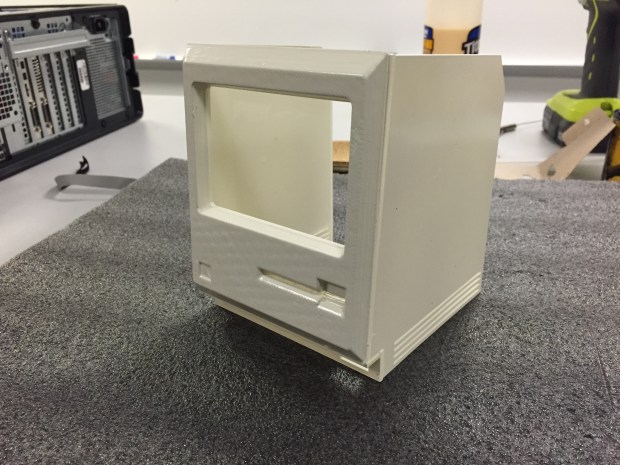
I recently have been using laser cutters for fun at TechShop, so I made the body of the machine out of clear acrylic. Then 3D printed a face plate that was glued onto the acrylic case. After that, it was painted with several coats of spray paint. I left the back door off so that I could work on installing the electronics, and setting up the software. That will be another article later.

The first unit I made was for myself, then two more for friends; the original one never got painted, I thought the clear body was neat and showed off the internals. It also gave me a good model to hold when working with the opaque other units.

Clear Mini Mac

Mini Mac v1

Each unit had a little screen that connected to a Raspberry Pi via a ribbon cable. Then a USB port in the front where the old unit had a keyboard port. The back had a ethernet port for updating the system itself, audio out, and micro-USB port for power. One of the hardest parts of the project was finding a ribbon cable that could handle the frequencies and work between the screen and the Raspberry Pi. A lot of the GPIO ribbon cables online actually flip what wire is in the 1 position with its neighbor; my solution was a 6 inch IDE extension cable. The cable can handle high frequencies, as well as fit the pin out perfectly.

20150918_152507000_iOS

Example Painted Side

After testing several different color paints, I ended up using Rost-Oleum Ivory Bisque semi-gloss as the beige shade. All the sides were glued together except the back, The back was held on by tiny brackets that were 3D printed and then screwed into. This allows access to the inside without breaking glue somewhere. Originally I was going to attempt to put a little handle on it, but that increased the complexity; in the end the top is flat.

All the laser cutting and 3D files I used I tracked with Git over at https://github.com/daberkow/minimacparts . I will put a few photos of the clear unit below, and of the final unit. Then later post another article about the electronics, and software to run it. There are also photos of the many many attempts at different sized bodies and painting side panels. My original model was almost exactly 1/3rd scale. Then I had to make it a tiny bit bigger because of the screen I used.

Standard disclaimer that I do not own or hold any rights for the Macintosh name, or Apple logo. I do this as a fan for fun.

Parts:

  • Screen, JBtek® Latest Version 4 ” inch IPS Display (Super TFT) 480×320, (Amazon)
  • Screen Cable, IDE Extension Cable, (Amazon)
  • Audio Cable, 3.5mm right angle cable (Amazon)
  • USB Extension cable, with 90 degree plug so that it fits in the case (Amazon)
  • Micro USB extension for power, with 90 degree head (Amazon)
  • For ethernet I made my own cable, it had a RJ45 head and a RJ45 keystone for the back


Fixing CentOS 6.6 Kickstart Issues

I recently have been working on a system automating CentOS 6 installs for servers. When upgrading to 6.6 my test environment (VMWare Fusion) stopped working. I got a hard kernel panic and halt on loading. Now VMware forums and CentOS site, have posts about work arounds for this. A bunch of them are complex and involve changing modules around, and other files. There is a very easy fix for this, and its detailed below.

NOTE: I am running VMware Fusion, so I will open a package, in Windows and Linux you dont have to do this, just go to the folder.

  1. Stop the VM
  2. Find the VM files
    1. For Fusion there will be a %Your VM%.vmwarevm file, you have to right click that and “Show package contents”
  3. There should be a %Your VM%.vmx file, open that with a text editor
    1. If you are on a Mac, or other machine that likes to do smart quotes, make sure to use a program like vim or Sublime Text that doest add “smart quotes”
  4. A line will read: ethernet0.virtualDev = “e1000e”, change that to ethernet0.virtualDev = “e1000”, just remove the last e. This changes the card from a E1000 in enhanced mode to a normal one. Now CentOS 6.6 will boot.

Here are some place people have discussed issues:

https://communities.vmware.com/message/2443777

3D Printing Hard Drive Caddies

Sometimes terrible things happen, like when a laptop goes a place where they take the hard drive as it leaves. Then they keep the hard drive bracket because they forgot to take it off! You can get a new drive for ~$50 but where do you get these priceless holders? Well I ran into this situation and decided to 3D print one! Now all IT departments have a real reason to get a 3D printer!

I started a repo at https://github.com/daberkow/3d_harddrive_chassis, and the first laptop I added is a Dell Inspiron N7010, random but it works!

Hard Drive Caddy

Hard Drive Caddy

iDrac6 Recovery Through TFTP and Serial

The History:
This week I had a Dell PowerEdge R510’s iDrac completely die on me; I attempted repairs with several utilities that Dell gives out on their site and all of them ended with failure. I thought it might have been because I upgrade the iDrac from an old version to the latest, without components like the BIOS or NIC, that the iDrac communicates with, being upgraded as well. After upgrading everything, iDrac still was not working, after a few days of messing with it, I found out through piecing together several sites how to force the iDrac in recovery mode to do a TFTP repair, writing a new image to it.

The symptoms:
The system used the Windows iDrac Updater, which stated the update had competed successfully. I then, remotely, told the system to reboot; it shut down and never came back up. When I physically went to the server, it was at the BIOS start screen stating “Error Communicating with iDrac. Press F1 to continue, or F2 for System Setup.” In restarting the server I found that “System Services” were disabled. Then the system would go through normal boot sequence, but when it tried to communicate with the iDrac it would fail then restart the server. After restarting, it would allow a full boot, but would give that same “Press F1 to continue, or F2 for System Setup” message. Thus the server would not boot without physical intervention at the machine.

This is a Dell PowerEdge R510, I attempted to upgrade the iDrac from 1.3.* to 1.6.5.

The Fix:
We need to get to the iDrac’s serial recovery mode, and then we can recover the system.

  1. Reboot the system, and after the system resets itself for not being able to reach iDrac go into “System Setup”, the F2 key
  2. Hit down until you select “Serial Communication”, enter that menu
  3. Set the following settings:
    • Serial System Setup Settings
    • Serial Communication : On With Console Redirection via COM2
    • Serial Port Address : Serial Device 1=COM1, Serial Device2=COM2
    • External Serial Connector : Serial Device 1
      • This could be Remote Access Device, but that gave me problems (I may have had a bad serial cable)
    • Failsafe Baud Rate : 115200
      • For the 11G servers this is the default baud rate
    • Remote Terminal Type : VT100/VT220
    • Redirect After Boot : Enable
  4. Then rebooted the system. I got Windows to start by manually hitting F1
  5. At this point you need to go to support.dell.com, lookup downloads for your system, then under “Embedded Server Management” there is “iDRAC6 Monolithic Release 1.97” (or whatever version is newest)
  6. There are several versions, for my system I got “iDRAC6_1.97_A00_FW_IMG.exe (50 MB)”
  7. After downloading, running this file will extract “firmimg.d6” and a readme file.
    • The readme has no useful information in it, it just tells you to search for the user guide
  8. The “firmimg.d6” file needs to be placed on a TFTP server that the iDrac can hit
  9. Using Putty in Windows I connected the COM2 at 115200 Baud, this is the iDrac being redirected. Connect to your systems Com2 however you can
    • Note all this is being done on the server and nothing is done on a other machine, I had TFTP running on this Windows system
  10. Hitting enter should show a recovery menu
    • Unfortunately I did not save pictures of the recovery screen, some of the next menu options may not be the exact wording
  11. I had DHCP on the network my iDrac was sitting on so I hit 9 to get a IP address, this can also be set manually
  12. Hit 7 to change the TFTP server IP address
  13. Now hit the option that says “Firmware Upgrade”, this will go to the TFTP server specified, download the firmware, and reinstall all pieces of the iDrac from that file. It takes about 5 minutes.
  14. Keep in mind you are in your OS, for me Windows, while the iDrac and its system upgrades and reboots
  15. After it reboots successfully the recovery console stops getting data, I was next to the server, when the iDrac reboots the fans go to full speed then calm back down. That’s how I was able to tell it restarted
  16. Now you can use the RACADM commands if open manage/iDrac tools are installed, or reboot and you should see “System Services” back online, then you can change the IP of the iDrac like normal

Everything should work now and the world is happy!

Update (September 2020): I wanted to signal boost some of the comments below, if you have a 12th gen system with a SD card slot then the following may be the best path forward. Thanks Simon!

Just want to add to this for anyone who comes across similar issues on a PowerEdge R720/R720XD – if the amber light on the rear of the server is flashing then put the firmimg.d7 file on a FAT formatted SD card and put the SD card in the slot at the back. The flashing light should turn solid and 5 or so minutes later iDRAC should be back up and running.

Updated Windows Sudo

Recently I updated my Windows sudo program and added a command for Super Conduit, this is what I call some tweaks that you can make to a Windows Vista+ system. This allows someone to copy sudo.exe to a systems, system32 folder; then after running “sudo cmd” you can run “sudo /write” so add ls, ifconfig, and superc as a option in the command line.

Superc has options of enable, disable, and show. Making it easy to run. 🙂

Newest build is always here https://github.com/daberkow/win_sudo/raw/master/sudo/sudo/bin/Release/sudo.exe

Super Conduit

Due to the high latency of the lines between my works offices, file transfers can be slow. There are settings in Windows Vista+ systems that can allow the TCP window to grow, and allow much higher utilization on these lines. I call it Super Conduit. This may be possible on *nix systems, but the way this tweak works is that it tells the other side it will be doing this tweak. That means that both sides have to be at least Windows Vista Kernel, (Server 2008 works) that also means that linux file servers will not work because them seem to be linux machines with SMB. This should be done over wired connections, because the packet loss on wireless hurts these connections more than anything else.

With the “autotuninglevel” change, I have seen speed changes from a 1megabit a second line go to 150-200 megabits a second.

WARNING: Windows Vista/7 IP stack can not handle changing this setting and using normal connections, meaning once this is done usually the internet stops working until the setting is reversed. Windows 8+ seems to have no problems with this setting, and the internet; it just makes Win 8/8.1 more awesome than it already is, which is pretty awesome.

  1. Login under a administrator account to the Windows machine
  2. Open ‘cmd’ as a administrator
    1. Title bar should be “Administrator: C:\Windows\System32\cmd.exe”
  3. “netsh interface tcp show global” will show the current settings of your machine
    1. Command Line Status
  4. “netsh interface tcp set global autotuninglevel=experimental” enables the majority of what you need for faster transfers, all you will get back in response is “Ok.”
    1. Image2
  5. Another setting I have used in the past is “netsh interface tcp set global ecncapability=enabled” this adds a flag to the packs that tells routers “I dont care if I get slowed down, please dont drop me completely”. The problem you run into with large TCP windowing is one dropped lowers the TCP window size a lot and slows the connection making it a lot more spiky. This command doesnt always help, but setting it hasnt hurt in the past.
    1. Image3
  6. The “rss” receive-side scaling state should be set to enabled, that should be the default. This allows the receiver to do these types of conenctions.
  7. When you are done your transfer just run “netsh interface tcp set global autotuninglevel=normal”


Troubleshooting Notes:

Windows 7 seems to act oddly when starting to use this setting, so I would enable it then restart the machine. I believe that cached sessions already in progress do not take the new setting.


YAY MATH:

http://bradhedlund.com/2008/12/19/how-to-calculate-tcp-throughput-for-long-distance-links/

Default window size: 65536 bytes * 8 = 524288 bits

73ms latency between cross country offices, 524288 bits / 0.073 seconds = 7,182,027 Bits throughput, theoretically. 897,753 B/s, max.

This setting increases that window size to something larger, much larger, and thus gives better speeds. The only interesting downside is that since the TCP window is big, if a packet is then lost, TCP resizes the window to a much smaller setting; forcing the window to climb again.

That is a 1GB link going across the country.

That is a 1GB link going across the country.

VM Experimentation

I am the type of programmer/IT person who enjoys having all my experimentation of systems done inside a virtual machine. That way if I break something, I can easily role back the virtual machine or just delete it. As seen in my last post, I recently built a new NAS. The original plan was to turn my old server into a Proxmox or ESXi box, the downside to that plan I found out quickly; the old box used DDR2, and at this point to get DDR2 memory it is quite expensive. That, along with my worry of power usage on the old box, I decided to give another solution a try.

After researching around I found my local Fry’s Electronics had the Intel NUC in stock. This is a tiny tiny PC that can take up to 16GB of RAM, has an Intel Core i5, and only uses 17 Watts. The box also has Intel vPro; what is vPro you ask? vPro allows you to remotely manage the system, so I can remote into it without buying a fancy management card, I can also remote power the box on and off, or mount a virtual CD. not bad for a ~$300 box. The model I got, DC53427, is a last gen i5, so it was a little cheaper, at the cost of having only 1 USB 3.0 port. It came with a VESA mount, so the NUC could be attached to the back of a monitor, that was a nice feature. I got USB 3.0 enclosure for 2 older 500GB hard drives, and used those as my storage. I installed Proxmox  on the system since my work has been starting to use that software more and more, and this was a chance for me to learn it.

A quick note about Proxmox to those who have not used it, I had come from a VMWare background so my work was my first experience with Proxmox. It is a free system, the company offers paid subscriptions for patches and such, without that the web page bothers you one time when you login, and you just dismiss the message. The software is a wrapper around KVM and some other Linux virtualization technologies. It can handle Windows and Linux systems without a problem. The interface is completely web based, with a Java virtual console; if you don’t update to the latest patches the java console can break with Java 7 Update 51. The software works well enough. There are still some areas that is needs improvements; in VMWare if you want to make a separate virtual network you can use their interface, on Proxmox that’s when you go to the Linux console and start creating virtual bridges. But once I got everything working, it seemed to work well. I don’t know how long I will keep it without trying another system, but for now it is nice. Since the system relies on KVM, it can do feautres like Dynamic memory allocation, if a VM is only using 1 GB of ram but is allocated 6, it will only take 1GB at that time. Also KVM can do deduplication of memory, so if two VMs are running the same OS, it only stores those files in memory once, freeing up more memory space.

I ran into one problem during install of Proxmox, the NUC is so fast, that it would start to boot before the USB 3.0 hard drives had been mounted. After searching around everywhere I found a fix on http://forum.proxmox.com/threads/12922-Proxmox-Install-on-USB-Device; adding a delay in the GRUB boot loader allows enough time for the system to mount the LVM disks correctly and then start. At first I just went to the Grub boot menu, hit “e” then added “rootdelay=10”, to the “linux /vmlinuz-2.6.32-17-pve root=/dev/mapper/pve-root ro rootdelay=10 quiet” line. After the system loaded I went into /Boot and added the same entry to the real Grub menu. Now I had a Intel NUC with 1TB of storage and 16GB of RAM. I could have used the NAS with iSCSI, but that was a lot of config I didn’t want to do; along with, I was setting up some Databases on the system and didn’t want the overhead of using the NASs RAIDZ2 at this time.

I have been using it for a few weeks, and its a nice little box. It never makes a audible level of noise (although it does sit next to its louder brother the NAS). Down the road if I want more power I can always get another NUC and put Proxmox into a clustered mode. These boxes keep going down in price and up in power, so this can grow with my needs.

NAS Migrations 2013

For years I used a Windows Server 2008 for my home files, having TechNet I used Windows Server 2008 and then later 2008 R2. While this was nice, it was using software RAID and a random assortment of drives that were cloning (RAID 1 style) between themselves. I originally went with this for the ease that Windows brings to things, but in the end with it mainly being a file server it just sat there initialized.

Fast-forward to this November, with space running out, I decided it was time to get a new system and replace the aging AMD Windows Server.

I wanted a RAID 5 or 6, so that I was not losing as much space as the RAID 10s that I had been using. I also wanted the system to be less maintenance than a Windows Server that needs patched every month. Recently I had heard good things about FreeNAS (freenas.org), from reddit.com/r/homelab; after seeing all the features of ZFS, I decide on a RAID 6, with ZFS. This is also known as a RAIDZ-2.

At first I looked at HP Microservers, http://www8.hp.com/us/en/products/proliant-servers/product-detail.html?oid=5379860 – !tab=features, yet after looking at what you got for the price, decided I wanted to build the new system myself.

The first challenge was finding a small case, that could hold the amount of hard drives I wanted, at least 5, without having a large footprint. After some searching I came across the LIAN LI PC­Q25B, http://www.newegg.com/Product/Product.aspx?Item=N82E16811112339, while not a cheap case, it offered a 5 hard drive tray and at the same time was not that large. This suited my purposes nicely.

Next I had to find which CPU I wanted; since I was hoping to keep the cost of the system down I looked at the AMD processors available. I was disappointed to see how cheap Intel processors were beating or matching far more expensive AMD chips. AMD would throw items in to sweeten the deal such as a decent GPU on the chip. However this was a NAS, I did not need all that extra stuff that would just sit there using power.

My final selection was an Intel Pentium G3220, http://www.newegg.com/Product/Product.aspx?Item=N82E16819116950; this part offers decent performance, and is the latest Haswell chip. This would allow me to upgrade the system down the road if need be. The part is also the latest socket, meaning that it could handle the larger memory sizes available, while I could use the MicroATX board the case required.

I threw in 16GB of ram (if you haven’t looked ZFS eats memory, you need about 1GB of memory per TB just to idle), and 5 – 3TB hard drives. I got the hard drives from different batches, so if something similar to Seagate’s 7200.11 drive failure happened again (http://www.theinquirer.net/inquirer/news/1050374/seagate-barracuda-7200-drives-failing) I would be protected.

Now that you know the hardware I will talk a little about the experience I have had with FreeNAS. The system is easy to install and has a nice interface. Using ZFS and the terminology they use takes a little getting used to, but the wiki can clear up a lot about what the different options do. I started the box on 9.1.0 and have updated to the latest 9.2.1; you can do updates through the web interface, and in the short time they have fixed a lot of little bugs, cleaned up the interface, as well as added new features. A nice new feature is the ability to make “Jails” of any Linux variety. These are hypervisor level VMS that can run on the system at little cost. I tend not to use them because when I use a VM to develop I tend to need a decent amount of memory, and my FreeNAS with ZFS uses 12GB of the 16GB doing nothing. But a nice feature non-the-less. FreeNAS also has some plugins that are a few clicks away; I installed Plex so I could stream media easily over the home network. FreeNAS uses Jails to run its plugins, creating a separate VM for each, this allows for security between your hosts data, and your plugins.

In the end, I am very happy with the box and its performance; my roommate and myself have been able to sustain 100MB/s writes to the box.

A quick side note, Plex is also a fantastic piece of software. You load it on a PC or NAS, point it at your media and sit back. It scans through all your media and gets all the metadata automatically. Then you can stream with the web interface, or through a DLNA device in your network. There are also iPhone and Android apps that let you stream without setting up weird port forwarding: just a very slick and well working product.