Hardware

Homelab: Overview

I am starting a series about my homelab and how it is all laid out. I have written this article a few times, with months in between. Each time the setup changes, but we seem to be at a stable-ish point where I will start this series. Since I wrote this whole article and now a while later am editing it, I will mark with italics and underline when present me is filling in. I think it will give a neat split of growth in the last year or so I have been working on this. Or it will make it illegible, we will see. My home setup gives me a good chance to test out different operating systems and configs in a domain environment before using that tech elsewhere like at work.

Hypervisor

Starting off with virtualization technology, I settled a while ago on Microsoft Hyper-V instead of ESXi, the main reason behind it is I already had Windows Server, and Hyper-V allows for Dynamic memory, and allocating a range of memory for a VM. When something like an AD controller is idling, it doesn’t need much memory; when it starts it may, Dynamic memory allows me to take that into account. I will say one place that has bit me later is file storage, but that will be a later post.
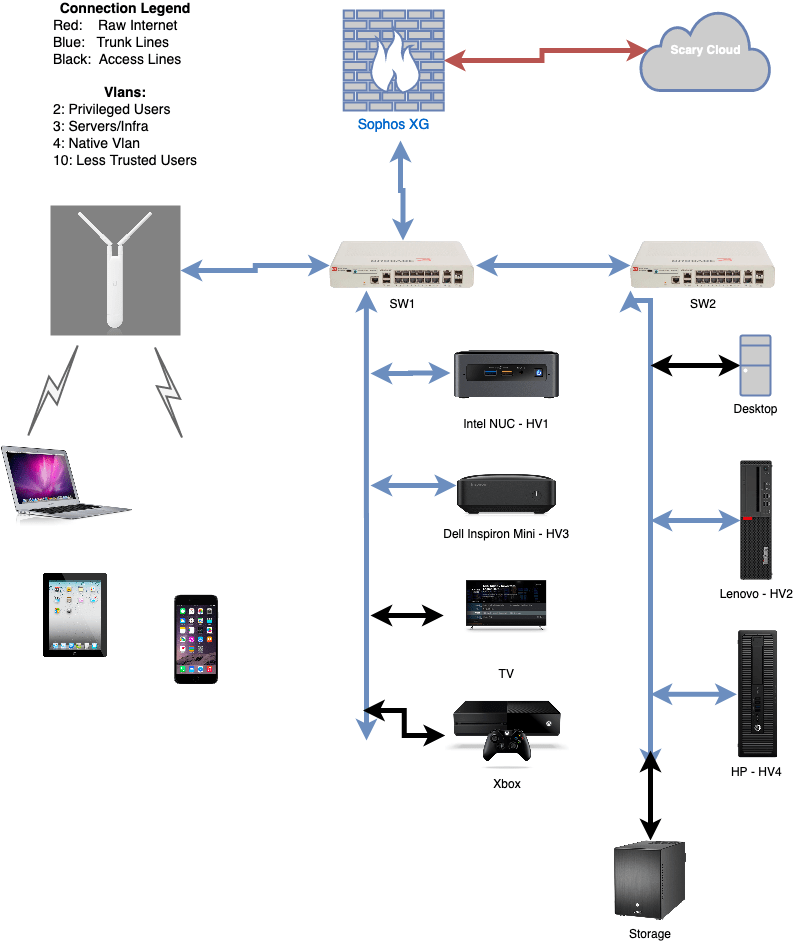
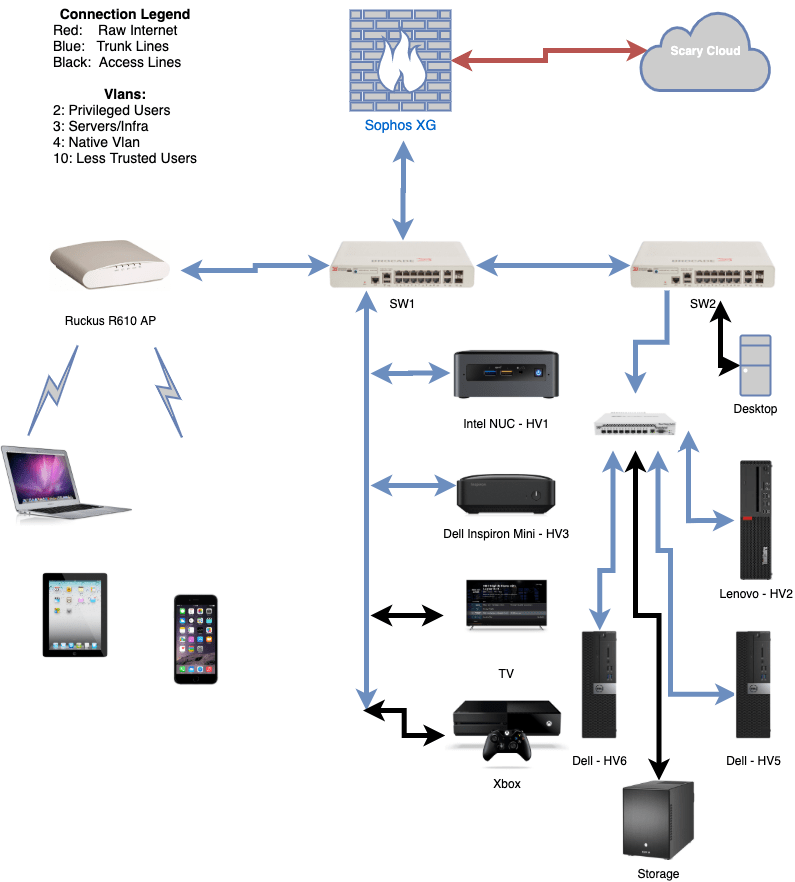
The setup is technically “router on a stick”, where the Sophos XG firewall functions as the router, and the rest of the devices hang off of that. The Sophos XG machine is a old Dell Optiplex 990 (almost 10 years old!) with an Intel quad NIC in it. That way it can do hardware offloading for most of the traffic. I intend to do posts for networking, hypervisors, file storage, domain, and more; thus I will not get too in the weeds right now on the particulars.

The file storage is a FreeNAS box recently updated to 7, 3TB HDDS. I have had this box for about over 6 years (I just looked it up in November 2020, one of the drives has 55257 hours or 6.3 years of run time on it); it is older but has worked well for me so far.

The network backbone is a new switch I really like that I was able to get 2 of off eBay; they were broken but I was able to repair them, more on that later as well. They are Brocade, now Ruckus, ICX7150-12P; 12 1GB/s POE ports, 2 additional 1GB/s uplink port, and 2, 1/10GB/s SFP/SFP+ ports. These switches can run at layer 3, but I have the layer 2 firmware on them currently. They have a fiber connection between them, before that I was using 2 Unifi APs in a bridge, that didn’t work fantastic however because A. I am in NY, B. they were only 2×2 802.11AC Wave 1, and C. I am in NY. I custom ordered (so the significant other would not get mad) a white 50m fiber cable to go around the wall of the apartment.

With SSDs in the hypervisor boxes (I call them HV# for short) and iSCSI storage for VMs as well, which VMs are on which host doesn’t particularly matter. Flash forward 6 months or so, since that first sentence was written, I now still use the NAS for backups, but the hypervisors are running Storage Spaces Directed and doing shared storage now. This allows the hypervisors to move move VMs around during patching or pause during a system update if they are less critical. The Intel NUC and small Dell Inspiron are much under powered compared to the mid tower hypervisors, so they run usually only 1 or 2 things. The NUC runs the primary older domain controller, and that is it. It is an older NUC that I got about 7 years ago, so its not that fast. The “servers” in the hypervisor failover cluster are a Lenovo and 2 Dell Optiplex 5050s. I like these Dells because they go for about $200 on eBay, while having a Intel 7600 i5, can support 64GB of ram, and have expansion slots for things like 10gb SFP+ cards. These machines also idle at about 30 watts, which makes the power bill more reasonable.

Some of the services I run include:

  • 2 Domain Controllers (Server 2016, and 2019)
    • Including Routing and Access service for RADIUS and 802.1x on wifi on wired
  • Windows Admin Center Server (Windows Server 2019)
  • Windows Bastion (This box does Windows Management) (Server 2019)
  • Veeam Server (Server 2019)
  • Unifi Controller/Unifi Video for security camera (Ubuntu)
  • 3 Elastic Search boxes for ELK (CentOS 8)
  • Linux Bastion (CentOS 8)
  • Foreman Server (CentOS 8)
  • LibreNMS (This I grew to really like) (CentOS 8)
  • Nessus Server (CentOS 8)
  • Jira Server (CentOS 8)

That is the general overview, I will spend the next while diving into each bit and discussing how it is configured and what I learned in doing that.
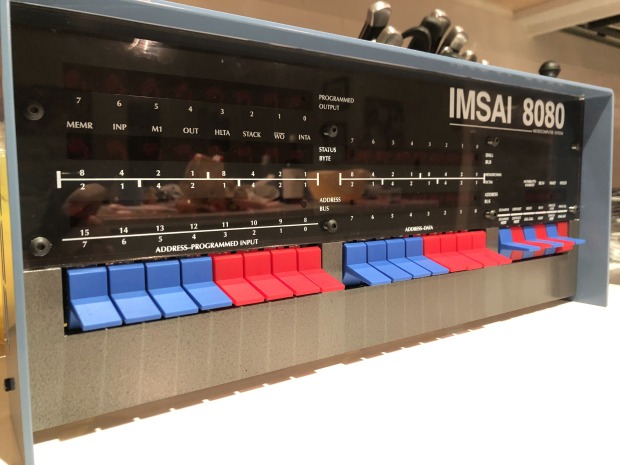
Finished Front

IMSAI 8080 Replica Kit

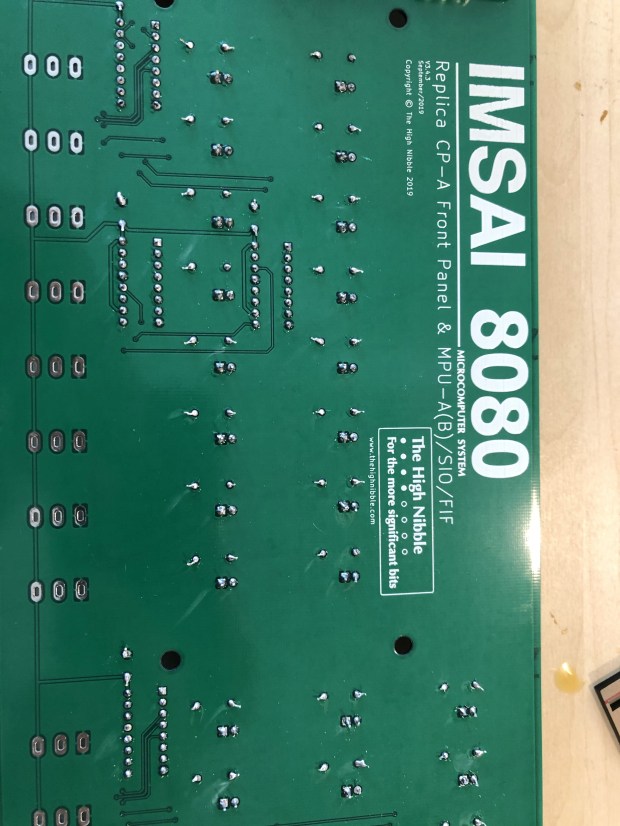
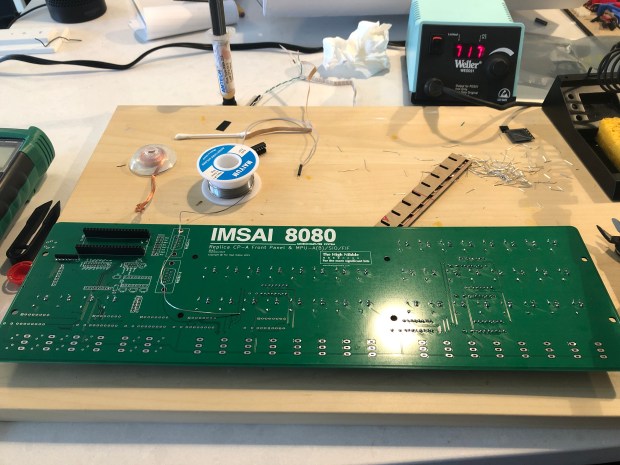
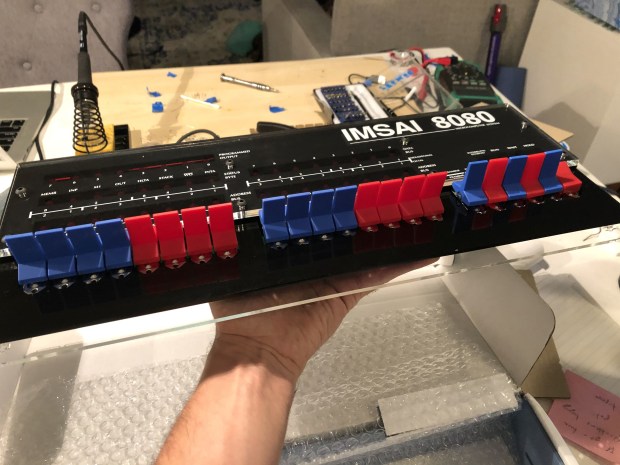
Continuing the journey of retro computer kits, I emailed the creator of the IMSAI 8080 kit over at https://thehighnibble.com/imsai8080/#overview when I saw the kit he had, but didn’t know if any were available; then one day out of the blue get an email saying a kit is ready for order! They come out in batches, this makes it take a bit to get them sometimes. To start off I can say this is one of the more well put together kits I have gotten. I was a little worried when I looked at the instructions and it mentioned a lot of part numbers and no photos of the setup; then I realized I had missed a link to a video that walks through the whole process, making it much easier.

The Kit

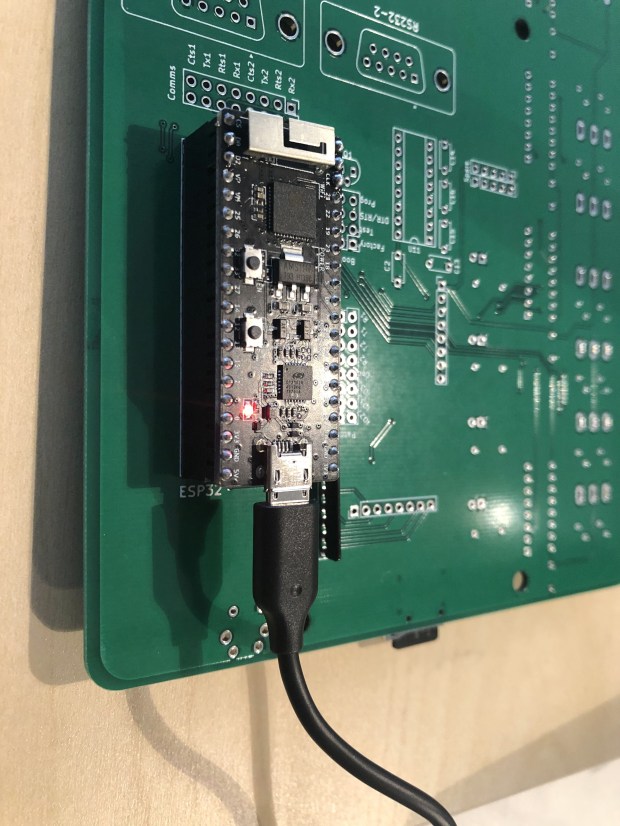
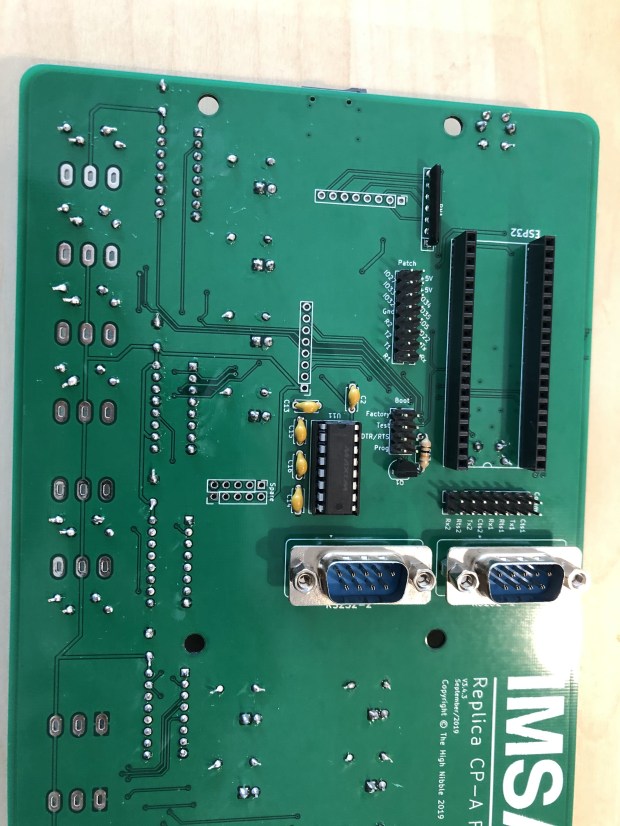
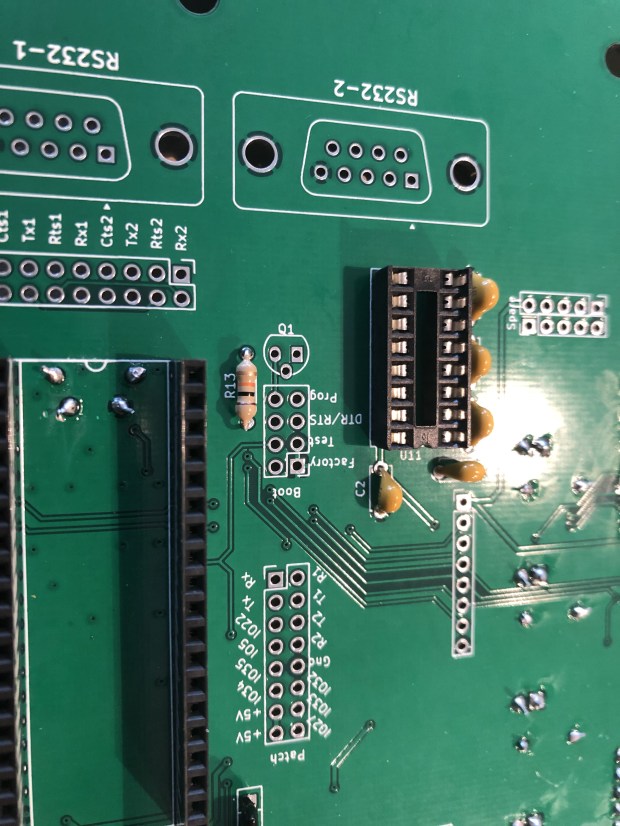
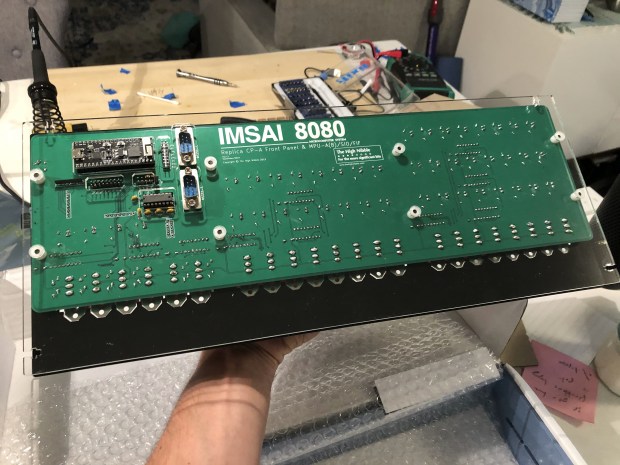
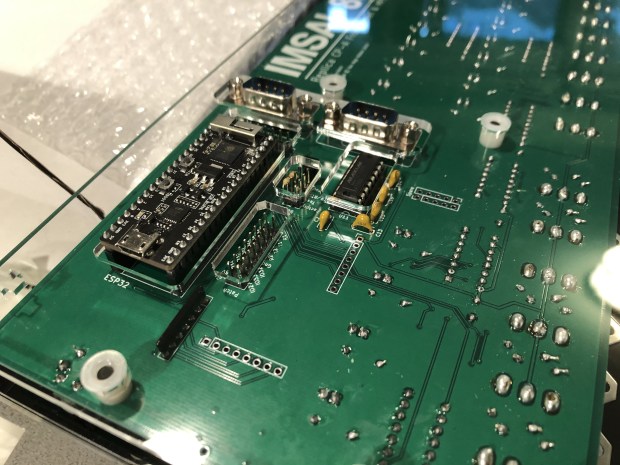
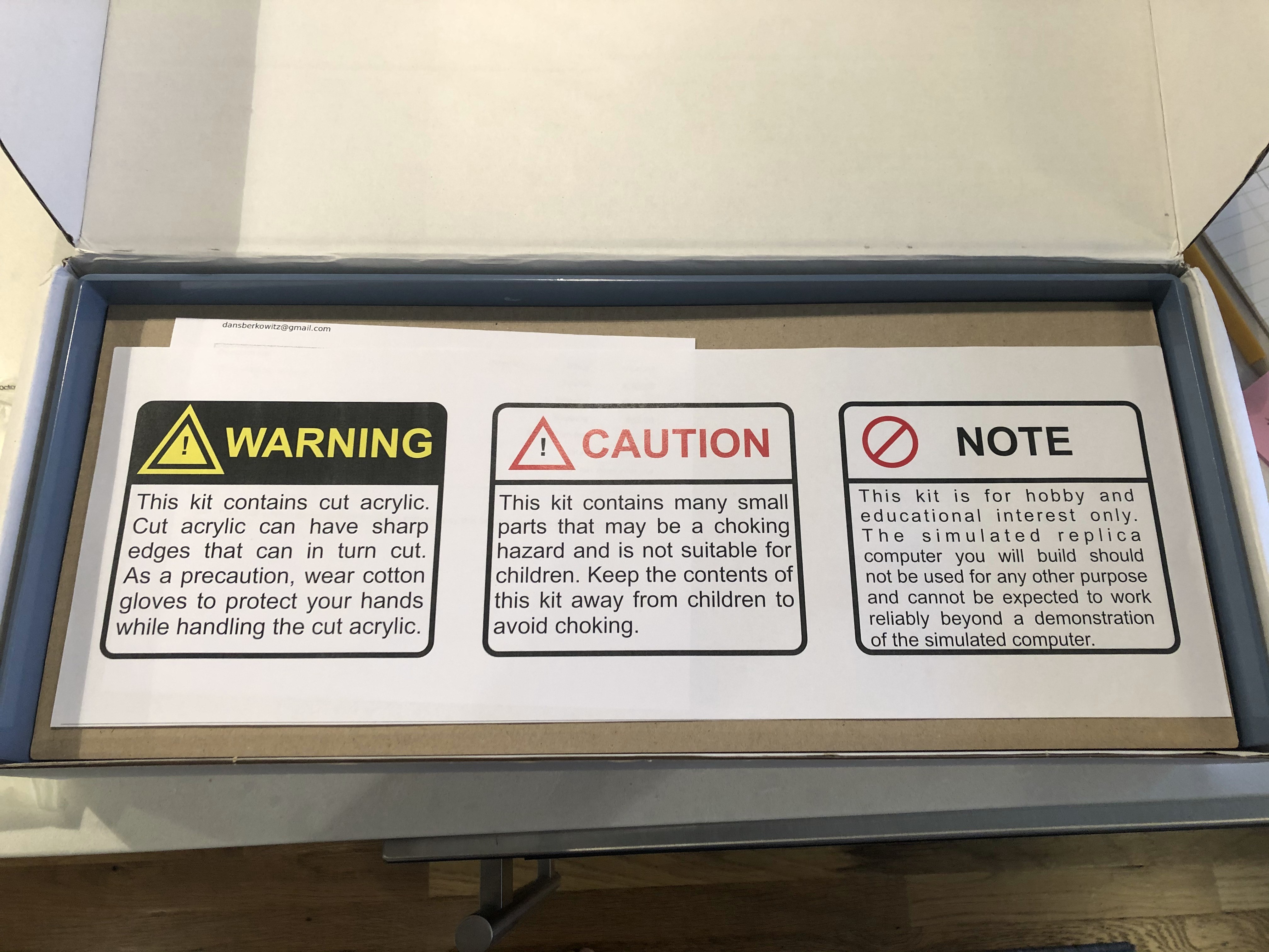
The kit is one of the more professionally put together kits I have done. From the metal case the system sits in, to the cut out cardboard all the parts come in. The creator, Dave, put a lot of attention to detail into everything. This kit includes everything from serial console lines on the back, to the micro controller having a WiFi antenna, which you can access over WiFi. The shipping box is also the correct size for the unit, you can use it as storage after you are done with the project. This kit comes with what you need ready to go and be put on the board (except solder and flux); some of the kits I have had in the past have required painting. You do pay a bit of a premium for it, but I think it is worth it. The kit also allows RS-232 connectivity or USB directly into the ESP32 controller.

Assembly

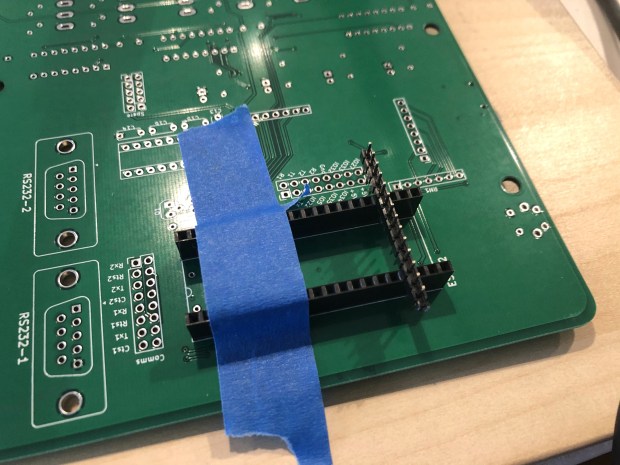
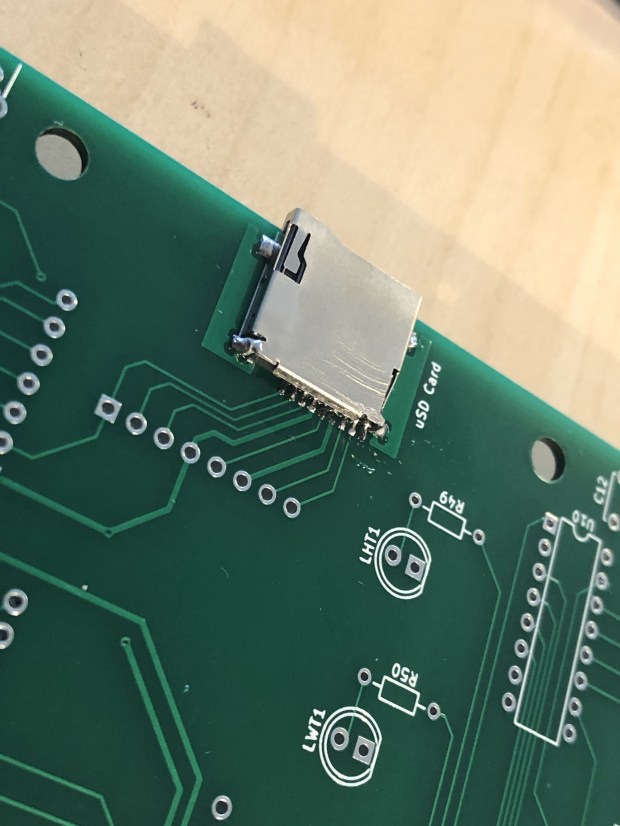
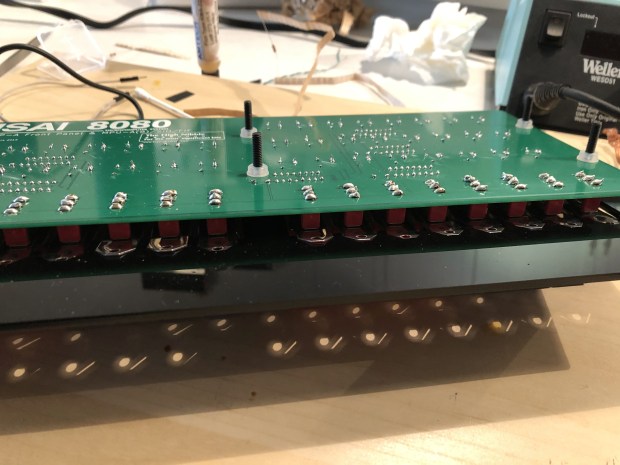
I will start off saying the hardest part of putting the kit together is at the beginning. There is a tiny chip for memory and that needs to be surface mounted to the board. This involves getting a small amount of solder onto the pads and then heating them with the chip on it. I accidentally bridged 2 pads and spent a chunk of time getting the tiny amount of solder off. After that part is over, you move onto the micro SD card reader, this is a similar surface mount; yet either I got better after doing the first one or got lucky, that was put down relatively quickly.

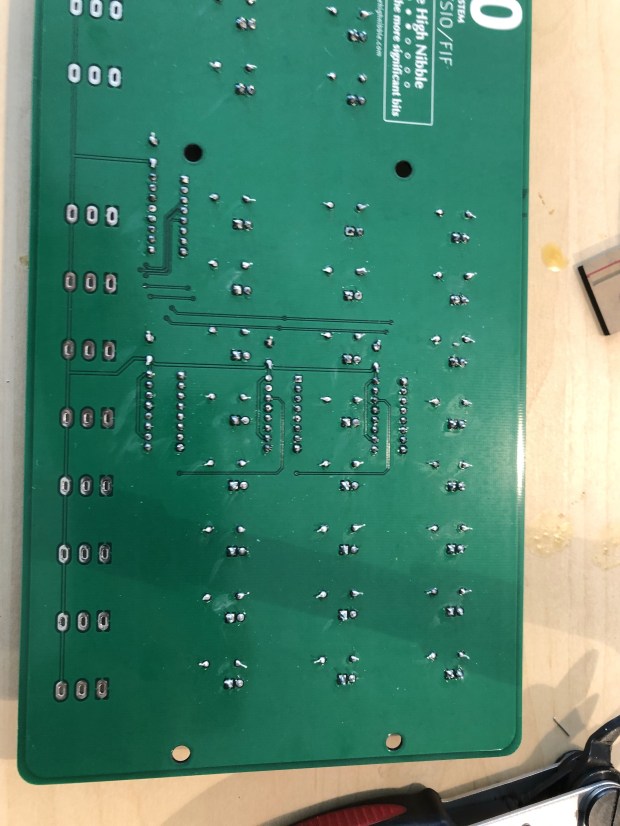
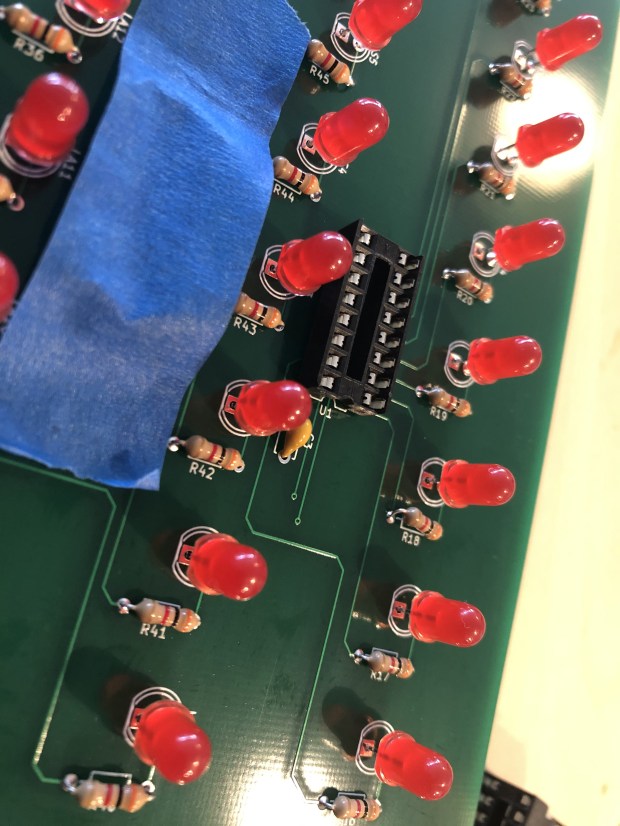
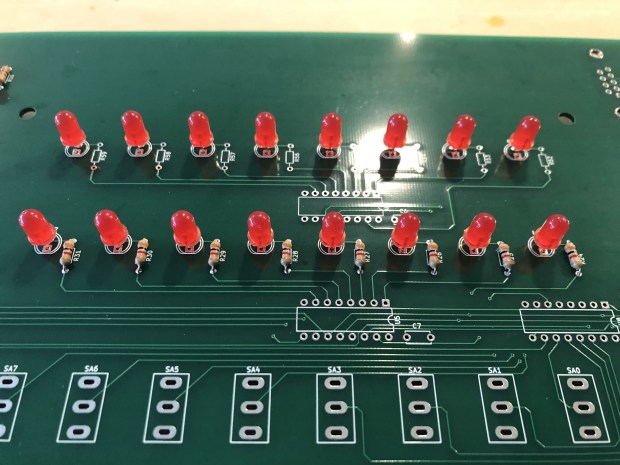
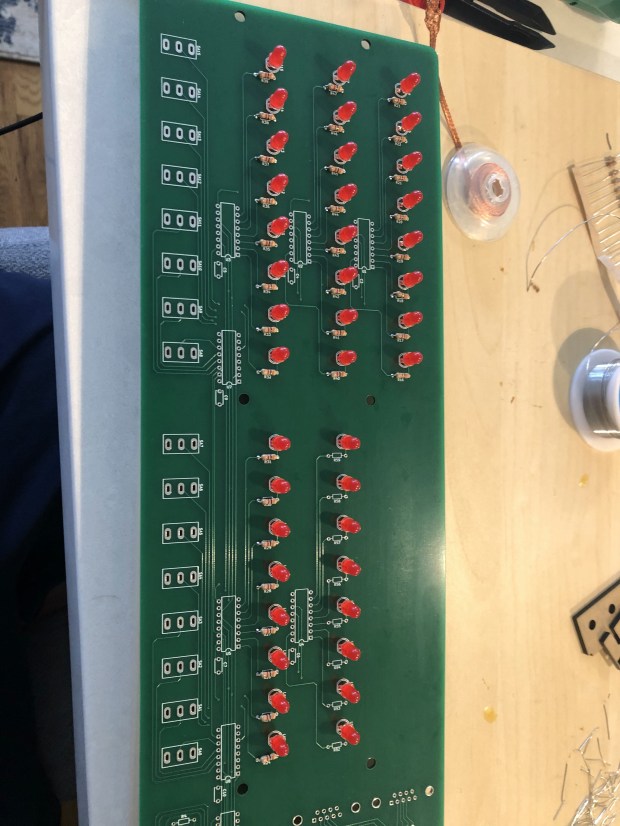
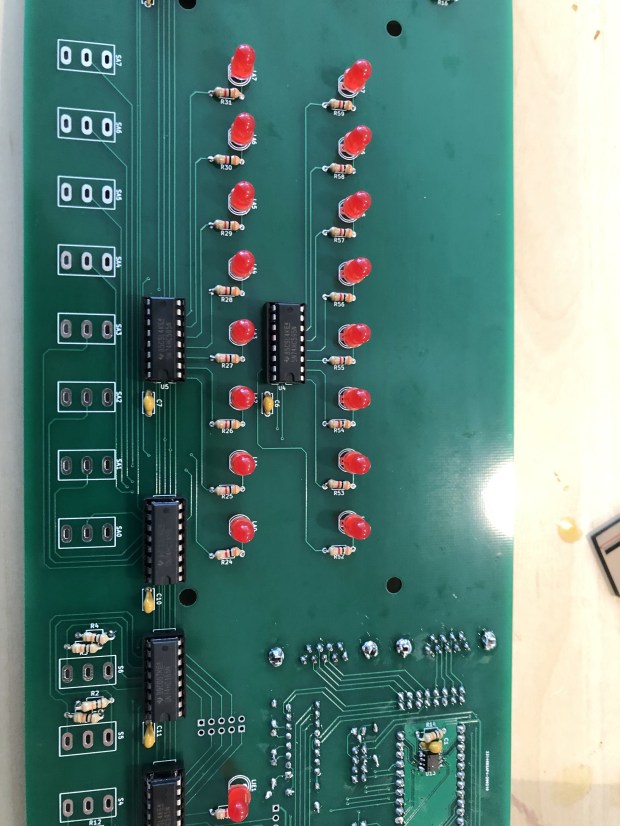
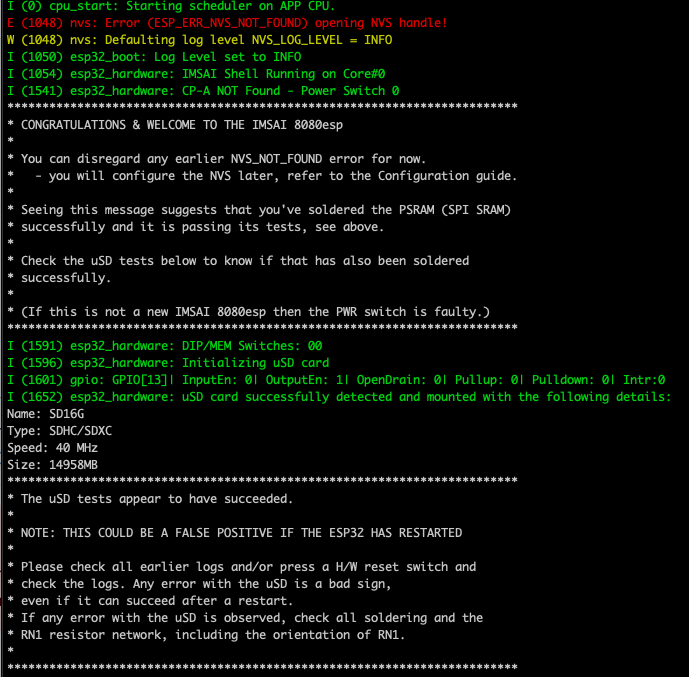
There is a diagnostic program you can run at that point to check if what you have soldered so far is working (which is fantastic), after that it is time for you to press on to soldering all the LEDs and their corresponding pieces. This part of the process is much like other kits of this type you may have done. It takes a while, but is a straight forward process.

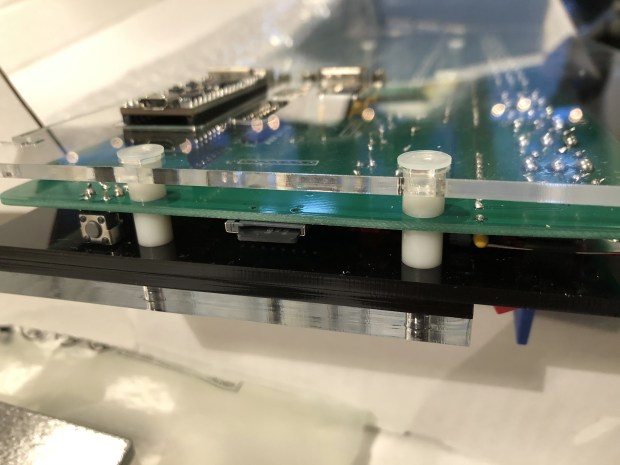
In the end you sandwich the board together, and get it screwed into the case. There are a few parts where its gets a little tricky if you don’t want to have to pull the whole thing apart, but the video guide easily walks you through it.

Software

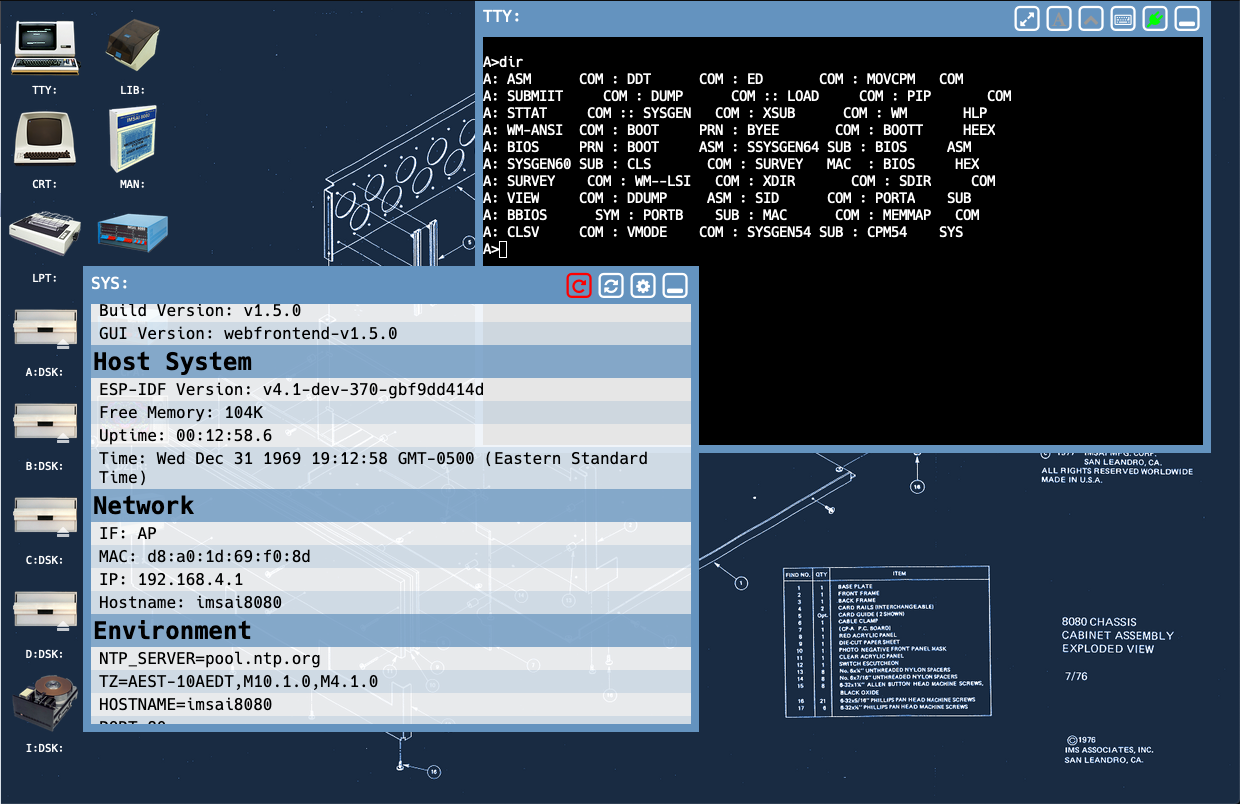
The software for the unit is great; the projects website, thehighnibble.com has instructions on how to use it. Similar to other projects there are certain switches you can flip to send the system different commands. But then, my favorite part is you can connect to the device over WiFi (either adhoc or with a AP) and then see the terminal. This allows you to leave the system on a shelf or a desk, and play with it at the same time. This interface also allows you to edit which “disks” are inserted into the system, to easily change images.

Overall it was a very enjoyable kit, other than the first little bit with the surface mounts. I think any beginner could do it once it is past that point. The resistor and LED soldering is straight forward. The metal case, and back clear acrylic make it stand out and look great. The WiFi and web interface put it over the top, as a it you can play with and connect to easily.

Powering up! It’s very shiny

3D Printing and Thingiverse Login Fix

I recently got a new 3D printer (Ender 3 Pro), and thought I would put up some of the small things I have recently printed. In trying to print things from Thingiverse, I couldn’t login even after making an account. I would get a spinning “Logging in” and it would never end. After looking at the network log, I saw it trying to reach out to https://accounts.thingiverse.com/unverified?username=danberk If you run into this issue, go to that URL with your username and it will send you an email to verify your account. Then the site will allow you to login.

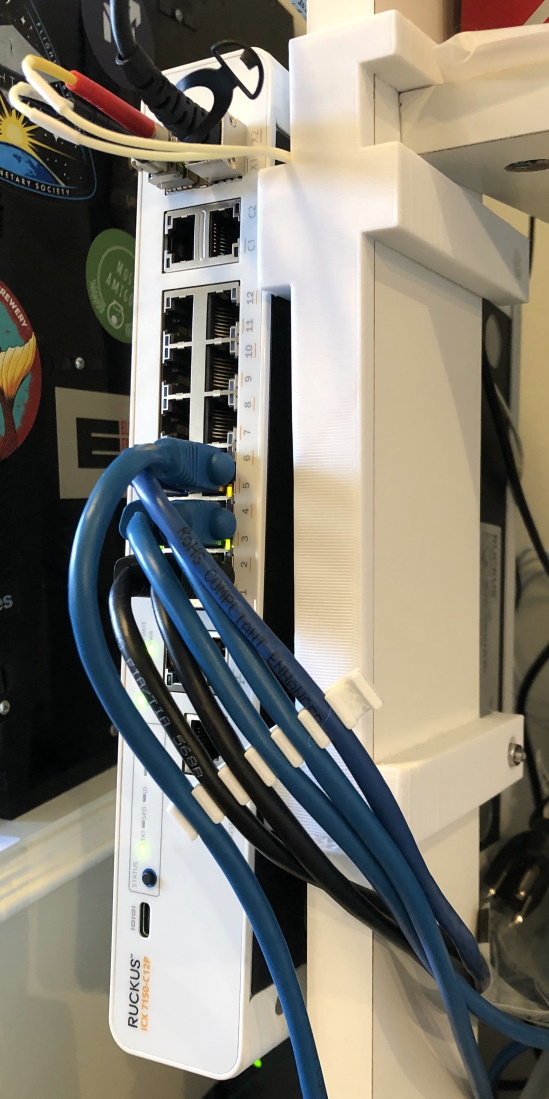
Ruckus ICX 7150 sideways shelf mount

I have been using Ruckus ICX 7150-12P switches at home recently, I wanted to have it more out of the way; so I designed and printed a mount that would mount the switch to the side. It came out well and looks good! I also printed a network cable comb to hold all the cables nicely together.

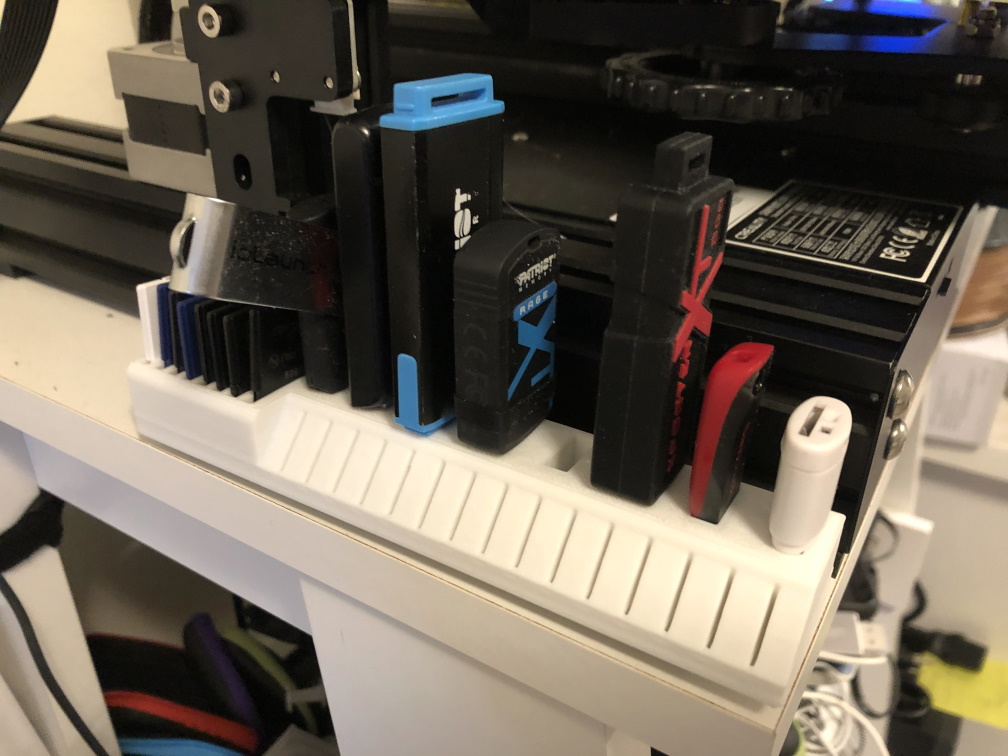
SD card and USB holder!

This is a nice little SD card, micro SD, and USB holder. I 3M stuck it to the shelf I have, next to the printer.

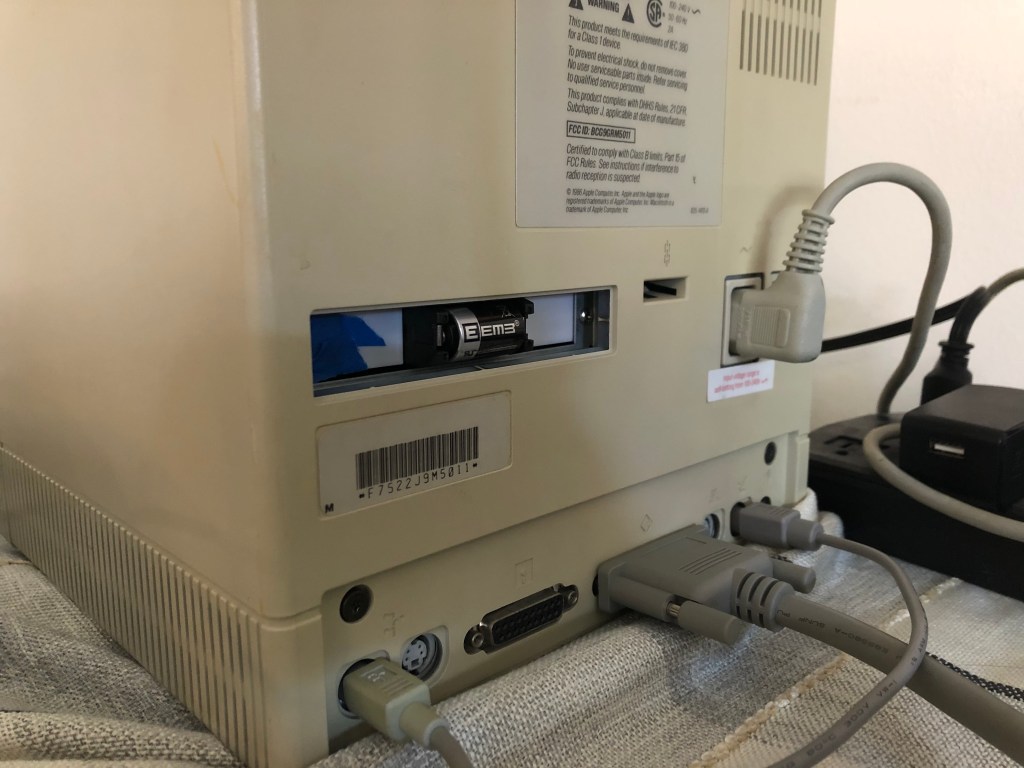
Mac SE with battery mount

I have already posted about the Mac SE Battery mount I made. I put the design up if anyone is interested.

Transferring Files To The Macintosh SE over Serial/Kermit

The Mac journey continues with me searching for a way to transfer files from my modern PC/Mac onto the old Macintosh SE I recently was restoring; a way without constantly removing the SD card from the SCSI2SD adapter and mounting it in an emulator. After reading a lot of different pages, and hitting different dead ends, or methods that involved a lot of hardware, time, or monetary investment I found an old reliable way to transfer files.

One of the methods I looked at was an ethernet LAN adapter for the Mac SE; the issue I saw was some of them were expensive and a lot of them required more RAM than the 1MB my SE had. I then turned to the serial ports available in the back of the machine. The Mac does not come with a lot of software to help in this endeavor, which made me use the SCSI2SD adapter to load the initial setup on, then I could use the software to transfer after that.
I ended up using the Kermit protocol, the same protocol used to transfer software to the Compaq Portable II. The project was run by Colombia University for many years. While they have since transferred it to be an open source project, the original project files are still on their FTP server, and this offers everything from DOS to Mac to C64 binaries. ftp://columbia.edu/kermit hosts all the files, for archival purposes I also uploaded a clone of that folder to archive.org; https://archive.org/details/kermit_202008 . Kermit is not fast, being serial and the Mac can’t support anything over 57600 baud; but it offers compatibility with almost every OS at this point. Get ready to experience what dialup was like all over again.

Required Hardware:

  • Serial Adapter for the modern computer if your system doesnt have one on it
  • RS-232 to mini DIN 8 cable (I used this one)

To start the connection, I will be using a modern Mac as the server (a modern Mac being a 2012 Macbook Air), and a USB Serial cable to connect to the Mac SE as client. Using homebrew on the Mac, you can install “c-kermit”. Once that is installed search for your serial device under /dev/, mine is /dev/tty.usbserial1420. Please note wherever you start kermit, will be the home folder for file transfers, I suggest making a folder somewhere that you will drop files to transfer.

Server

$ kermit

> set port /dev/tty.usbserial1420

> set carrier-watch off   # Assume there is no carrier signal

> set speed 57600          # Or whatever the speed has to be

> connect

Get ftp://columbia.edu/kermit/mac/mackermit.hqx and get it onto your Mac SE, through some means. I transferred the whole “mac” folder from Colombia’s FTP server onto my Mac SE. I would suggest a SCSI2SD adapter for this initial transfer. You may be able to use a floppy, but you may hit issues depending on your model of SE. Mine has a 800kb floppy drive, so results of writing floppies from a modern PC usually end with it not reading them. Modern floppy drives are cheap working at 1.44mb, and the tracks wont align. Once you have the Kermit app on the Mac open it up.

Select “Settings”, at the top, then “Communications”. Here you can set the speed to the max speed supported of 57600 over the default 9600 baud. Both of these are terribly slow… but there is nothing we can do about that. Make sure to select the Phone or Serial port based on which you are using; I used the Phone port.
Sorry for the odd quality, capturing a CRT isn’t the easiest

Afterwards, click the “File-Transfer” menu at the top, then “Set Directory” to set where the files transferred should end up. Then open the same “File-Transfer” menu again and “Get file from server”; here you can type in a filename that exists in the folder you opened Kermit on the Server.

Taking photos of CRTs is not the easiest…

Now be prepared to wait for a while… Eventually the files will be in the folder you selected and you are good to go!

A few things to look out for, if you have a older Mac SE like the one here and it only has 1MB of RAM, that means you can only run Mac OS 6. (https://www.lowendmac.com/oldmac/compact3.html) I may upgrade this system in the future to its max which I believe is 4MB, but for now I am stuck with 6. This also means I can only use DiskCopy 4.2, and some good amount of classic apps will not work on Mac OS 6. The biggest issue is there are a lot of archives that are in DiskCopy 6 format, which I can’t load on the system.

The first thing I thought I would do is extract the archive on an old Mac VM on my modern computer, then transfer the files onto the Mac Se. Here I ran into a lot of issues with the file types that exist. If you want to go down a weird rabbit hole, the classic Macs used an odd 4 letter system for the file type, and 4 letter for which program created it, http://livecode.byu.edu/helps/file-creatorcodes.php . The Mac mostly ignores file extensions. There are programs such as ResEdit (that comes on the provided SCSI2SD disk image I used in restoration) where you can edit these attributes, but it usually leads to weird outcomes. Kermit tends to bring files over as “text”. StuffIt seems to do a decent job of just looking at the file extension and allowing you to expand it, then those files are the correct type. This whole issue is something to look out for, doubly so on a System 6 machine and can not run DiskCopy 6.

Otherwise stick to websites that say they backup with DiskCopy 4, or get more RAM… Then have fun with the system! Write that novel you have always wanted to write without distraction.

Mac SE Restoration

Years ago someone gave me a Macintosh SE, 20MB SCSI HDD, with 1MB of RAM. I had it sitting in storage and decided it could use some new life; this involved what I found out to be repairing, upgrading, and getting parts for the little machine. Then I was able to come up with a modern way to transfer files to it, so I can get software off the web, then get it onto the system without too much hassle, but that is getting ahead of myself.

Cleaning/Repairs

Last time I used the machine I remember it working, but then when I went to turn it on the system gave a sad mac with an error. In looking it up, http://www.midiguy.com/MGuy/MacQs/SadMac.html#anchorSE&II, I was told it was a RAM error. Power cycling the machine would periodically change the error, and once in a while get the machine to power up.

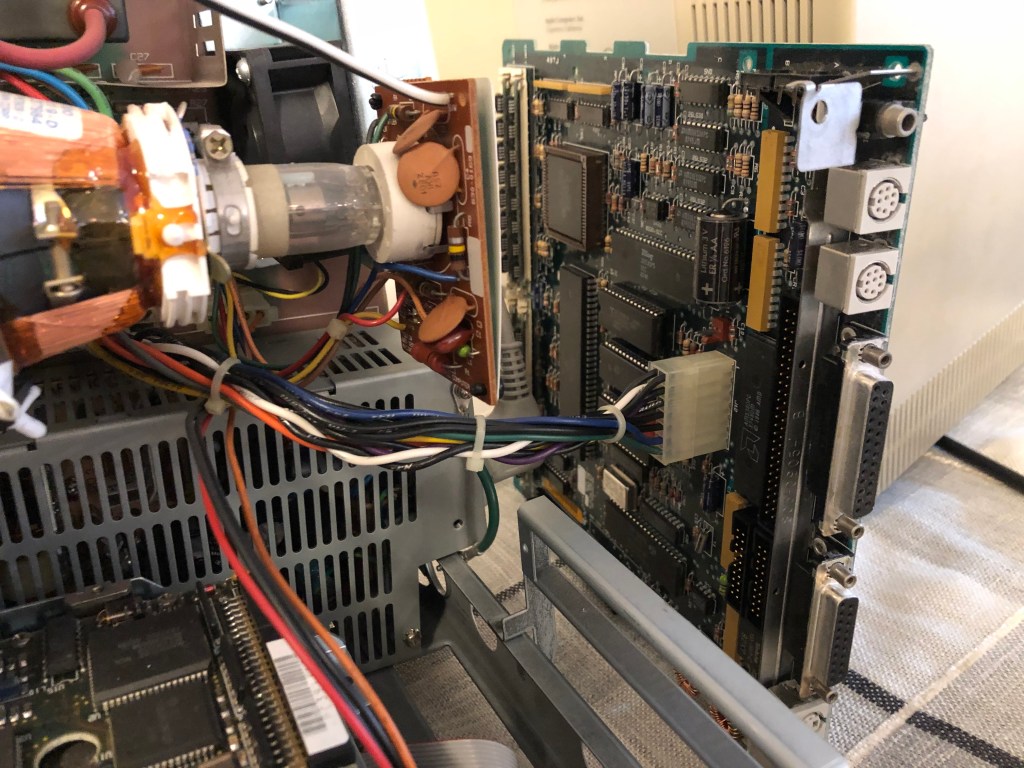
Getting the case off needs a special long screw driver, which I happen to have. The back only has 4 screws and then lifts off. Any repairs to these systems have to be done with a lot of care since there is a high voltage CRT. Very carefully I removed the cables from the motherboard, and then removed the motherboard itself.

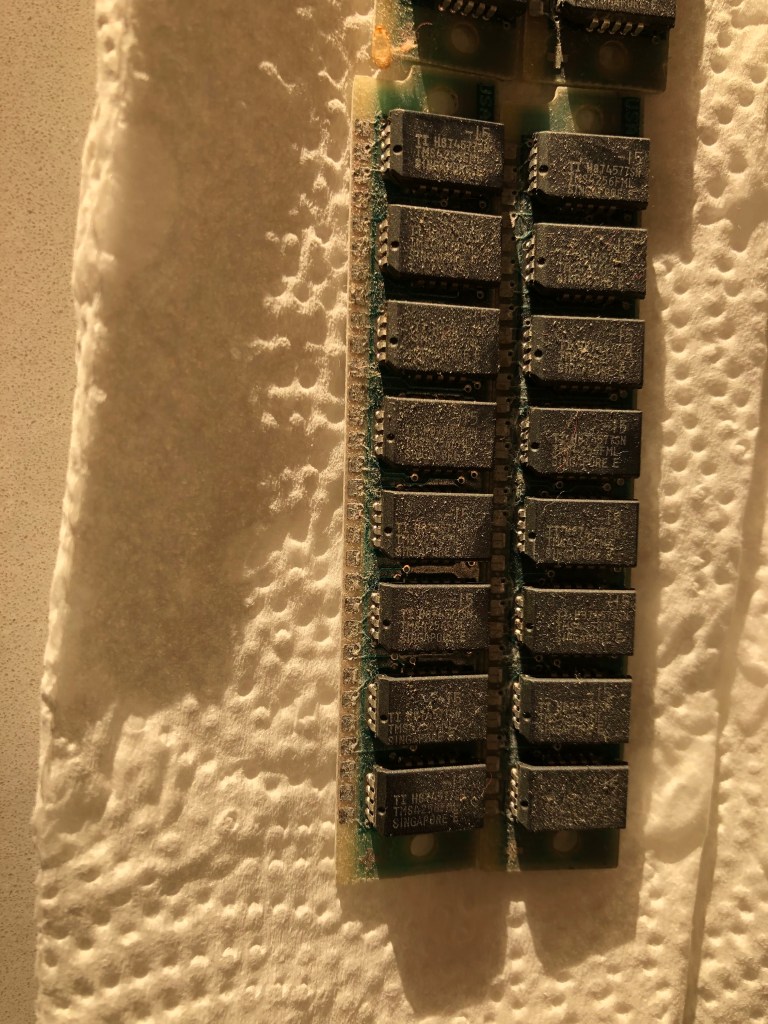
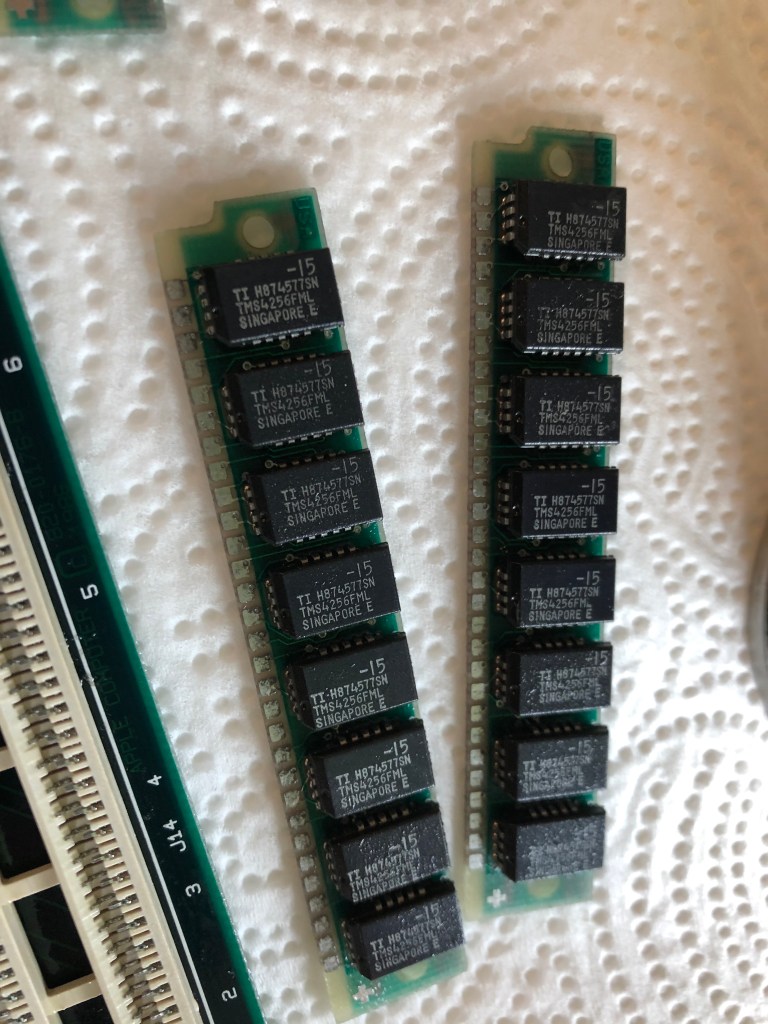
After I removed the case and looked at the RAM, it was fairly oxidized. I happened to have a can of deoxite, I removed and cleaned all the ram and then the DIMMs. After, what I will say was jankily setting up the motherboard, it booted the first time. I did notice one of the legs on the the little slots didnt look at good as the rest, but it seems to work fine now.

Luckily for me the 20MB, 3.5″ SCSI drive still works fine. I ran diagnostics on it and them came back clean. I wanted to be able to download files from a more modern system by I will do a different post about that.
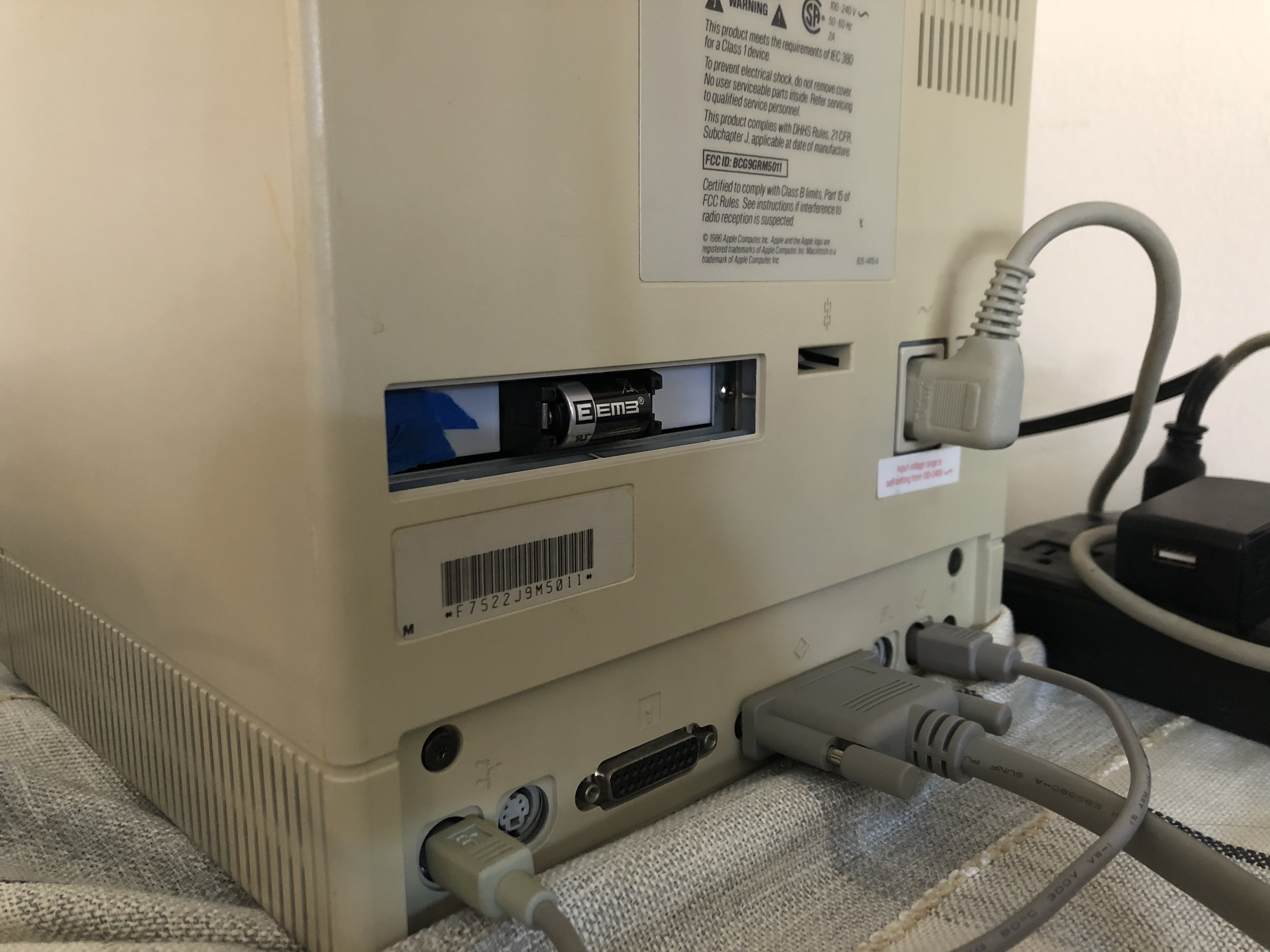
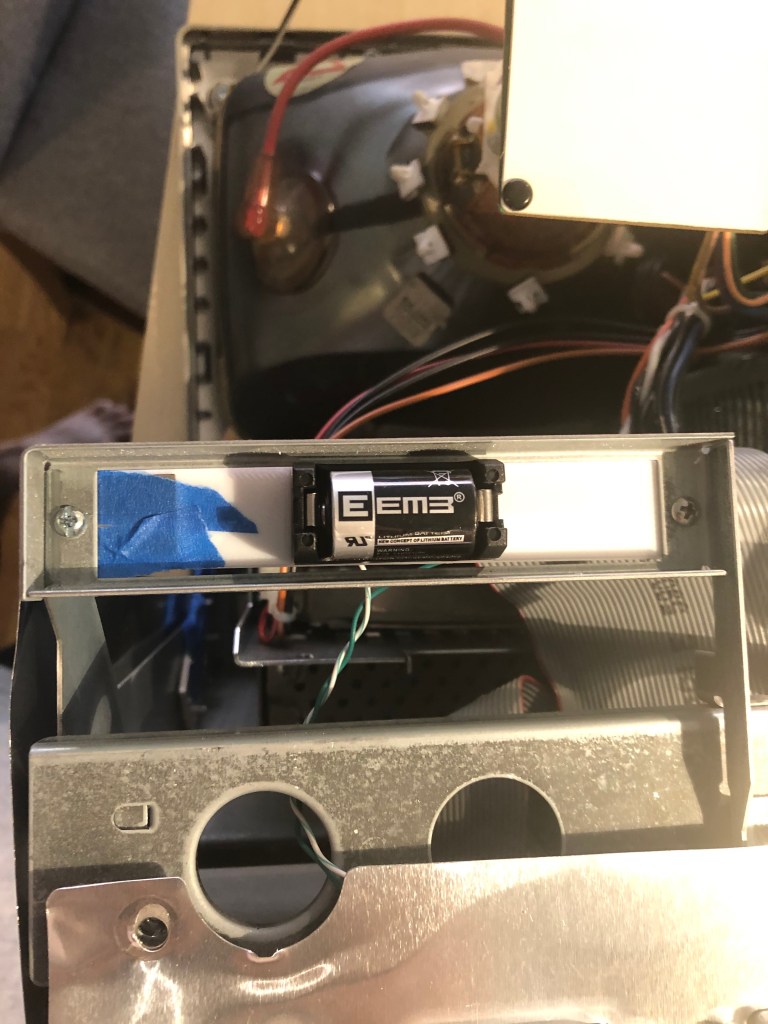
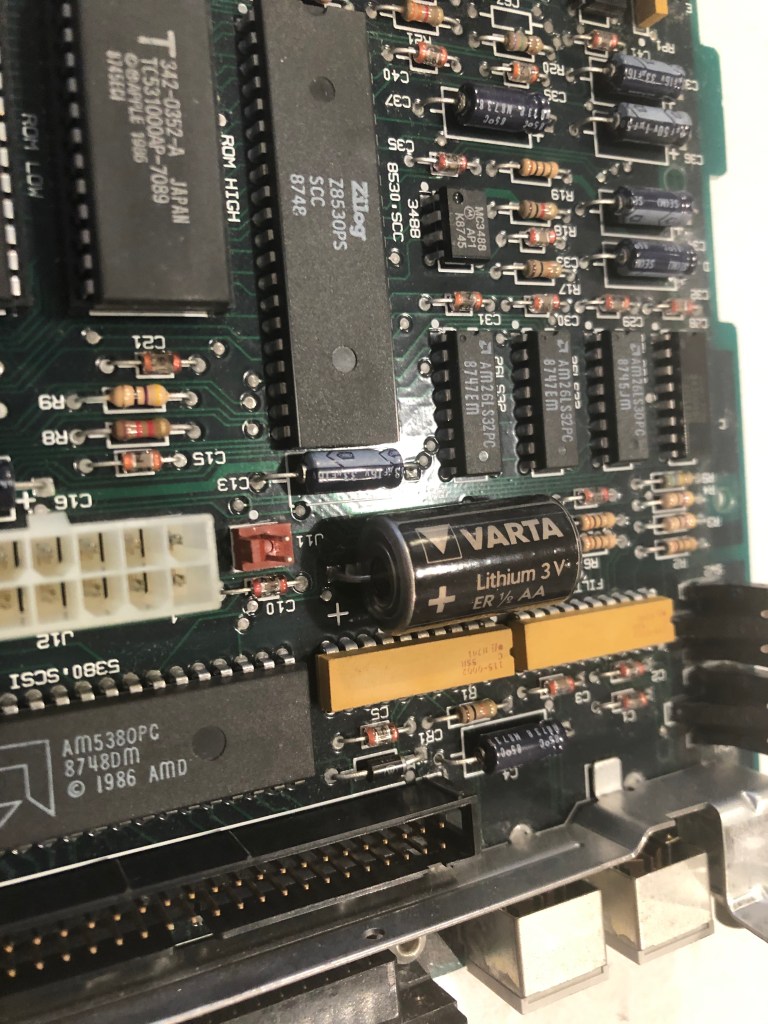
There were 2 more upgrades I wanted for this machine; first the original 1987 PRAM battery was still on the board. Fortunately it had not leaked at all, but I still want to remove it. I purchased a new 1/2AA, 3.6V battery holder and thought I could use the expansion slot in the back to hold it. I am not using the slot, and that way when the system goes into storage I can pop the battery out easily. I had recently gotten a new 3D printer (Ender v3 Pro), and made a mounting bracket. It needed to be mounted on the inside of the bracket because of the high of the battery holder, but it works well!

The last upgrade I wanted was some sort of mass storage. (Mass storage being anything over a floppy with a few MB) I do have a second Macintosh, I think its a Classic but I need to go get it. Someone gave me a Zip 100MB external SCSI drive, but to get that working you need at least Mac OS 6, with the driver installed. The Mac also only has a 800KB floppy drive, making it hard to transfer files to. I have a USB floppy drive, but these newer USB drives are fairly locked to 1.44MB floppies, as well as I couldnt easily read the file format for it.

Enter the SCSI2SD (v5.5 Pocket Edition)! I got it on ebay from https://www.ebay.com/itm/SCSI2SD-V5-5-Pocket-Edition/193496539667, I don’t know the seller, but the item is great. It allows you to write a disk image you make with Mini vMac or Basilisk II onto a micro SD card, then boot the Macintosh from it! Boom solid state drive for your Macintosh. This also allows you to kickstart the process of getting an OS and software you need to hook the Macintosh up to something more modern. There are different models of these SCSI2SD adapters and different versions. Apparently v6 is faster for some systems version of SCSI. My main feature I wanted was a DB-25 connector directly on it, since a lot of these adapters come with an internal header, and I wanted this to be able to go between Macs.

In researching I found this blog, https://www.savagetaylor.com/2018/01/05/setting-up-your-vintage-classic-68k-macintosh-using-a-scsi2sd-adapter/ it has a great guide on how to setup the device and even images to get you going! (I backed up a lot of the files related to the adapter on archive.org if years later anyone needs them) I’ll skip over that since that blog covers it so well. The device allows multiple SCSI device emulation. Note, if you have a Macintosh like mine that has an internal HDD, that is SCSI ID 0, so make your device 1 or later. When booting the Macintosh you can hold Command-Option-Shift-Delete-# to boot to that device. With this setup I was able to transfer an OS install onto the ZIP disk (at 100MB plenty of space), and update the internal system.

I installed Mac OS 6.0.8, later editions need more than 1MB of RAM. For anyone with a similar system I would suggest running in Finder mode, and not Multifinder. Multifinder kept running low on RAM when trying to run applications. At this point the system is up and running, reliably, and I was able to put some games on it. I will have another article about using our old reliable Kermit to transfer files to the Mac!

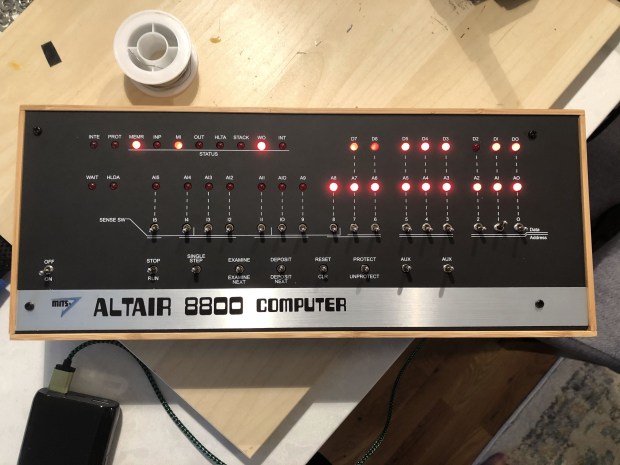
Altair 8800 Kit

This post will be a bit more brief than some of the others, I was relaxing around Thanksgiving and put this together. Only afterwards did I realized that I was having such a good time, that hadn’t taken too many photos.

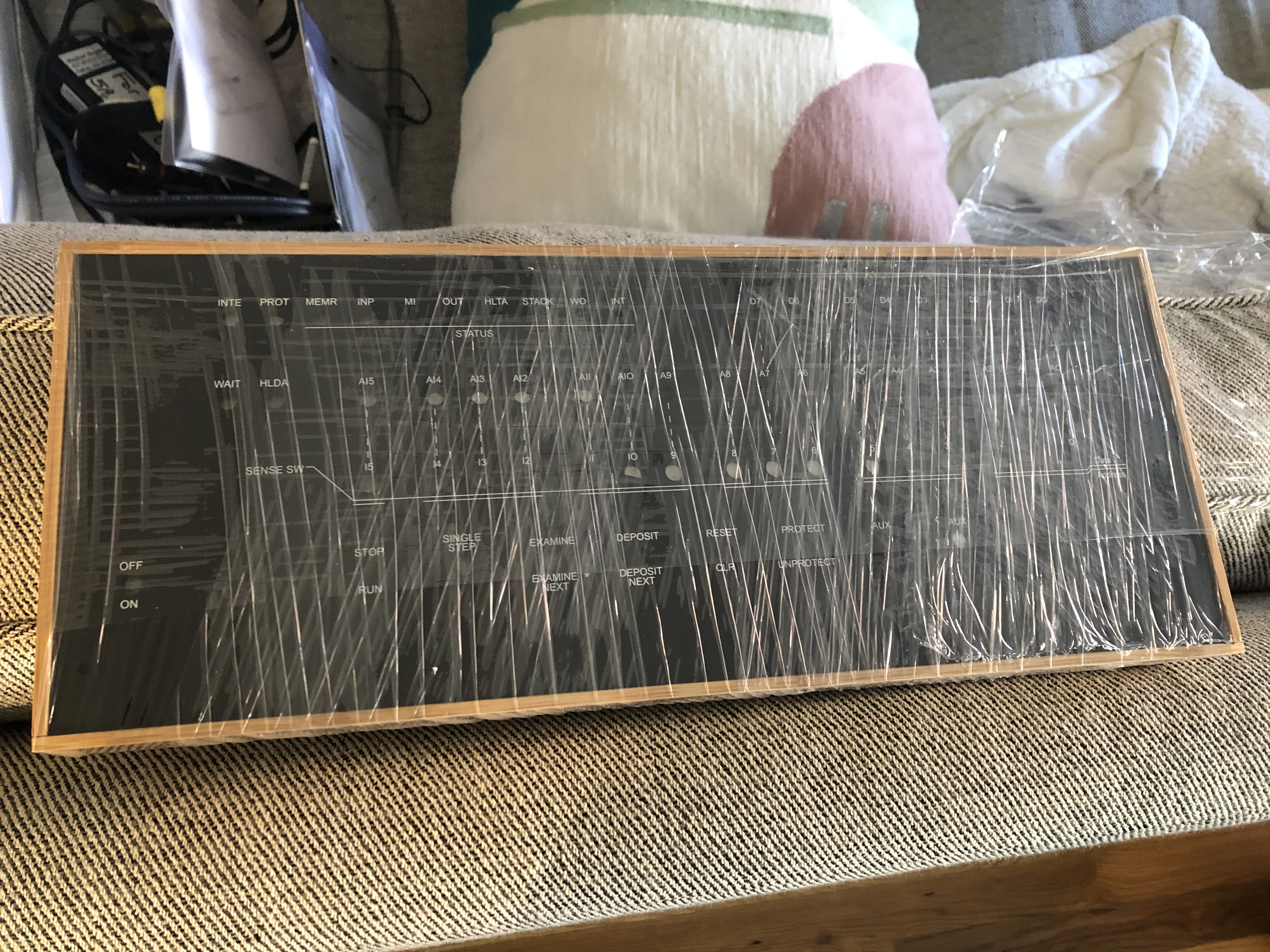
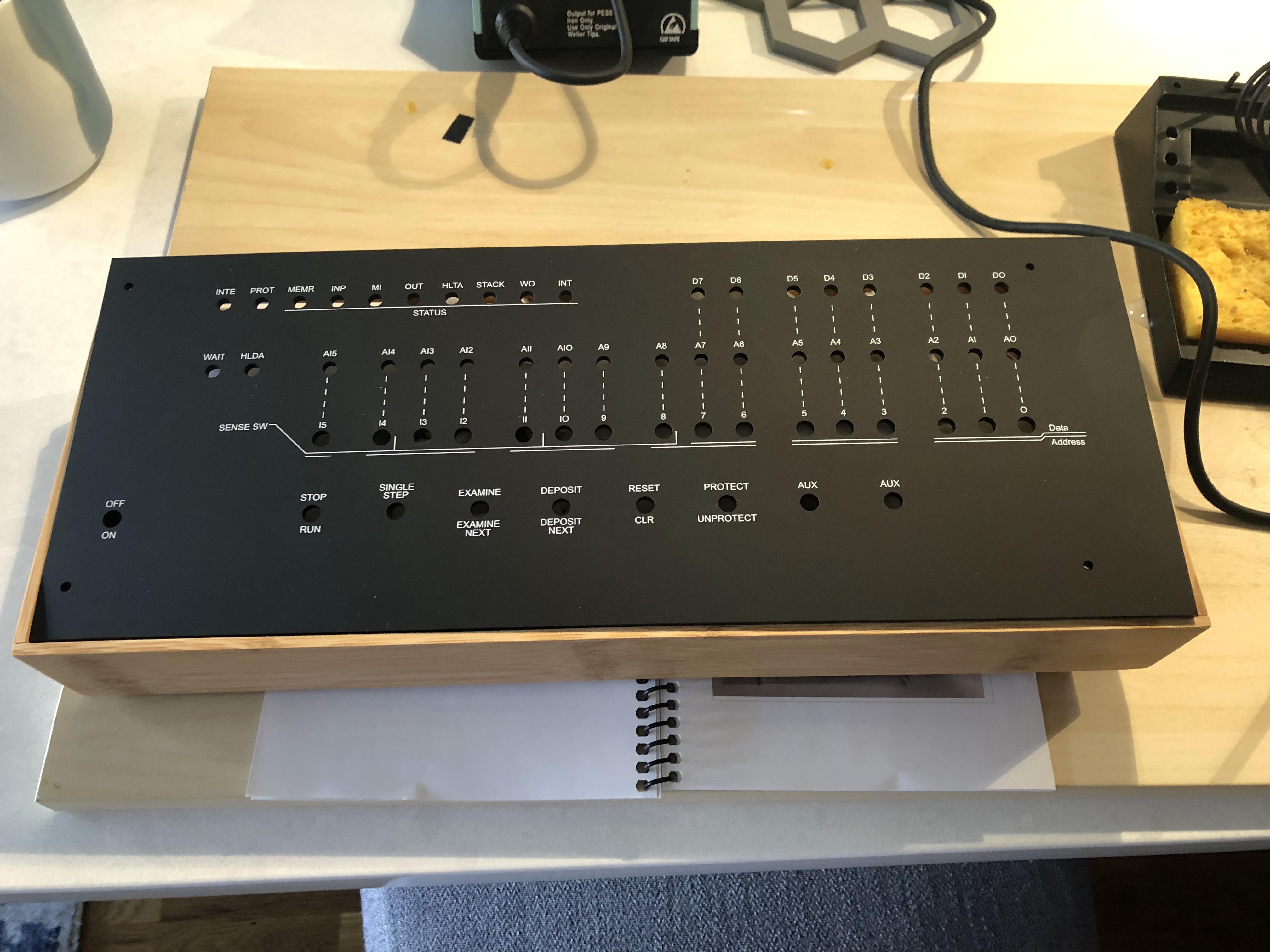
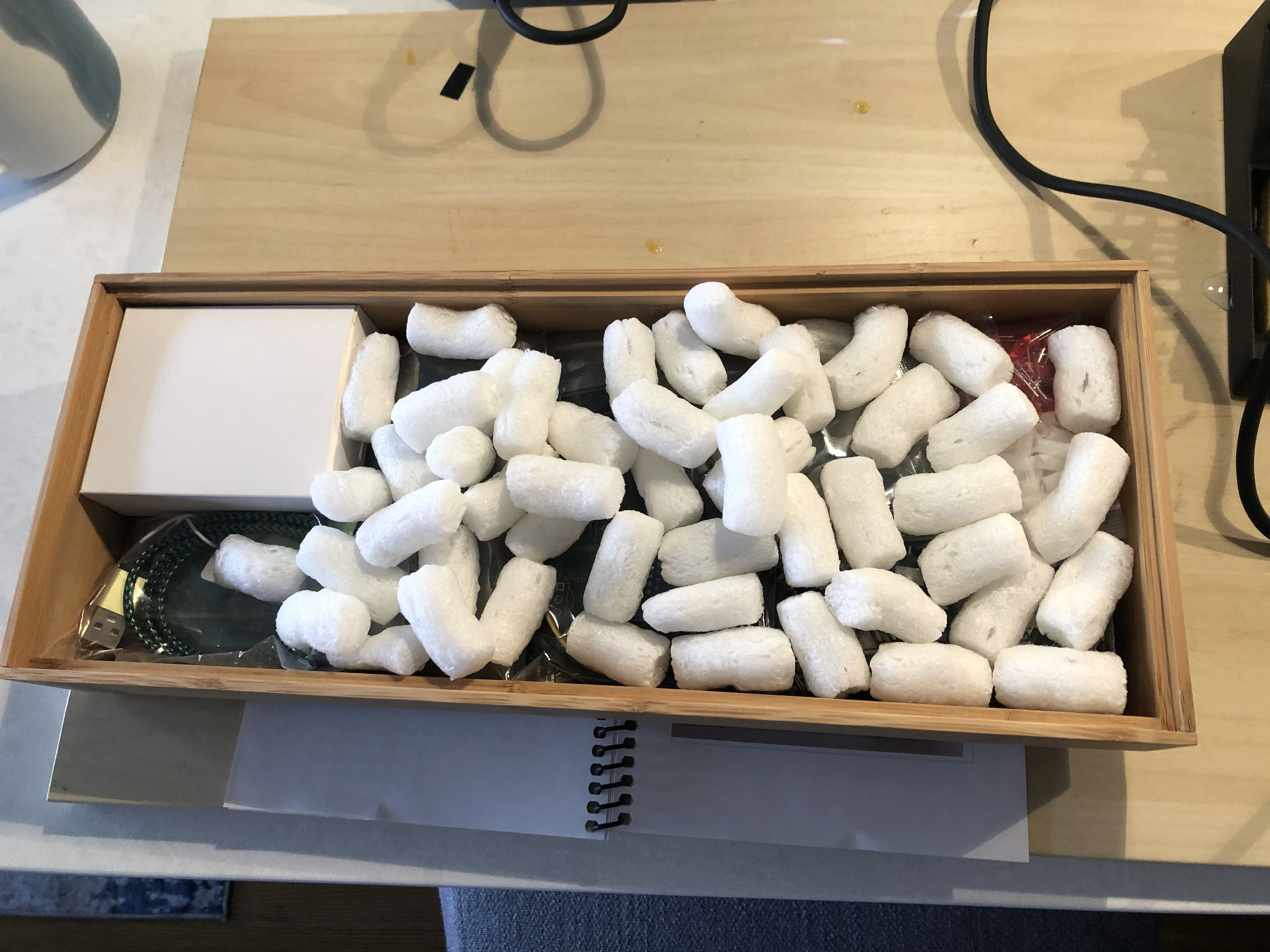
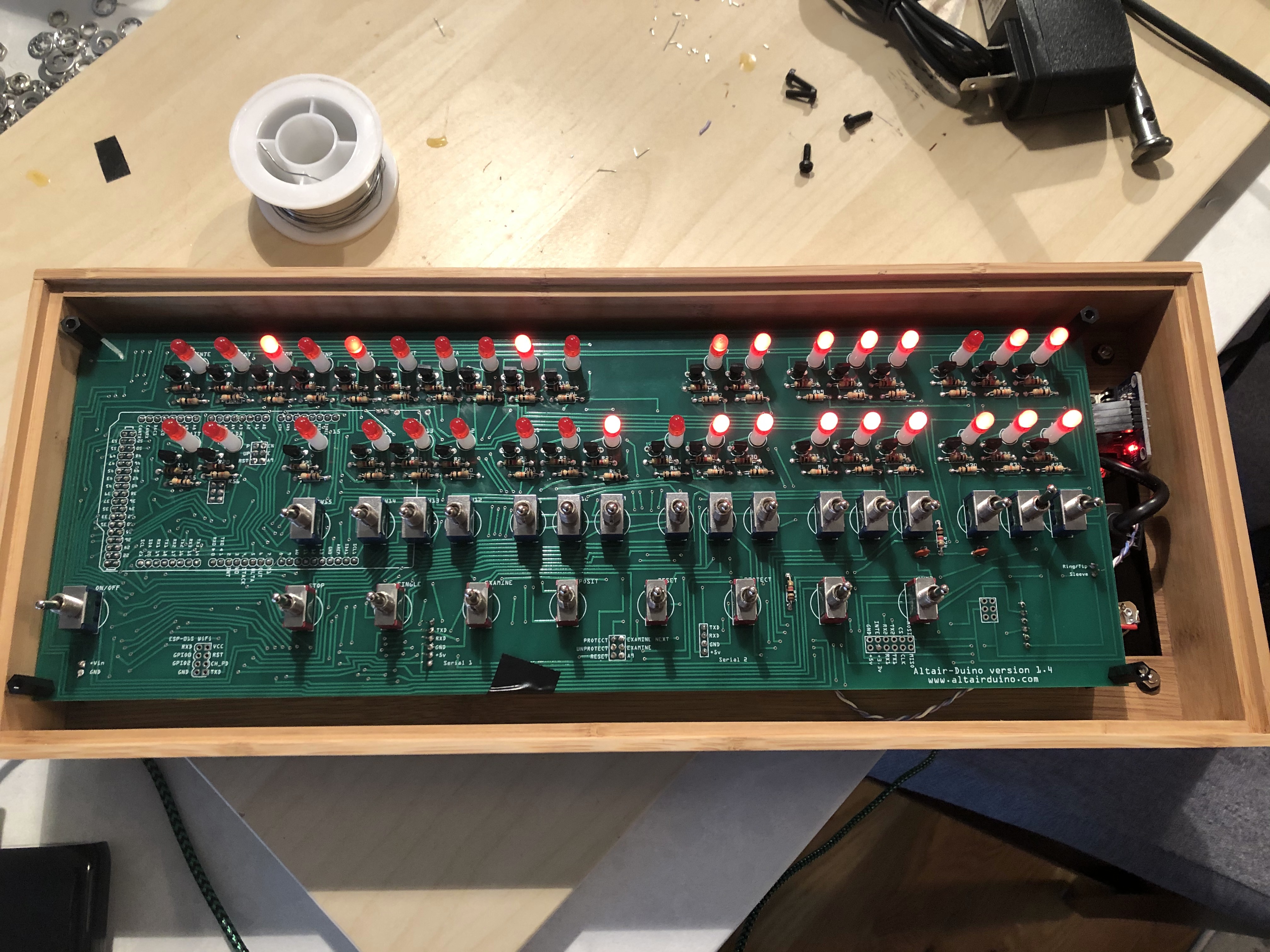
The kit comes from Chris over at https://www.adwaterandstir.com/altair/. The version I have is The Altair-Duino v1.4, which came in a bamboo box. There are now other versions, some with acrylic cases! This post will be about version 1.4.

The Kit

The kit comes with all the parts you need inside the box. The main controller is an Arduino, hence the name The Altair-Duino. There is an SD card that you bend the prongs on (more on that later) which holds the disk images. This is a fun straight forward kit, that comes with everything you need minus solder. The Arduino came with the firmware it needed, and the SD card came with disk images preloaded onto it.

Assembly

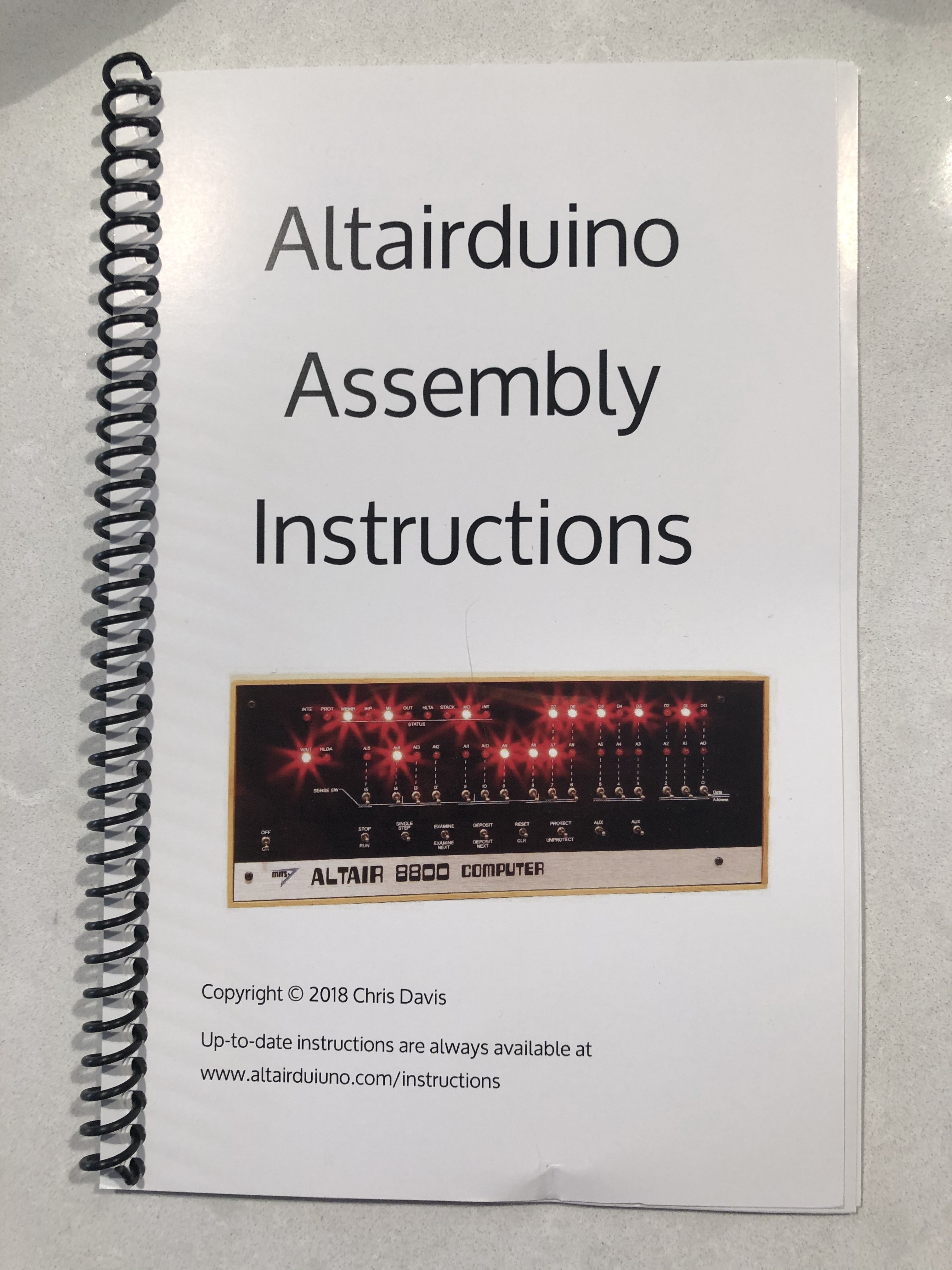
The kit comes with a spiral notebook of instructions on how to put it together. These are great, color photos of step by step what to do. You can see them here, https://www.adwaterandstir.com/instructions-14/ , keep in mind this is for my specific version. Like many of the other kits, the longest part of this kit is soldering all the LEDs and resistors onto the board. There are a few ribbon cables that go into place, and you are set. Be slightly careful when putting the switches in, they can be a tighter fit into the holes which is great for stability, but they are at the center of the board and it can flex. Once you get it all in the case and screwed down, clearance is a bit low, so make sure the board is ready to go in, when you put it in.

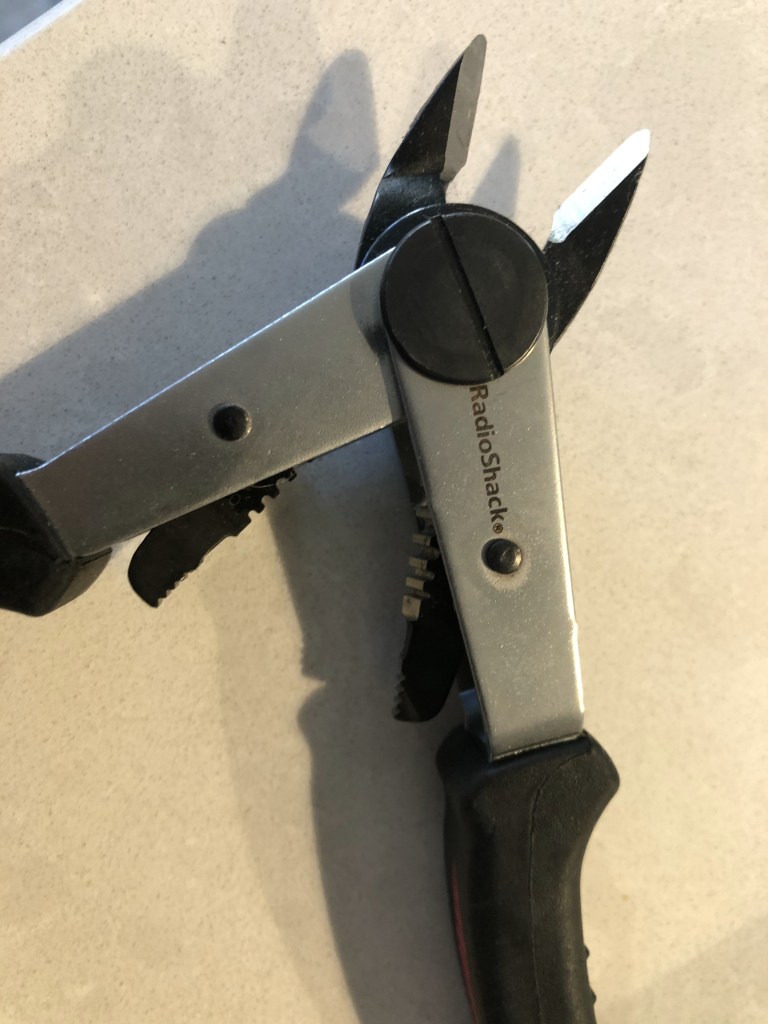
The one part of the setup that is a bit scary, the system comes with a SD card reader that sits flush with the board; if you want it to be accessible from the back of the case you need to bend the 4 legs on it. I used my trusty Radioshack wire stripper/pliers for that!

Software

I connected over USB, the kit also supports Bluetooth on Windows, to get the serial line out and console in. The system supports loading a bunch of programs that are included. The creators website, https://www.adwaterandstir.com/operation/ includes a bunch of guides on things to do. I loaded up CP/M and for fun, of course Zork!

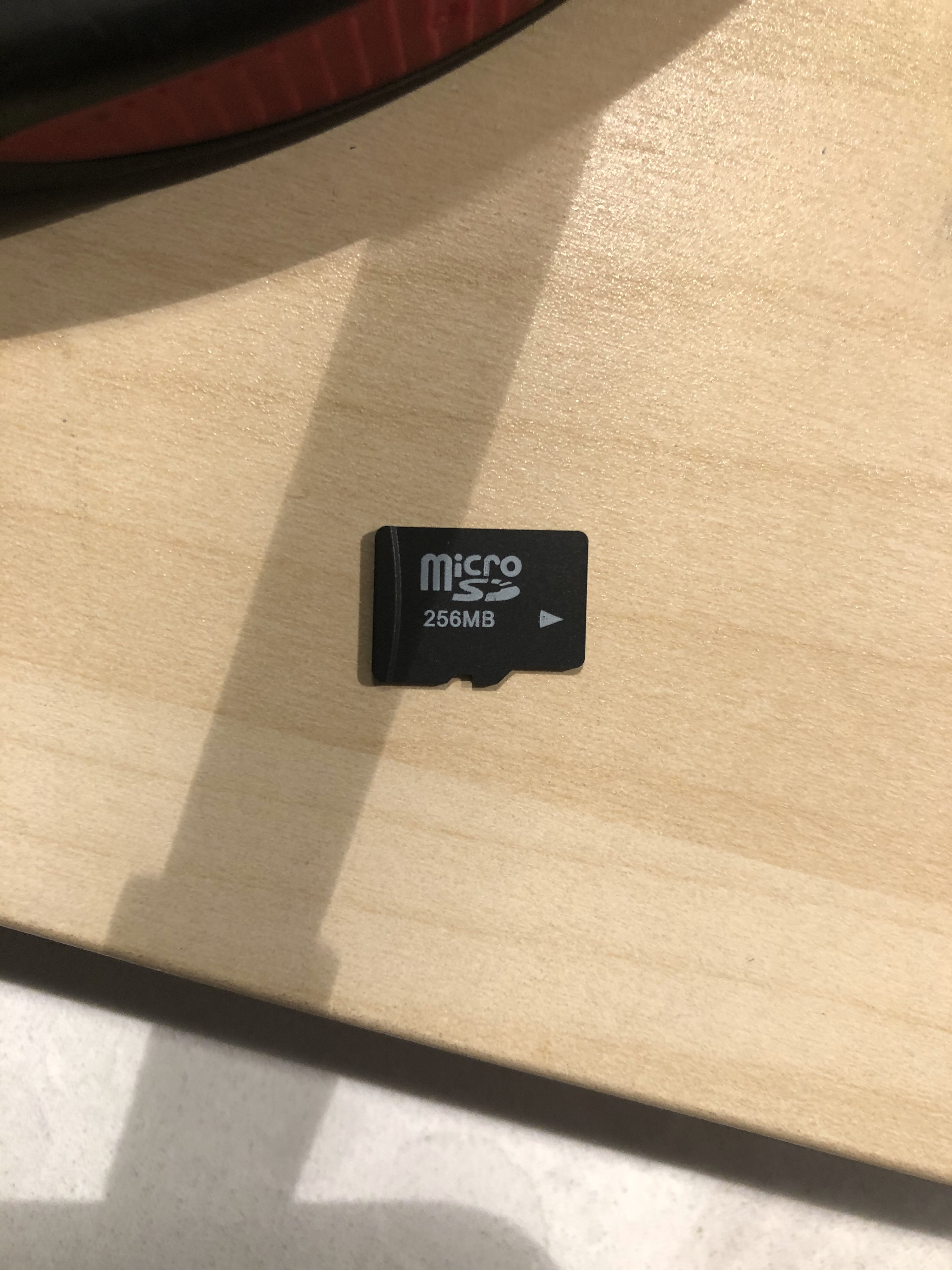
A easy kit to put together, and a fun little project. I now am amassing a wall of these projects, and will have to get a new shelf for this one. Then I will just wonder where Chris found 256mb micro SD cards!

Homelab: Ubiquiti Mesh Link

In my apartment I needed to get wired networking with VLANs across the apartment. I didn’t want to run a wire since I thought my roommate would not appreciate that. I wanted to have a switch near my desk, that allowed different devices I have like file server, desktop, and a few other things to have a wired link; then, connect to the modem/firewall and rest of the networking gear across the apartment.
Long story short, I ended up using a trick I didn’t know would work till I tried it. I have 2 x UAP-AC-M, they work decently well, topping out at 867Mbps and 2×2 MIMO; as well as being able to get them on sale in a 2 pack for a decent price made them a great deal. I have run 1 of them for 4 years as my main access point. Then when I wanted to get this wire connection in a new room configuration I tried to do a wireless uplink to the second one. This makes it mesh with the first access point. Now the important item I don’t seem written anywhere but works well (caveats below):

Ubiquiti access points in wireless uplink/mesh will bridge that network to the wired port on the device

This means if you have a trunk port going into your original/base mesh AP, you will have the same trunk port coming out the other end. This also means anyone who is running mesh points, and hasn’t secured the wired port may want to think about doing so. I am will skip over HOW to set this up, Ubiquiti has a good guide https://help.ui.com/hc/en-us/articles/115002262328 to walk you through it, and most APs can do wireless uplink at this point; this is more about saying it can be done, and works well from my experience to anyone thinking about implementing this or wants a solution for their home/apartment that is not powerline networking. The APs I have are 2×2 802.11AC, I’m sure with a 4×4 AP like the AC-Pro as your base you may see better performance on higher trafficked lines.

This setup has worked well for me for over 6 months now, I can easily hit the 300Mbps I get from my internet connection on a desktop plugged into this meshed AP’s port; I also get 6ms pings to servers while playing games. You get the benefit of real commercial grade antennas and radios in the APs you are using instead of a tiny wifi chip in a laptop, desktop, or device. This also lowers the number of wireless devices (since all the wired devices would have been wireless instead). I also disabled the secondary AP from hosting any of the SSIDs I have in the apartment, so it just works as a wireless uplink. My apartment is not big enough for 2 AP’s for devices.

Caveats

I am looking to move away from this setup for a few reasons. It has worked well and if you are in a pinch I would recommend this setup much more than powerline networking which I have also tried and used several times. I am hoping to move to 10gb/s networking at home with my growing homelab setup; thus, no more wireless link. The other limitation that 99% of people probably would not care about is that you can not do jumbo packets over wireless, so that means it can not be done from all I have read over a wireless link of this type.

Network Topology

The first caveat is that this configuration slightly confuses the access point when it first starts up. The first 60 seconds or so when the access point is online it will think the wired connection is its uplink and attempt to ping out over it. After that it realizes it cant hit anything and will go to wireless uplinking. Sometimes everything just works then, sometimes I have had my switch be confused about where traffic should go and had to power cycle it; in this case it was just a Netgear Prosafe switch with VLANs, not especially smart, but not the dumbest switch. This is similar to a enterprise networks re-converge time when a link is downed. Overall it is rarely a problem and these APs are solid and can go months between restarts, but this is something to lookout for.

Remember that if a Ubiquiti AP cant get an IP, then it doesn’t broadcast SSIDs; this is important since if the base AP boots (like after a power outage) and doesn’t get a DHCP address quick enough, it wont broadcast, then the mesh side will never find an uplink to connect to.

Management

With the earlier mentioned topology issues you can run into, that can make management difficult. You need to make sure the base side of the network is stable. You can get into a position where you did a bad config push or a setting is wrong on the secondary/mesh side and the only way to fix the config is bringing that AP back to the original wired network and pushing a config to it, before the secondary AP can go back into wireless uplink mode.

Dell Inspiron 3050 Ram Upgrade

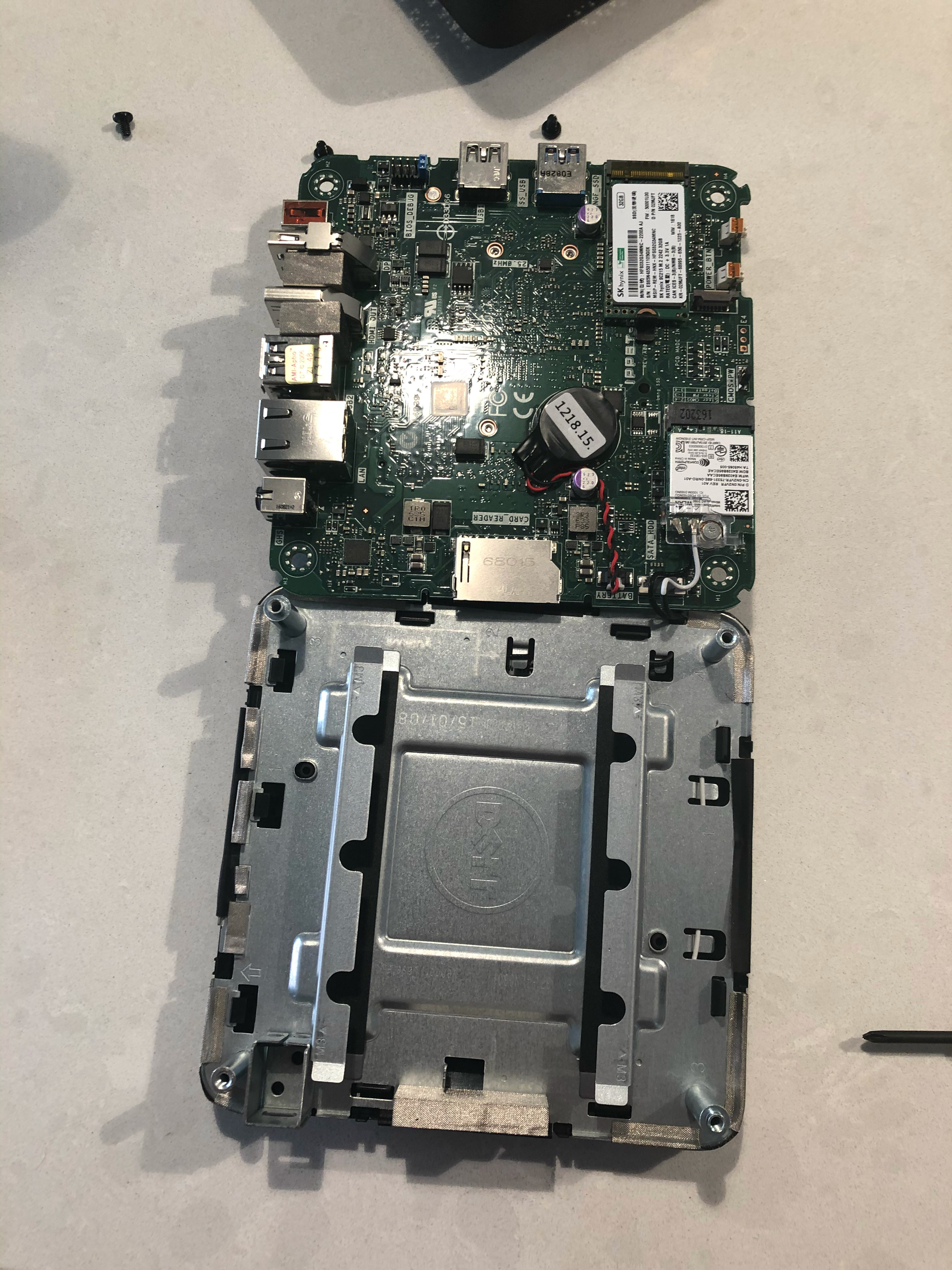
This is a short post about a Dell Inspiron 3050 I upgraded a little bit ago. This is a tiny pc, similar to an Intel NUC. Its a Intel Celeron, and came with a 32GB SSD. I got it for around $150, with an Office 365 subscription; thus it was worth it to me. It came with 2GB of ram, and a 32GB SSD, these days those are not expensive to swap; I wanted to swap the components for 8GB of ram and a 512GB SSD. Below is a short guide with some photos of opening this thing up.

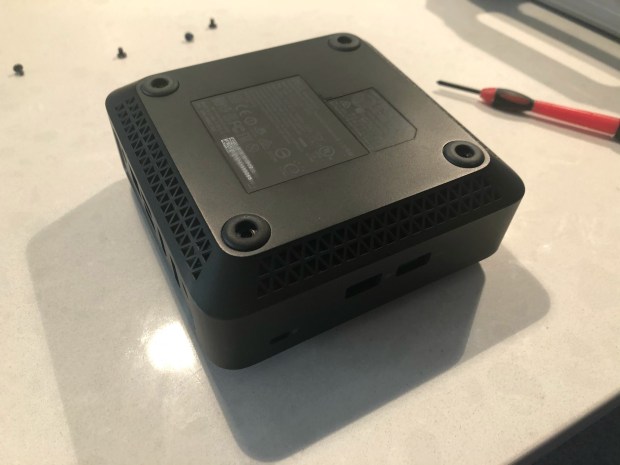
First we needed to remove the case, this involves flipping it over, and taking the 4 screws out that are in the little feet.

Inspiron Bottom

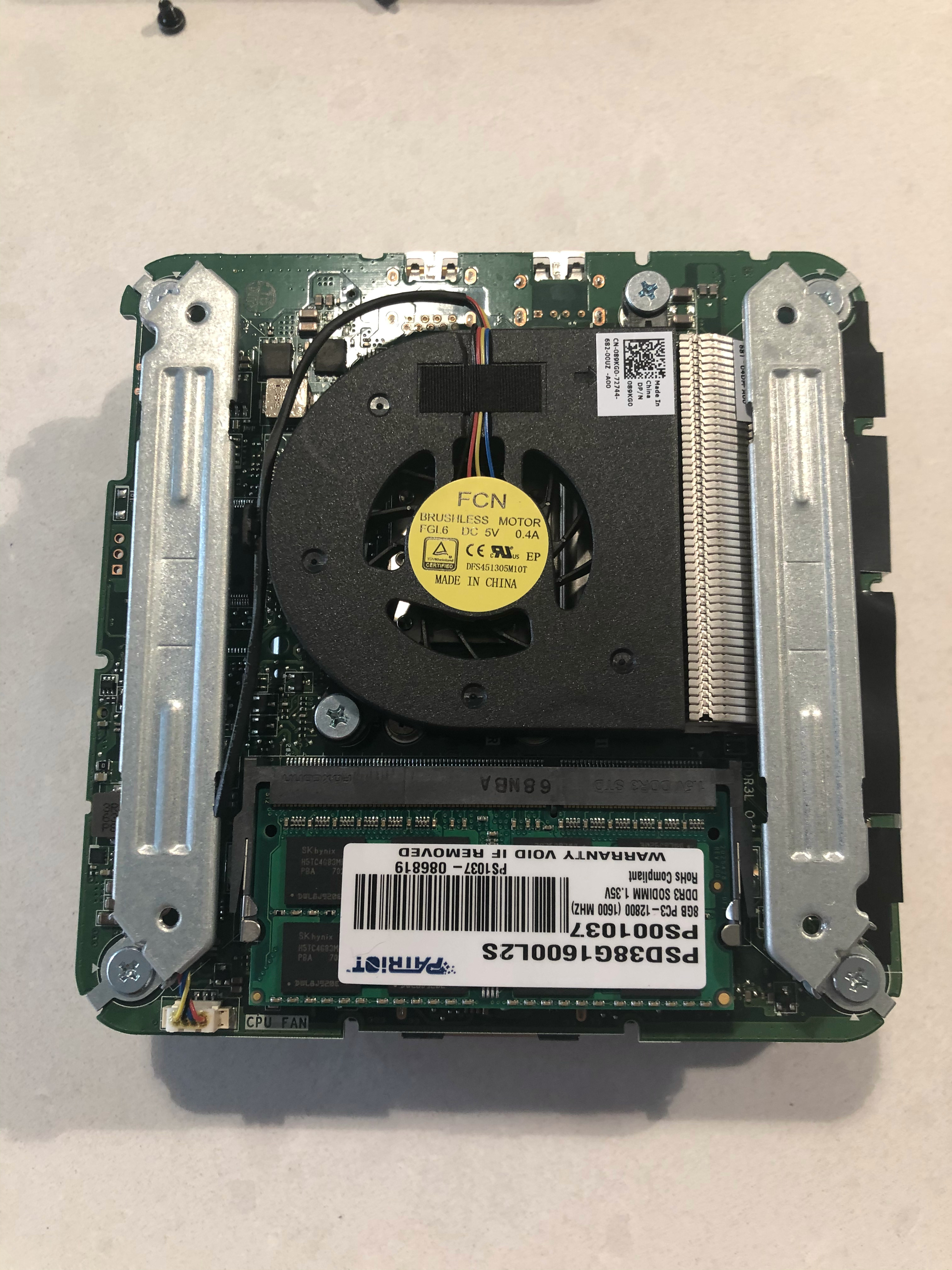
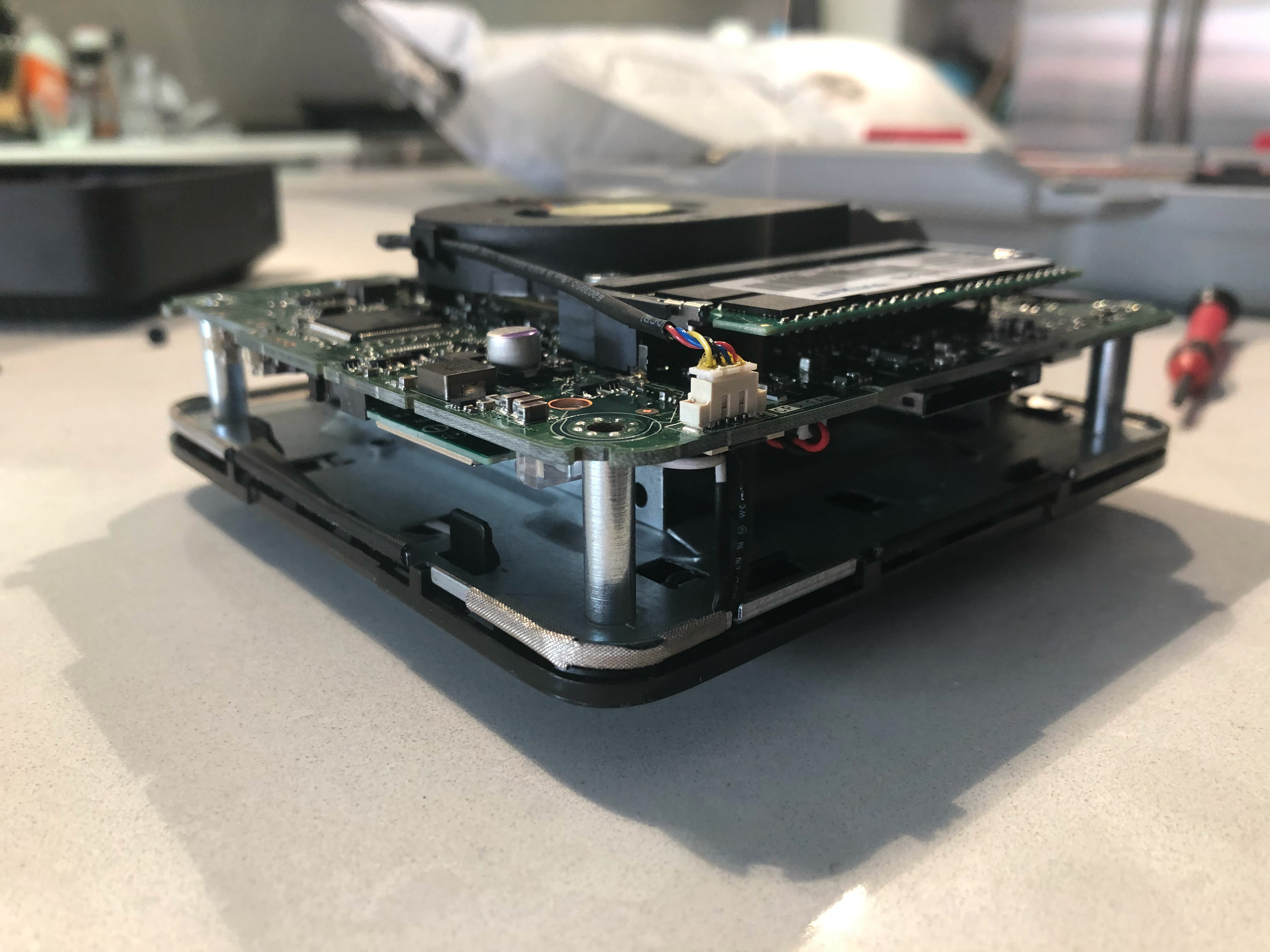
That gives you access to the RAM DIMM. Easy to swap if you want to do just that. Now there are 4 screws at the outer corners, those come out then the board can fold out keeping the antenna and other cables connected. Flipping that over and putting on the table shows the CMOS battery, as well as the SSD.

Underside of board

After replacing the SSD its just a matter of flipping the board back onto the posts, and screwing it all back together. Fairly easy to do, but I couldn’t find a ton of photos online so I thought I would put some up. I ended up installed Hyper-V 2019 on it, the box is fairly slow with its Celeron dual core J1800 processor; but can run a Linux VM or two. Plus its a cute little computer that uses very little power.

One last note about putting it back together, there are little metal spokes that stick out from the top metal mount, those need to line up with the motherboard the system wont go back together correctly.

Little metal spokes

Building a PDP-11 Kit (PiDP-11)

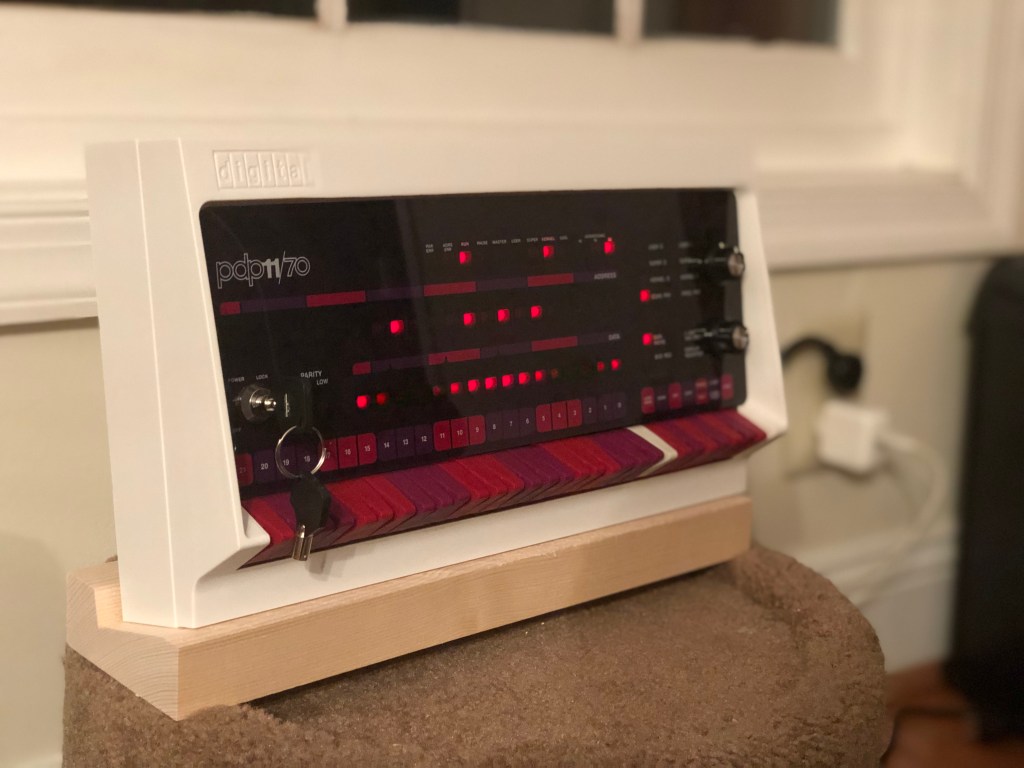
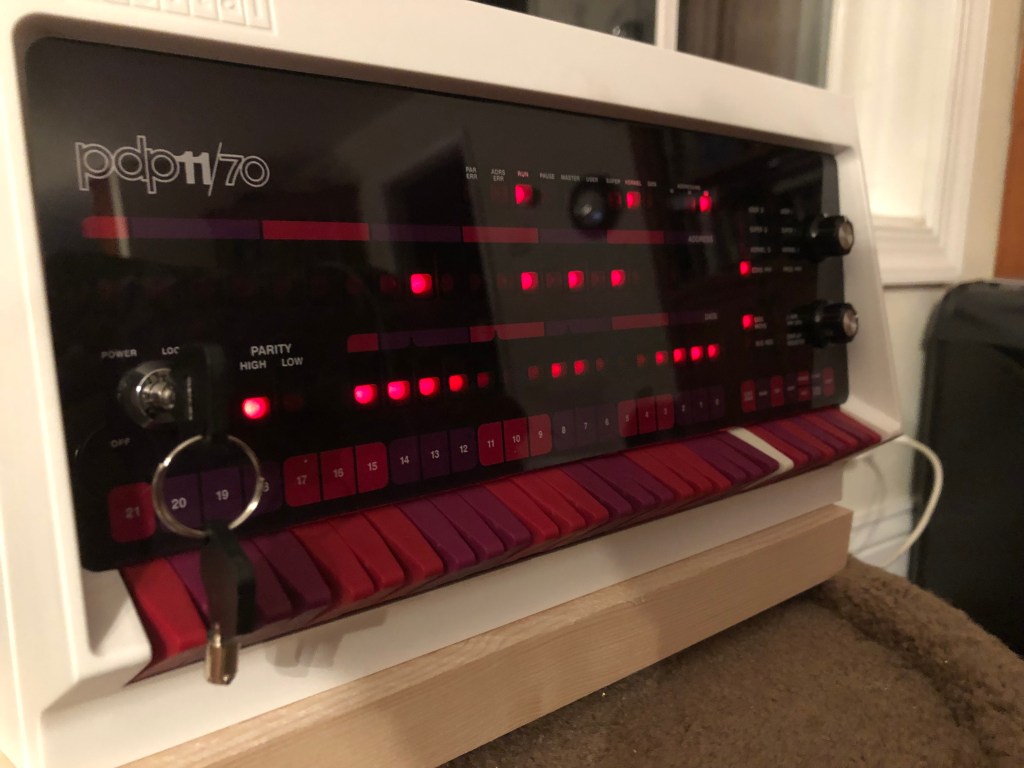
A few years ago I put together a kit from Oscar from http://obsolescence.wixsite.com/obsolescence. It started with soldering, went through setting up a Raspberry Pi image to emulate a PDP-8, and ended with a functioning simulated PDP-8 with working front panel! I was having some issues with one of the integrated circuits; but Oscar, being a great guy, sent me another one and I was able to prove to myself I wasn’t crazy and everything worked. Enjoying the project a lot, I was excited to see he has started production of a PDP-11 kit, this time with a nice plastic injection molded case, and compared to my rev 1 PiDP-8, nicer switches. So I had to order one.

I was able to get the kit working within a few hours of starting, I think part of this is Oscar has gotten better at making these kits; with having the board illustrate where parts go, and having a clean layout, it was fairly easy to put together and solder up. Also my poor soldering skills may have gotten a bit sharper.

While I was at it, I thought I would get my brother a kit so he could get into soldering, which he hasn’t done much of. In going through the instructions I found them a bit light for a novice. To remedy this, I took a bunch of photos during the process and will post them below. The official instructions have more details so I intend just to be additive to those with additional hints, details, and photos.

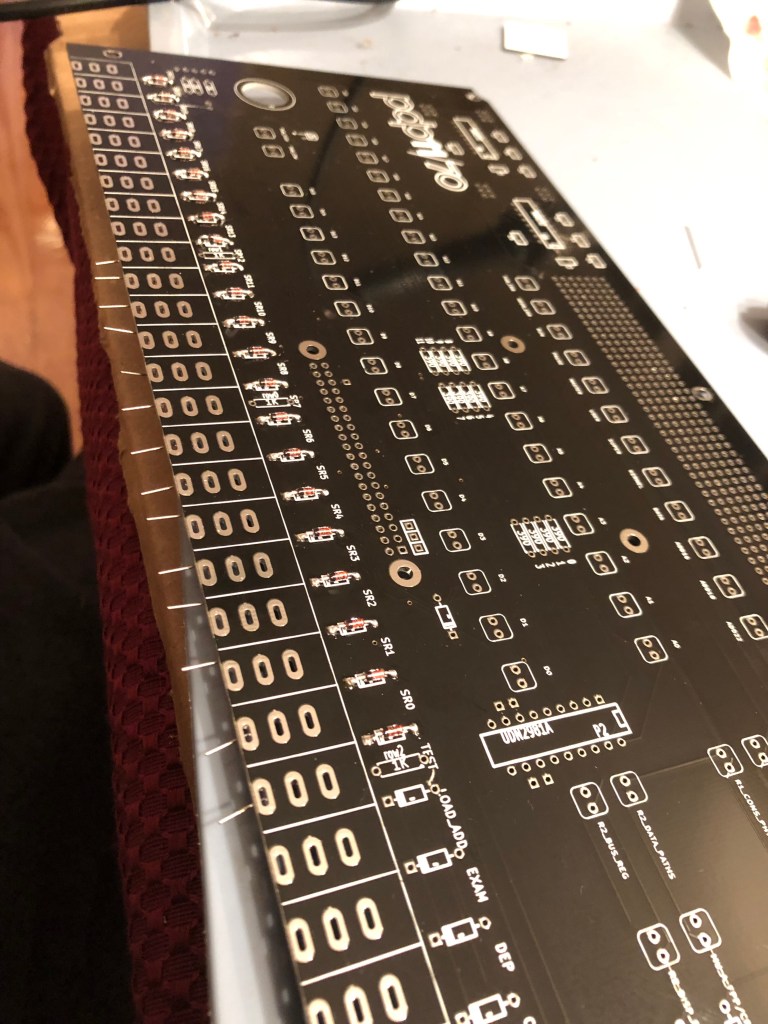
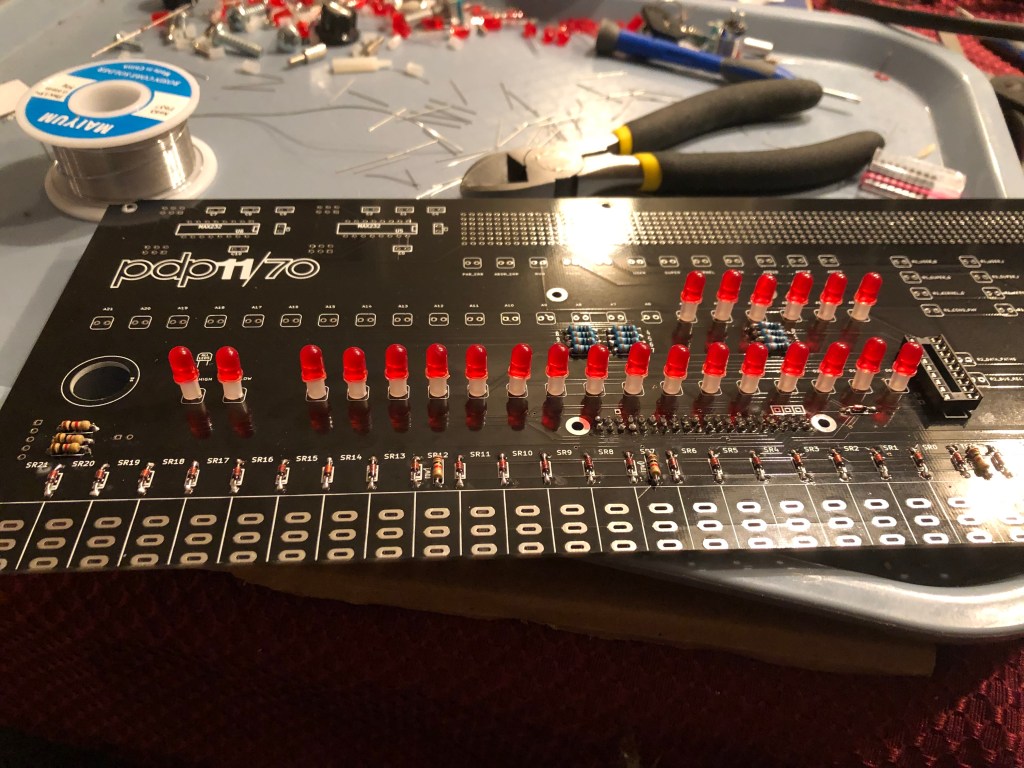
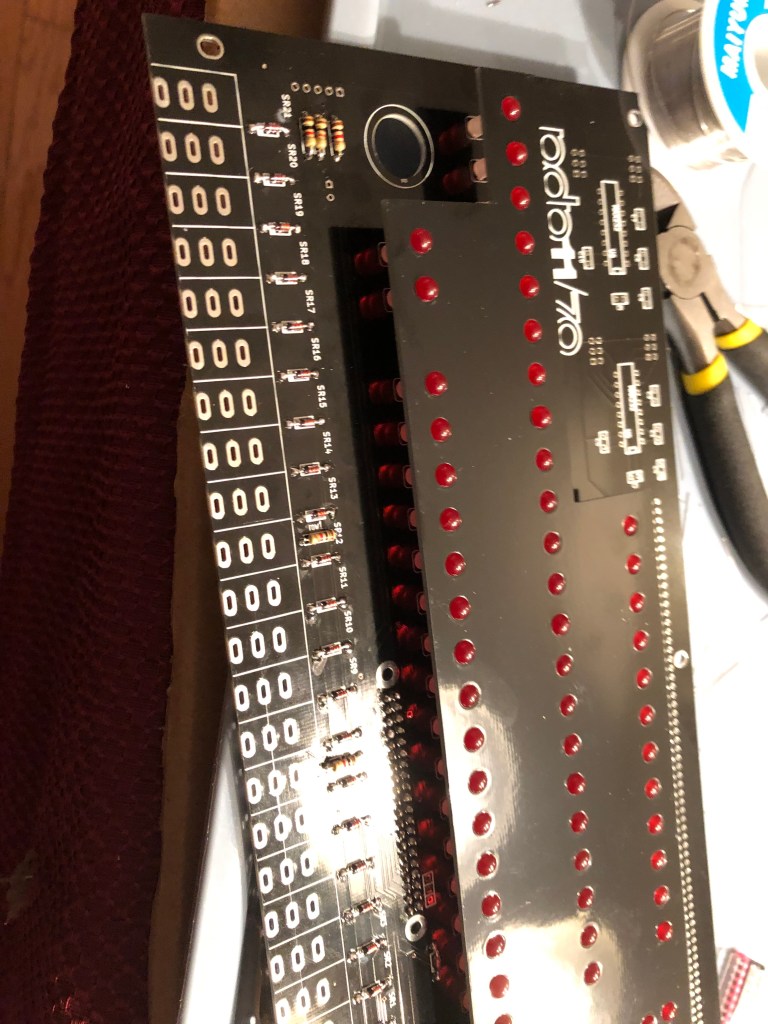
To start, 30 diodes must be soldered to the board, followed by a few resistors. The tan ones are the 1K ones and go in between some diodes on the bottom row, these spots are labeled “1K”. The 390 ohm resistors go in their labeled spot in the middle of the board. These are put through the board, soldered in, then their legs are cut. Polarity doesn’t matter for these.

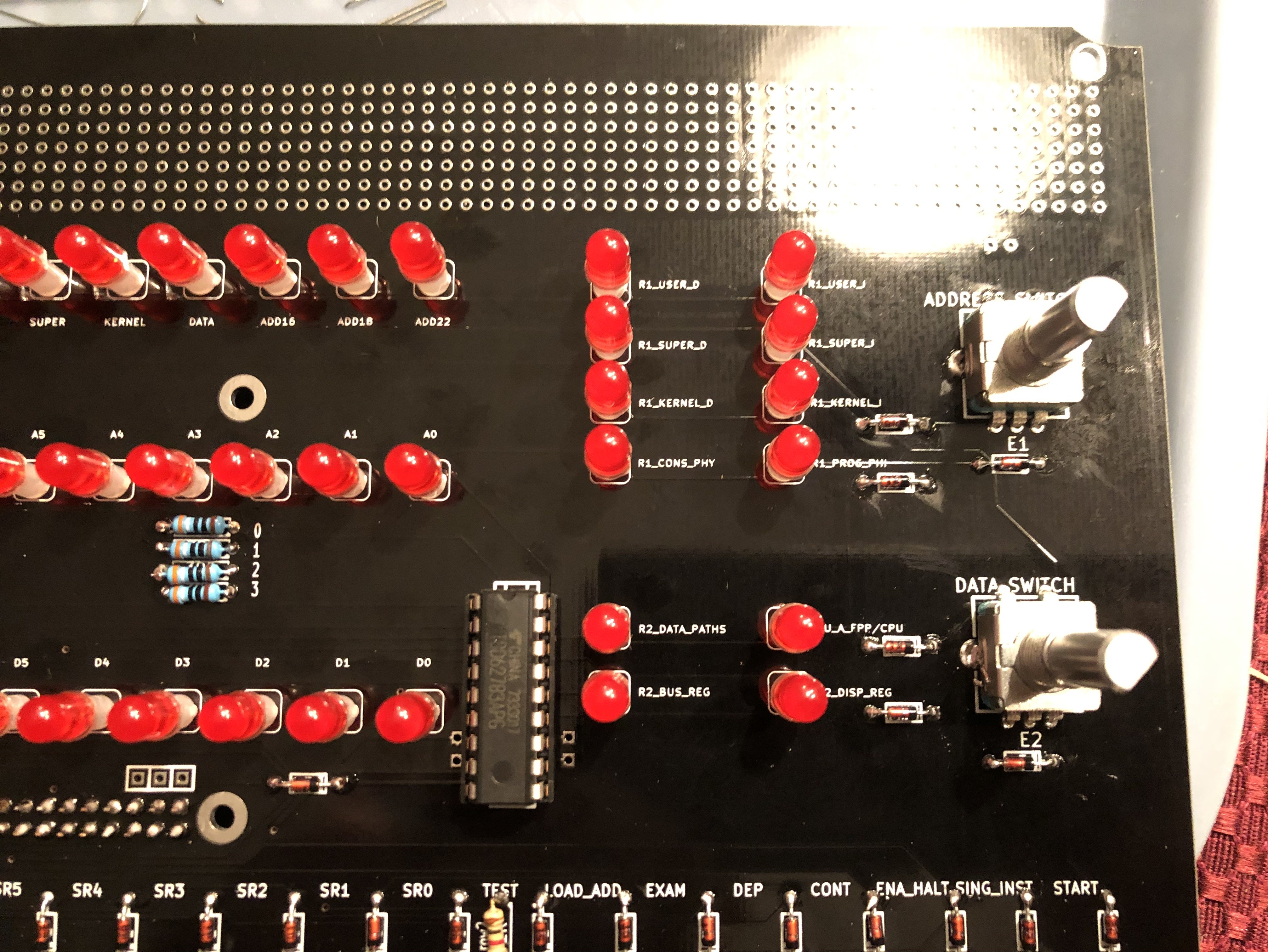
Now the GPIO connector for the Raspberry Pi can be soldered in THE BACK of the board, making sure its flat. Followed by the chip socket that goes on the front, in the middle-ish near the rotary encoders. Don’t solder this in with the integrated circuit in it. Note my board is a newer one with some expansion options that Oscars site doesn’t show, make sure to use the correct chip socket location.
Later photo with chip socket and chip installed

This step is the longest and a bit tedious, you need to get 64 LEDs, each with a little riser, and stick it into the board with the correct polarity. That is long leg matching the icon to on the board, for me it was to the left.

Soldered LEDs with board indicator

Now there is a piece of board that comes with the kit, that can sit over all the LEDs to line them up, and once they are all in straight and aligned, they can be soldered in. I would recommend not snipping the legs off until you have tested and are sure they all work. The last soldering steps are to solder the rotary encoders in. After that put the integrated circuit in the socket, and test it out!

Oscar has a bunch on how to test the board so I will leave that to him. One note I will add, my Raspberry Pi had to be a good amount in the socket before it would work well, but this led to the RJ45 port hitting some of the LED contacts and shorting a row. I found getting the anti-static bag the Pi came in, and placing it between the top side of the Pi and the board solved all these problems.

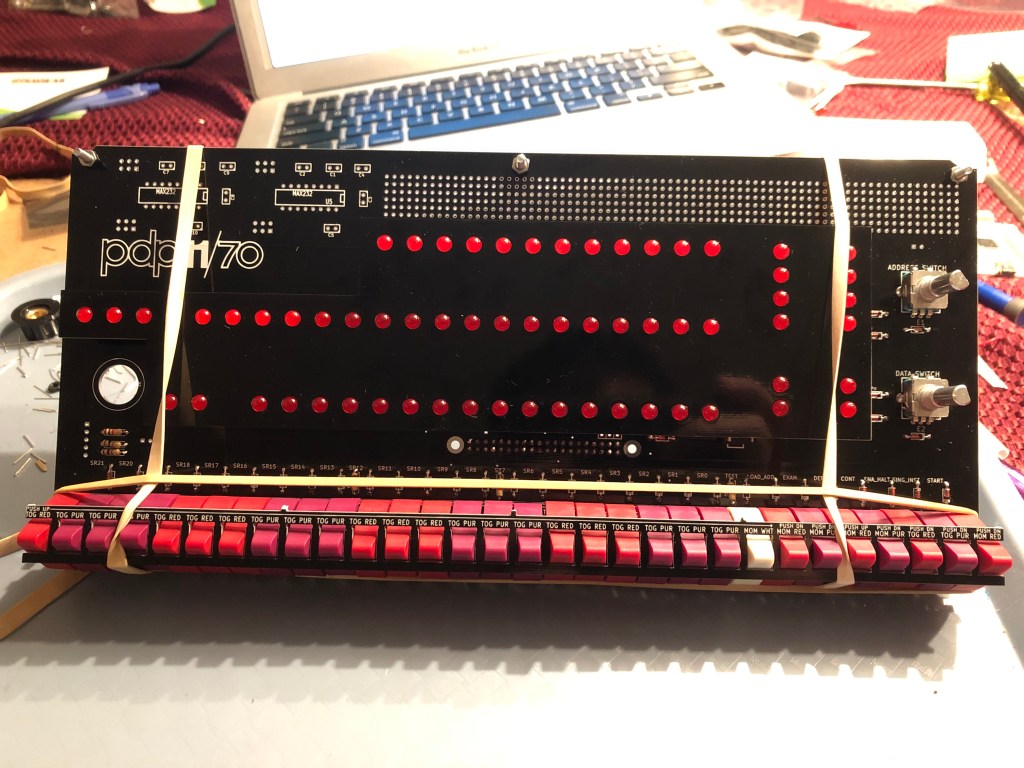
Jumping ahead, I want to mention putting the switches in since this is the one other part of the kit that is a bit confusing and may give people issues. Using the switch lining up tool, that is included with the kit, I found the easiest way to hold everything in place and solder was suggested by Neil over at the PiDP-11 Google group, https://groups.google.com/forum/#!topic/pidp-11/E-RMRVQ15NQ%5B1-25%5D

Neil’s way to hold switches in place

Using this technique, I was able to solder the switches in easily and without difficulty. Follow what the tool says and you should be good. Make sure you are in a well lit room, since in the dark the red and purple can be a bit hard to distinguish.

Using this technique, I was able to solder the switches in easily and without difficulty. Follow what the tool says and you should be good. Make sure you are in a well lit room, since in the dark the red and purple can be a bit hard to distinguish.

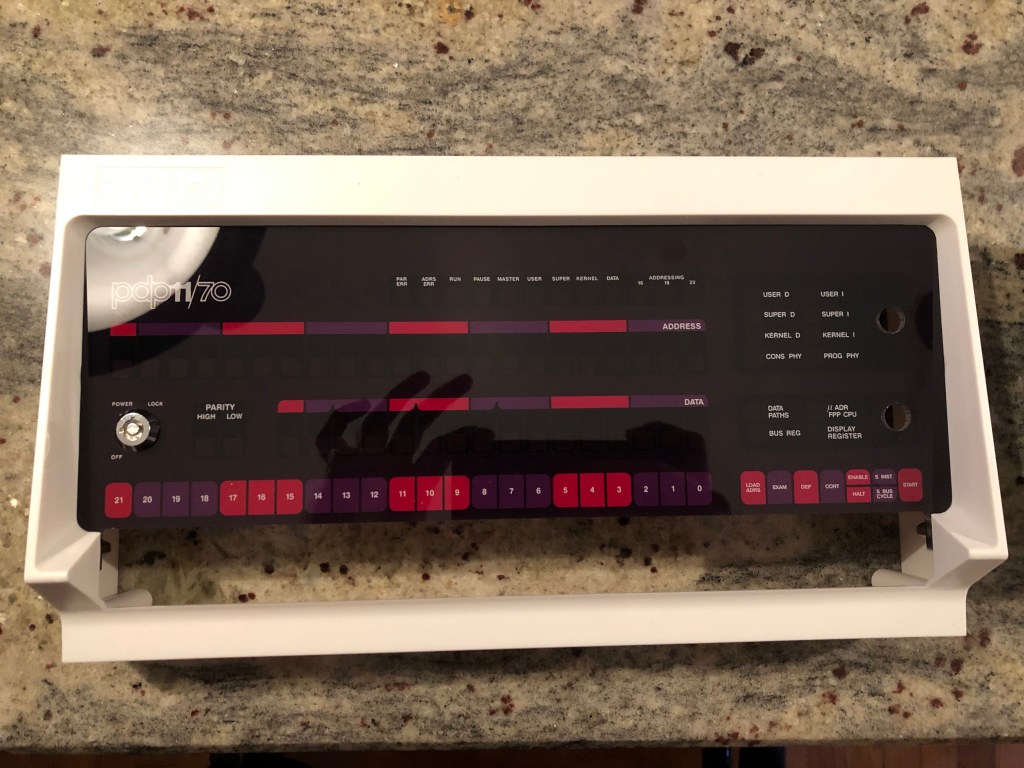
Finishing up, consists of more testing with the Pi installed; then going and screwing it all into the case. Be careful, these don’t need to be screwed in very tightly and you can fairly easily crack the acrylic (this I have learned from other projects in the past).

This was a fun kit, and I hope Oscar keeps making more of them. If you have any issues head on over to the PiDP-11 Google Group, and if my guide helped out out, please let me know in a comment below. 🙂

Building a Classic Mac Inspired PC Case

Over the last few months I decided my aging 2012 i5 wasn’t enough to play the latest games. The biggest deciding factor was in I playing Battlefield 1, all 4 cores it had went to 100% and stayed there until the game was over. Not being a stranger to building PCs I quickly put together a a build I wanted involving a AMD Ryzen 2600X, kept my NVIDIA GTX 970, and got the other RAM (16GB for now) and SSD (Samsung 970 Evo 512GB) pieces I needed. Then I had the idea that this time I should not just buy a PC case, but do something interesting. My first thought was to get a Classic Mac that was broken and then put my PC inside that case. I got a classic Mac, and then quickly was able to get it working again…

mac_classic

At this point I had also done some math, and my 11″ long GTX 970 would not fit anyway into that case. And at this point the decision to make an Mac-Inspired case was made. I designed a case, a bit larger than the original by an inch or so in Illustrator, then went and laser cut it. I ended up giving myself another inch, so that I could get a Mini-ATX motherboard over a Mini-ITX one. This gave me 4 DIMMs for ram over 2, and an extra PCI slot for the future. Note: some of the final designs on Github don’t perfectly line up, or have holes that are not positioned right; mostly this is only for the lid, but since it is held in by gravity I did not do extensive work to fix the issue.

To go back to the start, I liked the little screen on the front of the original Macs, my thought was if I had a tiny PC like a Raspberry Pi running the screen, I could have it show information about the computer. And then via a relay turn the main PC on and off. I also figured this PC could be used to play music/videos, and have a KVM that would switch over to the main computer, then back again. That idea was going until I got everything in the case and realized it was very tight. At this point I also just wanted the machine to work so I could play games, so the second computer and KVM idea was scrapped.

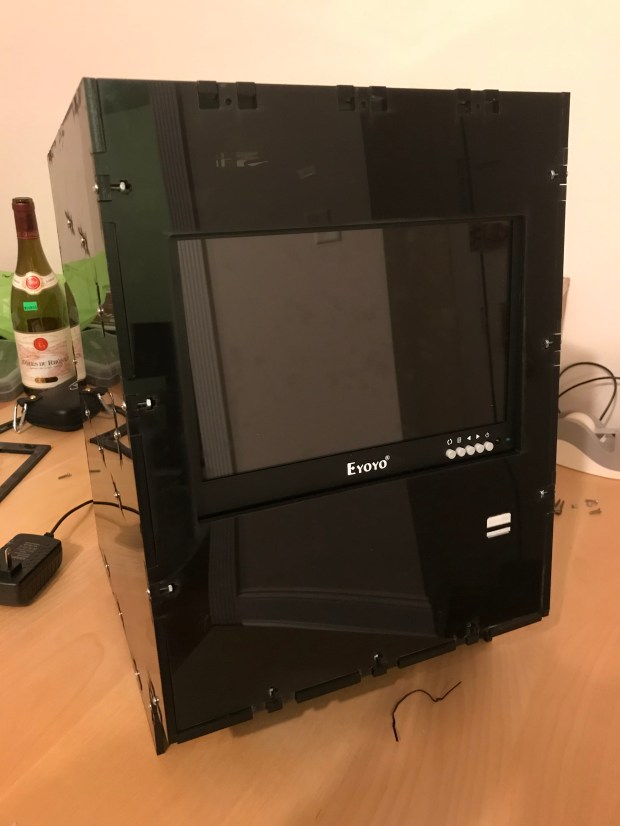
The front screen is a touch screen, as well as a secondary screen to the main monitor. At 1080P I can put Spotify on it and have touch screen controls, or play movies. I tend to leave a GPU and Task manager on it while playing games to see how much I am using the system. I have had these Eyoyo brand screens at work before, they are cute, fairly inexpensive (~$90) little screens that offer a lot of inputs (HDMI, VGA, Composite, BNC); their main draw back is the LED on the front is brighter than the Sun.

General Construction:

The main method of construction for the case is “Interlocking T Bolts”, as described in https://www.instructables.com/id/How-to-Make-Anything-Using-Acrylic-and-Machine-Sc/ . This allows 90 degree acrylic pieces to snap together and hold together tightly. The primary design has the two sides doing the main support and sitting on the table, with a few layers internally. This has the added benefit of not having the motherboard sit on the ground. I left a good amount of room over the motherboard for airflow, then have 2 fans out the back, and 2 out the top. The main air comes in the front, and then goes over the GPU and motherboard to go out the back and top. The motherboard I got only had 1 fan plug on it, so I used a fan multiplier.

20180718_183746638_iOS
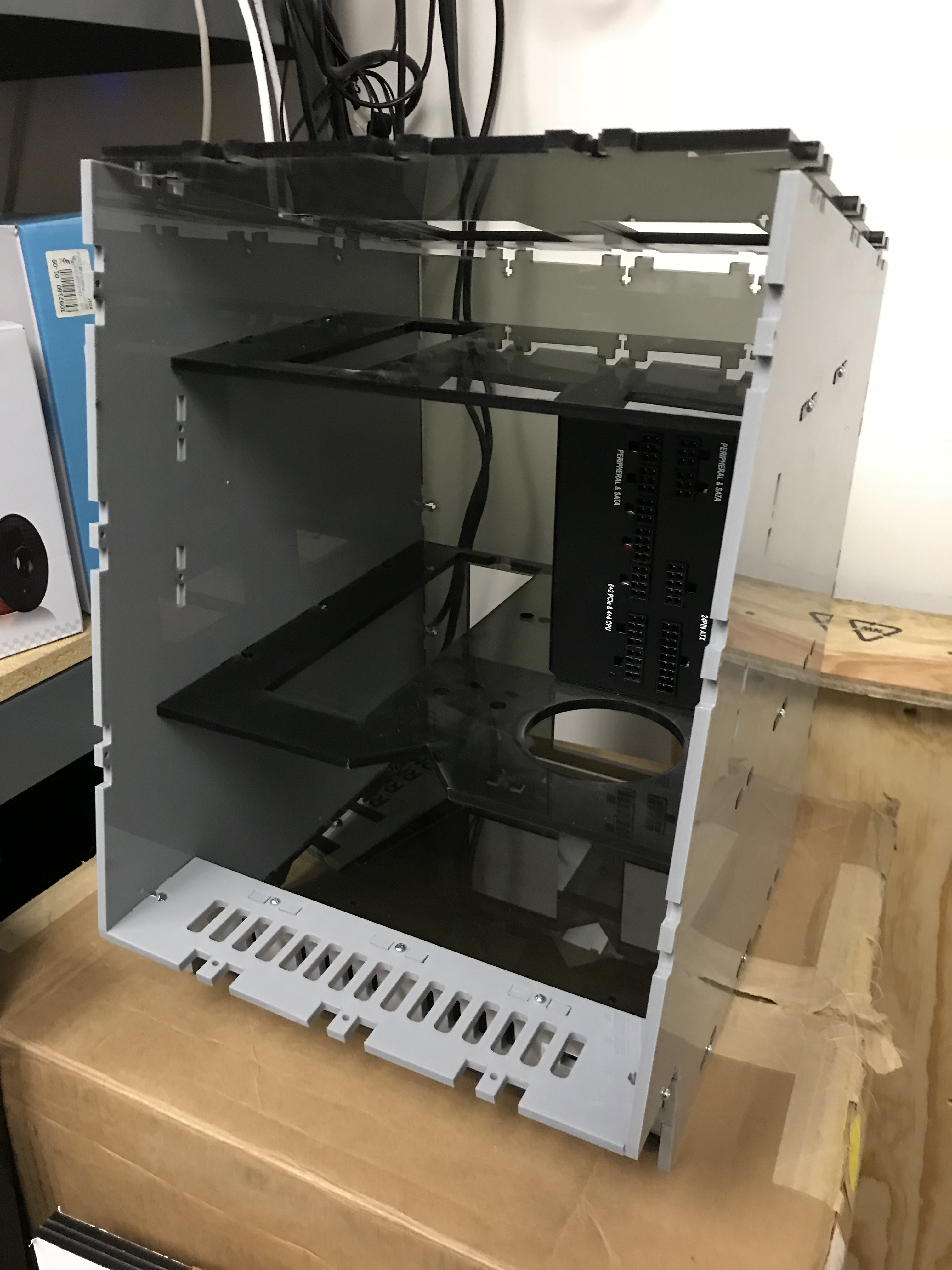
Empty early case

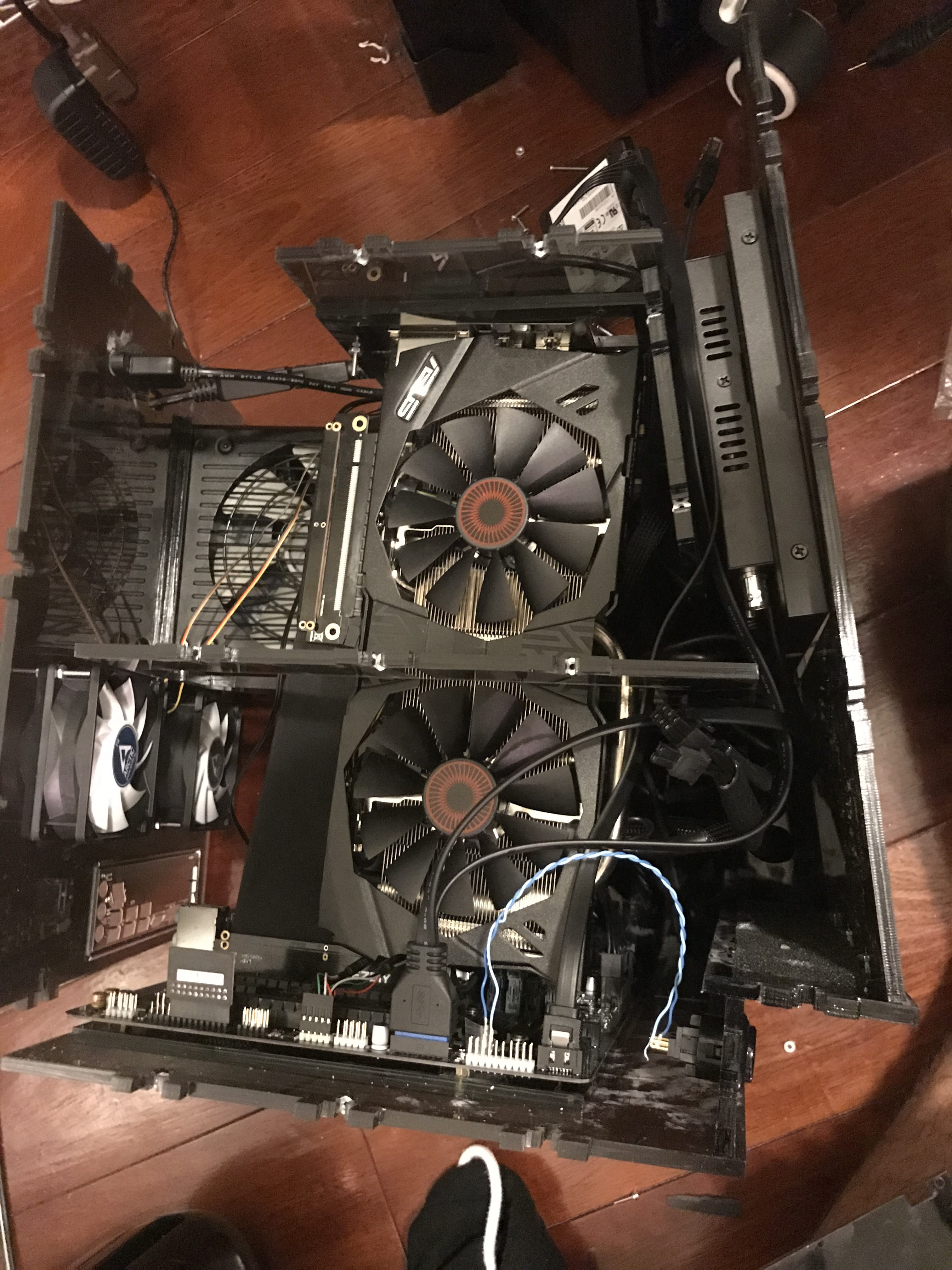
The bottom has an area for the motherboard to go in via a tray. The second layer of the case has a screen mount in front, then the PSU sits flush with the back. A hole brings the power cables down to the motherboard from the second level. On the third layer, the graphics card exhaust, and ports go to the front screen and the two back hookups, and I put the fan distributor. I needed to be careful with wire management at this point since there are a lot of cables up top, and the fans up top as well.

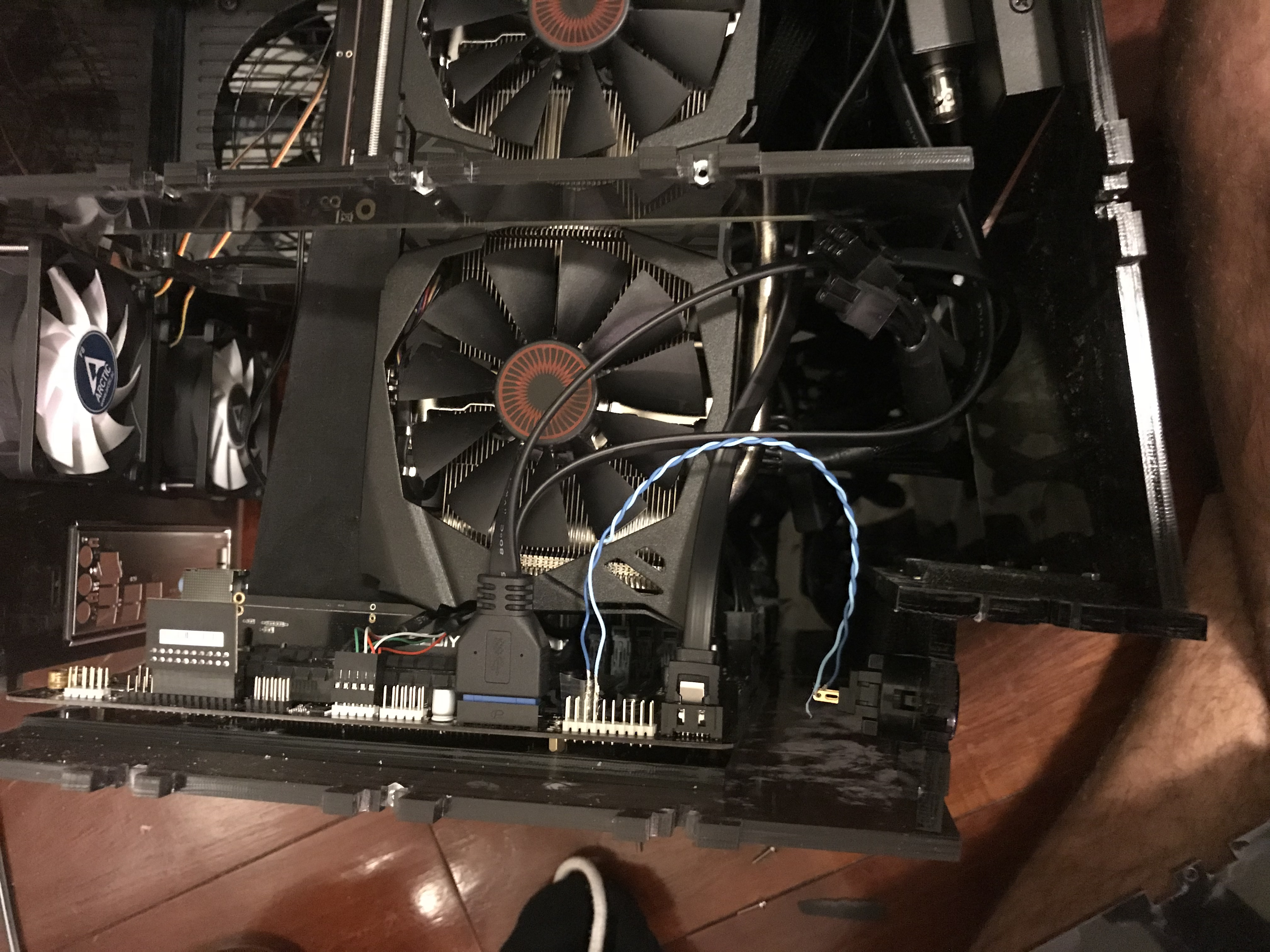
The hardest part was getting the graphics card to stay. Its held in place by a bracket, and then I used a piece that I am usually opposed to, a PCI Express Extension cable. So far, after a few months of use, it has worked perfectly.

The side walls hold the whole case together, I found putting a lot of the middle pieces into one wall, securing them, then laying that wall on its side lets you easily add the other wall to the top. Note, I do this without any components in, once they are in taking the case apart is much more difficult. The front grill has to go in when the middle pieces do, since it is also secured on both sides and can’t slide in and out. The top, back, and front pop on after the middle pieces are secured. Its a good idea to keep the side screws loose till the front and back are in since sometimes you need a little wiggle room. These last pieces don’t need to go in till the last second though, since they give access to the motherboard, and screen.

The power button ended up being an arcade button I had laying around from another project. I did put a USB 3.0 port out the front, where the original Mac had a keyboard port.

Materials:

Most of the things in this list are self explanatory. RAM with LEDs is silly, but then it was a few dollars more and looked cool so I got that, I obviously had to get it. The air conditioner foam I put on the inside of the front grill where most of the air comes in to filter the air for dust. I found nice 80mm fan grills online, they work so I have something to screw the fan into, as well as keeping dust/fingers out of the fans. I got HDMI and DisplayPort extender cables to go from the graphics card to ports in the back of the case.

20180731_174607167_iOS
Front of case with PSU in back

The motherboard stand offs are a must. The motherboard tray has larger holes than the standoffs by a good amount. To hold the standoffs into the motherboard tray, I screwed the standoffs on the motherboard, then put the ends of them onto the tray while the motherboard was upside down. Doing this, I was able to put super glue in the holes of the tray and stand offs to hold it in place. This isn’t the best, but I was having issues of getting exact Mini ATX dimensions and this worked for me. Just make sure to not get super glue on the motherboard. Then the motherboard can be removed and the tray screwed into place of the main case.

Before getting all the PC components into place, I got the front screen bracket installed, then installed the screen itself, running all the wires where they would be easy to get to, and also out of the way. I got the motherboard in the bottom of the case, followed by wiring the PSU. As mentioned before, now the hardest part was getting the long graphics card in, it sits with the normally external PCI plate at the top of the case, and is slotted in from the top. I got the card straight down the hole, then used bolts and washers to secure it up top, with the help of a laser cut bracket. Once the PCI-express extension ribbon, which aren’t may favorite but needed to make everything fit, was in place, I tested powering it up. Once everything was working it came down to installing the solid state drive, and mounting it where I wanted it, and wiring up all the assorted fans.

For software, I am running Windows 10 Pro with UEFI. Also because its 2019 I decided to get a TPM chip for this motherboard, and use Bitlocker for whole disk encryption. There is not a real performance hit these days so why not.

In the end it was a fun project, but took slightly longer than I had hoped. The things I was originally worried about, airflow and the PCI ribbon, have turned out not to give me any issues. I tend to not use the screen in the front too much, and the system is not too portable since the 1/4 inch acrylic is a bit heavy, but it looks neat next to my desk, and in the end, wasn’t that the point?

A small shout out to a new store in NYC, I am a member of Fat Cat Fab Lab (http://fatcatfablab.org/), and they have a new store near by for Acrylic. MakerKraft, a division of BeadKraft, offers free shipping to the lab at prices that are very reasonable. I also had issues with my order and they called me, offered options, and a discount, very nice people doing great work. If you are in or around NYC and need acrylic, https://www.makerkraft.com/ is cheaper than the Canal Street places at this time. Note: I am not paid by them, just had a really good experience.

Ryzen 2600Xhttps://www.amazon.com/gp/product/B07B428V2L/
GIGABYTE GA-AB350M-DS3Hhttps://www.amazon.com/gp/product/B079NH98GS/
Corsair Vengeance RGB PRO 16GBhttps://www.amazon.com/gp/product/B07D1XJWSJ/
Samsung 970 EVO SSD
Air Conditioner Foamhttps://www.amazon.com/gp/product/B000BO68BU/
80mm fan grillshttps://www.amazon.com/gp/product/B0040JHMHQ/
80mm fanshttps://www.amazon.com/gp/product/B002QVFN7G/
EZDIY-FAB New PCI Express PCIe3.0 16x Flexible Cable Card Extension Port Adapter High Speed Riser Cardhttps://www.amazon.com/gp/product/B01NH0GW7Z/
228pcs Personal Computer Screws & Standoffs Set Assortment Kit for Mother Boardhttps://www.amazon.com/gp/product/B01I4SOVDG/
4-40 Screwshttps://www.amazon.com/gp/product/B07B7K9NKC/
4-40 Nutshttps://www.amazon.com/gp/product/B001B2QP3C/
1″ 4-40 Screwshttps://www.amazon.com/gp/product/B07B7K63CF/
HDMI Extenderhttps://www.amazon.com/gp/product/B00VUFQH4C/
DisplayPort Extenderhttps://www.amazon.com/gp/product/B07CYY2J41/
USB3 Motherboard headerhttps://www.amazon.com/gp/product/B010NBLRHK/